

Disable Two Factor Authentication
You can disable Two Factor Authentication (2FA). Once you disable Two-Factor Authentication, you can log in with your password only, and no OTP is required to access your Kaleyra platform. Two-Factor Authentication means turning off the extra security step that is required when you or anybody in your team log in to the account.
To disable Two Factor Authentication, perform the following steps:
-
Sign in to your Kaleyra platform.
The Channels page appears.
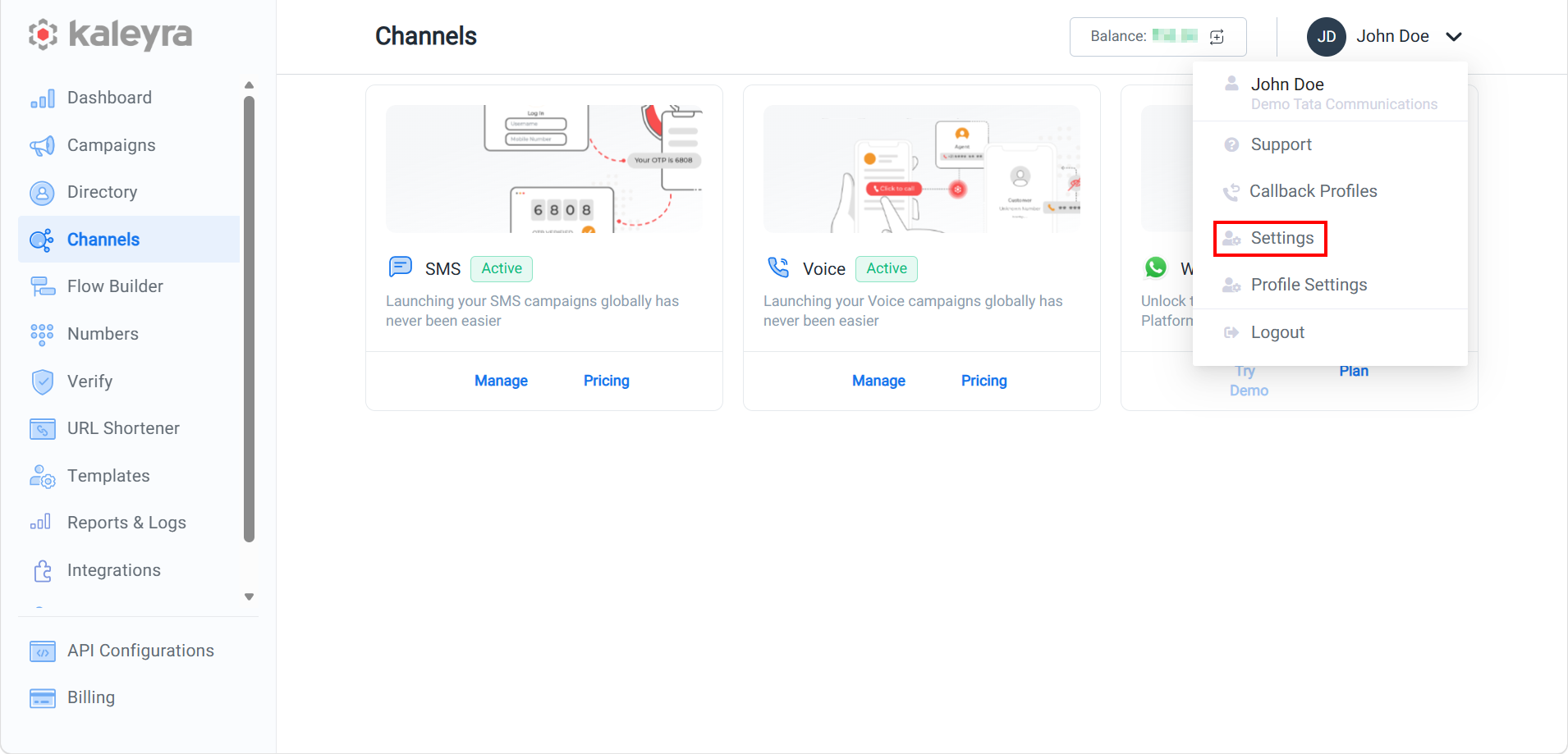
- On the profile settings drop-down list, select the Settings option.
The General Settings page appears.
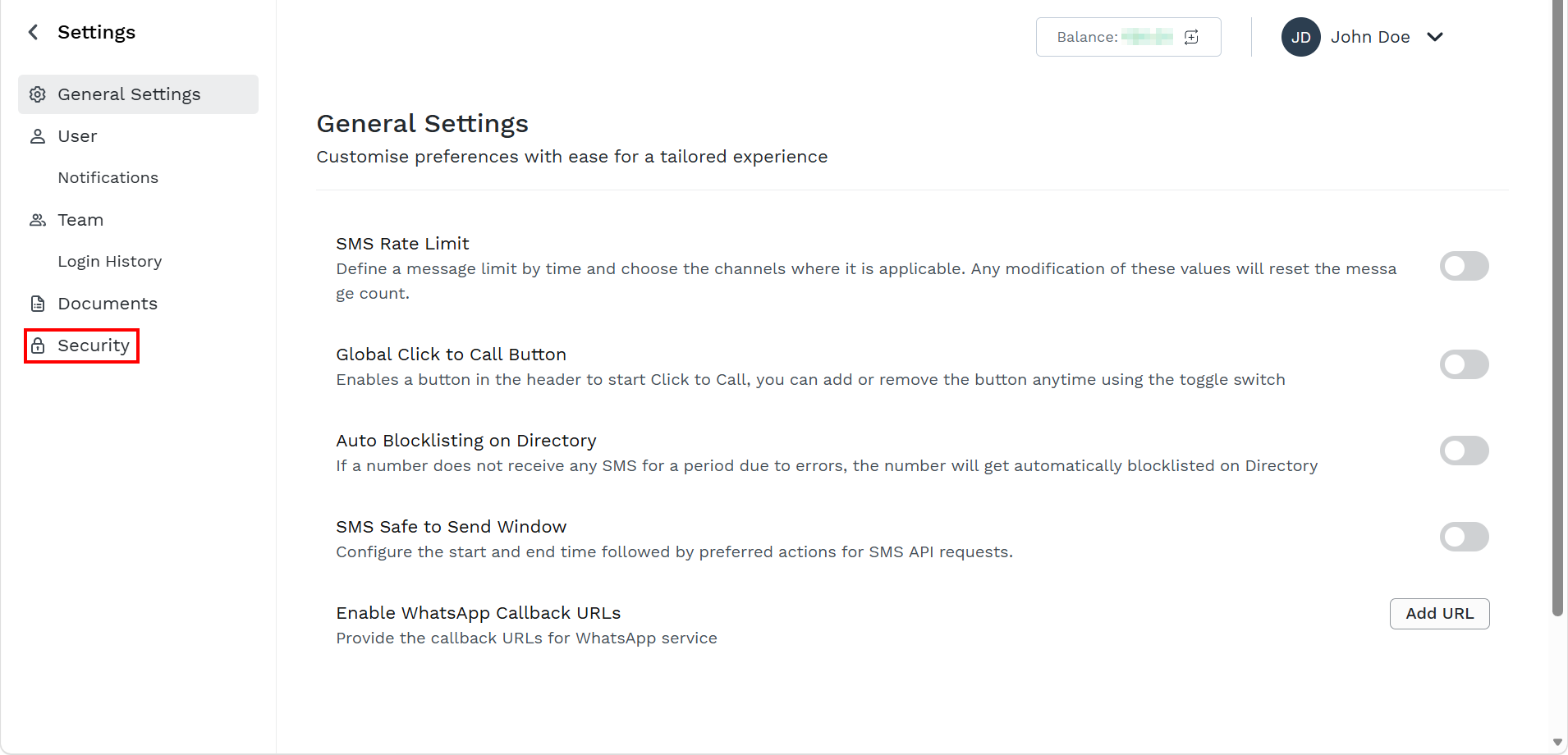
- On the left menu bar, click Security.
The Security page appears.
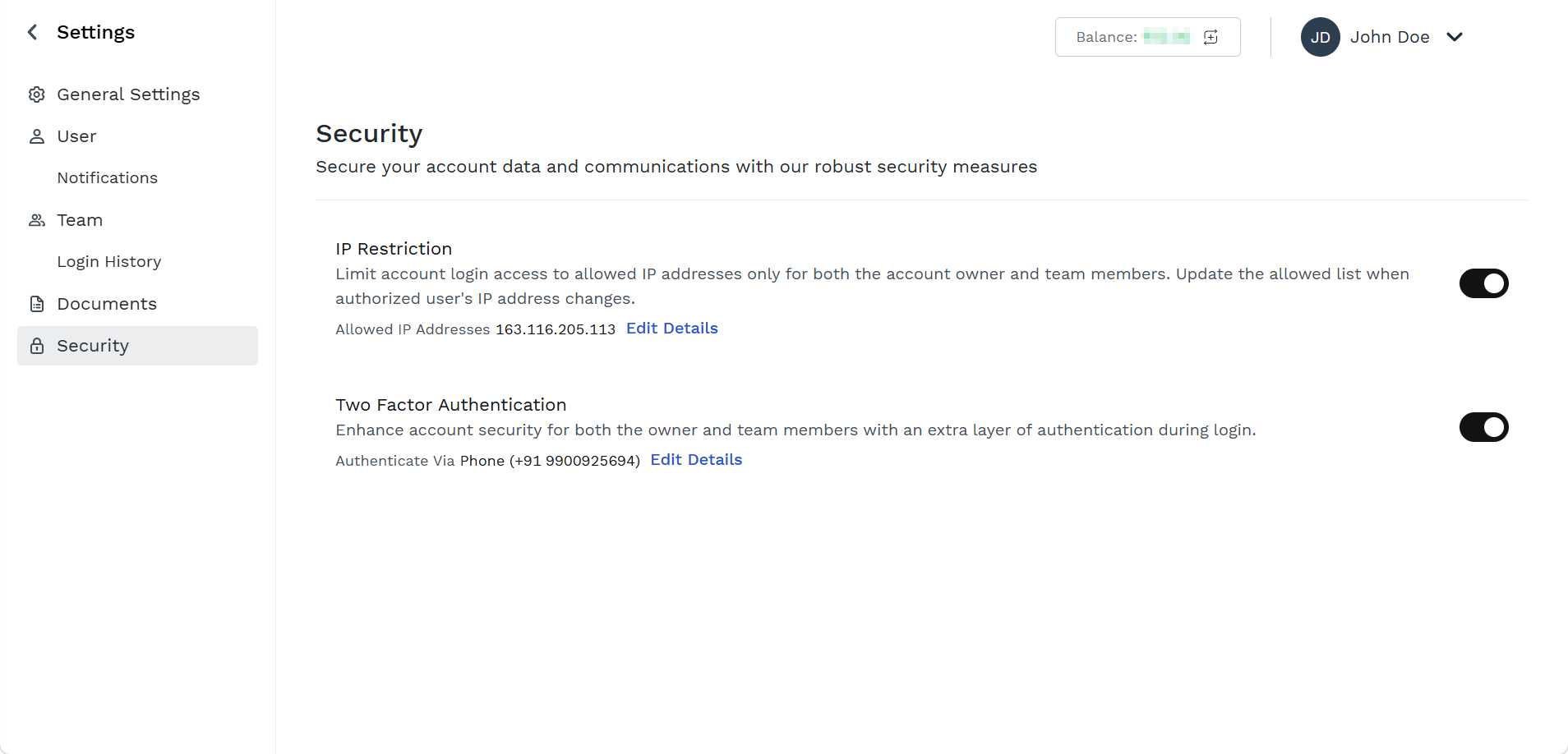
- Toggle Two Factor Authentications to disable the 2FA.
The Disable Two Factor Authentication pop-up appears. To confirm the operation, you will receive an OTP code over your email address or mobile number based on the current 2FA configuration.
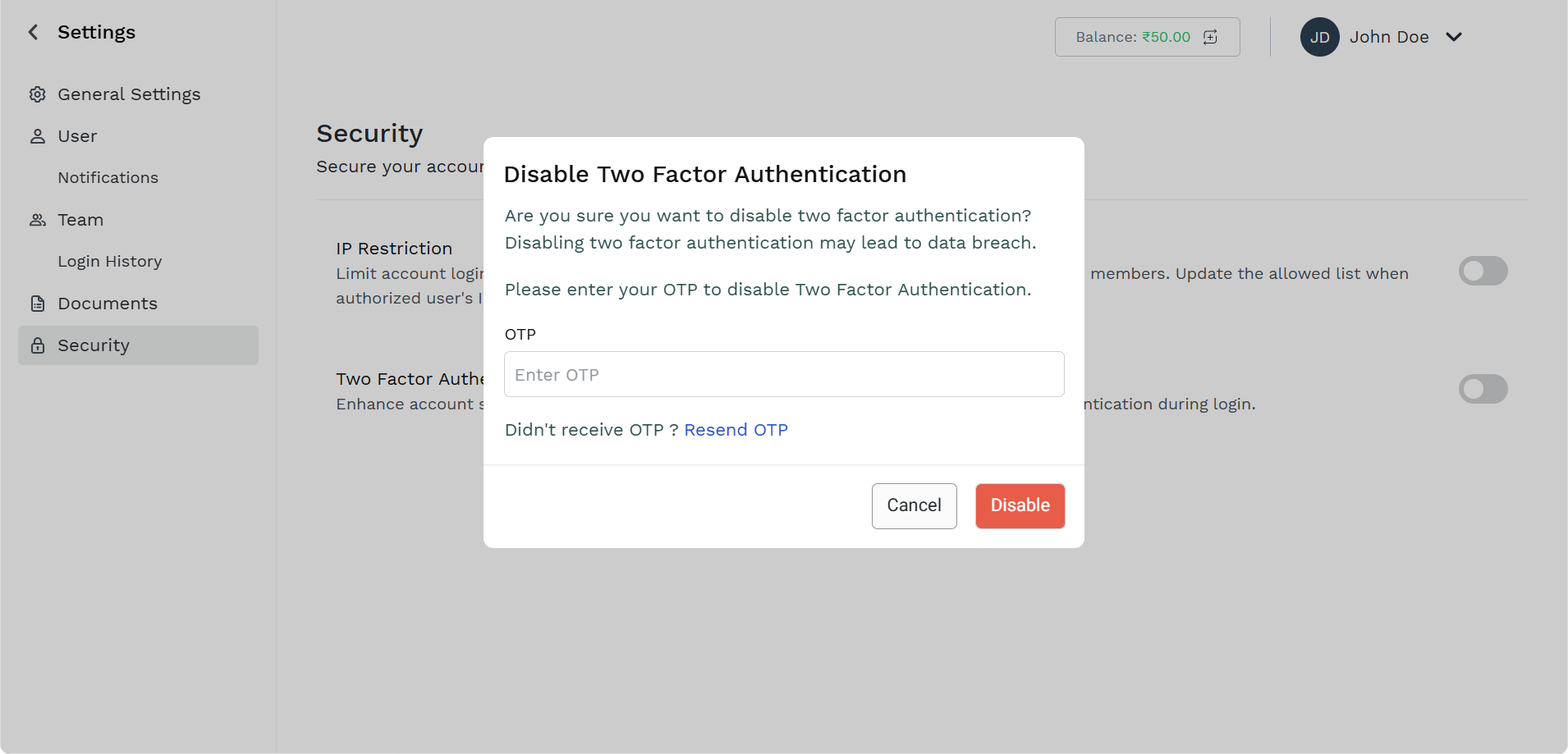
- Enter the OTP to disable two factor authentication.
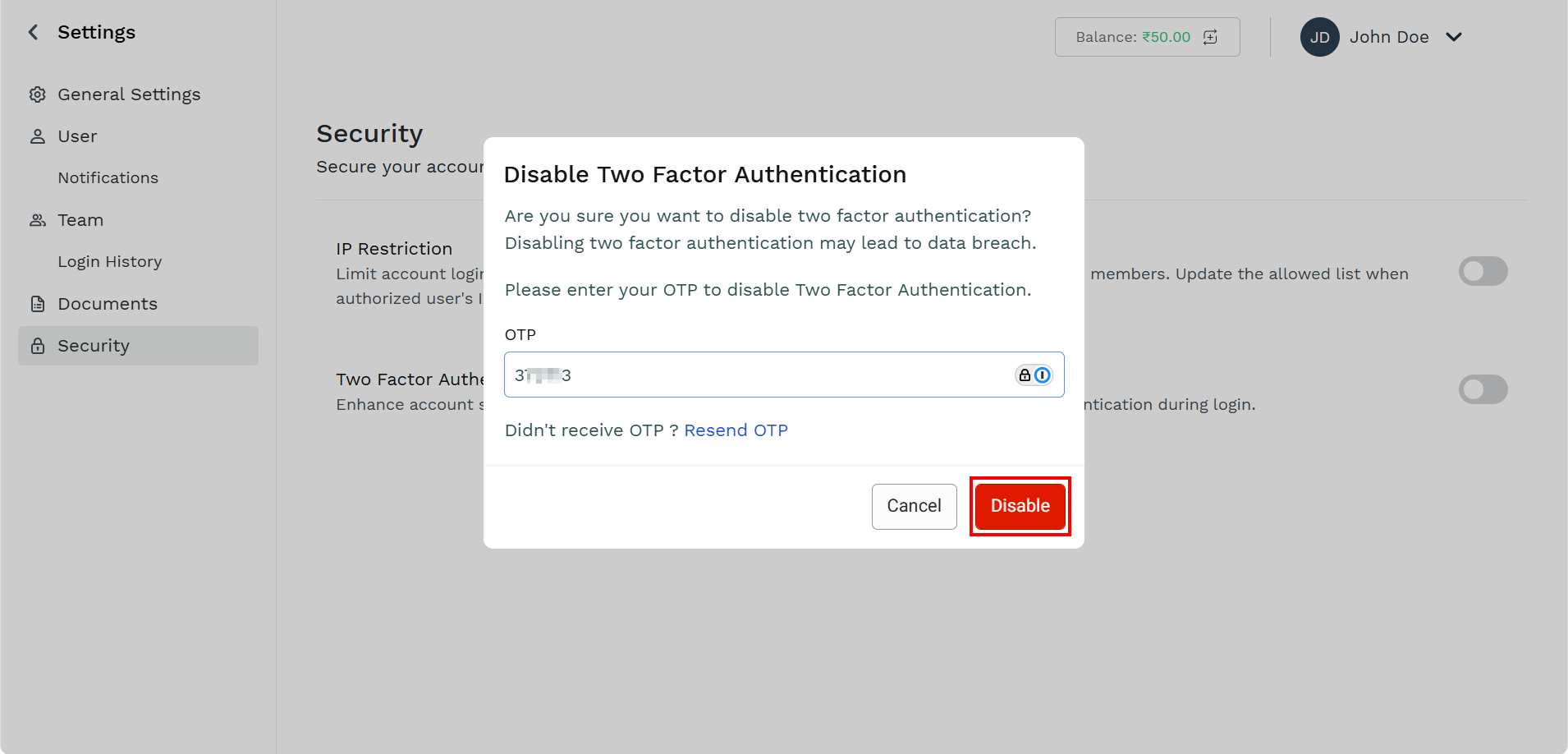
- Click Disable.
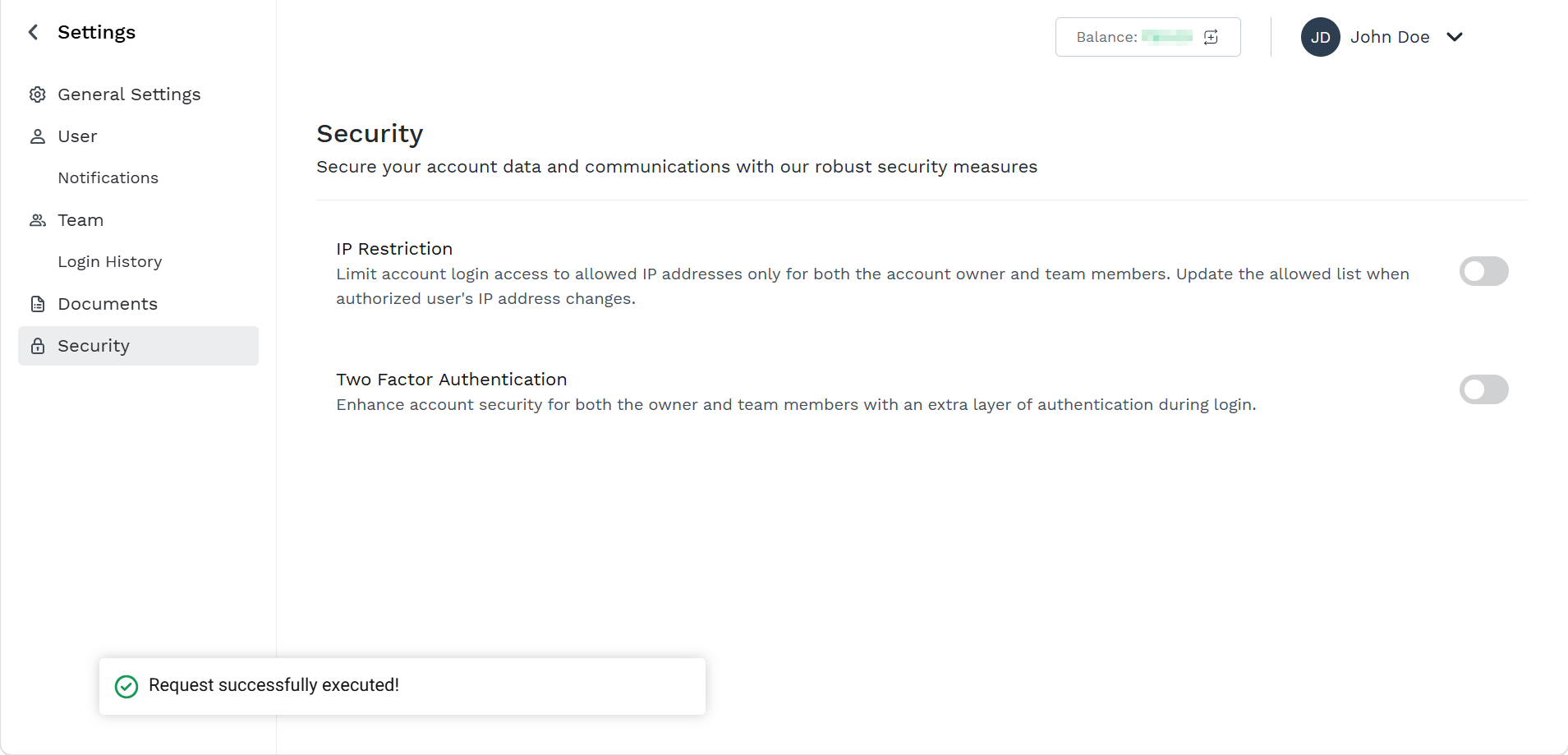
The confirmation Request successfully executed! message appears.
Note:Also, in case the 2FA setting is disable for your account, for maximum security, Kaleyra platform enforces the use of 2FA in specific scenario like:
- Confirm a password reset/change request
- Login attempt from a never-seen IP address
- Login attempt after 14 days from previous login
Updated about 1 month ago
Did this page help you?