

Edit WhatsApp Template
You can edit the existing WhatsApp V2 template associated with a WABA ID from the Template Manager page. The edit template helps you to update the existing template components rather than creating them from scratch.
Note:
All the following paragraph applies for Templates created within a WABA ID associated with the Kaleyra WhatsApp API v2.
You can edit the following template categories:
- Marketing - Default template, Order status template, and Carousel template.
- Authentication templates.
- Utility - Default template and Order status template.
Limitations
- Only templates with statuses Approved, Rejected, or Paused can be edited.
- Only the following components can be edited in a WhatsApp template:
- Header
- Body
- Footer
- Buttons
- You cannot change the category for the approved template.
- The following are the edit limits for the approved template:
- You can make only one edit within 24 hours.
- You can make a maximum of 10 edits in 30 days.
- If you edit an approved template or a paused template, it will get approved automatically unless it fails template review.
To edit the WhatsApp template, perform the following steps:
- Sign in to your Kaleyra platform.
- On the left menu-bar, click the Templates.
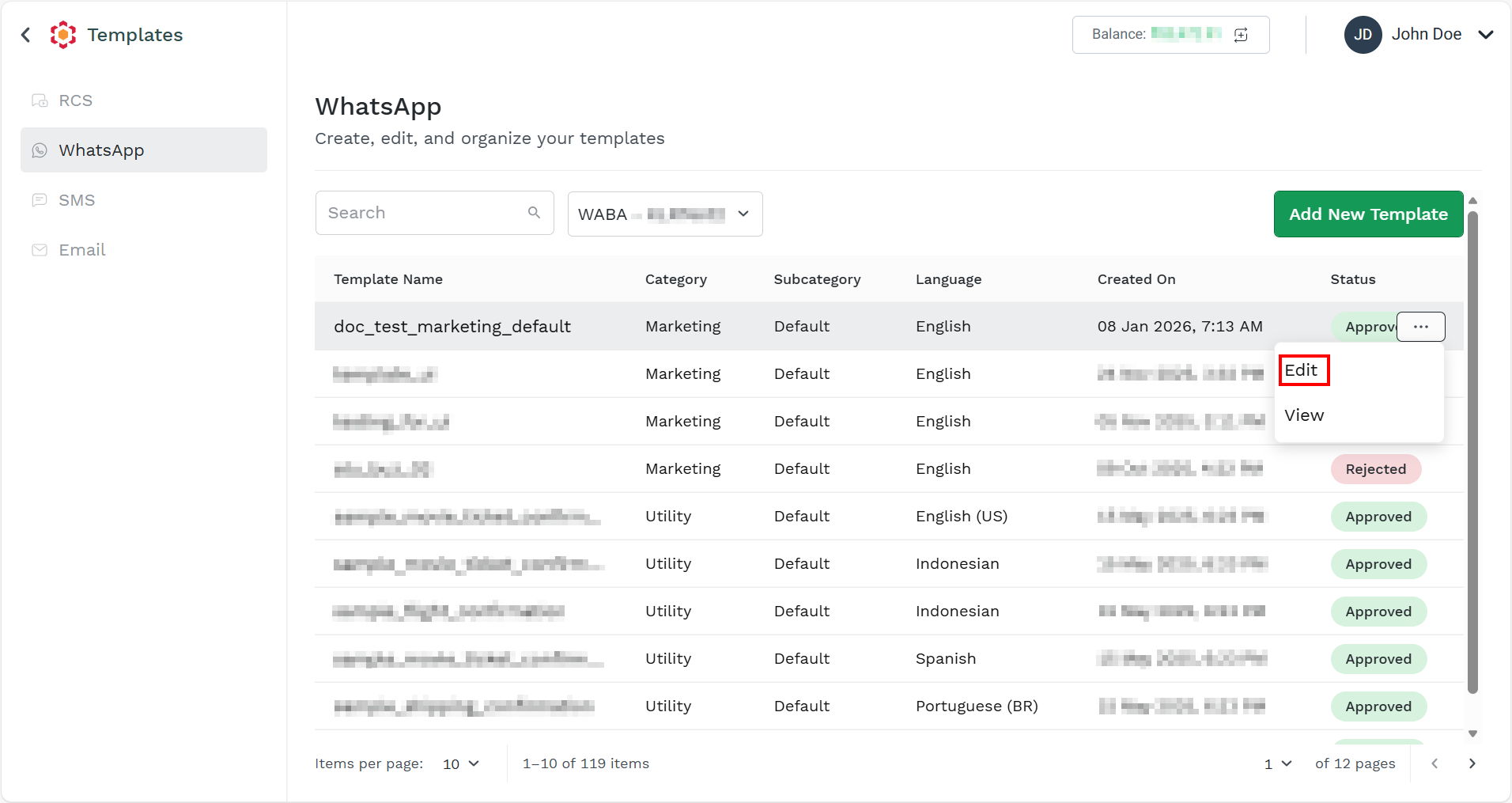
The WhatsApp page appears.
Note:
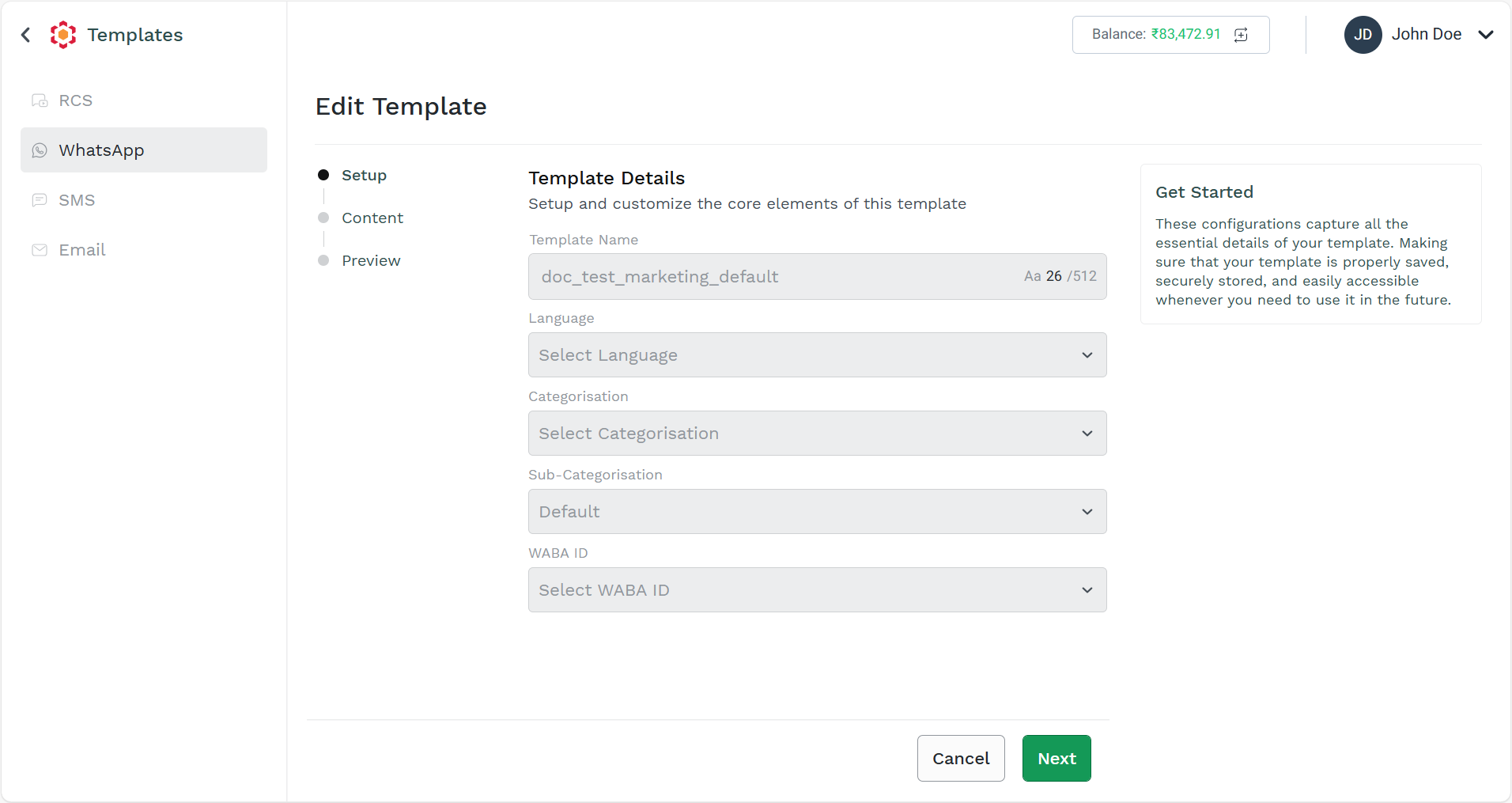
You cannot edit the details in the Setup step. The details include Template Name, Language, Categorisation, Sub-Categorisation, and WABA ID.
- Hover over the template you want to edit, click the ellipsis icon, and then select the Edit option.
The Edit Template page appears with the Setup step details.
- Click Next.
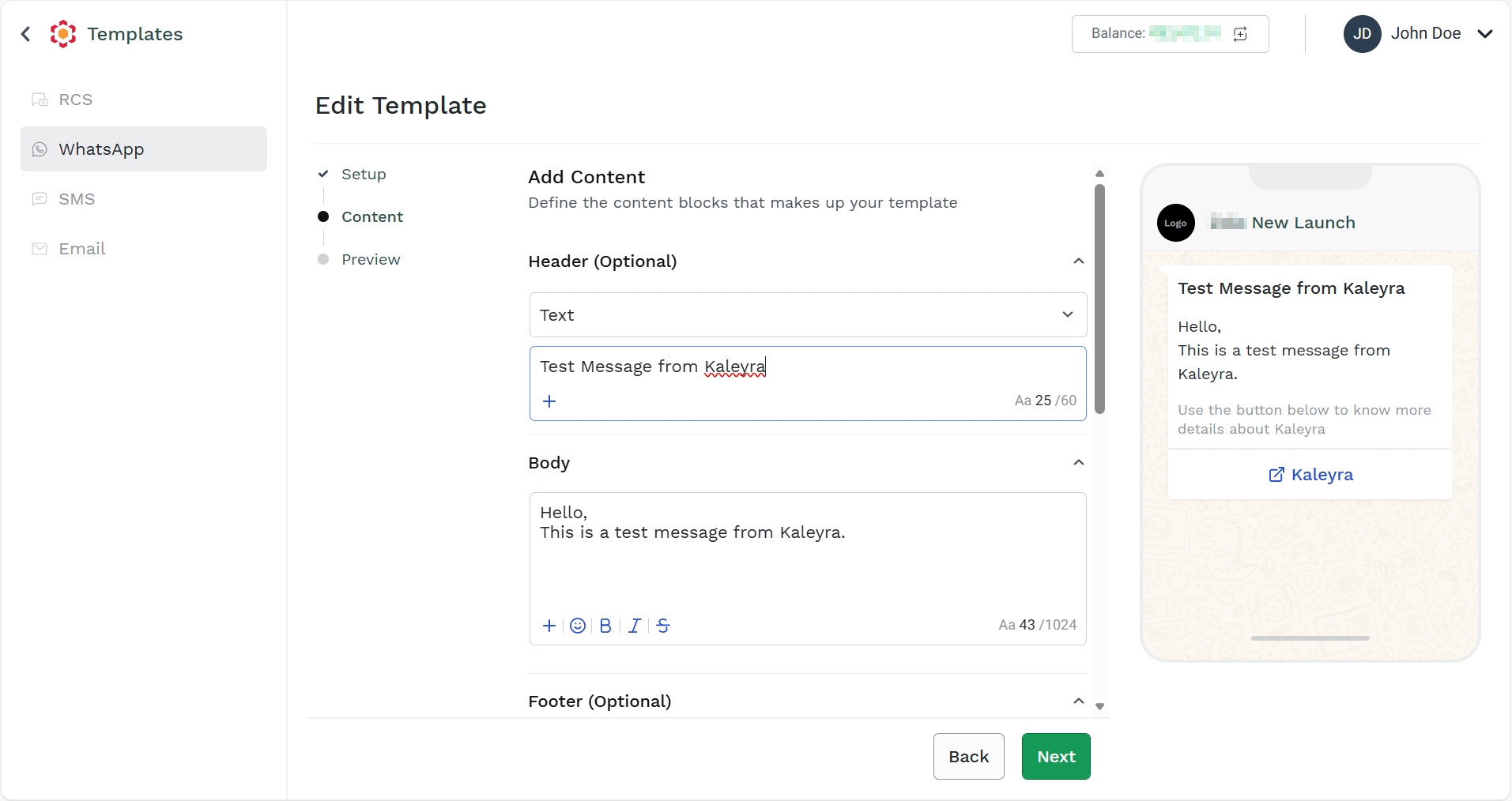
The Content step appears.
Note:
You can edit the template field, buttons, and links based on the template type. For example, for the default template type, you can edit the field, such as header (including media and without media type), footer (including links and buttons), body, and Message validity period.
- Edit the template based on your requirement.
- Click the Next button.
The Preview step appears.
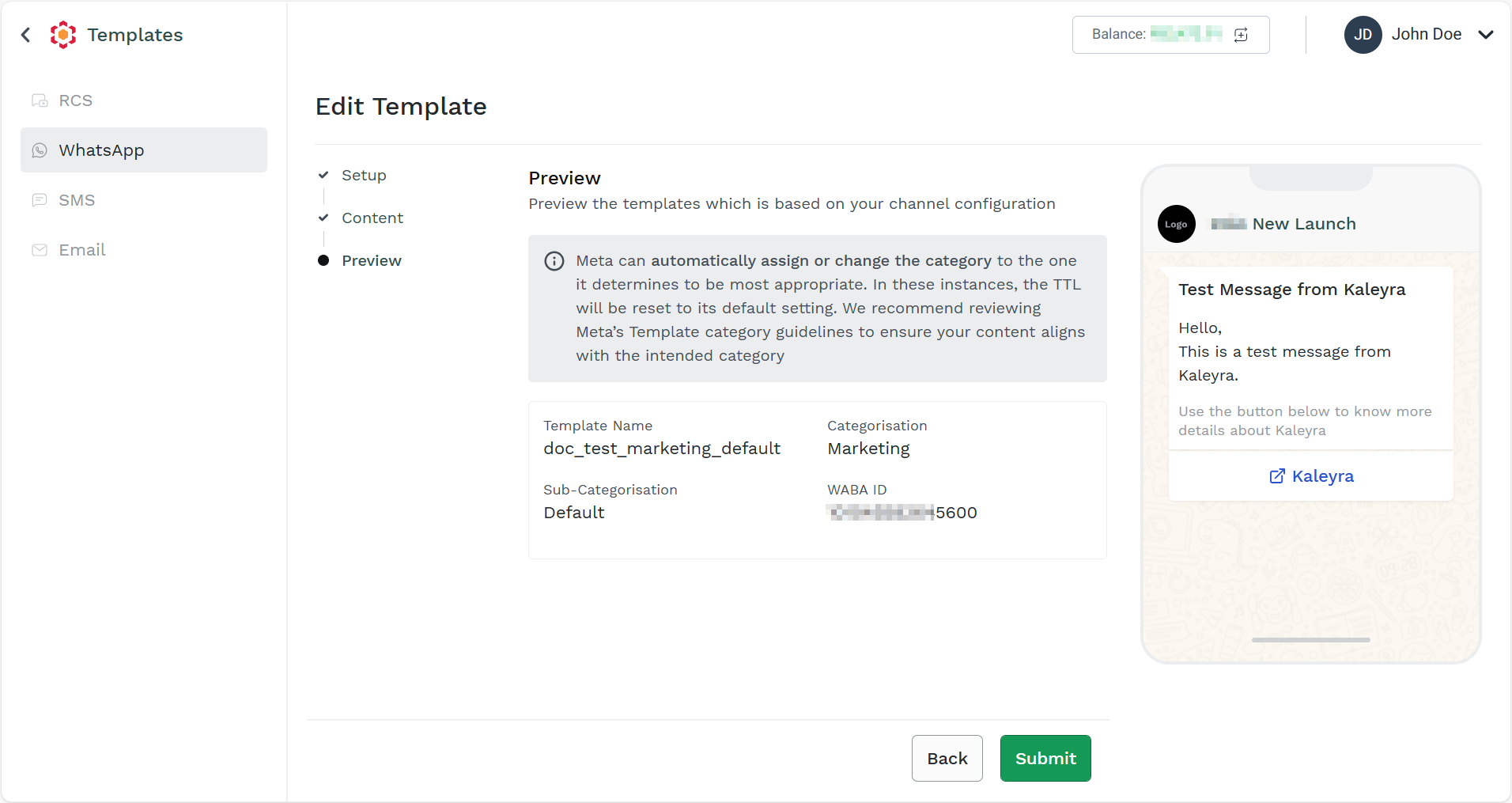
- Click the Submit button.
The confirmation message Template Edited successfully appears.
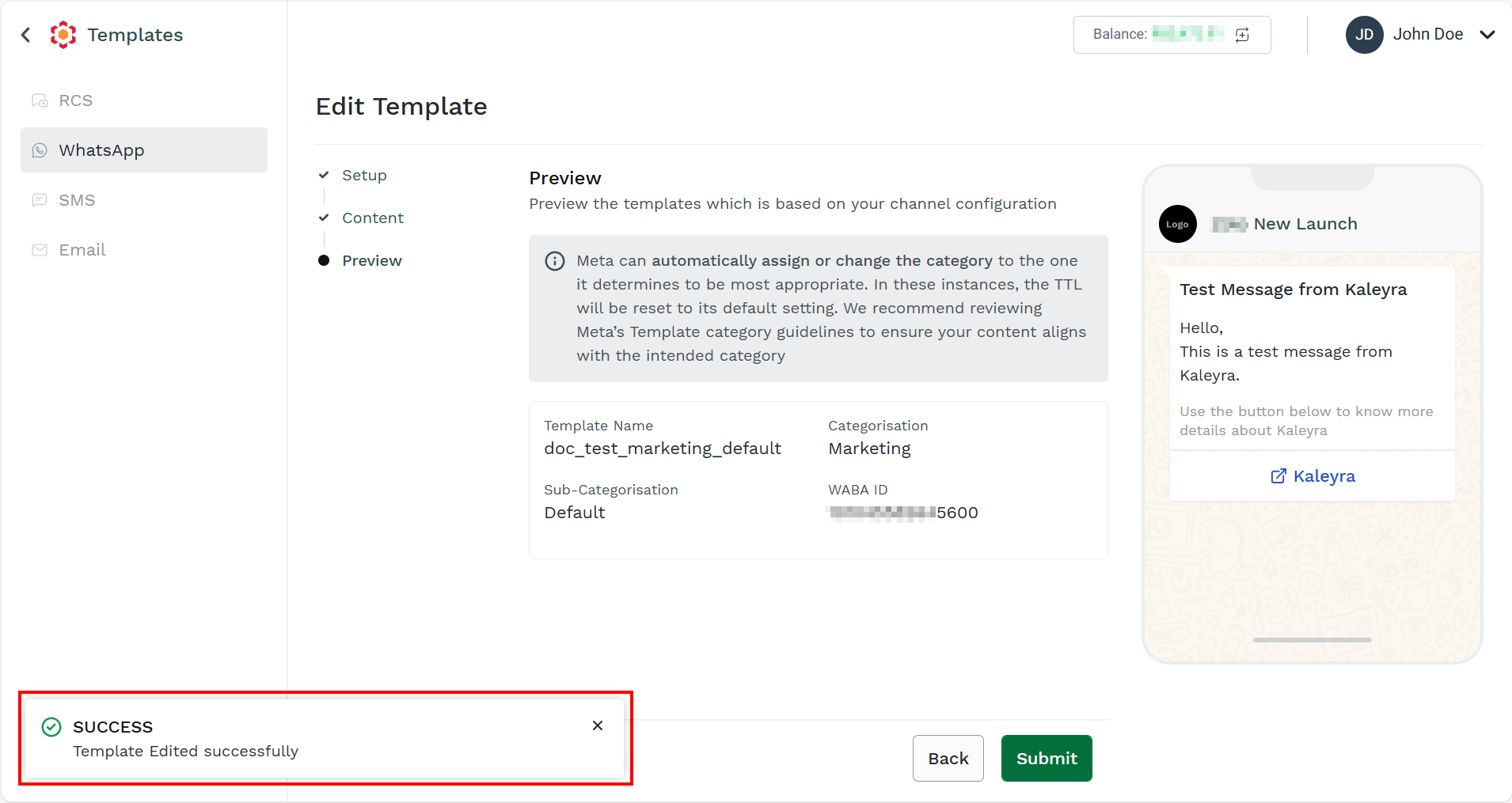
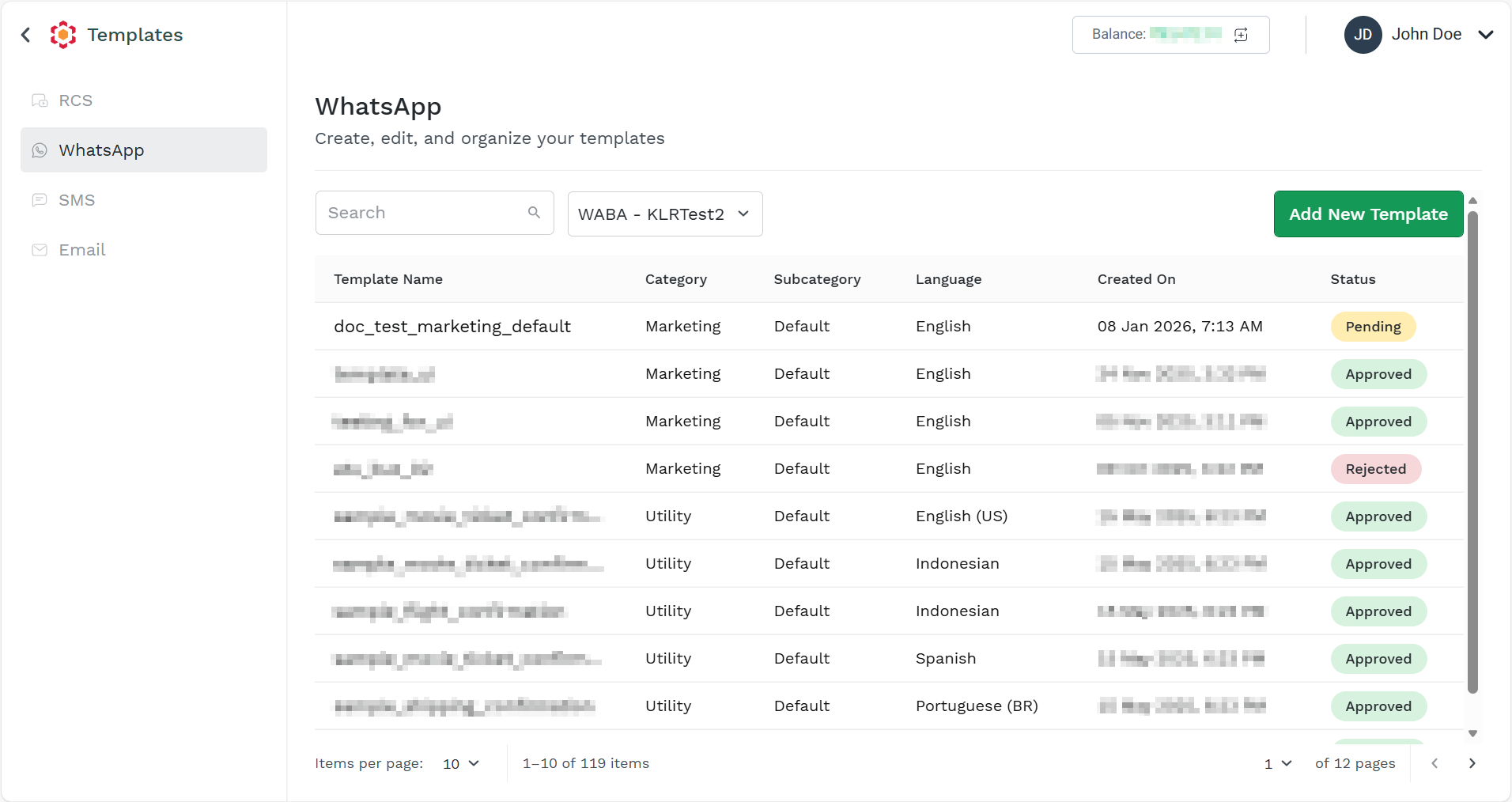
You will be redirected to the WhatsApp Template Manager page.
Note:
The new template will be in pending status. It gets either approved or rejected after the Meta's review.
Updated about 2 months ago