

Prepaid Billing Preferences
Kaleyra platform allows you to view KYC (Know Your Customer) details and manage billing preferences from a single location. You can review your account verification information, monitor KYC status, and update billing-related settings, such as GST Details, PAN Number, TAN Number, Recently Uploaded KYC Document, and Company Billing Details.
To view the KYC details and edit the billing details, perform the following steps:
- Follow step 1 and step 2 of Prepaid Billing Overview.
The Billing Overview page appears.
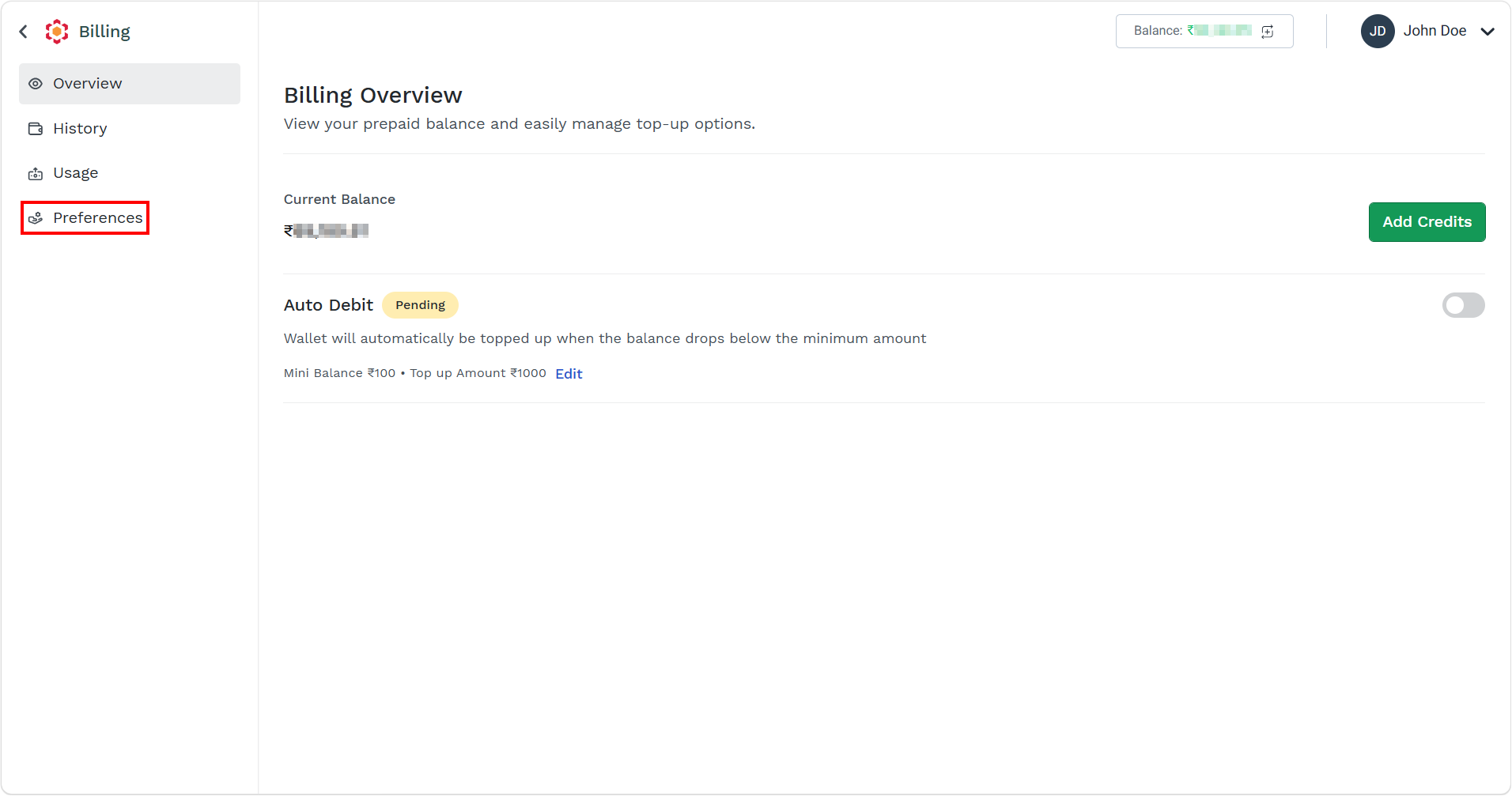
- On the left menu bar, click the Preferences menu.
The Preferences page appears.
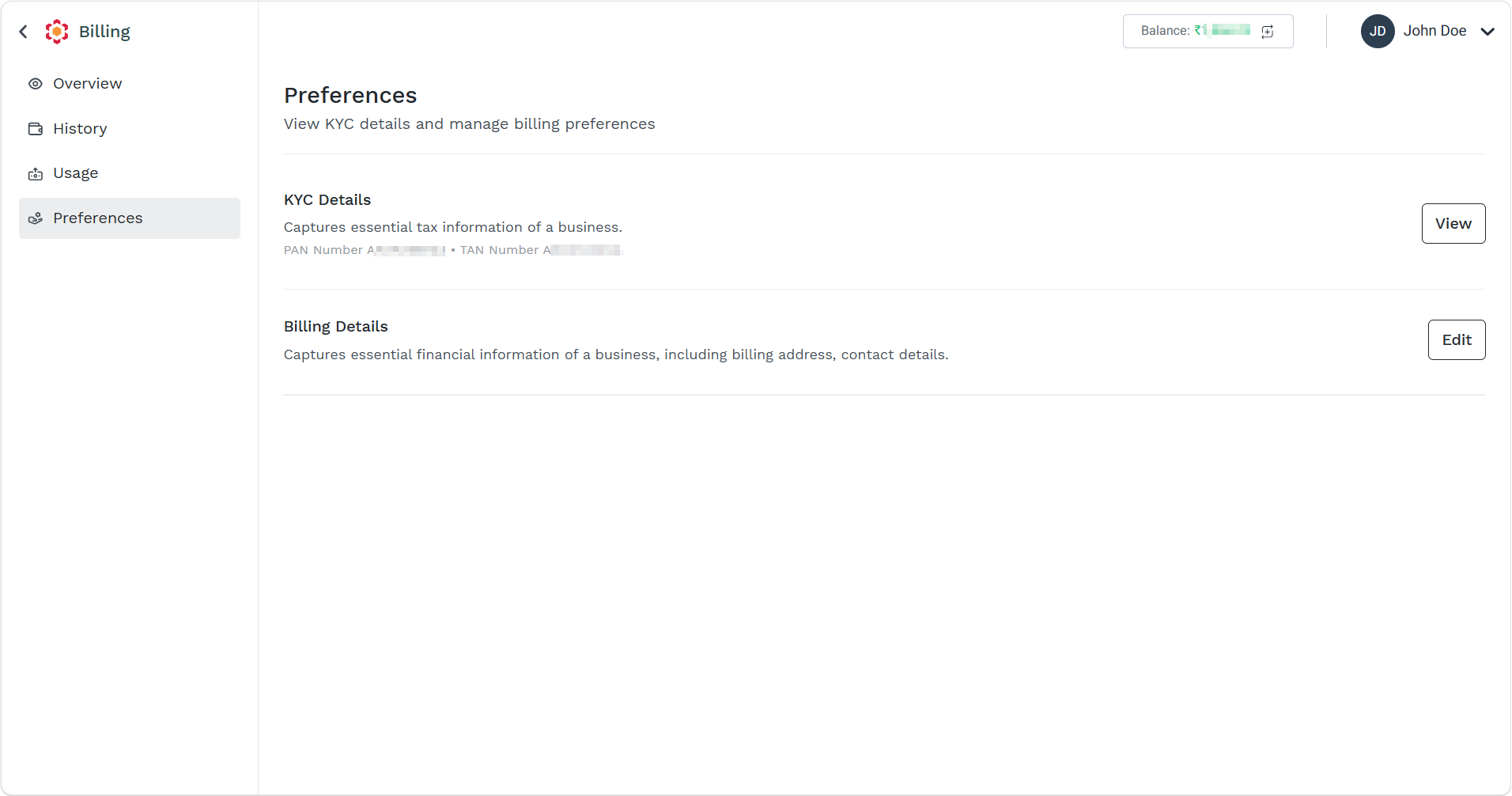
- On the right side of KYC Details, click the View button.
The KYC Details pane appears on the right side of the page.
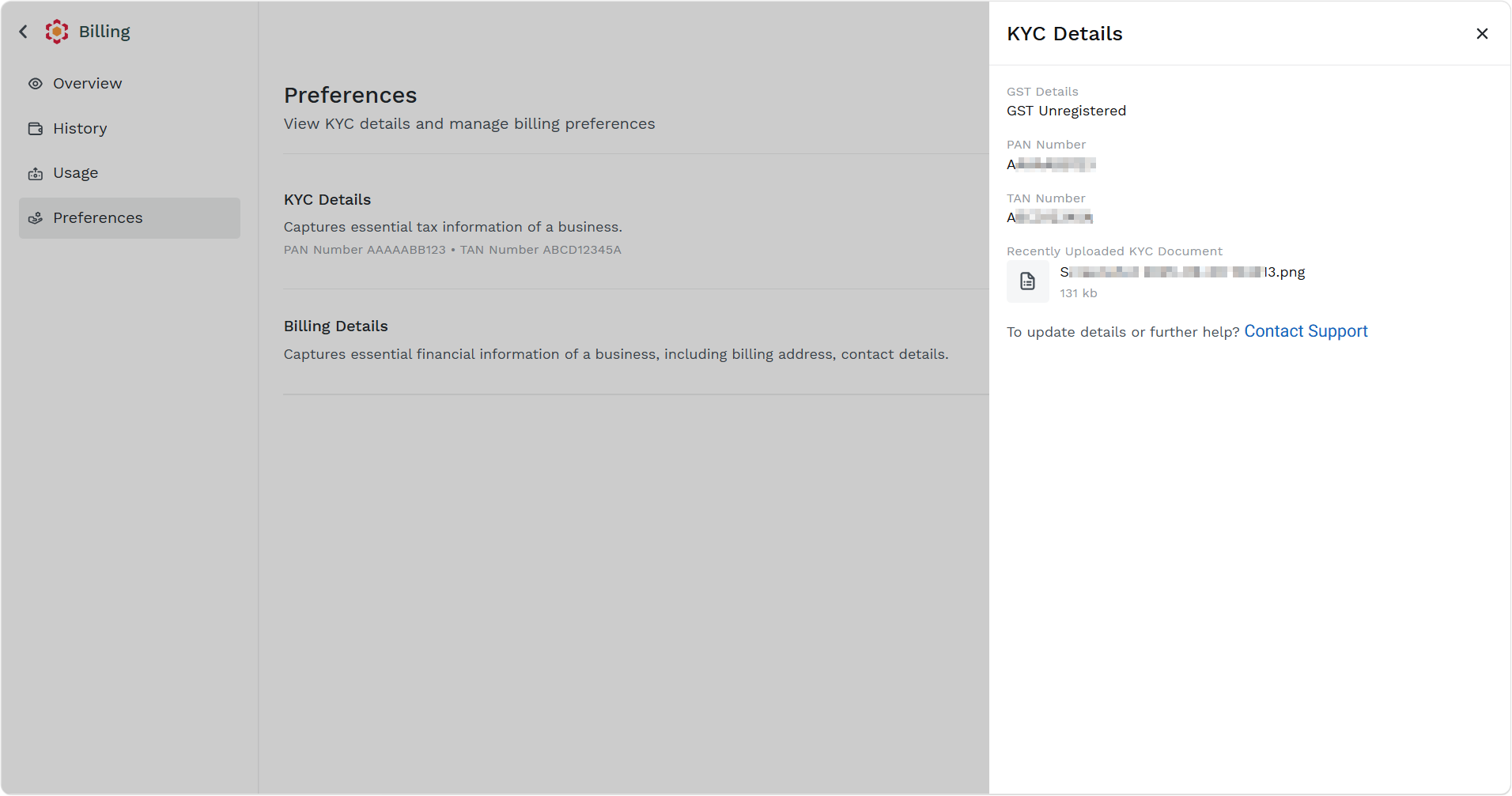
You can view the following details:
- GST Details
- PAN Number
- Recently Uploaded KYC Document
Note:If you want to make changes to any of the above documents, contact Kaleyra Support team.
- On the right side of pane, click X (close) button to close the pane.
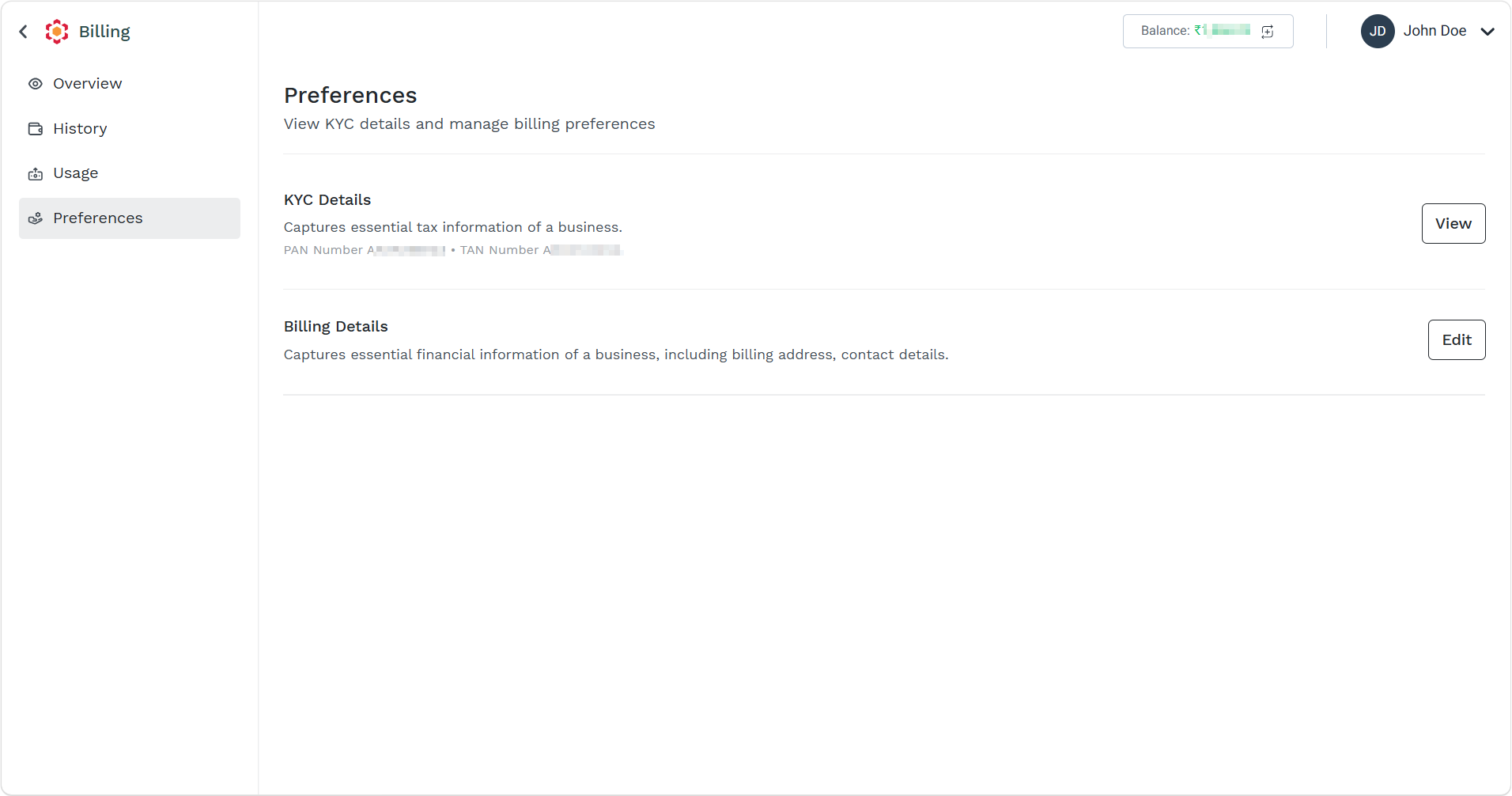
- On the right side of Billing Details, click the Edit button.
The Company Billing Details pane appears on the right side of the page.
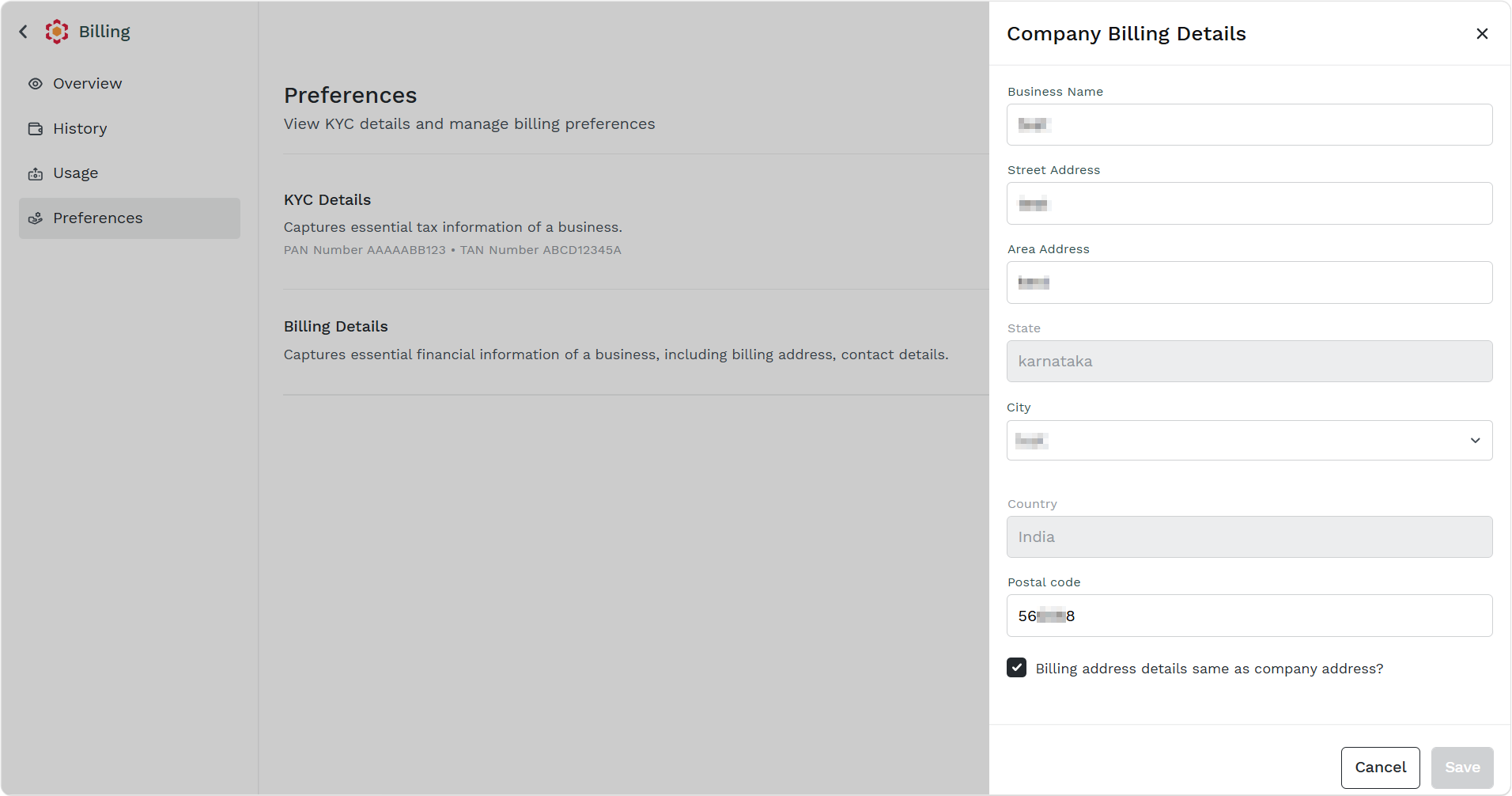
- You can edit the following details:
- Business Name
- Street Address
- Area Address
- City
- Postal code
Note:You can select the Billing address details same as company address? checkbox if you want to keep the billing details the same as the company address. If you deselect the checkbox, then you have the option to update the following details in the Billing address:
- Business Name
- Email Address
- Street Address
- Area Address
- State
- City
- Country
- Postal code
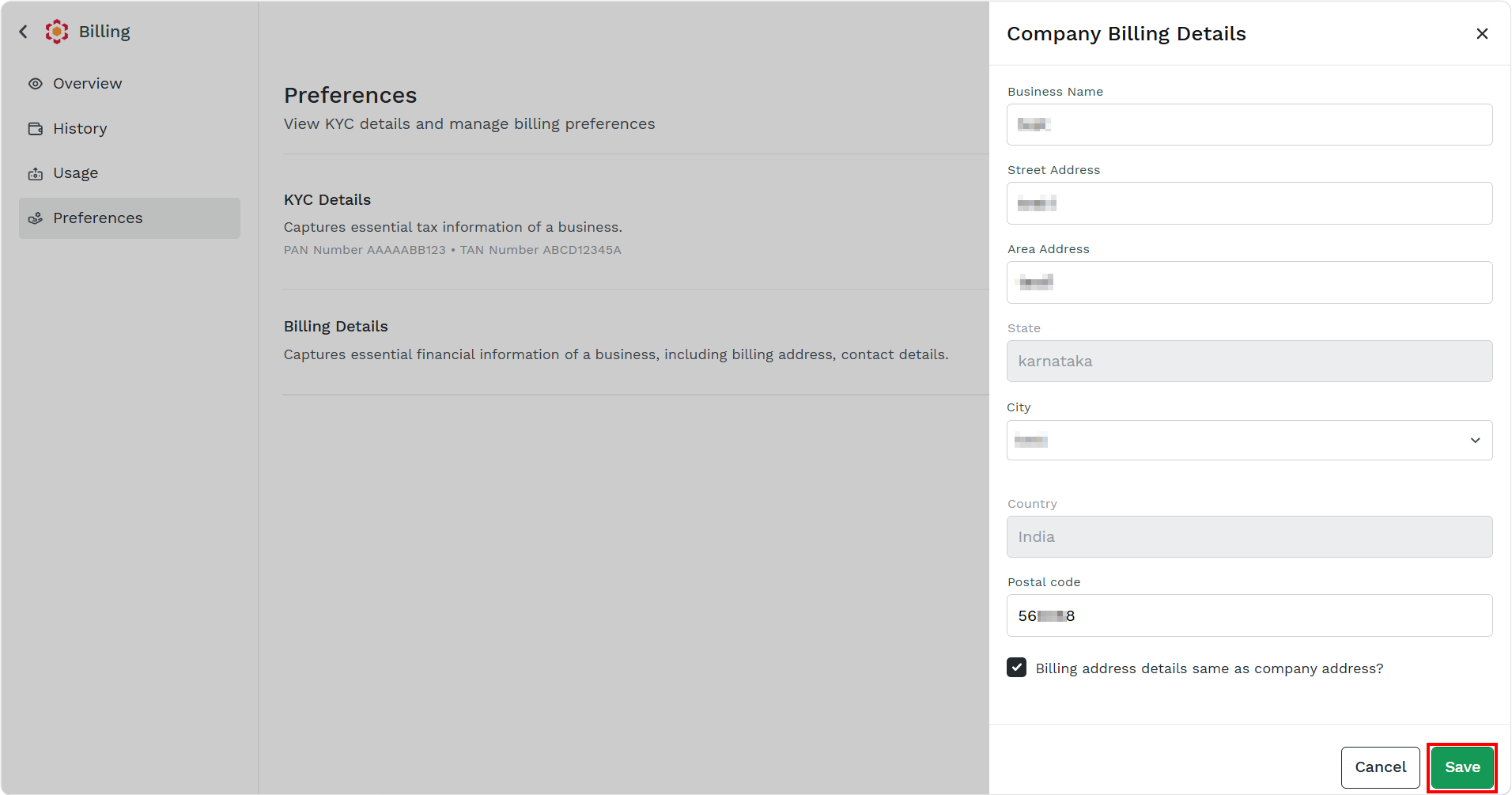
- Click Save.
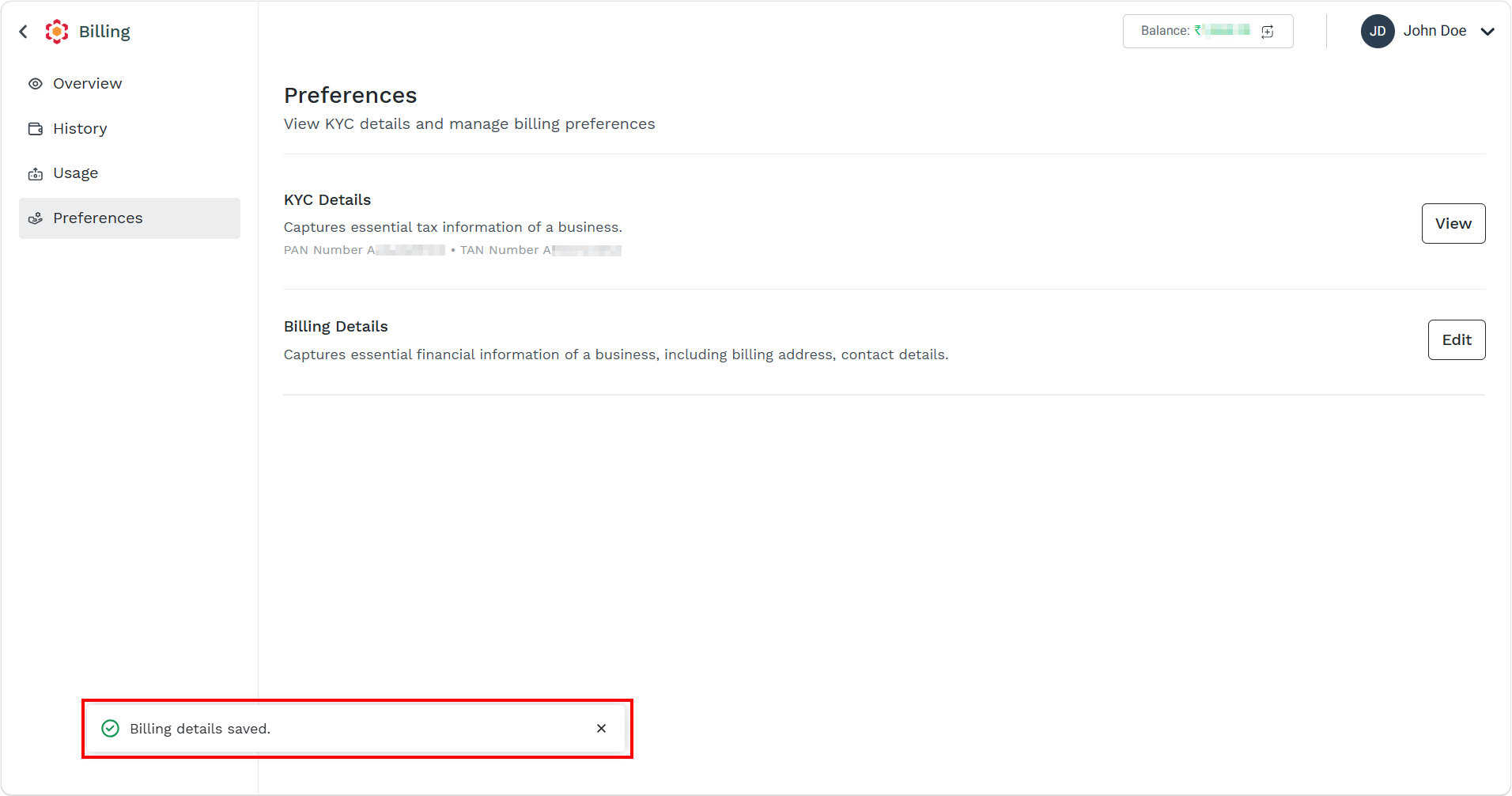
The confirmation Billing details saved. message appears.
Updated about 2 months ago