

Search or Filter Files containing Bulk Shortened URLs
You can search and filter from the existing bulk shortened URLs.
Search Shortened URL
You can search for the shortened URL from the list of shortened URLs based on the title that you have provided for the bulk upload of URL to be shortened.
To search shortened URL, perform the following steps:
- Log in to your Kaleyra account.
- On the left menu bar, click URL Shortener.
The Single URL tab detail appears.
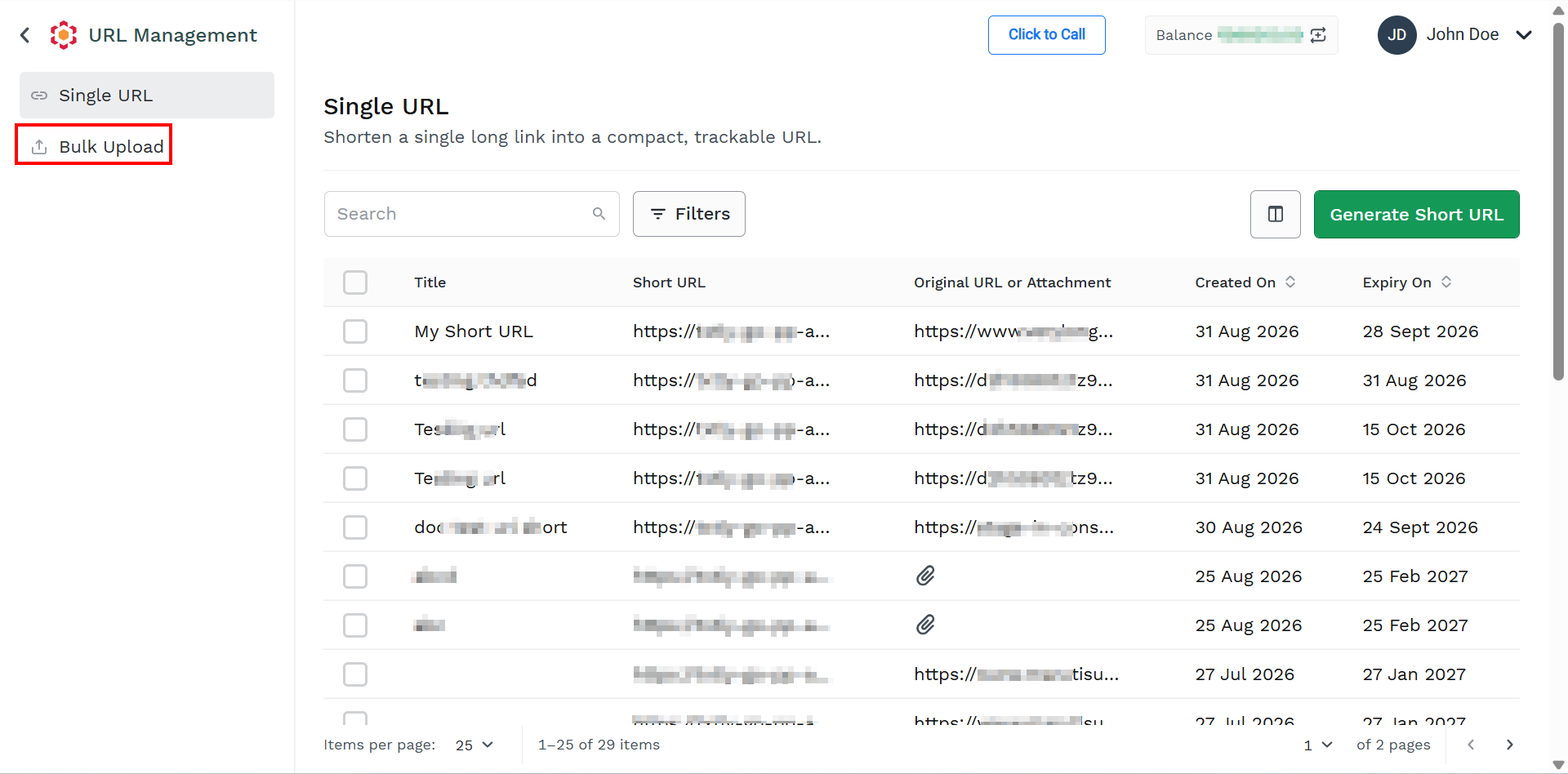
- Click on the Bulk Upload tab.
The Bulk Upload page appears.
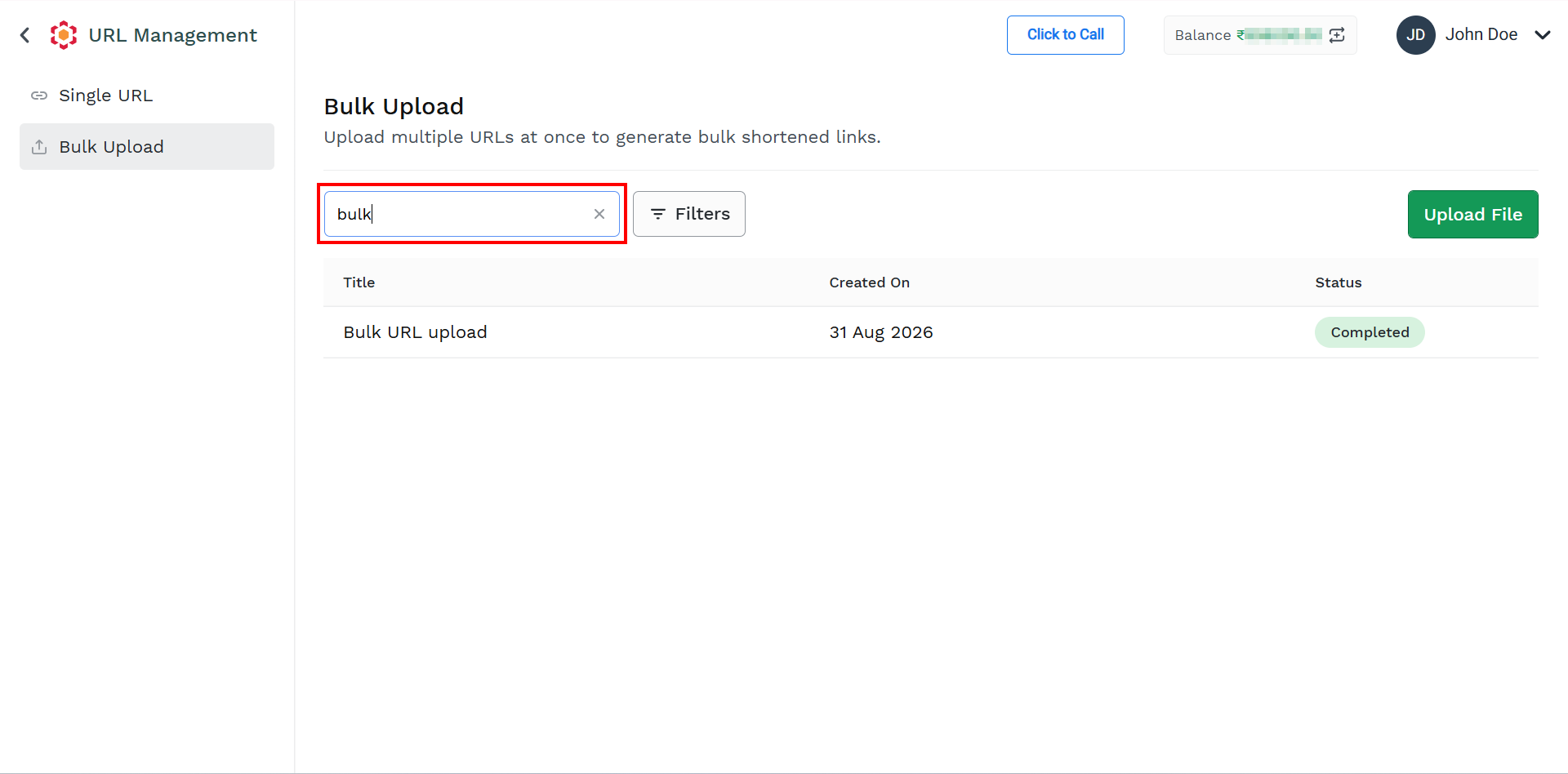
- In the Search field, enter the keywords based on which you want to search the Shortened URL. For example, Doc Test the search results appear automatically.
Filter Shortened URLs
To filter the shortened URLs, perform the following steps:
- Log in to your Kaleyra account.
- On the left menu bar, click URL Shortener.
The Single URL tab detail appears.
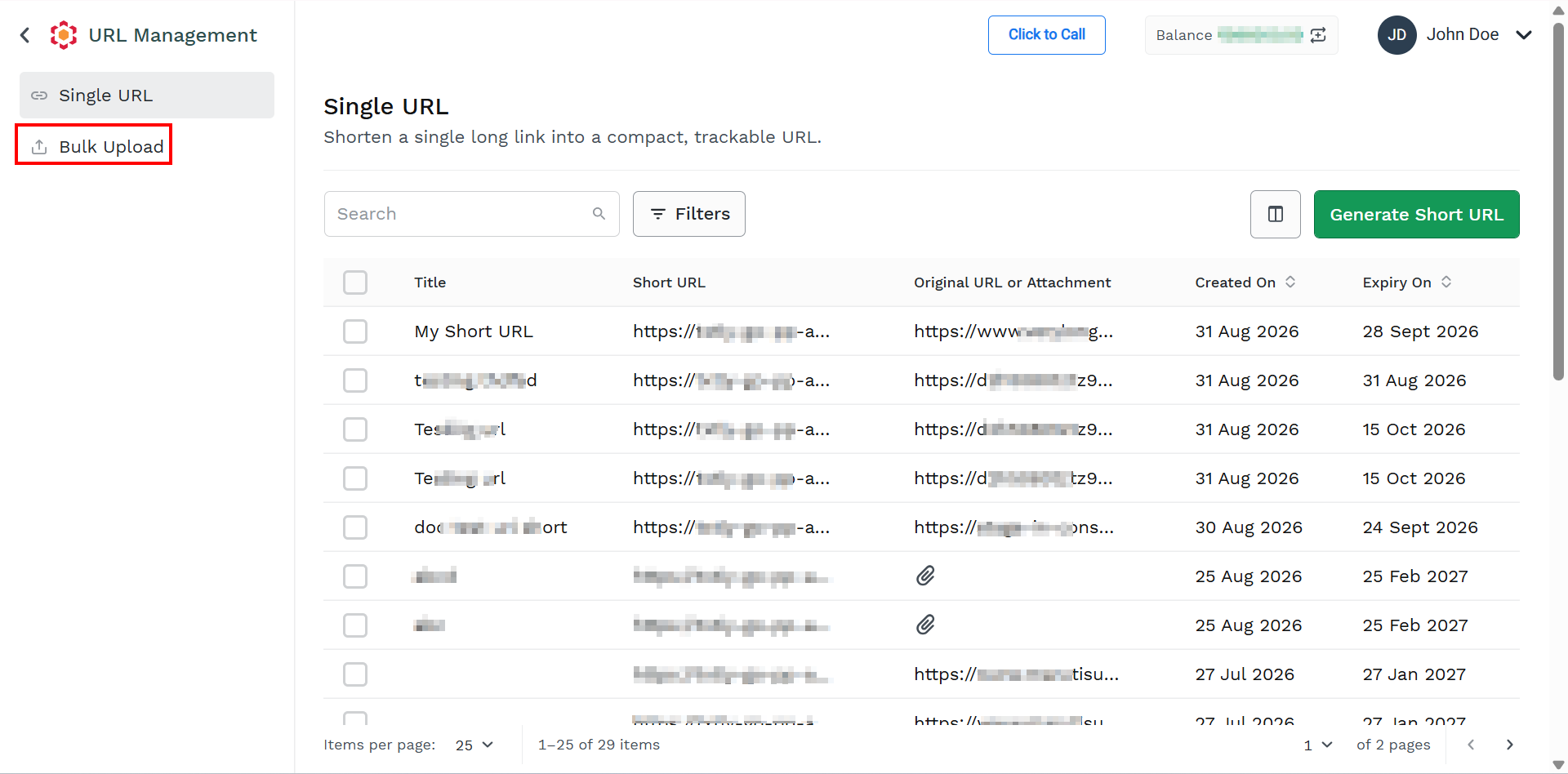
- Click on the Bulk Upload tab.
The Bulk Upload page appears.
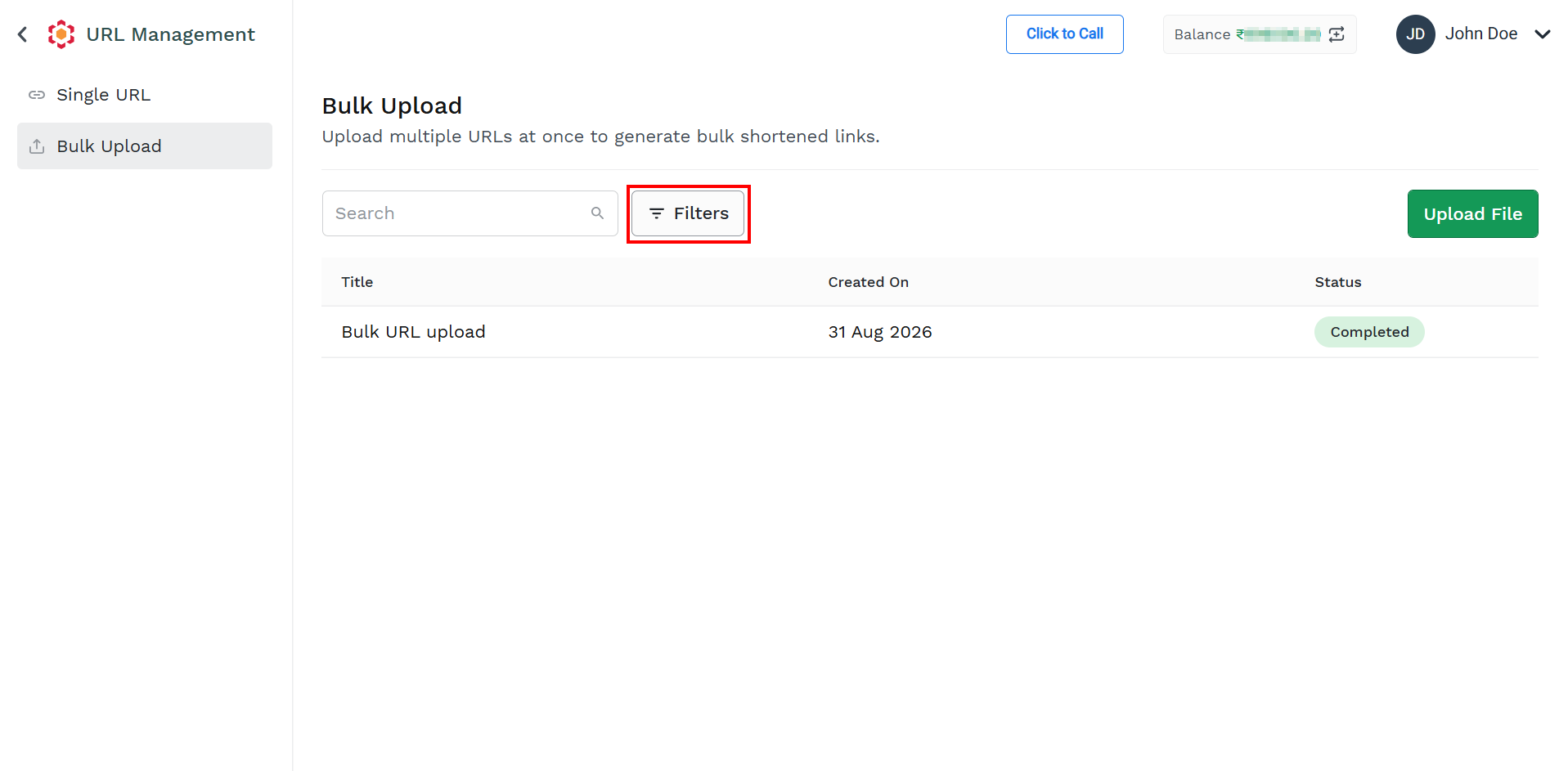
- Click Filters.
The filter option appears.
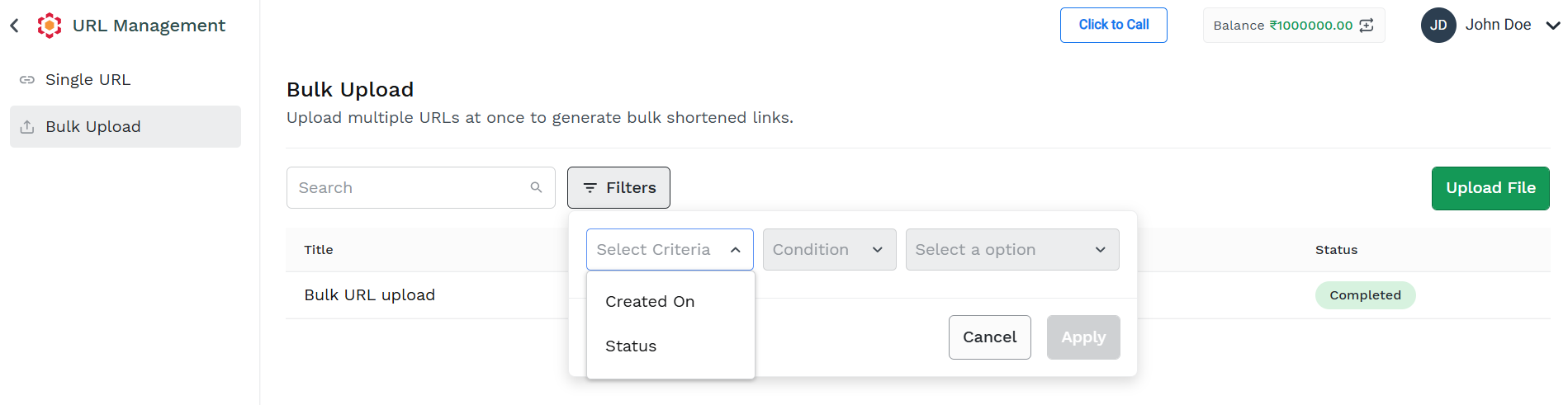
- You can filter the bulk shortened URLs based on the following options:
- Created on - You can filter based on short URL creation date selecting the start date and the end date of the time range. To set the start date and end date, perform the following:
- Click the Start Date, a calendar pop-up appears, select the start date from which you want to filter the shortened URLs, and then click Done.
- Click the End Date, a calendar pop-up appears, select the end date up to which you want to filter the shortened URLs, and then click Done.
- Status - You can filter based on uploade process status.
- Created on - You can filter based on short URL creation date selecting the start date and the end date of the time range. To set the start date and end date, perform the following:
- Click Apply. the small number icon in the Filters button indicates how many filter conditions are applied.
The filtered result appears.
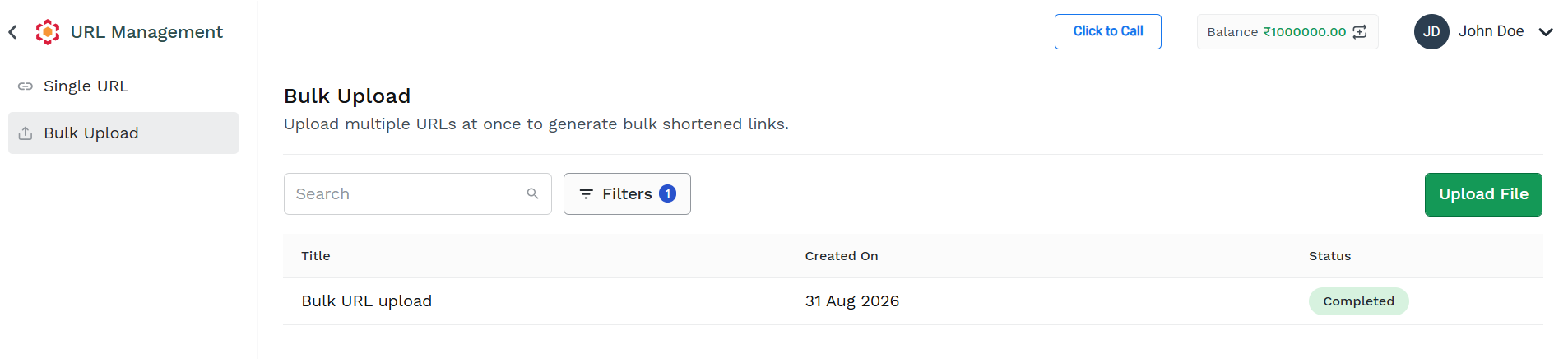
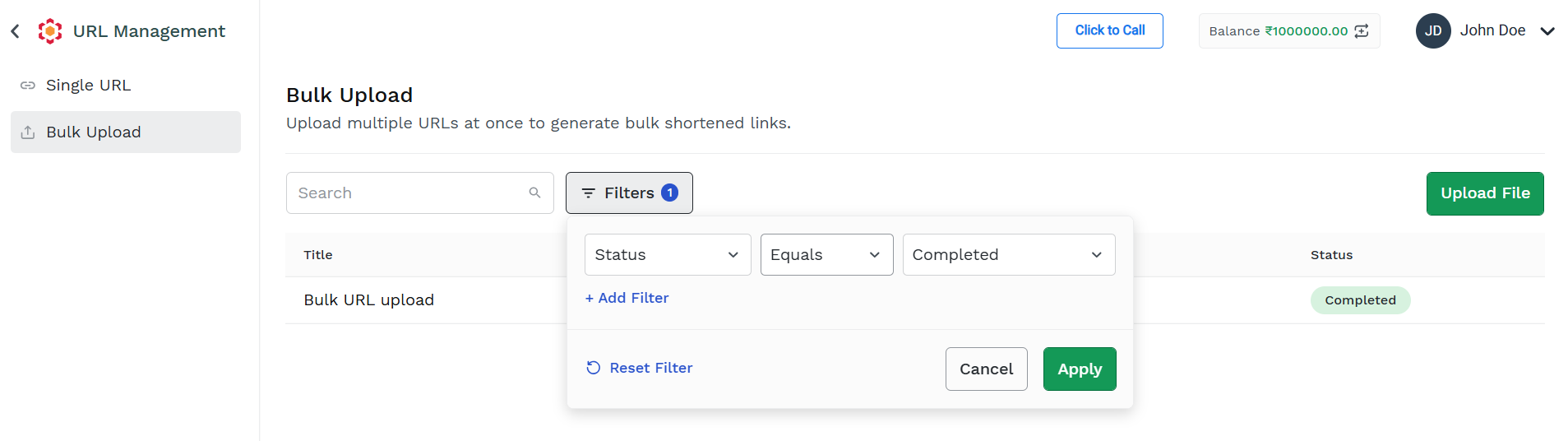
You can apply more than one condition clicking on Add Filter option in the Filters panel. When more then one filter condition is applied, only lines matching all the conditions are returned.
To remove any filter, click on Reset Filter in the Filters panel.
Updated 2 months ago
Did this page help you?