

Add Credit to Kaleyra Prepaid Account
Kaleyra platform provides a trial preloaded initial wallet in your account to test out limited features. You can use all the available services without interruption by recharging to your Kaleyra account.
Indian customers have the option to pay the tax using Tax Deduction at Source (TDS) while adding the credits. The TDS amount gets remitted to the Government fund. If you have updated all the required details (for example - TAN and KYC), you will get the option to select the TDS amount in percentage. The deducted TDS amount is displayed in the payment receipt.
Note:From any UI page, you can add credit from the top right of the page, click the Top-up button. The Billing Overview page appears.
To add credit to Kaleyra prepaid account, perform the following steps:
- Follow step 1 and step 2 of Prepaid Billing Overview.
The Billing Overview page appears.
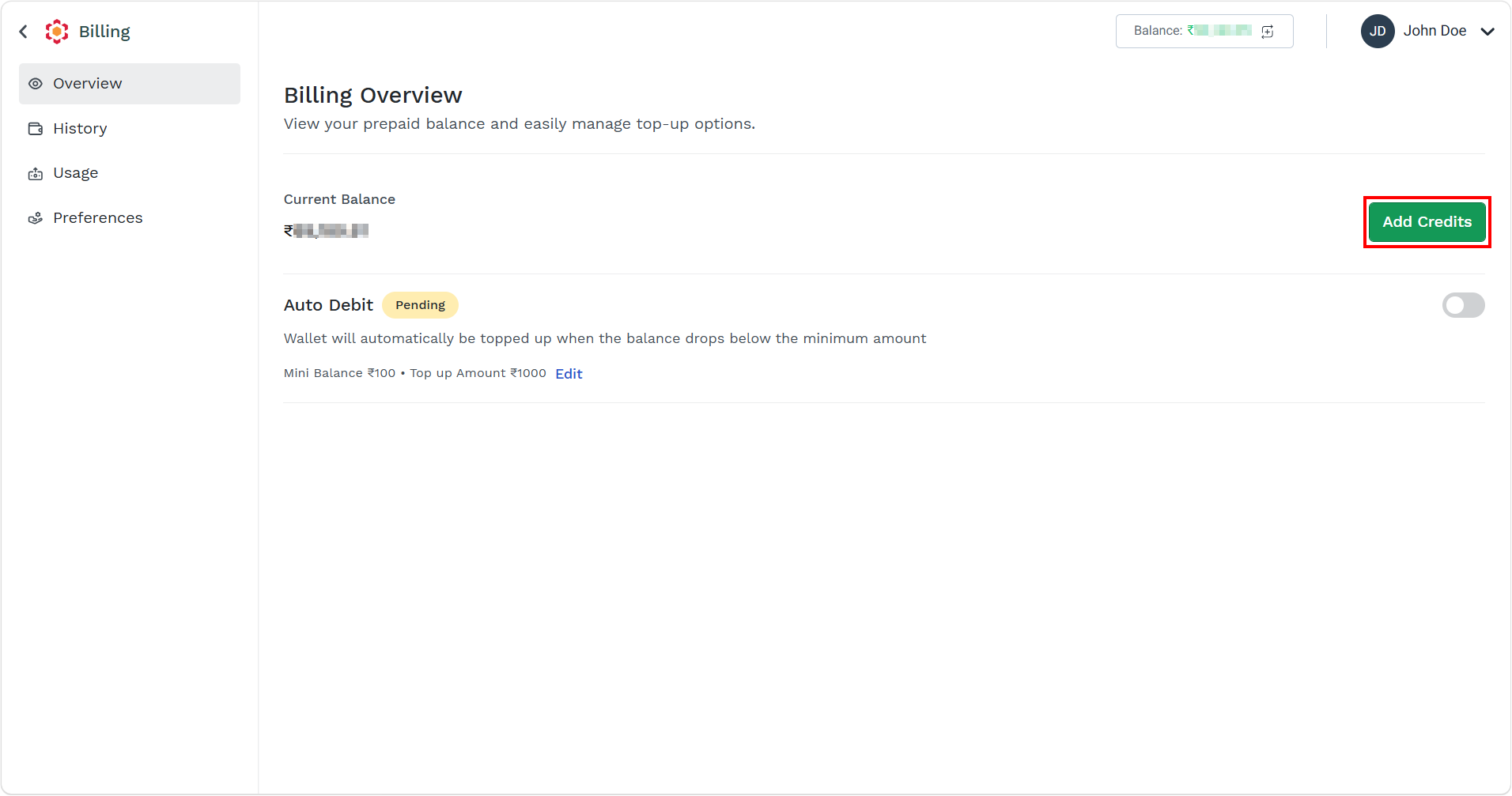
- On the right side of the Current Balance, click the Add Credits button.
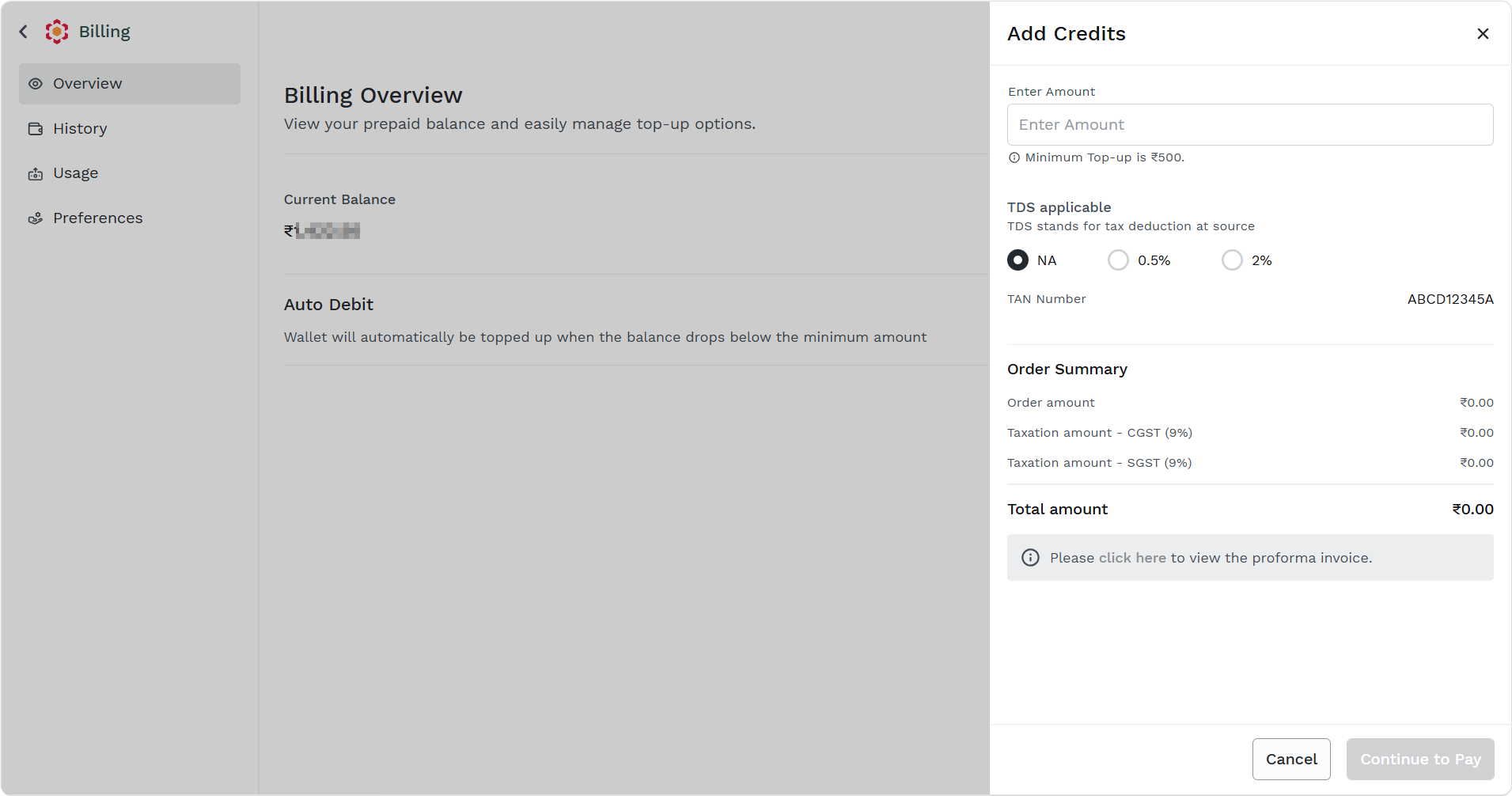
The Add Credits pane appears on the right side of the page.
-
Perform the following steps:
- In the Enter Amount field, enter the amount you want to add credits. The Amount is expressed in the account currency. According to your region, the minimum top-up is displayed below the Enter Amount field.
- In TDS applicable, by default it is set as NA. If you wish to add the Tax Deducted at Source (TDS) amount, select from the following options:
- 0.5% of the entered amount.
- 2% of the entered amount.
Notes:
- Based on your selection, the Order Summary gets updated.
- You can view the proforma invoice of the total amount. Click the click here link. The proforma invoice will open in a new tab.
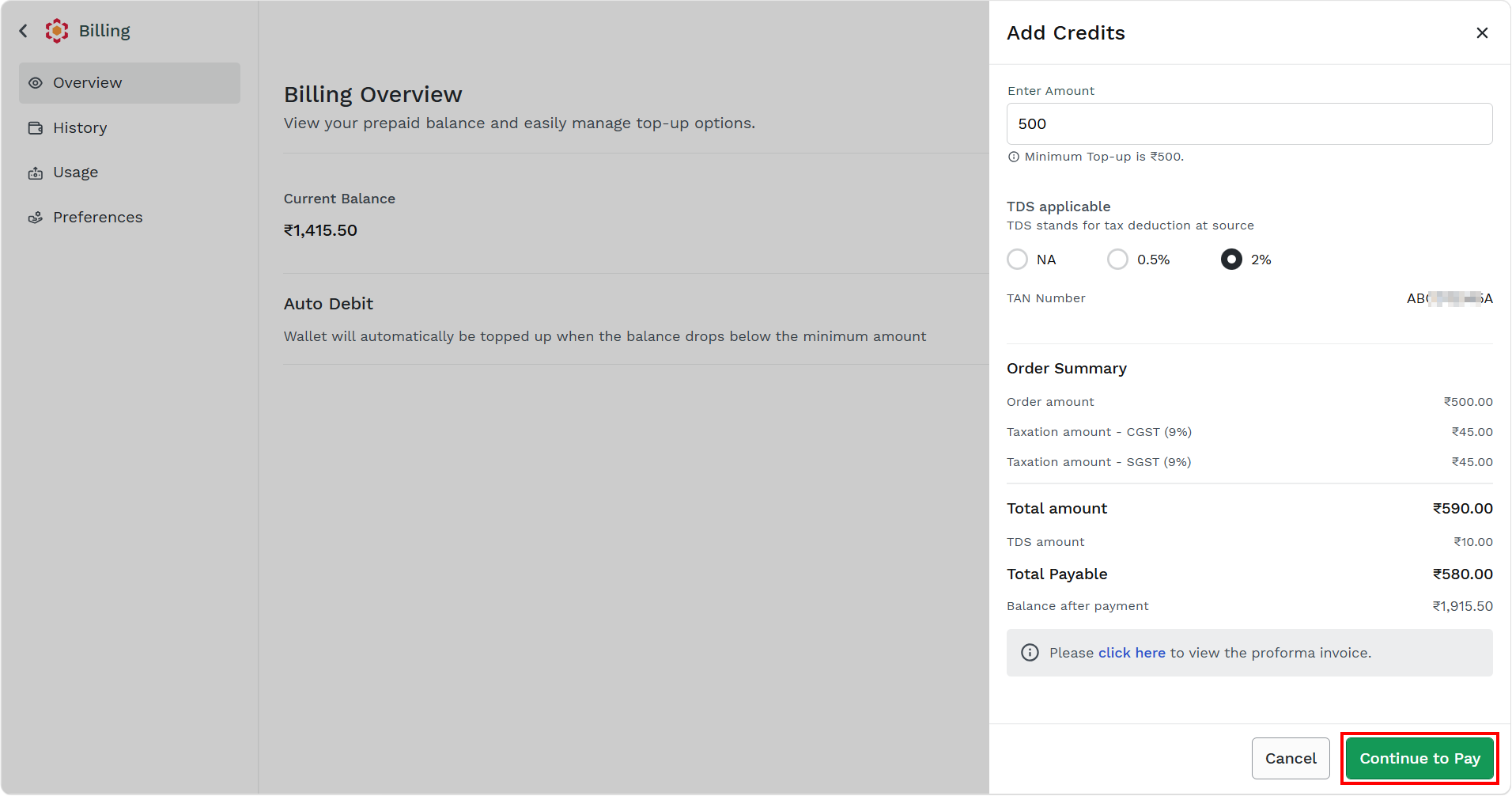
- Click the Continue to Pay button.
The Payment Options pop-up appears.
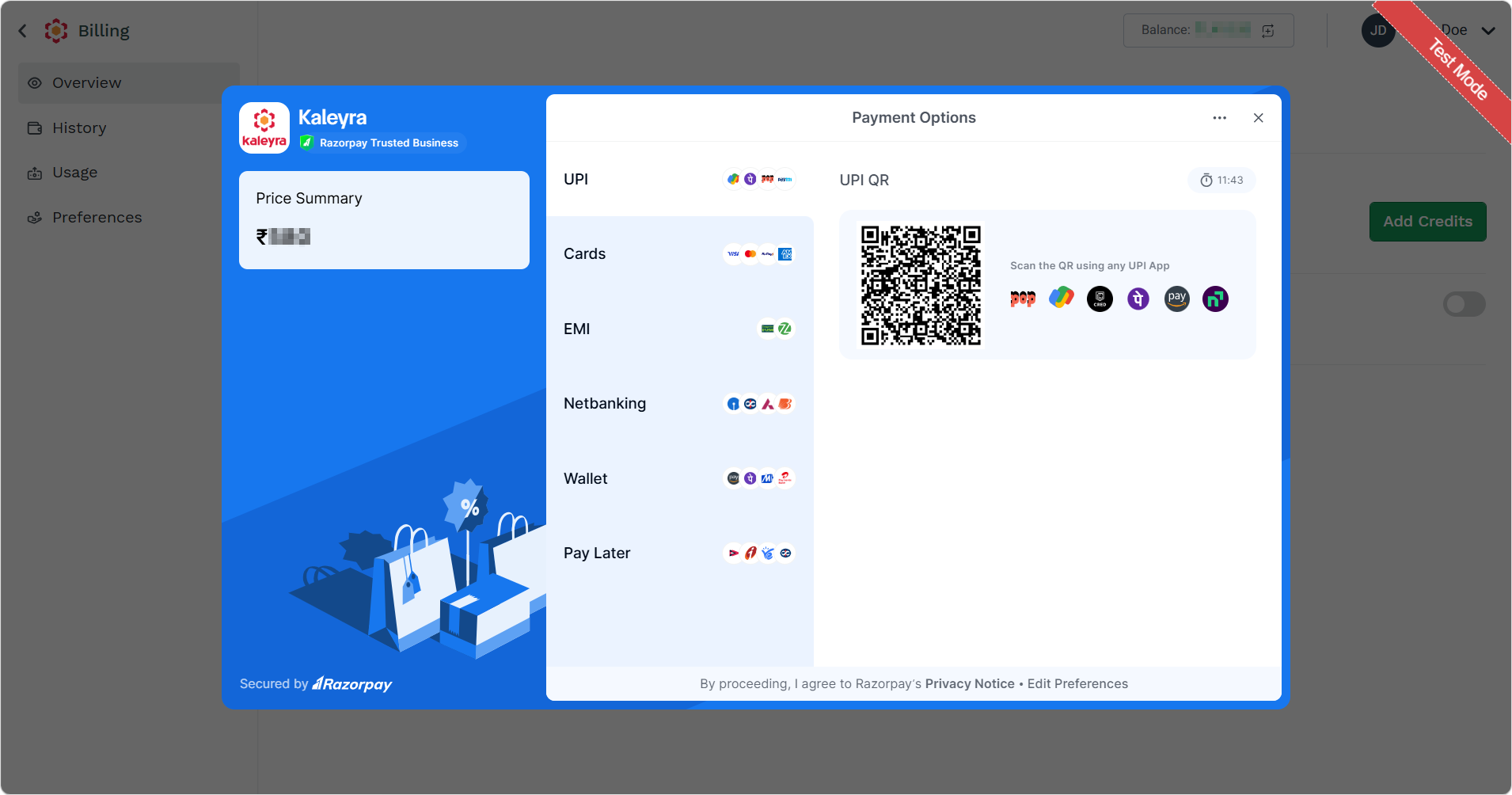
- You can select one of the following payment modes based on your regions:
- UPI - To pay using UPI.
- Cards - To pay using cards.
- EMI - To pay using EMIs.
- Netbanking - To pay using netbanking.
- Wallet - To pay from your wallet. For example, Amazon Pay, PhonePe, Mobikwik, Airtel Payments Bank, or Ola Money (Postpaid + Wallet).
- Pay later - To Buy Now Pay Later.
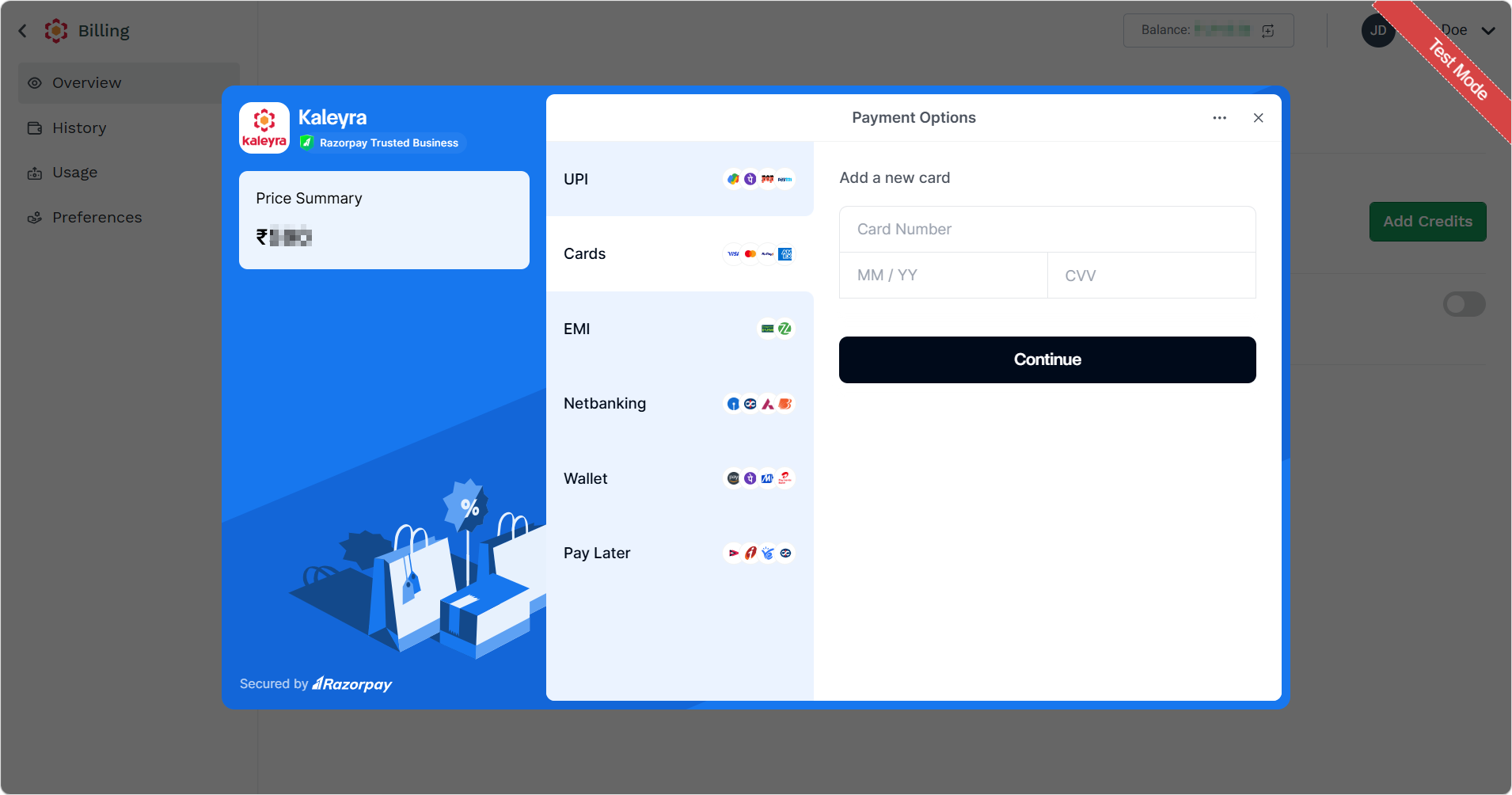
- In following example, payment by Credit Card is explained. Select Cards, then perform the following steps:
- In the Card Number field, enter the card number through which you want to make payment.
- In the MM/YY field, enter the month and year of your card expiry.
- In the CVV field, enter the CVV of the card through which you are making payment.
- Click Continue.
The Select currency to pay pop-up appears.
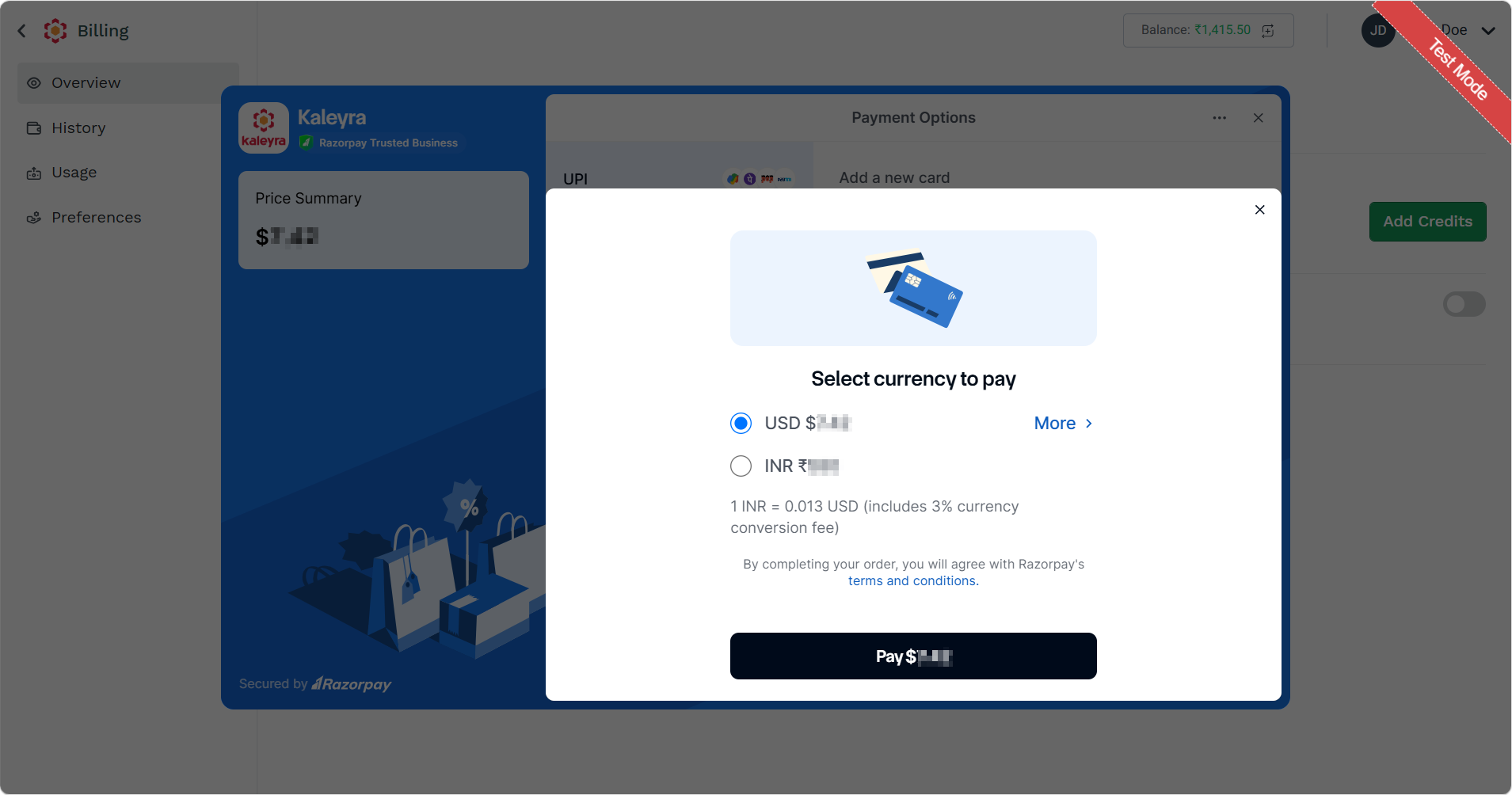
Note:To see all the supported currencies, click More >. The supported currencies appear on the right side of the page.
- Select the currency through which you want to pay the top-up amount.
- Click the Pay button.
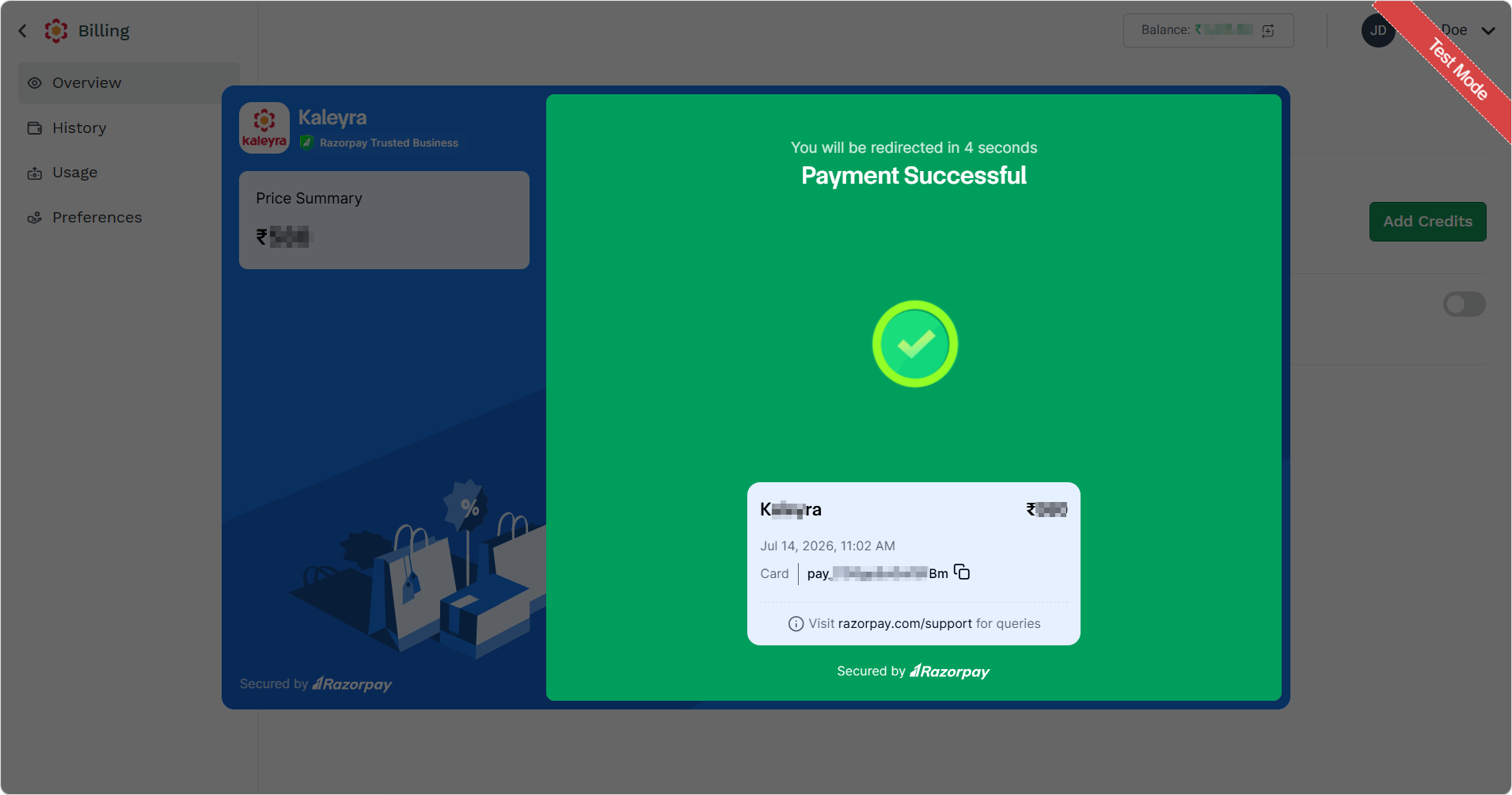
The payment successful message appears and the amount gets added to the account.
Updated 2 months ago