

Voice Reports
The Voice Reports allows you to access the information regarding all the calls incoming and outgoing for your account for the last six months. You also have the option to choose between detailed or summarized versions of the reports.
Requesting a report
To request a report, perform the following steps:
- Sign in to your Kaleyra platform.
The Business communications page appears.
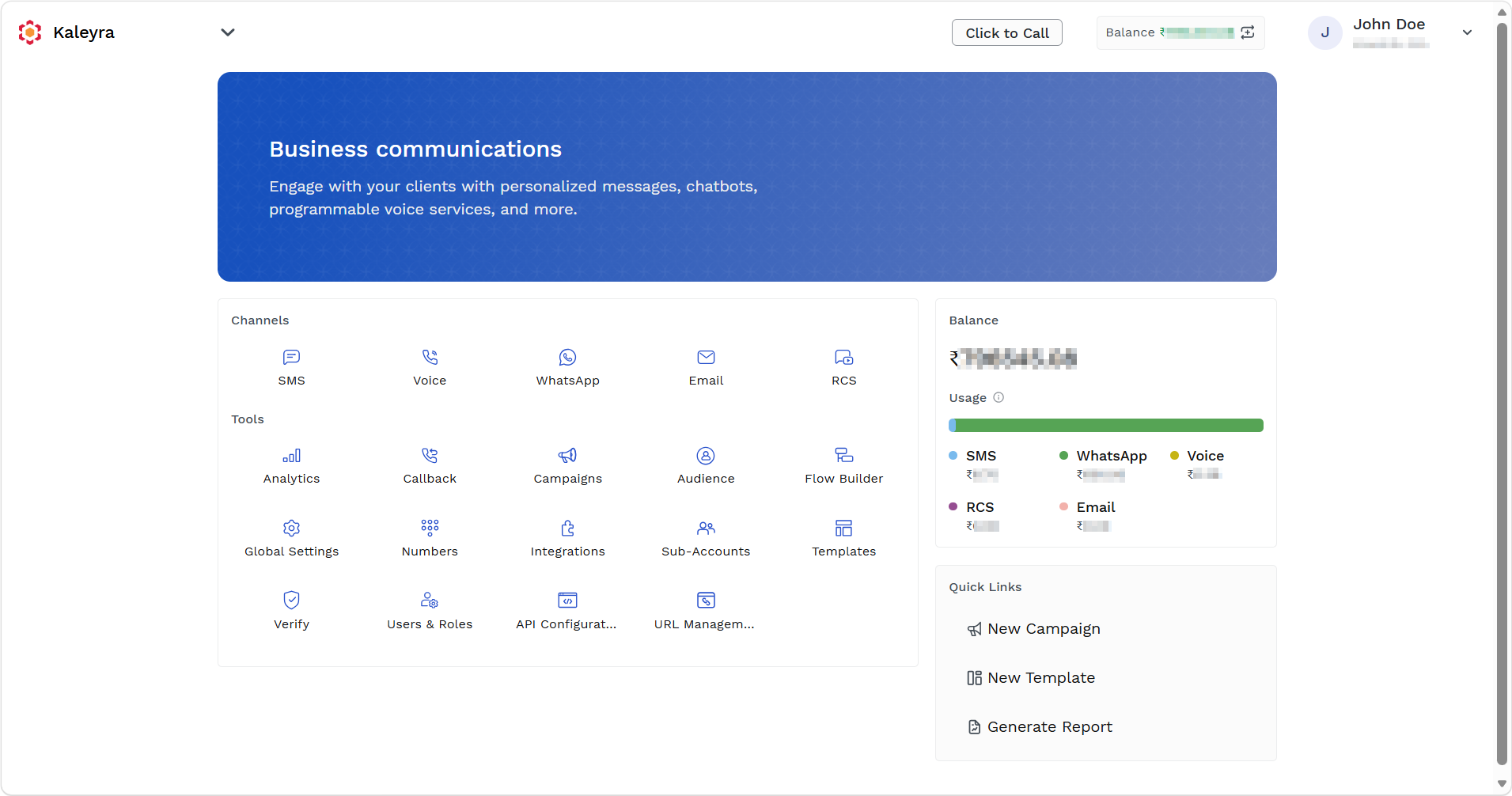
- On the Tools section, click Analytics.
The SMS Dashboard page appears.
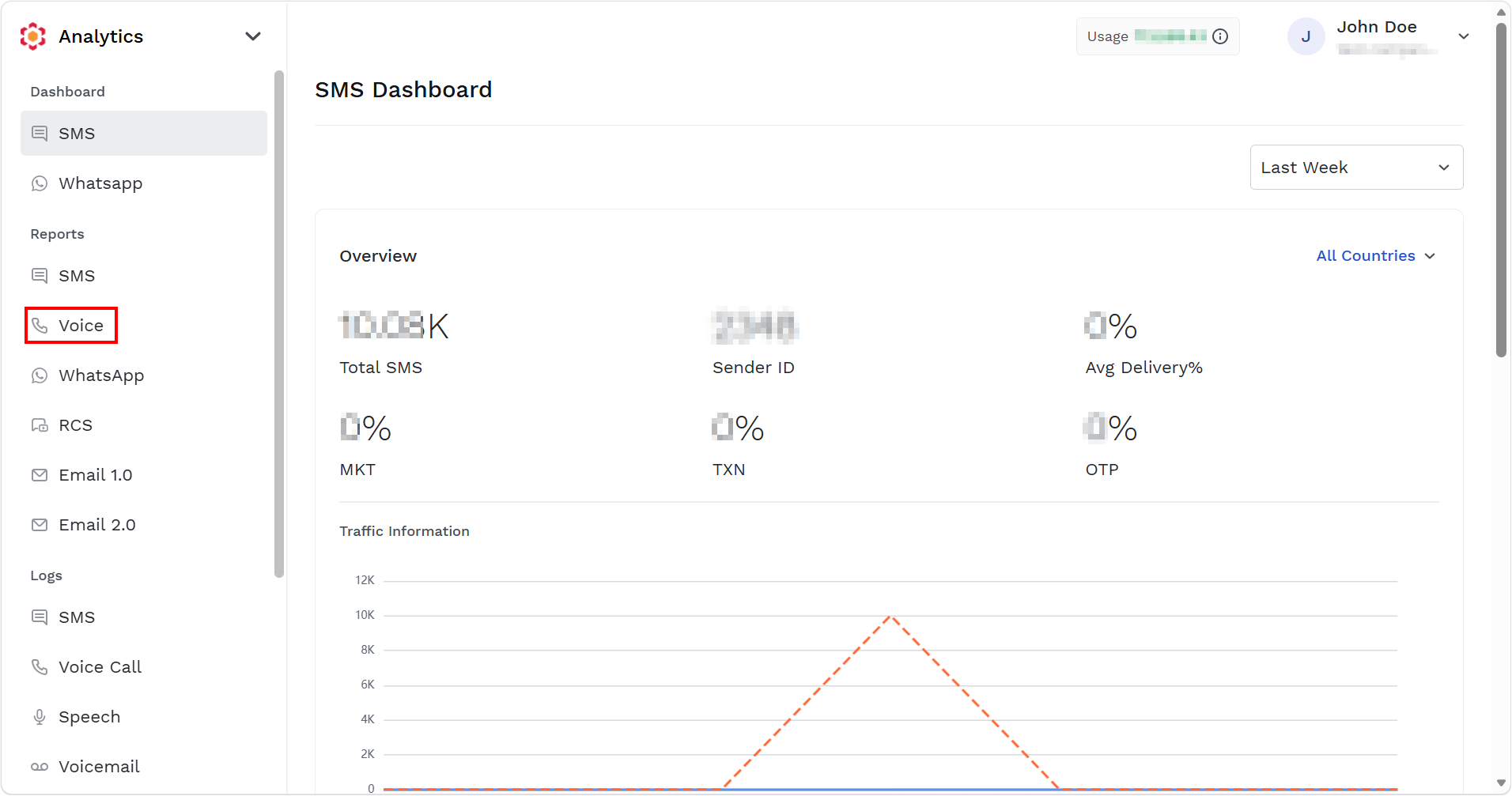
- On the left menu bar, under Reports section, click Voice.
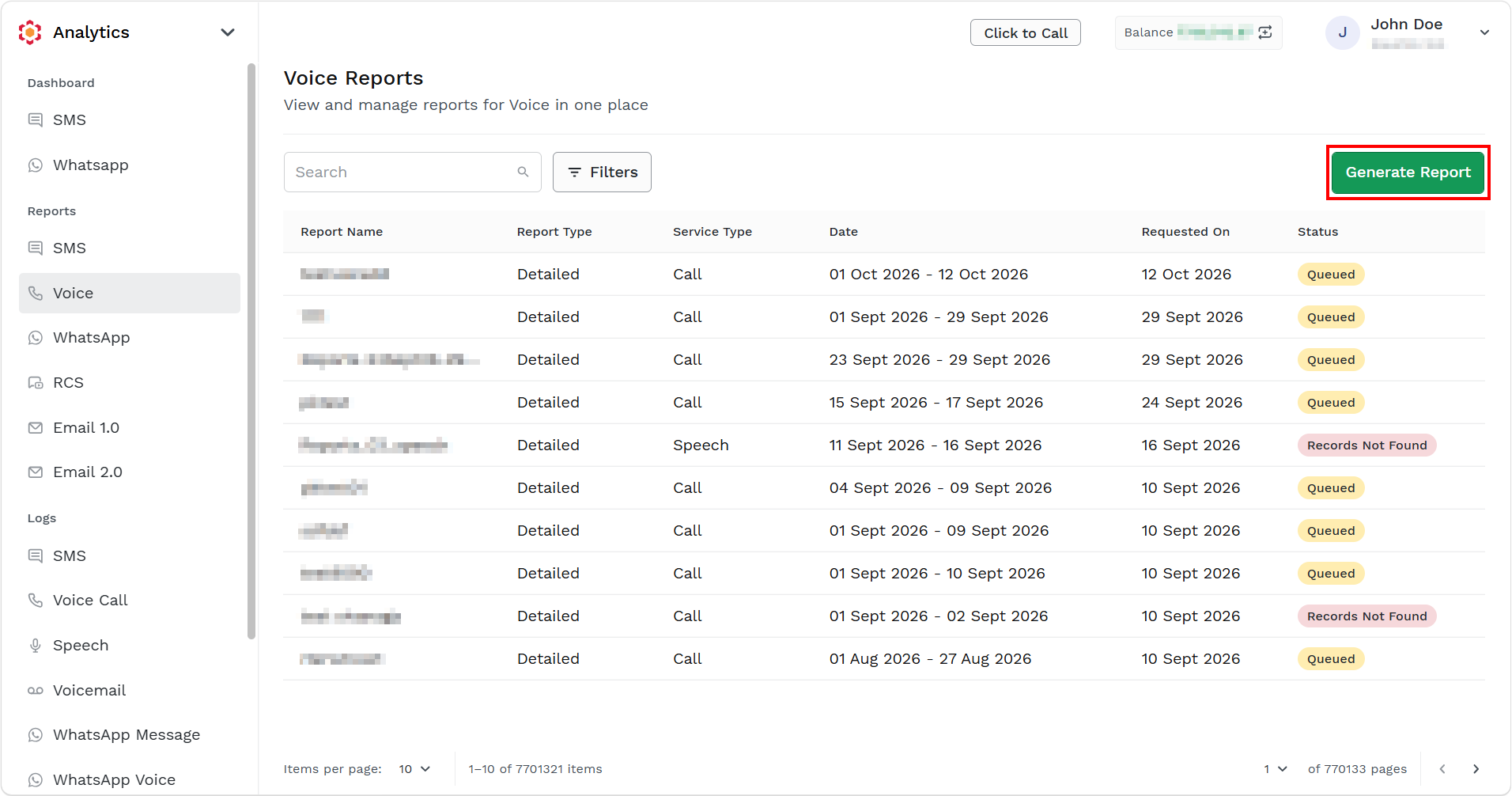
The Voice Reports page appears.
-
Click Generate Report.
The Generate Report page appears.
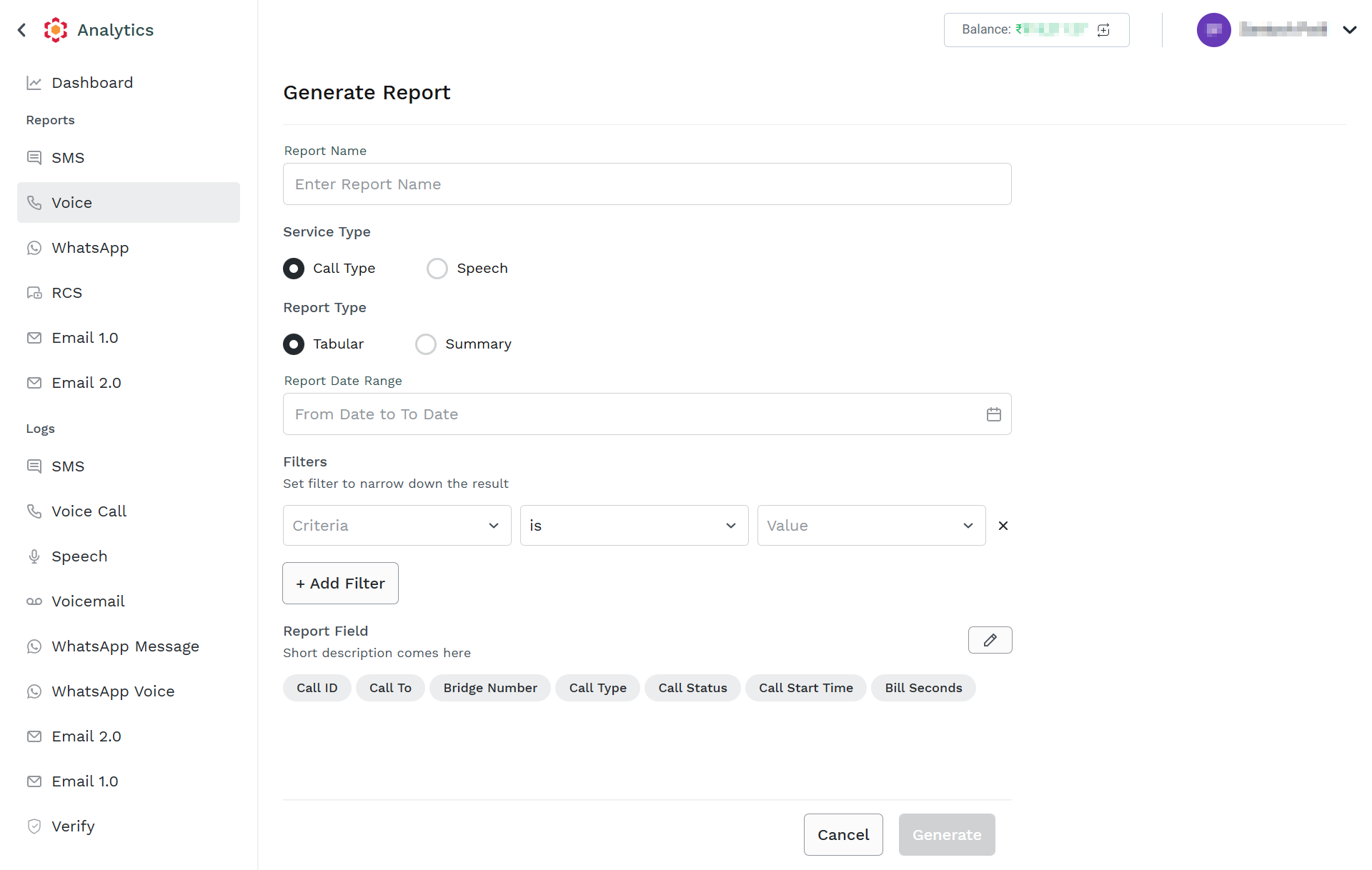
- In the Report Name field, enter a title for the report.
- From the Service Type, select one of the following options:
- Call Type - Call type indicates the nature of the voice call. The call type includes:
- Outbound Call (OBD): A system-generated call placed to one or more recipients. Often used for OTPs, reminders, alerts, campaigns, and notifications.
- Incoming Call: A call initiated by an end user to a Kaleyra number, typically handled through IVR or Flow Builder.
- Click-to-Call: A bridged call where Kaleyra connects two parties (for example, an agent and a customer).
- Speech - Speech indicates the source of the audio message played during the call. The speech includes:
- Text-to-Speech (TTS): Kaleyra converts text entered by the user into spoken audio. Supported languages include English, Italian, and Spanish, with configurable speech rates.
- Sound File or Recorded Audio: The call plays a pre-recorded audio file uploaded through Sound Manager or configured in the voice application.
- Audio Selection or Custom Audio: Audio selected from available recordings rather than dynamically generated speech.
- Call Type - Call type indicates the nature of the voice call. The call type includes:
- From the Report Type, select one of the following options:
- Tabular - A Tabular report provides detailed call-level records. Each row represents an individual call, allowing users to analyze specific call activities
- Detailed - A Summary report provides aggregated statistics instead of individual call records. It offers a high-level overview of campaign or account performance.
- In the Report Date Range field, select the date range. The acceptable date range should be within six months from the current date.
- (Optional) In the Filters section, use the Add Filter + to narrow down the report only to messages fulfilling specific conditions or to add the message content to the report according to your requirements. To add the filters, click on the field, select from the available filter option, and then click Apply.
The following are the supported filters:- Bridge Number - The Kaleyra virtual number (DID, Toll-Free, or Masking Number) used to connect or bridge the call between two parties. In Click-to-Call scenarios, this is the intermediary number through which the call is established.
- Call Status - Indicates the final outcome of the call. Common statuses include In Process, Queued, Completed, Expired, Failed, or Records Not Found.
- From Country - The country of the originating party or source number initiating the call. Helps you to analyze call traffic by source geography.
- To Country - The destination country of the called number. Helps you to track international and domestic voice traffic and usage patterns.
- Flow Name - The name of the Flow Builder workflow or IVR flow executed during the call. Helps you to identify which automated voice journey handled the interaction.
- Campaign Name - The name assigned to a voice campaign, such as a reminder campaign, OTP campaign, survey campaign, or promotional campaign. Helps you to measure campaign-specific performance.
- Call Type - Specifies the type of call. Common values include Incoming and Outgoing. Helps you to segregate traffic based on call direction and use case.
- Call Source - Indicates how the call was initiated. It can be API, VERIFY, CONVERSATION, C2C, CAMPAIGN, PLUGIN, FLOWBUILDER, or OTHERS. It helps you to determine which Kaleyra module triggered the call.
- (Optional) In the Report Field, click the edit icon to edit the fields for your reports.
- Click Generate. You can view the generated report on the Reports list page.
Note
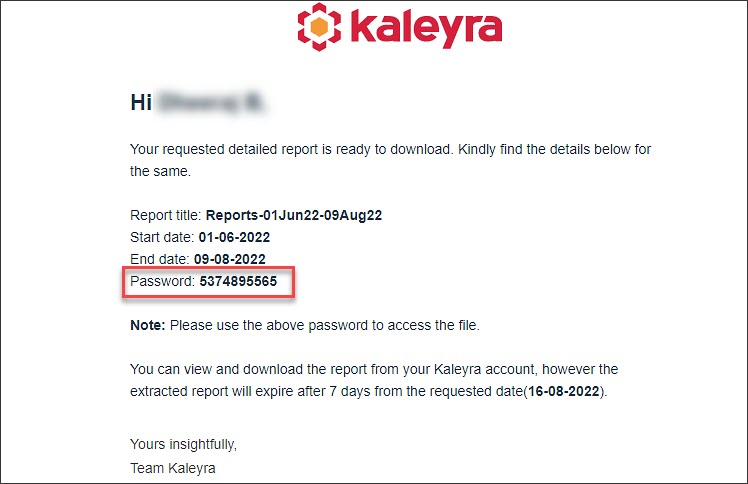
- The exported logs are password protected. You will receive the password separately via the registered email.
- The exported log is a zip file containing the CSV files.
Request Report Filters
You can apply the following filters and extract Detailed reports for any of the following call types—Incoming, C2C, Campaign, and SIP Outgoing and Summary report for Incoming and Outgoing calls.
| Field | Action Required |
|---|---|
| Bridge Number | Select the required bridge number from the dropdown. |
| Call Status | Select the required call status from the dropdown. |
| From Country | Select the name of the country, from where the message has been sent, from the dropdown. |
| To Country | Select the name of the country, to which the message has been sent, from the dropdown. |
| Flow Name | Select the required flow name from the dropdown. |
| Campaign Name | Enter the name of the campaign in the given field. |
| Call Type | Select the required Call type from the dropdown. Available options are Incoming, C2C, Campaign, and SIP Outgoing. |
| Call Source | Based on the call type chosen, the following call source options are available in the dropdown:
|
Downloading the report
You can download existing reports with Completed status. The reports are downloaded as a protected ZIP file containing CSV files. To download a generated report, click the download icon corresponding to the report. You will receive the password separately via the registered email.
Updated 5 days ago