

Launch a WhatsApp Campaign for V2 WABA
You can launch a WhatsApp campaign associated with specific WABA ID.
While creating a new WhatsApp campaign, you must consider the following points:
- Make sure to select the correct WABA ID from the WABA menu on the top of the Campaigns list page that has the specific template you intend to use for the campaign.
- If you decide to select a different WABA ID after having filled the details for any of the campaign fields, when the new WABA ID is selected, then the input field are cleaned and any value entered is lost, and you will have to fill up the field details again.
- At any time during campaign creation, you can save the details as draft. Saving the details as draft helps you to retain the data without losing the campaign information so to complete it at later stage.
To create a new WhatsApp campaign, perform the following steps:
- Sign in to your Kaleyra platform.
The Business communications page appears.
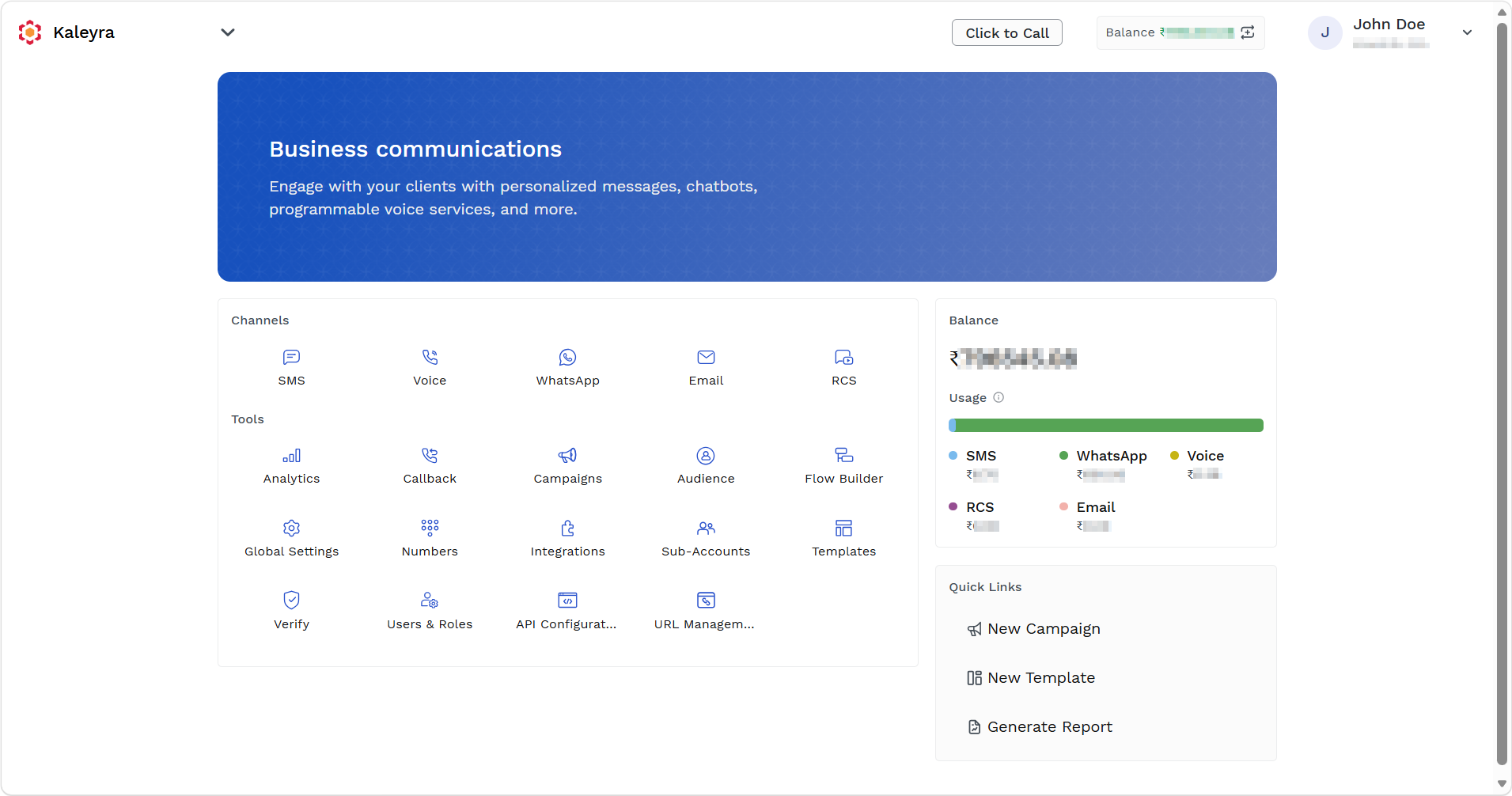
- On the Tools section, click Campaigns.
The Campaigns page appears. The Campaign page provides a unified view of all your campaigns to help manage and improve customer engagement.
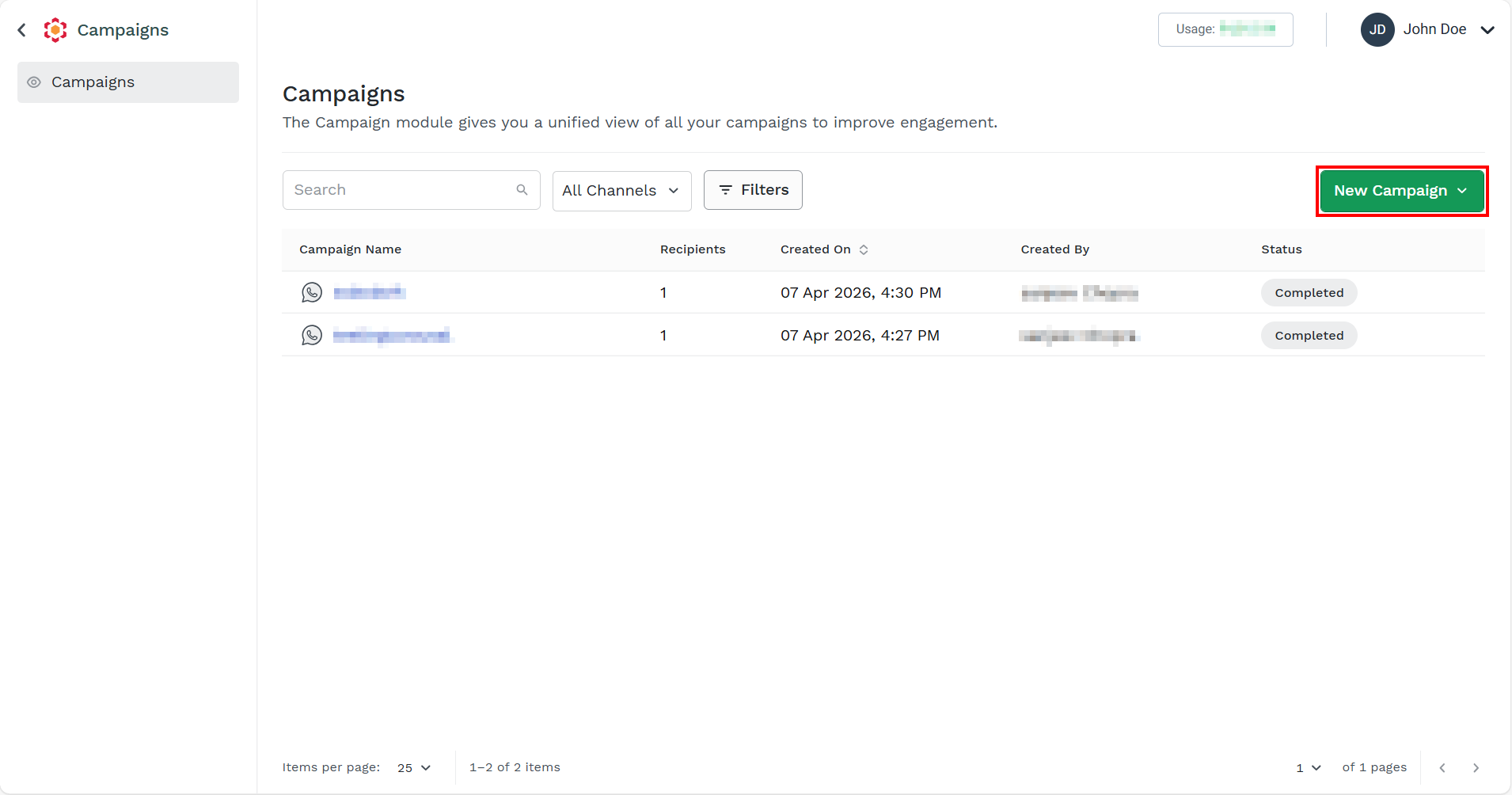
- Click the New Campaign drop-down field.
The list of supported channels appears.
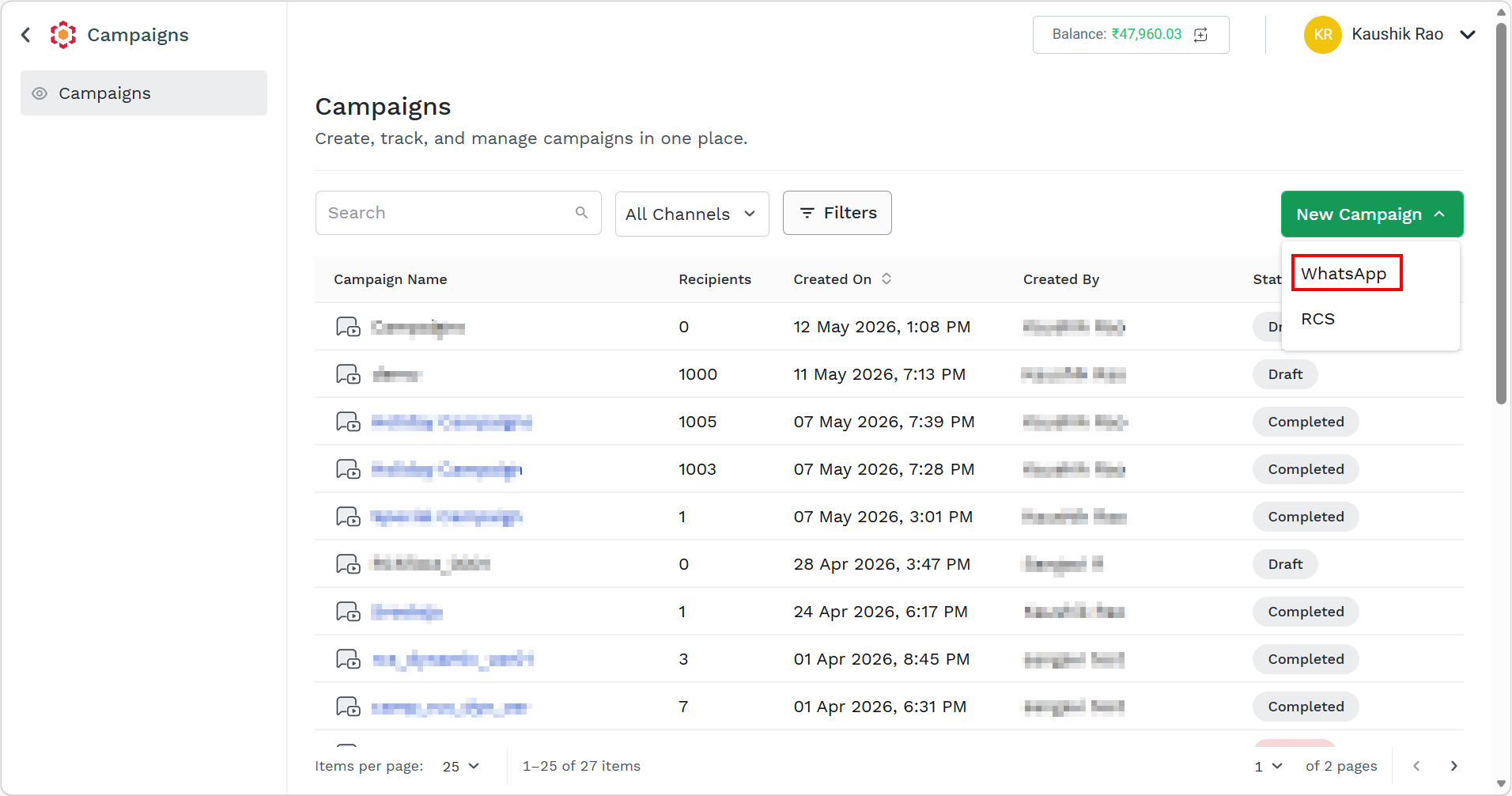
- Select the WhatsApp option.
The New WhatsApp Campaign page for the Configuration step appears.
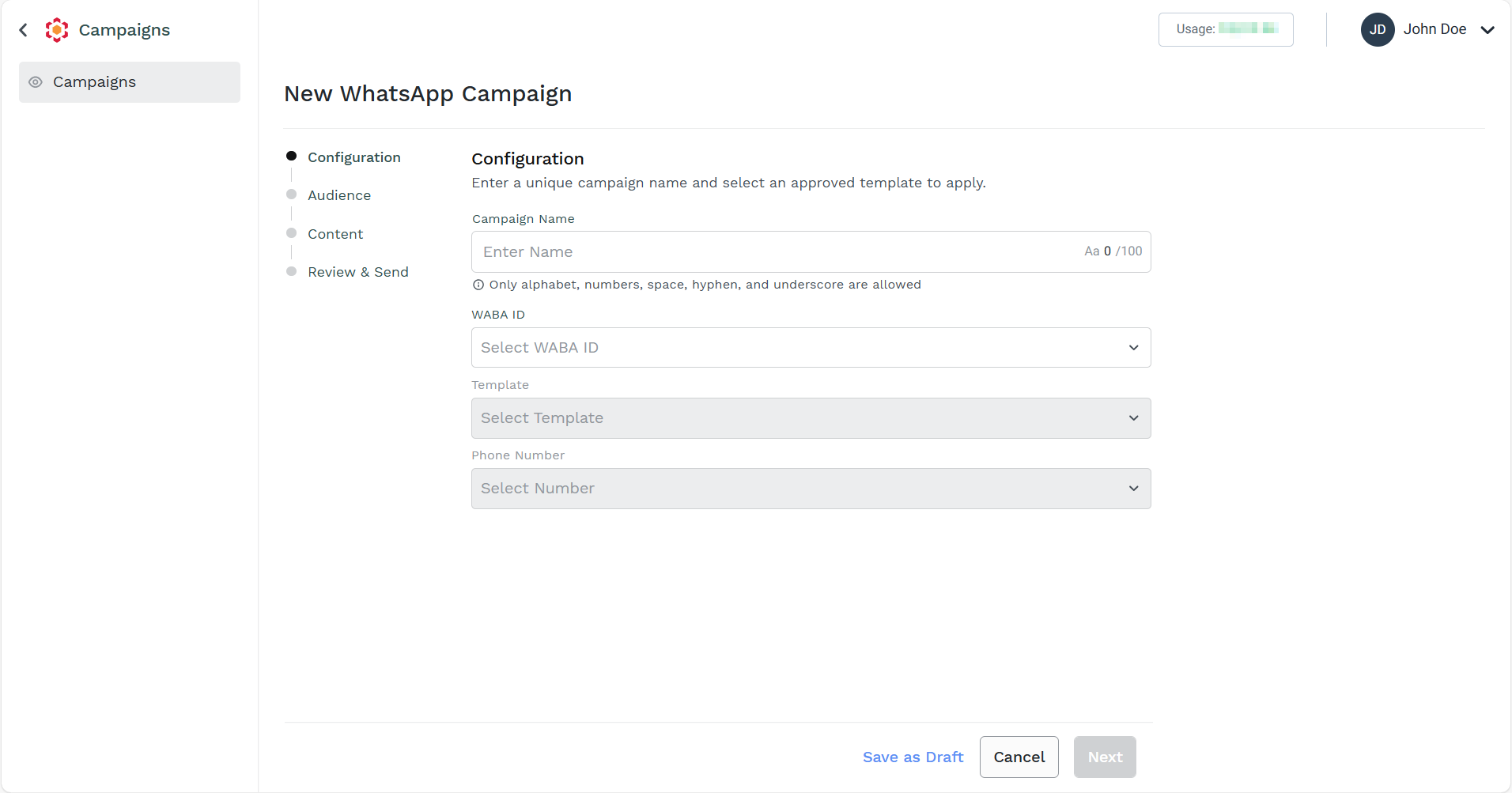
- Enter the following details:
-
In the Campaign Name field, enter the campaign name. A maximum of 100 characters is supported for the Campaign Name field. After you save the campaign, you cannot edit the campaign name.
-
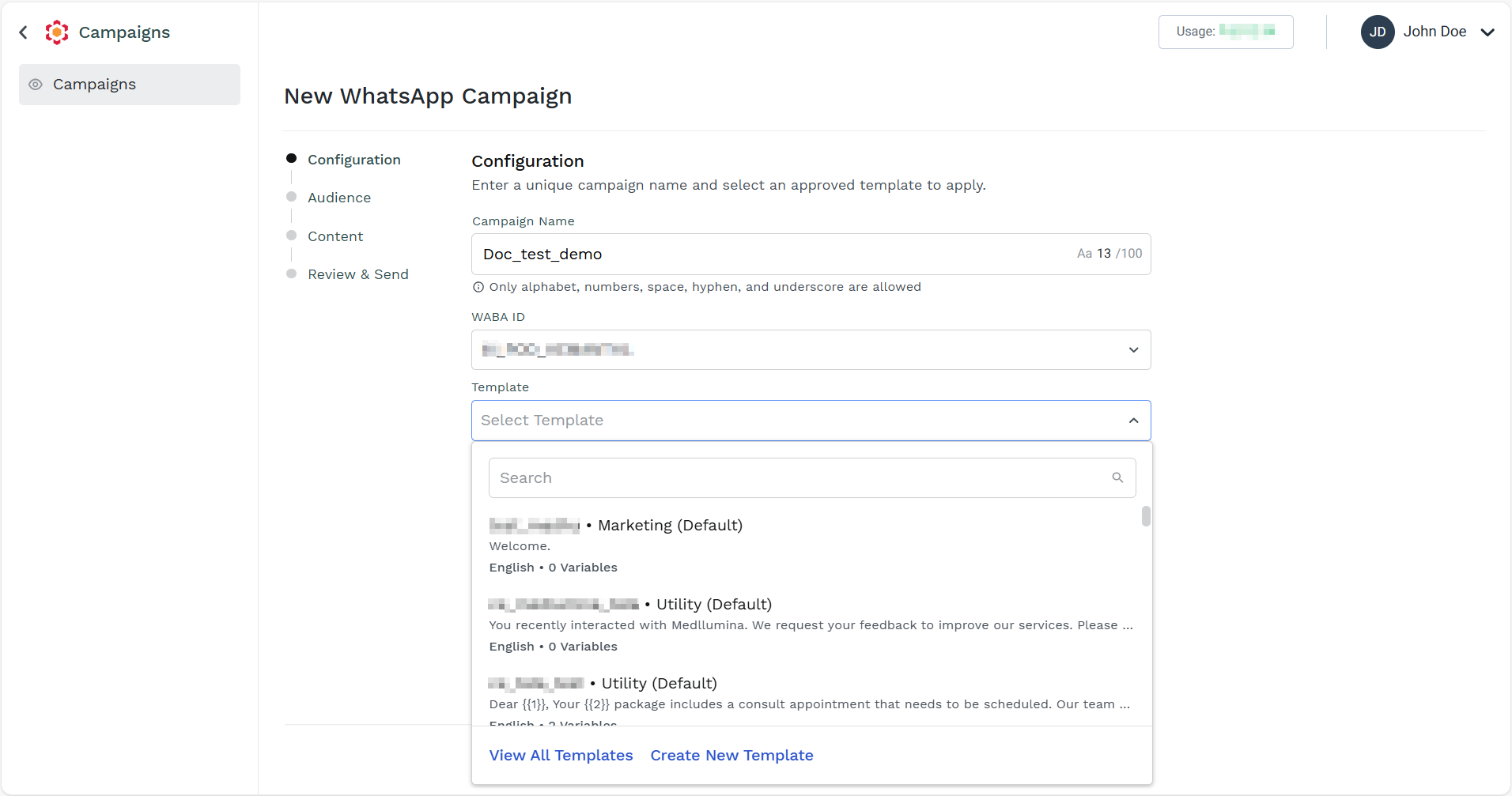
Click the WABA ID drop-down field and select the added WABA ID. For more information on how to add WABA ID, see Add a new WABA ID.
-
Click the Template drop-down field and select one of the following options:
- Select one of the approved templates. If you have multiple templates, scroll down and select the template.
- In the Search field, enter the template name. Based on your entered keys, the search result appears. Select the template.
- Click View All Templates link, all the templates appear in right pane. You can search by entering the template name or filter based on template categories and then select the template.
- Click Create New Template link to create a new template. For more information, see WhatsApp Templates.
-
Click the Phone Number drop-down field and select the WhatsApp Business Phone Number from which campaign will be sent. For more information on how to add phone number, see Add a Number.
-
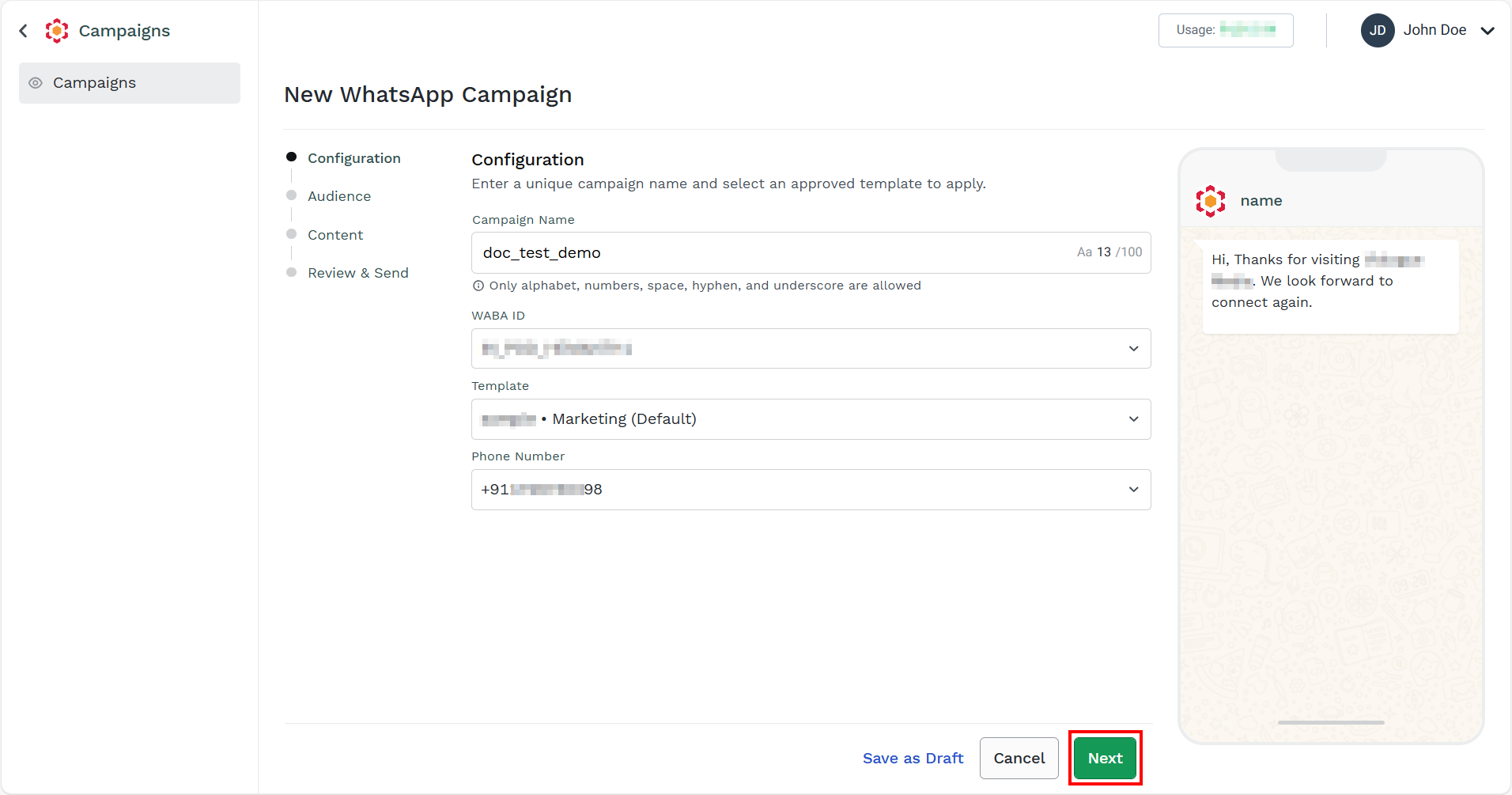
Note:You can save a campaign as a draft. Click the Save as Draft button to save the current campaign as a Draft. The confirmation message Save as Draft? appears, click Save. The campaign gets saved with Draft status. For more information on launching a drafted campaign, see Launch a Drafted Campaign.
- Click Next.
The New WhatsApp Campaign page for the Audience step appears. The Audience step allows you to define the recipients who will receive the WhatsApp message through this campaign.
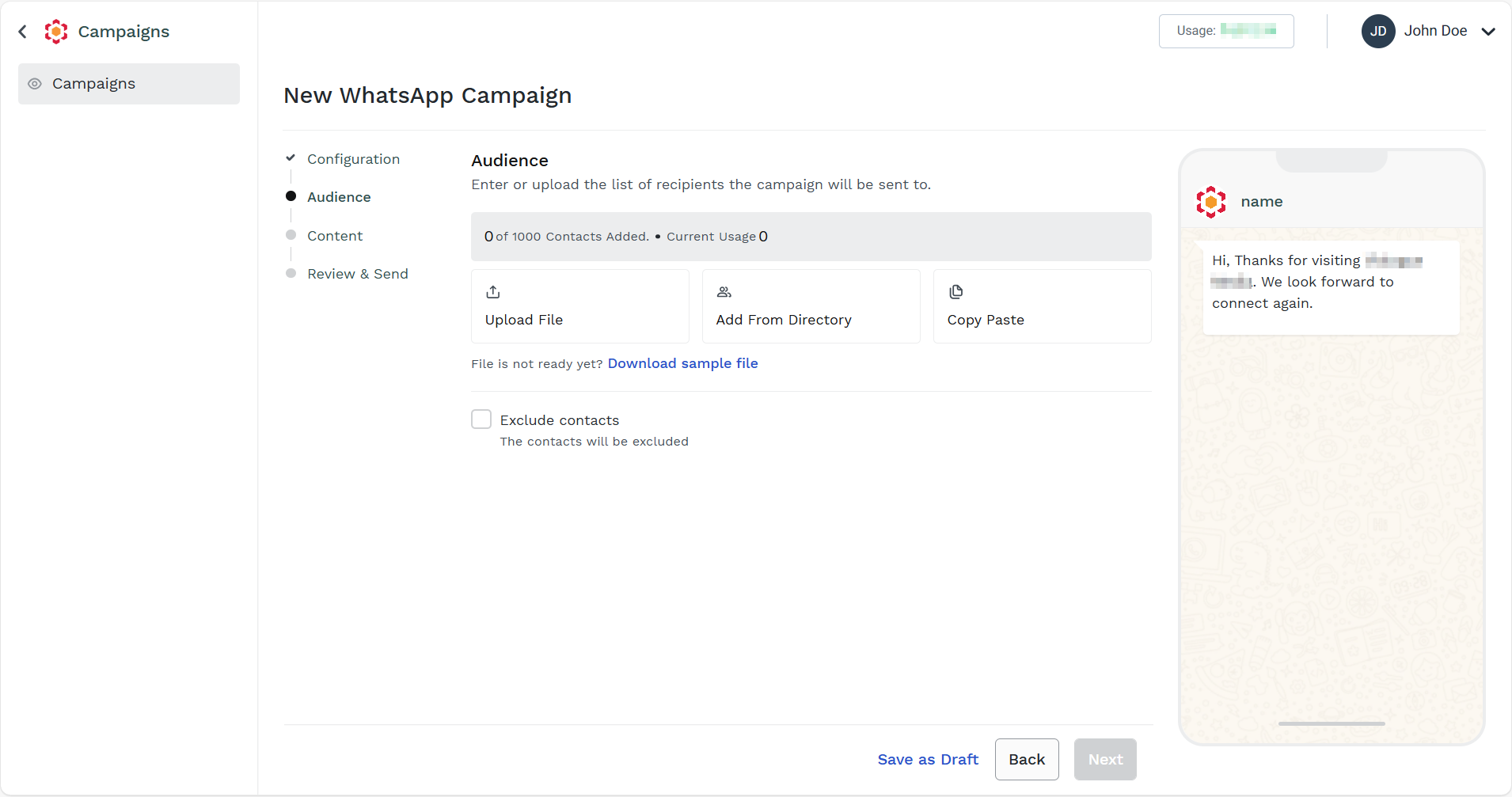
- Add the audience using the following methods:
- Upload File - You can upload the contacts to whom you want to send message using the spreadsheet. For more information, see Add Contacts by Uploading a File.
- Add From Directory - You can add the contacts from the Kaleyra platform directory. For more information, see Add Contacts from Directory.
- Copy Paste - You can manually enter the contacts or copy and paste the list of phone numbers separated by comma. For more information, see Copy Paste the Contacts.
- (Optional) If you want to exclude any number from the campaign list, select the Exclude contacts checkbox and use the following methods:
- Upload File - You can upload the contacts to whom you want to send message using the spreadsheet. For more information, see Add Contacts by Uploading a File.
- Add From Directory - You can add the contacts from the Kaleyra platform directory. For more information, see Add Contacts from Directory.
- Copy Paste - You can manually enter the contacts or copy and paste the list of phone numbers separated by comma. For more information, see Copy Paste the Contacts.
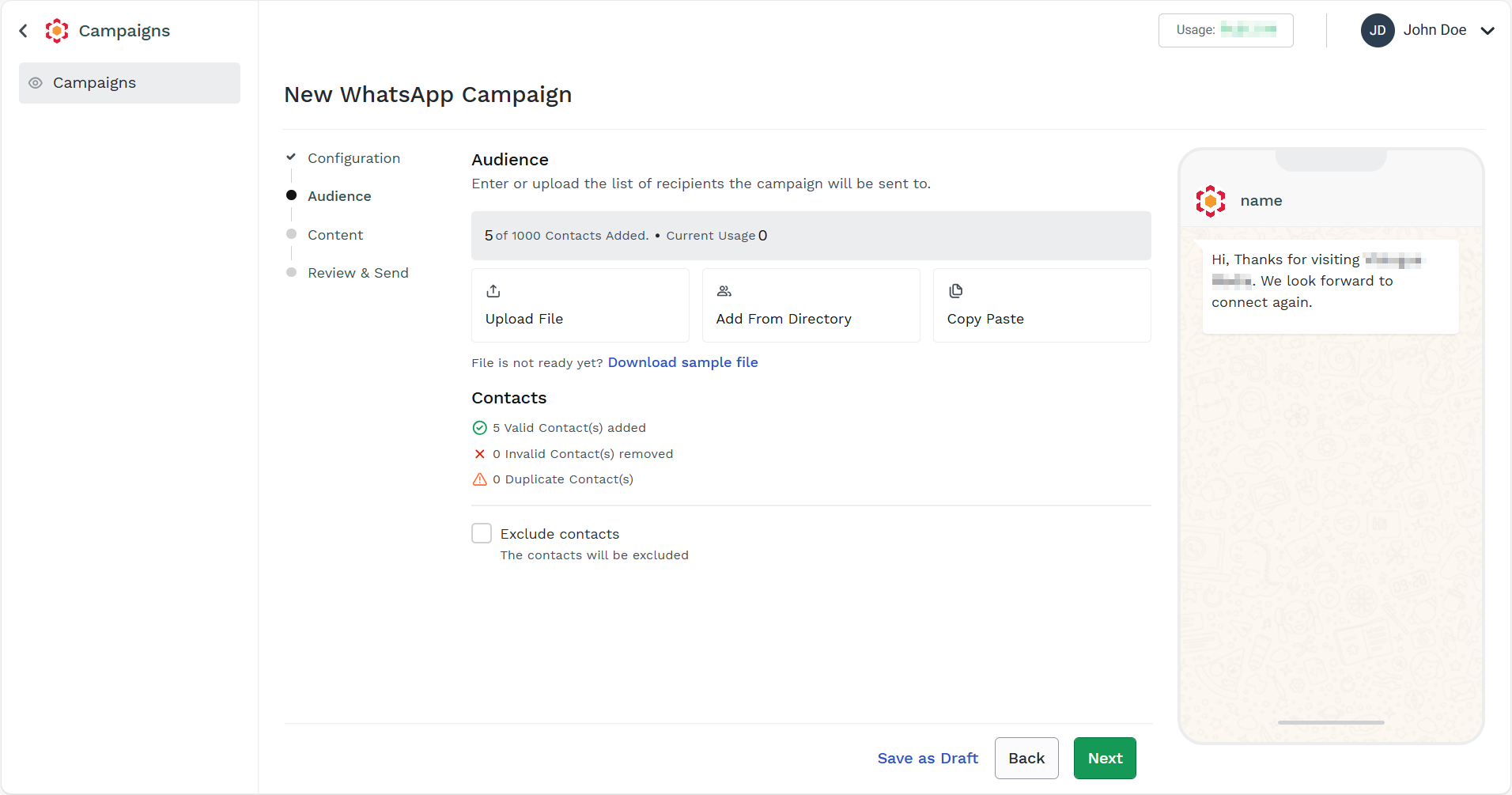
Note:If there is no variable available for the selected template, the Content step will be skipped and will move to Review & Send step.
- Click Next.
The New WhatsApp Campaign page for the Configure Default Variables step appears.
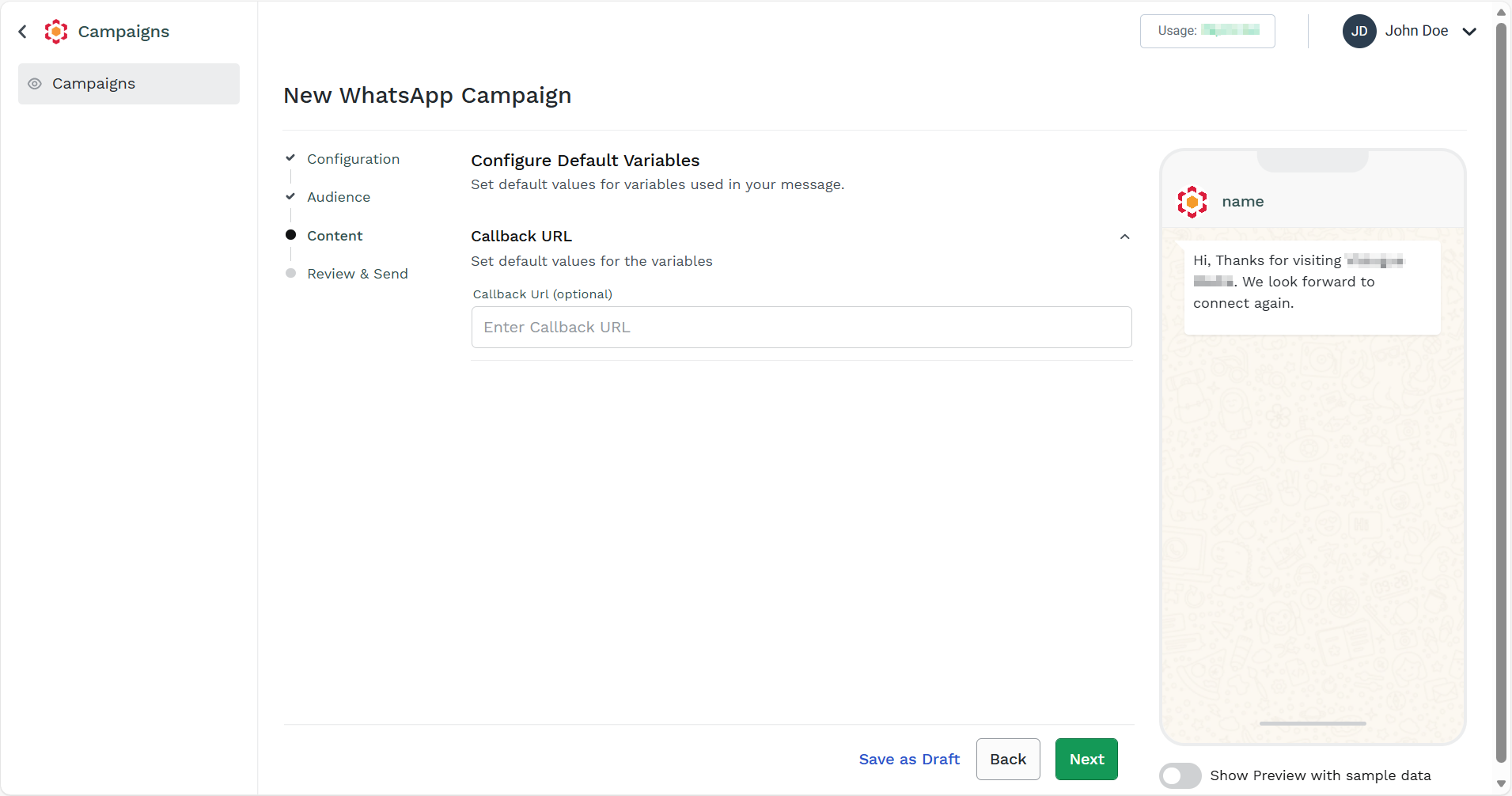
- (Optional) In the Callback Url field, enter the callback for your campaign messages. For more information on callback, see Callback Profiles.
- Click Next.
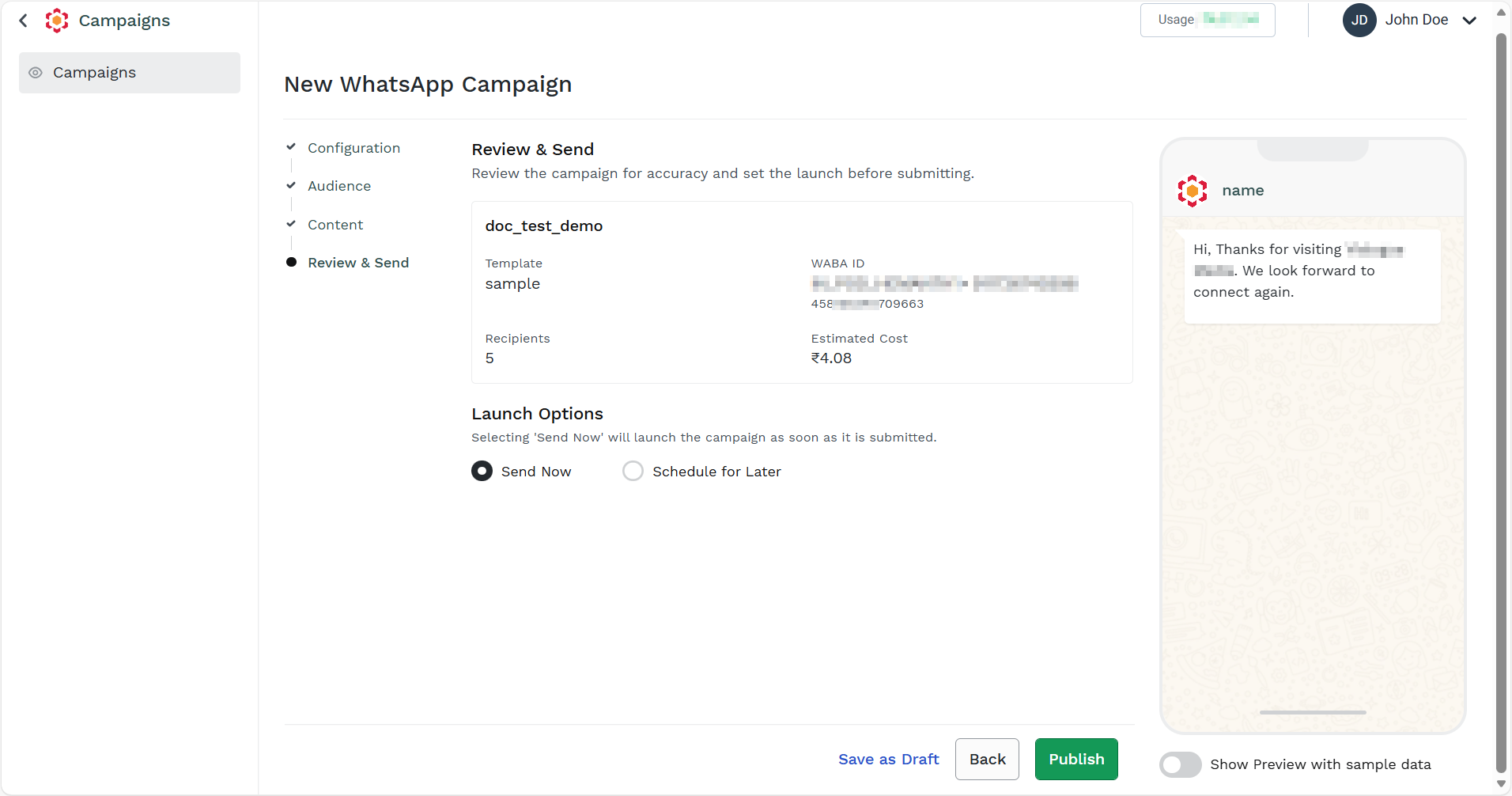
The New WhatsApp Campaign page for the Review & Send step appears.
-
You review the campaign detail such as campaign name, template used, WABA ID, recipients, estimated cost.
-
(Optional) Toggle Show Preview with sample data to view preview the message with sample data after campaign is sent. For more information, see View WhatsApp Campaign Details.
-
You can select one of the following options to publish the campaign:
- Send Now - Select Send Now option to launch the campaign immediately.
- Schedule for Later - Select Schedule for Later option to launch the campaign at the scheduled time and date.
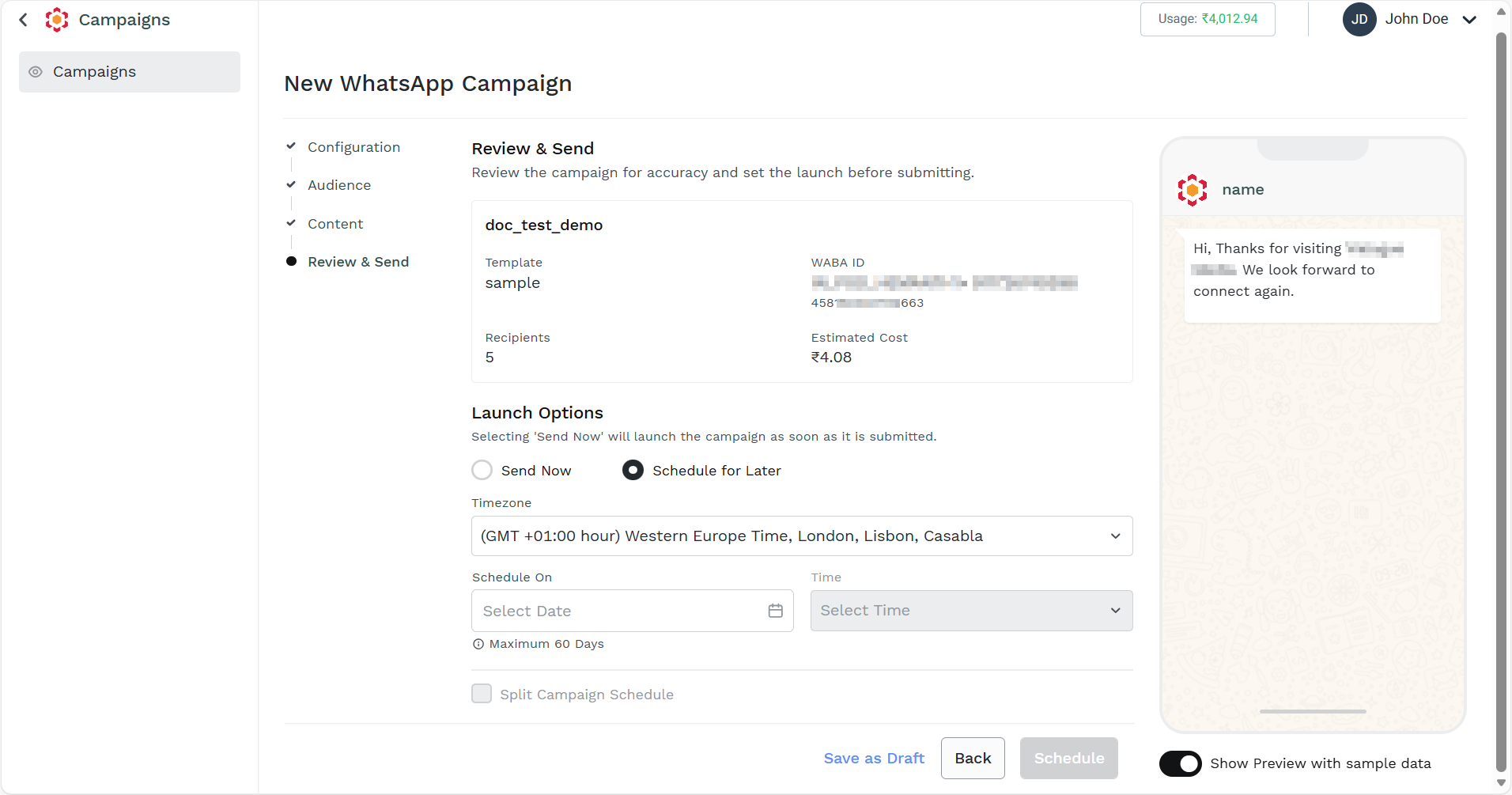
If you are selecting the Schedule for Later option, then perform the following steps:
a. Click the Timezone drop-down field and select the time-zone where you want to send the campaign messages.
b. Click the Scheduled On calander icon, select the date when you want to launch the campaign. You can select maximum of 60 days in advanced from the current date.
c. Click the Time drop-down field and select the time when you want to schedule the campaign.
d. Select the Split Campaign Schedule checkbox to split the campaign to different schedules. For more information, see Add Contacts in Batch for Campaign. You can view the contacts number in batch. For more information, see View Batch Details.
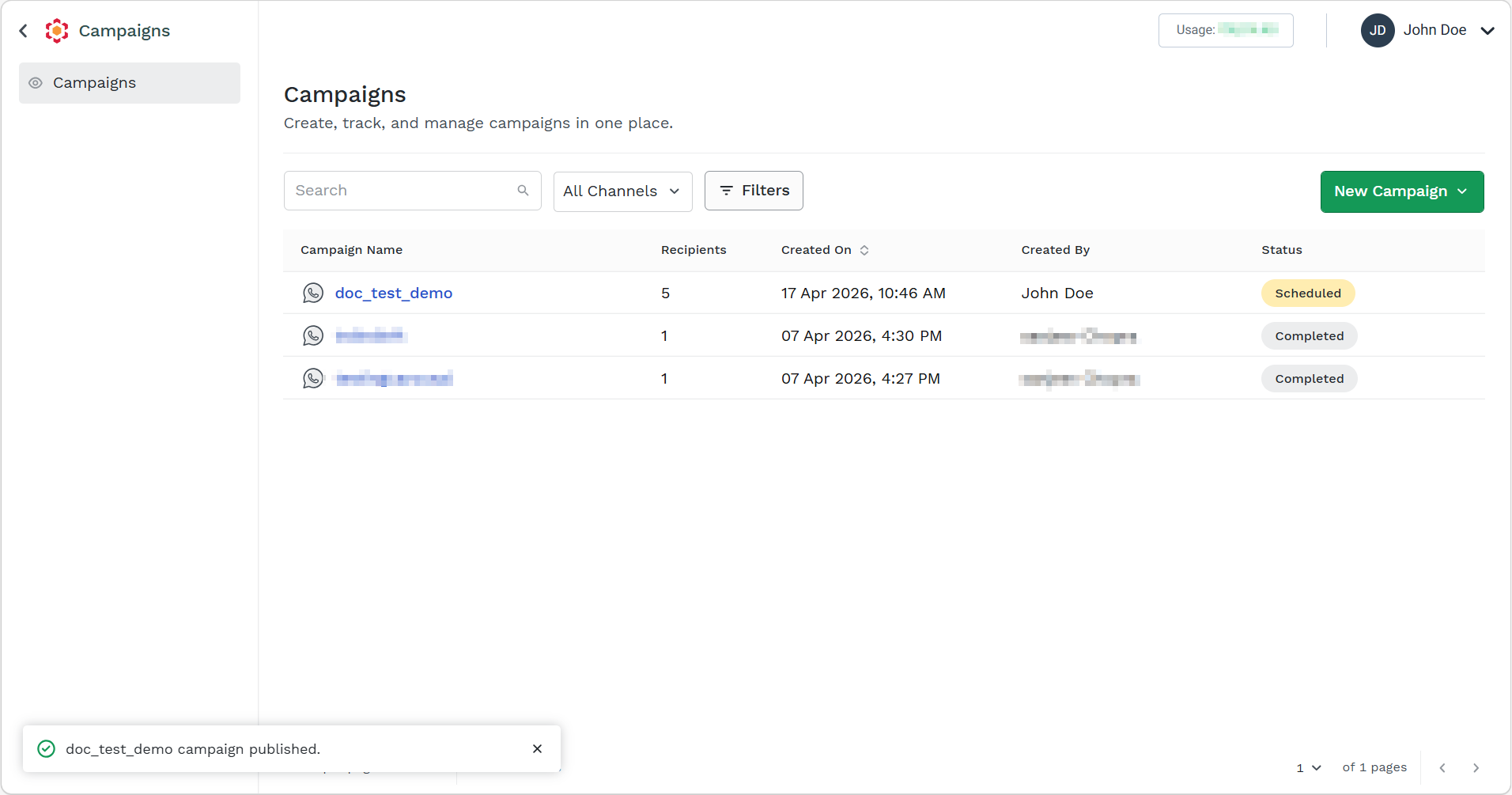
- Select either Send Now or Schedule based on your choice for campaign. Based on your selection either to send now and schedule for later, the following status will appear:
- For Send Now, the status will be Submitted.
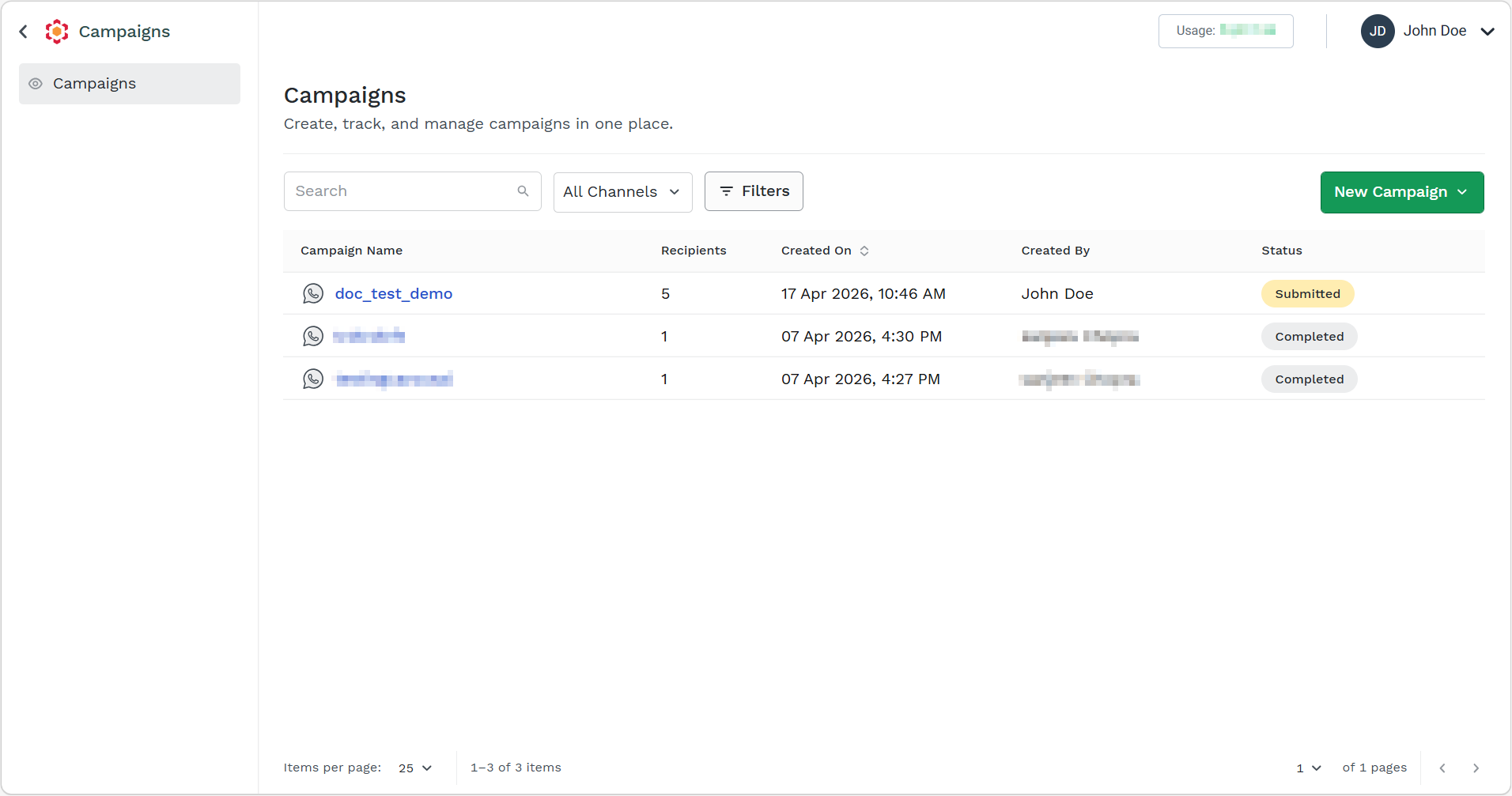
- For Schedule, the status will be Scheduled. After the campaign is sent on the scheduled time, the status will be submitted.
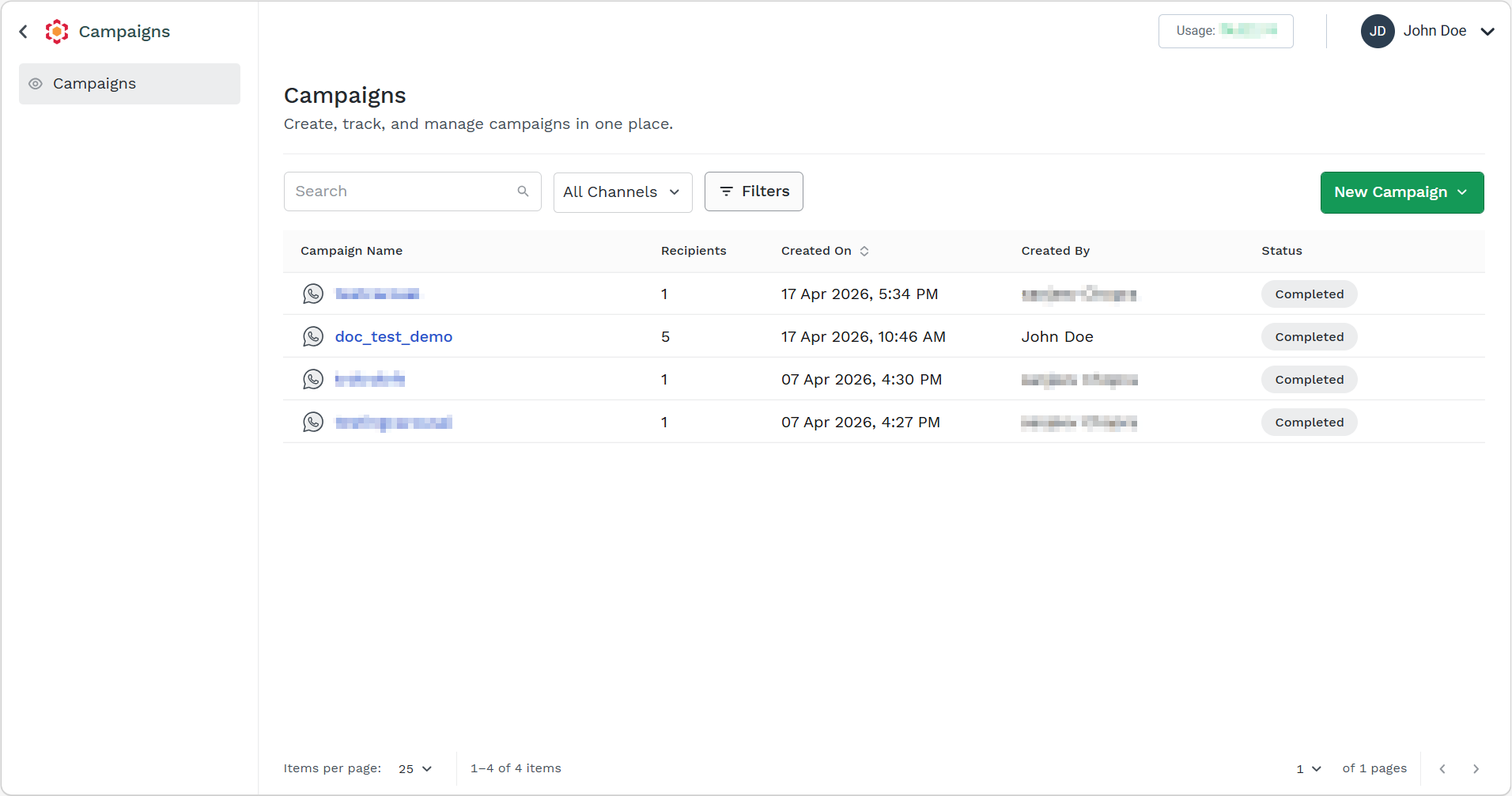
Note:Once the campaign is launched and all messages have been processed, the campaign status changes to Completed.
Updated 4 days ago