

Create a Callback Profile
You can create a callback profile tailored to your specific requirements. You create a callback profile in the Kaleyra platform, so the platform knows where, when, and how to send asynchronous event updates (like delivery reports and incoming messages) back to your system. A callback profile offers a set of common options, including the HTTP method to send the updates to your designated endpoint.
To create a callback profile, perform the following steps:
- Sign in to your Kaleyra platform.
-
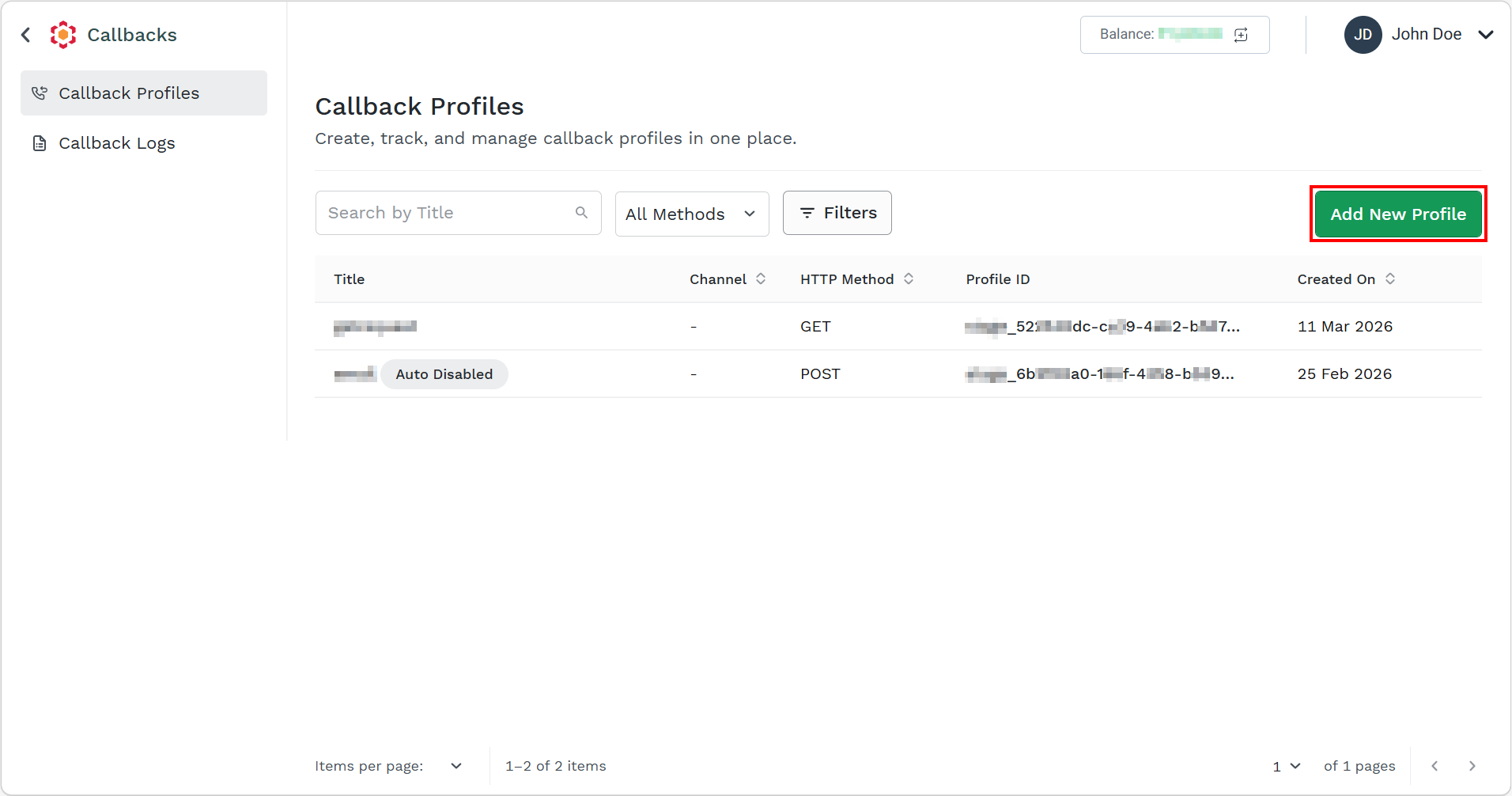
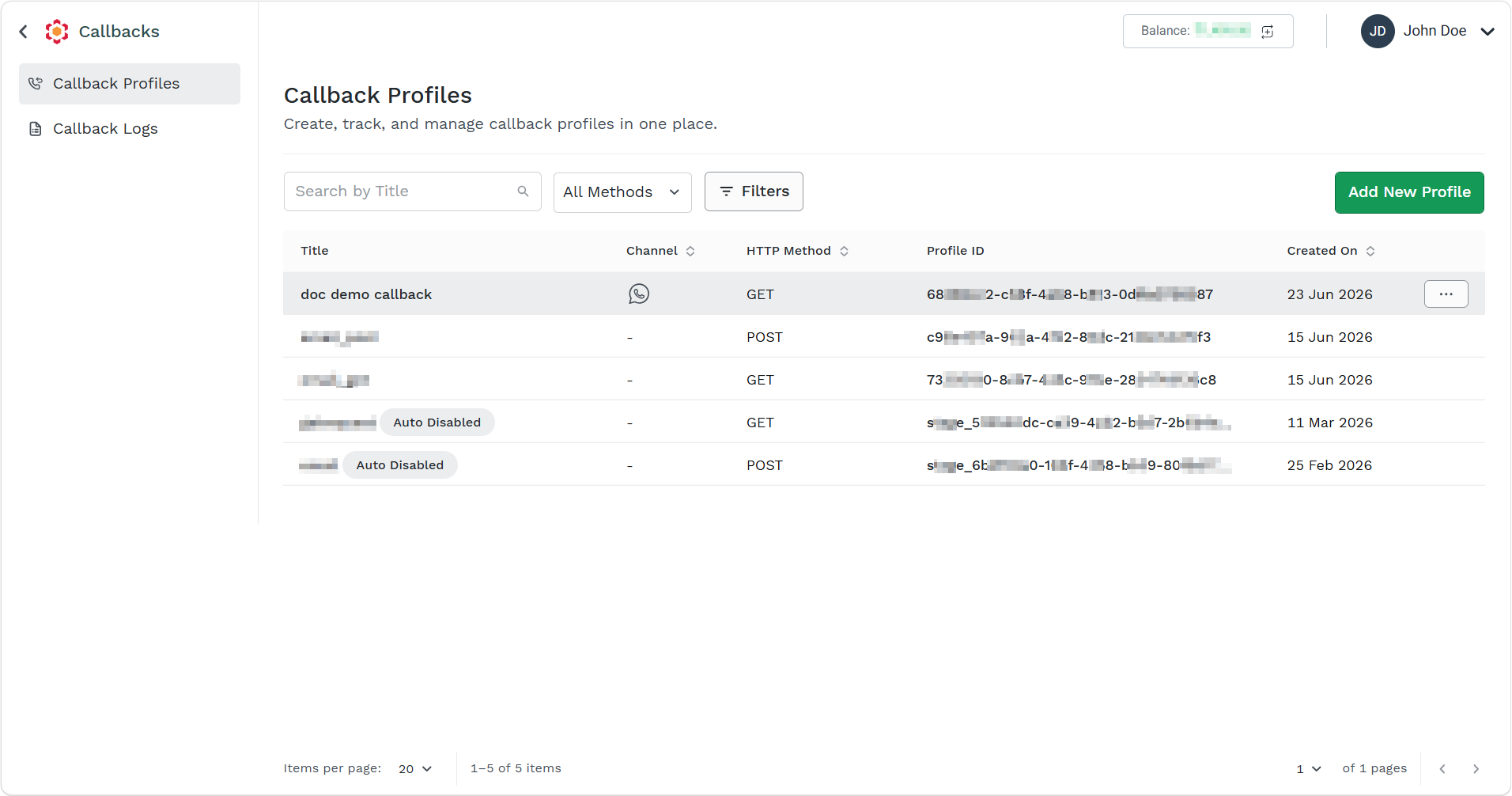
On the User Profile settings drop-down list, select the Callback Profiles option.
The Callback Profiles page appears.
-
Click the Add New Profile button.
The New Callback Profile page appears.
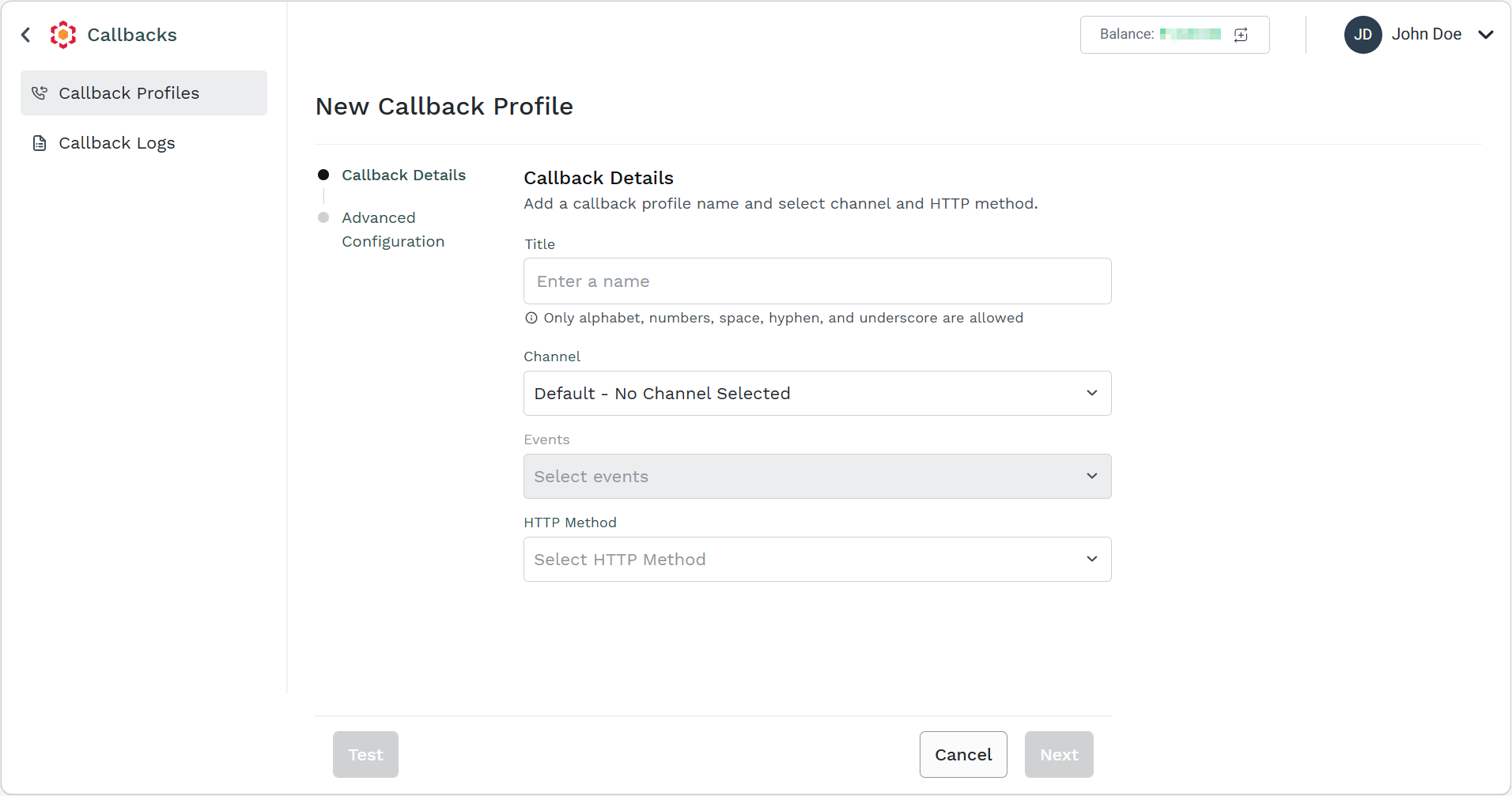
- Perform the following:
-
In the Title field, enter the title of the callback profile. You can use only the alphabet, numbers, spaces, hyphens, and underscores. This title can be used to search for callback profiles.
-
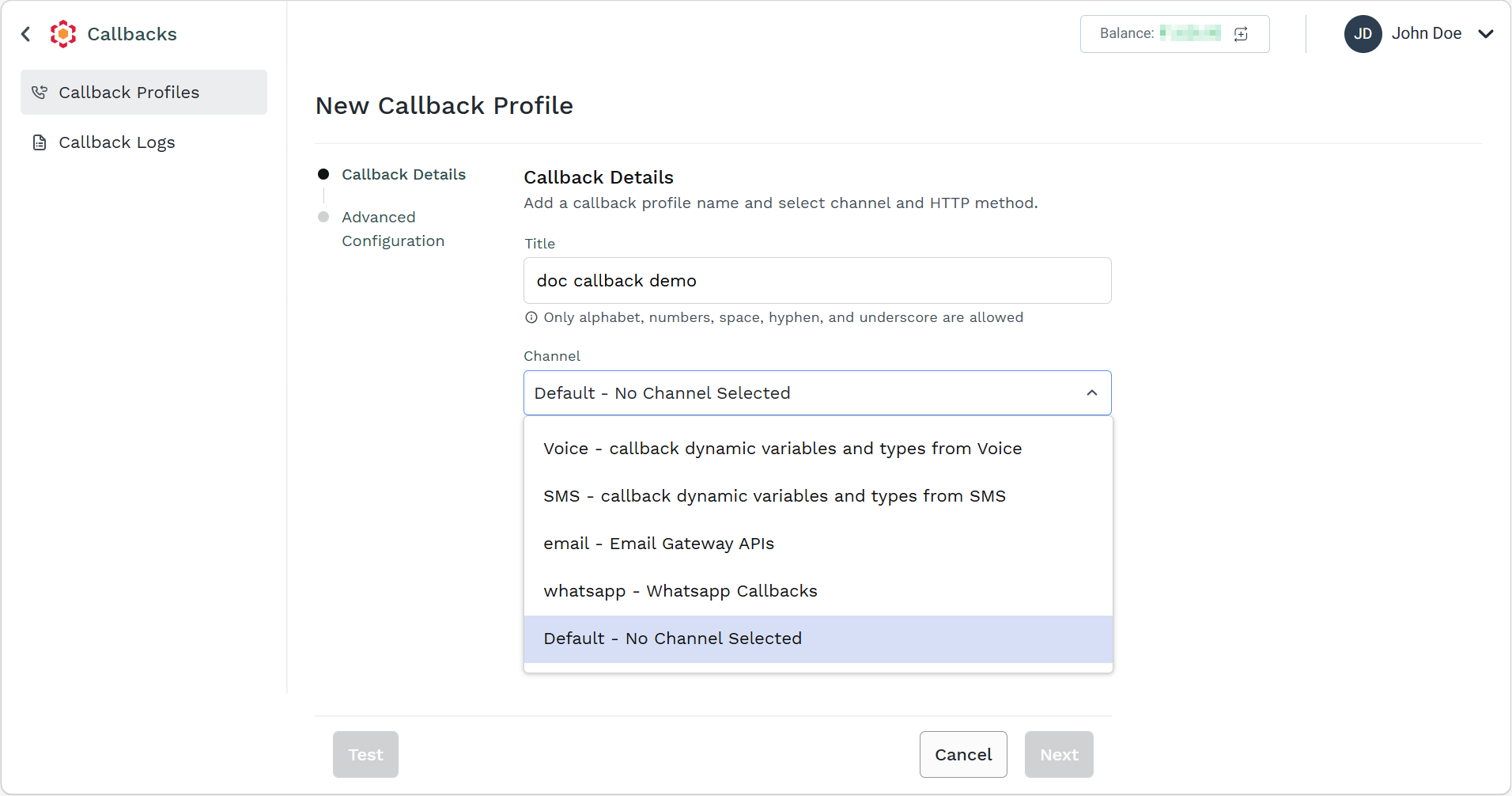
Click the Channel drop-down and the following option appears:
- Voice - callback dynamic variables and types from Voice – You can use this option to create a callback profile to get updates about the status of a voice call using the dynamic variables.
- SMS - callback dynamic variables and types from SMS - You can use this option to create a callback profile to get updates about the status of a submitted SMS.
- email - Email Gateway APIs - You can use this option to create a callback profile to get updates about the status of a submitted email.
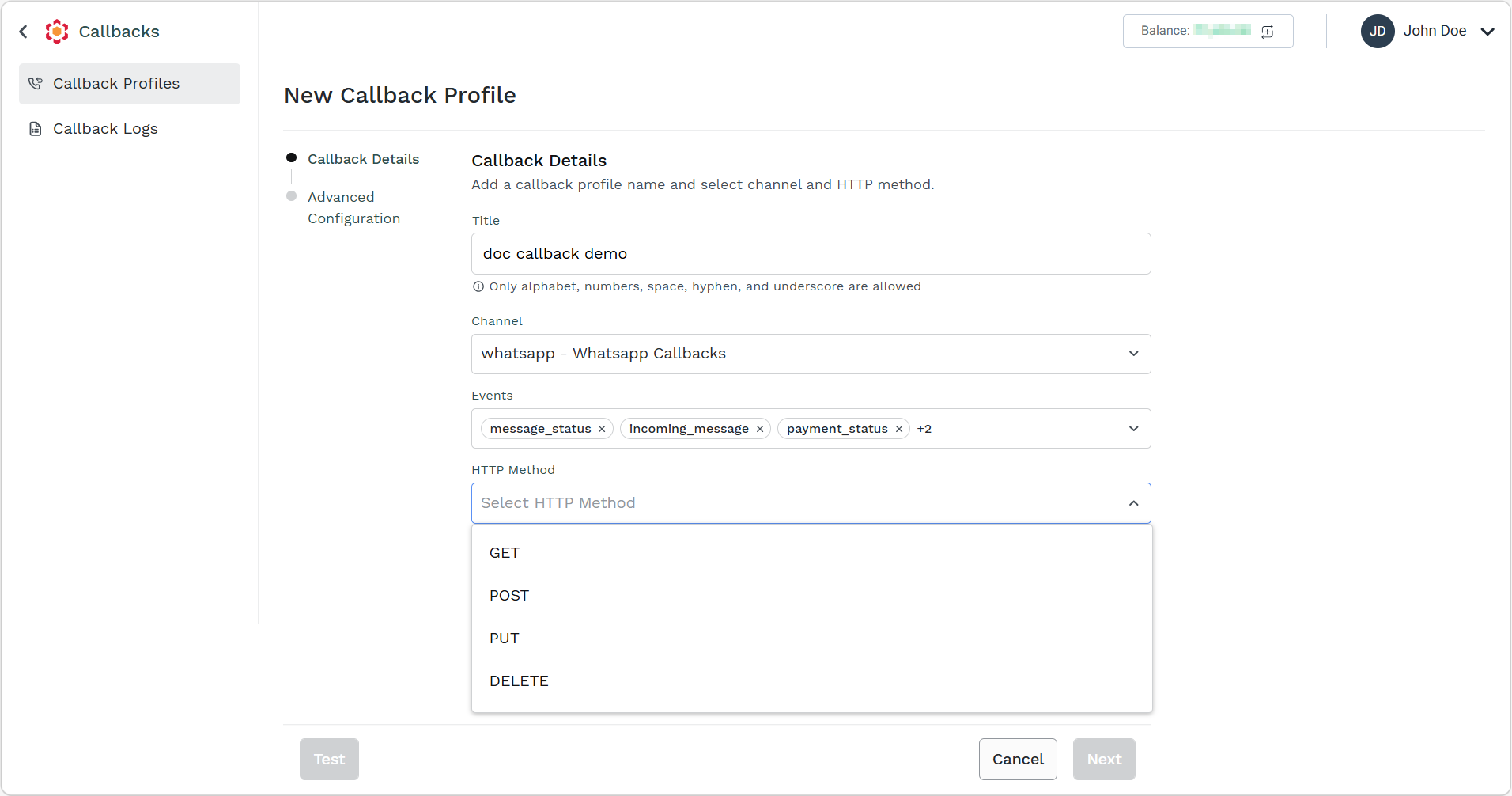
- whatsApp - WhatsApp Callbacks - You can use this option to create a callback profile to get updates about Message status, Incoming messages, Payment status, Message Template status update, and Phone number quality update. In this case, whatsApp - WhatsApp Callbacks is selected.
- (Default) Default - No channel selected - This is the default option.
Note:Select this option when you need to create a callback not specific to any channel or for a channel still not available in the list. On selecting a channel other than the Default option, the Events for the selected channel field is enabled. The following is the list of events according to the channel:
- “Voice” for Voice channel.
- "sms-send" for SMS channel.
- "email-send" for the Email channel.
- “message_status”, “incoming_message”, “payment_status”, “message_template_status_update”, and “phone_number_quality_update” for the WhatsApp channel
-
From the HTTP Method dropdown list, select the method you want Kaleyra platform to use to call your configured endpoint.
GET
Use the GET method to retrieve information from the given server using a given URL:
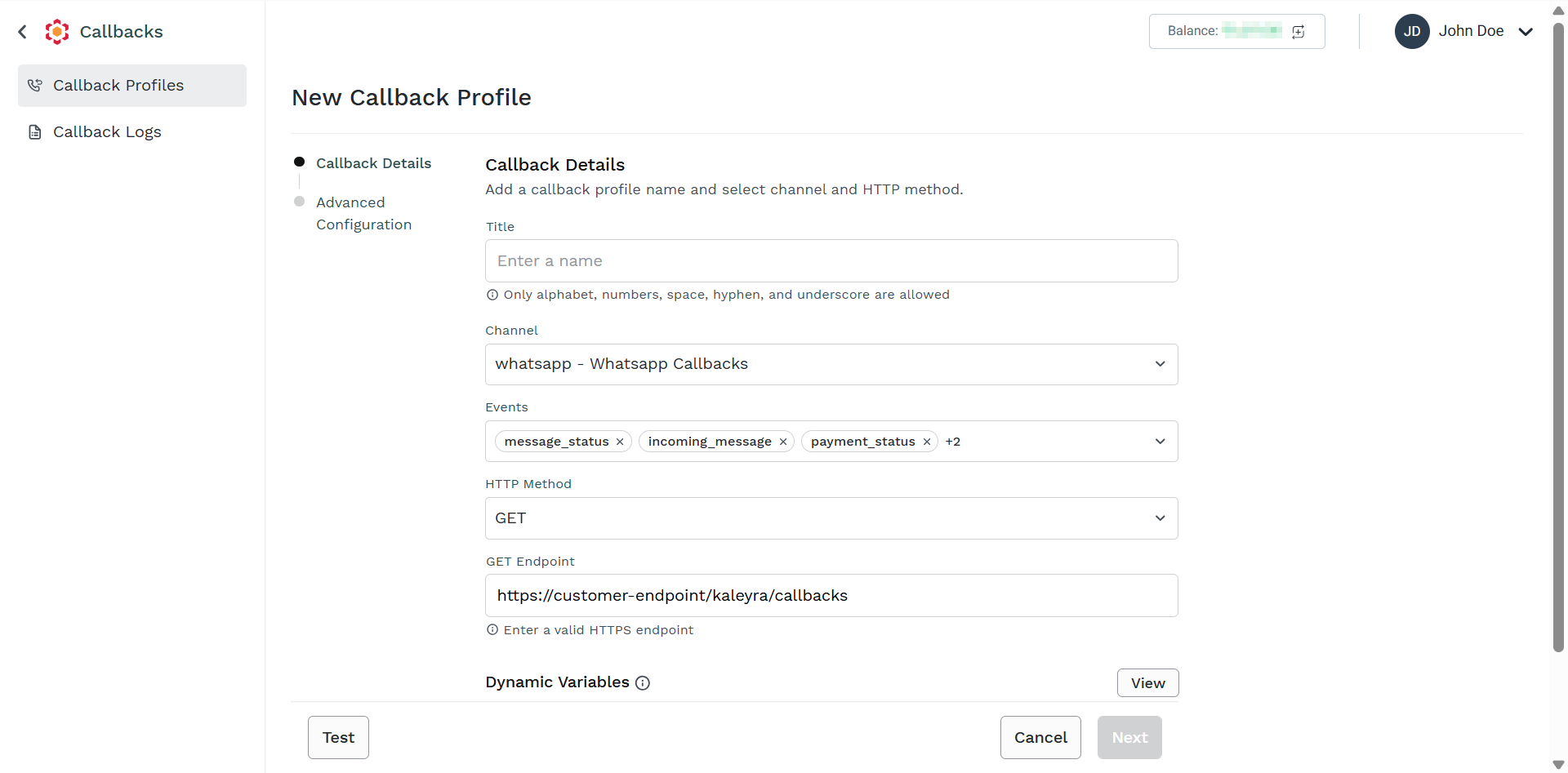
i. In the Enter Endpoint field, enter the URL at which the callback information should be received.
ii. In the Dynamic Variables field, click View to view and select the dynamic variables for the selected channel.
The Dynamic Variables pane appears on the right side of the page.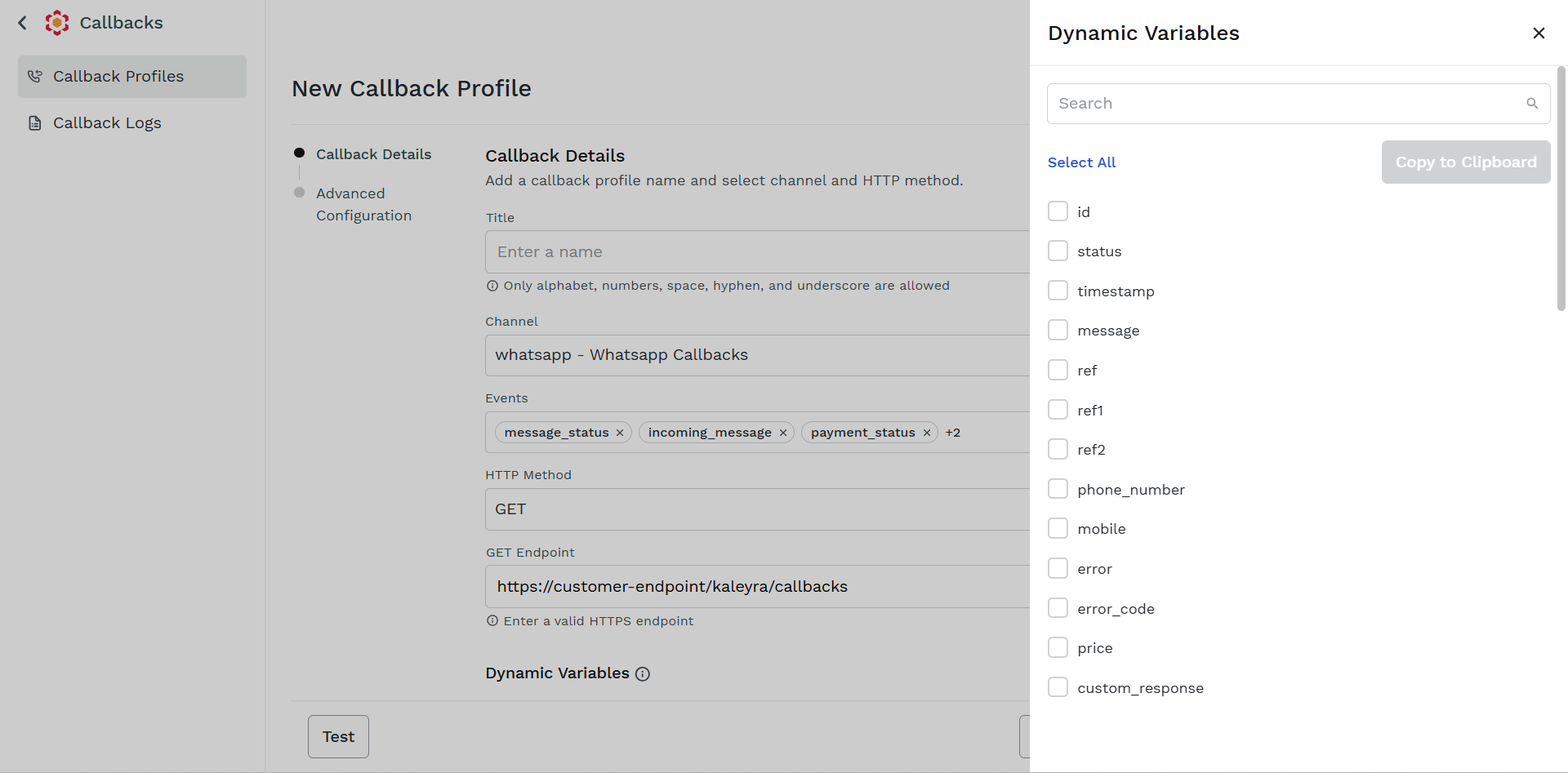
The dynamic variables represent all the possible information that you can retrieve as part of the callback that the Kaleyra platform will send to your system.
iii. Click Select All to select all of them or check box for the fields you are interested in.
iv. Click Copy to Clipboard to copy the selected dynamic variables. The variables get copied to the clipboard.
v. Click X (CLOSE) on the top-right of the pane to close it.
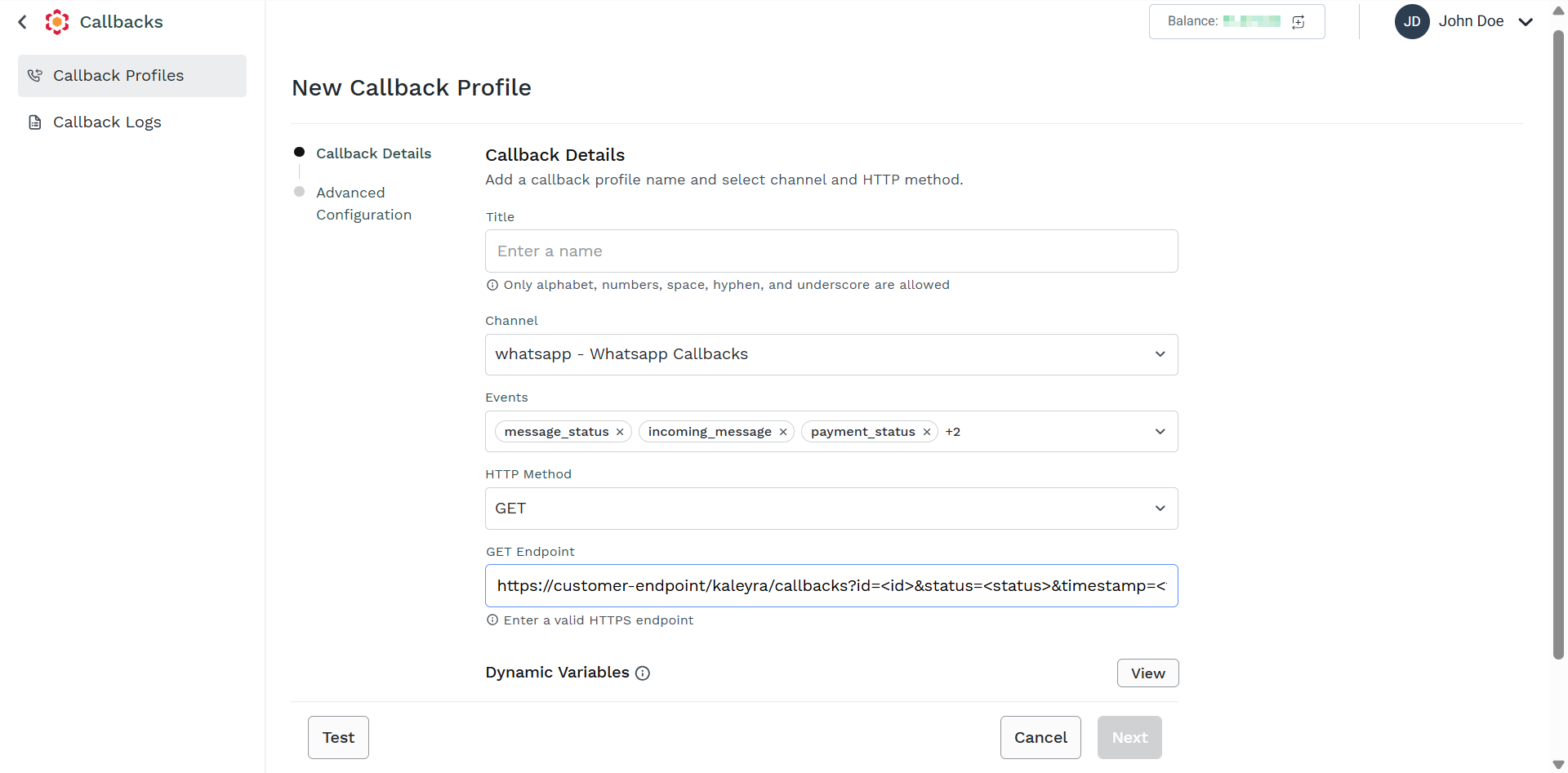
vi. Using the mouse, right-click and paste the dynamic variables at the end of the Endpoint URL as query parameters (GET method). For example,
https://customer-endpoint/kaleyra/callbacks?<COPIED_CONTENT>.POST
Use the POST method to send data to the server:
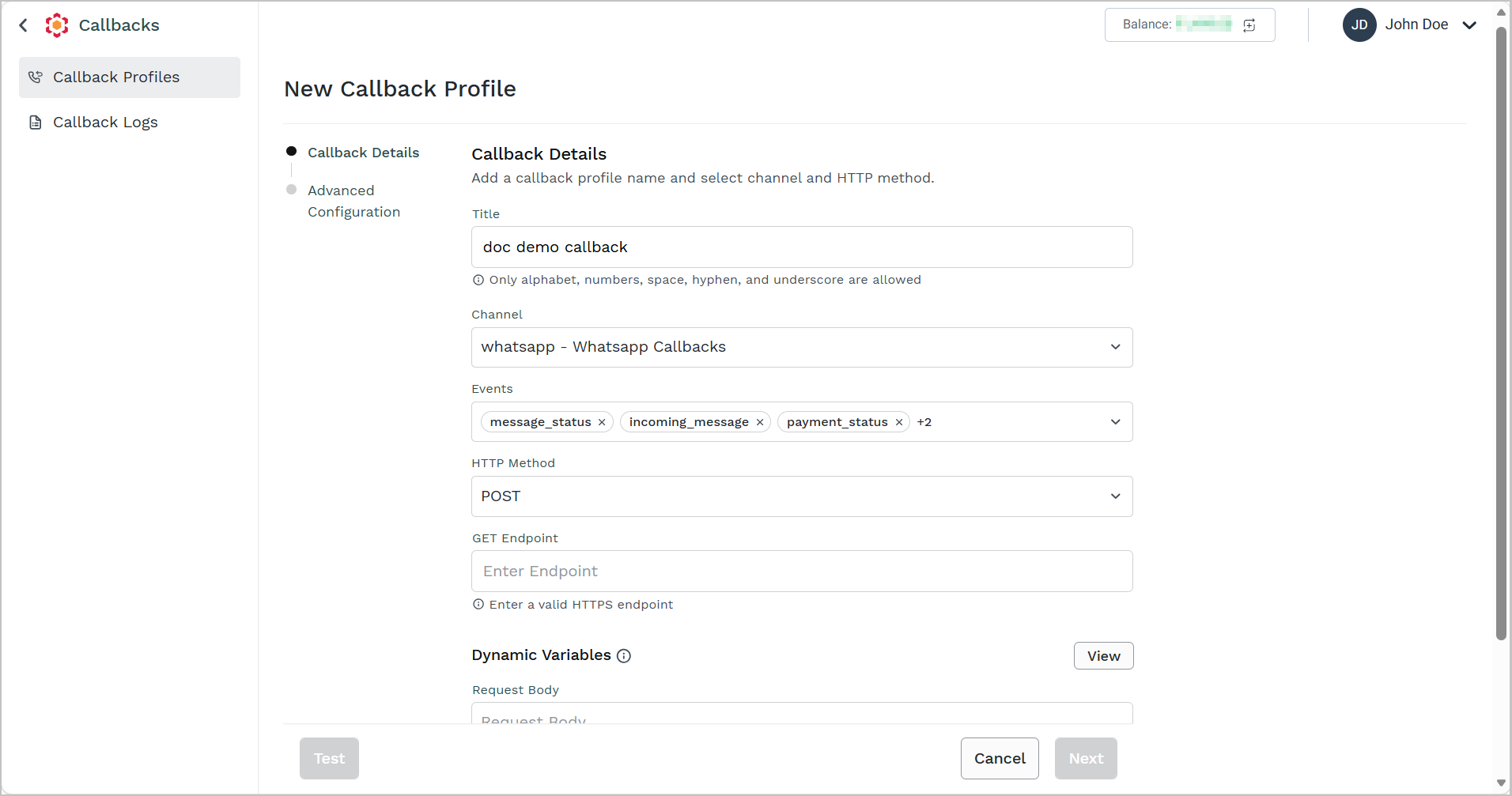
i. In the Enter Endpoint field, enter the URL at which the callback information should be received.
ii. In the Dynamic Variables field, click View to view and select the dynamic variables for the selected channel.
The Dynamic Variables pane appears on the right side of the page.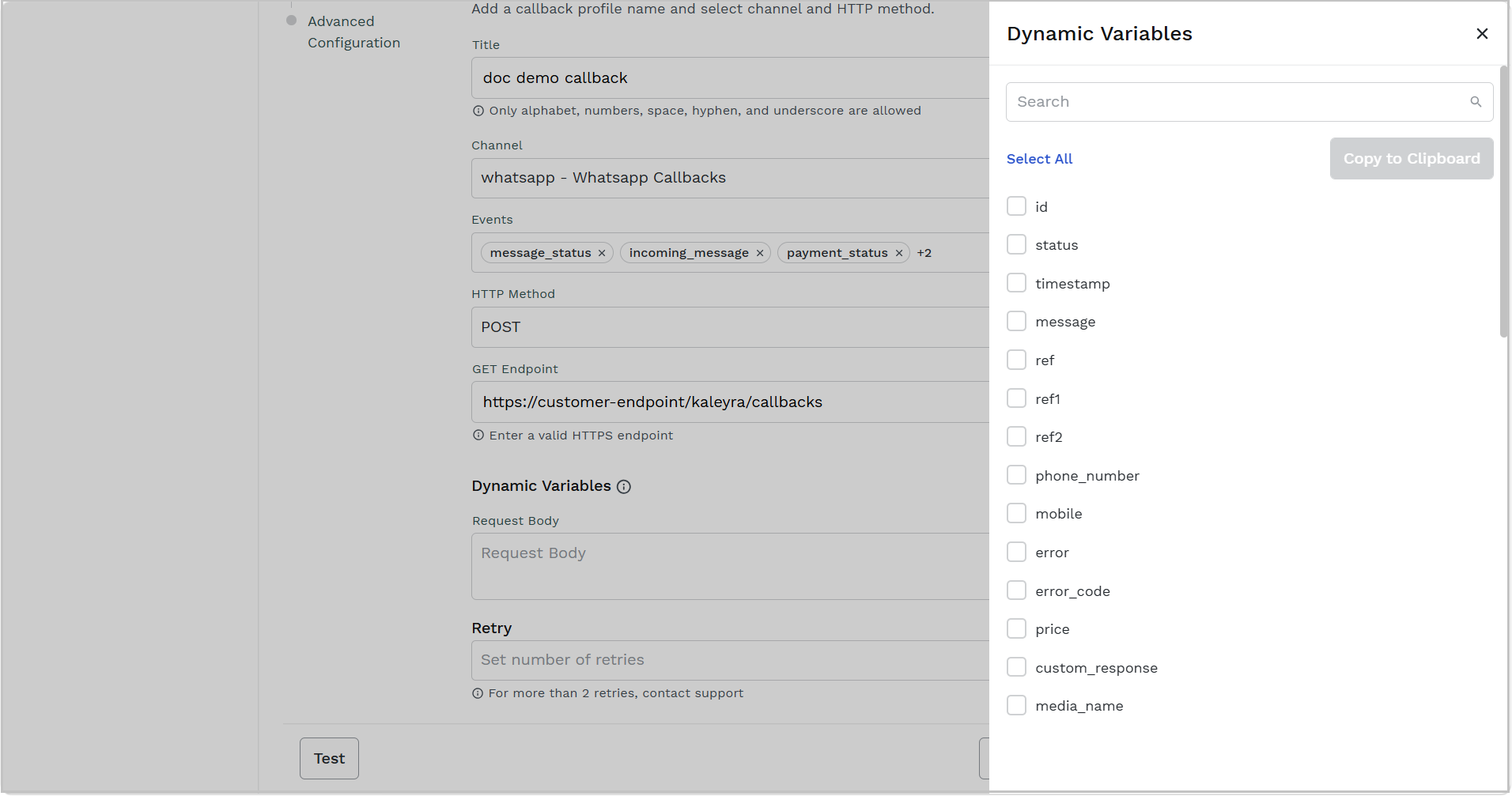
The dynamic variables represent all the possible information that you can retrieve as part of the callback that the Kaleyra platform.
iii. Click Select All to select all of them or check box for the fields you are interested in.
iv. Click Copy to Clipboard to copy the selected dynamic variables. The variables get copied to the clipboard.
v. Click X (CLOSE) on the top-right of the pane to close it.
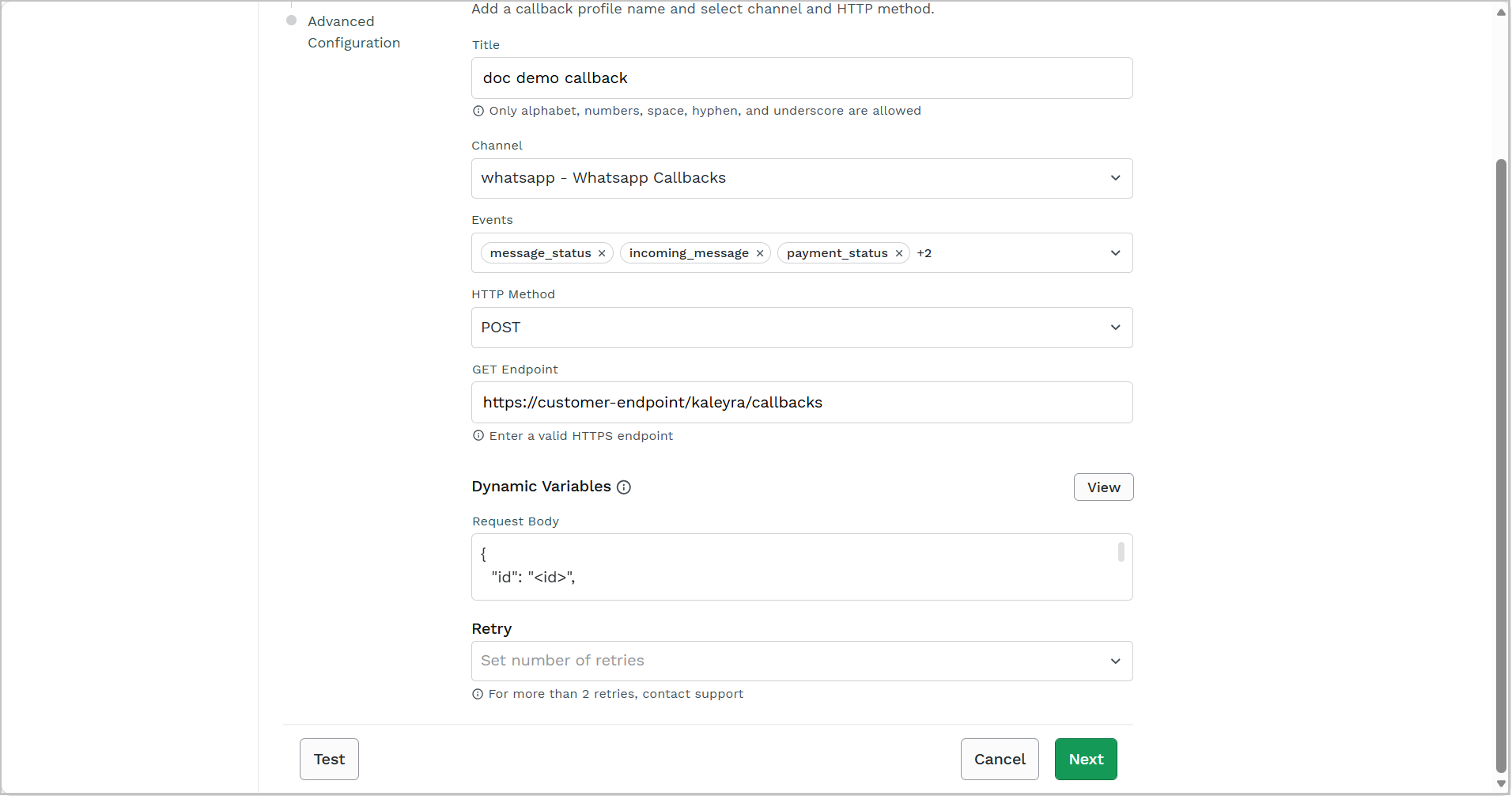
vi. In the Request Body field, using the mouse, right-click and paste the dynamic variables.
-
From the Retry drop-down, select the number of retries that Kaleyra Platform will perform in case the first callback receives a failure response or no response from your endpoint. You have the option for 0, 1, and 2. If you select either 1 or 2 retries, then you must enter the Time Interval in secs and the Timeout in milli-secs values. For assistance with more than two retry attempts, you can contact the Support team.
-
Note:The following are the retries according to channels:
- SMS - max 3 retries, 10s interval between retries.
- WhatsApp - max 4 retries, 60s interval between retries.
- Voice - max 4 retries, 60s interval between retries.
- Email - max 4 retries, 60s interval between retries.
For the Default priority, the Time Interval increases exponentially after each failed attempt. The formula for the delay: Delay = Initial Delay×(2^retry_count).
If the initial delay is 60 seconds and we allow up to 2 retries:
| Retry Attempt | Delay (in seconds) | Cumulative Wait Time |
|---|---|---|
| 1st Try | 60×2^0=60 | 60s |
| 1st Retry | 60×2^1=120 | 180s |
| 2nd Retry | 60×2^2=240 | 420s |
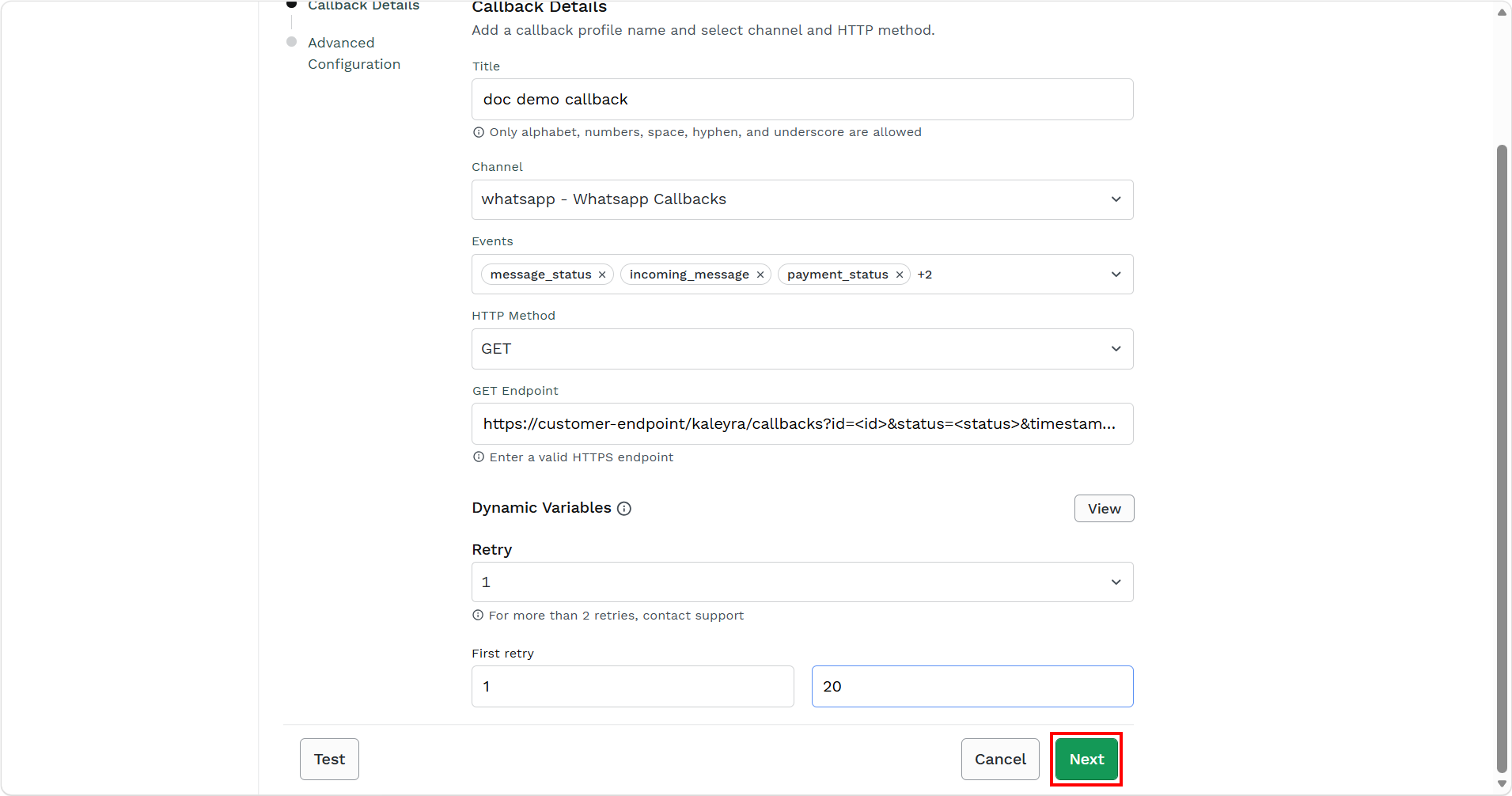
Note:Click Test to send a callback to your endpoint based on the configuration just set in the callback profile to see if the callback is working as expected. The confirmation message Callback profile tested appears in the bottom left of the screen.
- Click Next.
The Advanced Configuration step appears.
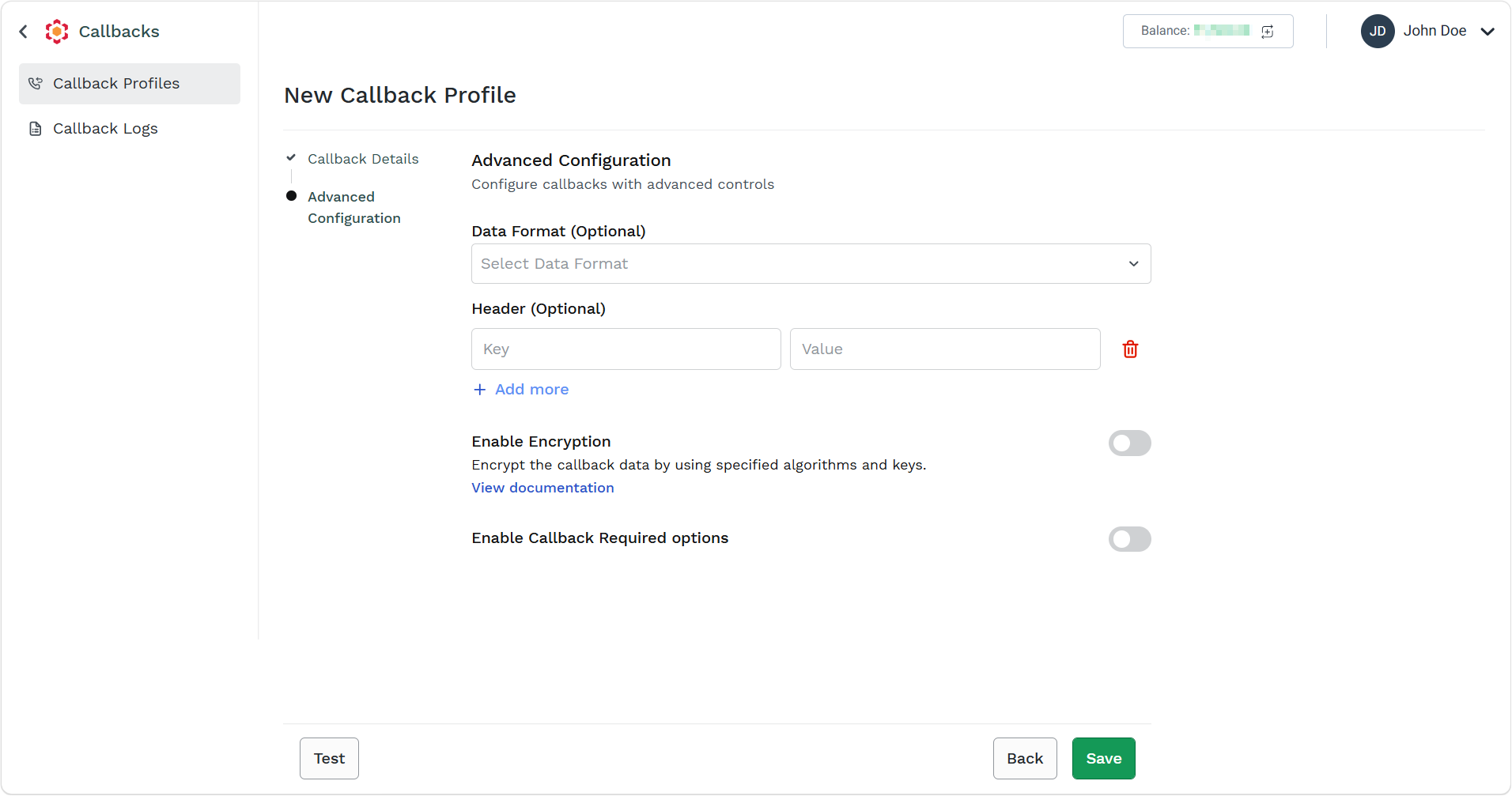
- Perform the following:
- (Optional) From the Data Format drop-down, select one of the following options:
- Form Data - To view the callback data through fields.
- URL Encoded - To view the callback data in URL encoded format. The URL encoded data can be replaced using special characters and spaces in data with a format that can be transmitted over the internet using URLs.
- JSON - To view the data in JSON format. JSON is a lightweight data format used to store and exchange data between a client (like a browser) and a server.
- (Optional) In the Header field, enter values as Key-Value pairs.
Use the Header fields to include additional information on the HTTPS request generated by Kaleyra for your system.
- Use the Headers field for authentication purposes. For example: API-KEY-based authentication or Basic authentication. For more information on basic authentication, see Basic Authentication.
- Use the Headers field to indicate how the callback response should be presented using the “Content Type”.
- Click the Enable Encryption toggle button. The fields related to encryption are displayed. This is an optional field. The Algorithm, Key, Initialization Vector, and Parameters fields appear. To know more about these fields, see Callback Encryption.
- Click Save.
The confirmation message appears and the callback gets listed to the Callback Profile page.
- (Optional) From the Data Format drop-down, select one of the following options:
Updated about 2 months ago