

Add Dedicated IPs
The Kaleyra platform allows you to add a dedicated IP for a domain that can be used exclusively by your business (or your domain) to send emails. Every email you send goes out through an IP address and email providers track the reputation of that IP. A good, reputed emails land in the inbox, or else emails go to spam or get blocked
A dedicated IP gives you full control over your email reputation and deliverability, but it requires proper warmup, consistent sending, and good email practices to succeed.
Notes:
- Dedicated IP warmup will be mandatory for all new IP addresses. This process will typically take 14days to establish s good sender reputation.
- You can add dedicated IPs for transactional, marketing, or both email types.
- Once you submit IPs, the Kaleyra support team will verify the IPs and then approve them.
- If you want Kaleyra to provide dedicated IPs for email, contact Kaleyra Support team.
To add dedicated IPs, perform the following steps:
- Sign in to your Kaleyra platform.
The Channels page appears.
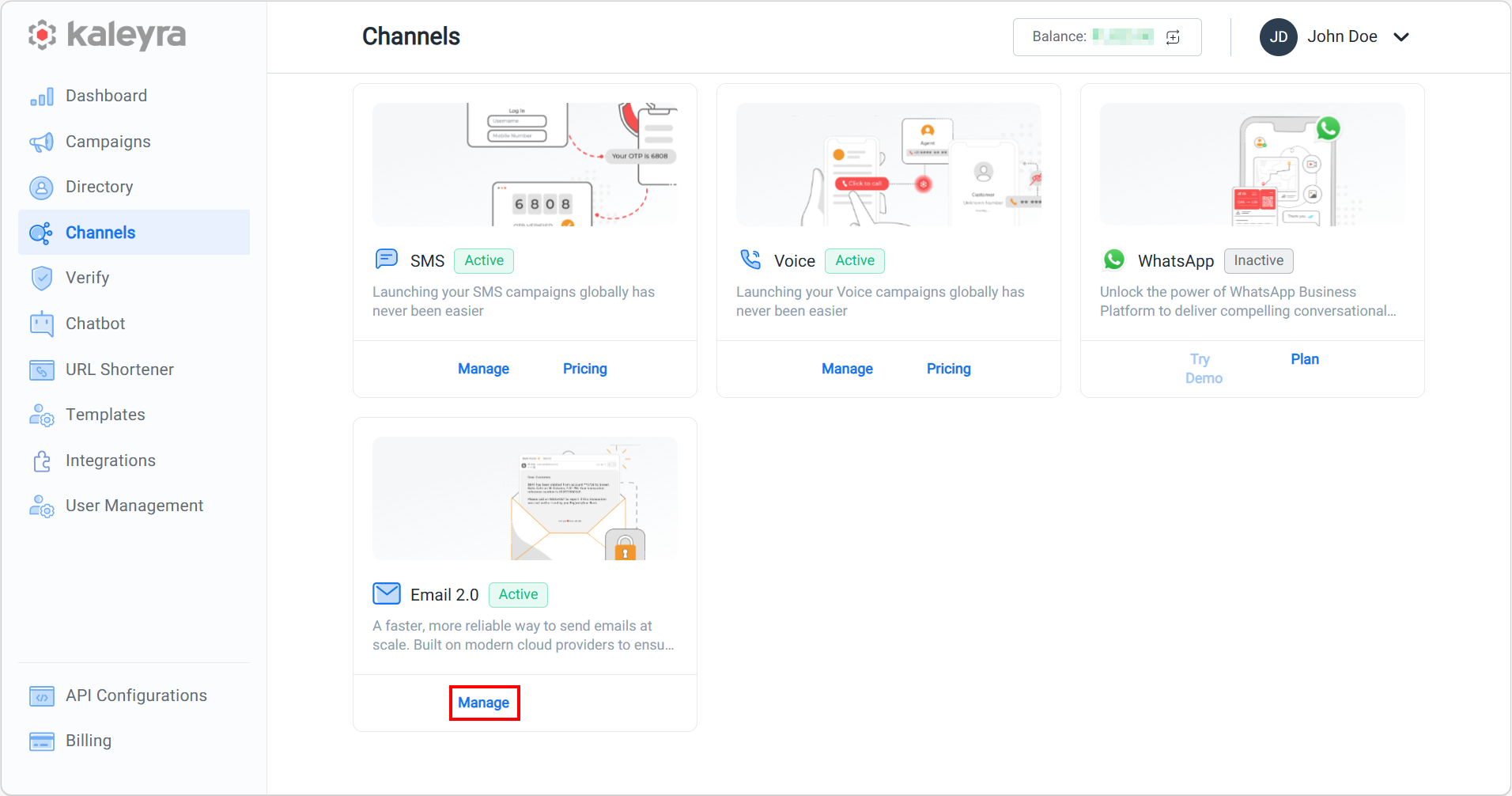
- On the Email 2.0 card, click Manage.
The Domain Management page appears.
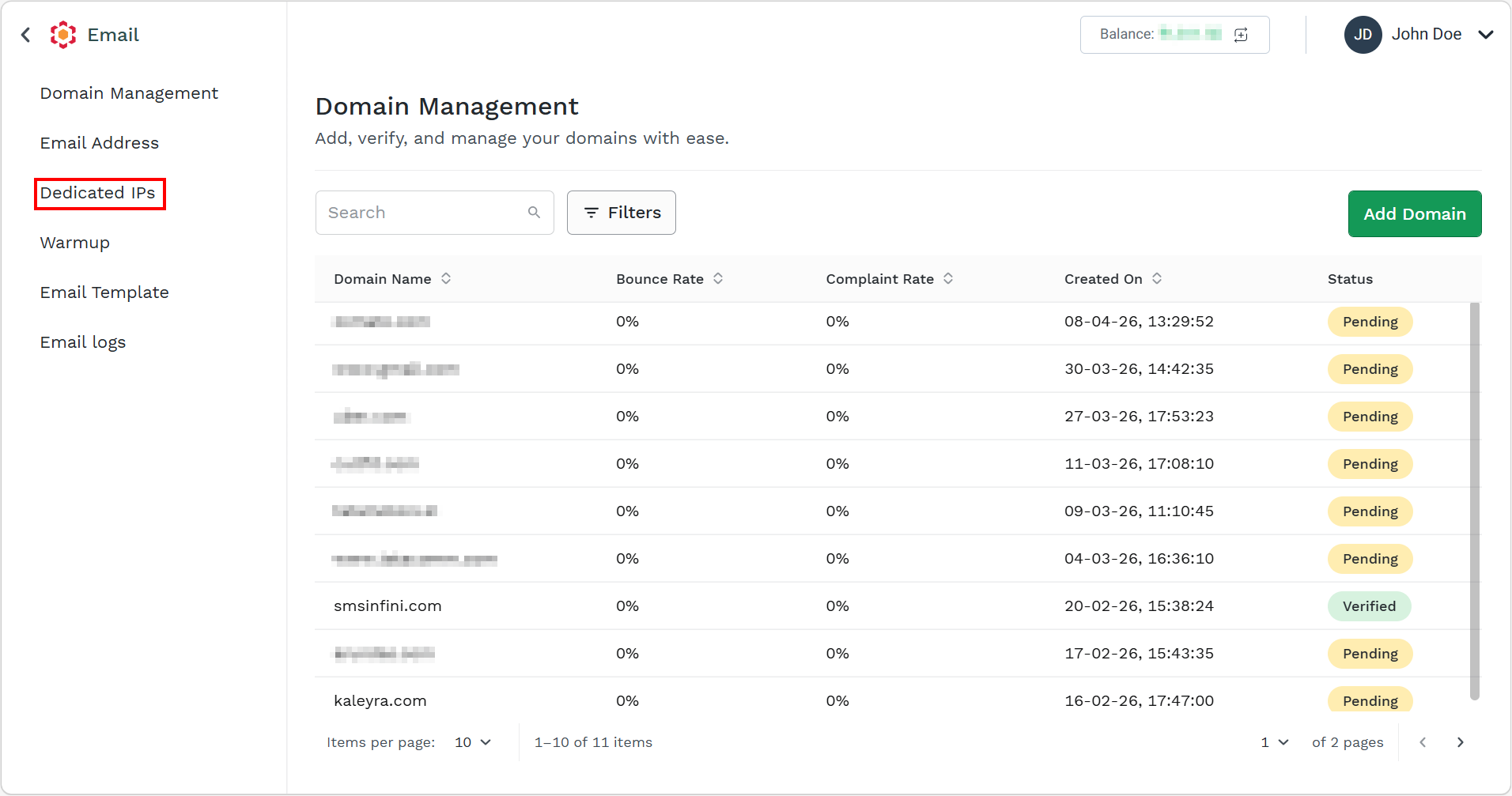
- On the left menu bar, click Dedicated IPs.
The Dedicated IPs page appears.
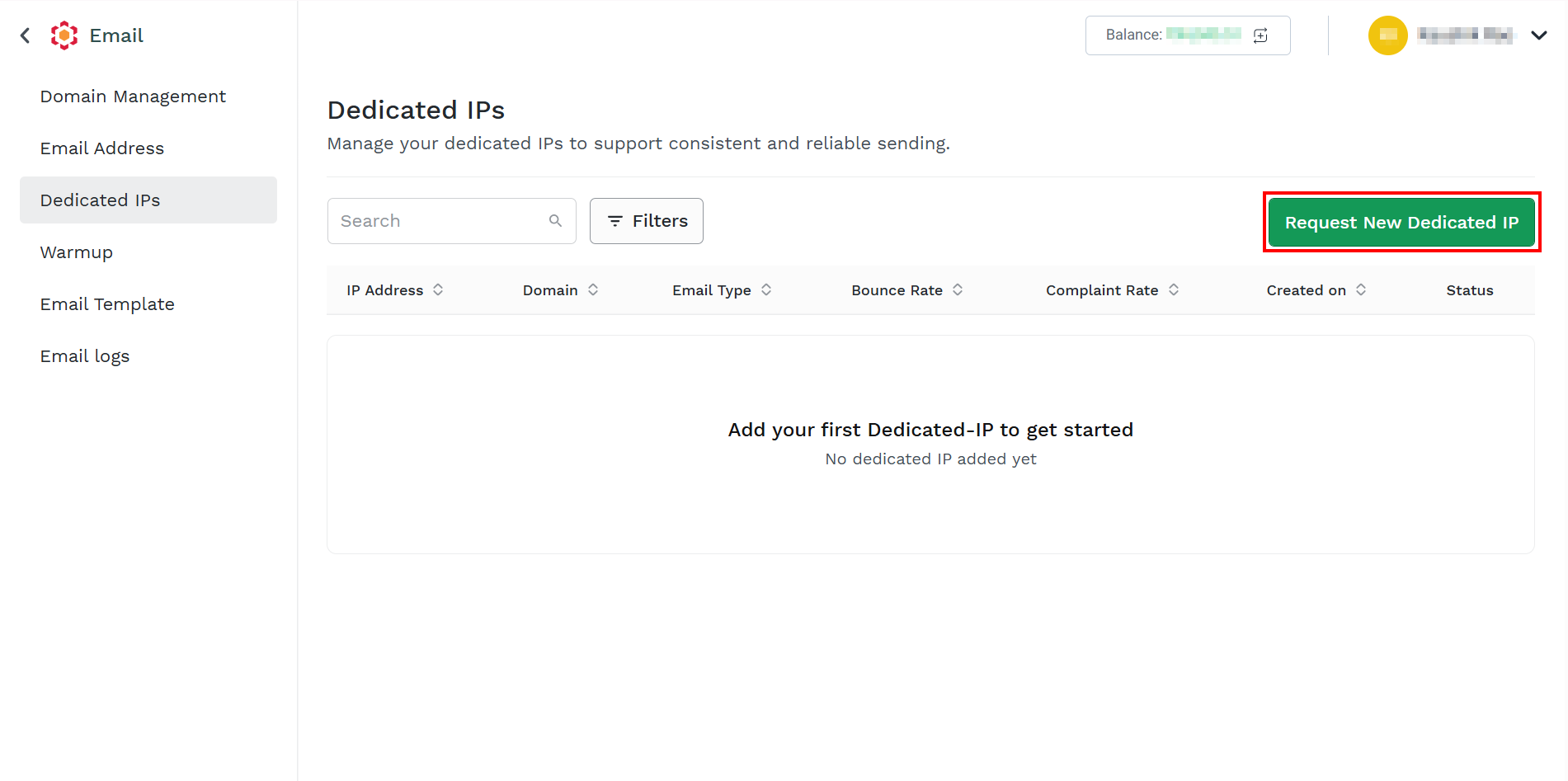
- Click Request New Dedicated IP.
The Request New Dedicated IP pane appears on the right side of the page.
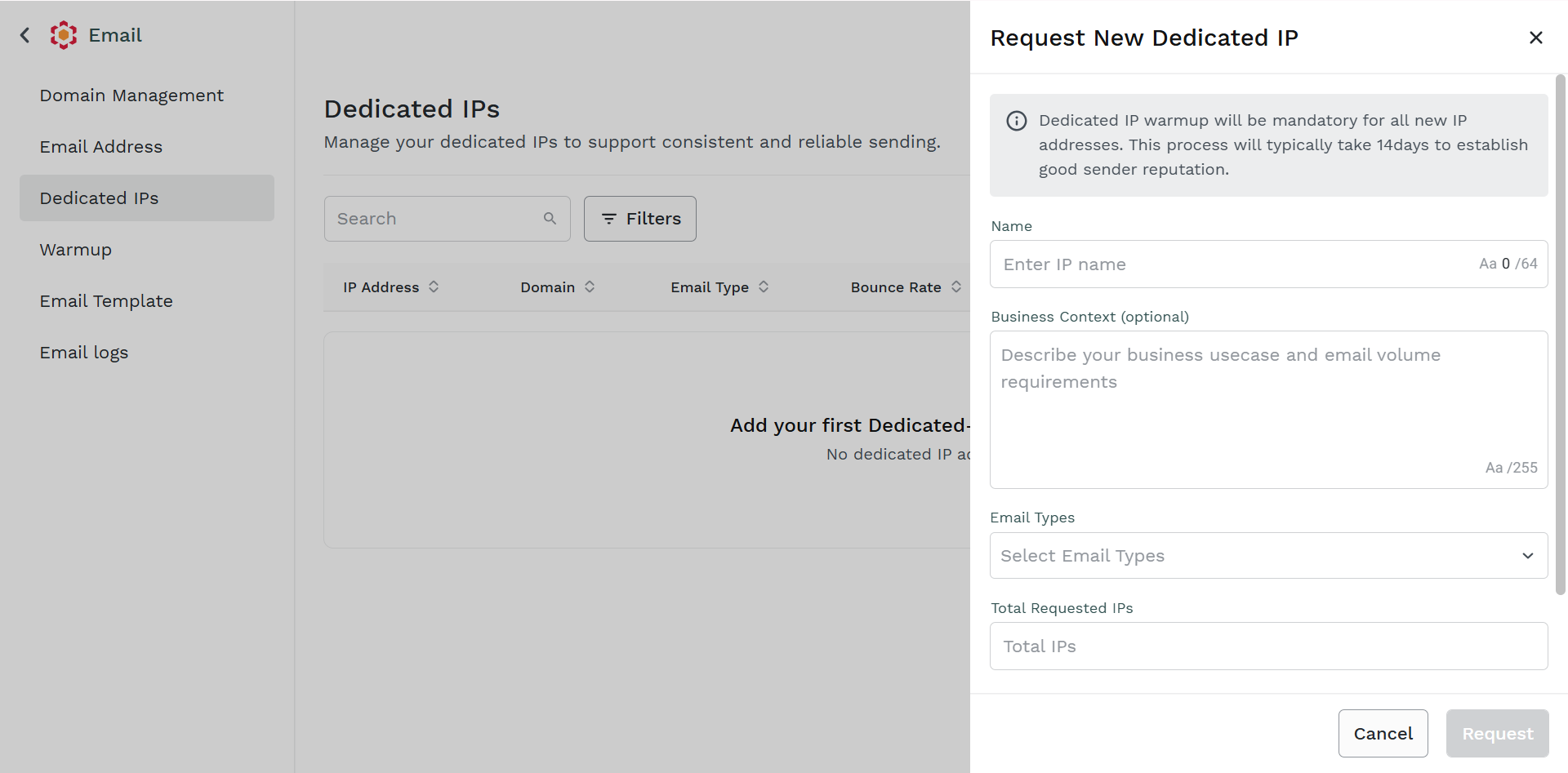
- Perform the following steps:
- In the Name field, enter the name for IP for your reference. The maximum of 64 characters is supported.
- (Optional) In the Business Context field, enter the description of your business use case and required email volume. This message will help the Kaleyra Support team to enable the requested volume.
- Click the Email Types drop-down field and select from TXN (transactional email) and MKT (marketing email). You can use the Select All to select all the email types.
- In the Total Required IPs field, enter the IP addresses. If you have multiple IPs, separate them with a comma.
- In the Domain IDs field, enter the domain ID for which you are requesting the IP. If you are requesting for more than one domain, separate them with a comma.
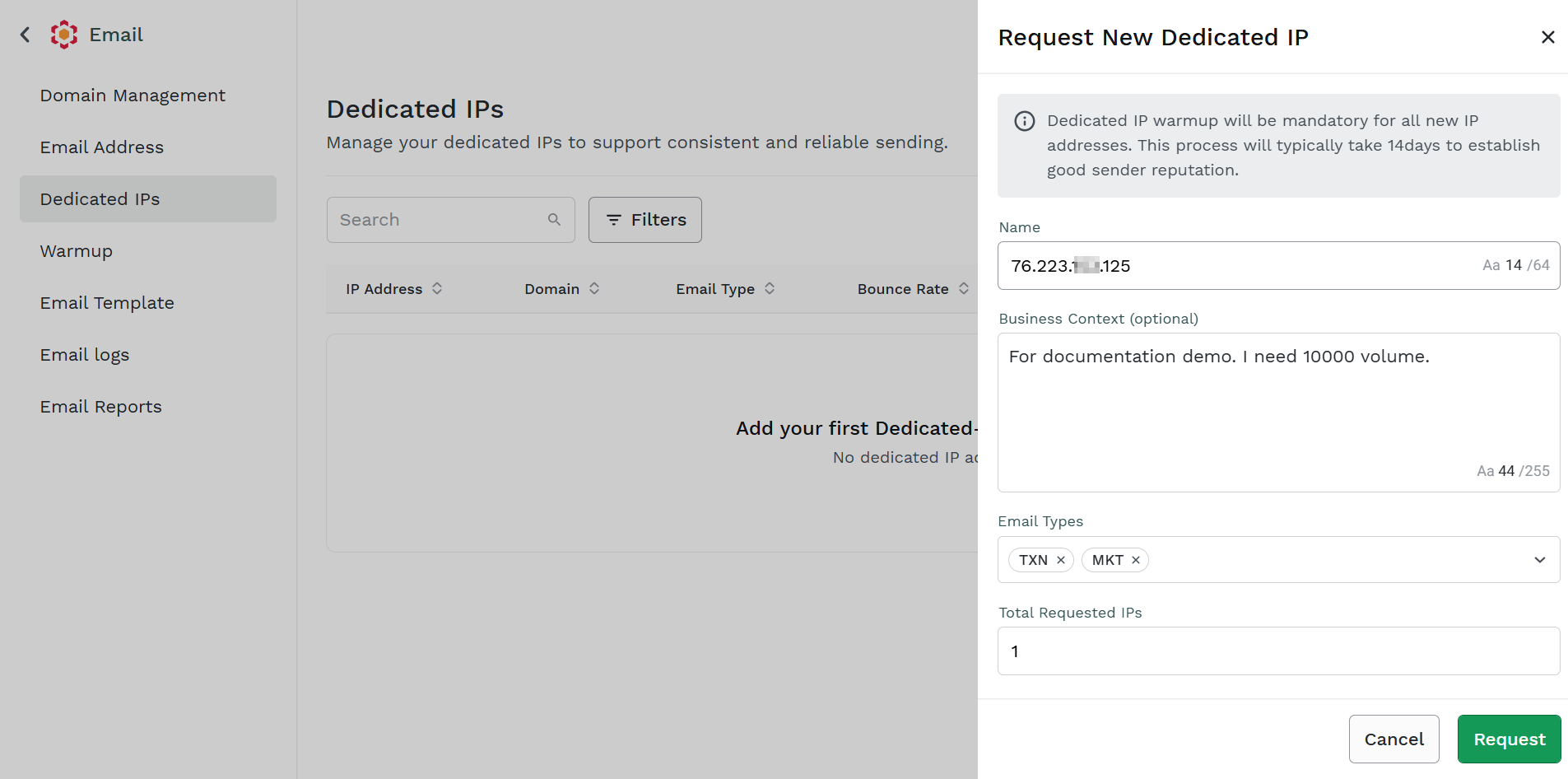
- Click Request.
The requested IP get listed in the Dedicated IPs page with Pending status.
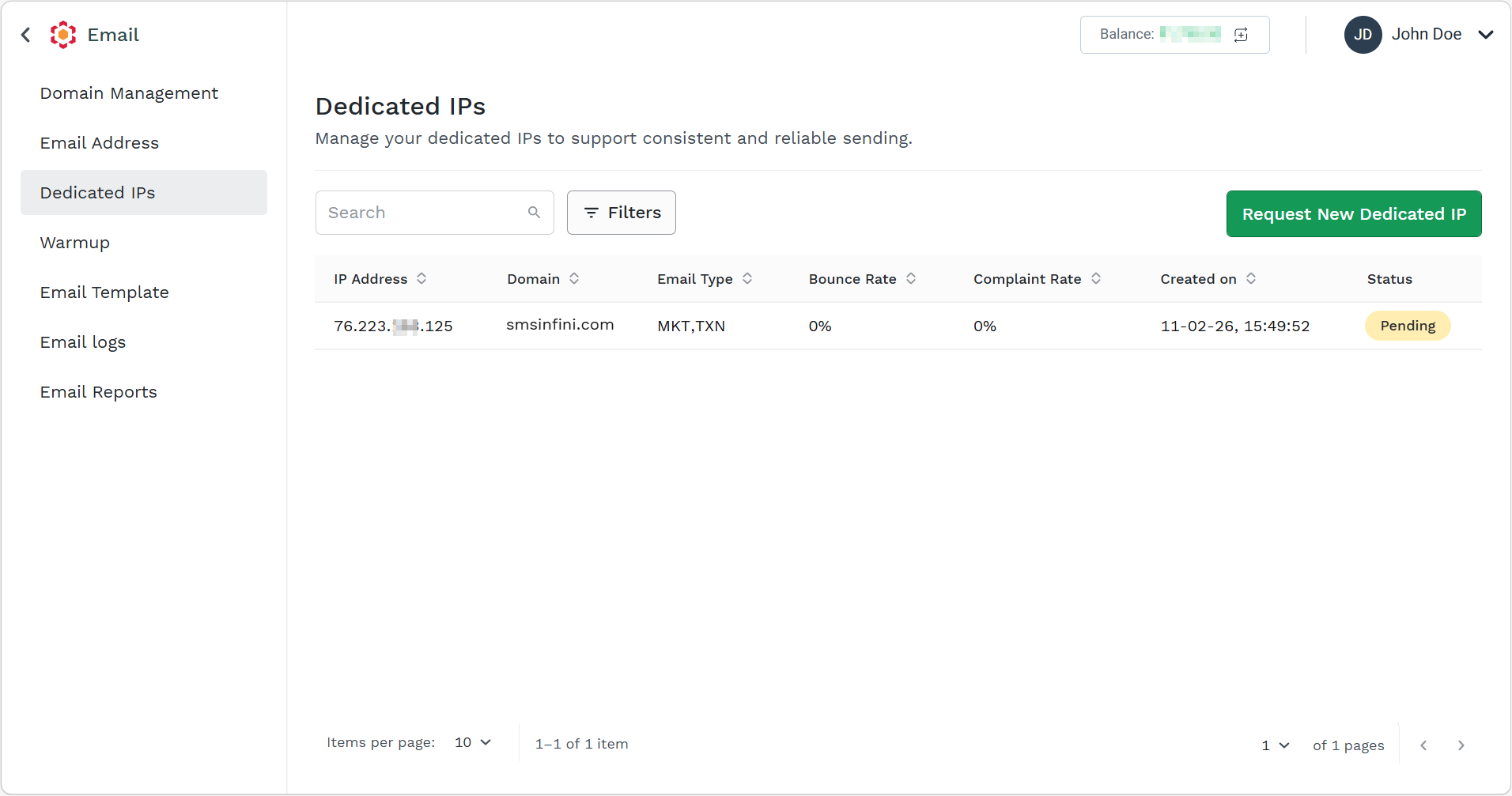
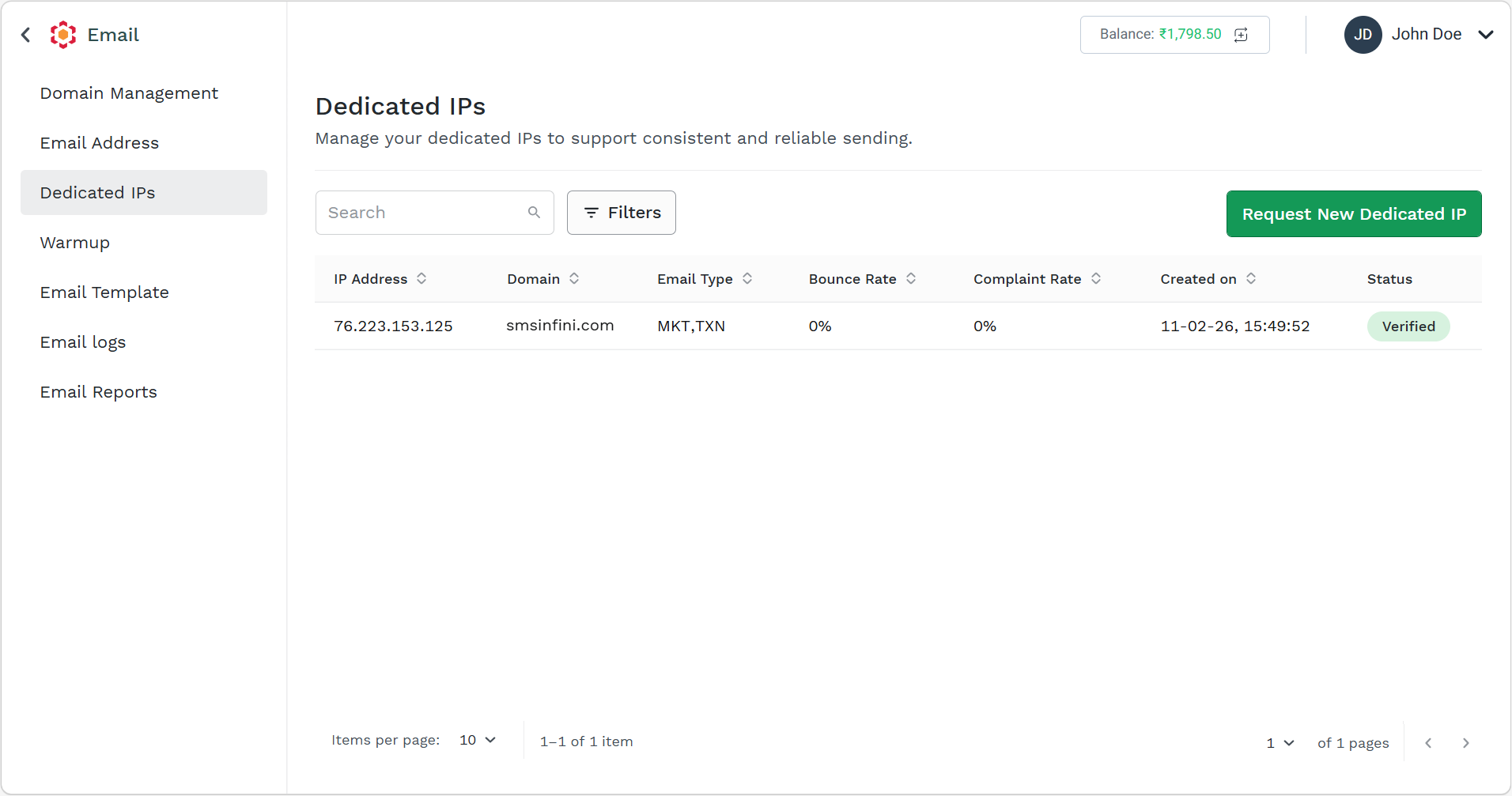
Once the Kaleyra Support team verifies the IPs and approves the requested volume. The IP will change to Verified status.
Note:
Purchasing dedicated IPs may take 4-5 working days.
Note:
For more information on how to Search, Filter, and Sorting, see Search and Filter Domains.
Updated about 1 month ago