

WhatsApp Campaign for V2 WABA
A WhatsApp Campaign for V2 WhatsApp Business Account (WABA) is a scalable way for businesses to send WhatsApp messages to end-users using pre‑approved message templates. Using the WhatsApp Campaign for V2 WABA, a business can send the following message types:
- Marketing and promotions
- Transactional notifications
- User engagement and re‑activation
- Customer lifecycle communication
Prerequisites
The prerequisites required to create WhatsApp Campaign for v2 WABA are:
- You must have WABA ID registered under Kaleyra v2 WhatsApp API. For more information, see Add a new WABA ID.
- You must have WhatsApp Business Number configured under the WABA. For more information, see Add a Number.
- You must have an approved Template. For more information, see WhatsApp Templates.
Benefits
A few of the benefits of WhatsApp Campaign are:
- Easy contact selection - Select end customers using a file, contacts directory, or paste the contact numbers in the Kaleyra.io.
- Ability to send dynamic customer specific variables in WhatsApp Templates
- Ability to send customized media files dynamically to each customer.
- Quick launch - Send a WhatsApp message to a large audience with minimum effort and time.
- Template usage - Use the existing WhatsApp templates or create a new template while launching a campaign.
Note:
The template you create when launching a campaign must be submitted to Meta for approval before use.
Campaign List Page
The Campaign list page allows you to view and manage all your campaigns. From the dashboard, you can view the campaign details, launch a campaign, and search and filter campaigns.
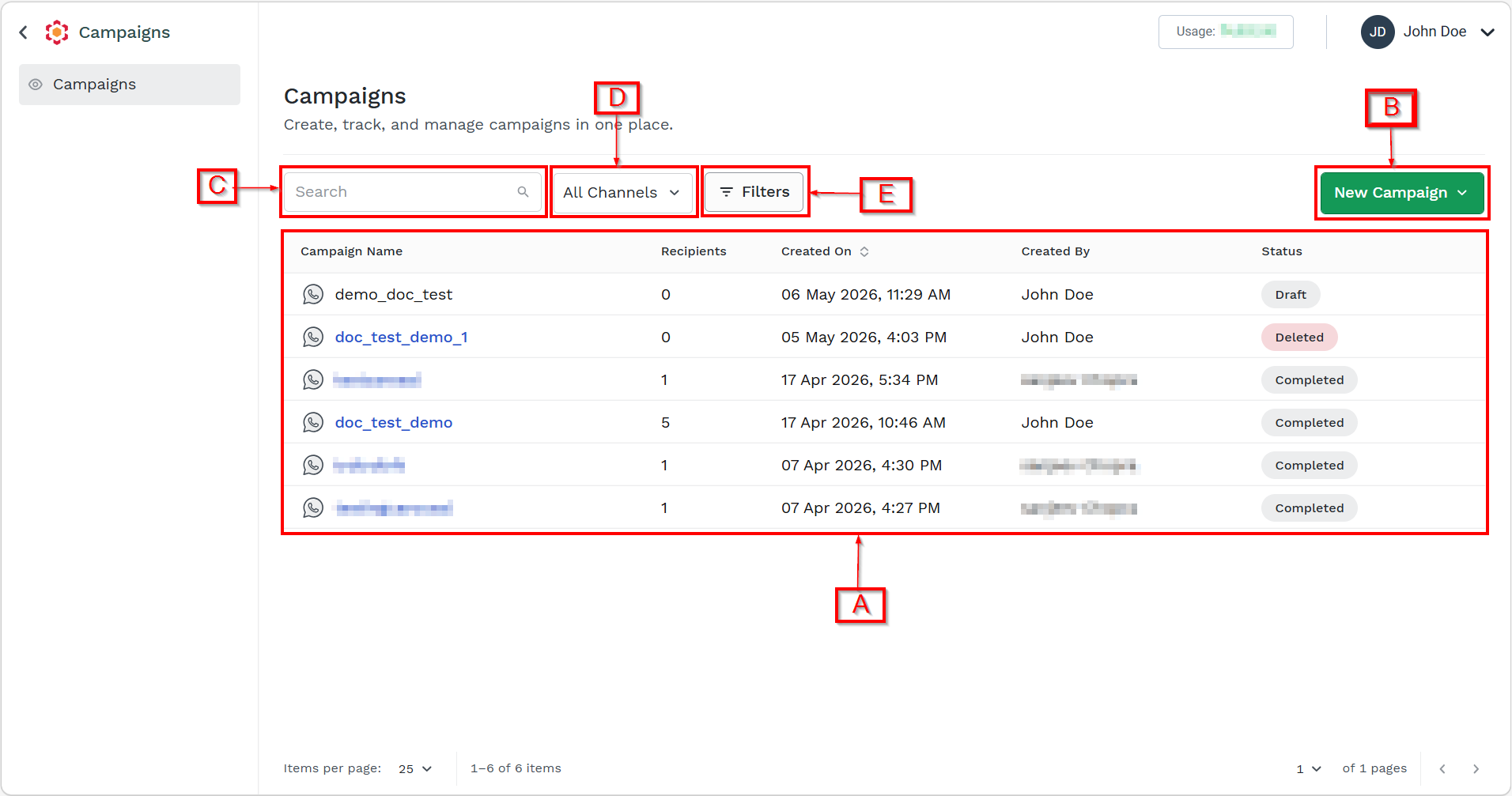
On the dashboard, you have the following options:
- A - View the available campaign details. You can view the following details:
- Campaign Name - Displays the name of the campaign provided during campaign creation.
- Recipients - Displays the total number of end users targeted in the campaign.
- Created On - Indicates the date and time when the campaign was created. The date is displayed in the format DD/MM/YY, and the time is displayed in HH:MM format.
- Created By - Displays the end user who created the campaign.
- Status - Displays the current state of the campaign. You can view the following statues:
- Draft: Campaign is created but not submitted or scheduled. It can be edited, deleted, and viewed.
- Scheduled: Campaign is configured to be sent at a future date/time. It can be viewed, rescheduled, modified or deleted.
- In Process: Campaign messages are actively being processed and sent. It can be cancelled and viewed.
- Completed: Campaign processing is fully complete. It can be viewed and reports can be downloaded.
- Failed: Campaign failed to process (partially or fully) due to errors. It can be viewed.
- Cancelled: Campaign was manually cancelled before completion. It can be viewed.
- Deleted: Campaign was removed and is no longer active.
- B - New Campaign. You can create a new campaign. For more information, see Launch a WhatsApp Campaign for V2 WABA.
- C - Search Campaign - You can search a campaign according to name provided during campaign creation. For more information, see Search Campaign.
- D - You can filter the campaigns based on Channels. For more information, see Filter Campaign based on Channels.
- E - Filter - You can filter the campaigns based on created date and campaign status. For more information, see Filter Campaign.
Updated 5 months ago
Did this page help you?