

Create WhatsApp Utility Template
You can create WhatsApp utility templates to be used within you Kaleyra WhatsApp API v2 enabled WABA from the Kaleyra platform other than through API. For more information, see WhatsApp Template API V2. The utility template message is triggered by a user action or request. After successfully creating the WhatsApp utility templates, these templates are sent to Meta’s approval through the Kaleyra platform. Once submitted, you can check its status in the Kaleyra platform. The WhatsApp template statuses can be either PENDING, REJECTED, or APPROVED.
Prerequisites
- To set up a WhatsApp account on the Kaleyra platform, see Manual Signup
and Embedded Signup. - An active WhatsApp for Business plan that includes:
- A WhatsApp business number.
- An associated profile with the business number.
- A WhatsApp verified and approved profile.
- A WABA ID onboarded on the Kaleyra platform for WhatsApp.
- The Voice Enabled feature for calling through WhatsApp.
Notes:
- Kaleyra supports Marketing, Utility, and Authentication template categories.
- Authentication has replaced the previous OTP Templates, but the Utility and Marketing Template remains the same.
- For the Authentication category, the Kaleyra platform supports ‘Copy code’ setup only. With this setup, you can send a one-time password or code along with a copy code button to your users.
To create a WhatsApp utility template, perform the following steps:
- Sign in to your Kaleyra platform.
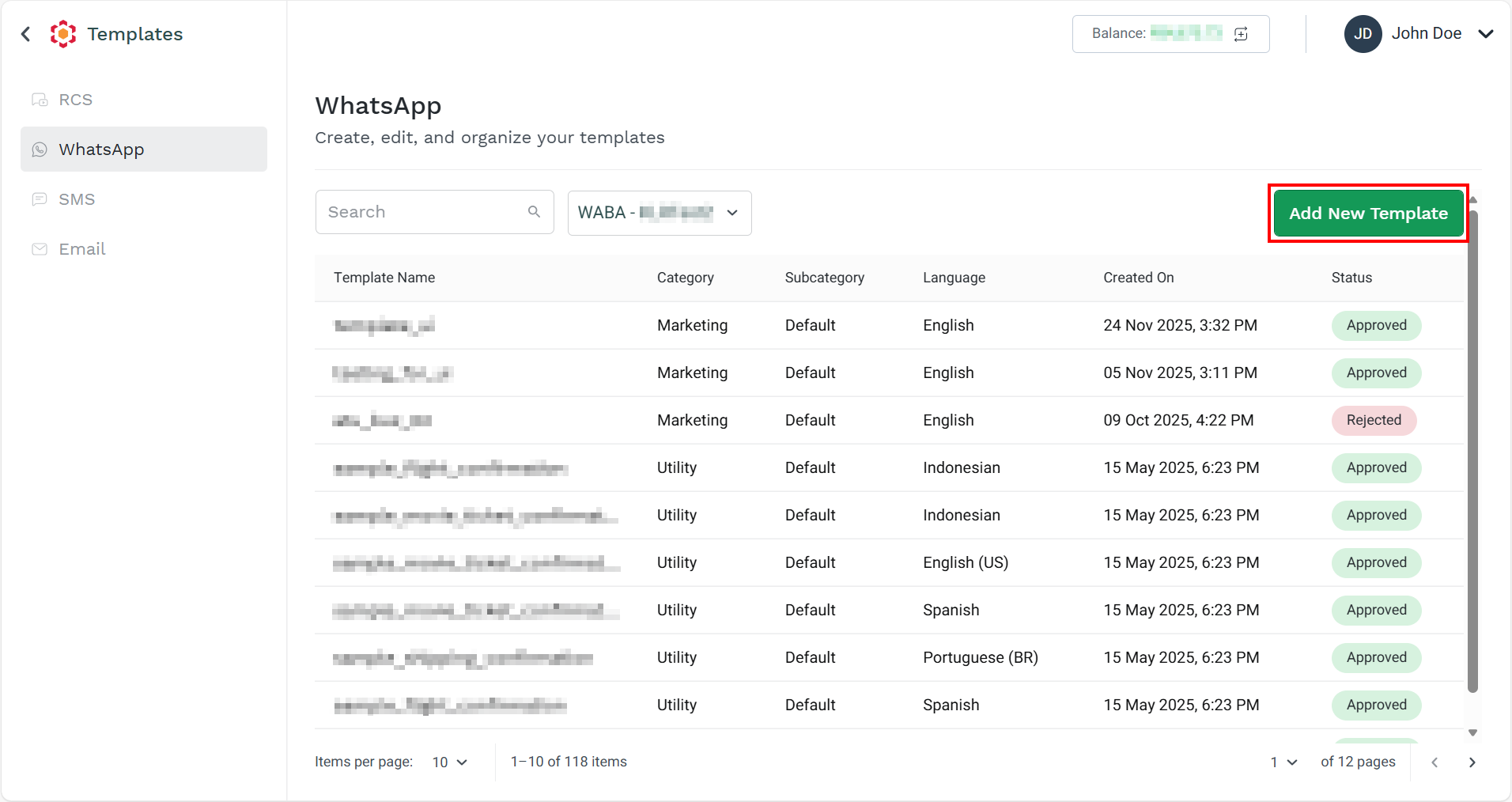
- On the left menu bar, click Templates.
The WhatsApp page appears.
Notes:
- The WhatsApp page contains details such as the template name, category, subcategory, language of the template, creation date, and status of the template.
- The WhatsApp template in the Kaleyra platform supports the following template categories:
- Marketing Template - Intended for awareness, retargeting, sales, promotions, and building customer relationships.
- Authentication Template - To send the OTP messages.
- Utility Template - Intended for opt-in management, order management, account alerts, updates, Feedback surveys, and continuing a conversation.
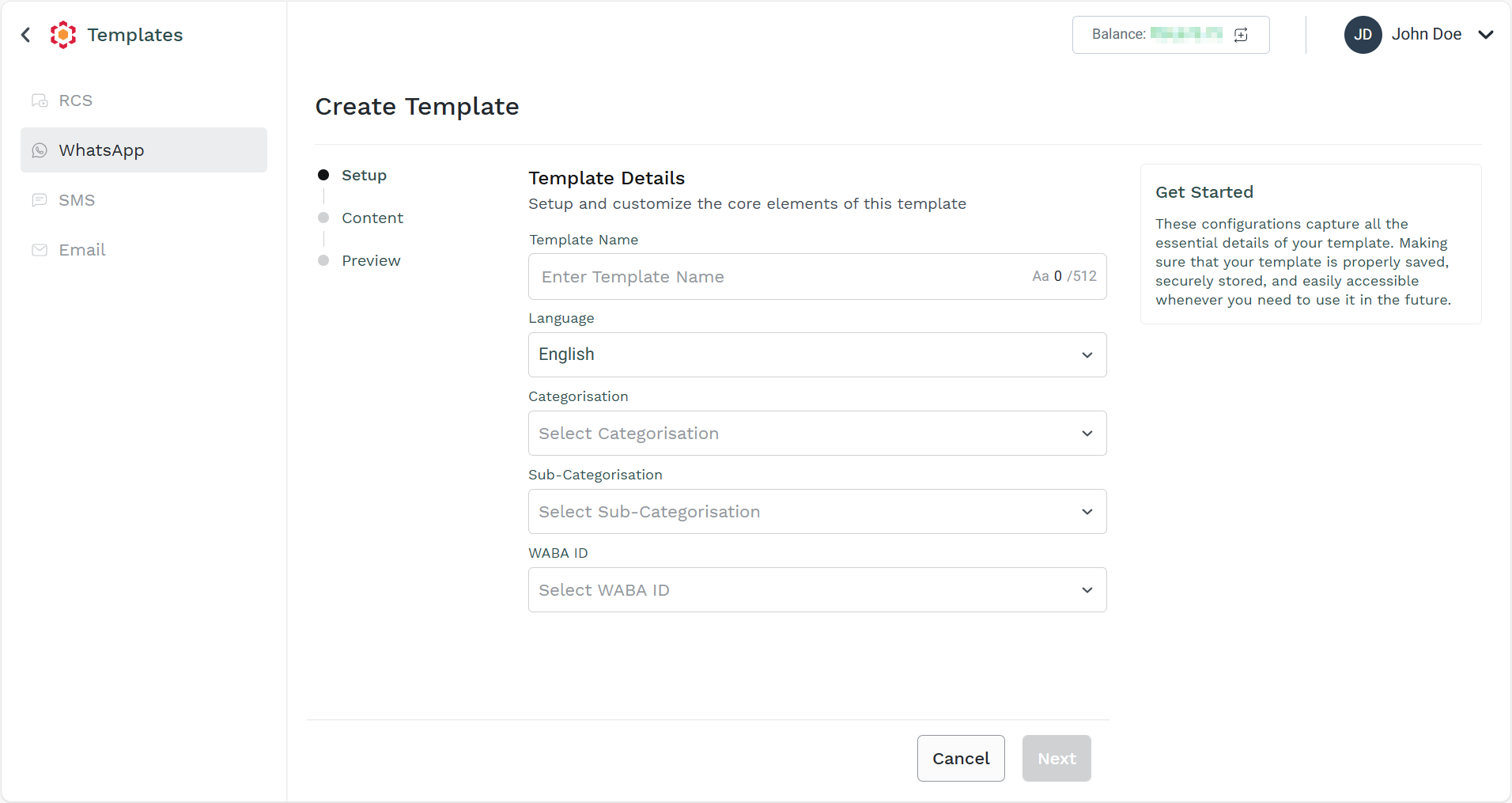
- You have to follow the following steps to create a template:
- Setup - Configure template name, language, category, Sub-category, and WABA ID for the template.
- Content - Configure the header, body, and footer of the template.
- Preview - Preview the configured template.
- On the right side of the page, click the Add New Template button.
The Create Template page appears.
- For more information on the subcategory based on the utility template, see the following links:
Updated about 2 months ago
Did this page help you?