

Add Contacts by Uploading a File
You can add the contacts for your campaign by uploading file. You can download the sample file to upload the contacts.
The maximum records are 100K and the file size supported is 100 MB. The .xls, .xlsx, .csv are the supported file formats.
In case the template chosen for the campaign contains any dynamic variable, the file shall contain for each recipient the actual value to be used to personalize the message.
To add contacts by uploading a file, perform the following steps:
- To add contacts, follow step 1 to step 5 of Launch a WhatsApp Campaign for V2 WABA.
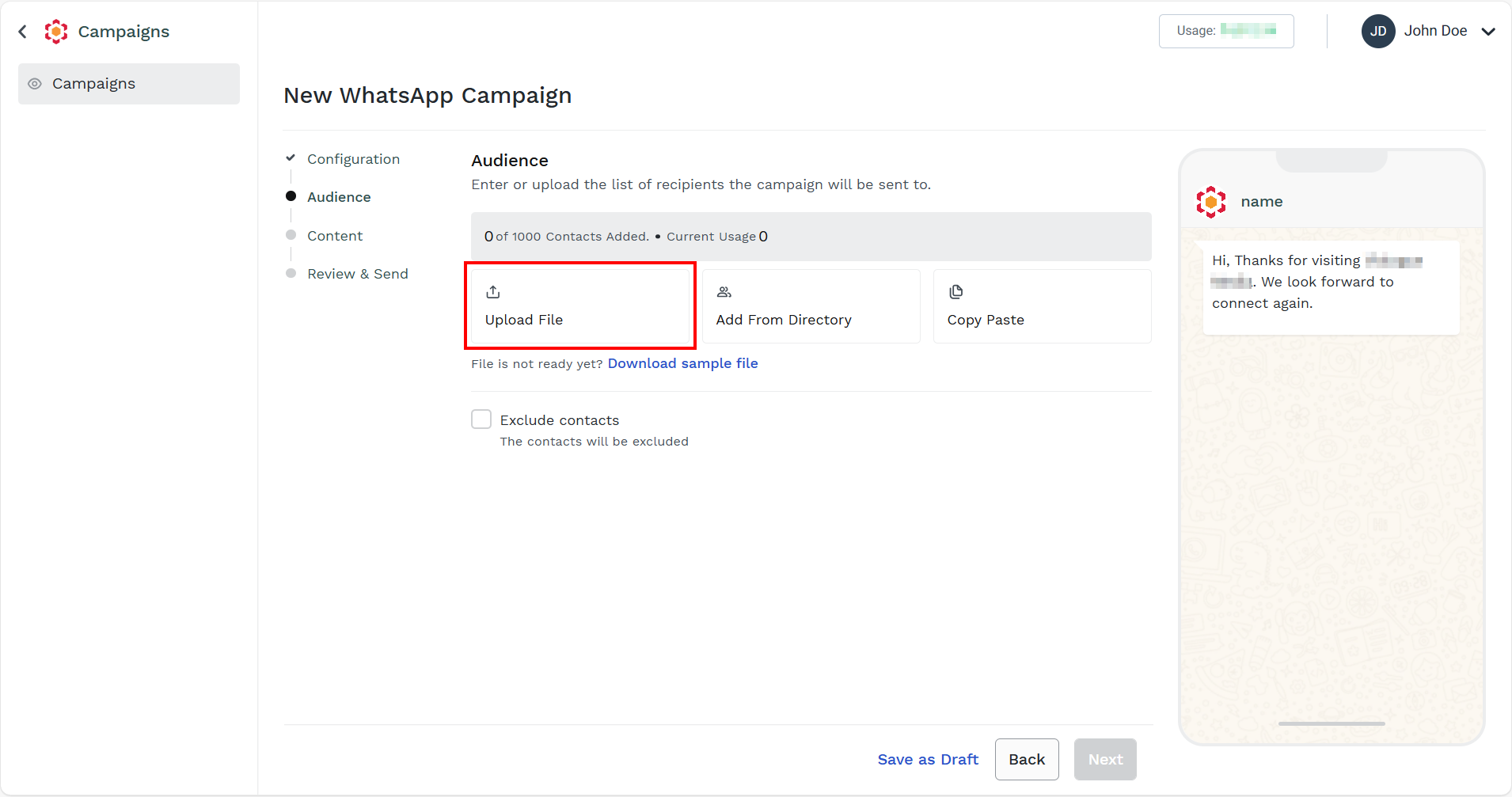
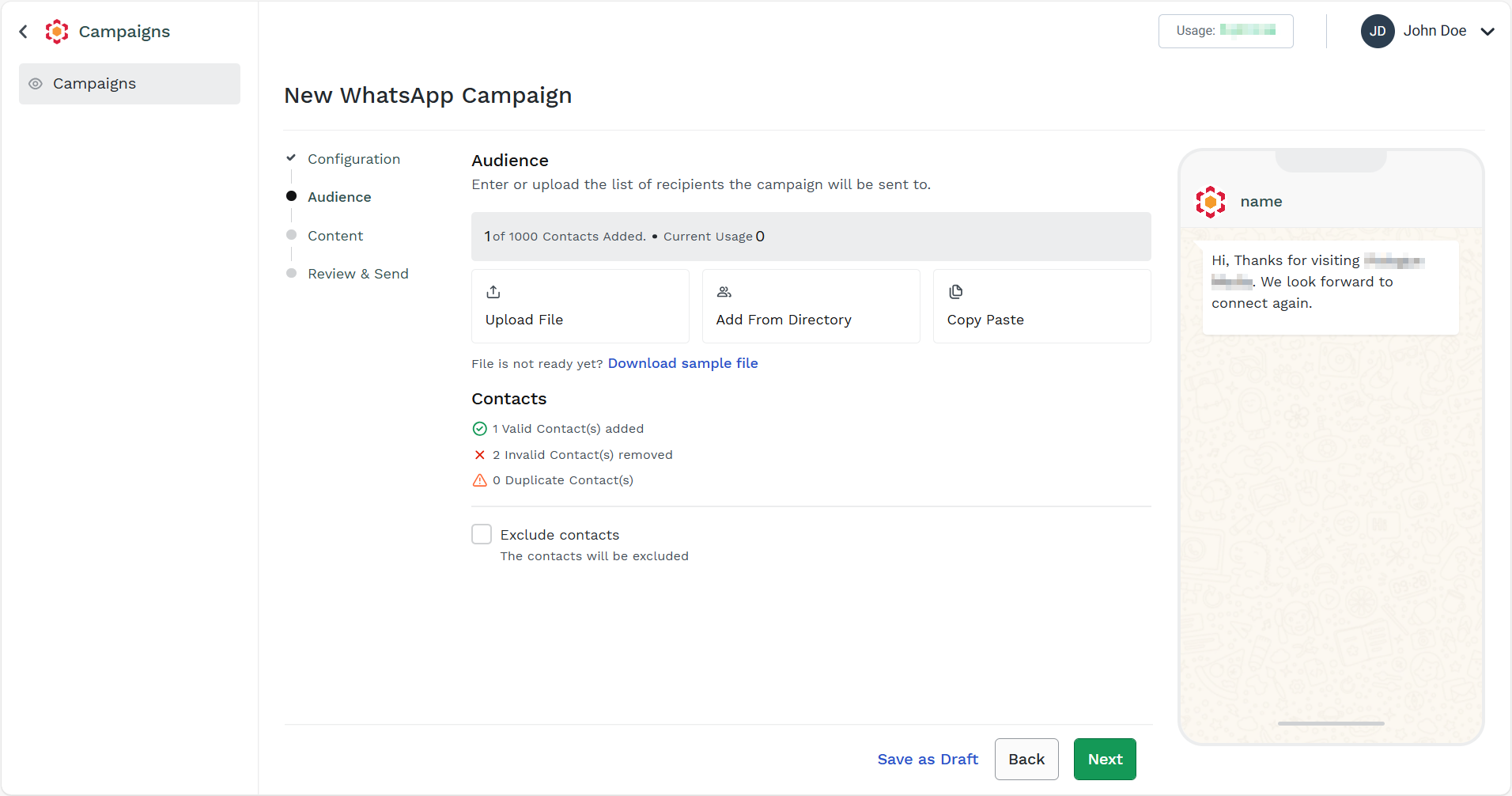
The New WhatsApp Campaigns page appears.
Note:
You can download the sample .csv file by clicking the Download sample file link. You can update the contacts in the same format and keep them ready.
- Click Upload File.
The Upload Contacts pane appears on the right side of the page.
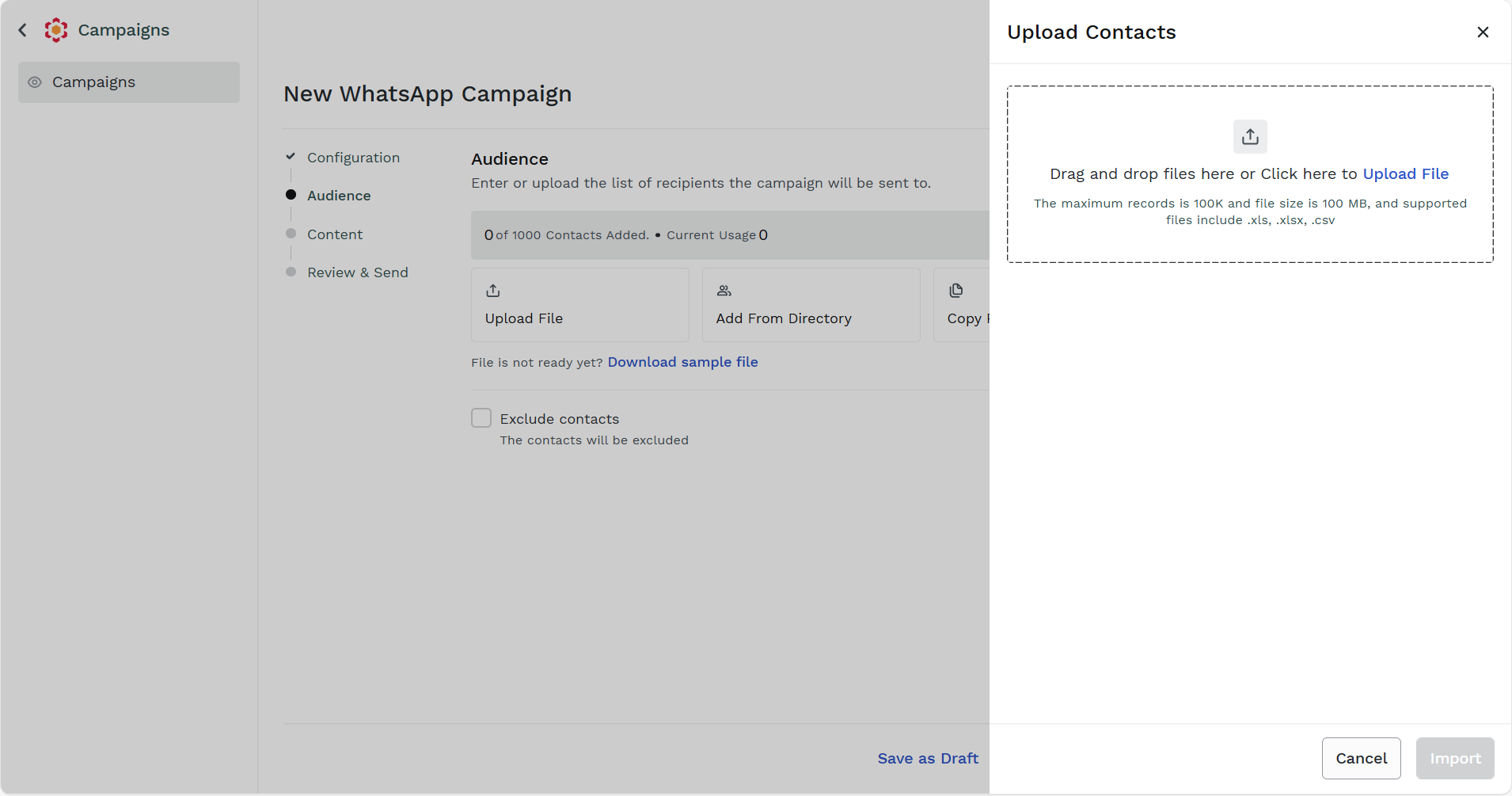
- Click the Upload File link. Browse the folder where you have saved the updated contacts list for your campaign.
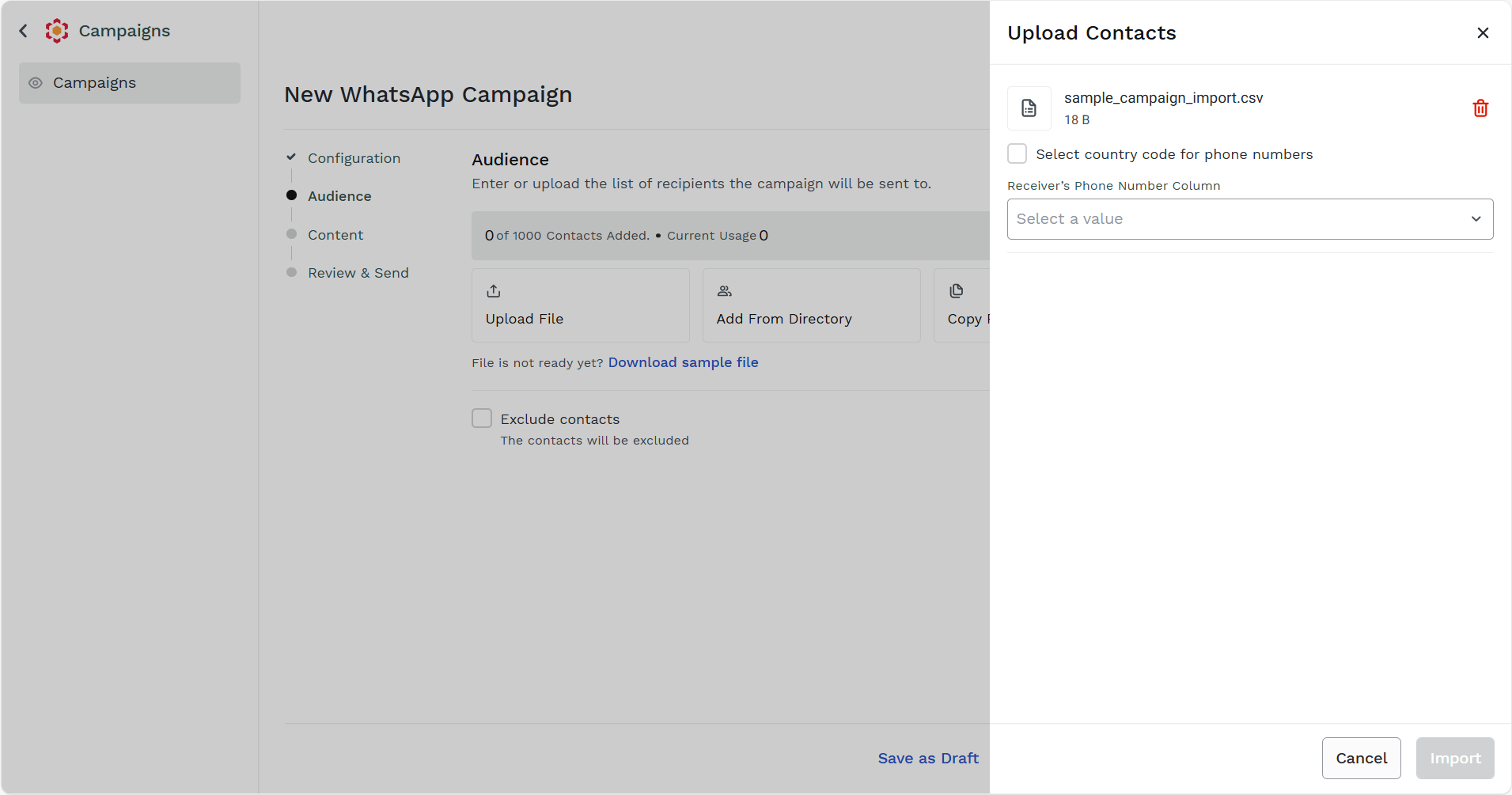
- Perform the following:
- (Optional) Select the Select country code for phone numbers checkbox to add the default country code for the contacts.
- Click the Receiver’s Phone Number Column drop-down field and select the receiver column.
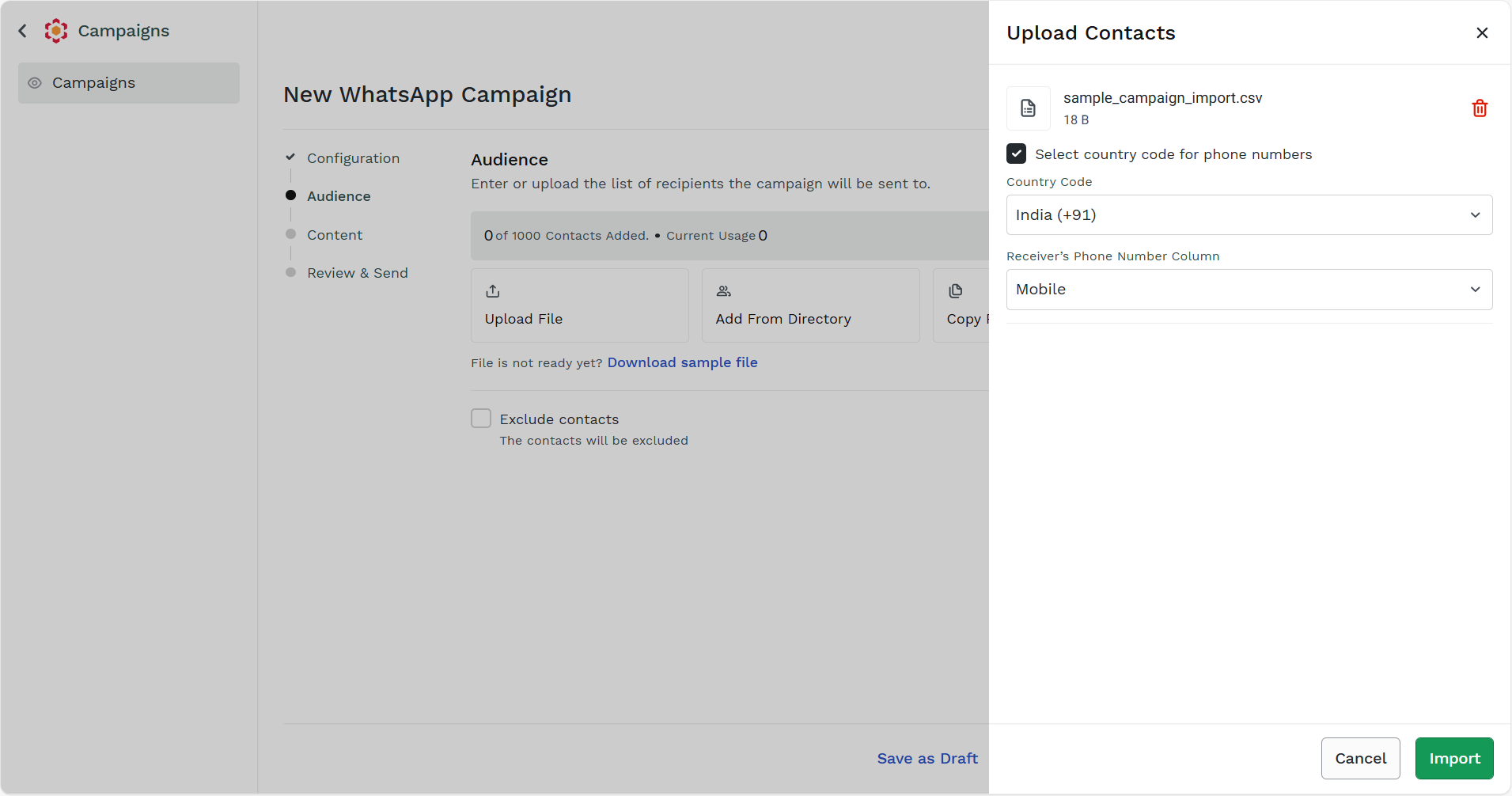
- Click Import.
The Contacts successful upload, invalid contacts are removed and the duplicate contact count appears.
Updated 5 months ago
Did this page help you?