

SMS Settings
The General Settings page provides the following sections for you to define a few account-related settings.
Daily Limit
The Daily Limit option allows you to specify a maximum number of SMS that can be sent in a given amount of time on a given route.
To reduce spam traffic use daily limit, If limit is reached messages will be rejected with status 'Not sent' and status trace as 'SMS limit reached'.
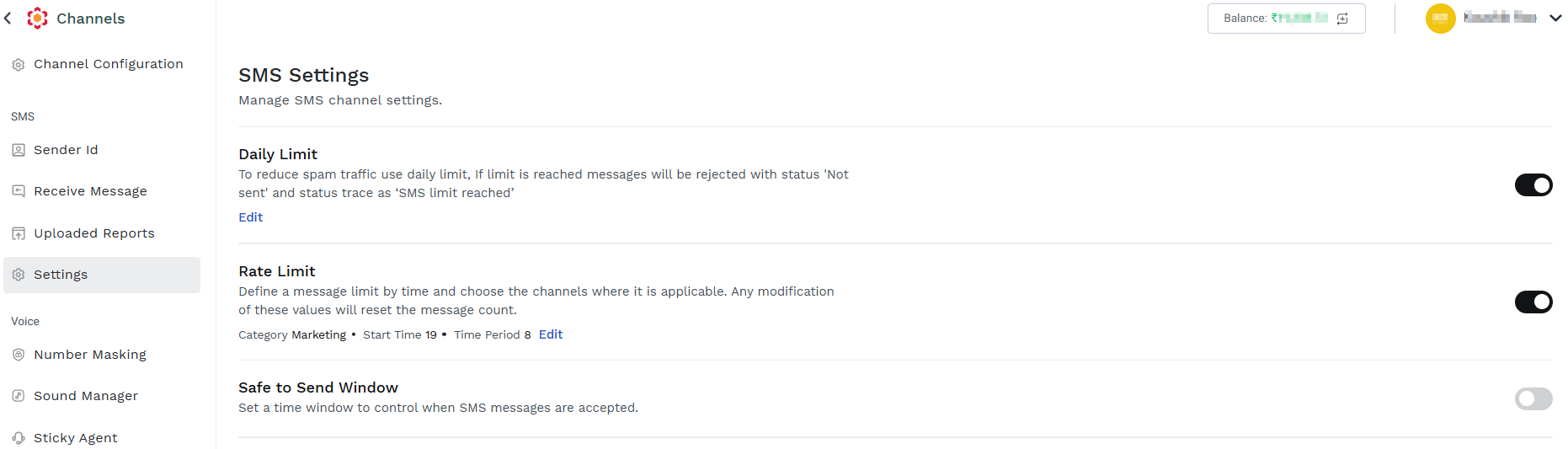
To edit the setting, click on the Edit link in the Daily Limit section.
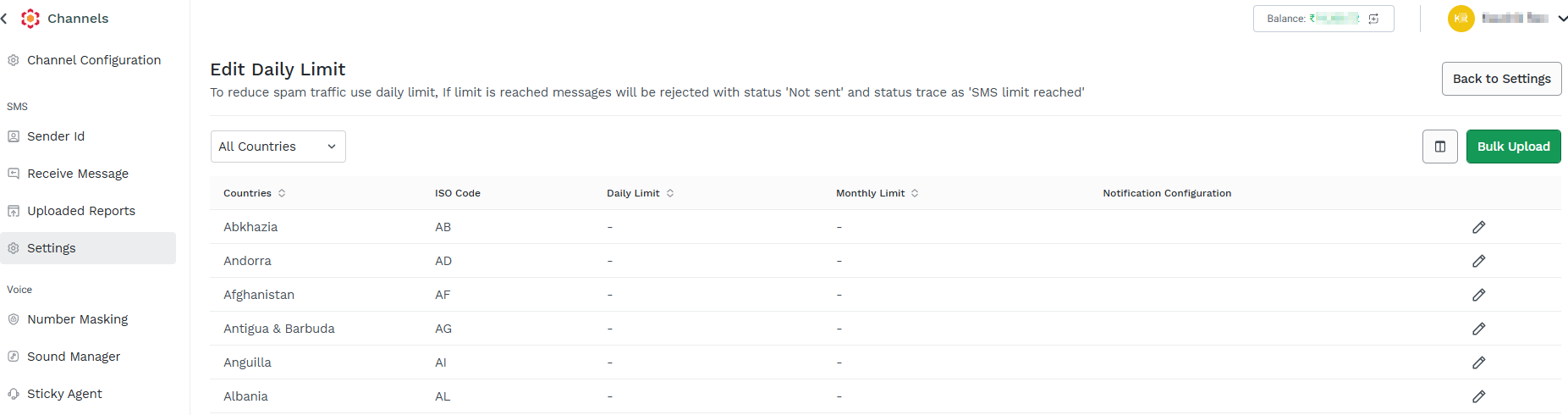
-
Click Bulk Upload. The Upload Daily Limit pop-up appears.
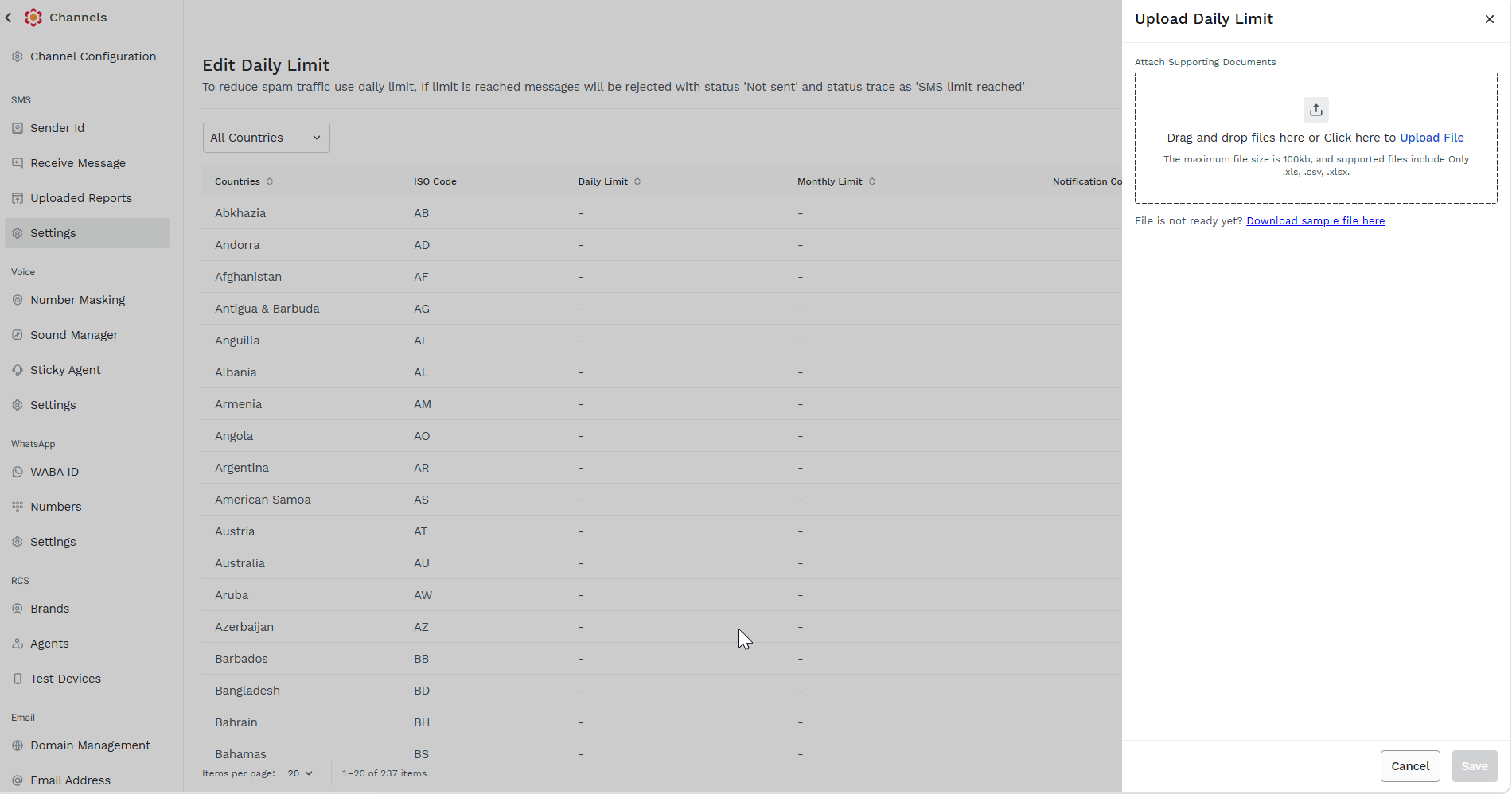
2. Drag and drop files here or Click here to Upload File.
The maximum file size is 100kb, and supported files include Only .xls, .csv, .xlsx.
3. Click Save. The file gets uploaded.
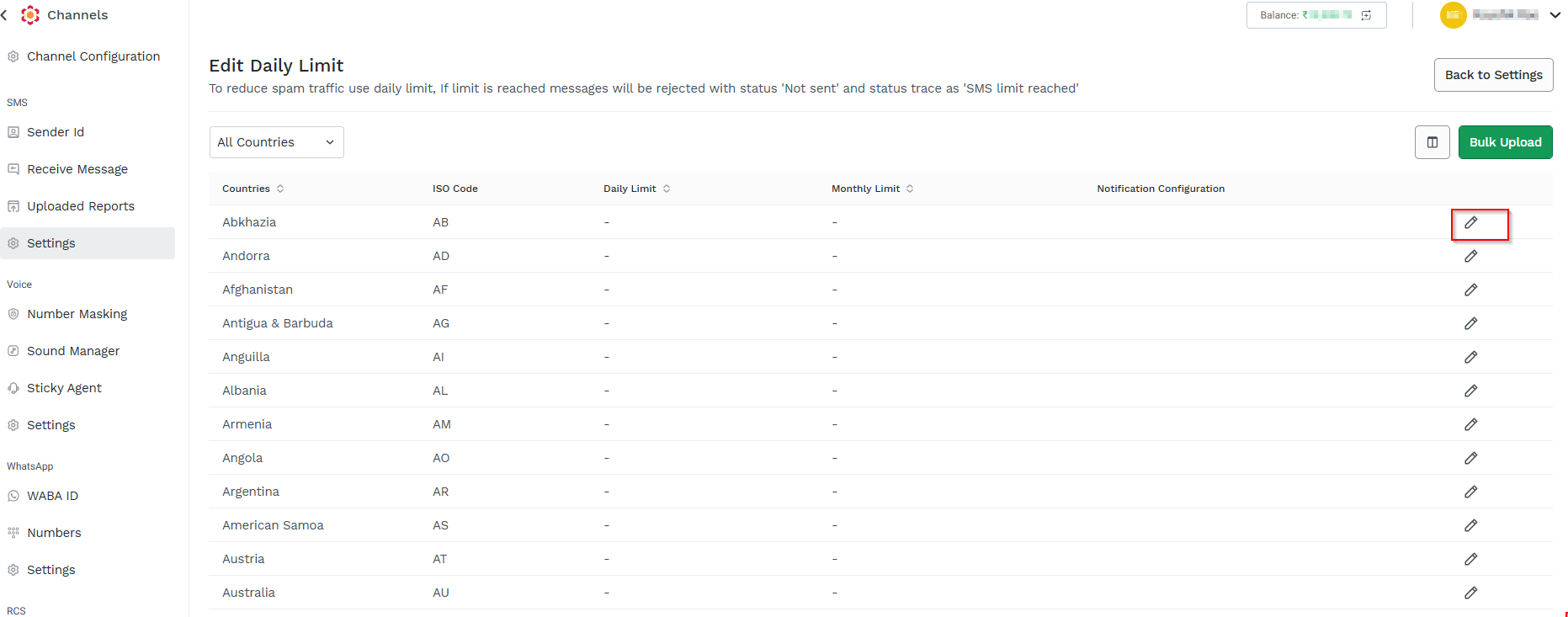
4. Click the edit icon next to the Notification Configuration column. The Edit Configuration pop-up appears.
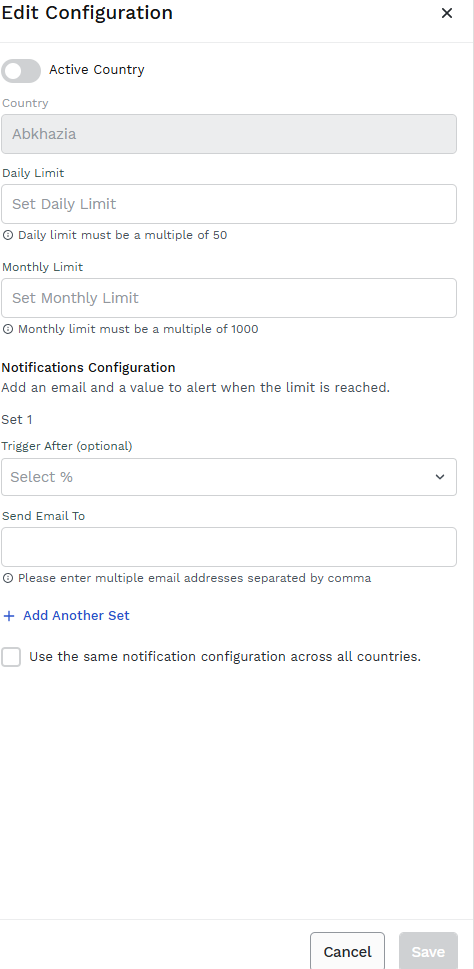
5. Edit the required fields and click Save.
Rate Limit
The Rate Limit option allows you to specify a maximum number of SMS that can be sent in a given amount of time on a given route.
To edit the setting, click on the Edit link in the Rate Limit section.
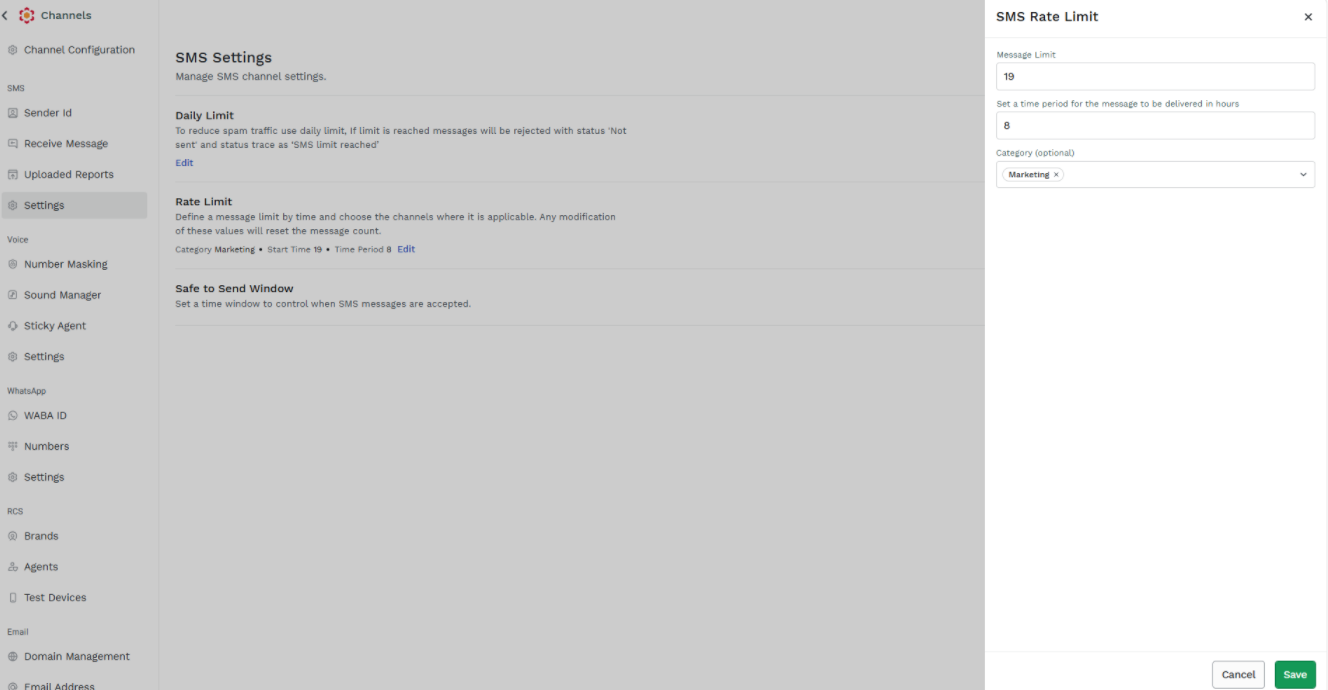
- Message Limit - Enter the number of messages that you want to set as the maximum number of messages that can be sent within the set time.
- Set a time period for the message to be delivered in hours—Enter the number of hours during which the specified number of messages can be sent. Only integer numbers are allowed, and you cannot specify fractions of an hour
- Select the OTP, Marketing, and/or Transactional check boxes to indicate on which route(s), the Message Limit applies.
- Click Save.
SMS Safe to Send Window
The SMS Safe to Send Window option lets you define a time frame for the SMS to be sent or scheduled using API or UI for example, 9:00 AM to 6:00 PM. The SMS Safe to Send Window feature ensured that the SMSs would be sent only in this timeframe and not outside it.
To configure the SMS Safe to Send Window option:
-
On the Settings page, enable the SMS Safe to Send Window option.
Toggle the Safe to Send Window. The Safe to Send Window pop-up appears.
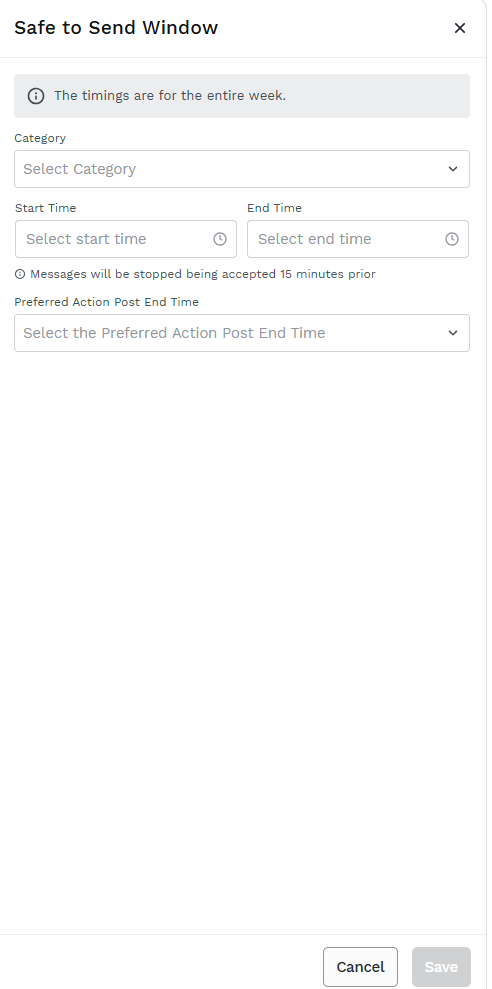
- Select the SMS message Category,
Note: The options are different based on the user’s location.
For more information, see: SMS Route Types (kaleyra.io) - Set the safe to send the Start Time and End Time.
- For the messages scheduled to be sent outside the configured time, you can choose to:
- Discard messages scheduled from both the UI and API—the status of such SMSs will be Not Sent with the description “Message was attempted outside of safe-to-send window”.
- Send the remaining message to the next day—this setting puts the SMSs on a queue to be sent the following day, during the configured time window.
- Click Save.
Note:
- You will not be charged for the messages that failed with the status Not Sent and the description, “Message was attempted outside of safe-to-send window”.
- This feature works at the time of scheduled delivery, not while scheduling; that is, you can safely create and save your scheduled campaigns even outside the safe-to-send windows.
Updated 9 days ago