

Add Contacts by Uploading a File
The Add Contacts by Uploading a File option allows you to quickly import large contact lists and streamline audience management for messaging campaigns.
In case the template chosen for the campaign contains any dynamic variable, the file shall contain for each recipient the actual value to be used to personalize the message.
To add contacts by uploading a file, perform the following steps:
- Follow steps 1 through 8 of Launch an RCS Campaign.
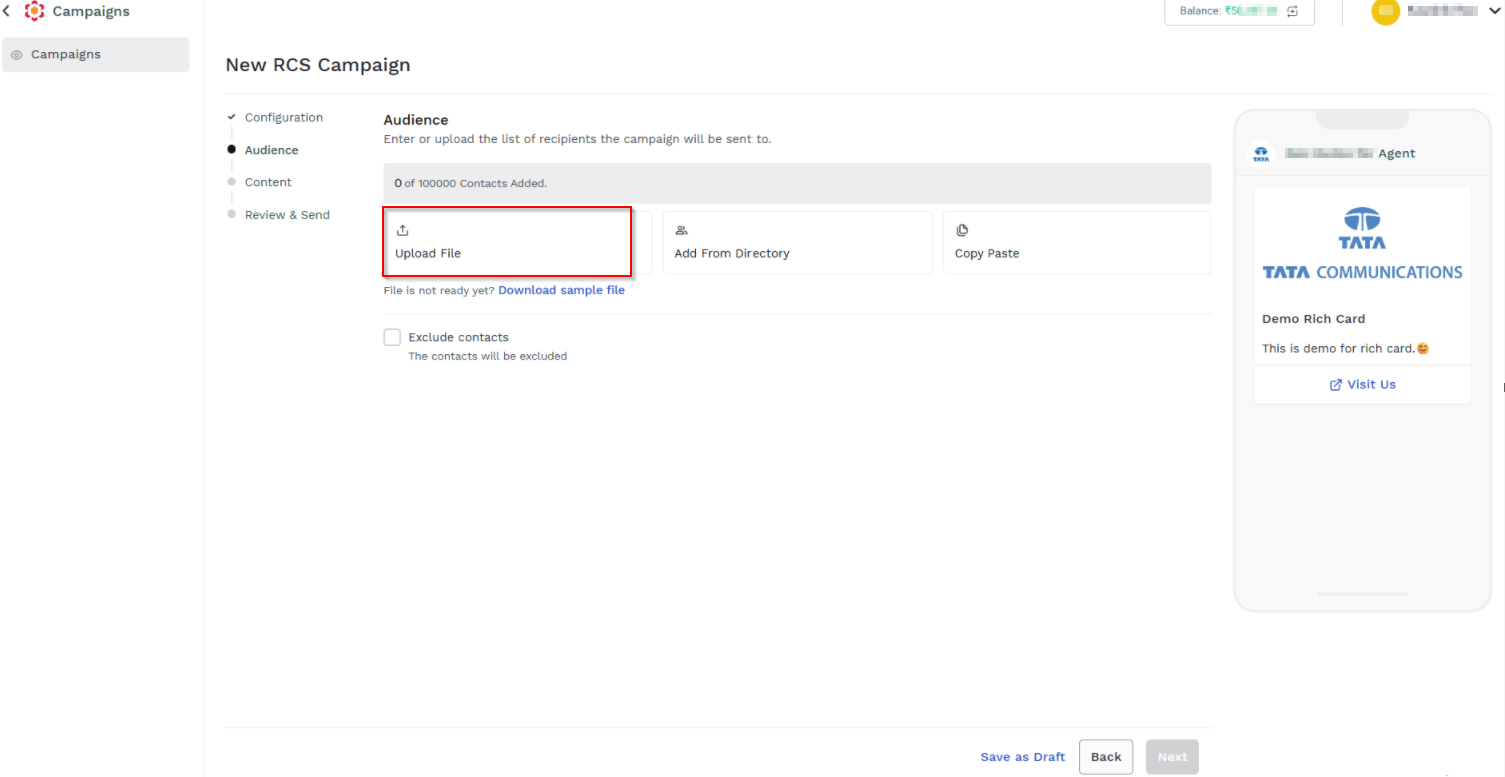
- Click Upload File. The Upload Contactspane appears.
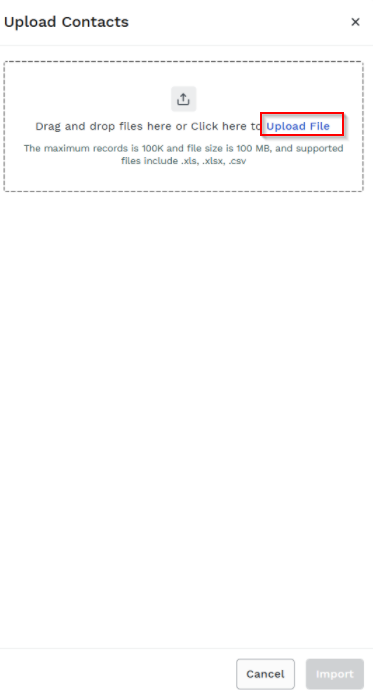
- You can drag and drop the file or click Upload File to upload the file.
Note:
- If the file is not ready yet, click Download sample file to download a sample .csv file. You can use this file as a reference when uploading your contacts.
- The maximum number of records is 100K per file, and the maximum file size is 100 MB. Supported file formats include .xls, .xlsx, and .csv.
- If the template selected for the campaign contains any dynamic variables, the file must include the corresponding values for each recipient to personalize the message accordingly. Such column will be mapped to the dynamic variables as part of the import flow.
- Click Proceed to upload all contacts and store them as recipients; the uploaded file appears on the Upload Contacts page.
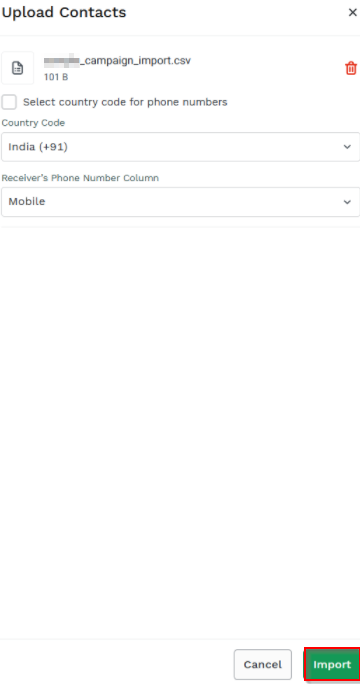
The Upload Contactspage has the following fields:
- Select country code for phone numbers - Check the Select country code for phone numbers field to enable the Country Code option.
Note:
Select this option only if the mobile numbers uploaded in the file do not include the country code.
- Country Code - Select the country code from the drop-down list.
- Receiver’s Phone Number Column -Select from the drop-down list the column where recipient mobile numbers are stored in the file. The columns available in the uploaded .csv file will be listed as the drop-down.
- Configure variables -You can use the configure dynamic variables using columns from an uploaded CSV file So that you can map audience data to personalization variables for downstream usage. For example, campaigns, and Templates. Using configure variables, you can map CSV columns to dynamic variables, validate mandatory and duplicate mappings.
Note:
If there is no variable available for the selected template, the list of variables will not be displayed
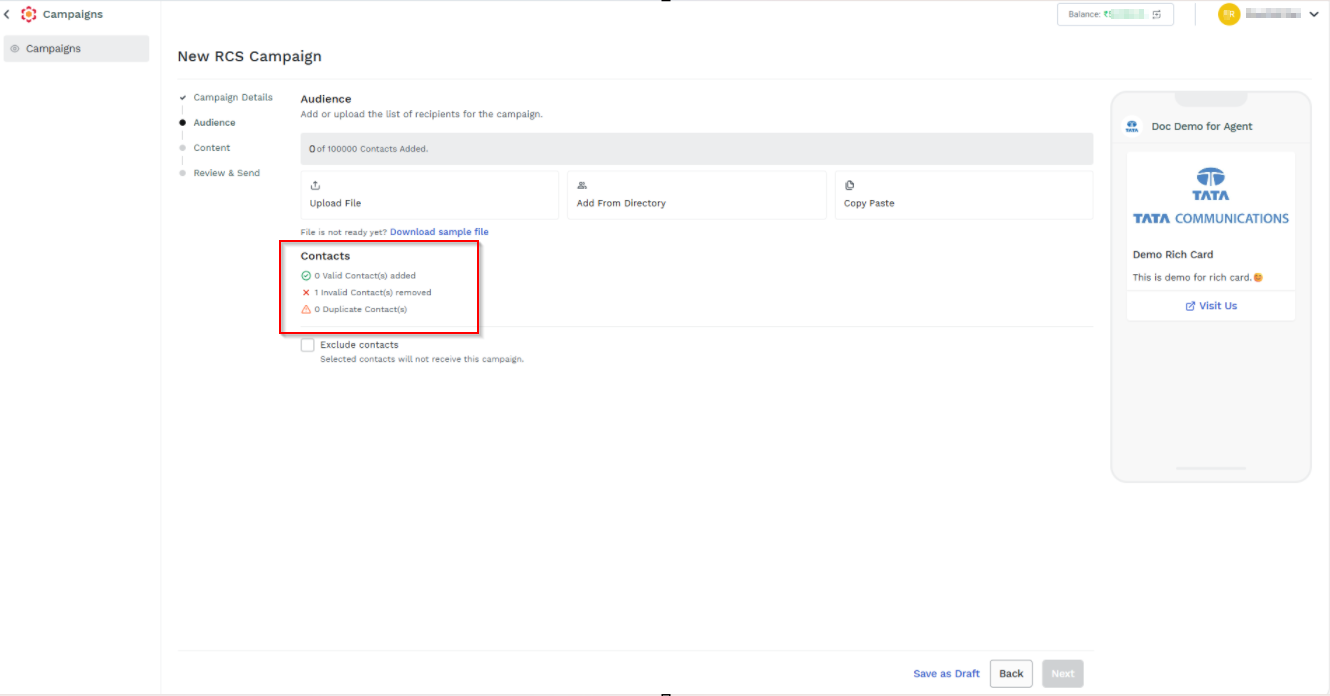
- Click Import. The contacts successful upload, invalid contacts removed, and duplicate contacts count appears.
Note:
When you click the Exclude Contacts checkbox, the Upload File, Add From Directory, and Copy Paste options gets enabled.
Updated 3 days ago