

Launch an RCS Campaign
You can launch an RCS campaign using CleverTap from the dashboard page. You can test the RCS campaigns before launching them.
To launch an RCS campaign, perform the following steps:
- Sign in to your CleverTap account.
The CleverTap home page appears.
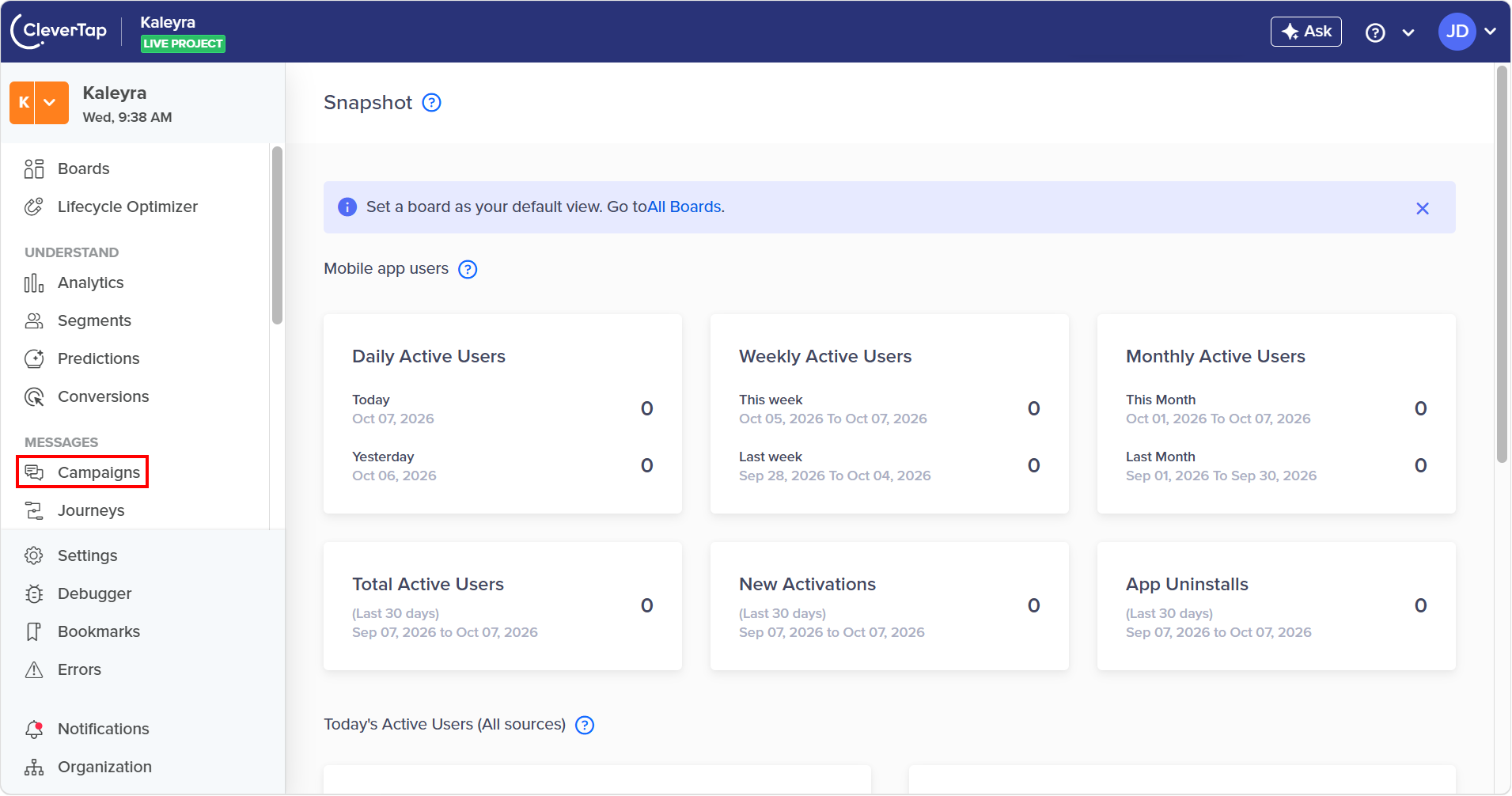
- On the left menu bar, click Campaigns.
The Campaigns page appears.
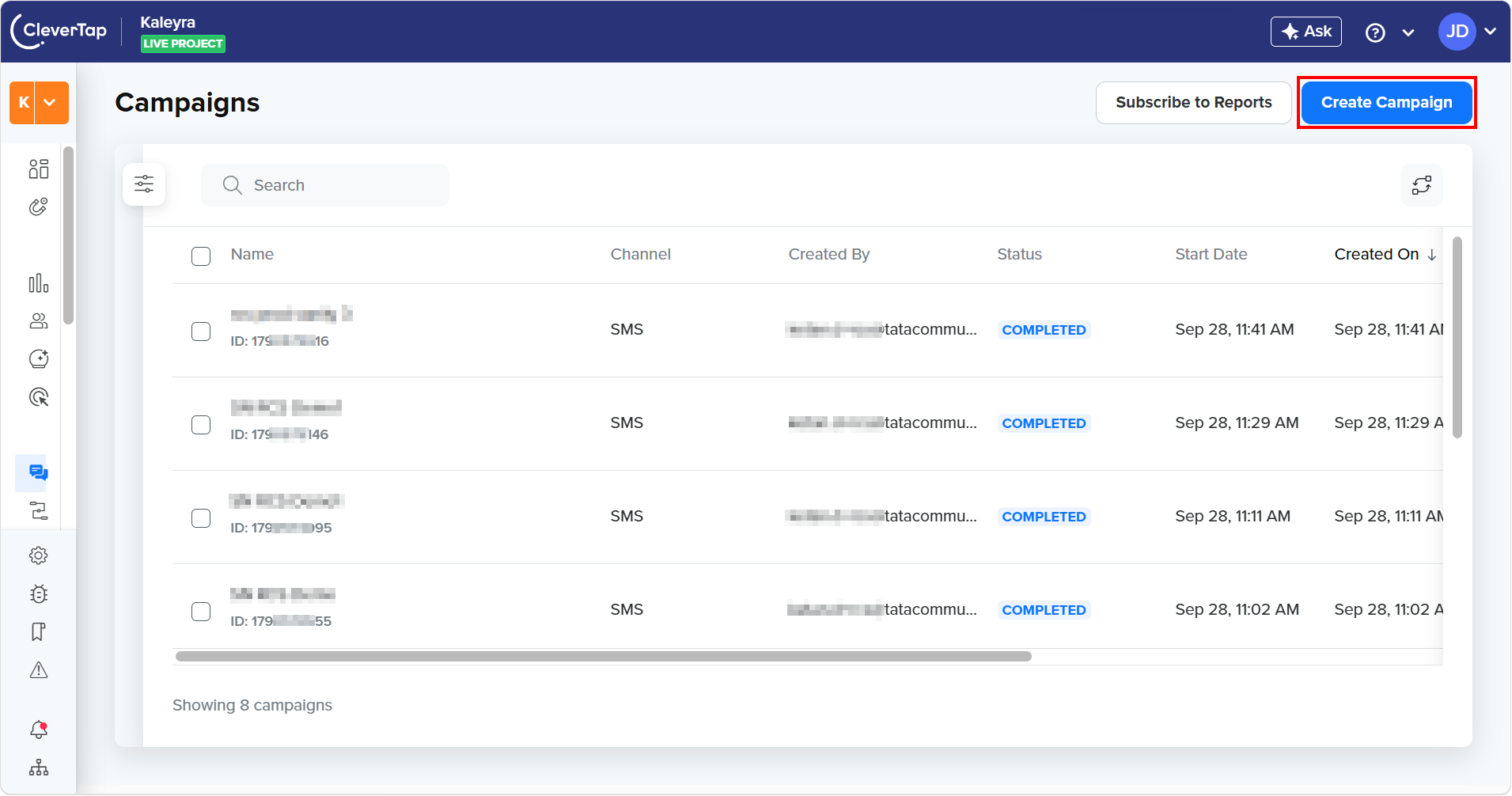
- On the right side of the page, click Create Campaign.
The MESSAGING CHANNELS pop-up appears.
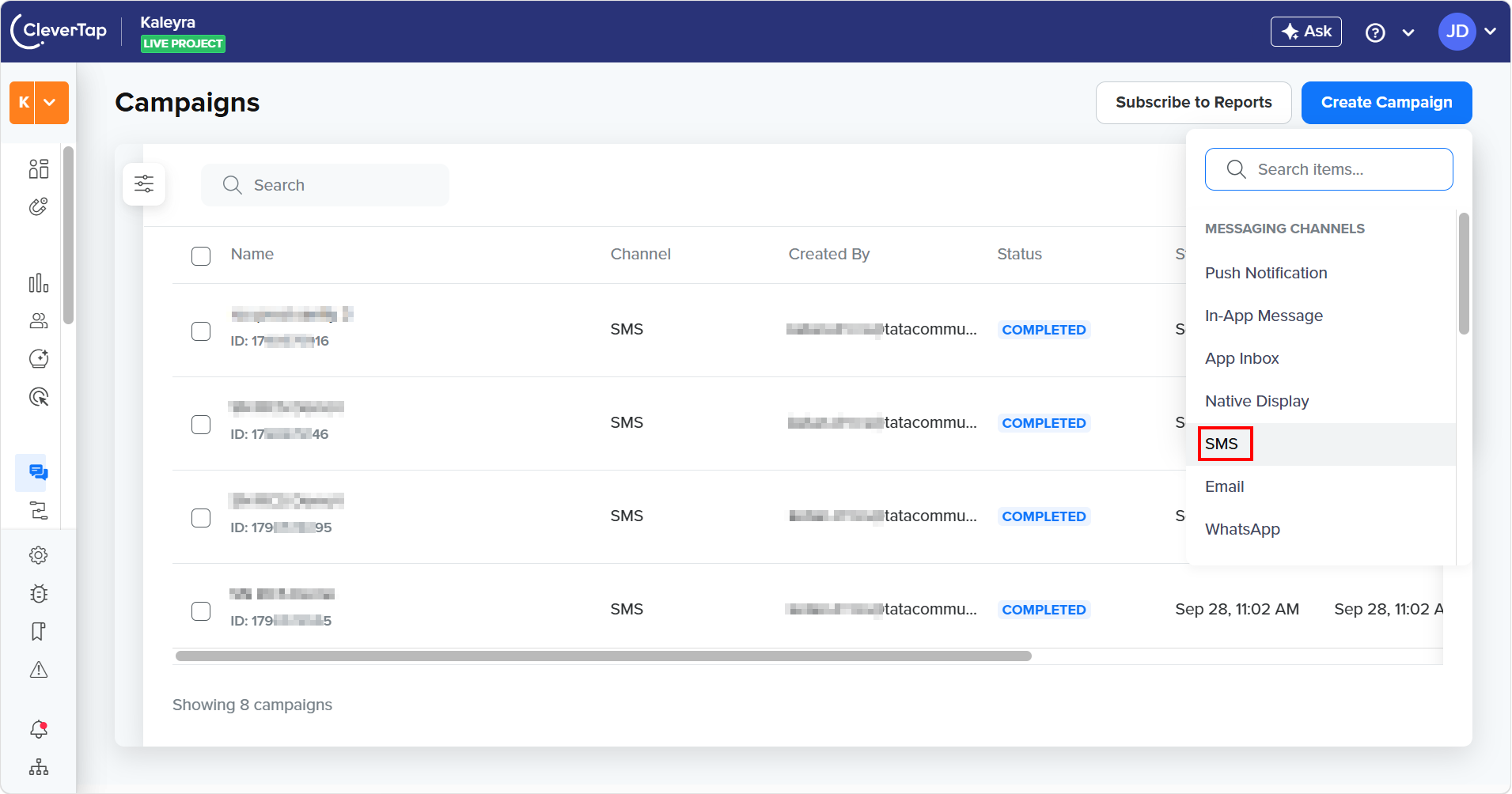
- Click SMS.
The New SMS page appears.
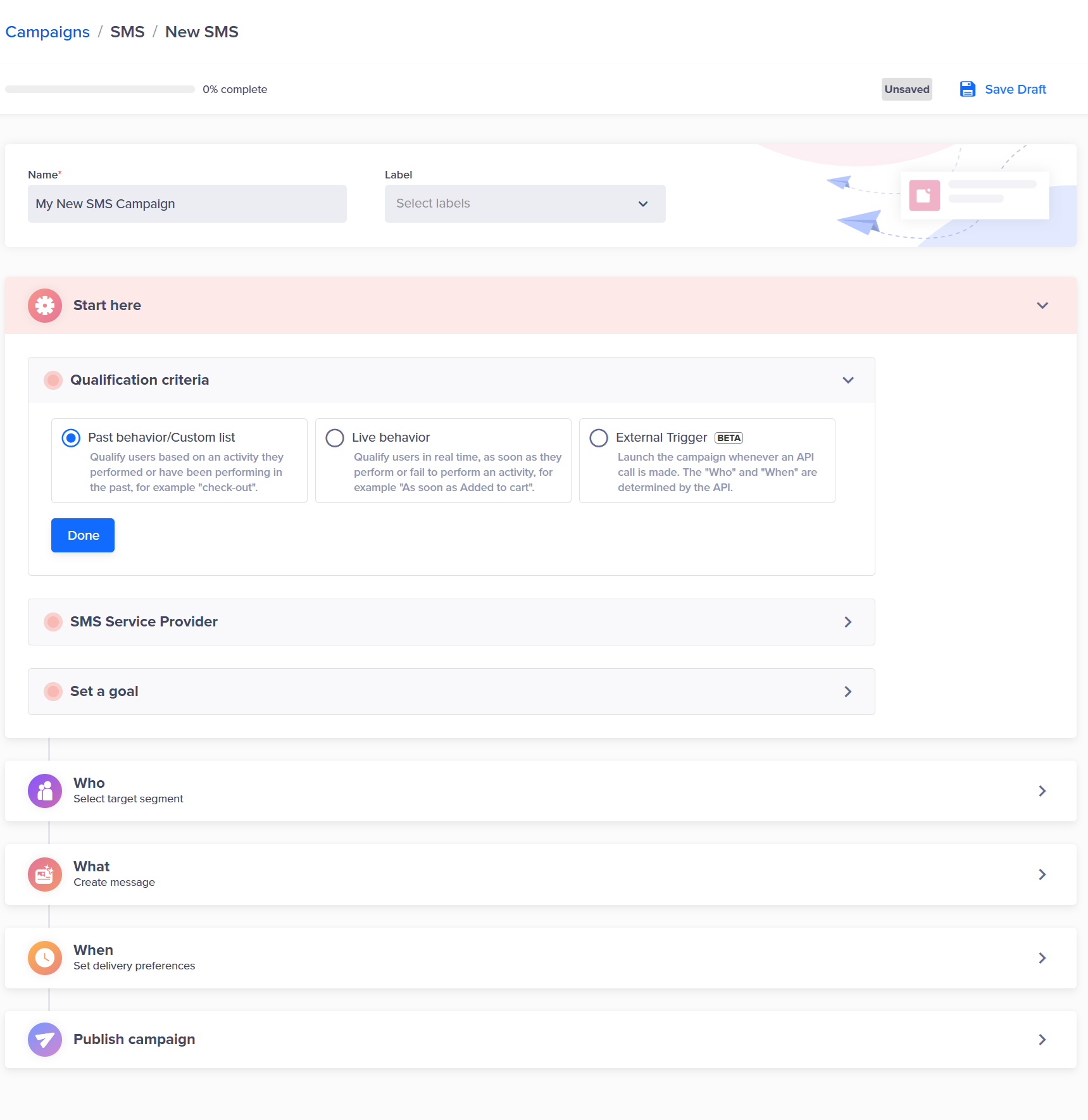
- In the Name field, enter the name of the campaign. The name should be unique. Helps identify campaigns in reporting and analytics.
- (Optional) Click the Label drop-down and then you can either add a new label or select from the existing ones. Labelling makes the filtering and reporting easier when managing multiple campaigns. For example, Promotions, Transactions, Offers, Retention, or Loyalty.
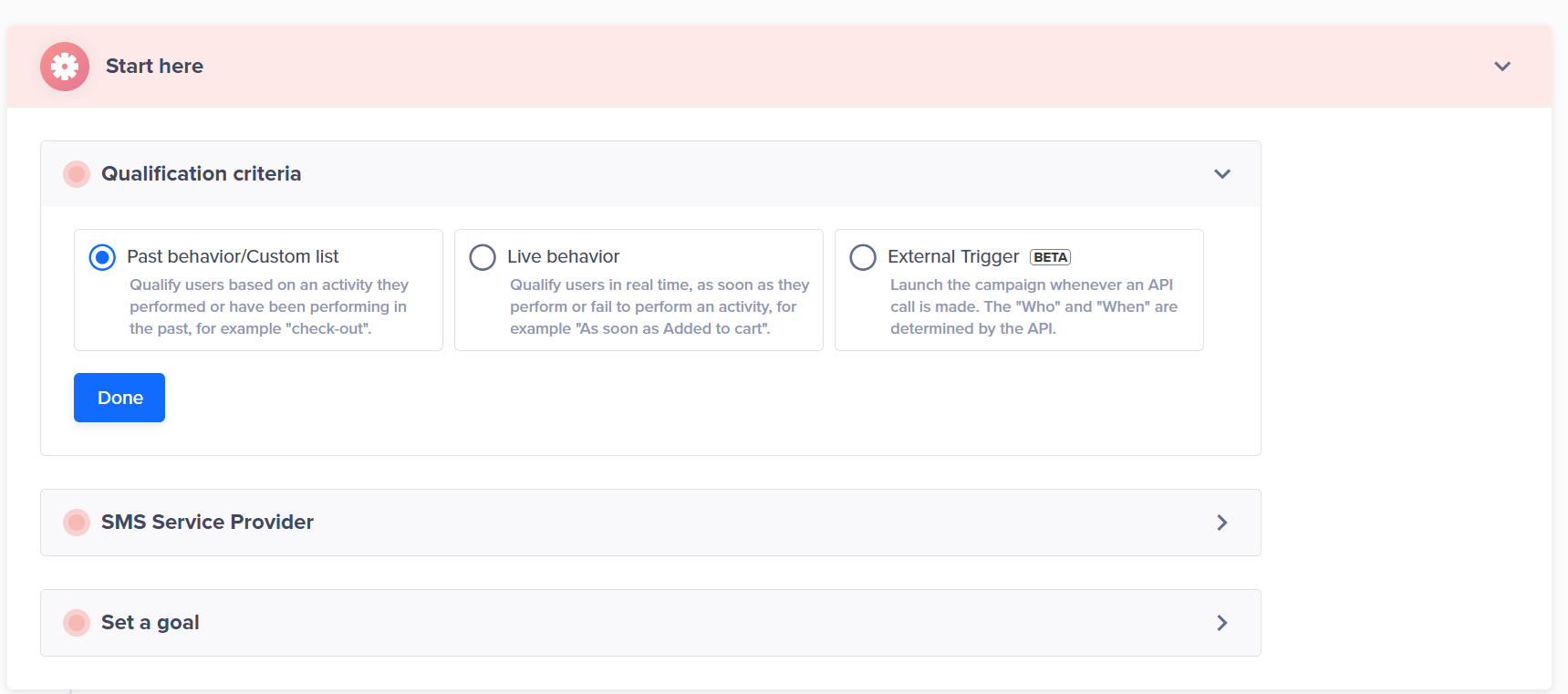
- In the Start here section, perform the following steps:
-
From the Qualification criteria, select one of the following options:
-
Past behaviour/Custom list - Targets end-users based on historical actions. It is helpful in re-engagement campaigns, cross-sell campaigns, or loyalty messaging. In this case, Past behaviour/Custom list is selected and then click Done.
-
Live behavior - Triggers messages immediately when an event occurs. It is helpful in cart abandonment RCS, real-time recommendations, or instant engagement campaigns.
-
External Trigger - Campaign is triggered through an API call. It is helpful in transactional notifications, OTP alternatives through RCS, or external workflow automation.
-
-
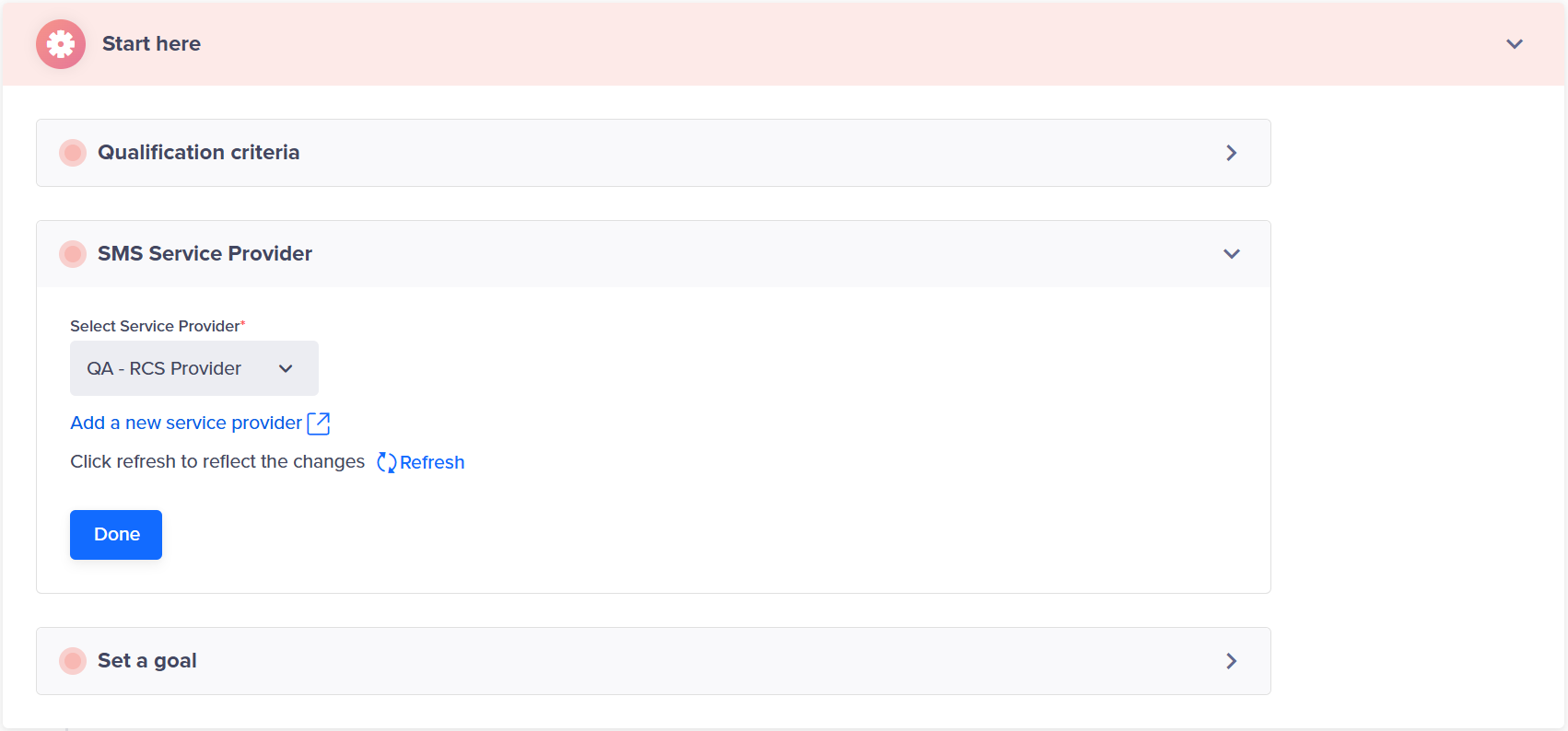
Click SMS Serice Provider to expand and then click the Select Service Provider drop-down. Select the service provider configured to send the RCS messages. Click Done.
-
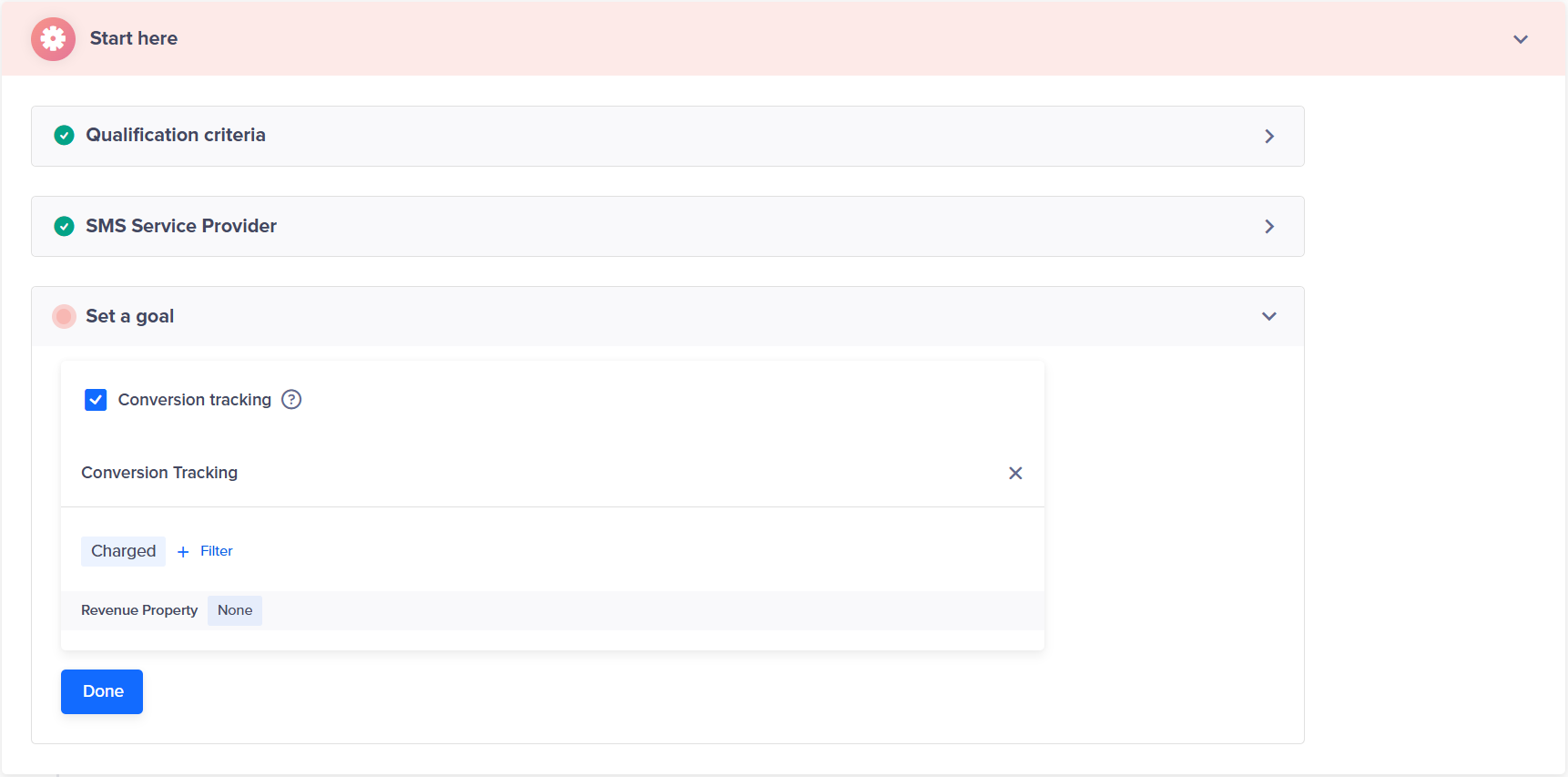
Click Set a goal to expand and then click the Conversion tracking checkbox to measure campaign success. Conversion tracking tracks whether recipients completed desired actions after receiving the campaign. You can add filters for conversion tracking events such as Charged, First Time, Last Time, Time of the day. Also, you can set the Revenue Property. Click Done.
-
-
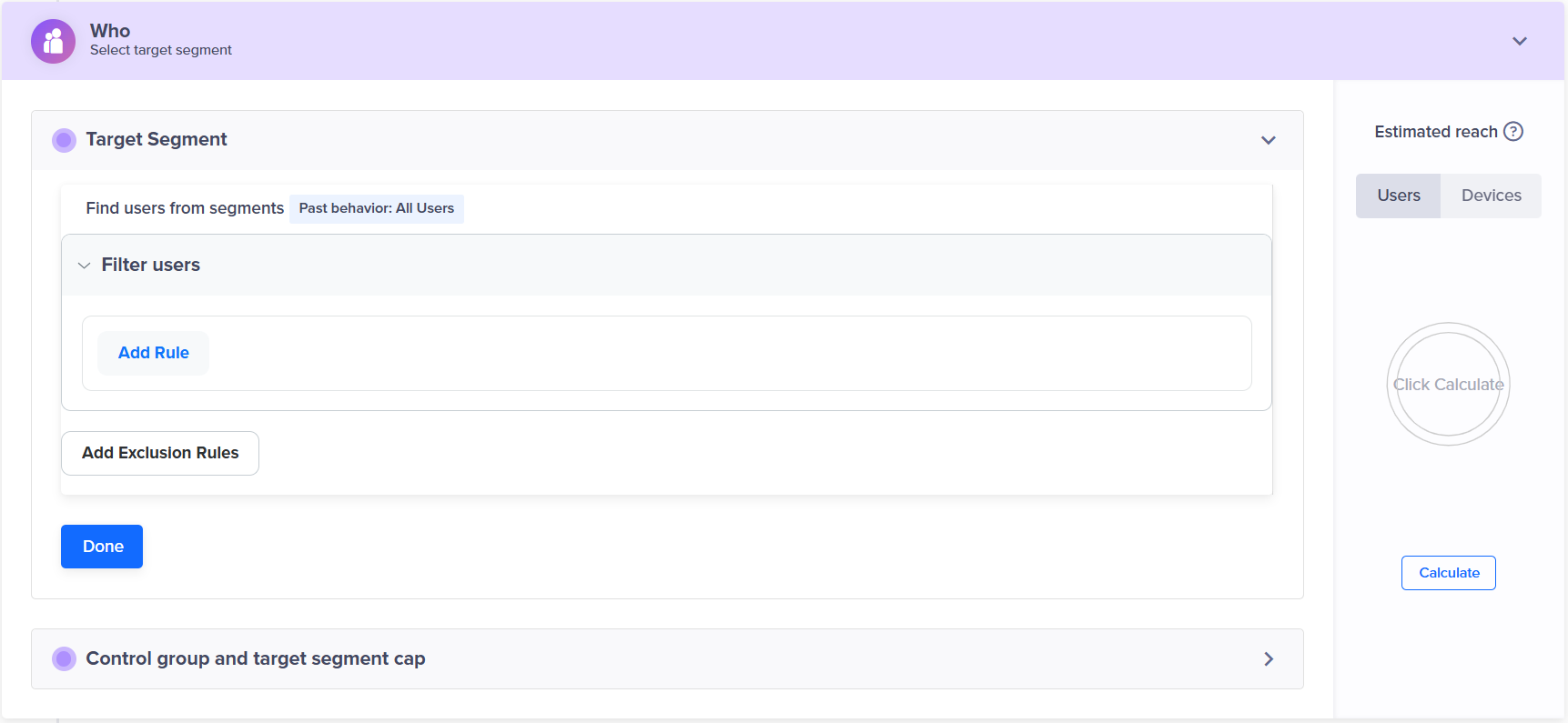
Click the Who section to select the target segment.
-
Perform the following:
- You can target your SMS campaign to a new user segment by clicking on the Target segment section. Here, you can create a new ad-hoc segment or use a previously saved user segment from the segment list. By default, the target segment is set to All Users and click Done.
- You can measure campaign effectiveness by clicking the Control Group and Target Segment Cap section. It helps you to know compare converted vs non-converted users for your campaign.
-
Click the What section to define the RCS content.

- From the Message Type, select one of the following:
- Single Message - Send the same message to all the end-users. In this case Single Message is selected and then click Go To Editor to create your message.
- A/B Test - Send up to three message variations to a test group to find out which performs the best.
- Spilt Delivery - You can select what percentage of your target audience receives each variant.
- By user property - Send up to 50 message variations to different users based on an end user's properties.
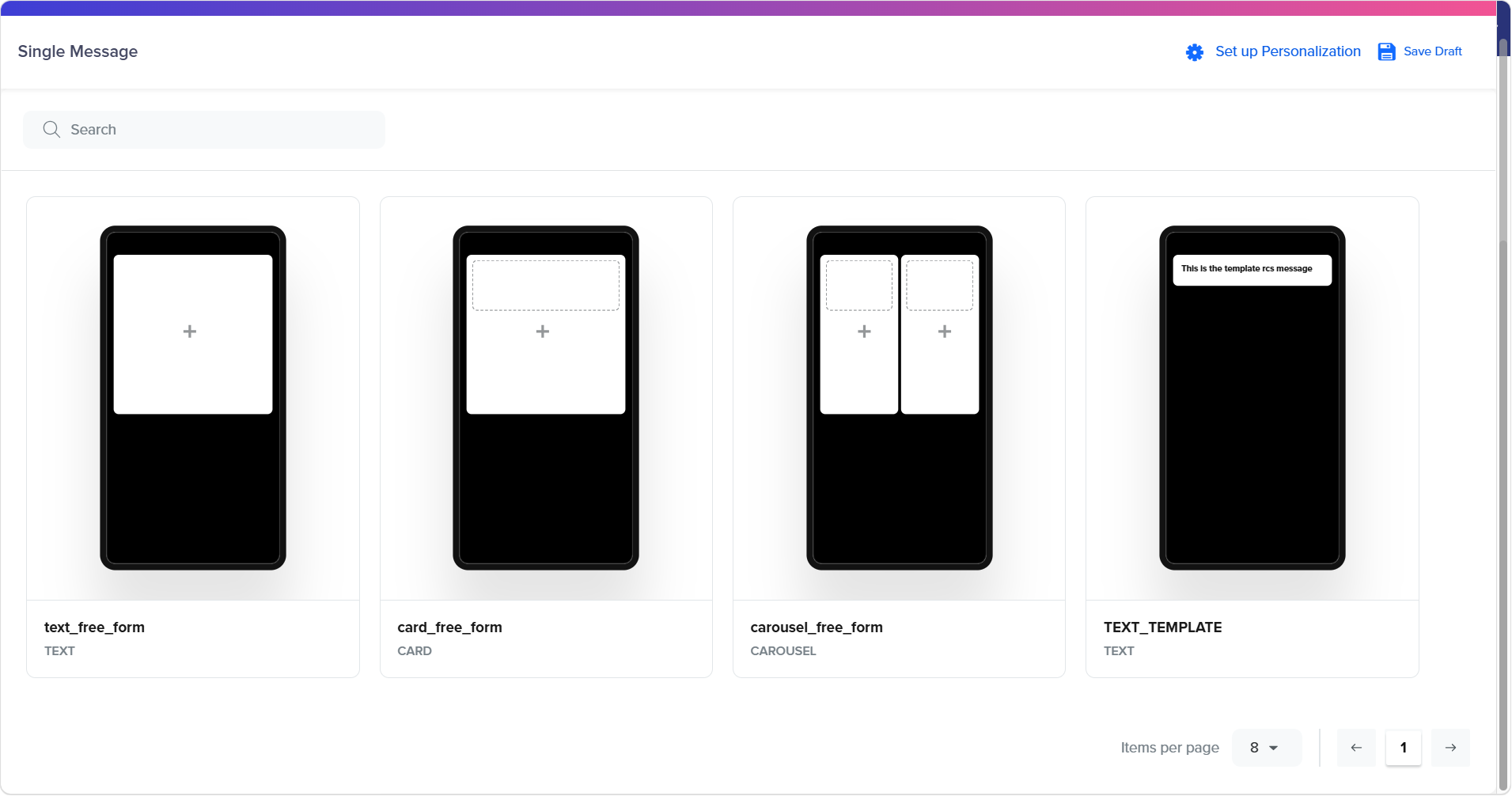
-
Select one of the following RCS template types:
TEXT
-
Select the TEXT editor type.
The Single Message page appears.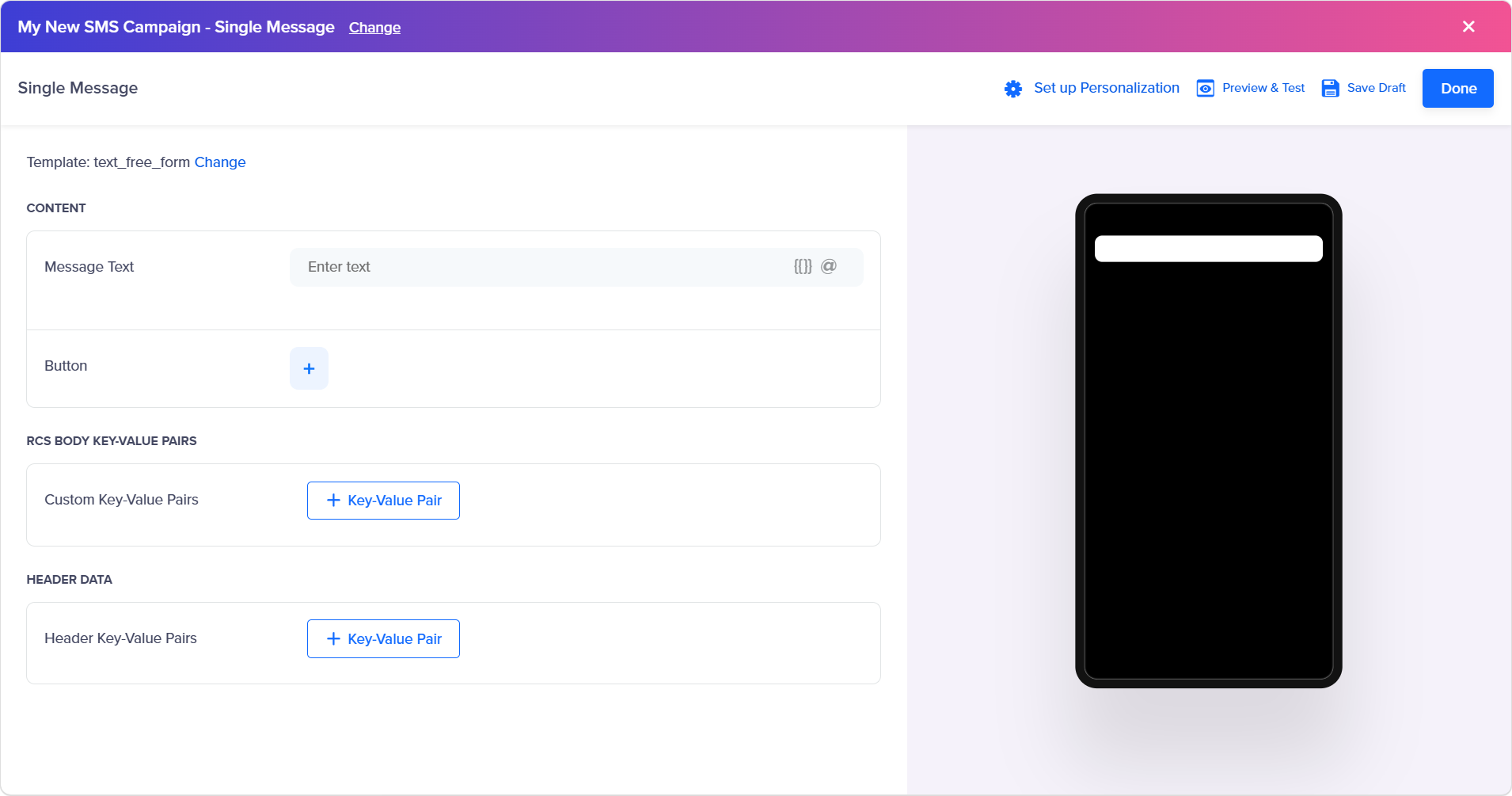 Note:
Note:You can change the message editor type. To change the message editor type click the Change link on the right side of the Template and then select the message editor type.
-
In the Enter Text field, enter the text for the URL that you want to display in the message. Use the dynamic variables inside the message editor by clicking the `{{ }}` icon on the bottom-left of the Enter Content field. The new
{{custom_params}}variable appears. Enter the variable value. A maximum length of 2000 characters is supported for the message content. -
Click + icon next to Button.
The Button 1 fields appears.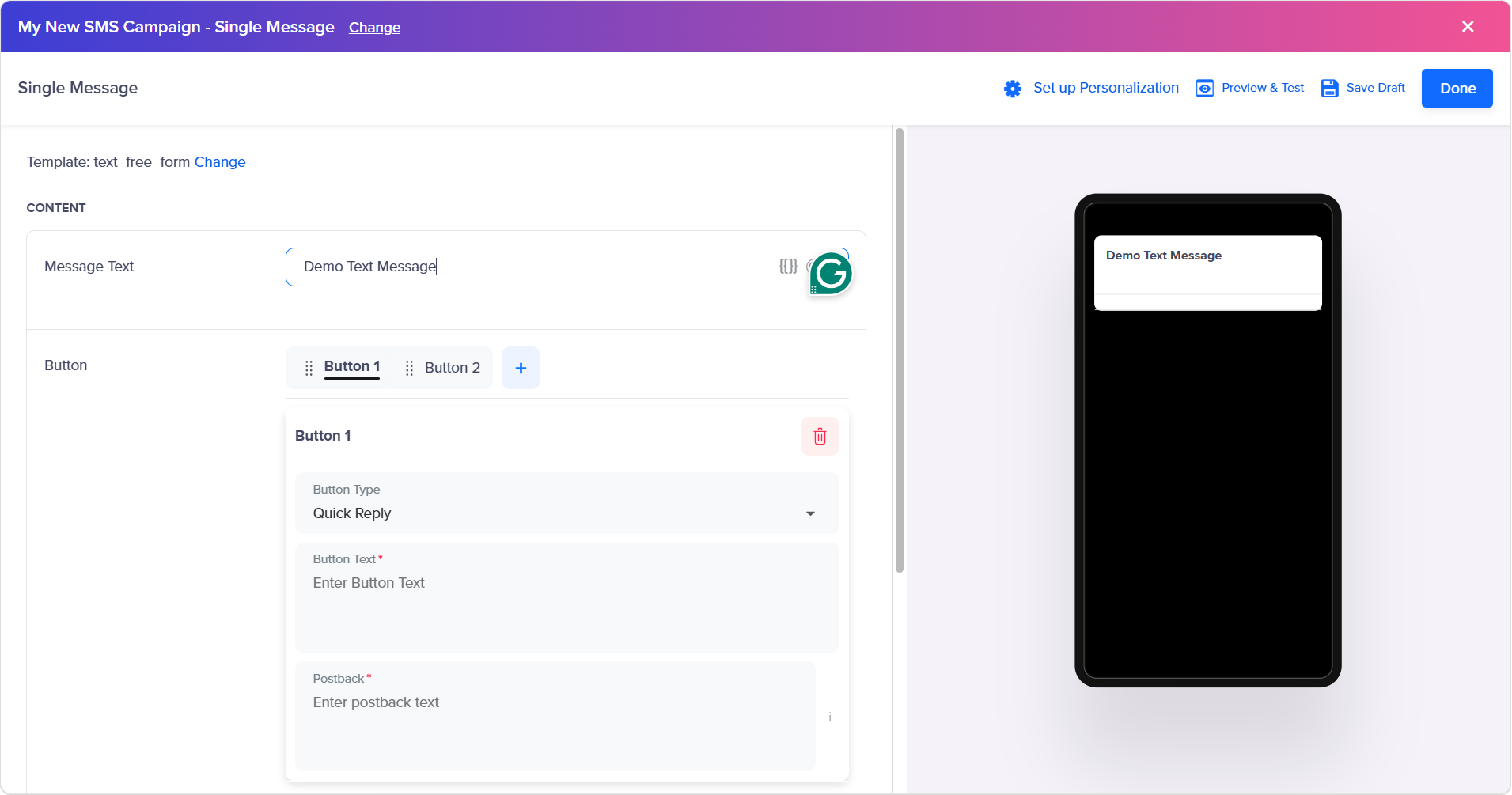 Notes:
- You can swipe the buttons when you have more than one button.
- You can delete the button. To delete the button, hover over the button and on the right side of the button, click the delete icon.
-
Click Button Type and the list of following option appears:
- Quick Reply
- Call Phone Number
- URL Redirect
- Send Location to User
- Get User Location
- Calendar Event
For more information on button type, see step 6 of RCS Text Template.
-
Click Custom Key-Value Pairs, the + Key-Value Pair button appears. Click to enter the keys and their corresponding values for body. You can add multiple Key-Value Pairs.
-
Click Header Key-Value Pairs, the + Key-Value Pair button appears. Click to enter the keys and their corresponding values for header. You can add multiple Key-Value Pairs.
CARD
-
Select the CARD editor type.
The Single Message page appears.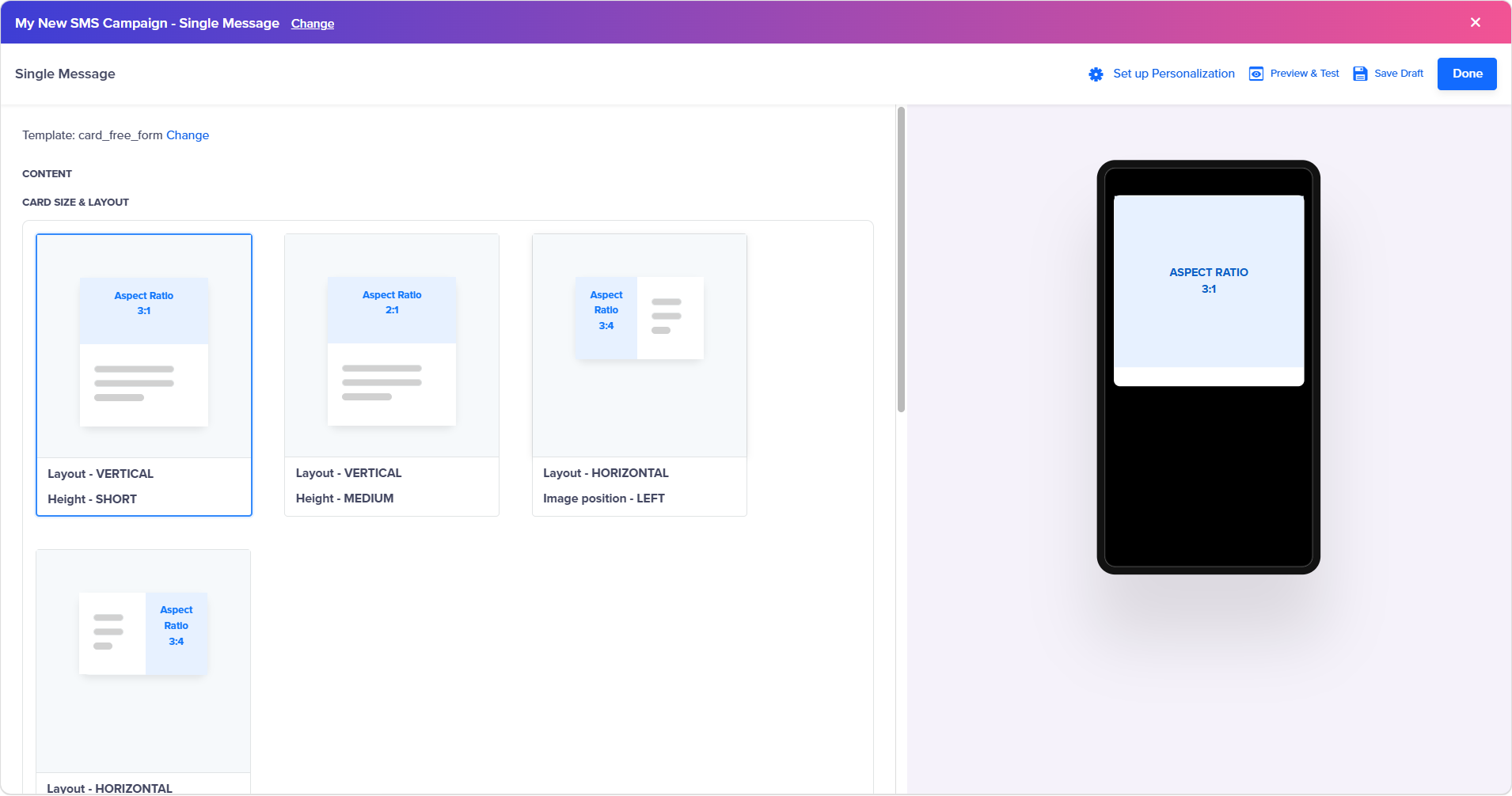 Note:
Note:You can change the message editor type. To change the message editor type click the Change link on the right side of the Template and then select the message editor type.
-
From the CARD SIZE & LAYOUT, select the card size and layout for the message. The selected card size will appear on the right side of the page.
-
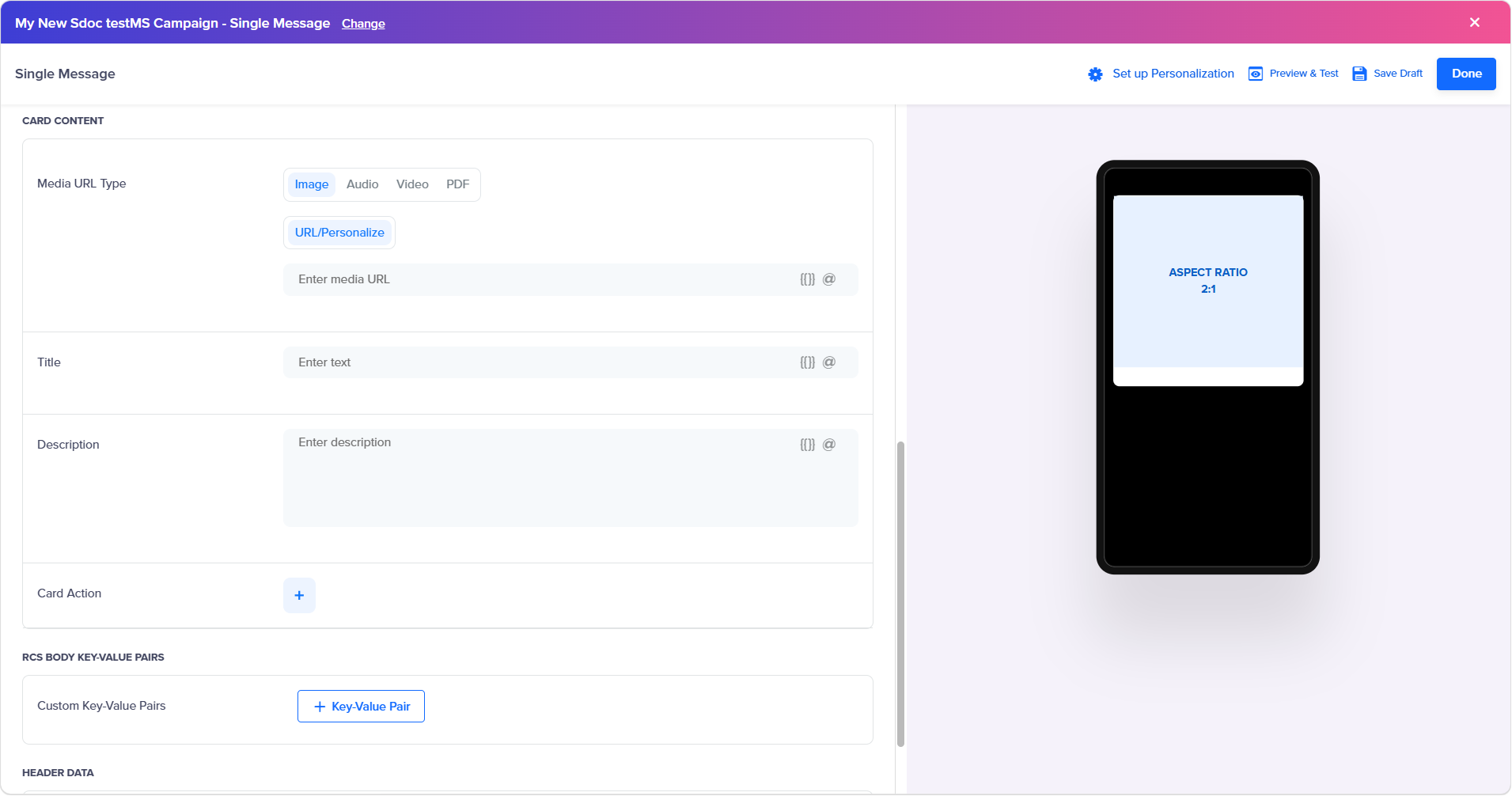
From the Media URL Type, select one of the following:
- Image - You can upload an image in JPEG, JPG, PNG, or GIF format (maximum size: 1 MB). Recommended aspect ratio: 5:4 with an optimal resolution of 960×720 pixels.
- Audio - [Need more information from team]
- Video - You can upload a video file up to 5 MB. Supported formats include H.263, M4V, MP4, MPEG, MPEG-4, and WebM.
- PDF - You can upload a PDF document with a maximum file size of 10 MB.
-
In the Title field, enter the title for the rich card. A maximum length of 200 characters is supported.
-
(Optional) In the Card Description field, enter the description for the rich card. The maximum length of 2000 characters is supported.
-
Click + icon next to Card Action.
The Button 1 fields appear.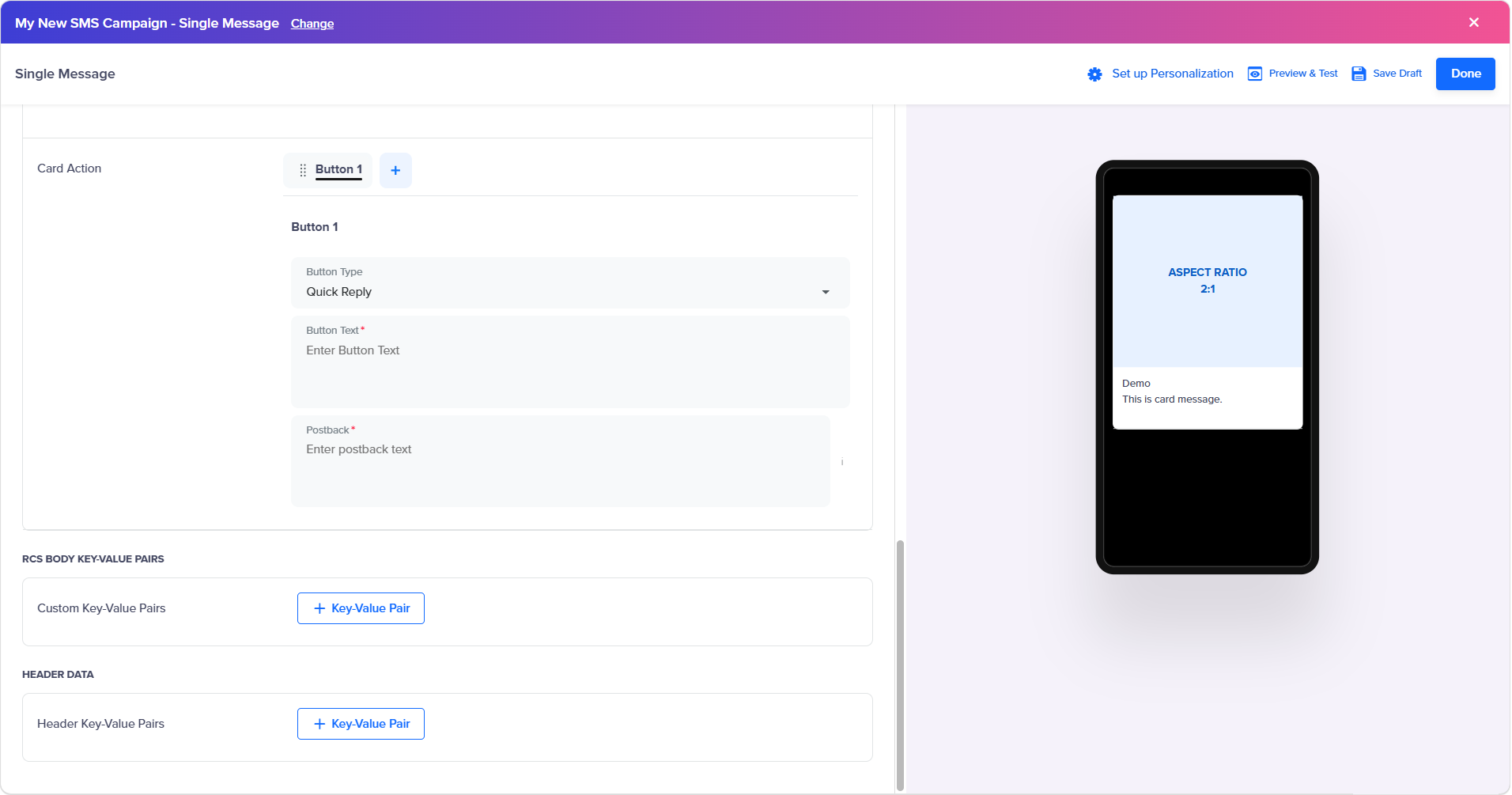 Notes:
- You can swipe the buttons when you have more than one button.
- You can delete the button. To delete the button, hover over the button and on the right side of the button, click the delete icon.
-
Click Button Type and the list of following option appears:
- Quick Reply
- Call Phone Number
- URL Redirect
- Send Location to User
- Get User Location
- Calendar Event
For more information on button type, see step 6 of RCS Text Template.
-
Click Custom Key-Value Pairs, the + Key-Value Pair button appears. Click to enter the keys and their corresponding values for body. You can add multiple Key-Value Pairs.
-
Click Header Key-Value Pairs, the + Key-Value Pair button appears. Click to enter the keys and their corresponding values for header. You can add multiple Key-Value Pairs.
CAROUSEL
Note:A carousel message consists of 2 to 10 rich cards, each with over 160 characters or rich media. You have the option to add a button in the rich card that includes URL Action, Reply, Dialer Action, View Location (Lat/Long), and Calendar event.
-
Select the CAROUSEL editor type.
The Single Message page appears.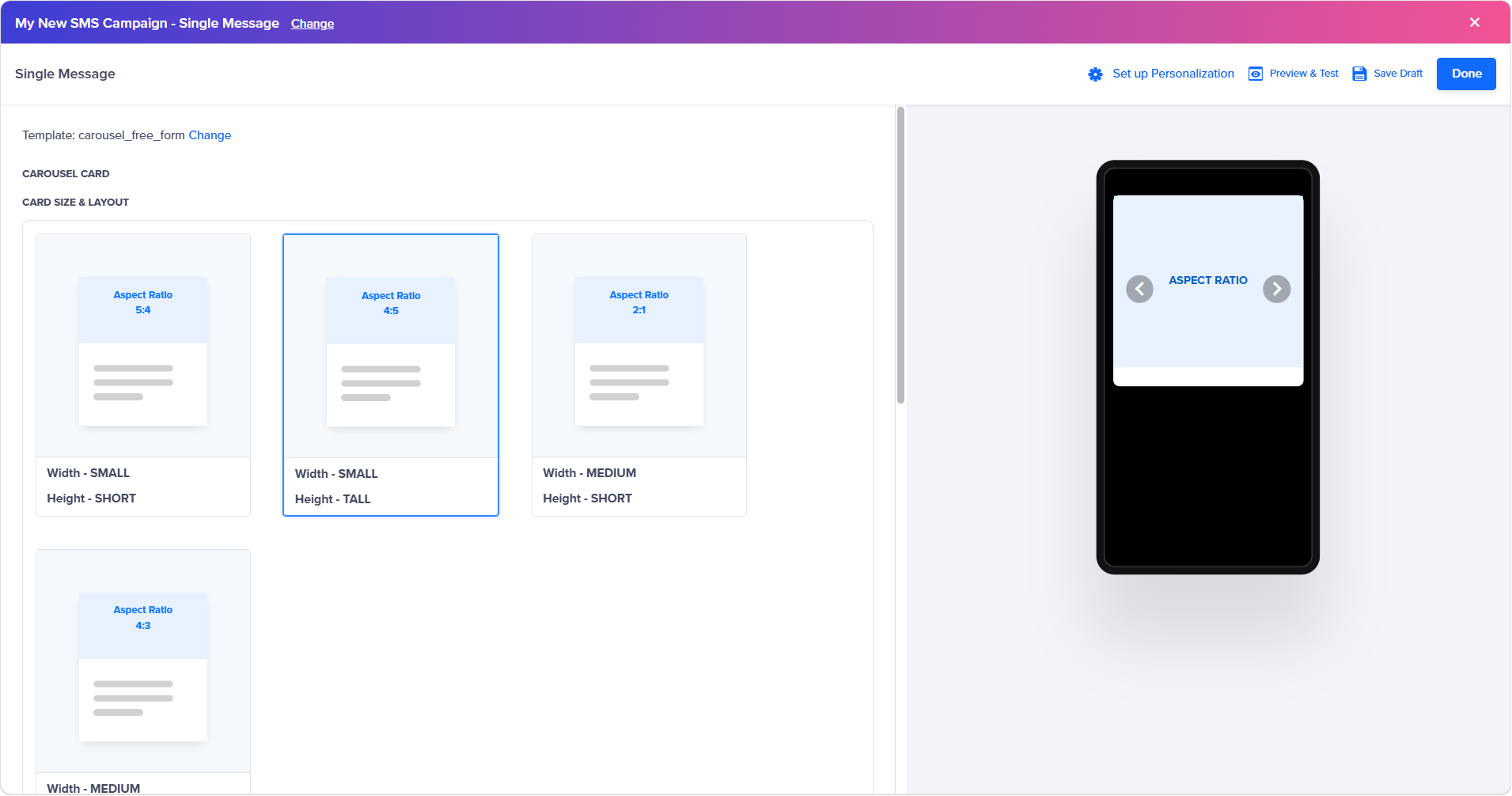 Note:
Note:You can change the message editor type. To change the message editor type, click the Change link on the right side of the Template and then select the message editor type.
-
From the CARD SIZE & LAYOUT, select the card size and layout for message. The selected card size will appear on the right side of the page.
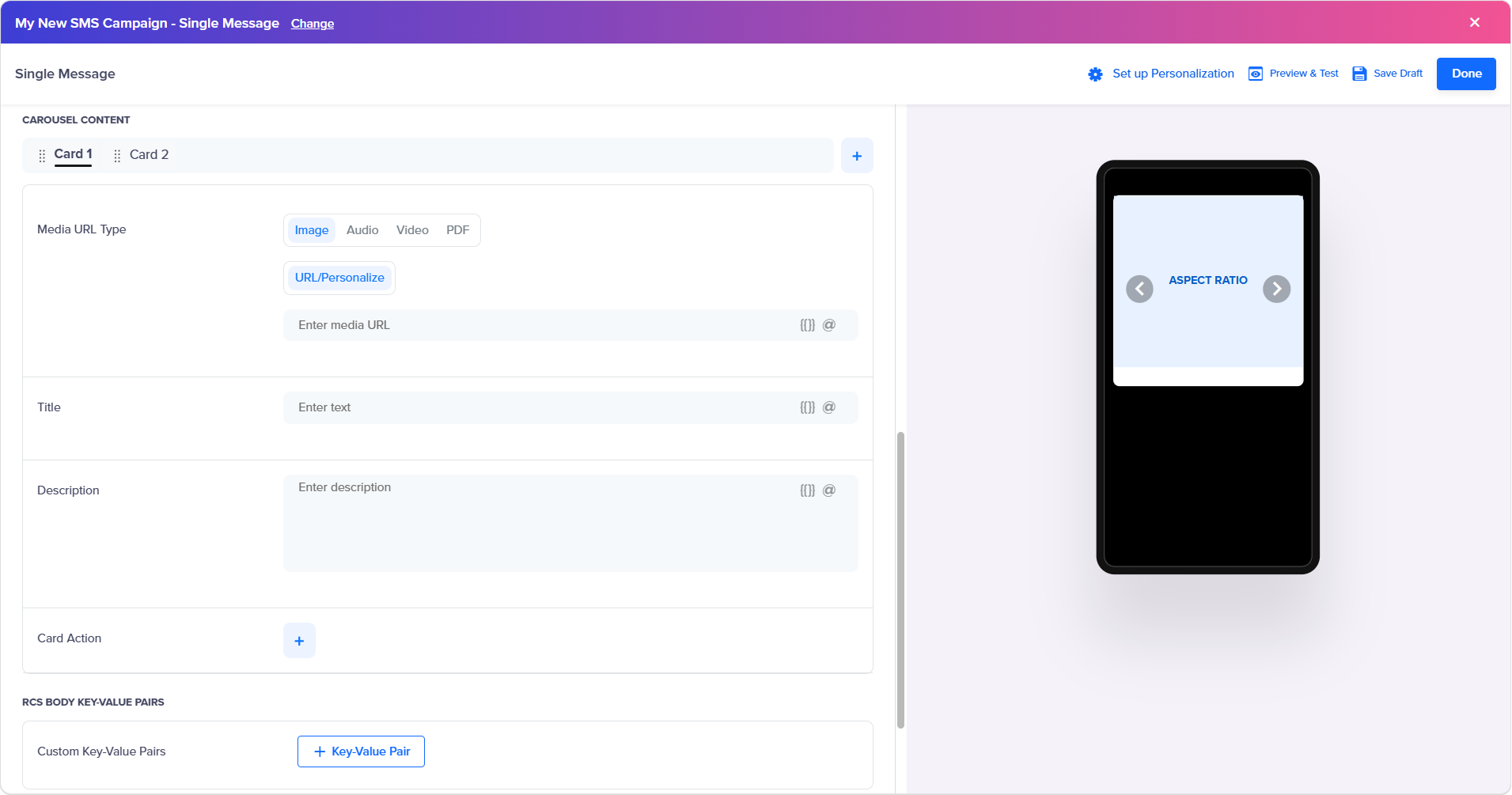 Note:
Note:You can swipe the cards based on your preferences by dragging and dropping the card.
-
From the Media URL Type, select one of the following:
- Image - You can upload an image in JPEG, JPG, PNG, or GIF format (maximum size: 1 MB). Recommended aspect ratio: 5:4 with an optimal resolution of 960×720 pixels.
- Audio - [Need more information from team]
- Video - You can upload a video file up to 5 MB. Supported formats include H.263, M4V, MP4, MPEG, MPEG-4, and WebM.
- PDF - You can upload a PDF document with a maximum file size of 10 MB.
-
In the Title field, enter the title for the rich card. A maximum length of 200 characters is supported.
-
(Optional) In the Card Description field, enter the description for the rich card. The maximum length of 2000 characters is supported.
-
Click + icon next to Card Action.
The Button 1 fields appear.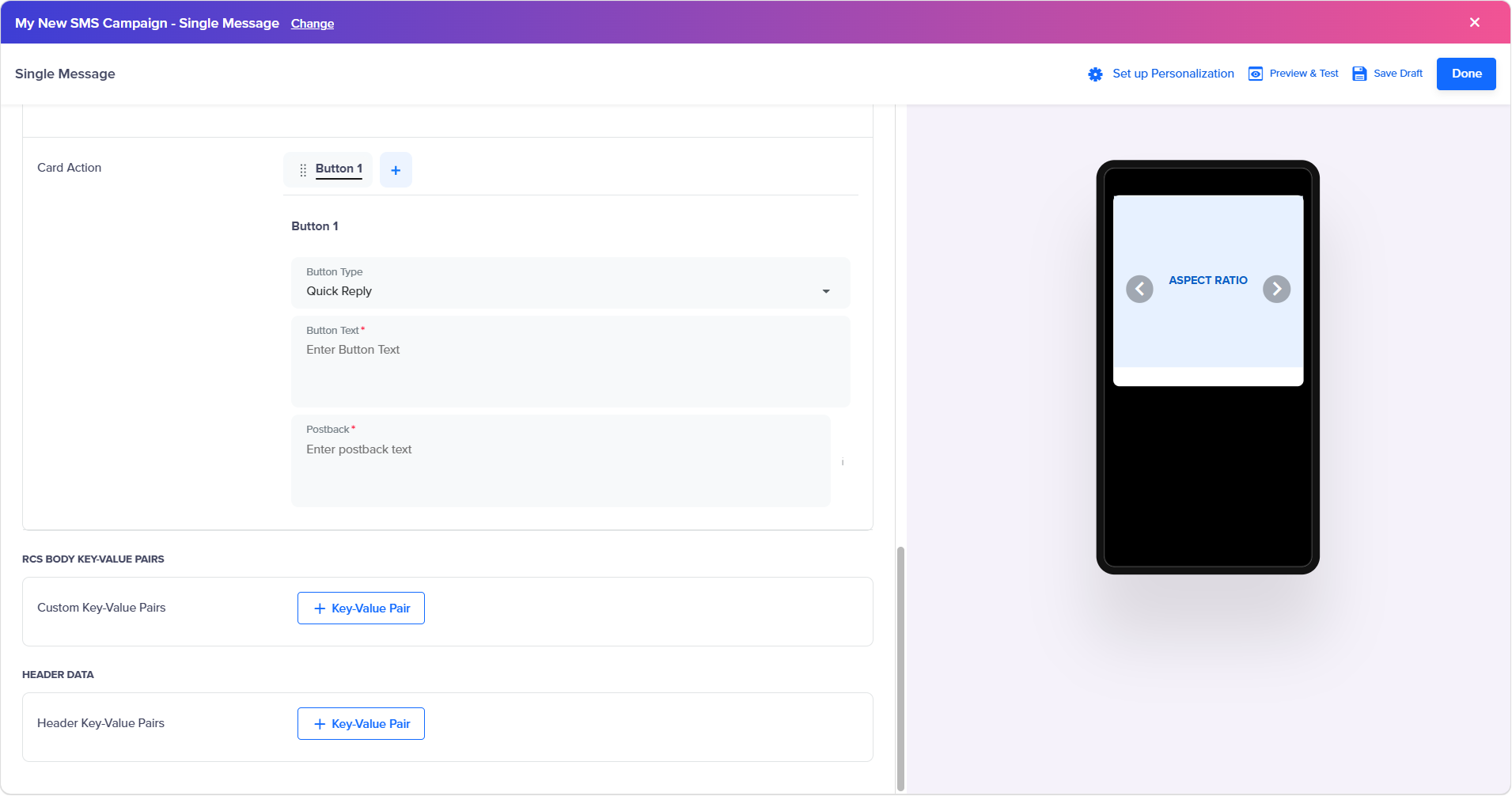 Notes:
- You can swipe the buttons when you have more than one button.
- You can delete the button. To delete the button, hover over the button and on the right side of the button, click the delete icon.
-
Click Button Type and the list of following option appears:
- Quick Reply
- Call Phone Number
- URL Redirect
- Send Location to User
- Get User Location
- Calendar Event
For more information on button type, see step 6 of RCS Text Template.Note:Follow the same process for other carousel cards.
-
Click Custom Key-Value Pairs, the + Key-Value Pair button appears. Click to enter the keys and their corresponding values for body. You can add multiple Key-Value Pairs.
-
Click Header Key-Value Pairs, the + Key-Value Pair button appears. Click to enter the keys and their corresponding values for header. You can add multiple Key-Value Pairs.
TEXT (TEMPLATE)
-
Select the TEXT_TEMPLATE editor type.
The Single Message page appears.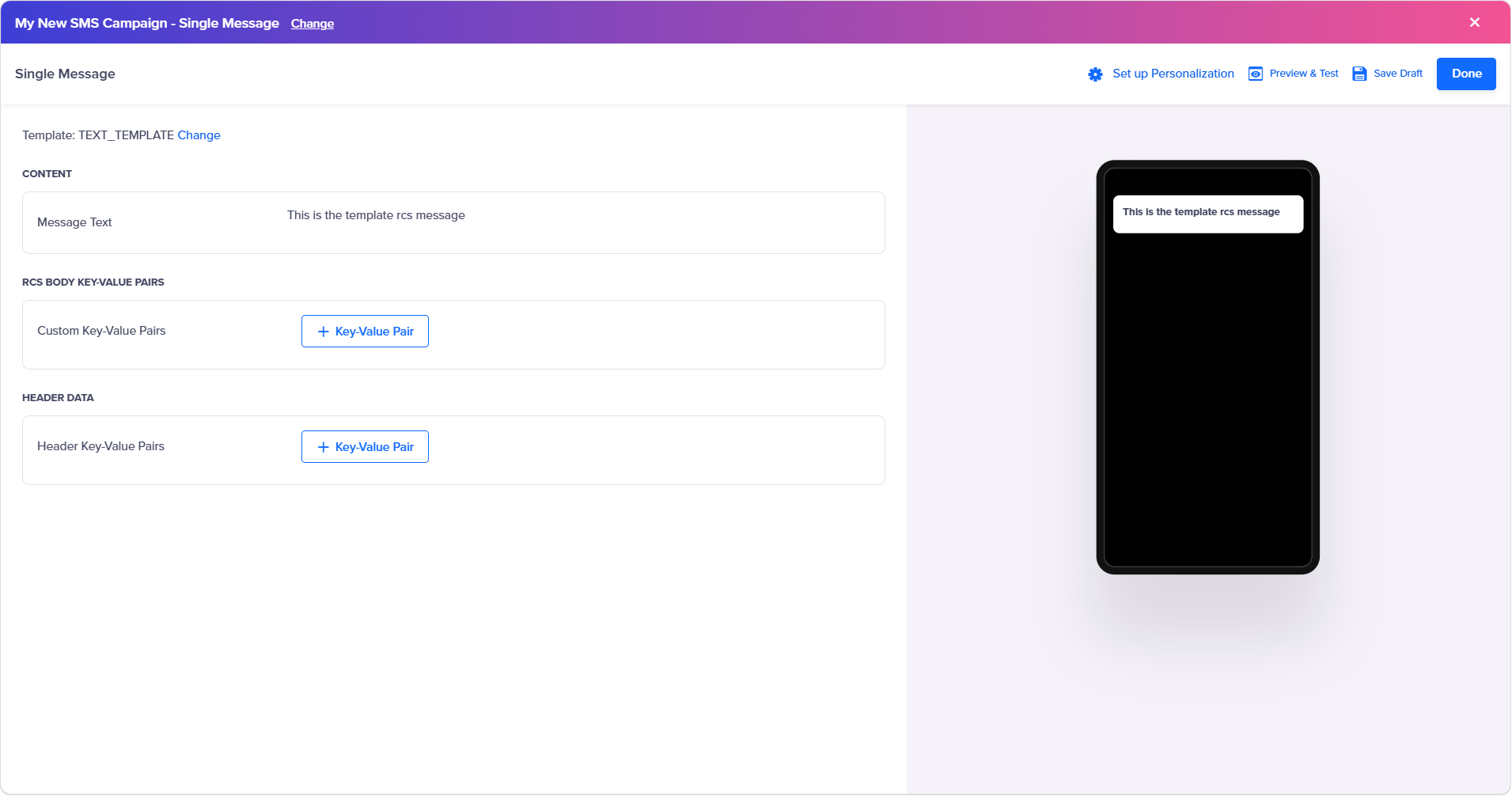 Notes:
- You can change the message editor type. To change the message editor type click the Change link on the right side of the Template and then select the message editor type.
- You cannot edit the text message in a template.
-
Click Custom Key-Value Pairs, the + Key-Value Pair button appears. Click to enter the keys and their corresponding values for body. You can add multiple Key-Value Pairs.
-
Click Header Key-Value Pairs, the + Key-Value Pair button appears. Click to enter the keys and their corresponding values for header. You can add multiple Key-Value Pairs.
-
-
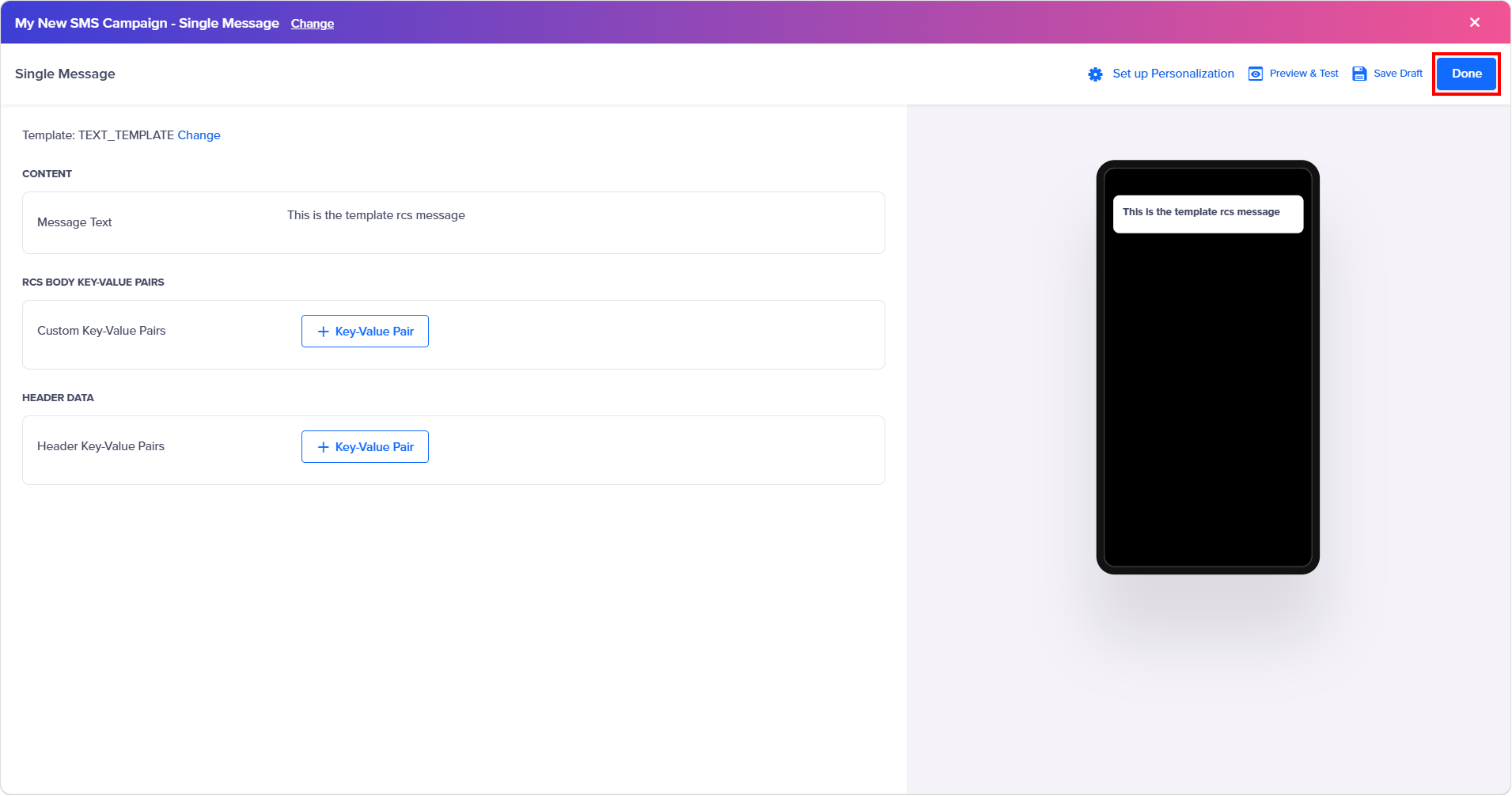
On the top right of the template page, click Done.
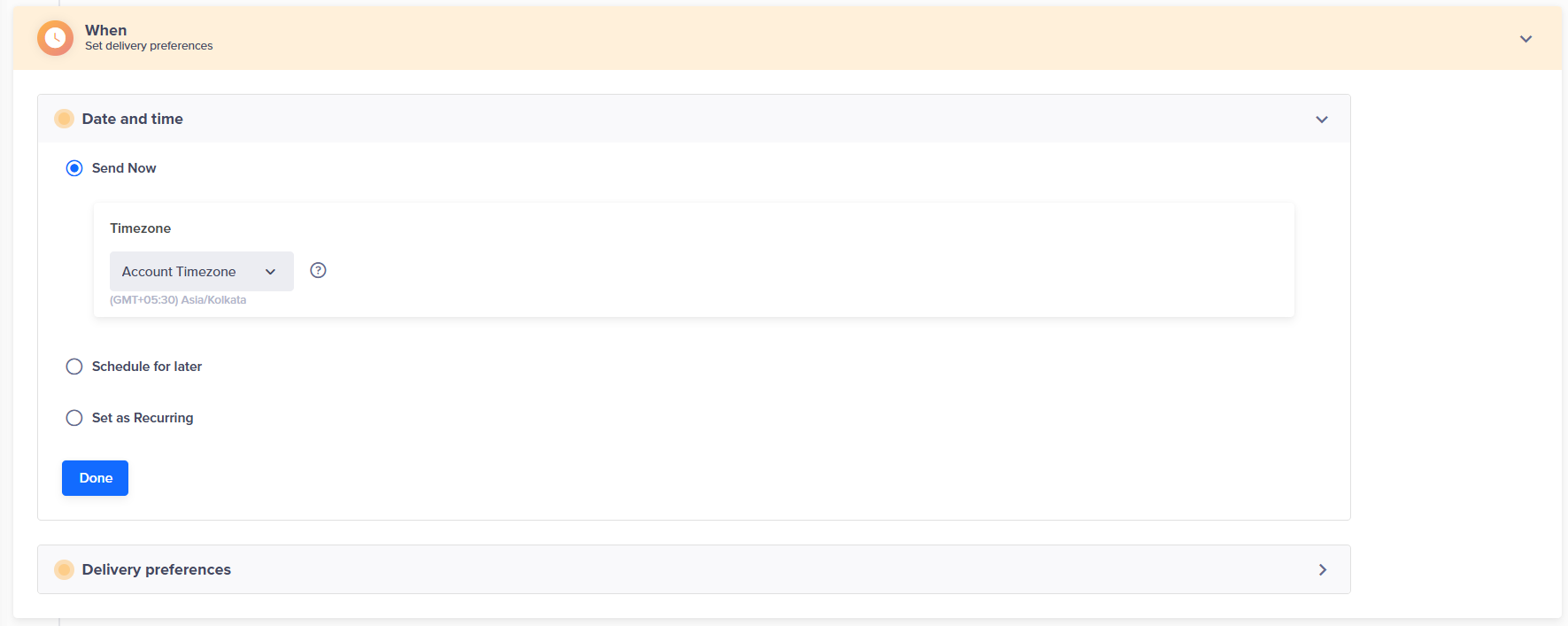
- Click the When section to define the delivery time preferences.
-
Click the Date and time section to view the campaign schedule. You can schedule a campaign using:
- Send Now - You can launch a campaign immediately.
- Schedule for later - You can schedule a campaign for a later date and time.
- Set as Recurring - You can set a recurring day for a campaign.
Select any one option and click Done.
b. Click the Delivery Preferences section to view the campaign delivery preferences.
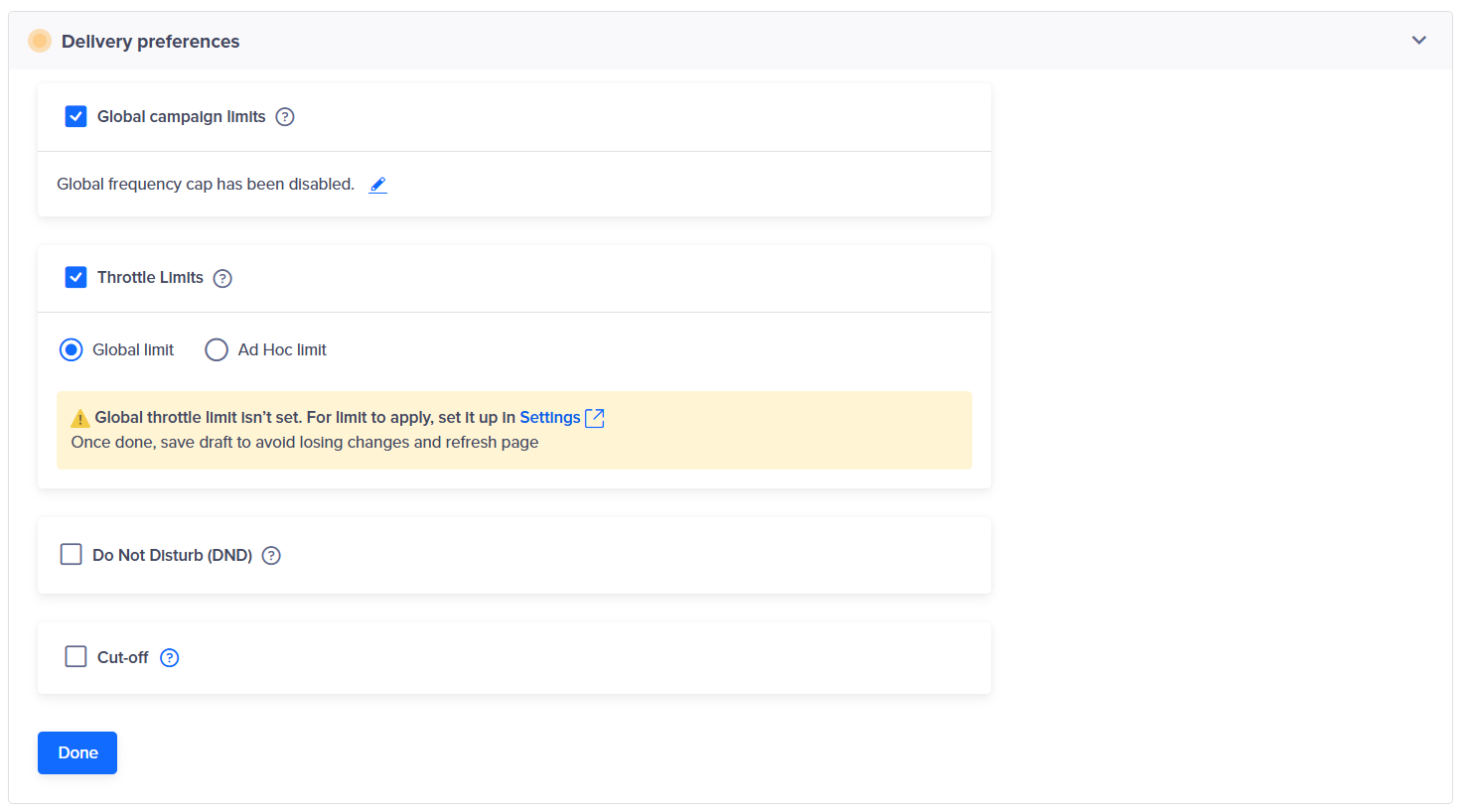
The Delivery Preferences section has the following fields.
- Global campaign limits - To control the maximum number of messages that users receive for a given channel of communication.
- Throttle limits - To cap the number of messages delivered every 5 minutes in a campaign.
- Do Not Disturb (DND) - Set the DND limit to avoid sending messages during certain times of the day. You can set the Do Not Disturb (DND) hours during which SMS from this campaign are prevented from going out, either by discarding them or by delaying delivery until after DND hours are completed, which is 9 PM to 9 AM.
- Cut-off - Set up the cut-off time limit for which CleverTap will stop sending messages. Since past behaviour campaigns can have scheduled times, you can stop campaign delivery after a certain cut-off time, or deliver at the specified time in the user’s timezone.For more information, see Delivery in User’s Timezone and click Done.
-
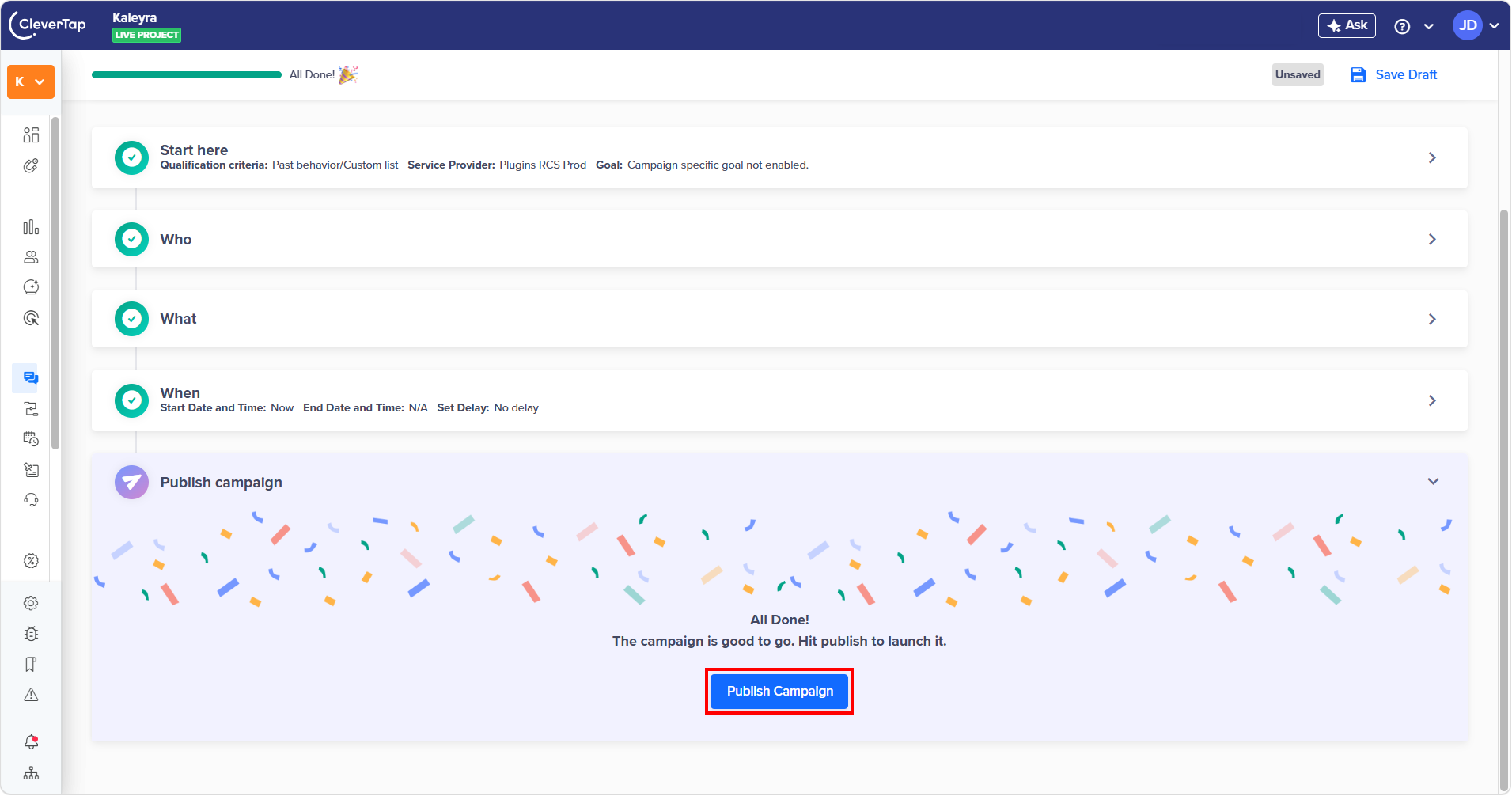
- Click the Publish campaign section after previewing the appearance and finalizing your overall campaign
The confirmation message appears.
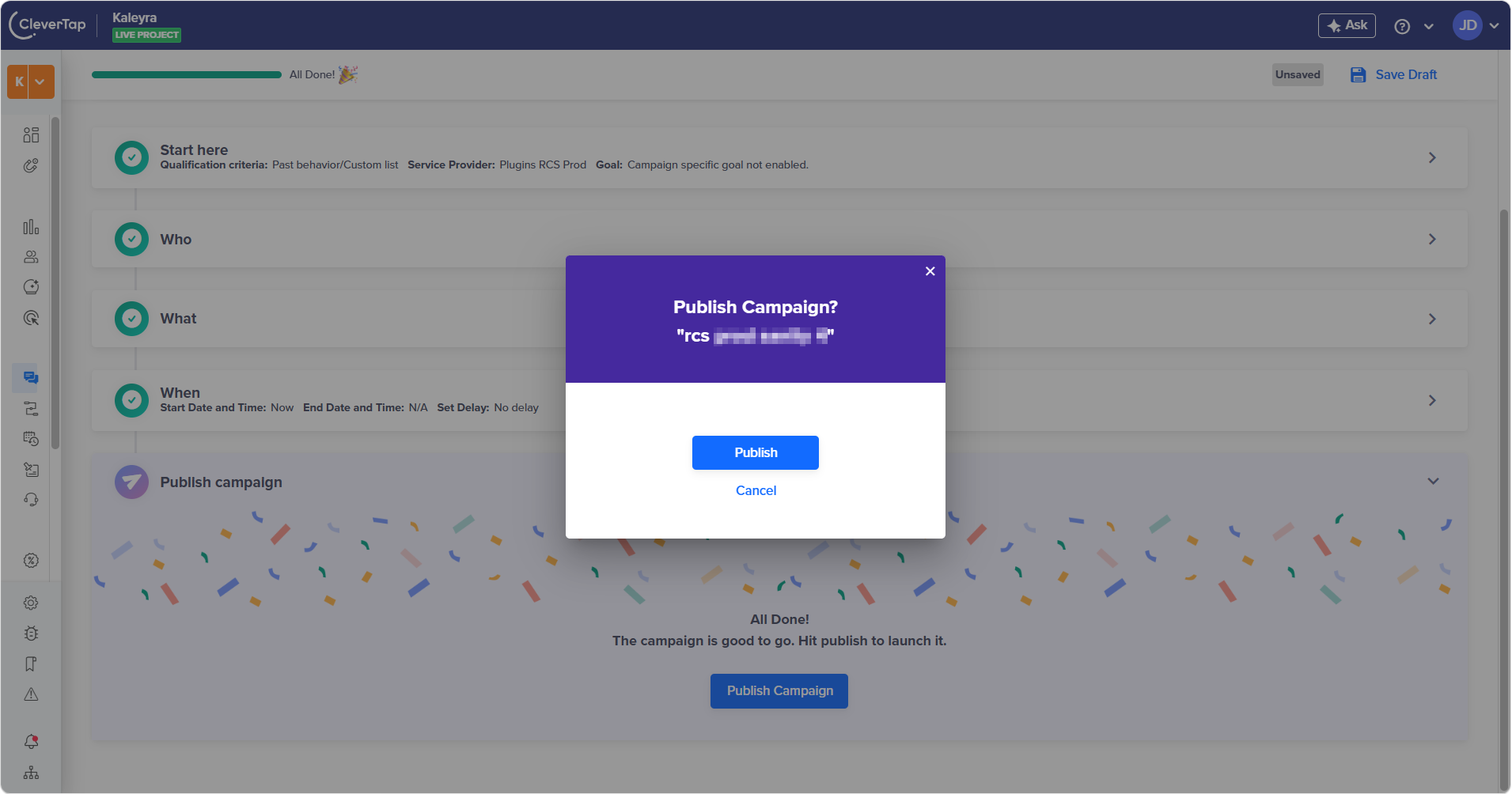
- Click Publish.
Updated about 5 hours ago