

Search and Filter Email Template
The Search and Filter Email Template feature allows you to quickly search for a given template either by name of by filtering on category and creation date.
-
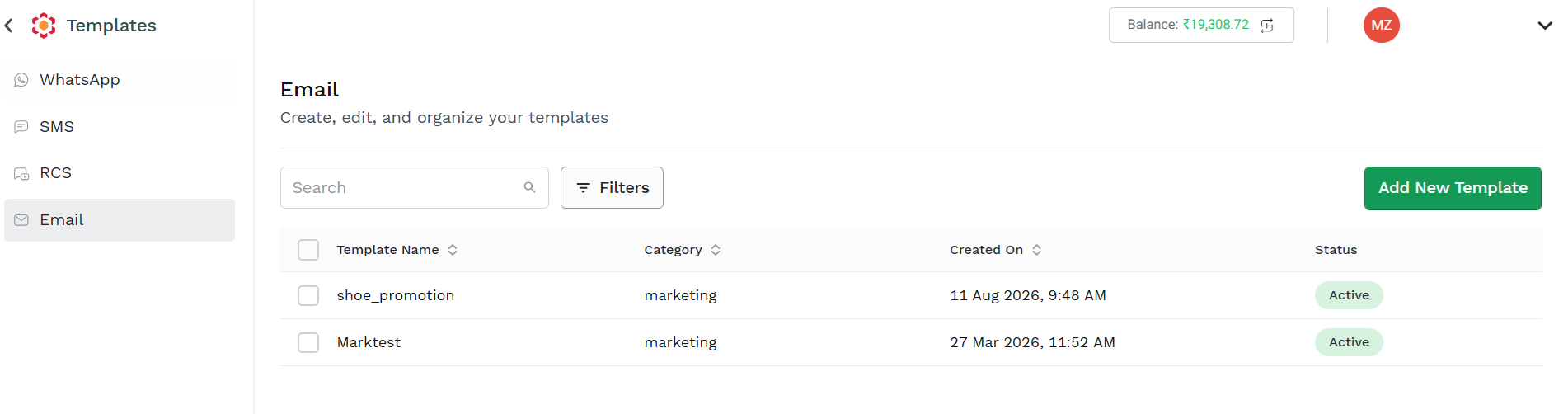
To Search and Filter Email Template, navigate to the Template Listing page by clicking on Template from the left main navigation bar, then select Email, the Email Template List page appers.
-
You can order your Template List based on Template Name, Category or by Created On date. Simply click on the Column Name to order the list by that column values. First click will order the list alphabetically A to Z or Lowest to Greatest, a second click on same column order the list alphabetically Z to A or Gretest to Lowest.
-
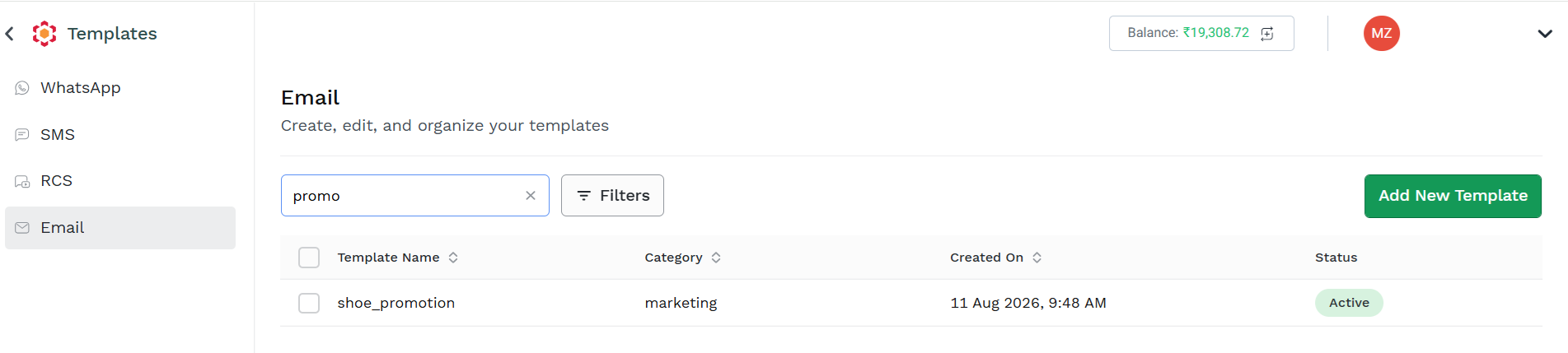
To search by Template Name, type the partial or full Template Name into the Search Box and the system automatically will refresh the Template List page displaying only those templates whose name match the search.
Note that you can search using also partial string.
-
If you want to remove the Search by Template Name, simply click on the "x" icon in the search box or delete the search string. The full template list will be displayed.
-
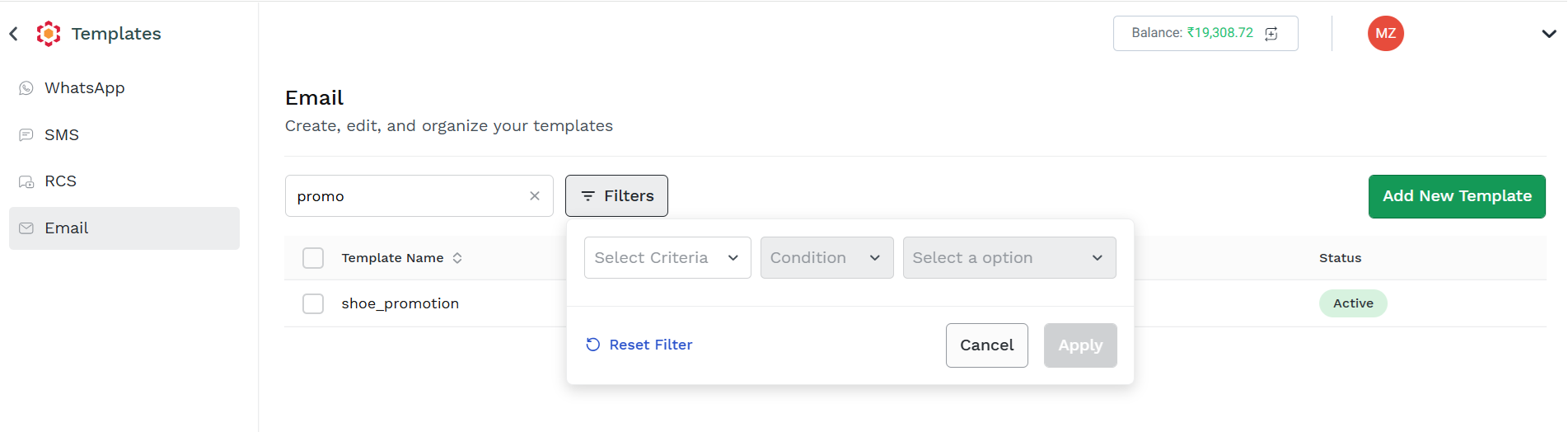
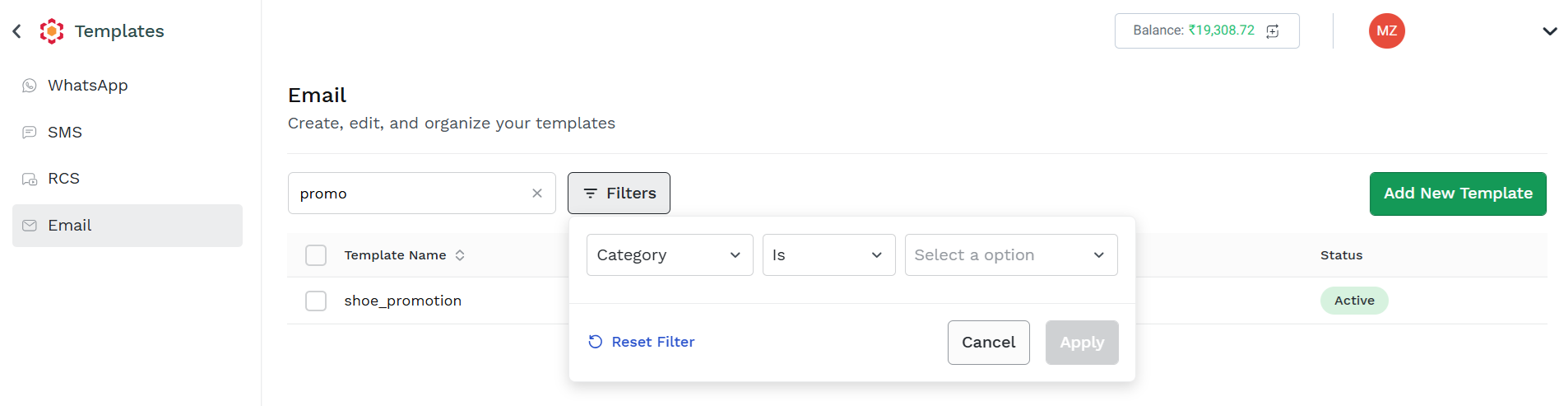
You can filter Template List by clicking on the Filter button. the filter options are displayed.
-
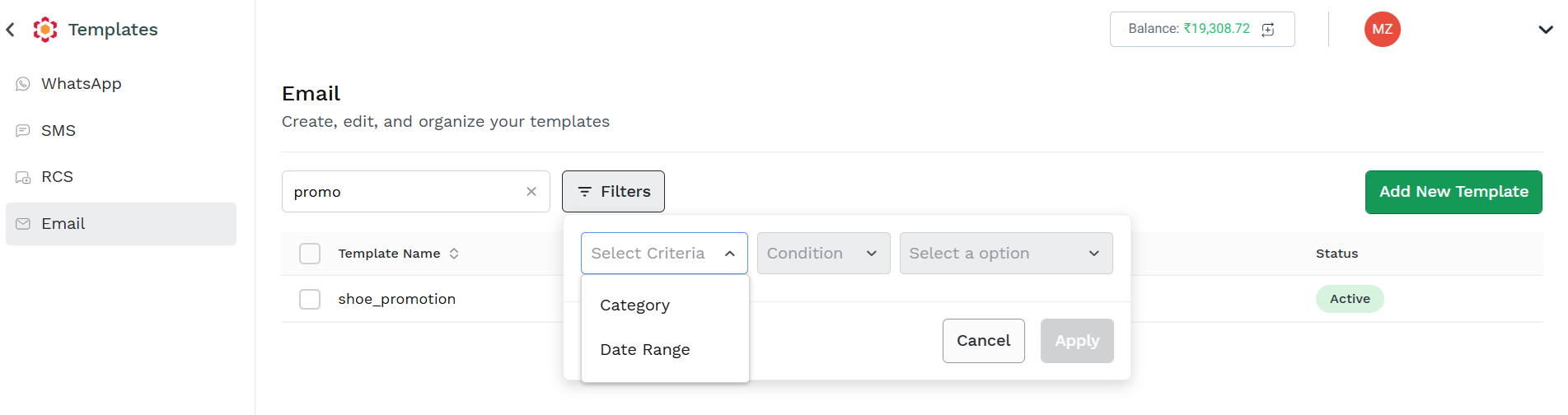
To add a filtering condition, select the fields you want to use for filtering using the Select Criteria dropdown, option are:
-
Category to filter by Template Category
-
Data Range to filter based on Created On date
-
-
Select the filtering Criteria and then from the Condition dropdown select the operator to be used for filtering.
-
For Category, the allowed Condition is "Is"
-
For Date Range the allowed Condition is "Between"
-
-
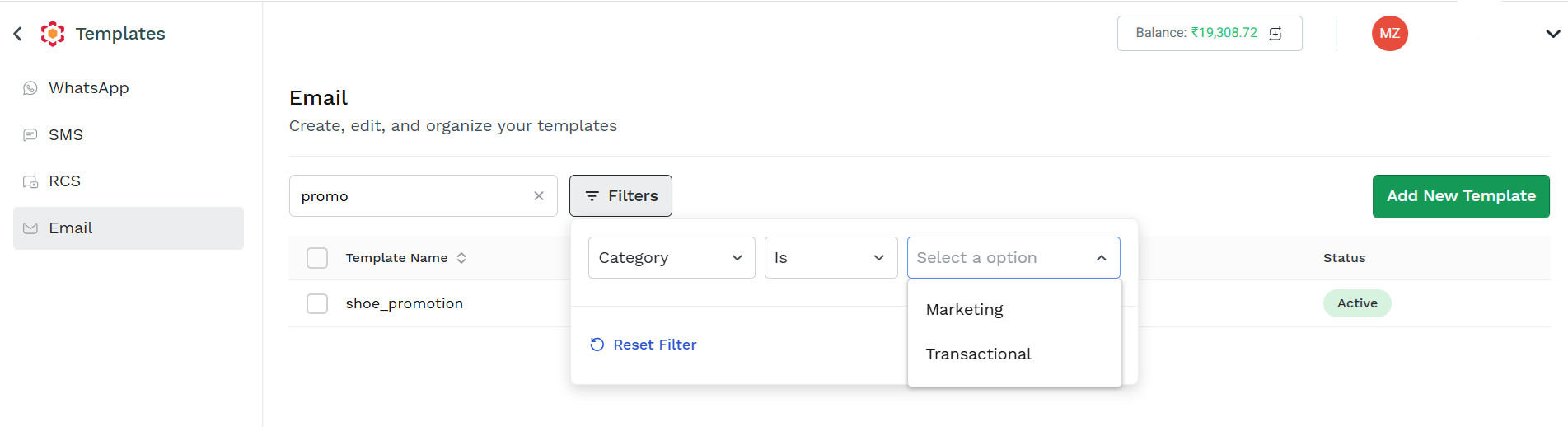
Select from the "Select a option" dropdown the values that Template should match to be returned as filter result
-
For Category you can choose either Marketing or Transactional
-
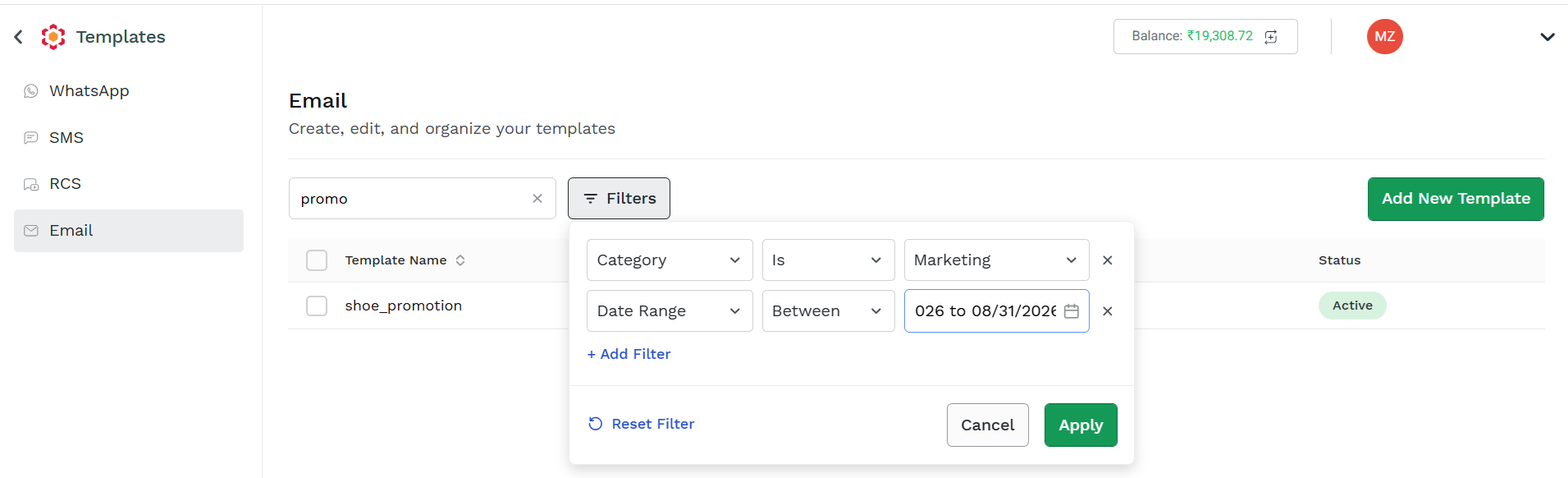
For Date Range you can the start date and the end date to be considered for Created On
-
-
You can also apply multiple filter as needed on different Select Criteria, in this case only templates matching all the filter conditions will be returned
-
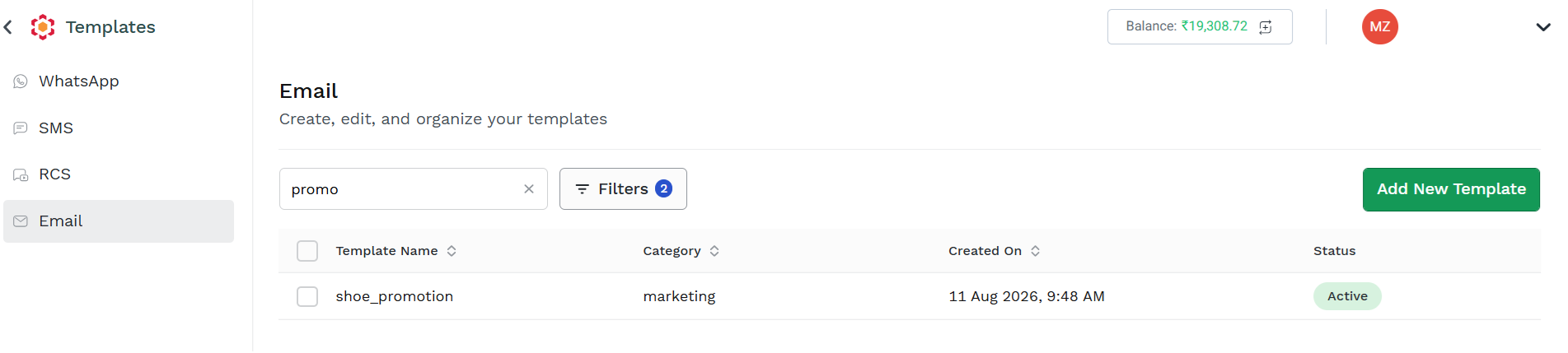
Click Apply to see the list of Template matching your filtering. The small number icon inside Filters button indicate the number of filter applied to the search
-
If you want to remove all the Filters, click on the Filters button and click Reset Filter. The full list of available template will be returned.
-
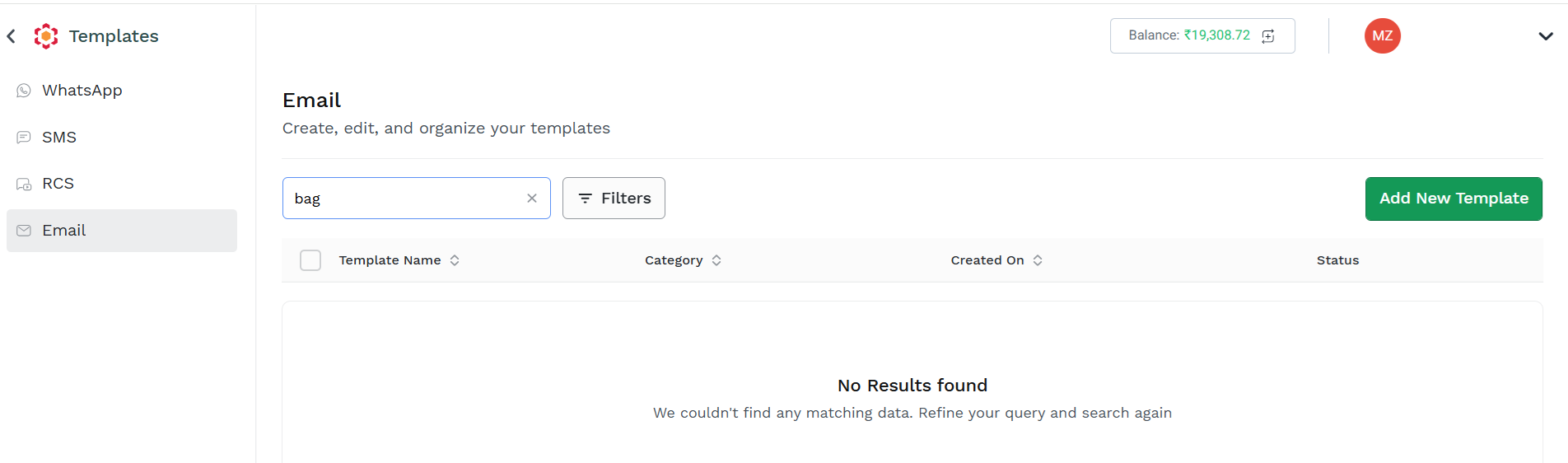
if no template matched your search through the search box or through Filters, a error message is displayed
Updated 2 months ago