

Request an RCS Campaign Report
Kaleyra platform lets you request a report for every RCS campaign launched. The RCS campaign report shows the delivery statuses of all the messages sent to the contacts selected in the RCS campaign; the report details are provided in a Microsoft Excel comma-separated file format.
To request an RCS campaign report, perform the following steps:
- Sign in to your Kaleyra platform.
The Business communications page appears.
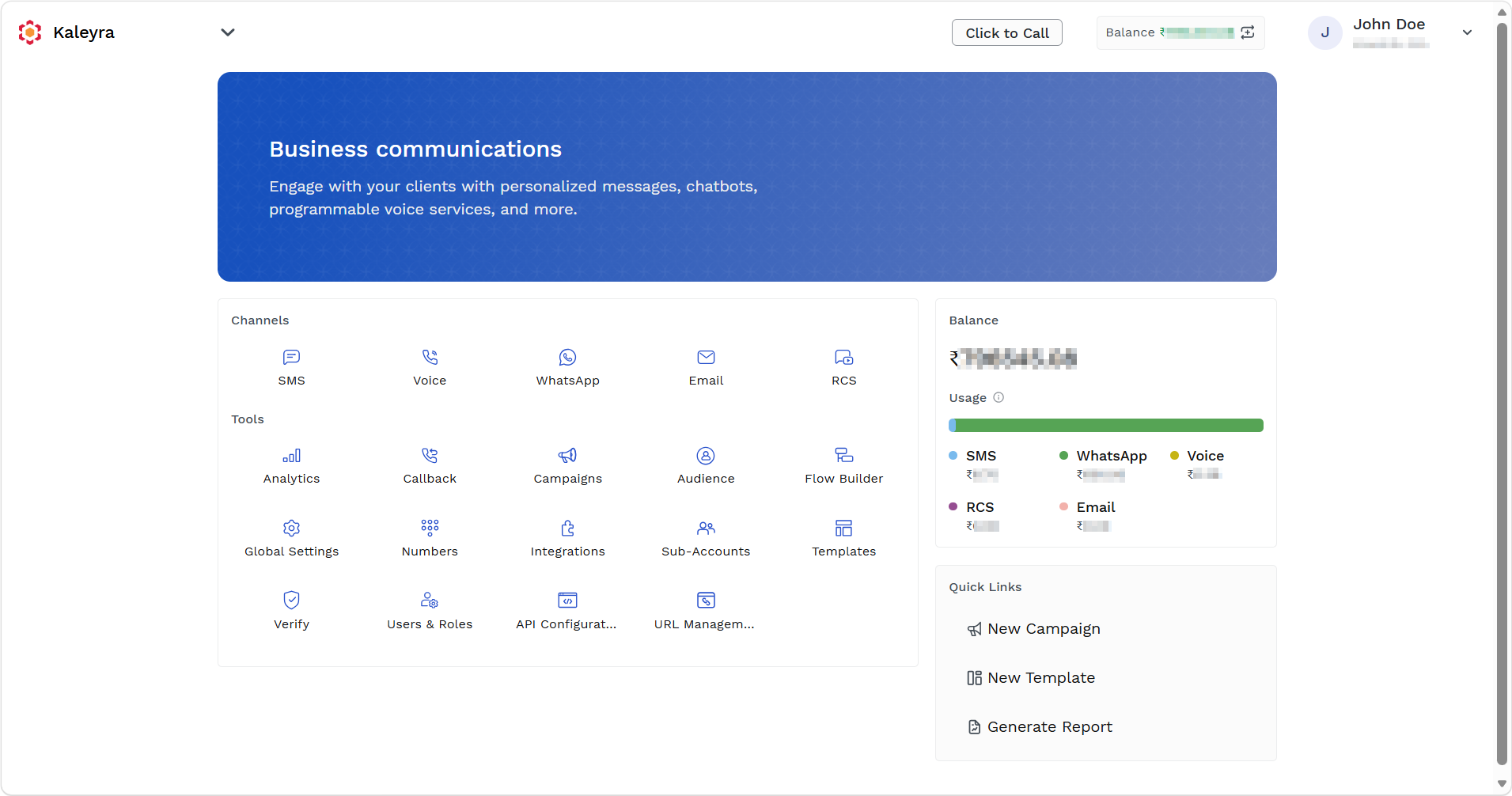
- On the Tools section, click Campaigns.
The Campaigns listing page appears.
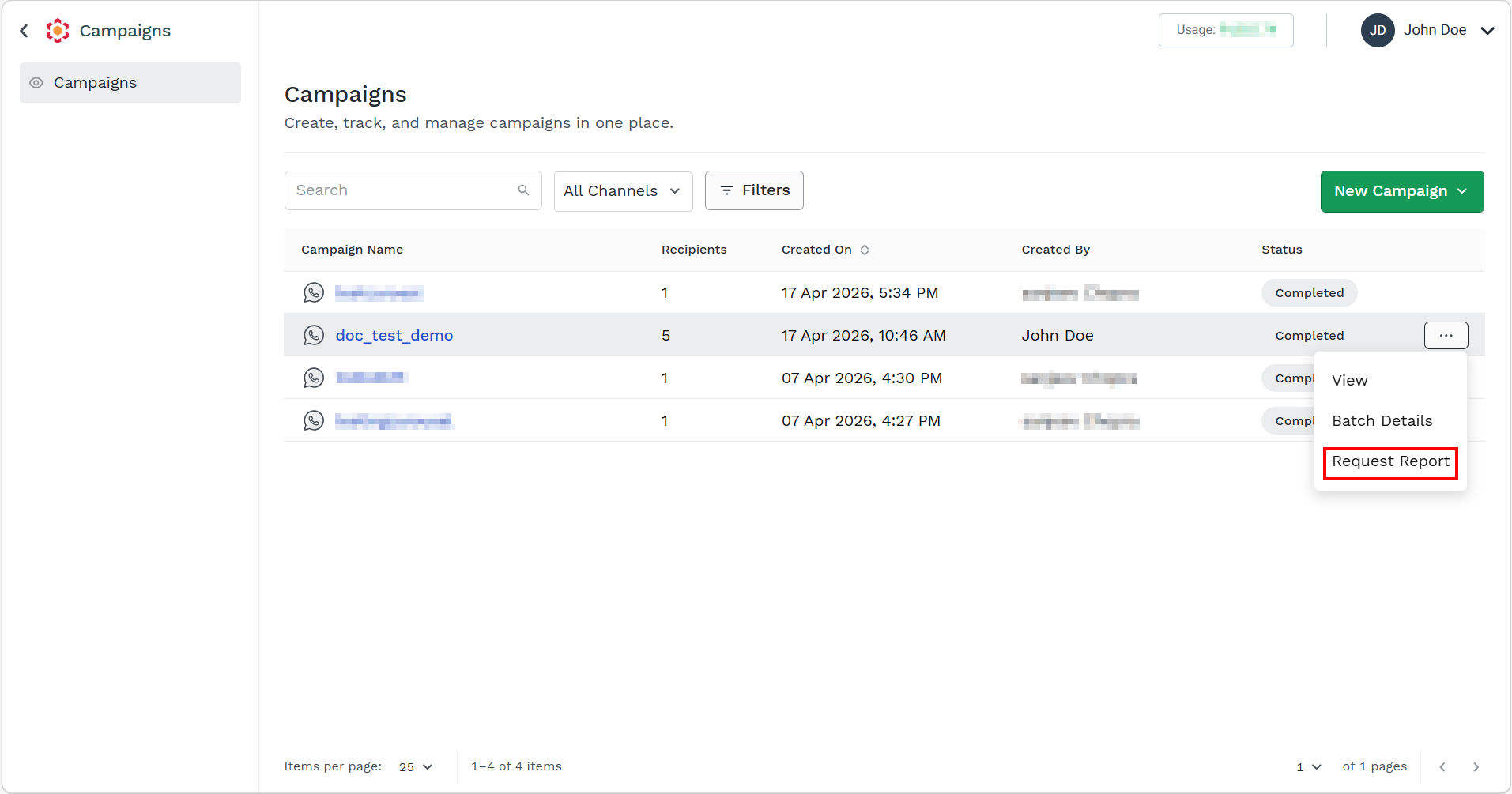
- Click the
 (three dots) of a respective campaign next to Status column and then click Request Report.
Notes:
- You can request reports only for the RCS Reports that are in Completed and Submitted status.
- You can request for a report after an hour of campaign submission.
- After clicking Request Report, if you click the three dots against the report that you are downloading, you will see Generating Report…, this will be visible till the report is ready to be downloaded.
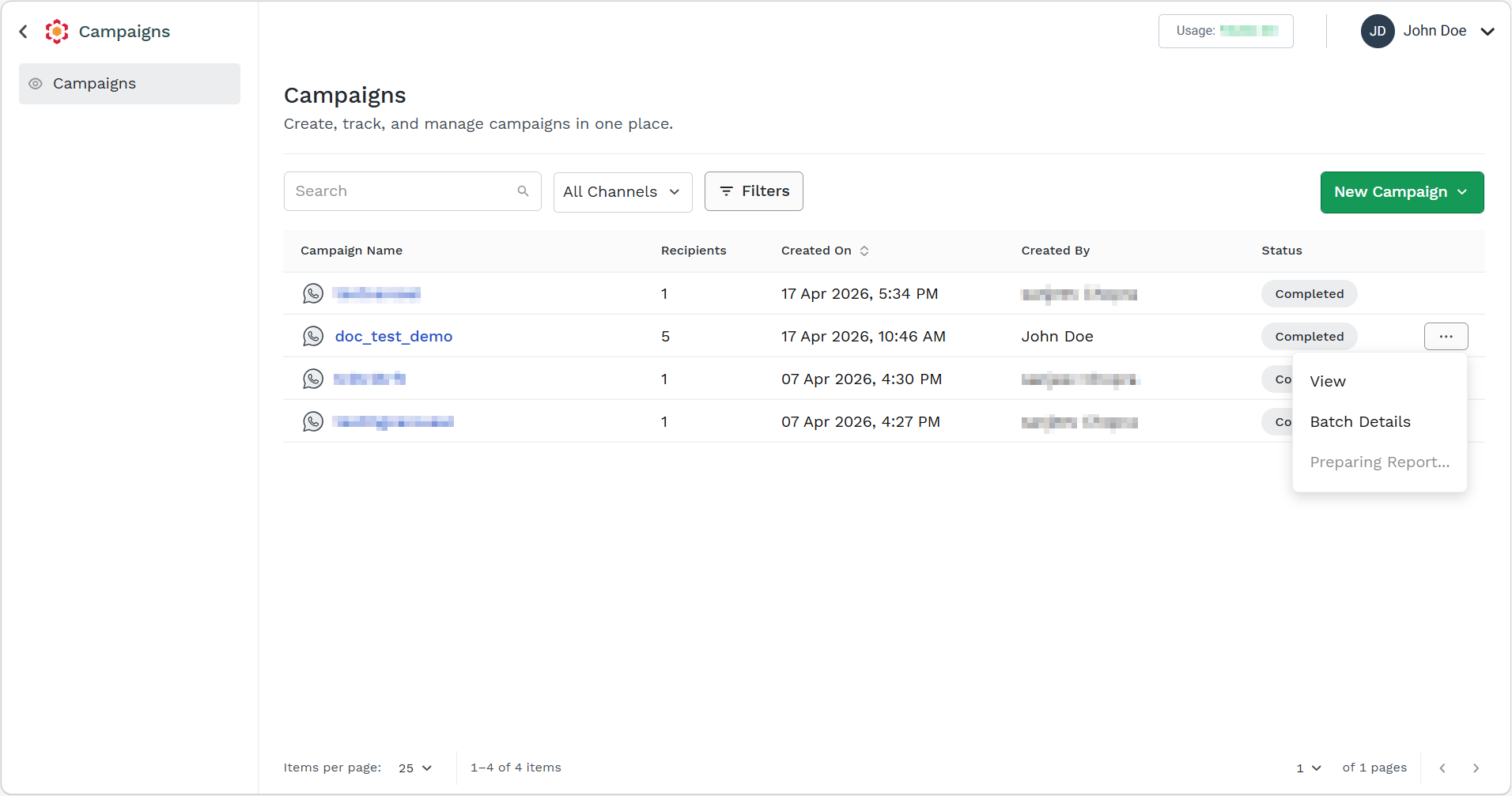
Note:
You will also get a link to download a report copy through email after the report generation is completed and is available for download.
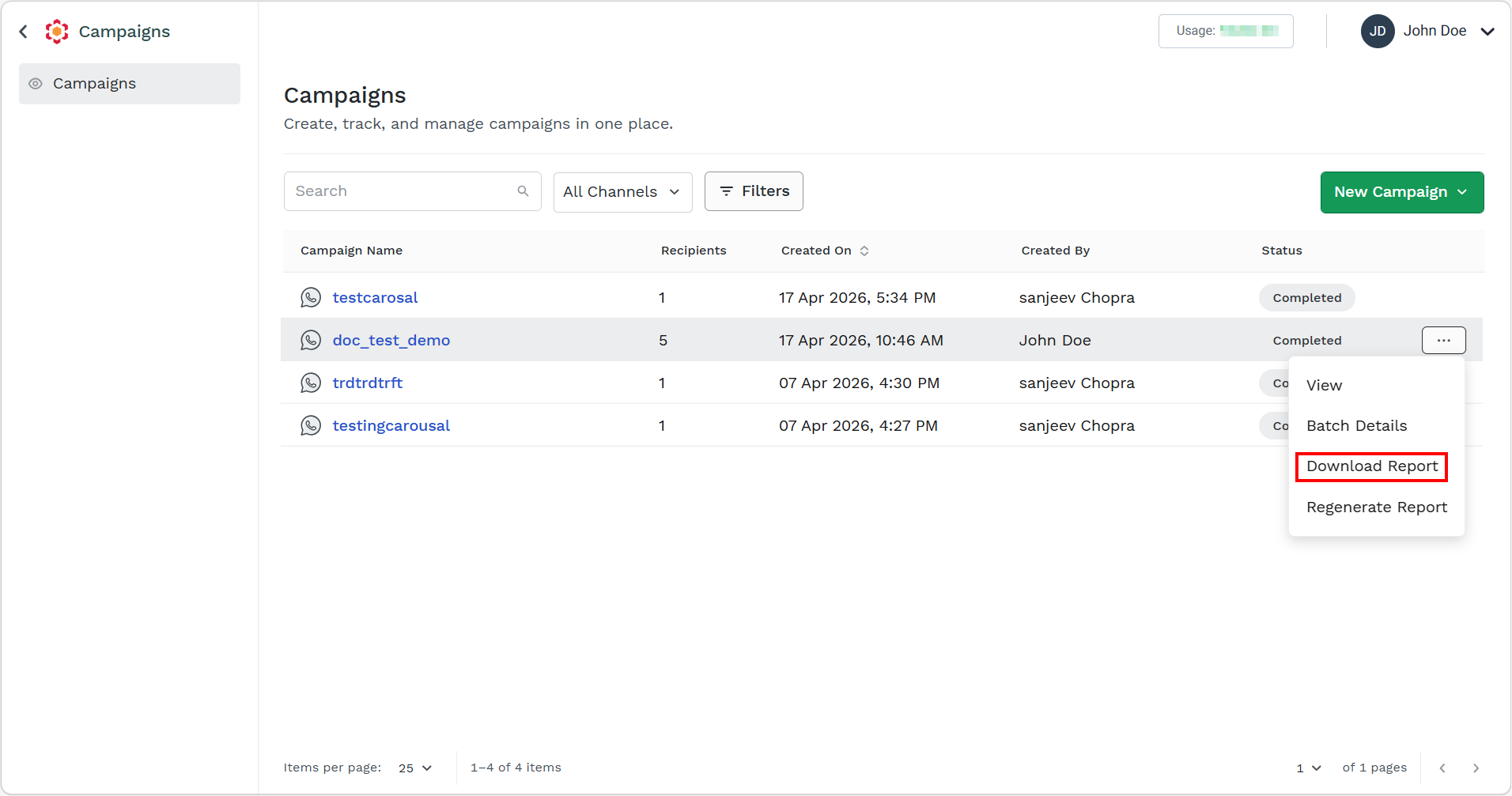
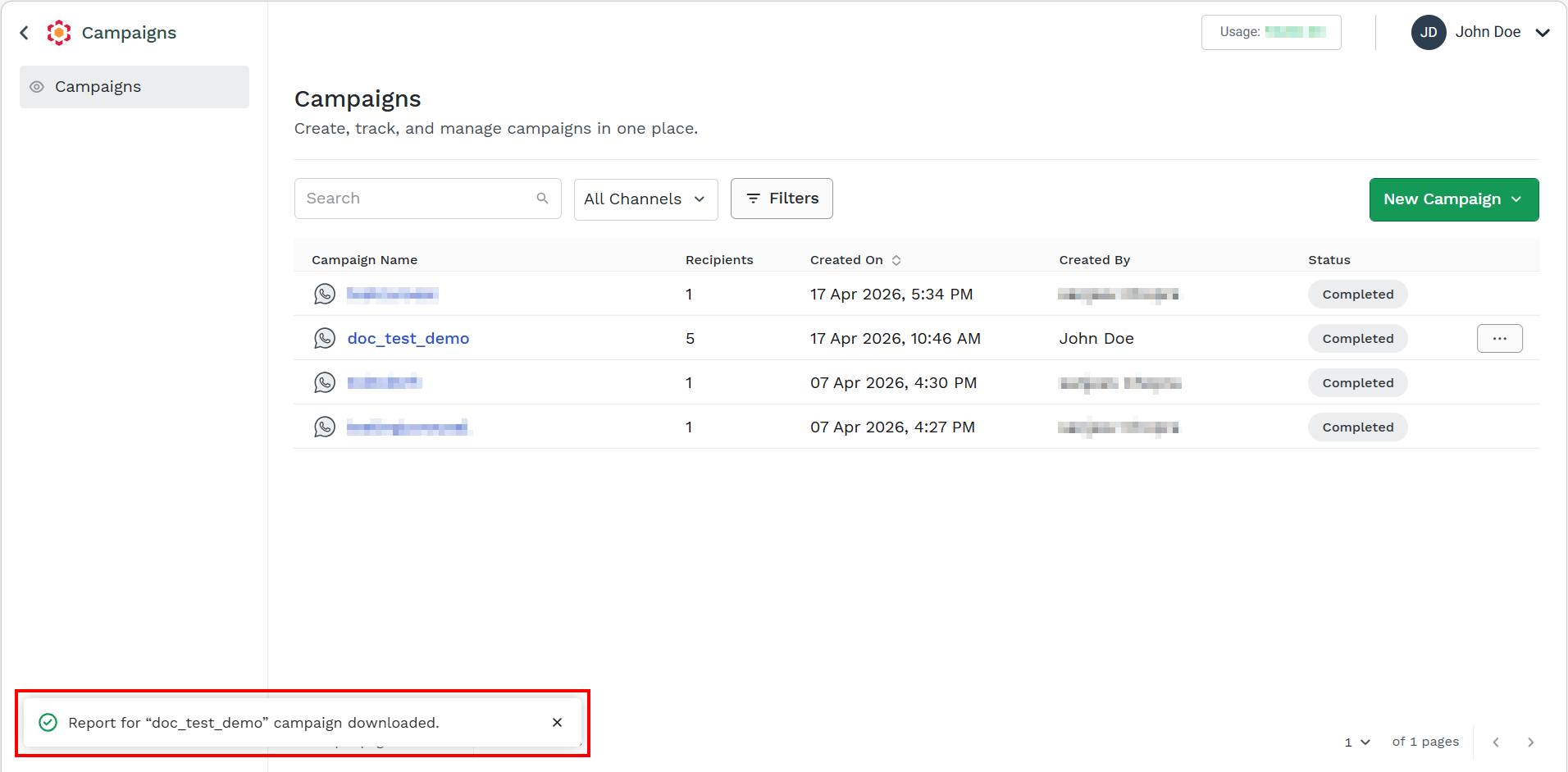
- Click the (three dots) next to the report that you requested and click Download Report.
The confirmation message appears.
Notes:
- You will have the option to retrieve the report from within your Browser's recent download extension or navigate to your local downloads folder.
- If no records are found for the campaign that you requested a report for, Records Not Found will be displayed in the Campaigns Listing page action menu for that campaign.
- You can download the same report multiple times and regenerate the report when needed.
- It is recommended to complete the report generation process if you have already requested. If you want to regenerate the report, click the Regenerate Report option. TheRegenerated Report option will create a fresh new report for the campaign with the most recent data available.
You can access the report from your browser’s Recent Downloads section or navigate to your local Downloads folder. The report is generated as a ZIP file. Open the ZIP file to view the report. For more information about the campaign report, see RCS Tabular Report .
Updated 2 days ago