

SMS Logs
The SMS Logs are generated for all the submitted SMS messages. The SMS Logs help you get detailed information about the submitted SMS such as phone number, status, dates, and message ID.
You can search the logs based on the specific message ID associated with each SMS log. You can use the message ID to track the message status and the relevant information. Additionally, you can use the filters to search the message logs more precisely. You can expand the SMS logs to view details such as route, source, country, network, and MSG ID.
View, Search, and Filter SMS Logs
To view, search, and filter the SMS logs, access the SMS Logs page from the left navigation bar of the Reports & Logs section, the SMS Logs page appears.
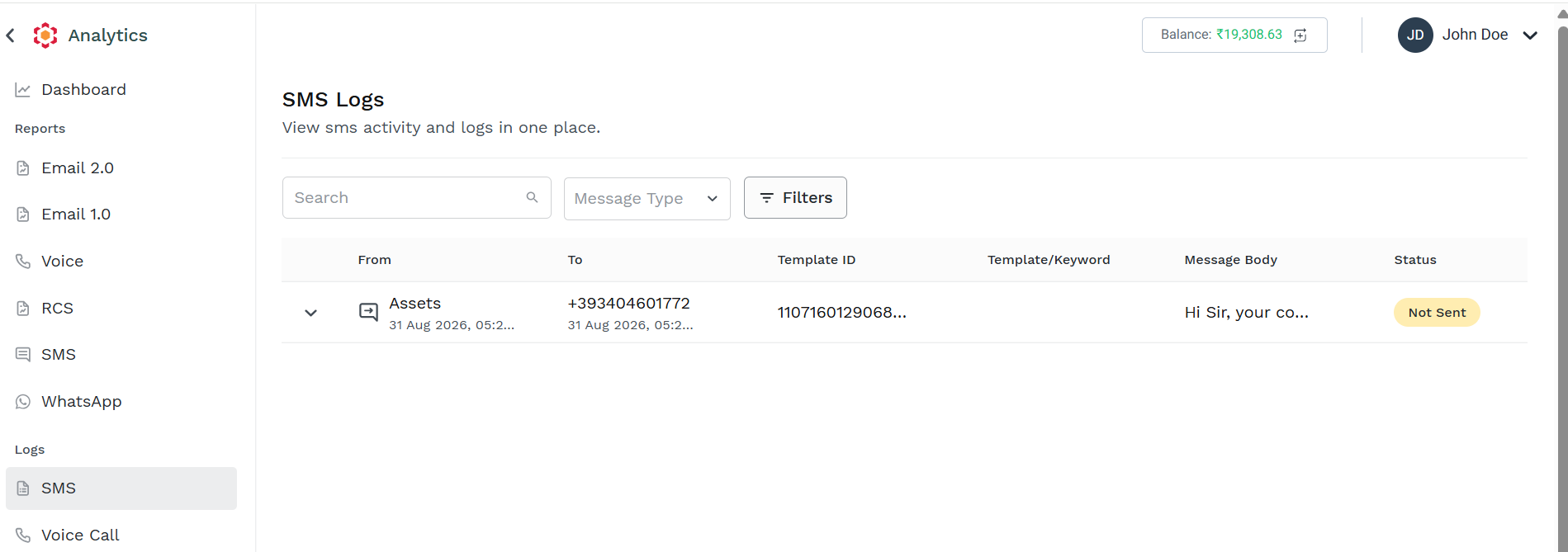
The following details are provided for SMS Logs:
- From – The source number or Sender Id from which the message was sent.
- To – The destination number to which the message was sent.
- Template ID – The template ID used to send the message.
- Template/Keyword – The template or keyword in the message.
- Message Body – The body of the message.
- Status – The status of the message. For example, Delivered or Not sent.
Click the expand icon next to the From column to view the log details.
The Log details appear.
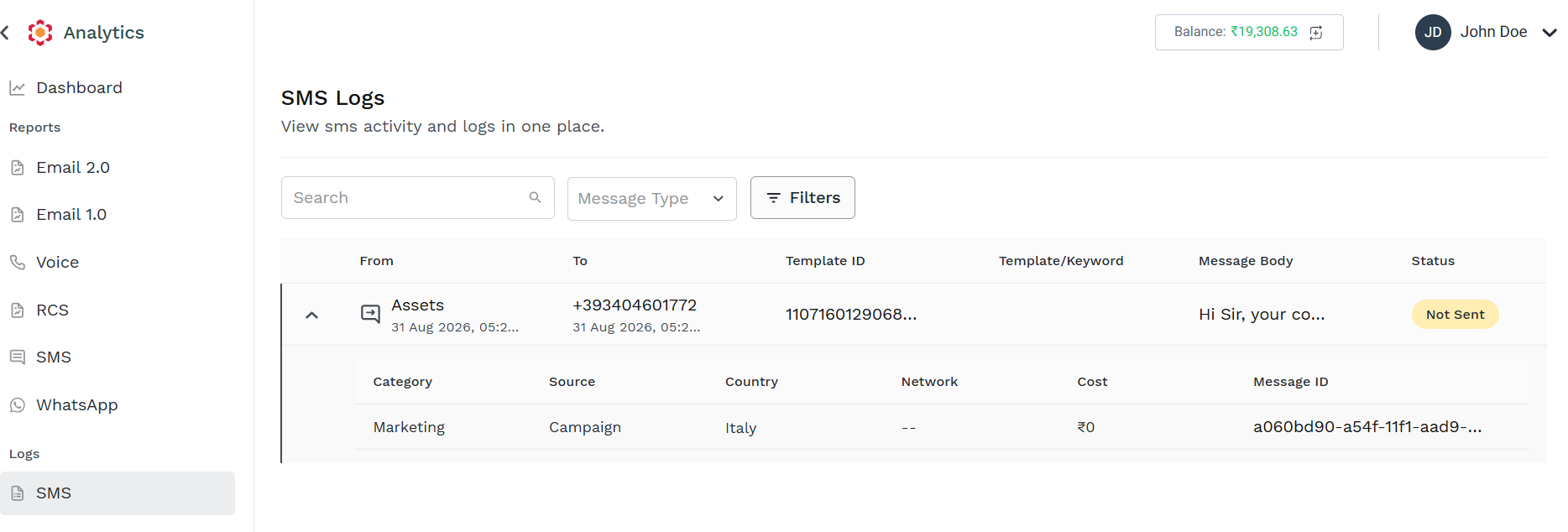
The following details appear:
For MT Message Logs:
- Category - the category of the MT message as passed in API call or in Campaign configuration, e.g. Marketing
- Source - The source of the message whether it is API, Campaign, or Plugins. You may see only some of this value according to your specific use and integration with Kaleyra CpaaS for SMS.
- Route - based on the different regions, the option may be displayed.
- Country - The country to which the message is terminated for MT.
- Network - The network to which the message is terminated for MT.
- Cost - The cost that has been charged for the SMS.
- Msg ID - Unique Message ID generated by kaleyra.io to be used as a reference, in case further support is required on the specific message.
For MO Message Logs:
- Response - The response from MO.
- Response Time - The time when MO originated.
- Trigger URL - The URL to which a webhook is sent with the MO information in it.
- Trigger Time - The time when the webhook has been sent to the URL configured in the trigger URL.
- Resend Time - Last attempt time to send a webhook with the MO information to the endpoint configured in the trigger URL.
- Resend - Click the resend link to resend the MO messages. It is a CTA within the logs page to send again a webhook to the URL configured in the trigger URL.
You can Search and Filter SMS Logs
- In the Search field, enter the mobile/phone number you wish to search the logs. Based on your entry the logs appear. The Total count indicates the search result counts.
- You can filter SMS Logs by selecting one of the option from the Message Type dropdown, available option are:
- Message Terminated - if selected only message sent from Kaleyra CpaaS to end user are displayed
- Message Originated - if selected only message sent from the end user to Kaleyra CpaaS are displayed
- Both - if selected, all message Logs are displayed
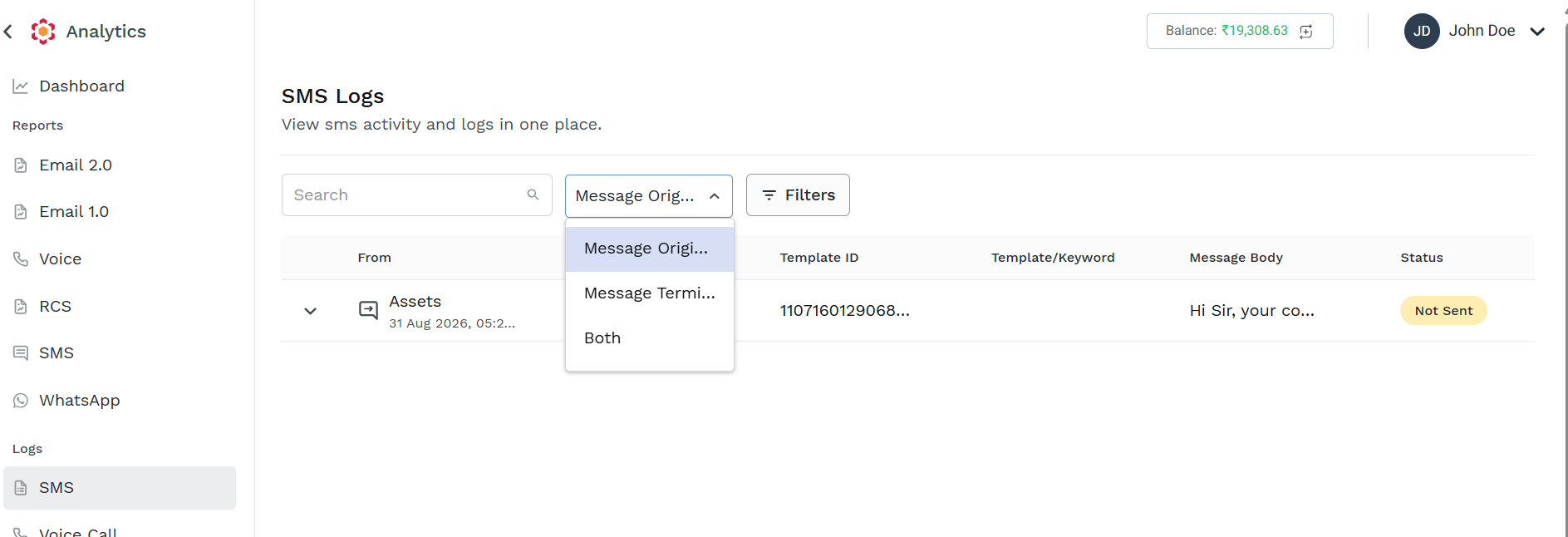
Based on the Message Type selection, you can further narrow down the message logs displayed applying filtring. Click on the Filters button to see the filtering option, note that the Filtering option differs based on the selected Message Type
-
Message Originated - To filter the SMS logs based on messages sent from the end-user to the organization. You can filter the MO logs based on more advanced filtering options such as Keyword, Sender, Recipient, Template ID, Sent Date.
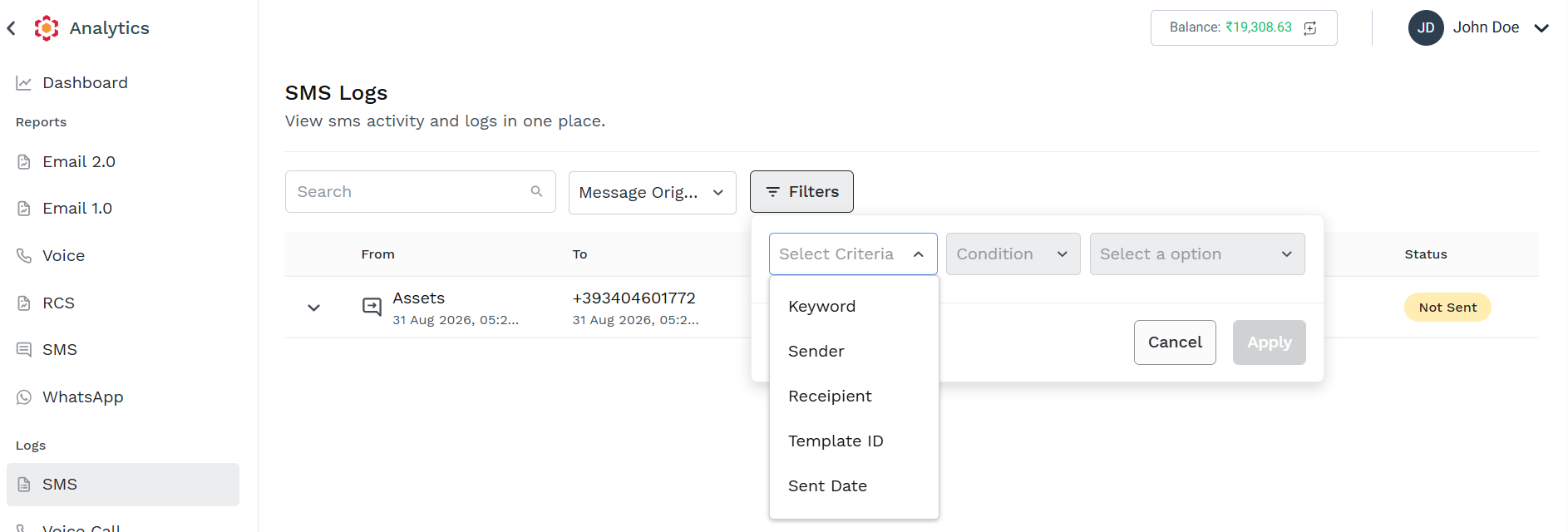
-
Message Terminated - To filter the SMS logs based on messages sent from the organization to the customers. You can filter the MT logs based on more advanced filtering options such as Source(API, Web, Campaign, or Plugins), Status (Sent-No-DLR, Not-sent, Delivered, Undelivered, Submitted), Sent Date, Template ID, Delivery Date, Message Category (OTP, Marketing), and Message ID.
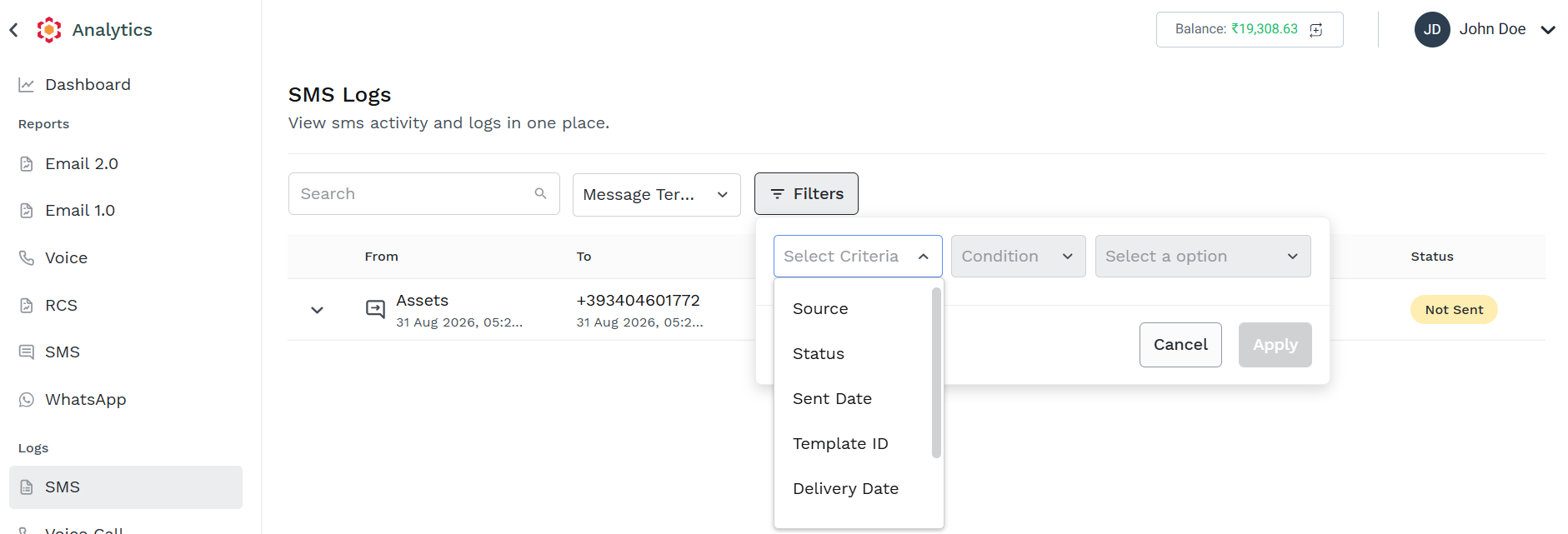
-
Both - To filter the SMS logs based on MO and MT messages. You can use the Sent Date to filter both MO and MT logs.
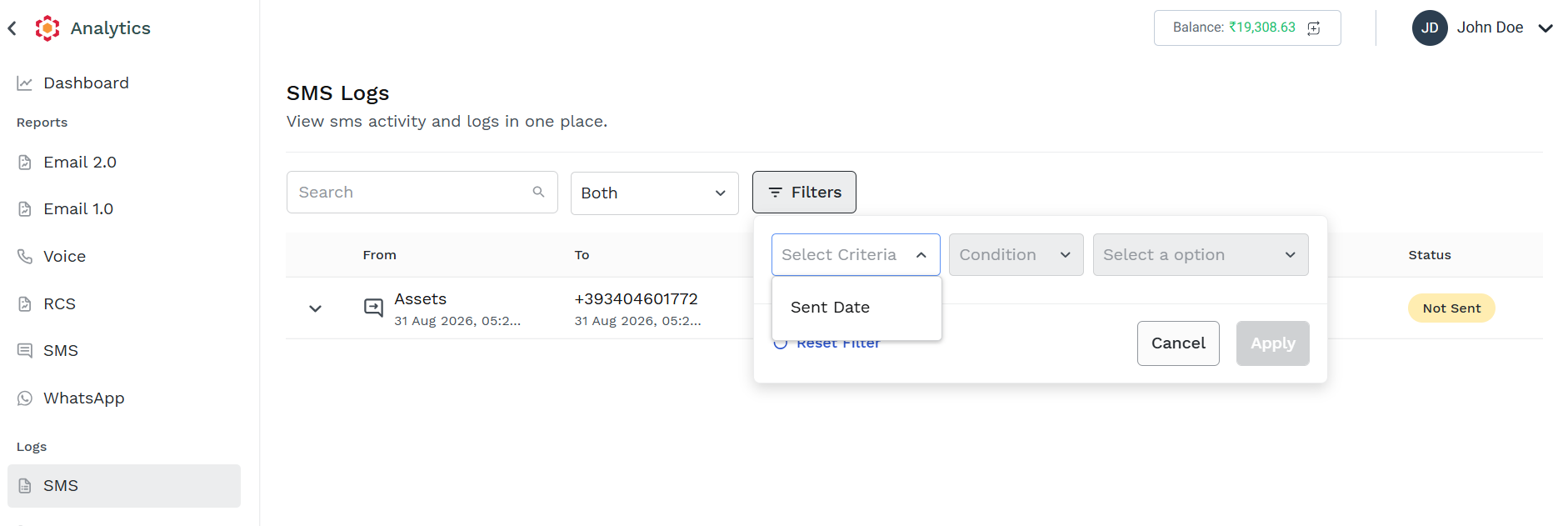
Click Apply.
Based on the selected filter, the filtered result appears. A small number near the Filters button provide how many filter condition are applied.
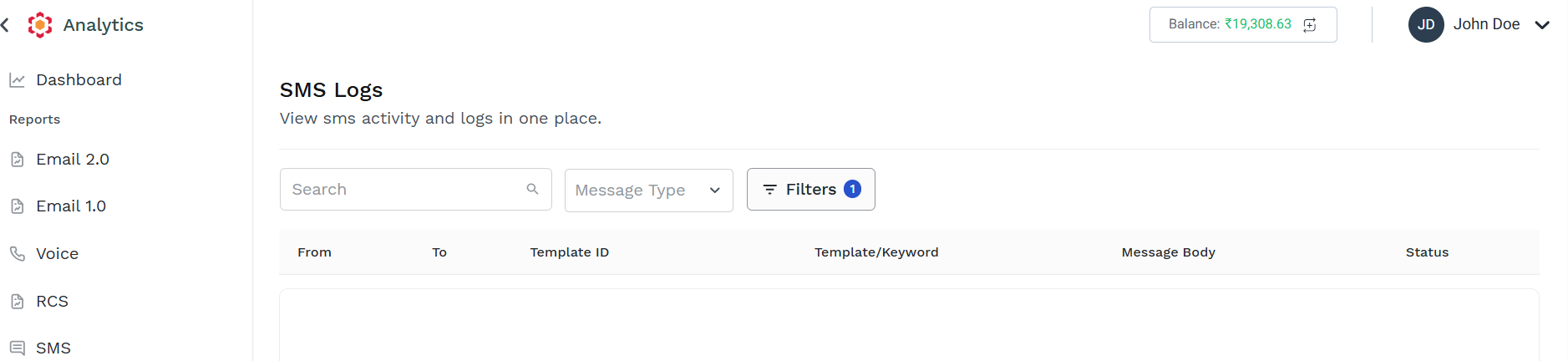
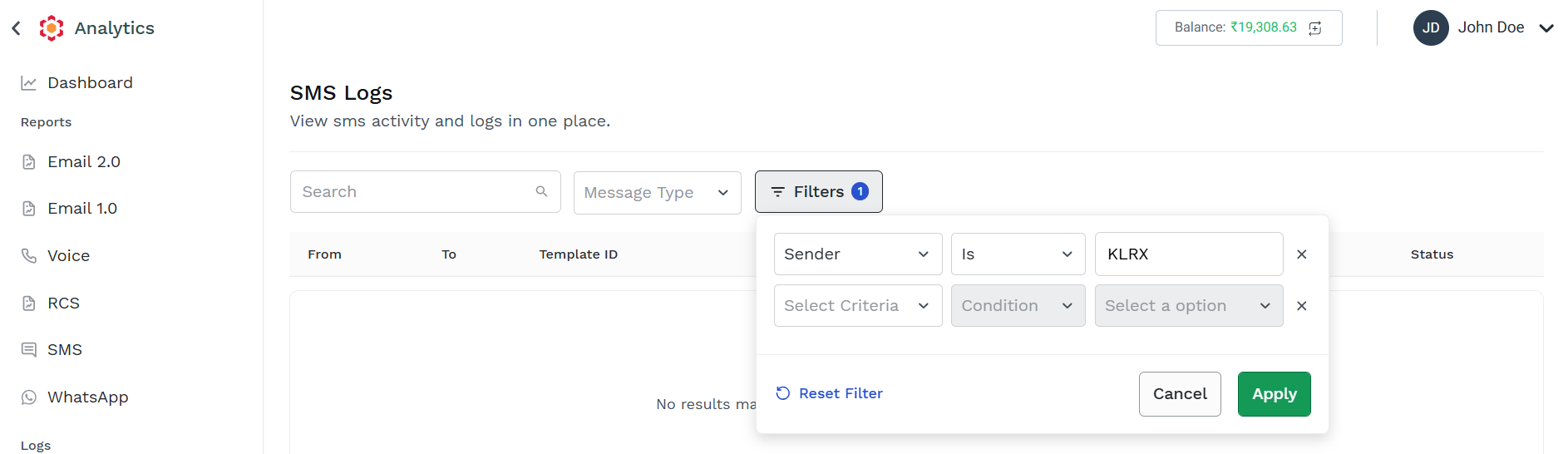
You can apply more than one condition clicking on Add Filter option in the Filters panel. When more then one filter condition is applied, only Logs matching all the conditions are returned.
To remove any filter, click on Reset Filter in the Filters panel.
Updated 2 months ago