

Add Contacts from Directory
The Add Contacts from Directory option allows you to add contacts from the Directory Service available in the Kaleyra Platform.
Note:If the template selected for the campaign contains any dynamic variables, the contact stored in the directory must include the corresponding values required to personalize the message.
To add contacts from the directory option, perform the following steps:
- Follow steps 1 through 8 of Launch an RCS Campaign.
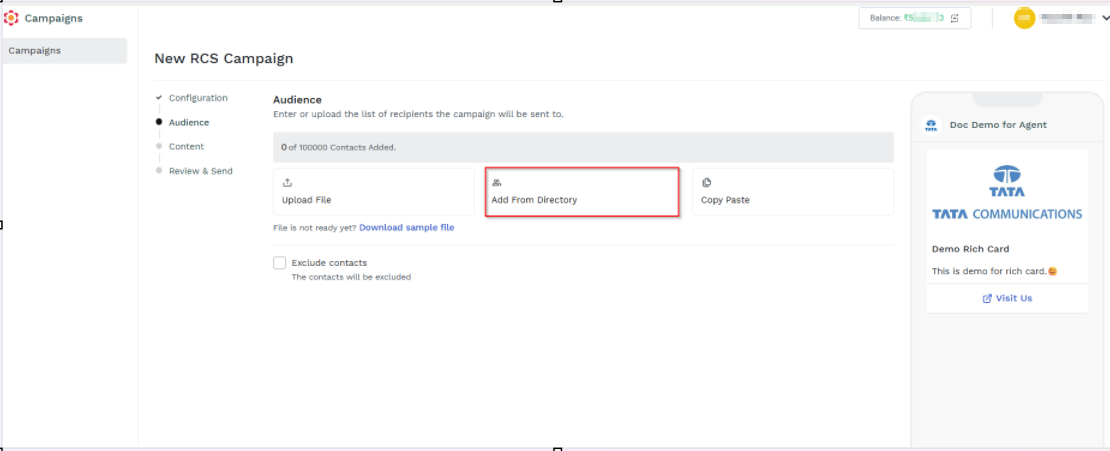
- Click Add From Directory. The Import Contacts pane appears.
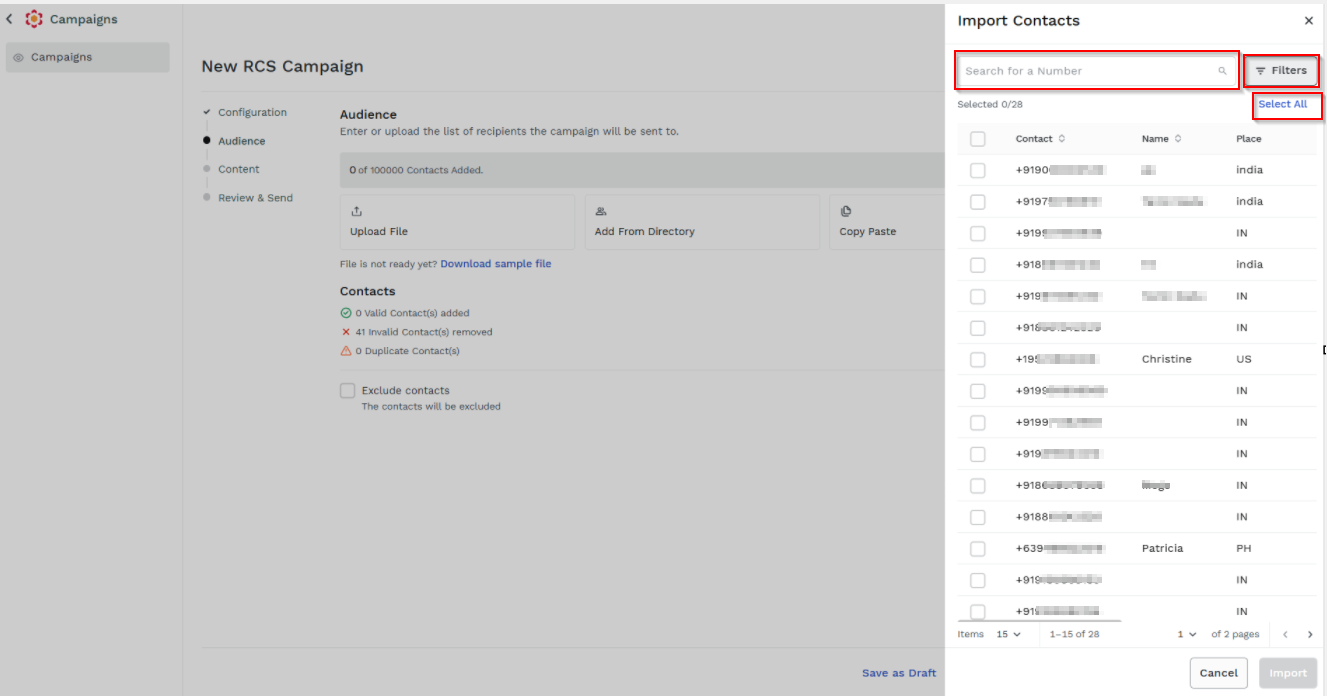
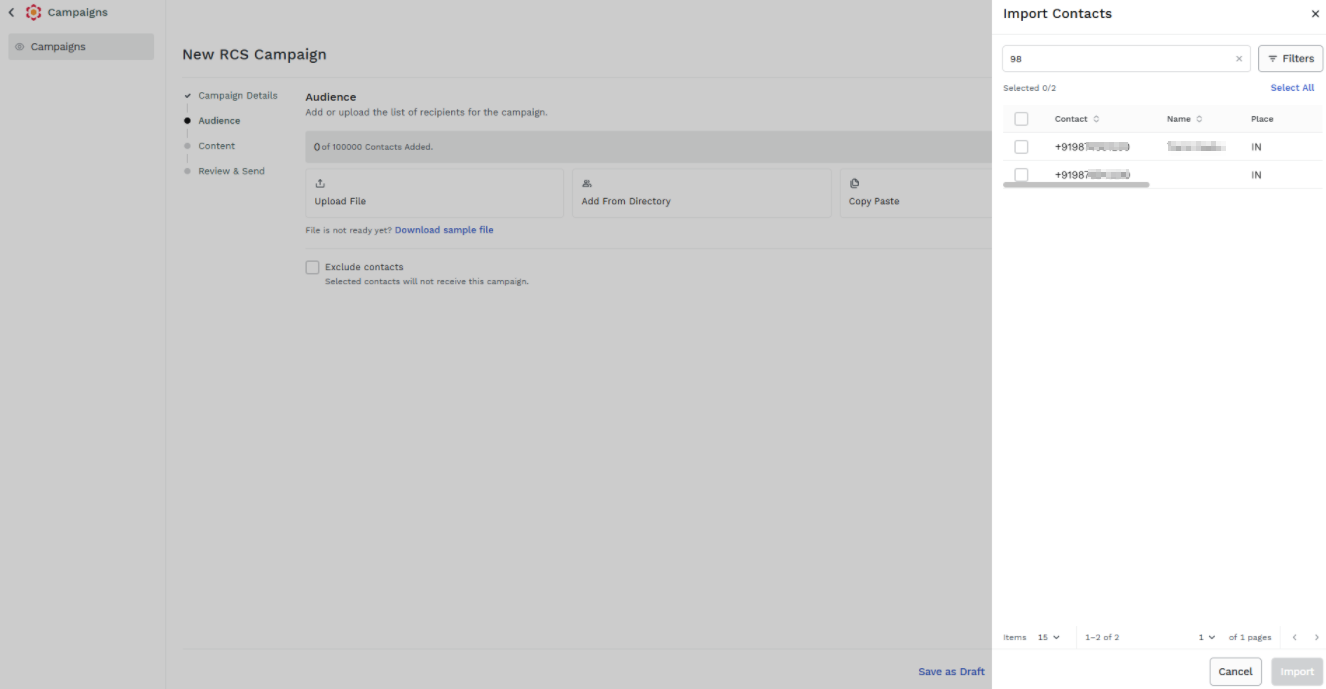
- In the Search for a Number field, enter the number or partial mobile number for which you wish to search, and the respective number appears.
- Click Filters. The Filters pop-up appears.
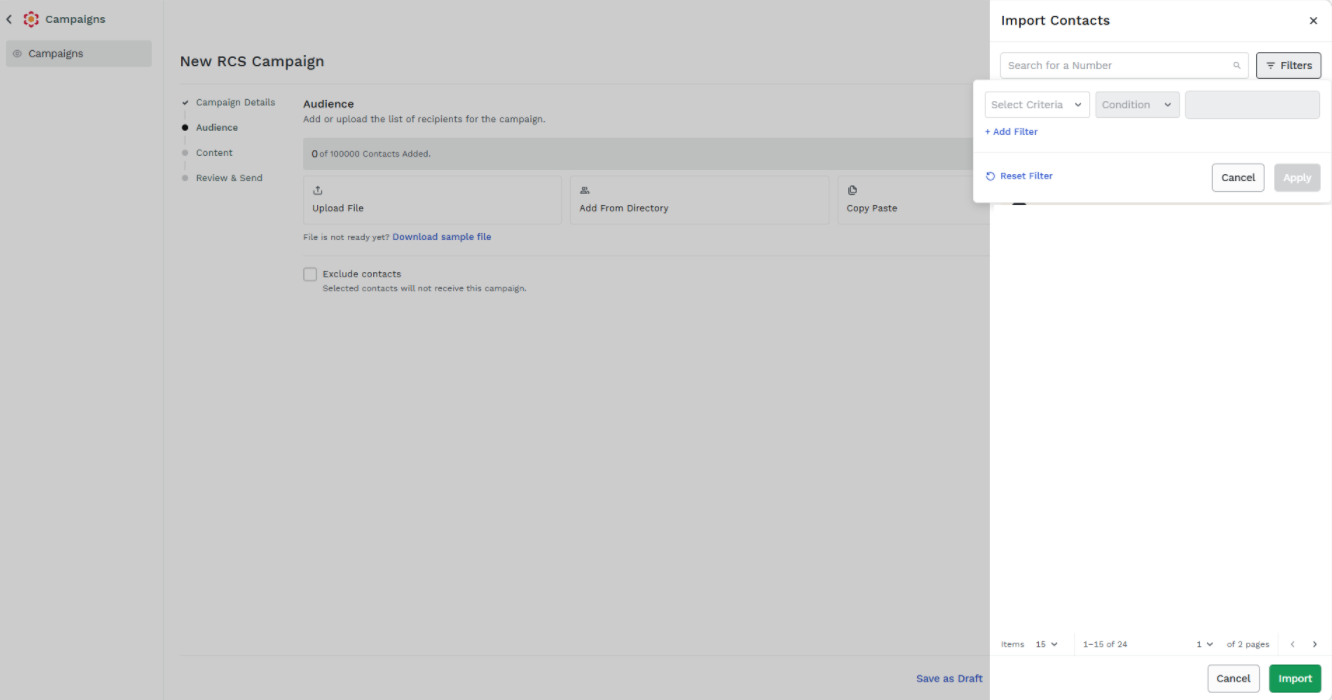
You can filter the contacts according to the contact's name, end-users' country name, and tag using the following options:
- Select Criteria - Select the criteria of filter. It can be Name or Country or Tag.
- Conditions - Select the conditions for the selected criteria. For example, Equals.
Notes:
- Click +Add Filter to add multiple filtering criteria to refine the campaign list.
- Click Reset Filter to clear all applied filters and resets the campaign list to default view.
- Click Apply to set the filter.
- Click Select All to select all the number from directory. For more information regarding Directory, refer to Overview page.
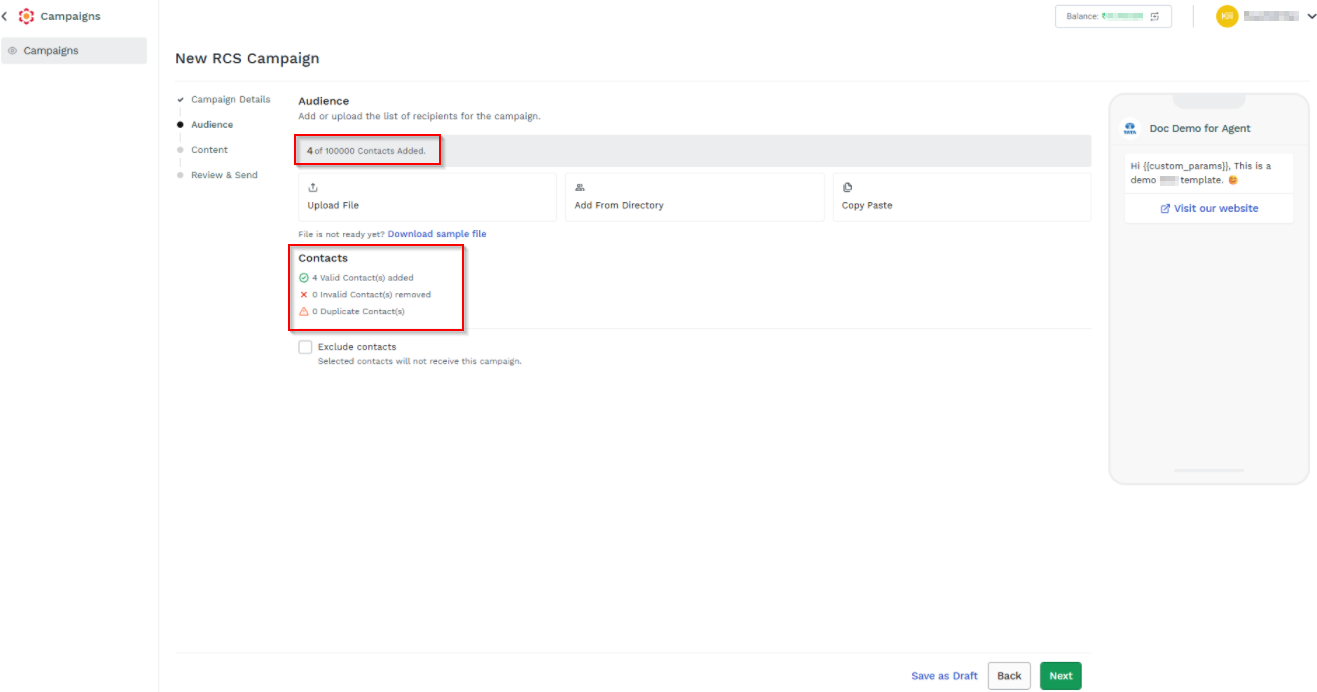
- Select the required contacts and click Import. The selected contacts get added to the campaignAudience step.
Updated about 23 hours ago
Did this page help you?