

Generate Detailed Report
You can generate detailed reports providing data for all your Subaccounts about messages sent and received on their active channels.
Sample Subaccount Detailed Report for SMS channel
The following is the sample SMS Subaccount Detailed Report, each row provides all the available info for a specific SMS message:

The summary report has the following details:
| Column | Description | Example |
|---|---|---|
| SUBACCOUNT NAME | Name or username of the subaccount who have sent the SMS. | jean |
| COUNTRY_NAME | Destination country where the SMS was sent. | India |
| NETWORK_NAME | Mobile operator or network of the recipient. May be blank if information is not available from GW or DLR | |
| SENDER | Sender ID used to send the SMS. A Sender ID is a unique name or standard mobile number that shows in the “from” field of your text messages on your phone. It could be a phone number, an alpha-numeric, an alphabetic, or a numeric alias. | KLXXXA |
| MOBILE | Recipient mobile number. | 917XXXXXXXXX |
| SOURCE | Source or service from which the SMS originated. | CAMPAIGN |
| STATUS | Status of the message. The following are the supported statues.
| SENT |
| STATUS_TRACE | Displays the status trace codes detailing the Status information. | DELIVRD |
| REFUNDED | Displays the total number of SMS units refunded. Some messages get automatically refunded based on the Status Trace returned by the Operator. | 0 |
| CREATED | Timestamp when SMS was submitted to kaleyra platform in ISO-8601 Datetime format. The date and the time at which the request to send a message has been received. | 2026-03-24T17:07:05.000Z |
| SMS_LENGTH | The length of the SMS in characters. Applicable only for MT. | 121 |
| BILLING_UNITS | The billable units applied to the message. The value '1' means that the whole text has been sent as one single SMS and a value more than '1' means that the whole text has been sent in several concatenated SMS units. Applicable only for MT. | 1 |
| SMS_ROUTE | The SMS route type, for example, OTP, Transactional, and Promotional. Applicable only for MT. | TXN |
| MESSAGE_TYPE | Indicates whether the message is sent as Unicode (U) or Non Unicode (N) characters. Applicable only for MT. | N |
| MESSAGE_ID | This is a unique identifier for the message within Kaleyra platform. | fbXXXX37-bXXc-4XX3-8XX5-b4XXXXXXXX04:0 |
| SALE_PRICE | The amount charged for the SMS message. Applicable only for MT. | 0 |
| AMOUNT_REFUNDED | Amount of money refunded. Applicable only for MT. | 0 |
| CAMPAIGN_NAME | The name of the Kaleyra platform campaign through which the SMS is sent. Applicable only for MT. Note: This field is empty if the SMS is sent outside of any campaign. | Summer Sale |
| CAMPAIGN_KID | This is a unique identifier value for the request. | 2026-06-19T05:26:39.000Z |
| DELIV_TIME | Time when message has been delivered according to operator's DLR. Applicable only for MT. | 2026-06-19T05:26:41.000Z |
| REF | The REF parameter is optional. You can pass the required information for this parameter displayed in the report. Applicable only for MT. | |
| REF1 | The REF1 is an optional parameter. You can pass the required information for this parameter displayed in the report. Applicable only for MT. |
To generate the detailed report, perform the following steps:
- Sign in to your Kaleyra platform.
- On the left menu bar, click Subaccounts.
The Manage Subaccounts page appears.
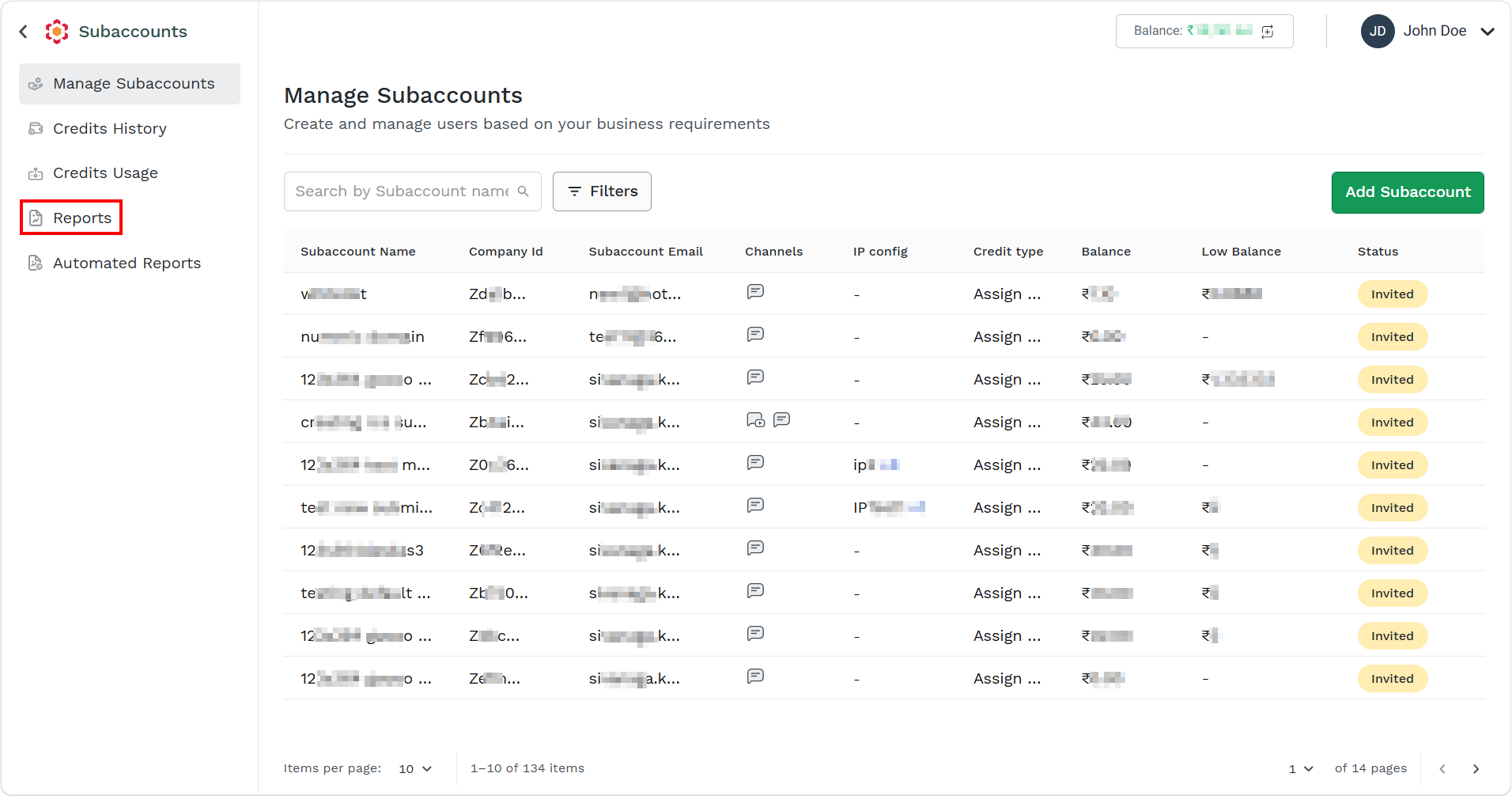
- On the left menu bar, click Reports.
The Subaccount Reports page appears.
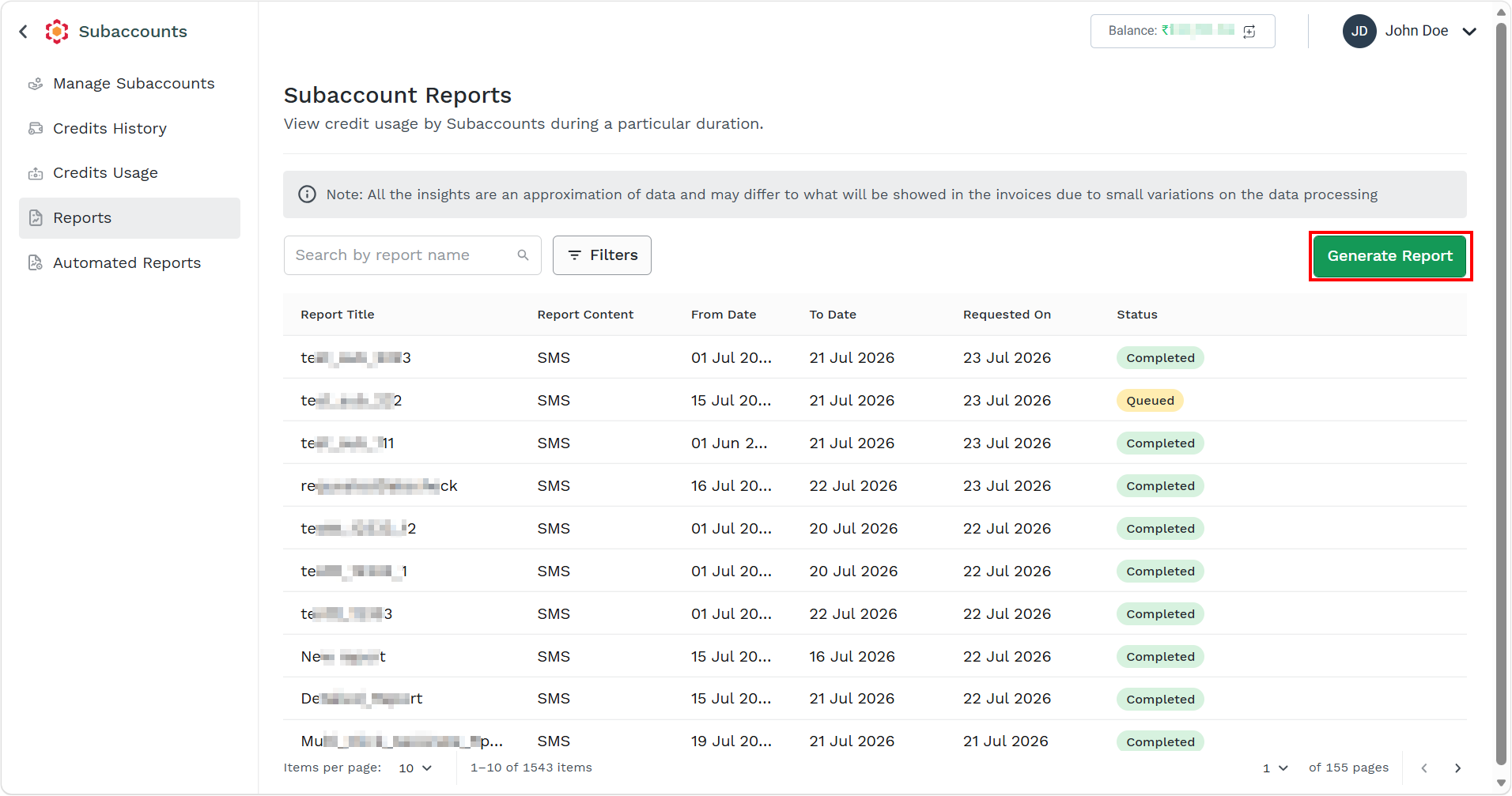
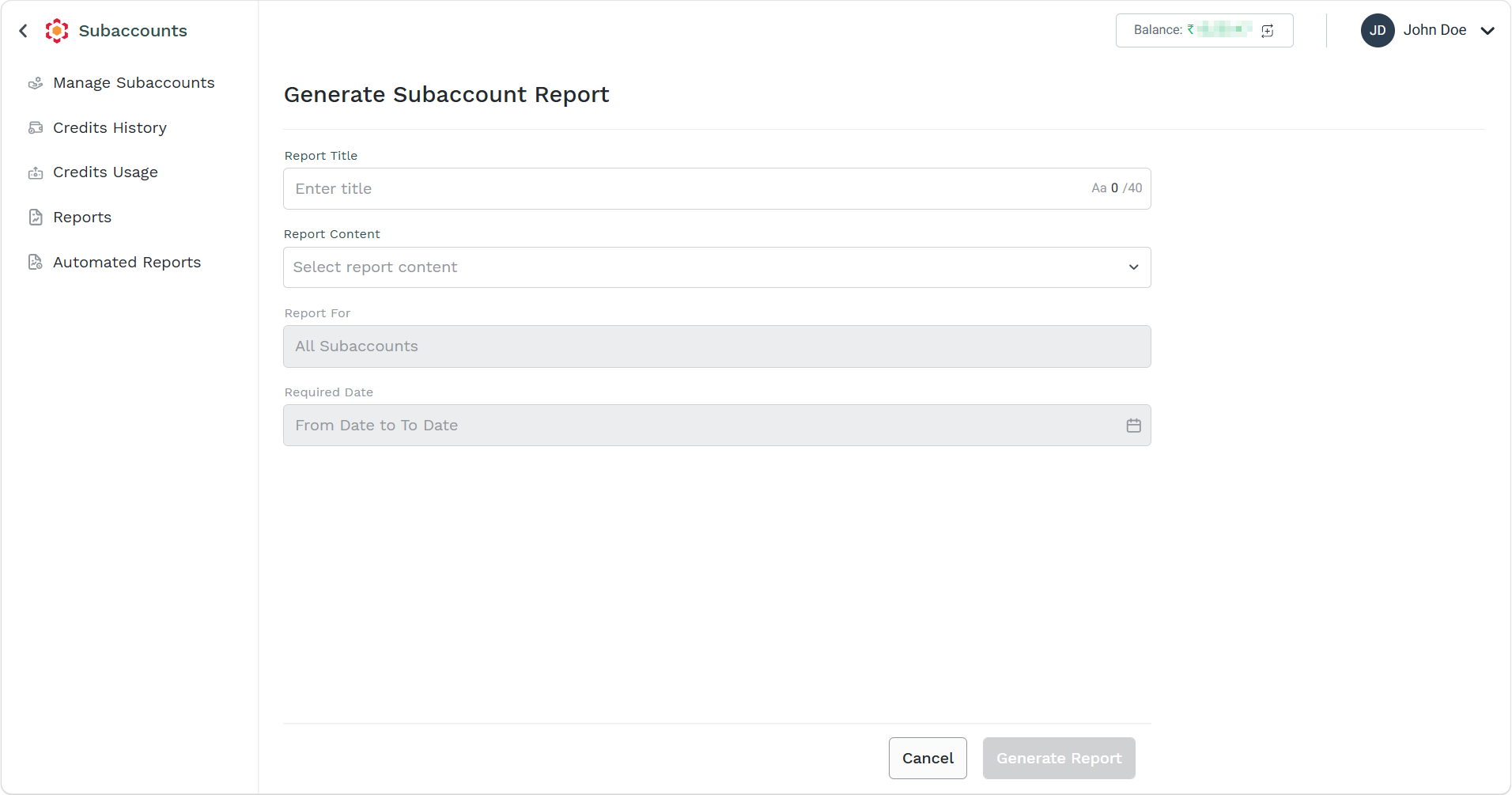
- On the right side of the Subaccount Reports page, click Generate Report.
The Generate Subaccount Report page appears.
-
Perform the following steps:
- In the Report Title field, enter the title for the report. The title can be of minimum 2 characters and a maximum of 40 characters long.
- Click the Report Content drop-down, and then select the report types from the following options:
- SMS supports the Detailed report
- Credit Usage
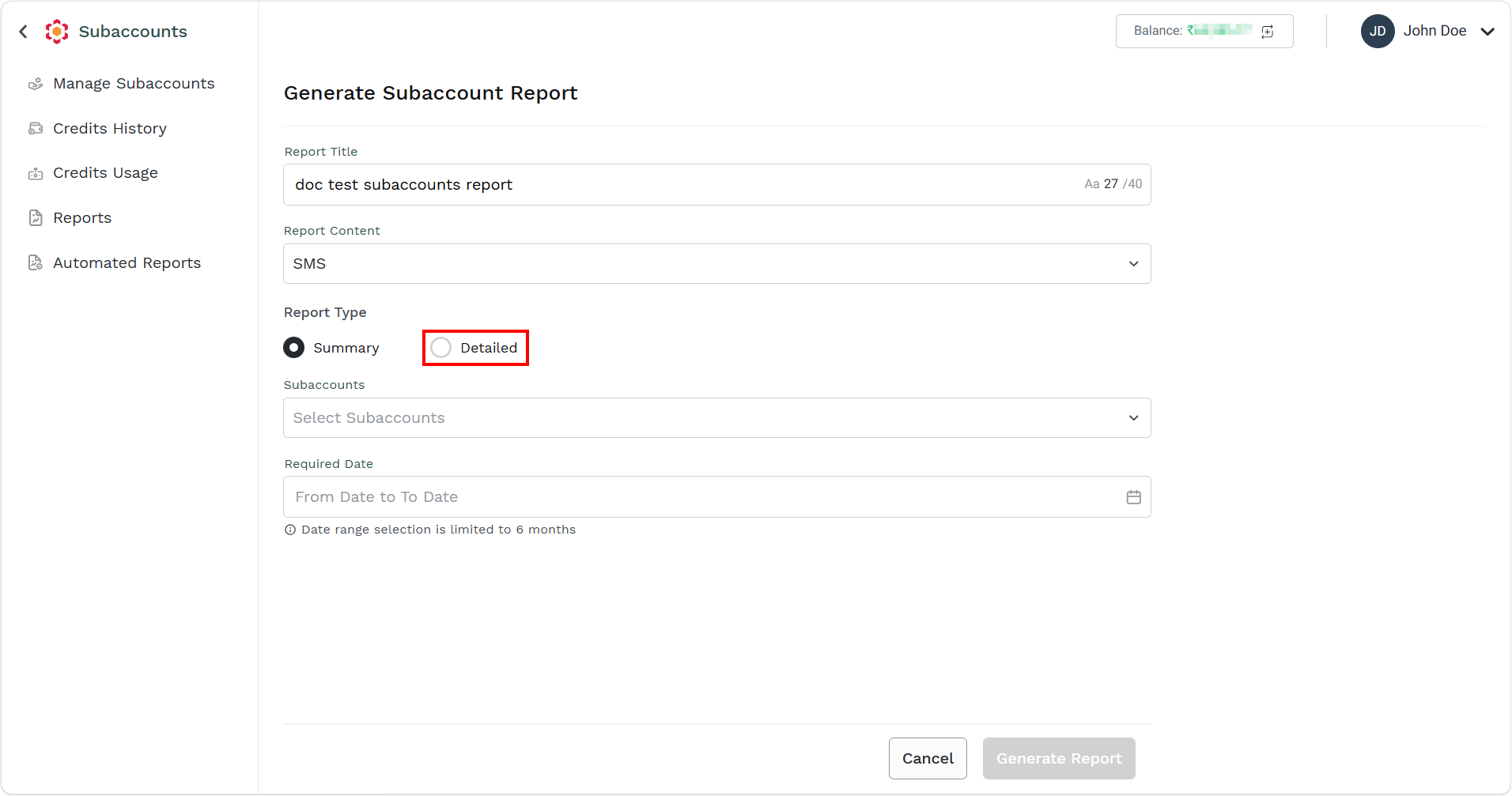
- Select the Detailed option.
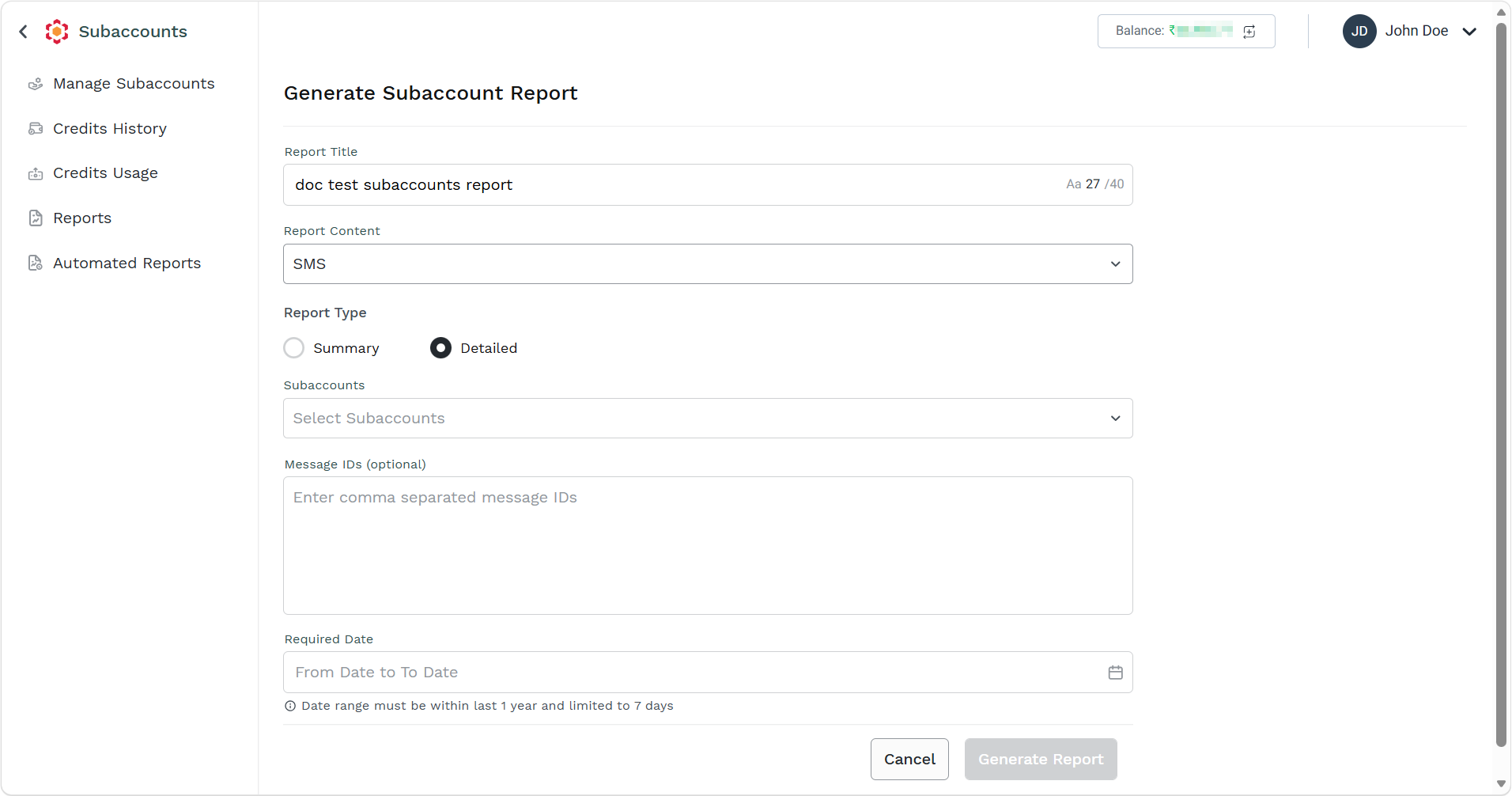
- Click the Subaccounts drop-down, and then select the Subaccounts for which you want to generate the detailed report.
Notes:- You can search the subaccount according to the provided name or username.
- You can select all the subaccounts by selecting the Select All checkbox.
- (Optional) In the Message IDs field, enter the message ID to view the detailed reports according to the entered Message ID. Enter comma if you are using more than one message ID.
- Click the Required Date field. Select the Start Date and the End Date for the report from the date picker. The details of the messages sent during this date range are included in the report. You can enter the current date as the start and/or end date. Date range can be within 1 year and limited to 7 days.
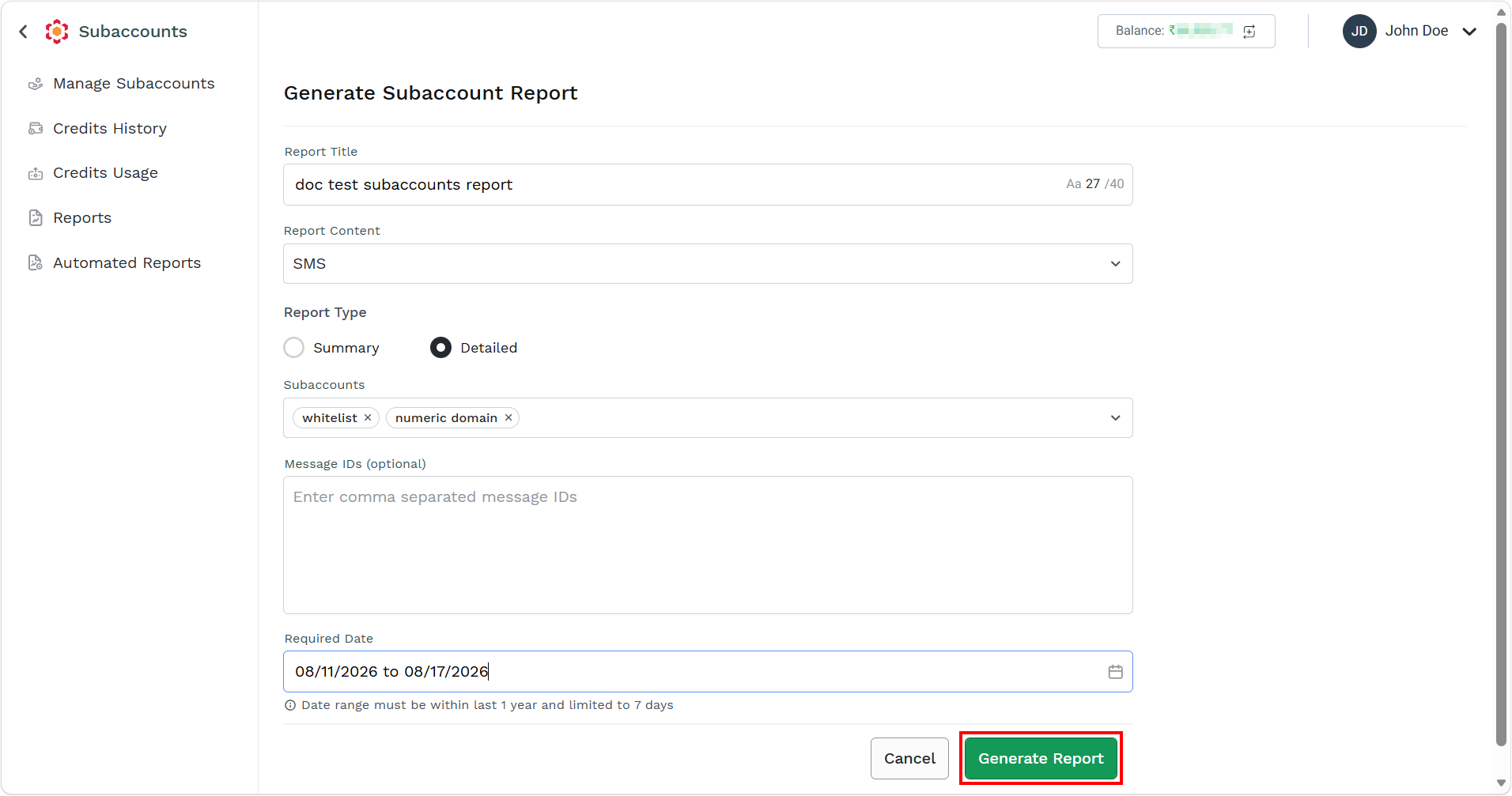
- Click the Generate Report button.
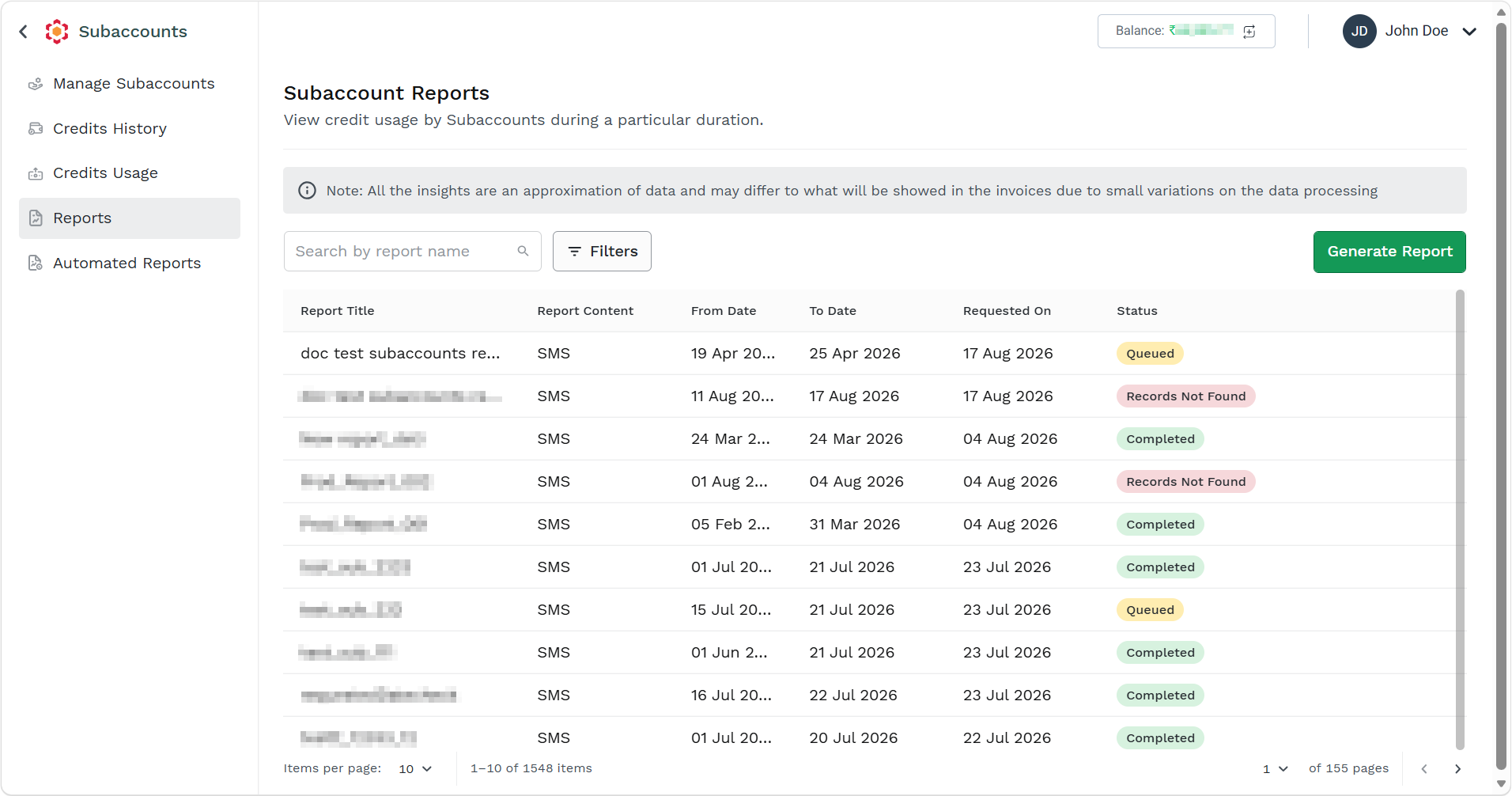
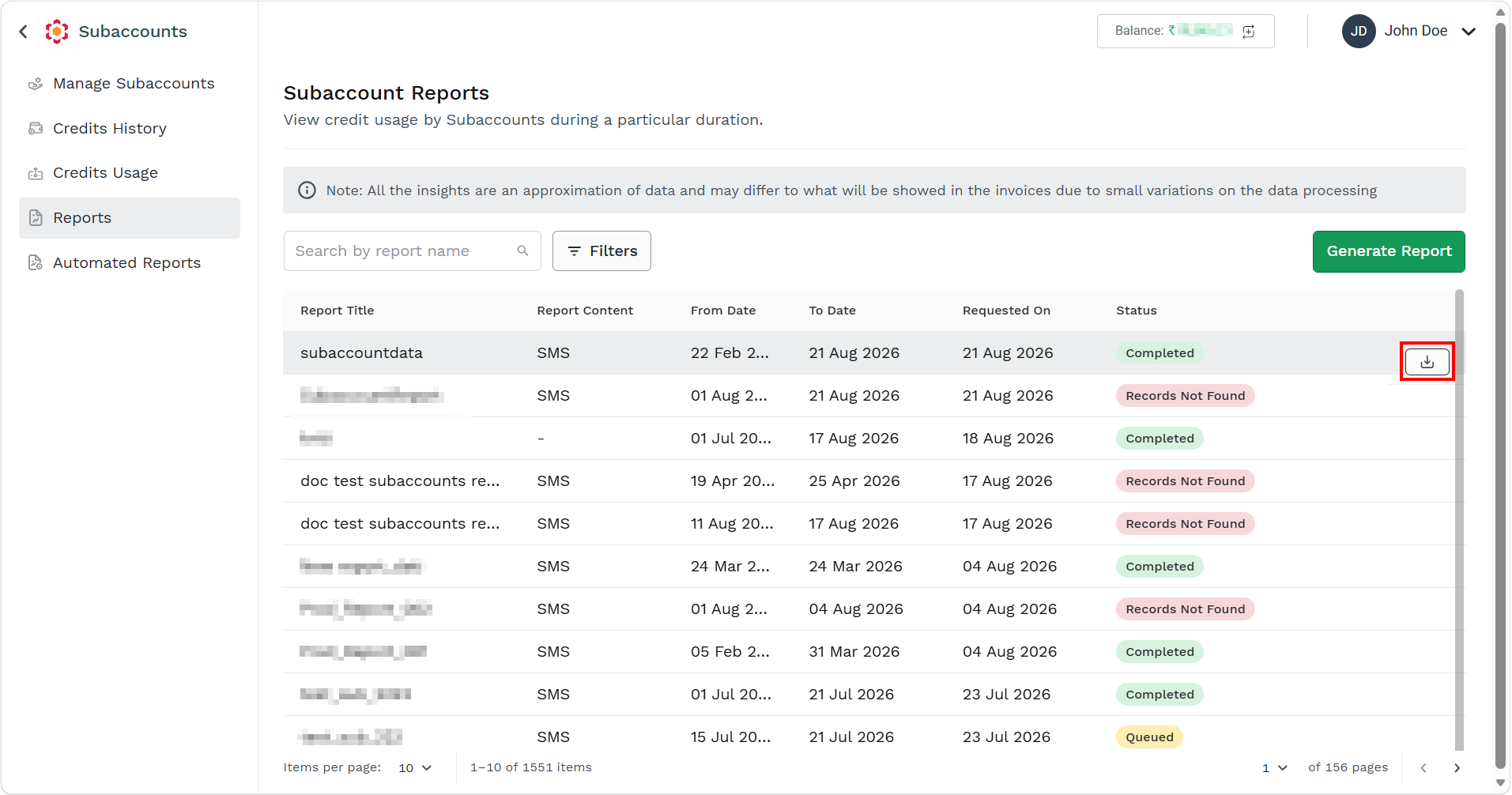
The confirmation message Report Generated appears and the reports gets queued in the Subaccount Reports list view page.
Updated 14 days ago
Did this page help you?