

Search and Filter WhatsApp Campaign
You can search and filter the WhatsApp Campaign from the available list of campaigns.
The topic contains the following sections:
Search Campaign
You can search the WhatsApp campaign using the live search based on the name you have provided for the campaigns.
To search for a campaign, perform the following steps:
- Sign in to your Kaleyra platform.
The Business communications page appears.
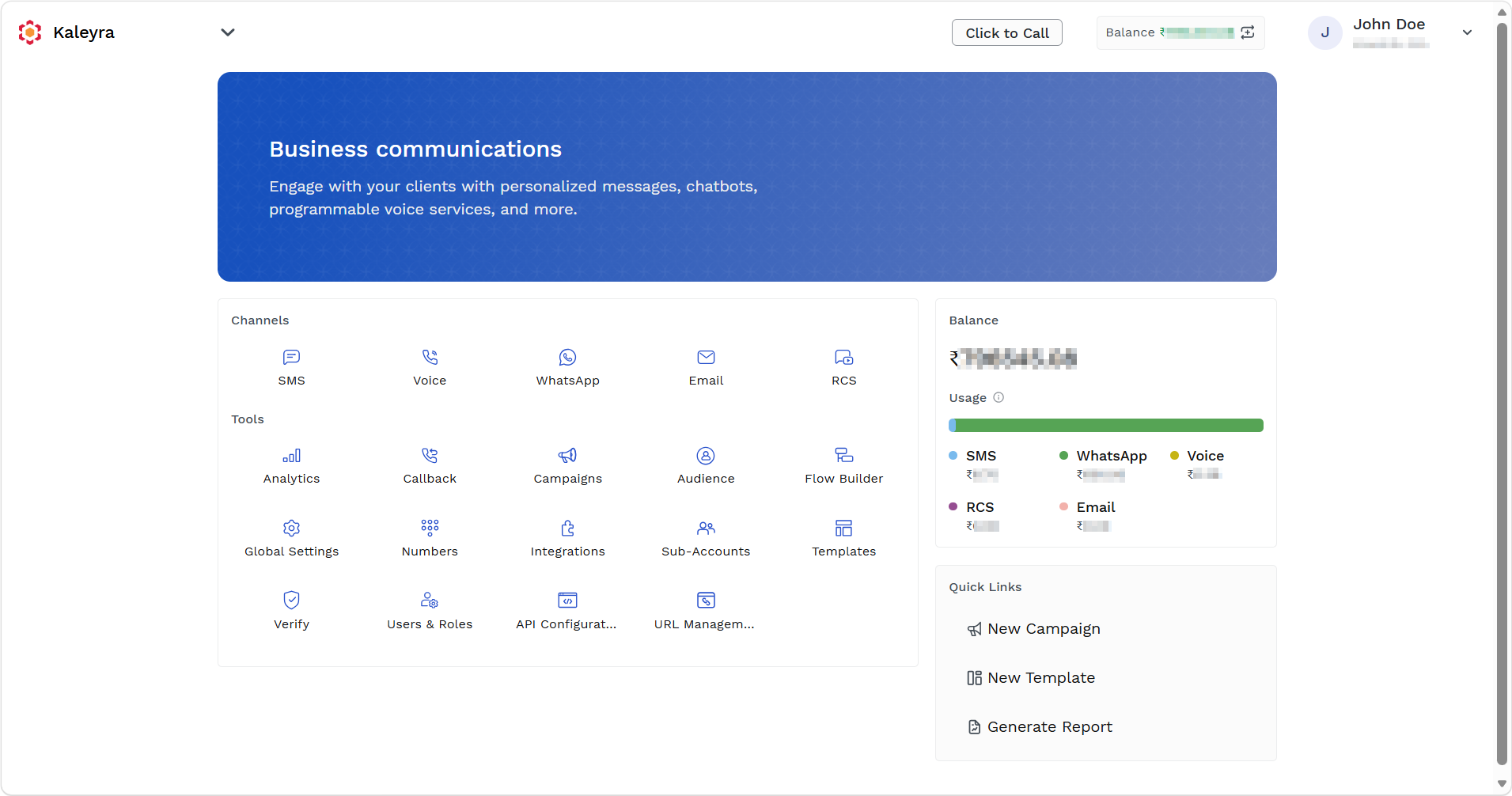
- On the Tools section, click Campaigns.
The Campaigns page appears.
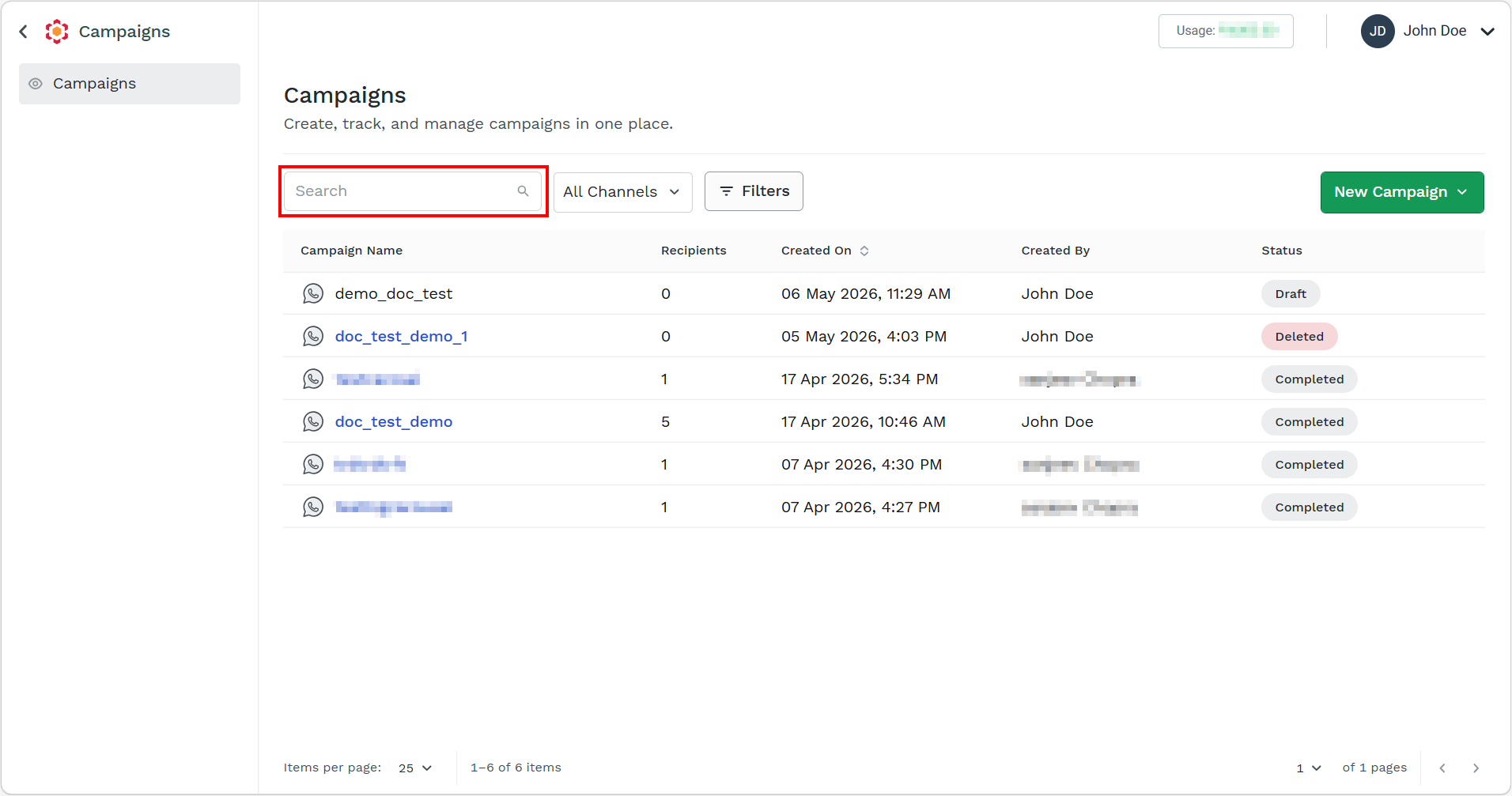
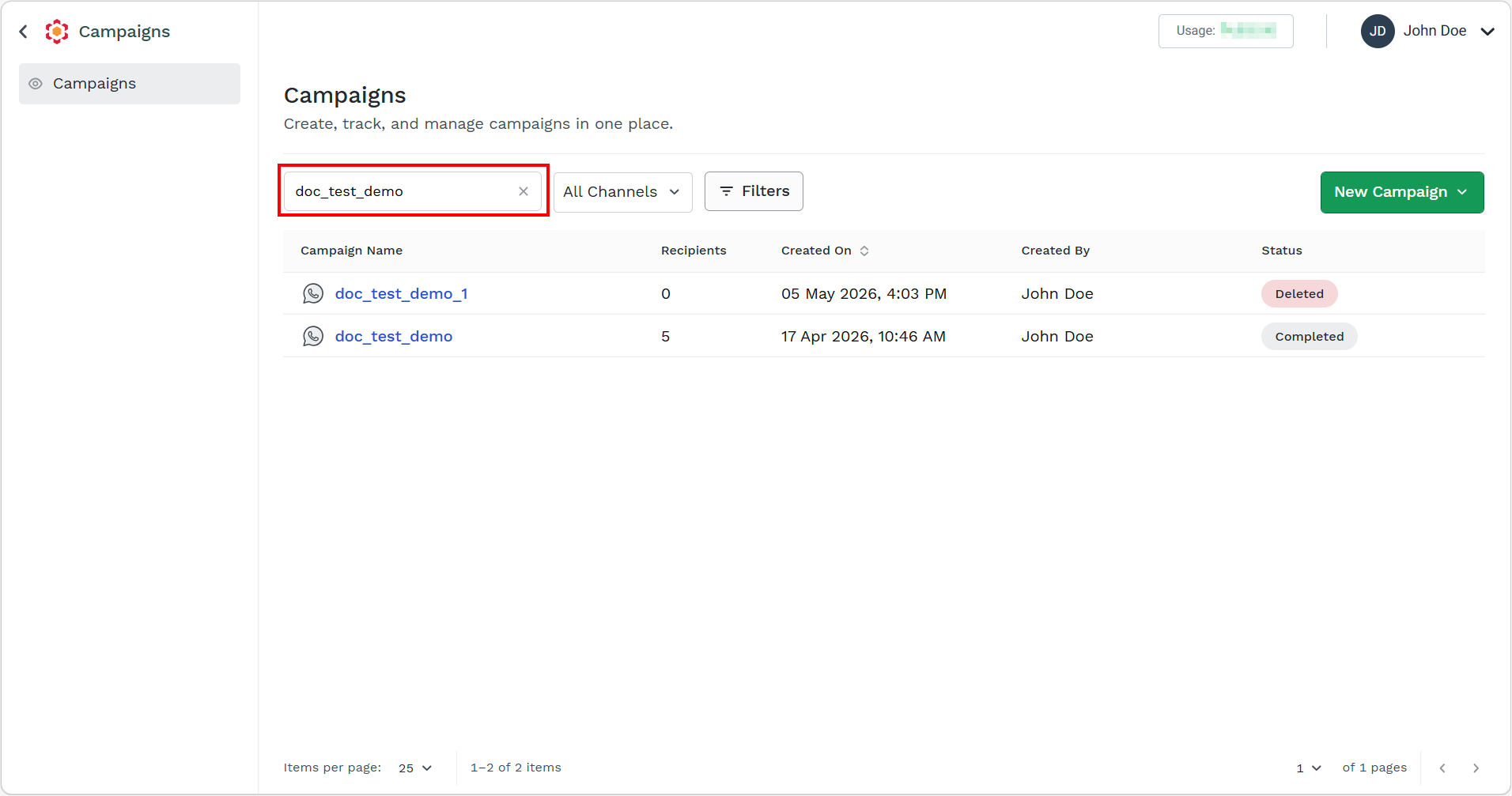
- In the Search field, enter the campaign name you want to search.
Based on the entered matched text, the live search result appears.
Filter Campaign based on Channels
You can filter the campaign based on channels. You have the option to filter based on WhatsApp or RCS campaigns.
To filter the campaign based on channels, perform the following steps:
- Sign in to your Kaleyra platform.
The Business communications page appears.
- On the Tools section, click Campaigns.
The Campaigns page appears.
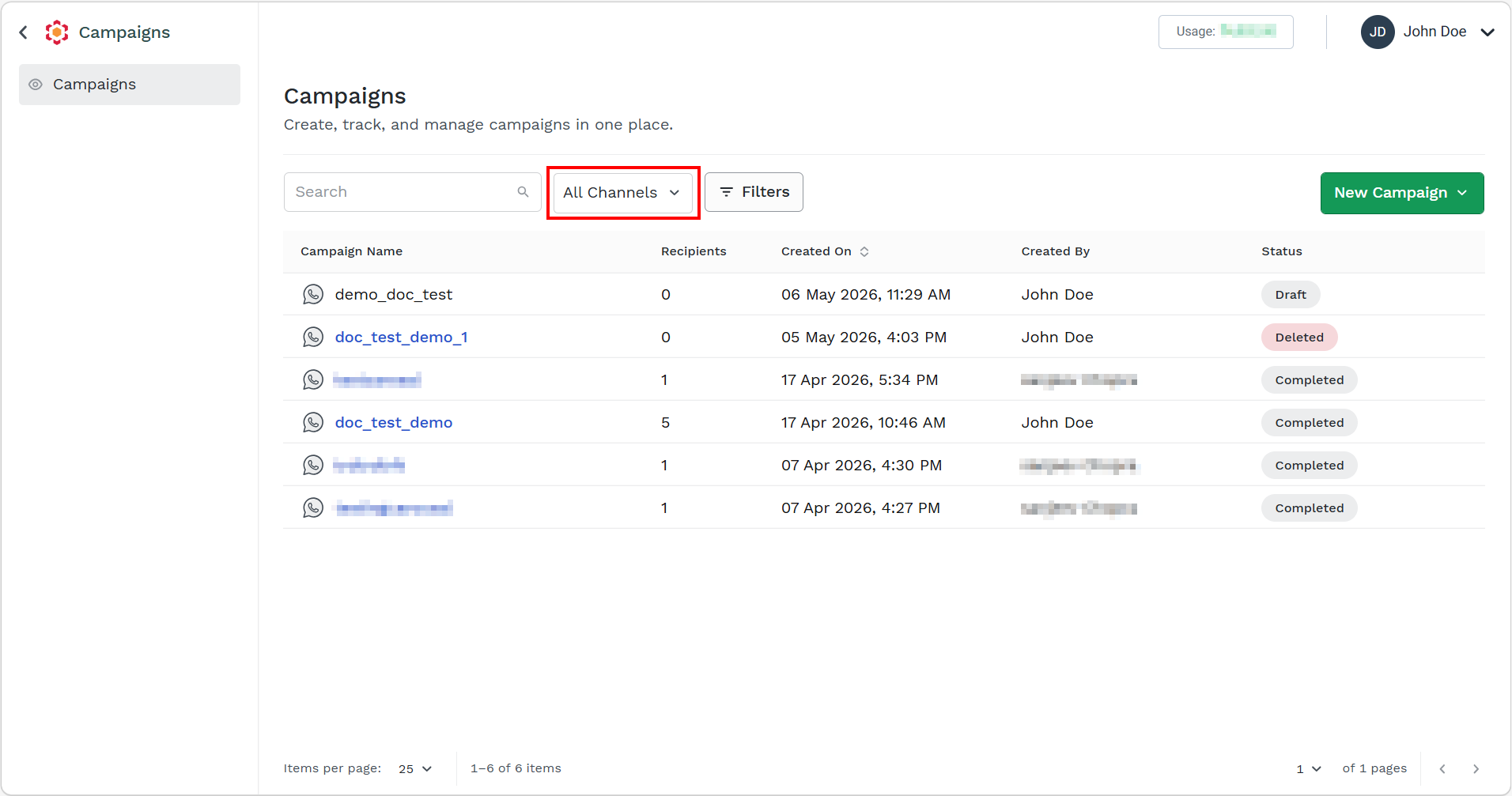
- Click the All Channels drop-down.
The supported channels appear.
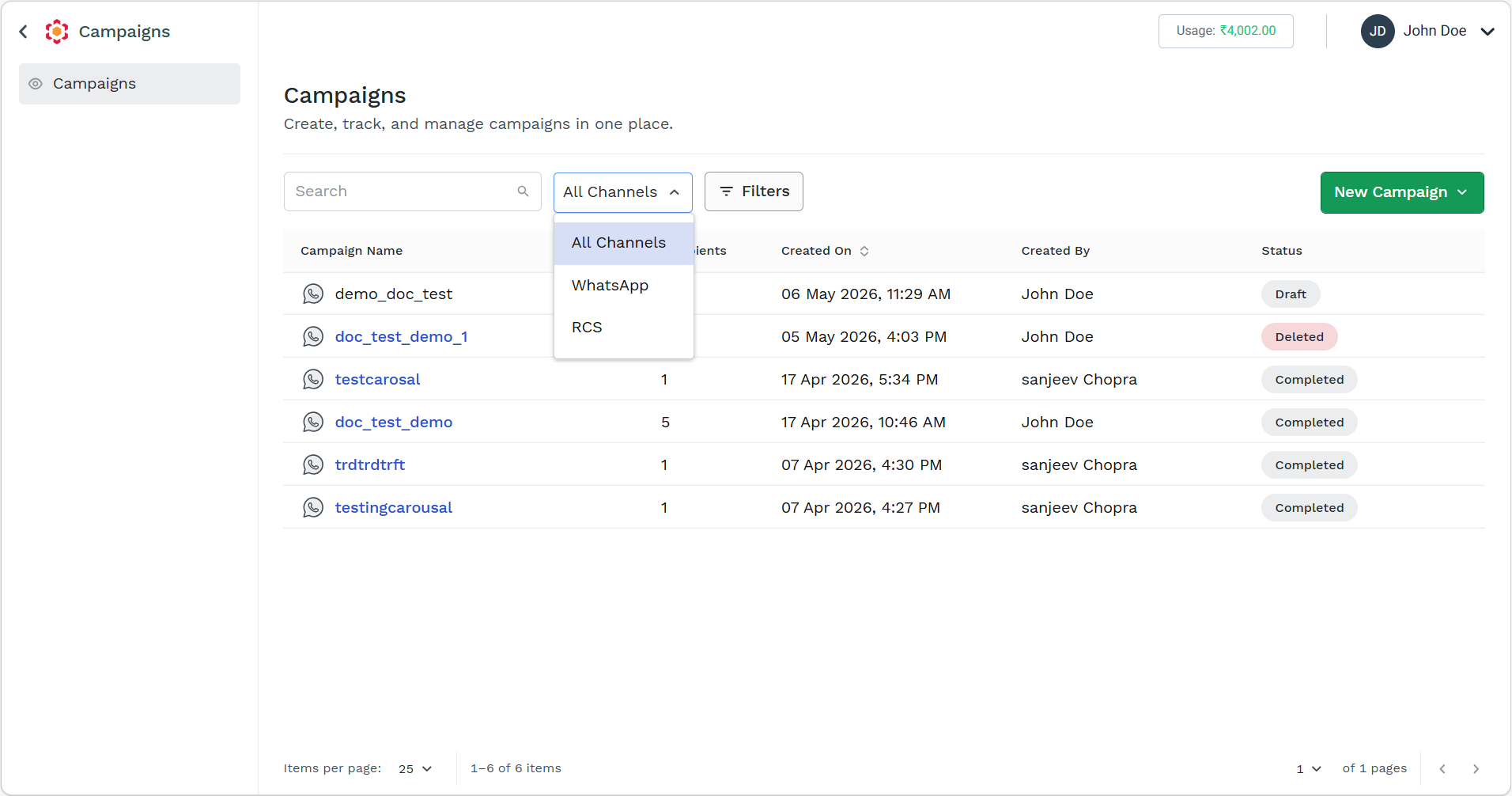
- Select the WhatsApp option.
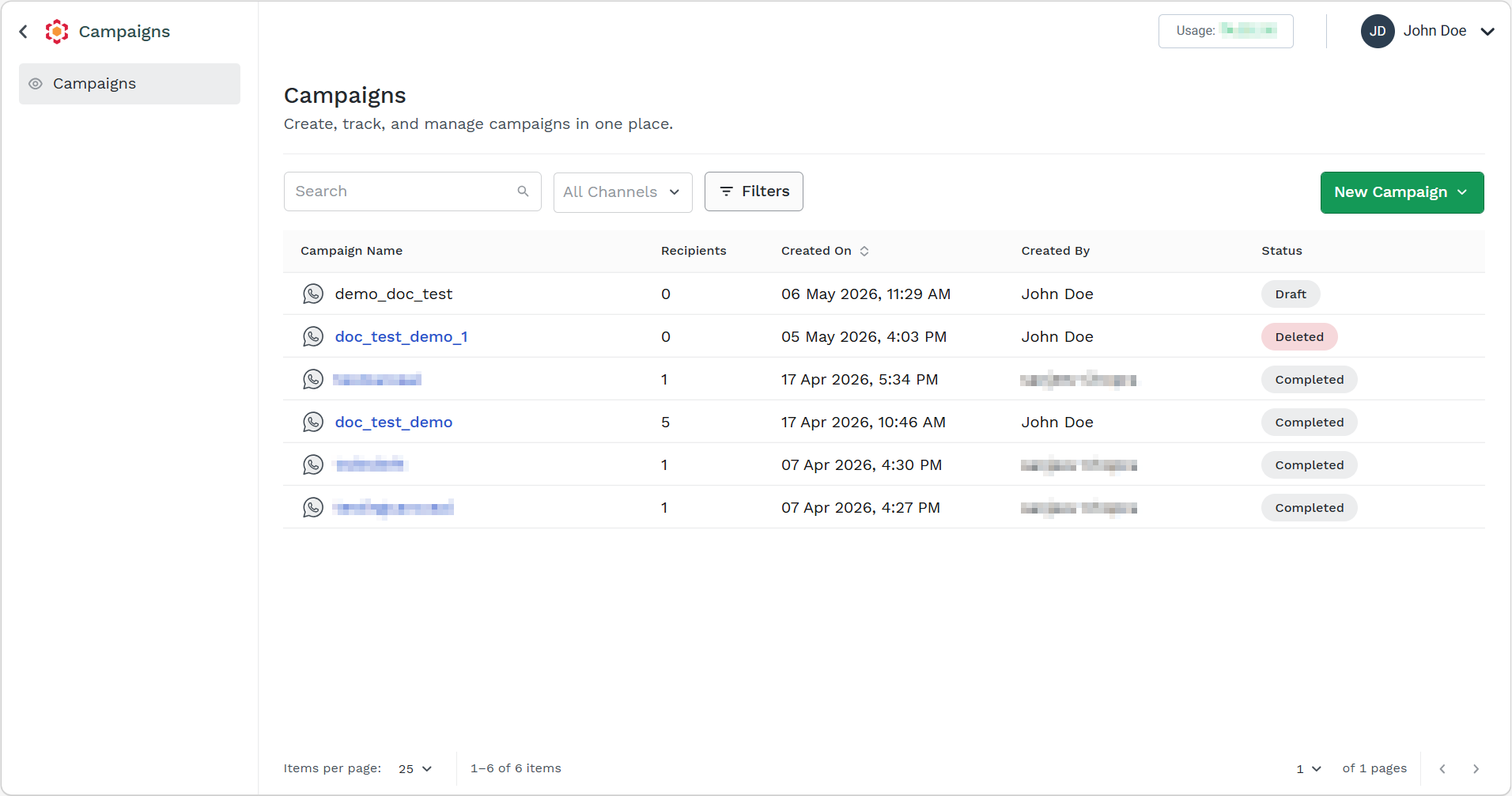
The campaigns based on the selected channel appears.
Filter Campaign
You can filter the campaigns based on status of the campaign and date when campaign was created.
To filter the campaign, perform the following steps:
- Sign in to your Kaleyra platform.
The Business communications page appears.
- On the Tools section, click Campaigns.
The Campaigns page appears.
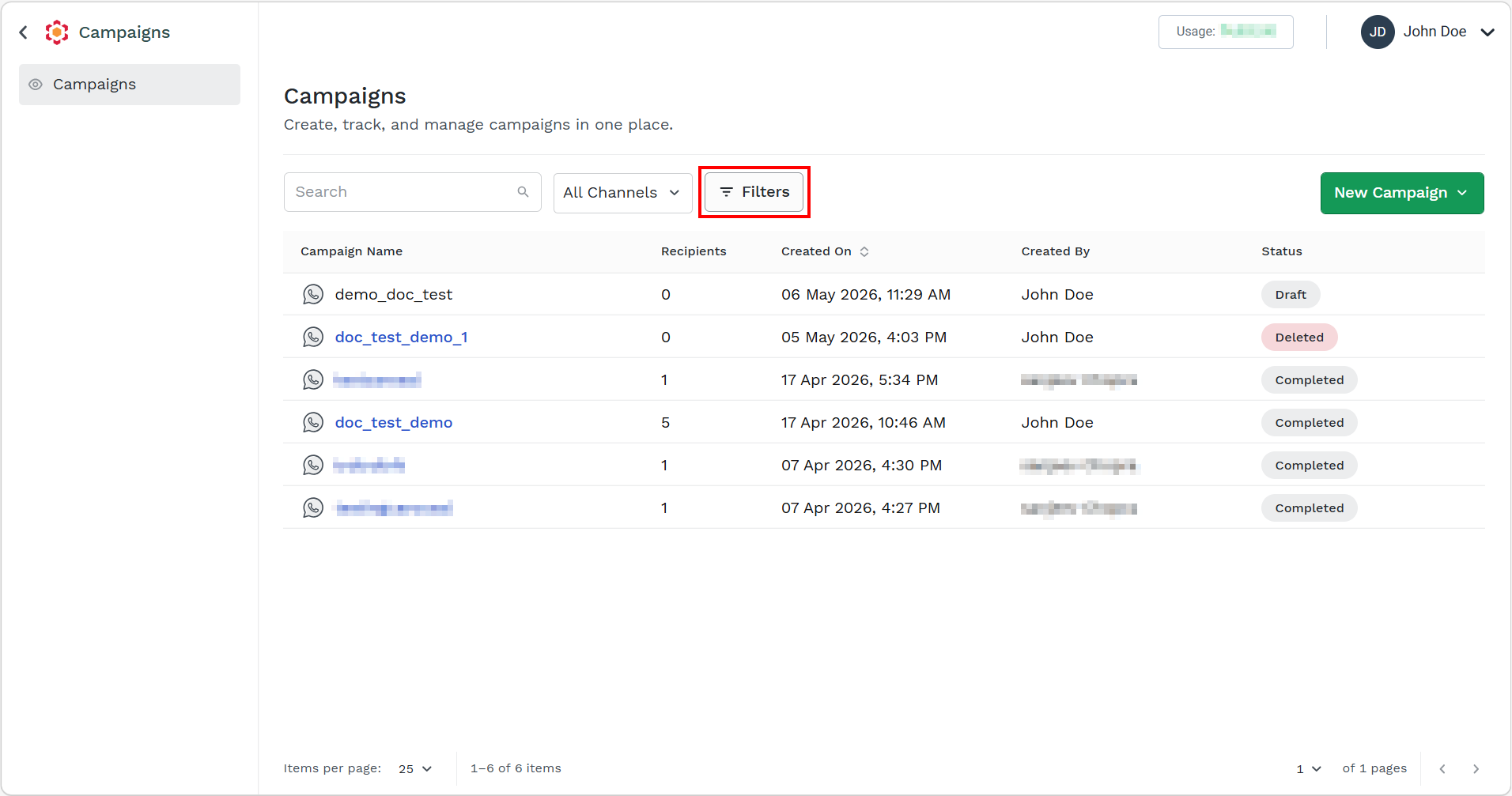
- Click the Filter icon.
The filters pop-up appears.
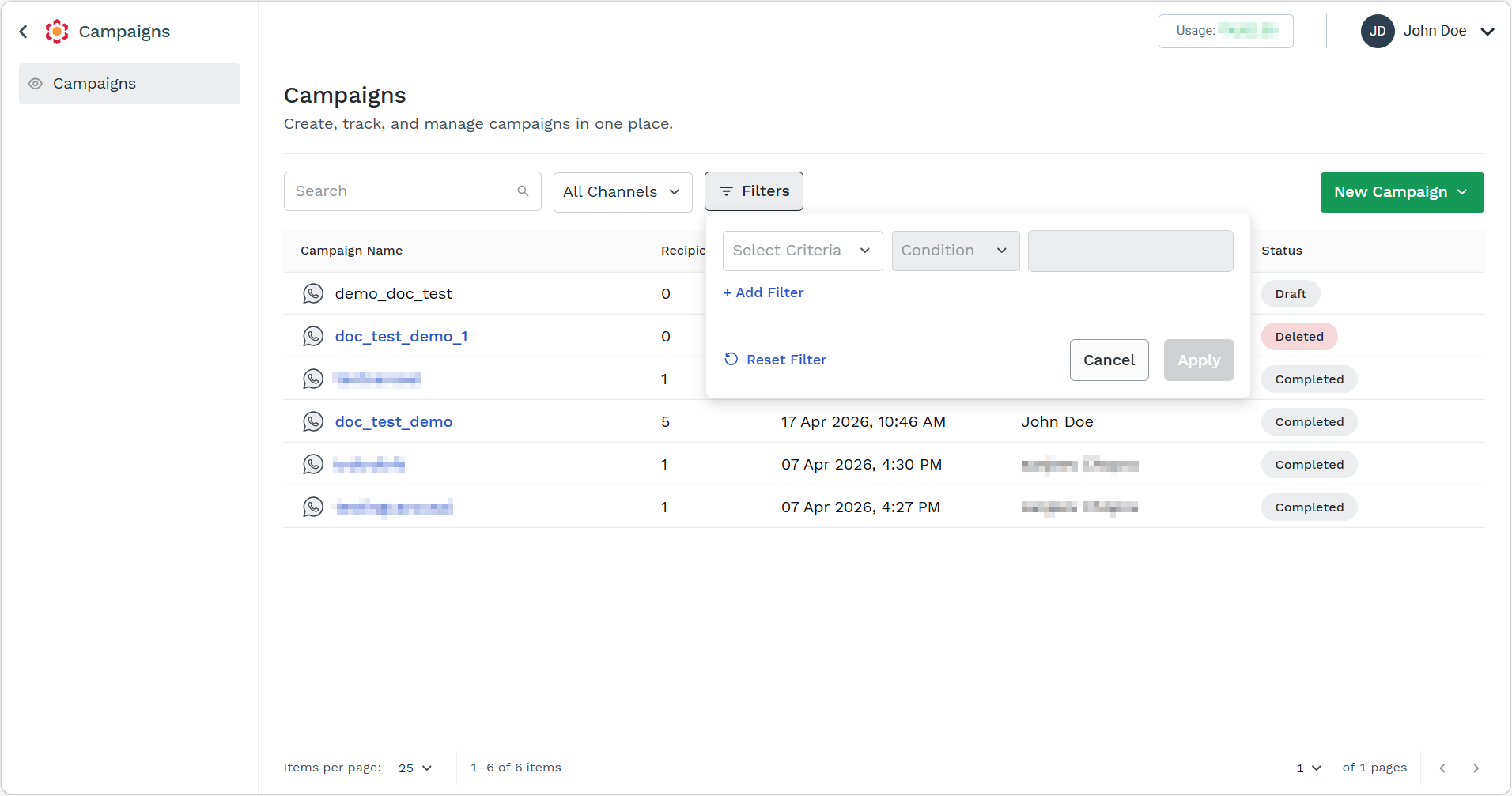
- Perform the following:
-
Click the Select Criteria drop-down. Select either Status or Created On.
-
Click the Condition drop-down and select the Equals if you have selected Status or between if you have selected Created On.
-
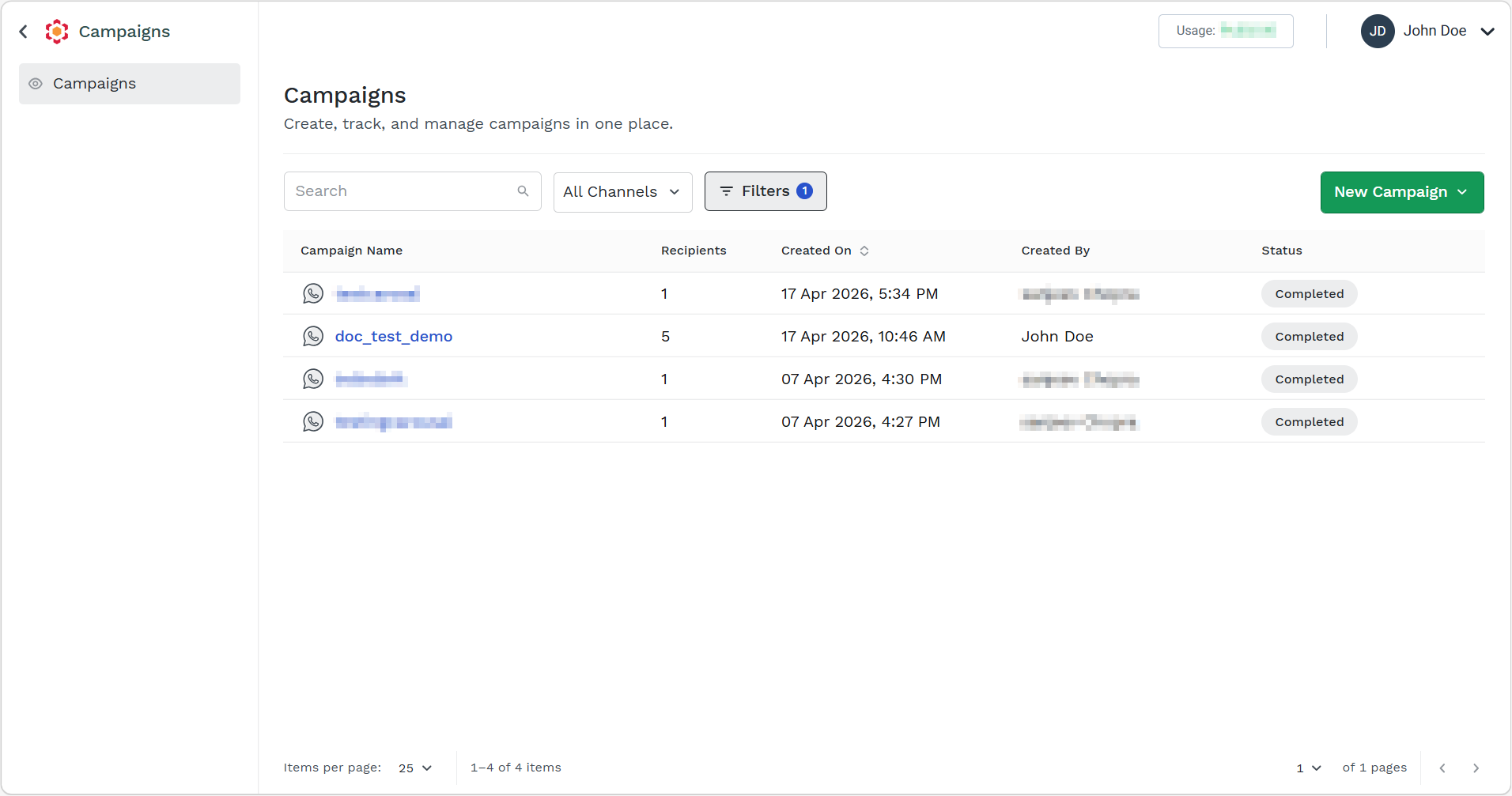
Select from the following options if you have selected Status and then click the Apply button:
-
Submitted - To filter the campaign based on submitted status.
-
Scheduled - To filter the campaign based on scheduled campaign status.
-
Draft - To filter the campaign based on draft status.
-
Failed - To filter the campaign based on failed status.
-
In Progress - To filter the campaign based on in progress status immediately after submitting the campaign.
-
Completed - To filter the campaign based on completed status.
-
Deleted - To filter the campaign based on filter status.
-
Select All - To select all the above filter options.
-
-
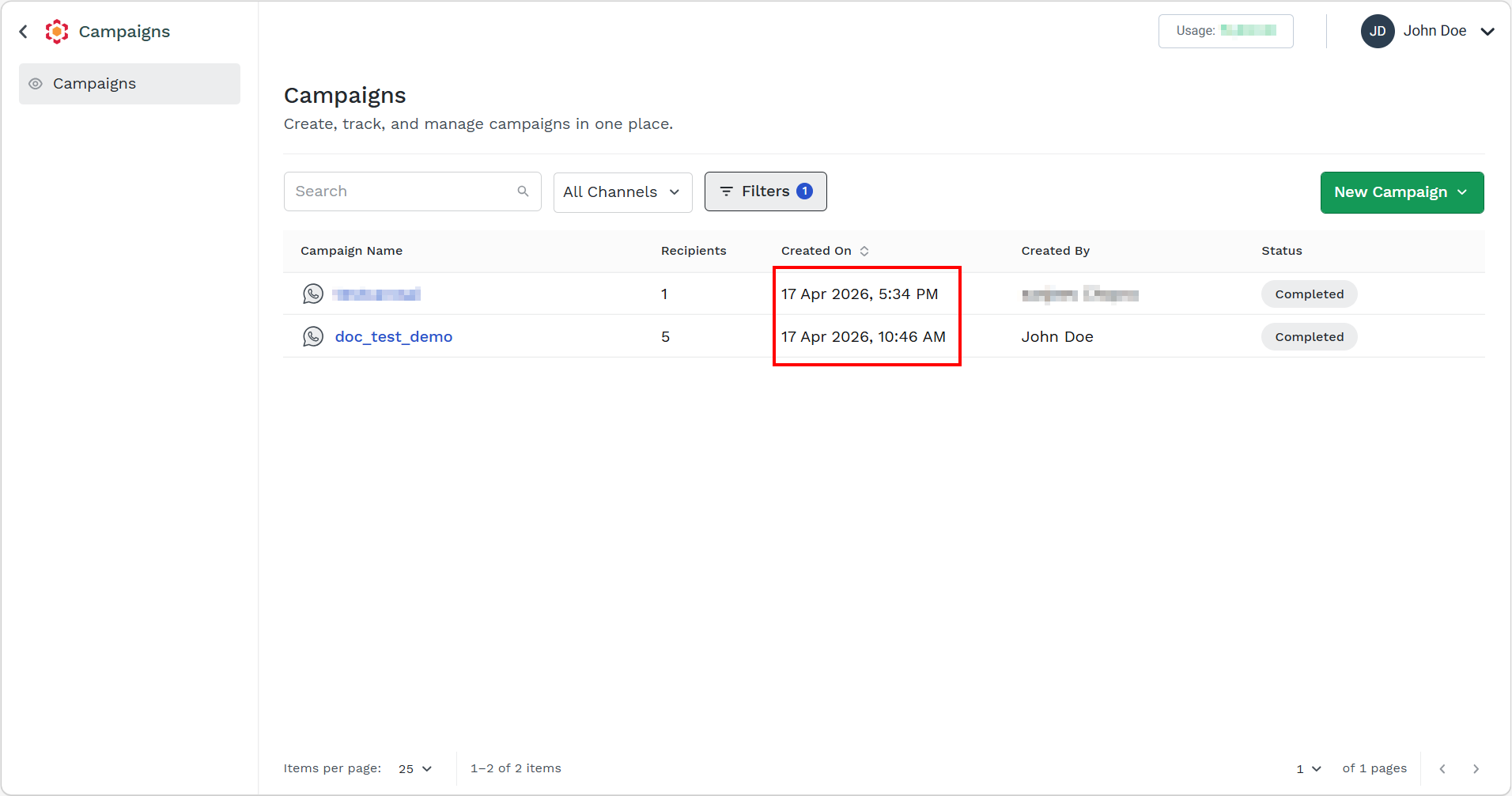
Select from the following options if you have selected between and then click Apply button:
-
Click the calendar icon and select the To and From date,
-
-
Updated 4 days ago