

WhatsApp Message Logs
The WhatsApp Analytics Logs get generated for all the WhatsApp messages sent and received. WhatsApp Logs help you get detailed information about all the WhatsApp messages like type, WhatsApp numbers, conversation category, date and time, and also the message body.
You can search the logs based on the WhatsApp number associated with each WhatsApp message. Additionally, you can use the filters to search the logs more precisely. You can expand the WhatsApp logs to view details such as the complete message body, country, and message format. The expand option is available next to the Message Body column.
Generate WhatsApp Logs
WhatsApp logs get generated when you send or receive a WhatsApp message using your Kaleyra.io account. Any delivered, seen, sent, or failed WhatsApp message gets listed on the Logs page.
Order_details and payment details in WhatsApp logs
WhatsApp logs are generated for the 'order details' messages with payment links sent to customers. The customers can make the order payment from WhatsApp and the businesses get notified about the payment status through webhooks.
WhatsApp logs also capture the 'order status' message sent to customers for updates about the order processing status.
The message body column shows the order details, and order status messages, and the Message Body >Format shows the type of message sent or received.
View, Search, and Filter WhatsApp Logs
To view, search, and filter the SMS logs, access the WhatApps Logs page from the left navigation bar of the Reports & Logs section, the WhatsApp Logs page appears.
Ensure that the required WABA is selected in the WABA dropdown, if you want to see Logs for a different WABA, open the dropdown and select the WABA you want to see the Logs for.
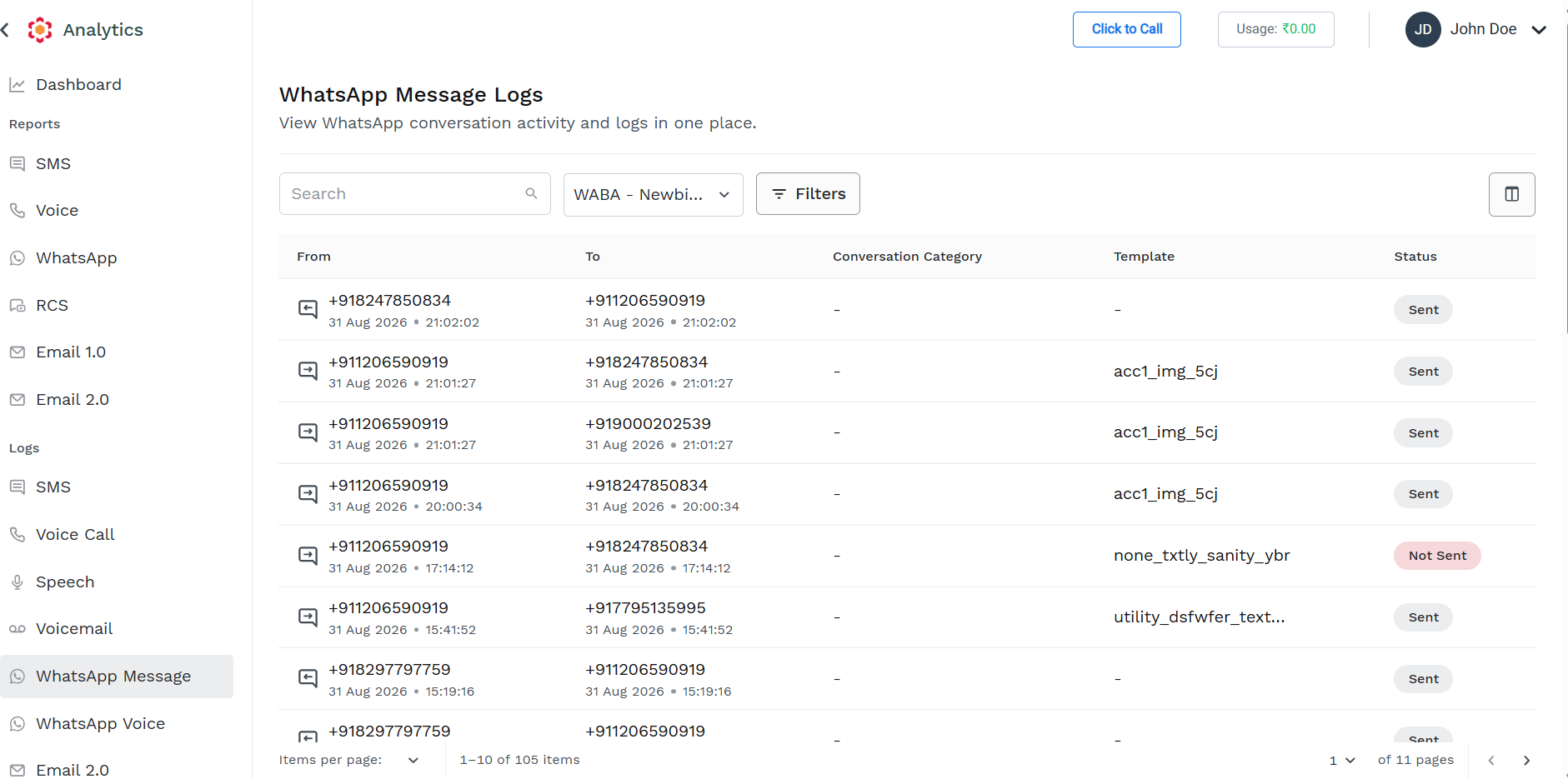
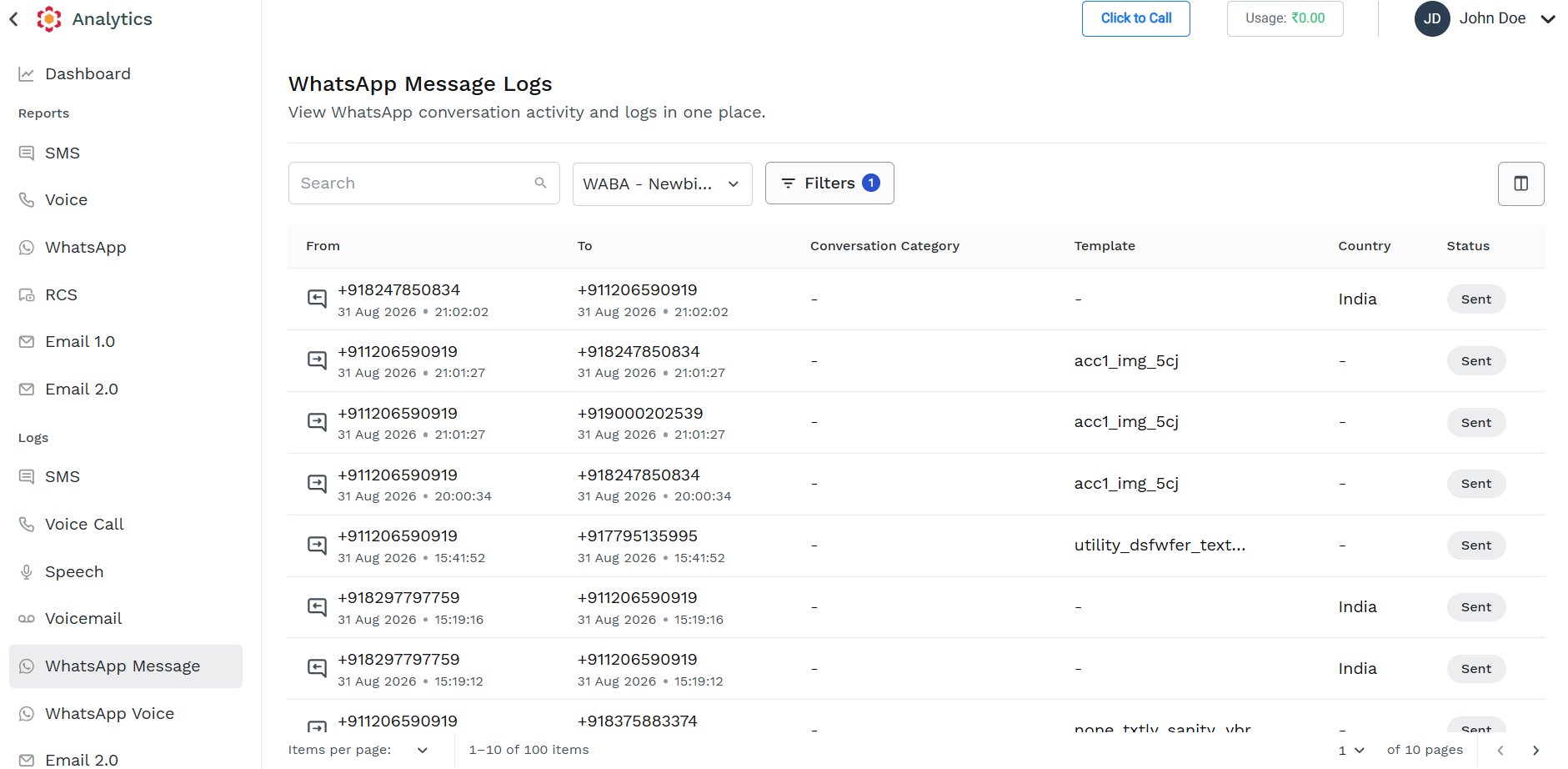
Following information are shown for each message:
- Message Type - the message icon provide information about the message direction, a left pointin arrow represent an Outgoing message (Mobile Terminated) while a right pointing arrow represent an Incoming message (Mobile Originated)
- From - the WhatsApp Business Number from which the MT message has been sent or to which a MO message has been sent
- To - the recipient Number to which the MT message has been sent ot from which a MO message has been sent
- Conversation Catagory - the category of the conversation based on template category as defined by Meta
- Template - the name of the template used to send the message (not applicabile for MO message or Free Text message)
- Status - the latest status available for the message
You can personalize which column you want to see in the Logs page by clicking on the "two-column" icon near the Export button, the Column Display Properties panel appears.
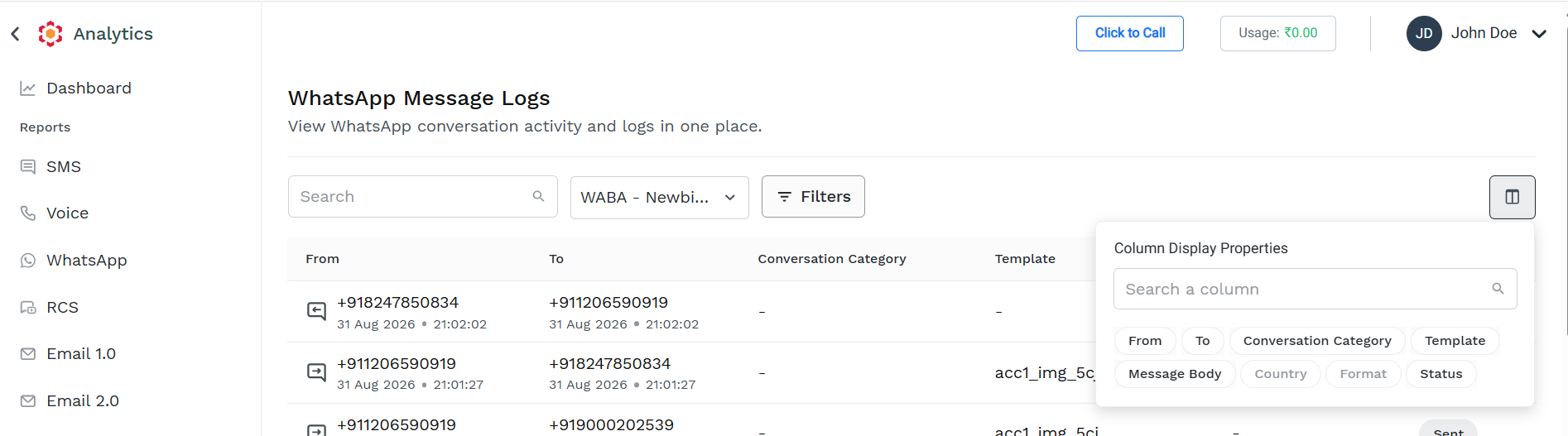
The column in bold are the one already displayed in the log page; the one not in bold are not currently displayed in the Logs page but are available to be added.
You can remove any of the visible column just clicking on it in the Column Display Properties. The column is then removed from the Logs page and it is not more shown in bold in the panel
You can add any of the non-visible column just clicking on it in the Column Display Properties. The column is then added to the Logs page and it is shown in bold in the panel.
Additional Available columns are:
| Column Name | Description |
|---|---|
| Message Body | the content of the message, available only for free text message or MO message |
| Format | provide information about the format of the message as defined by Meta (e.g. Text, Template, Mediatemplate...) |
| Country | The destination country of the message |
You can Search and Filter WhatsApp Message Logs
- In the Search field, enter the mobile/phone number you wish to search the logs. Based on your entry the logs appear. The Total count indicates the search result counts.
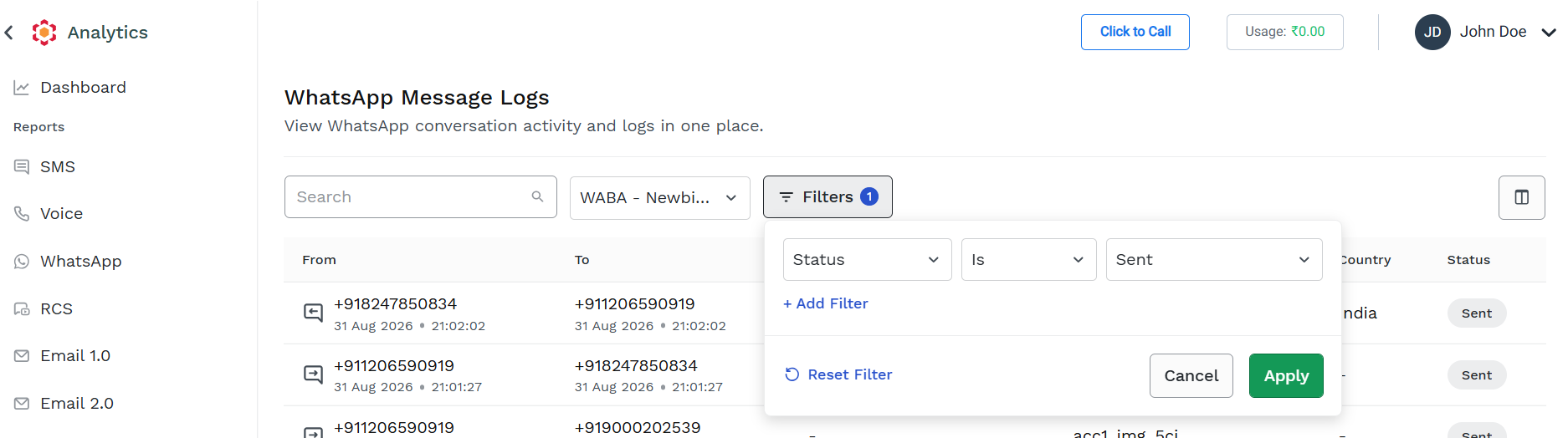
- You can filter WhatsApp Message Logs by clicking on the Filters button and add one or more filter conditions.
Filter the WhatsApp Message Logs
You can filter the displayed WhatsApp Message Logs by clicking on the Filters button and applying one or more filtering conditions:
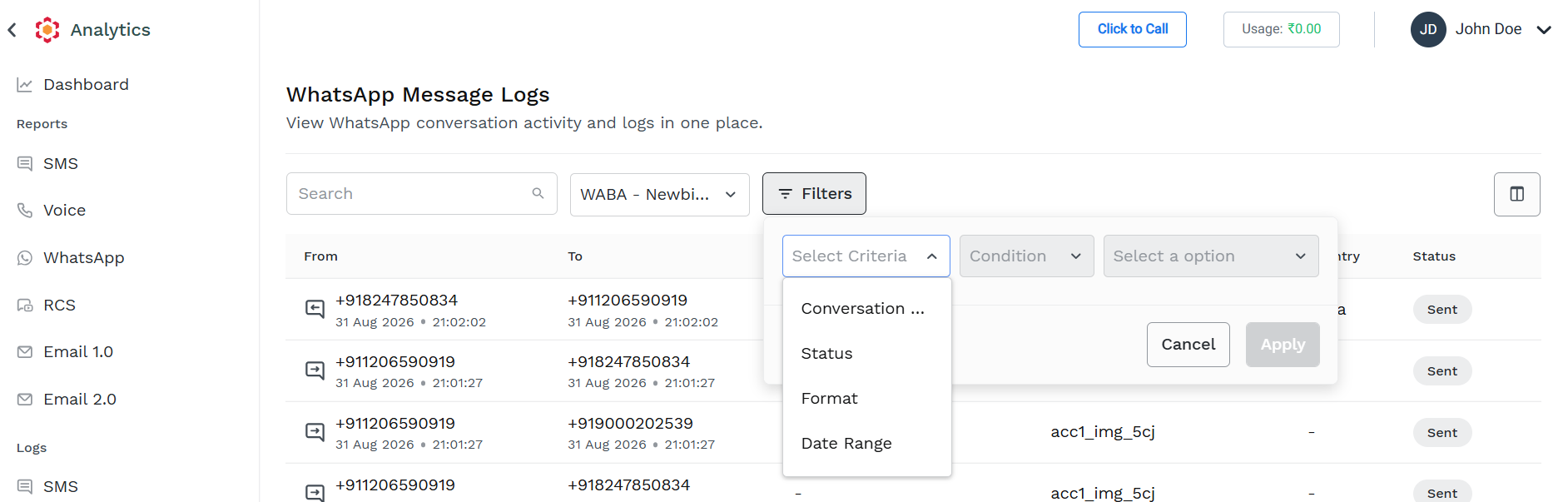
To add a filter conditions, select one of the available Criteria from the Select Criteria dropdown, the available option are:
- Conversation Category - filter Logs based on Conversation Category
- Status - filter Logs based on specific message status
- Format - filter Logs based on message format
- Date Range - filter Logs based on specific time range
After selecting a Criteria, you can complete the filter conditions selecting one of the available operator from the Conditions dropdown and then entering or selecting a value to be matched
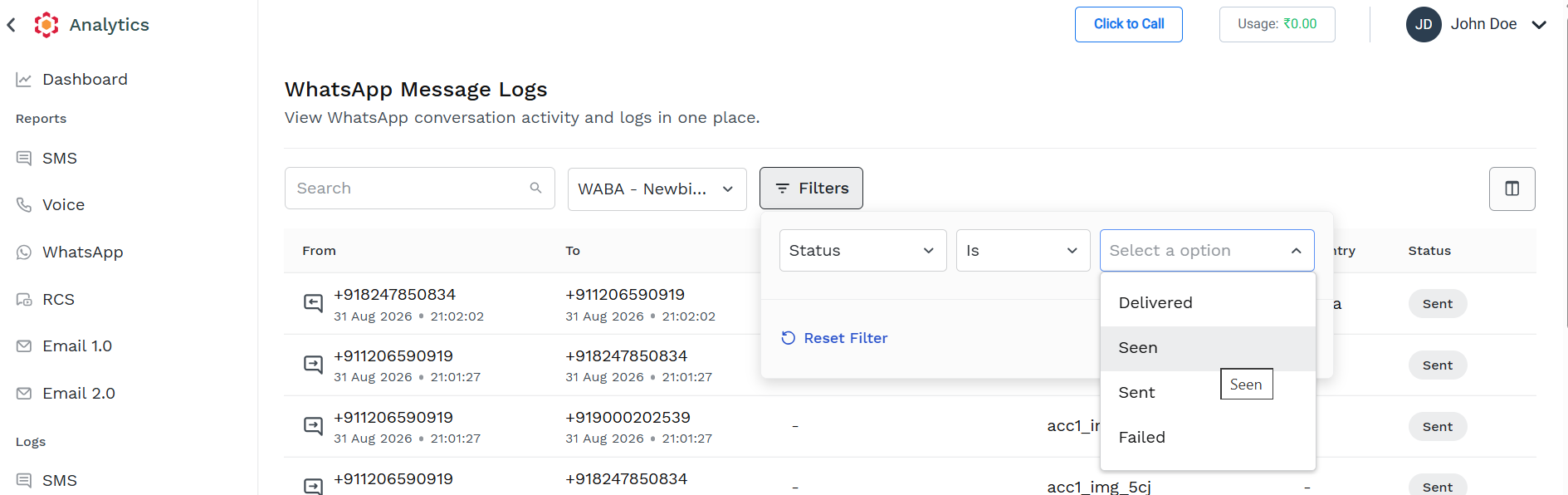
Click Apply.
Based on the selected filter, the filtered result appears. A small number near the Filters button provide how many filter condition are applied.
You can apply more than one condition clicking on Add Filter option in the Filters panel. When more then one filter condition is applied, only Logs matching all the conditions are returned.
To remove any filter, click on Reset Filter in the Filters panel.
Updated 2 months ago