

Email 1.0 Reports
Kaleyra platform allows you to view and download reports on email delivery statuses.
To know more about the supported email 1.0 reports and how to generate them, click the respective card:
There are two types of reports:
- Detailed: You can view the complete list of emails that you have sent from the email accounts configured in the kaleyra.io platform.
- Summary: You can view the summarized view of the emails based on email templates.
Request an email report
To request an email report, perform the following steps:
- Sign in to your Kaleyra platform.
The Business communications page appears.
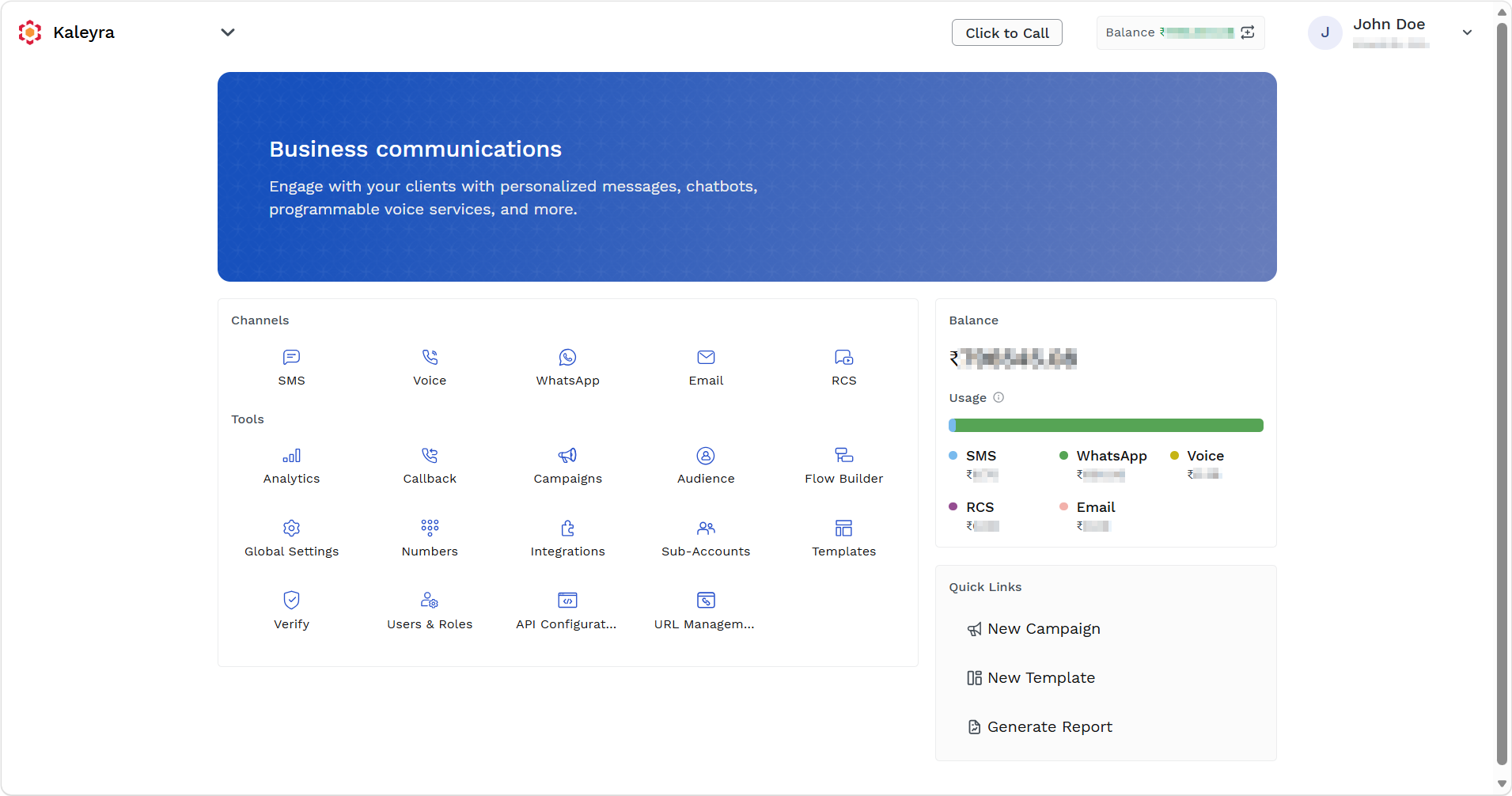
- On the Tools section, click Analytics.
The SMS Dashboard page appears.
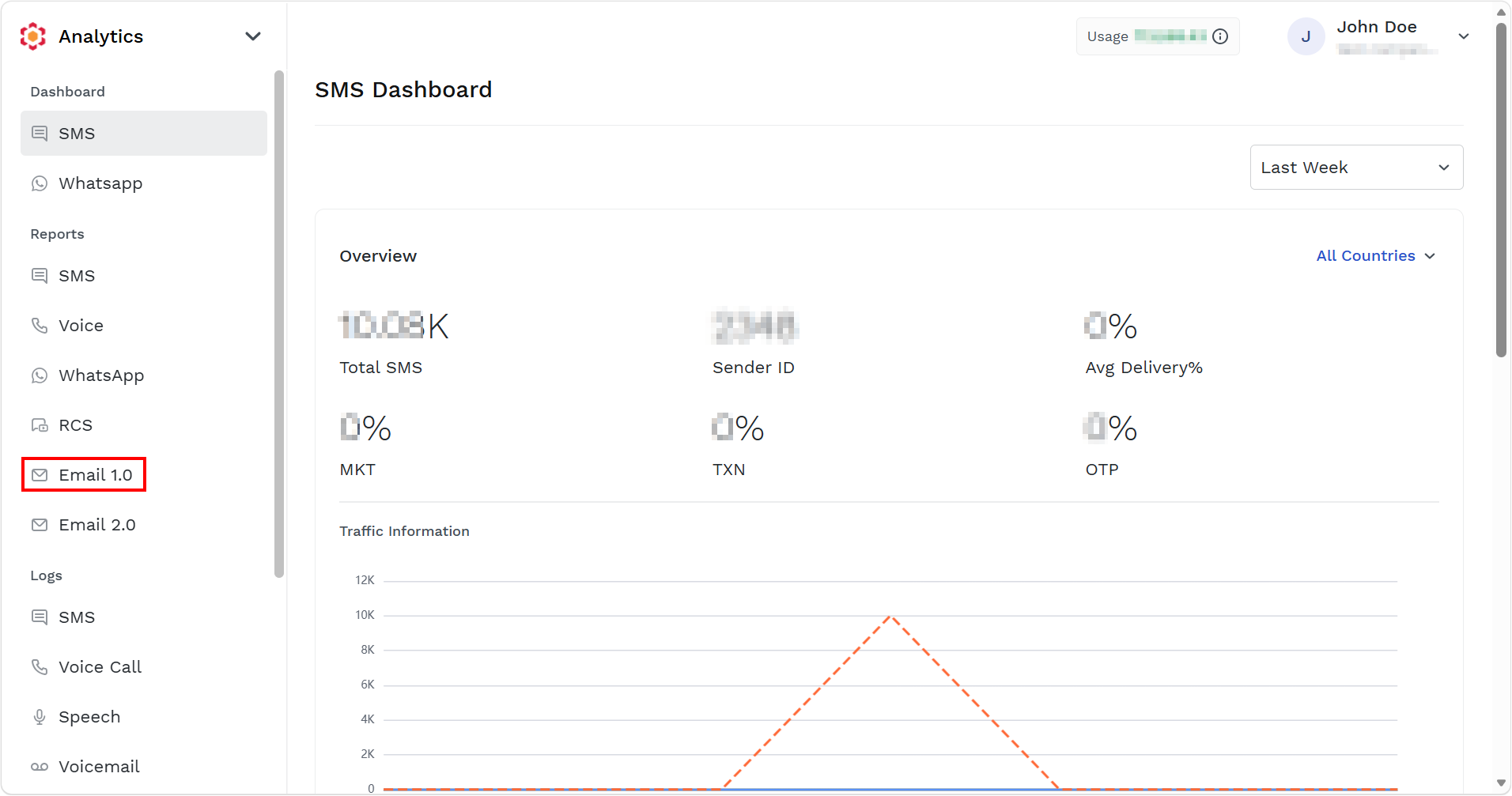
- On the left menu bar, under Reports section, click Email 1.0.
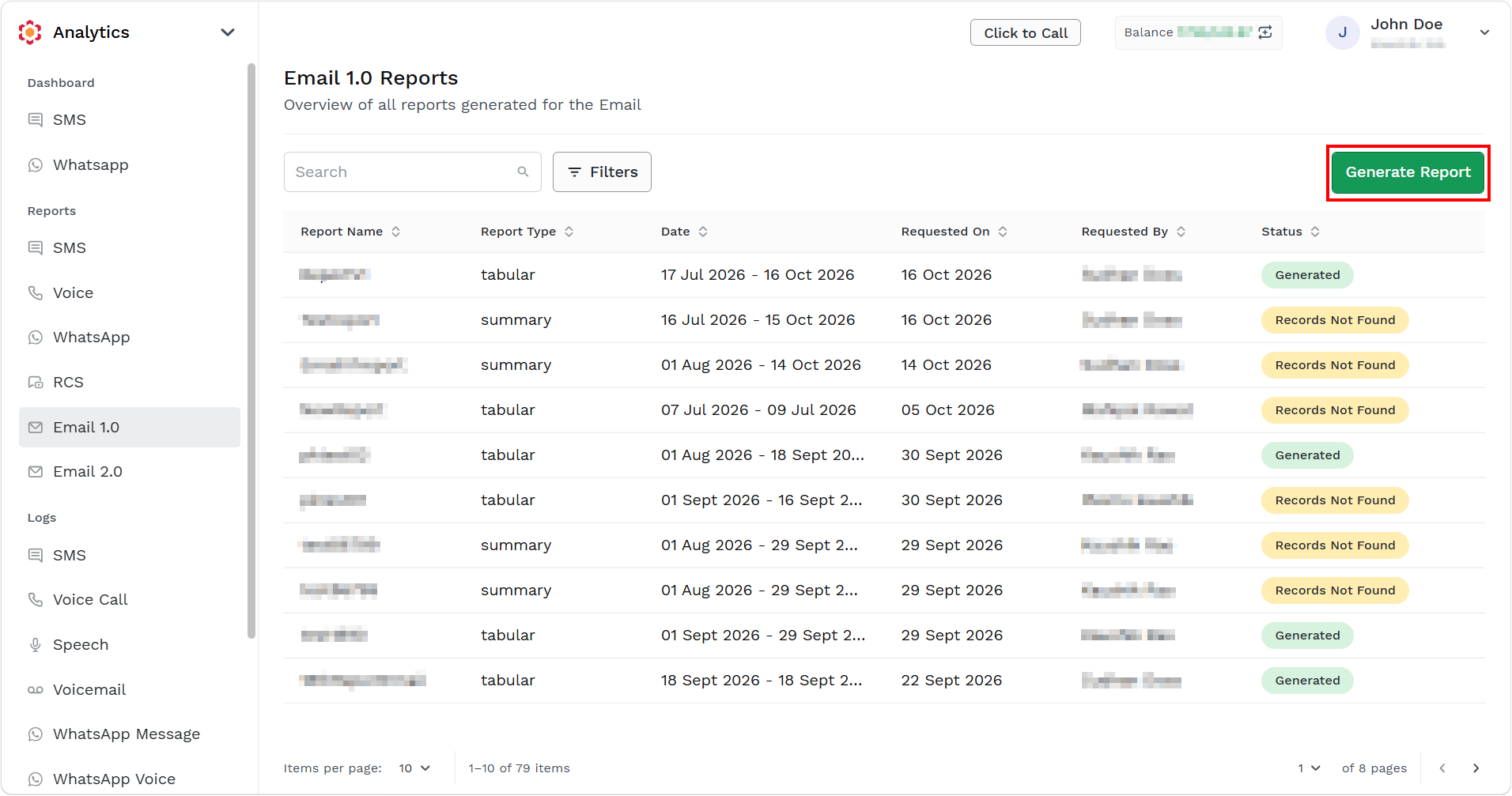
The Voice Reports page appears.
-
Click Generate Report.
The Generate Report page appears.
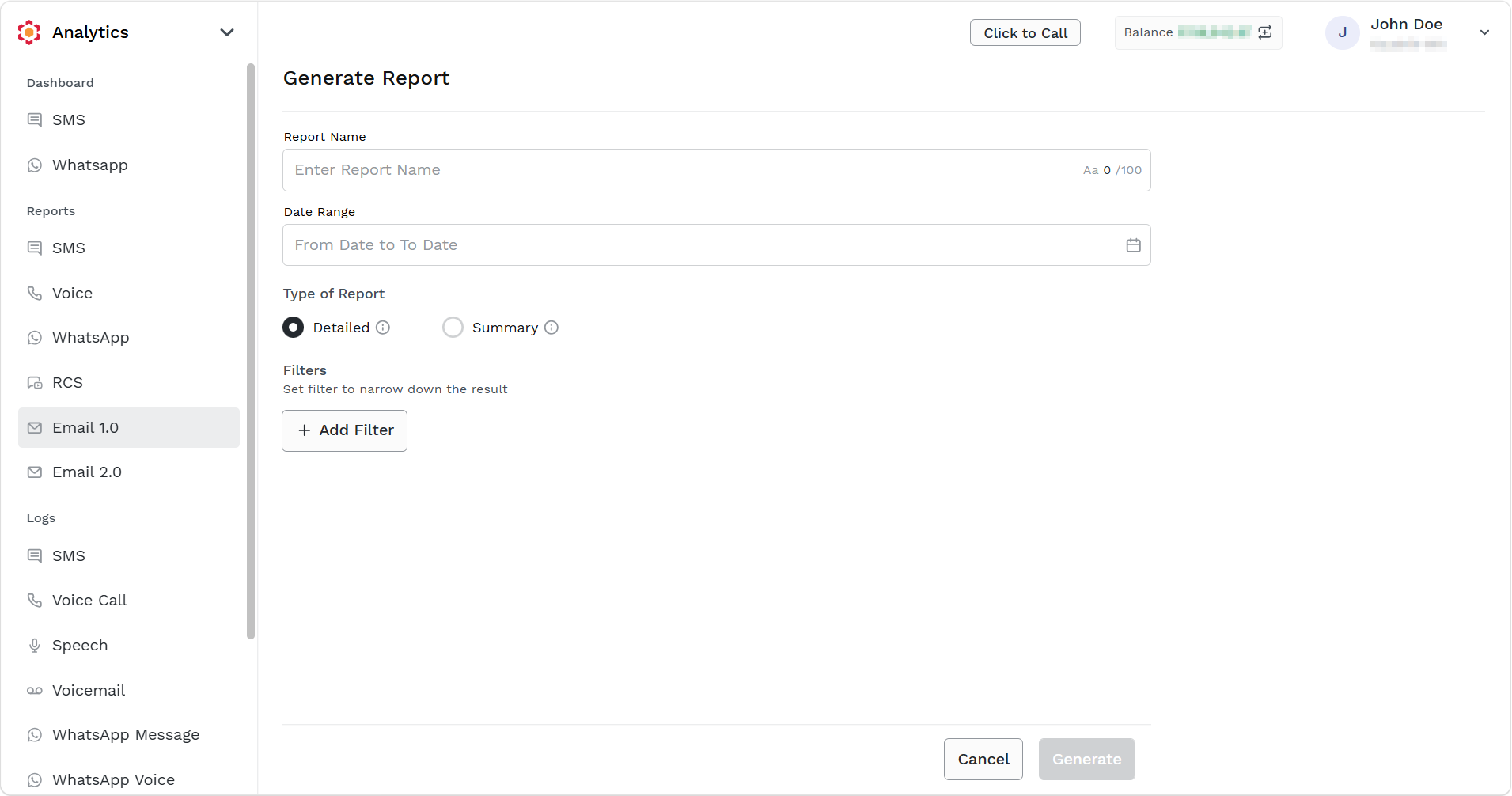
- In the Report Name field, enter a title for the report.
- In the Date Range field, enter the From and To date range for which the report should be generated.
- In the Type of Report, select one of the following:
- Detailed - Generates a report with detailed information about each email sent.
- Summary - Generates a report that shows aggregate information about the emails sent based on templates.
When you select the Summary option, additionally you have to select one of the following options:
- In the Filter section, click + Add Filter.
The Filter fields appear.
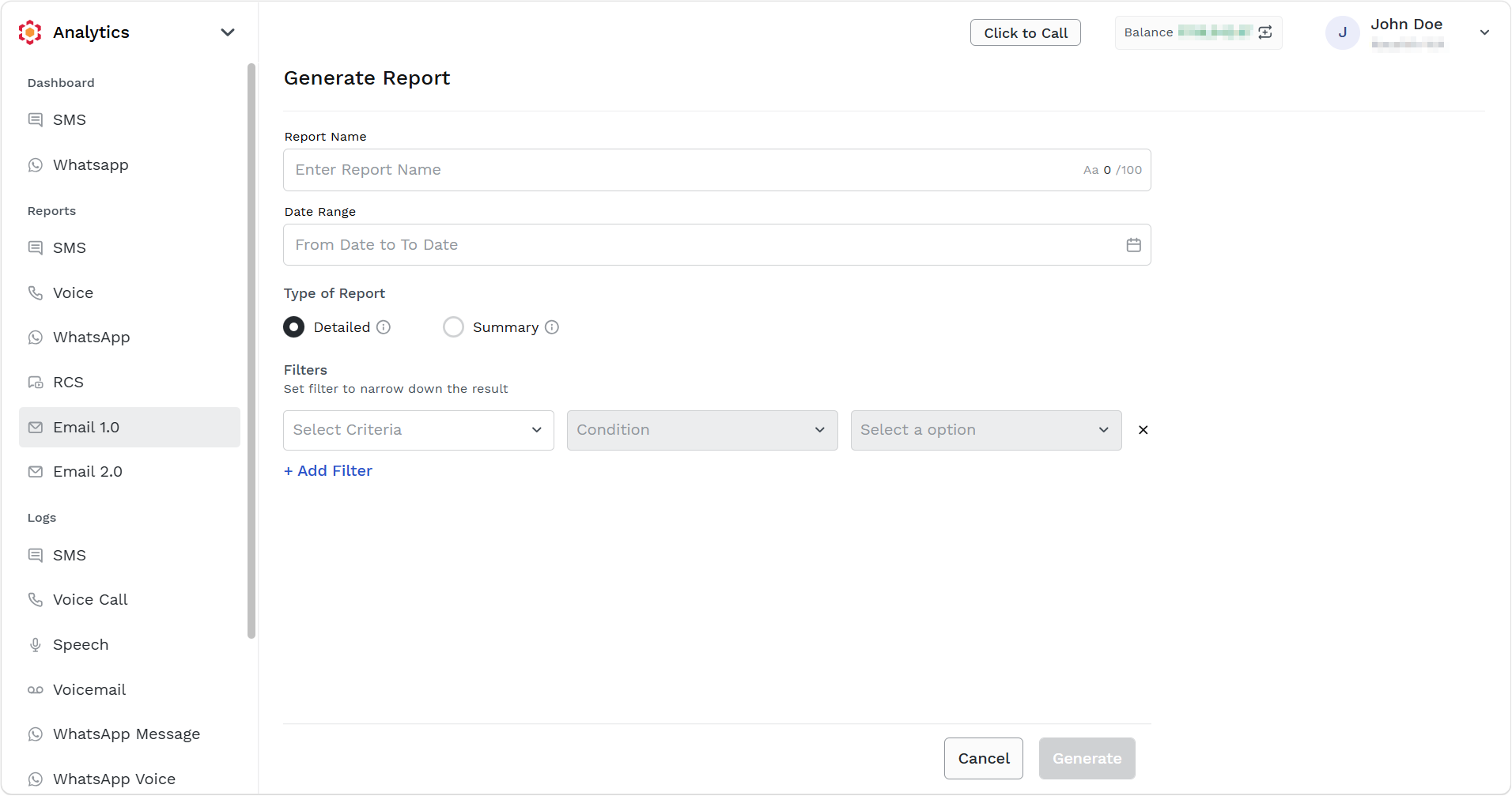
- Click the arrow next to the Select Criteria, the following option appears:
- Status - Select status, from Condition drop-down, select Is and then select one of the following options from Select a option drop-down:
- ACCEPTED
- DELIVERED
- BOUNCE
- FAILED
- DEFERRED
- OPEN
- SUPPRESSED
- EXPIRED
- From Address - Select from address, from Condition drop-down, select Is and then select one of the email addresses.
- Status - Select status, from Condition drop-down, select Is and then select one of the following options from Select a option drop-down:
- Click Generate. The requested report get listed in the report list with status Queued. Once generated, the report will be available in the Report Page for download.
Search, filter, and download email reports
You can search, filter, and download email reports (detailed and summary).
To search, filter, and download Email reports, perform the following steps:
- Follow the steps from 1 to step 3 of Request an Email Report.
The Email Reports page appears.
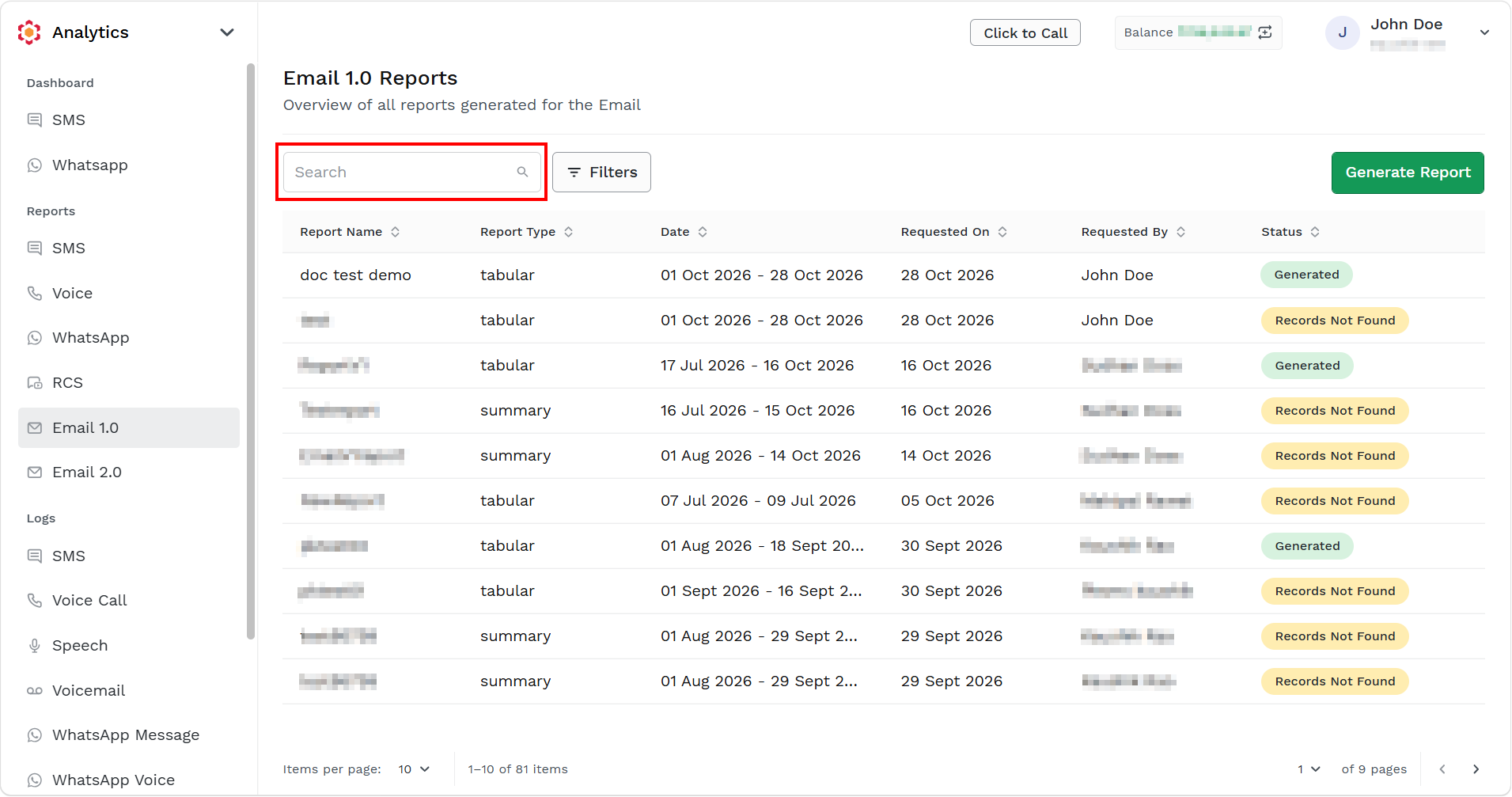
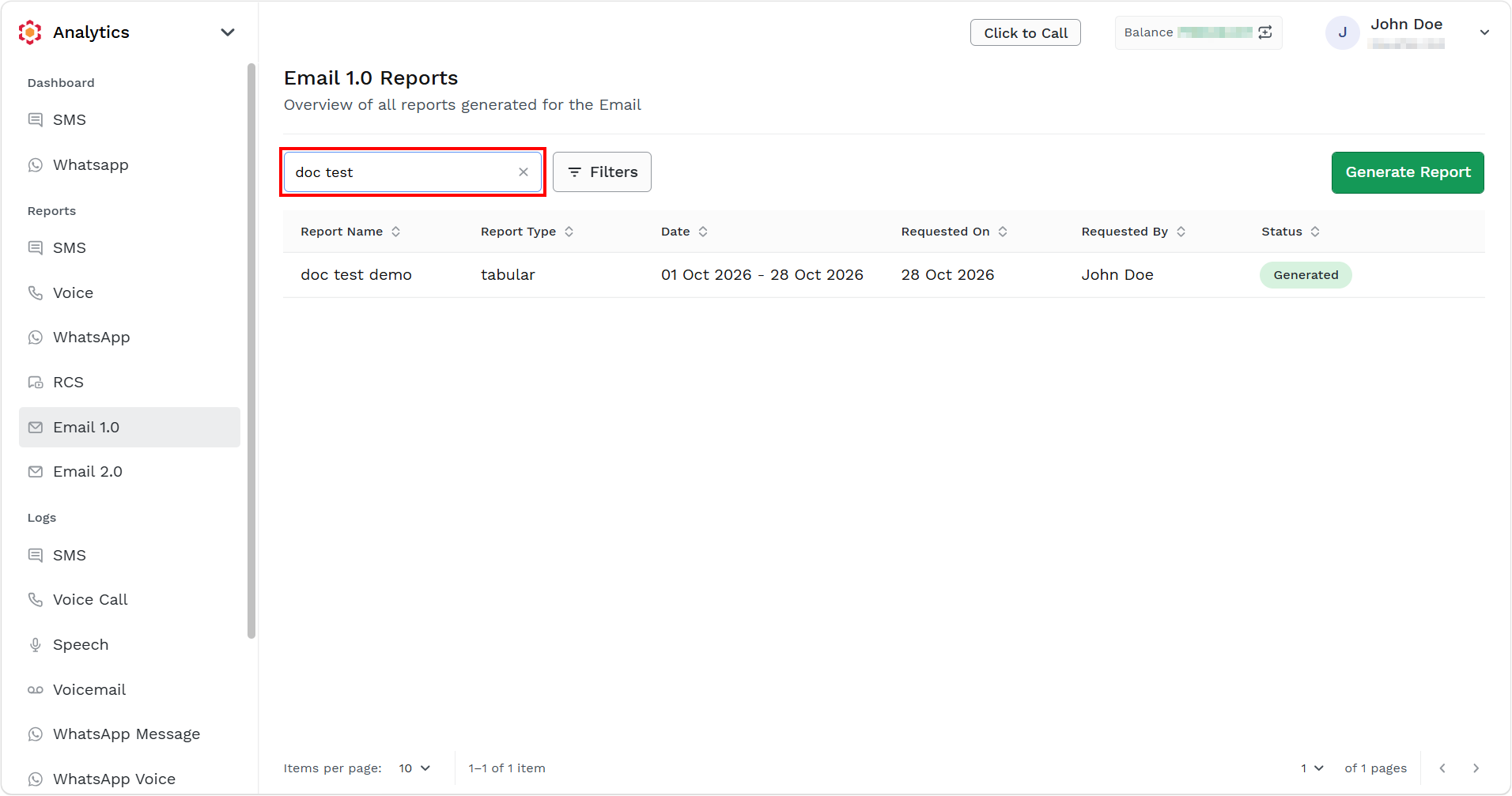
- In the Search on Name field, enter the email report title you want to search for, and then press ENTER.
The reports that match the specified name appear.
- Click Filter to filter the reports with available options.
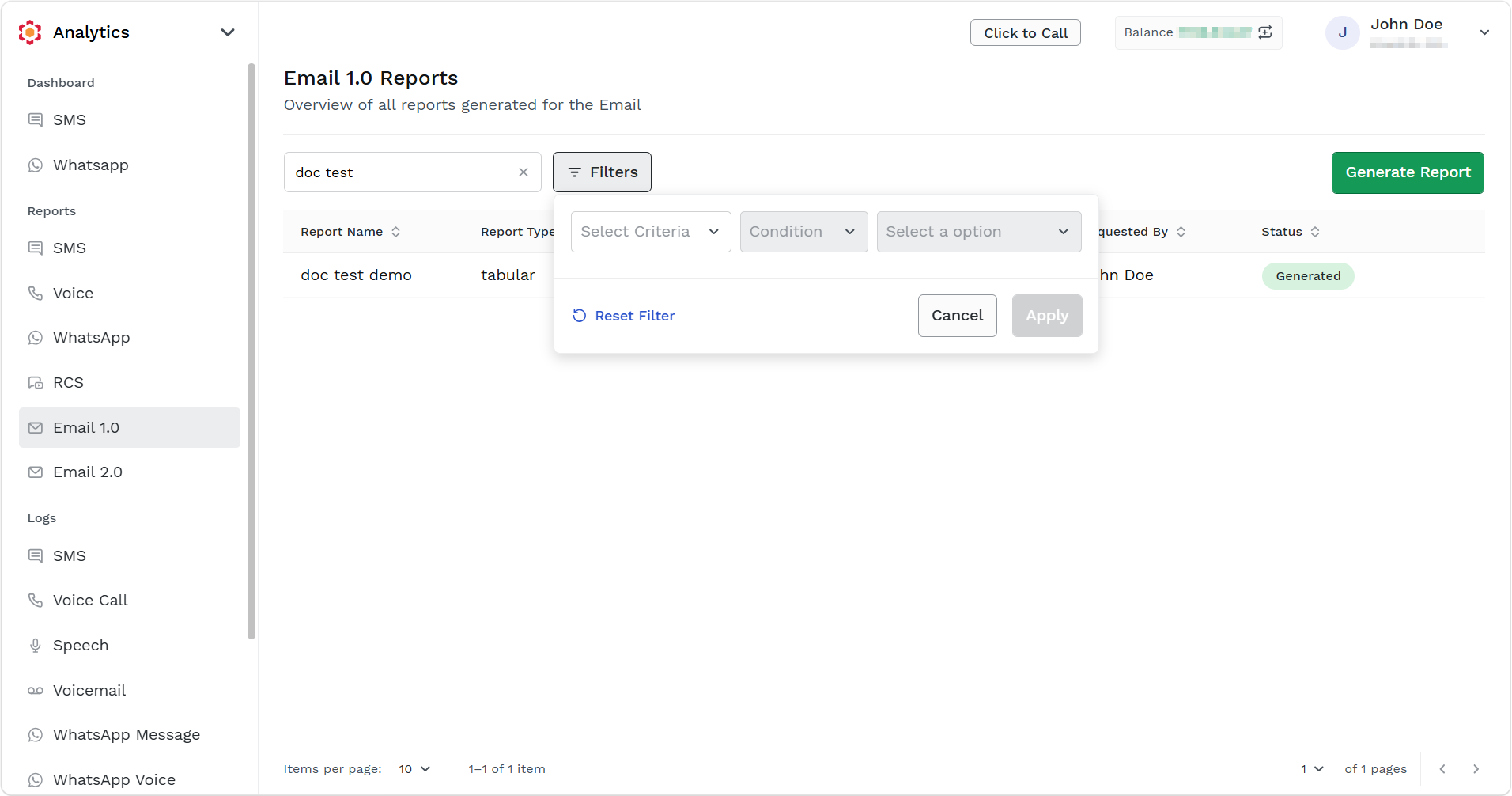
- You can use the following options to filter the reports:
- In the Select criteria field, select a field based on the reports that should be filtered.
- In the Condition field, select the condition from the list.
- In the Select value field, select a value from the list.
A sample screen is shown.
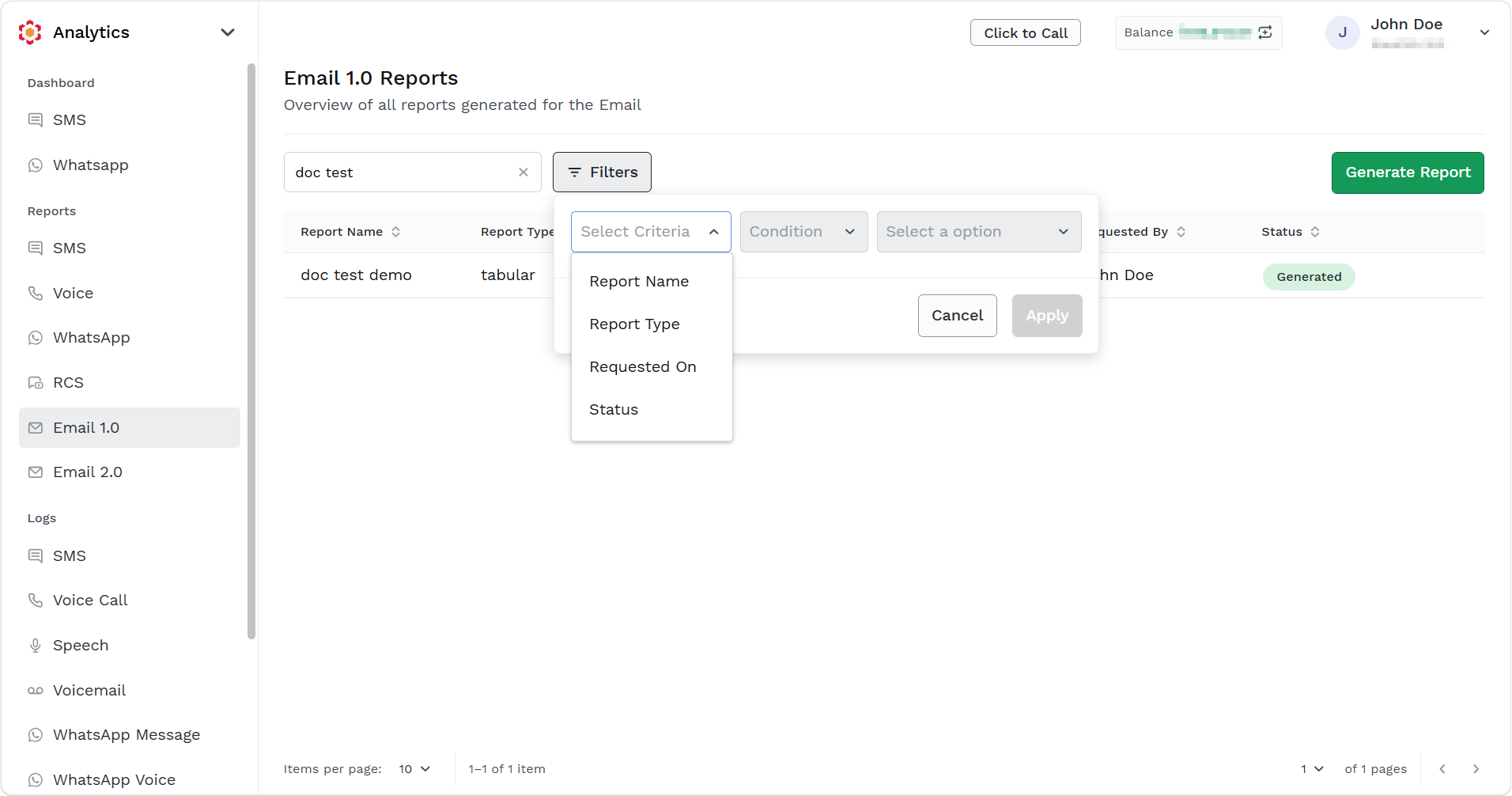
- (Optional) After you add a filter, you can add more filters. To add more conditions, click +Add Filter.
- (Optional) To clear the search conditions, click Reset filter.
- (Optional) To close the Filter window, click Cancel.
Once you locate the report you were searching for, click the ellipsis (three dots) next to the available report to download the report. - Click Apply. Based on the filter the filtered results appear.
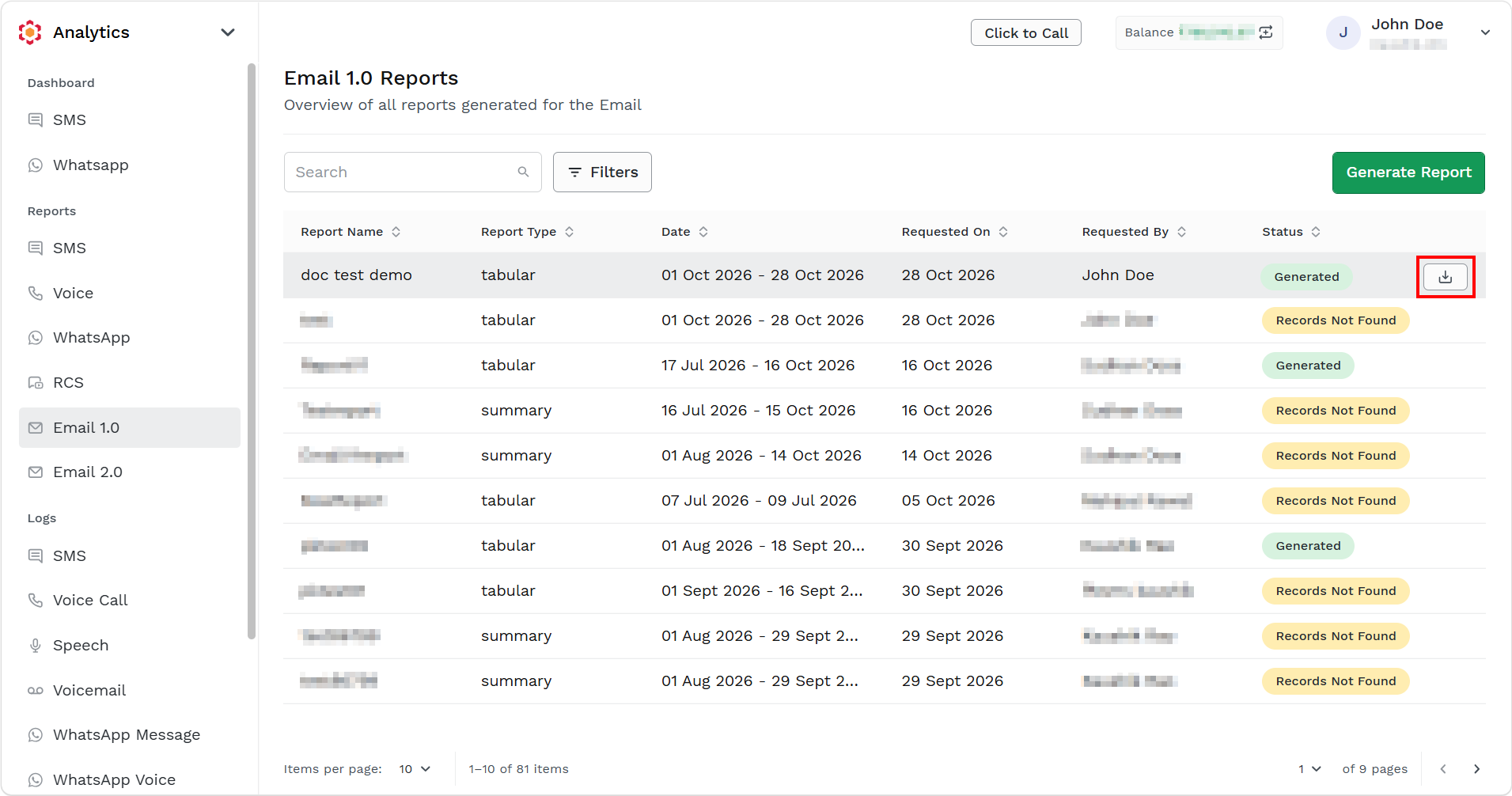
- Hover over the report with status as Generated and click the ellipsis icon. Click the Download button to download the report. The report gets downloaded in the mapped folder in .csv file.
For more information on downloaded reports, see the following links:
Updated 6 days ago
Did this page help you?