

Sound Manager
About the Sound Manager screen
The Sound Manager screen lets you upload a new sound file, search or filter the sound files uploaded, and also play the sound file uploaded. You can also edit the details of an existing sound file, download or delete a sound file.
Adding a new sound file
To add a sound file using the Sound Manager screen:
- Login to your Kaleyra platform.
-
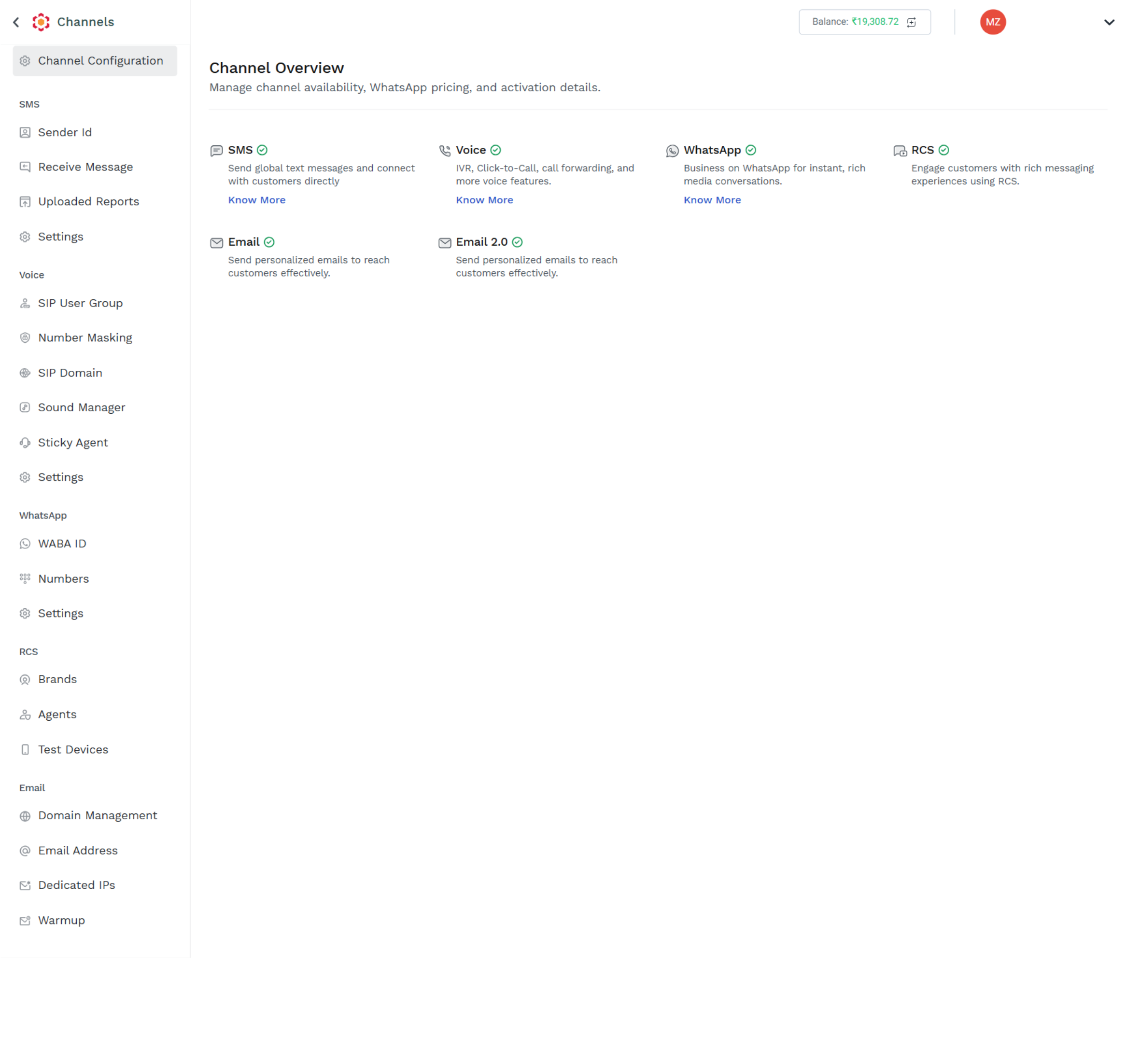
On the left navigate bar, under the Voice channel, click Sound Manager. The Sound Manager page appears.
-
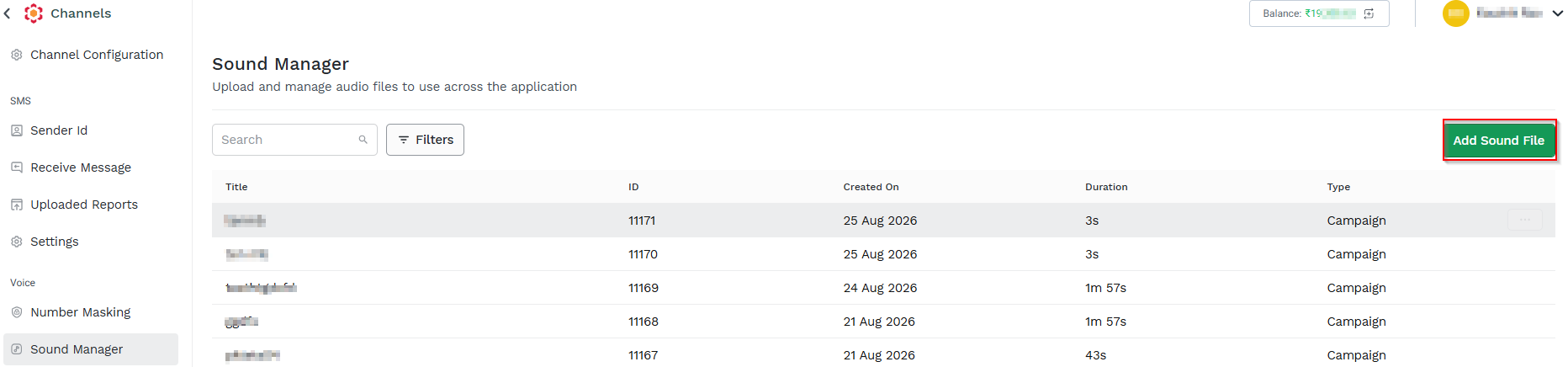
Click Add Sound File. The Add Sound File pop-up appears.
-
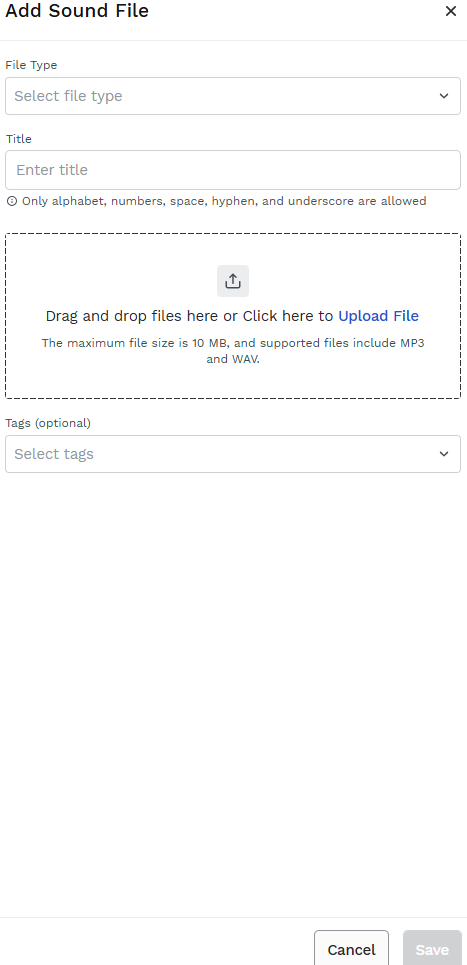
Select the applicable sound file type. The available options are IVR, Campaign, and Ringtone.
-
Enter a title for the sound file.
NoteThe title of the sound file can only include alphabets, numbers, spaces, hyphens, and underscores.
- Upload the required sound file.
- Add relevant tags to identify the file easily.
- Click Save. The sound file is now available on the Sound Manager.
Searching for an existing sound file
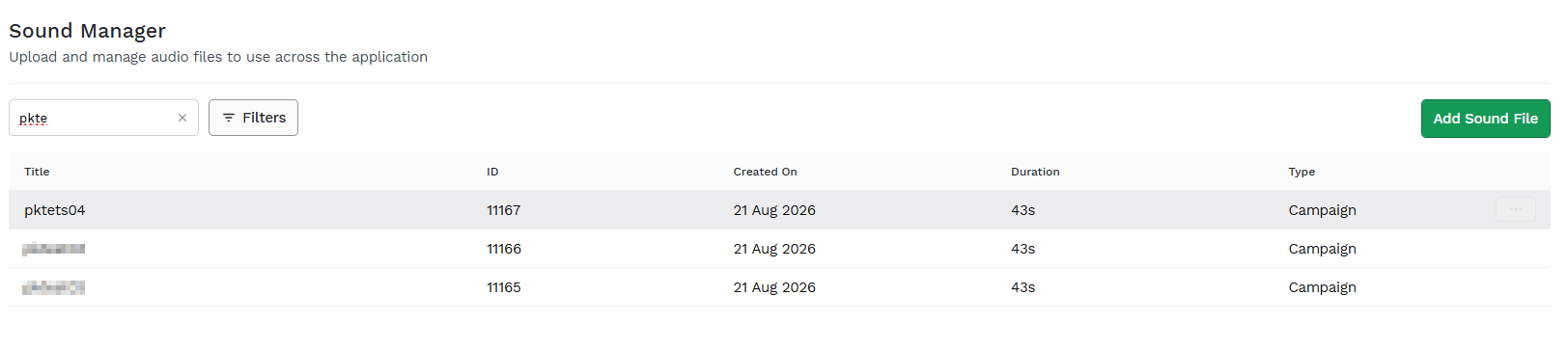
To search for a sound file that you had uploaded, enter the name of the sound file in the Search bar. The results are displayed on the Sound Manager screen.
Filtering the files in Sound Manager
To apply a filter:
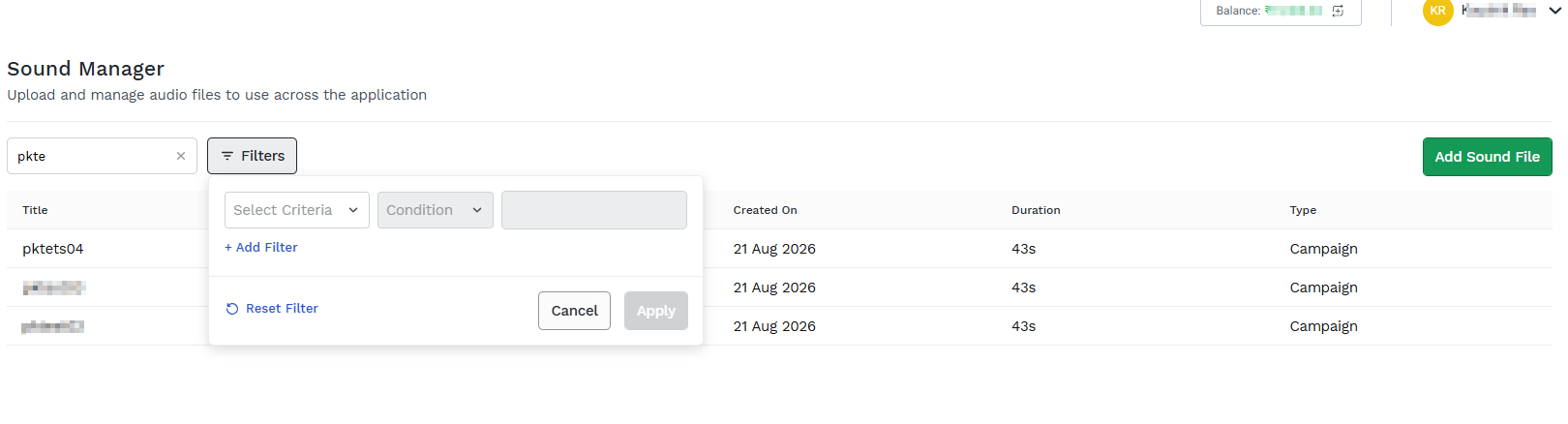
- Click Filter. The Filters pane appears.
-
Click the arrow next to Select Criteria field. The available options are File Type and Tags.
-
Select File Type and on the Condition drop-down click Equals.
-
From the Select a option drop-down. Select anyone of the option and click Apply. The Sound manager screen displays the files based on the filter applied.
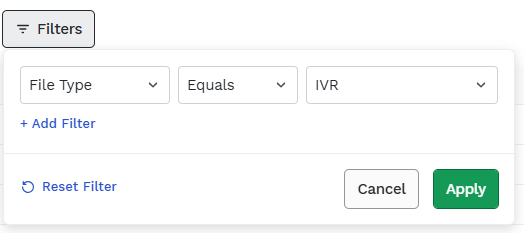
5. Click +Add Filter to add multiple filtering criteria to refine the campaign list.
6. Click Reset Filter to clear all applied filters and resets the campaign list to default view.
Editing the details of an existing sound file
To edit the details of an existing sound file:
- Hover over the extreme right corner of the sound file row that you want to edit and click the ellipsis.
- Click Edit.
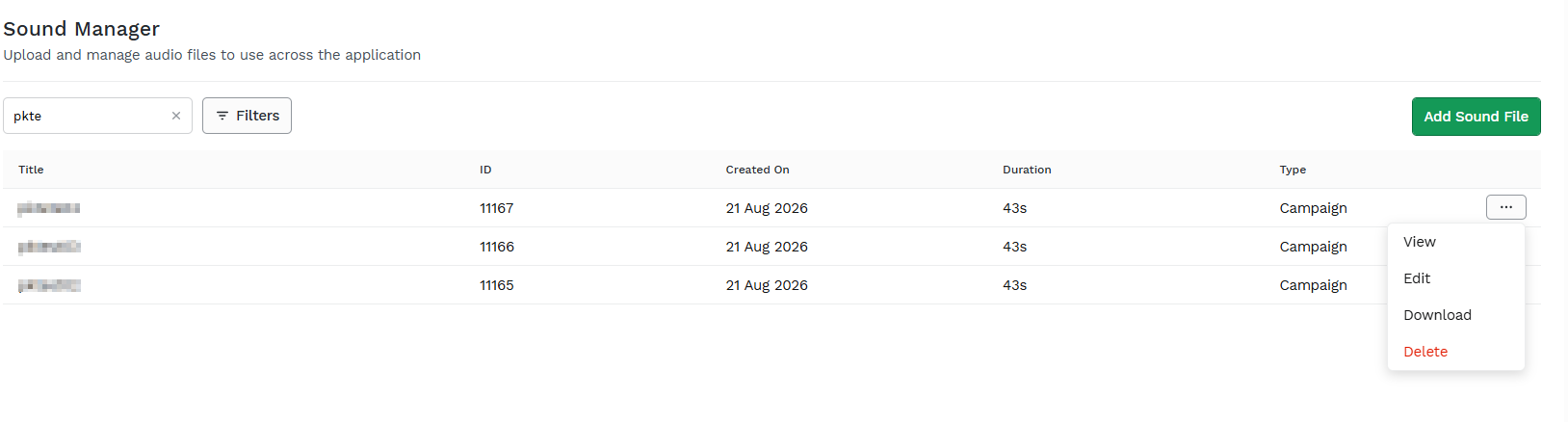
The Edit sound file pop-up appears.
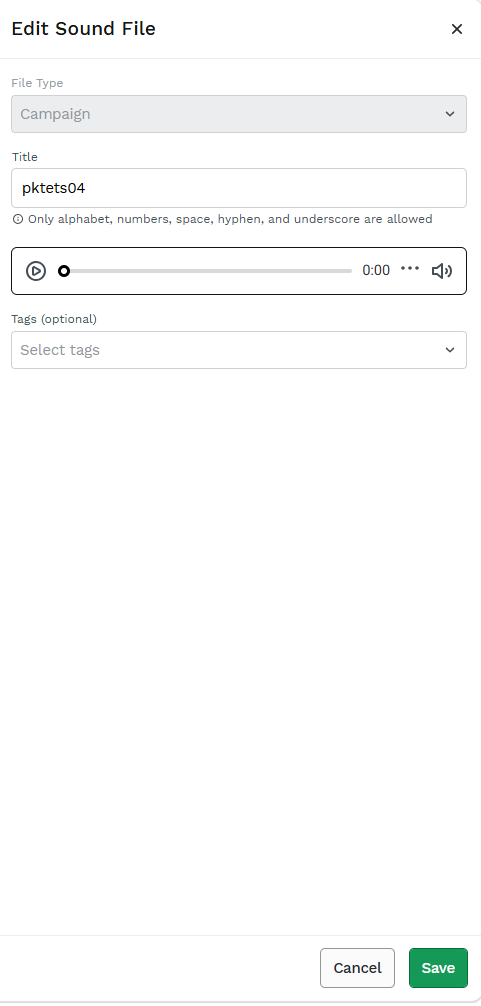
- Edit the Title
- Edit the Tag.
- Click Save. You can view the updated changes on the Sound Manager screen.
Downloading a sound file
To download a sound file:
-
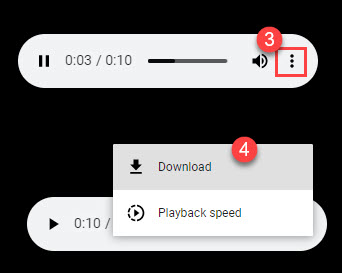
Hover over the extreme right corner of the sound file row that you want to download and click the ellipsis.
-
Click Download.
-
The downloaded sound file will be downloaded to your local folder.
Deleting a sound file
To delete a sound file:
-
Hover over the extreme right corner of the sound file row that you want to delete and click the ellipsis.
-
Click Delete.
A confirmation message "Are you sure you want to delete "pktest02"? appears.
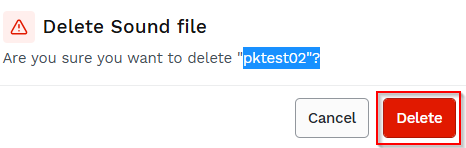
- Click Delete to delete the sound file.
Updated 2 months ago