

Configure Provider for RCS
Kaleyra as an RCS service provider allows you to send RCS campaigns by integrating with CleverTap.
Prerequisite
- You must have an active kaleyra.io account to use the Kaleyra RCS plugin on the CleverTap platform.
- To register a new account on kaleyra.io, you can contact our Support team.
- You must obtain the HTTP Endpoint where to send API request for RCS messages from our Support team.
To configure the provider, perform the following steps:
- Sign in to your CleverTap account.
The CleverTap home page appears.
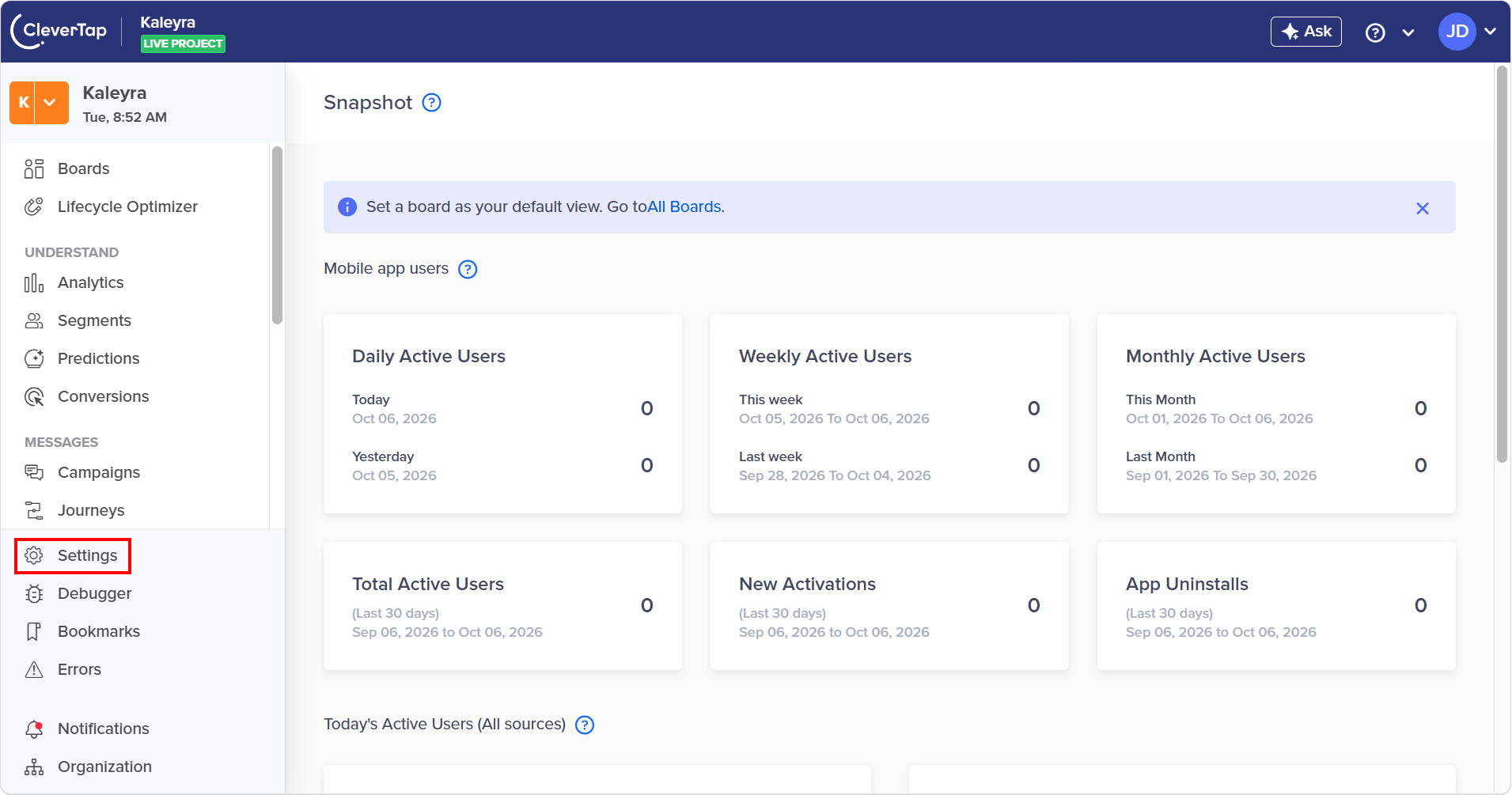
- On the left menu bar, click Settings.
The Settings page appears.
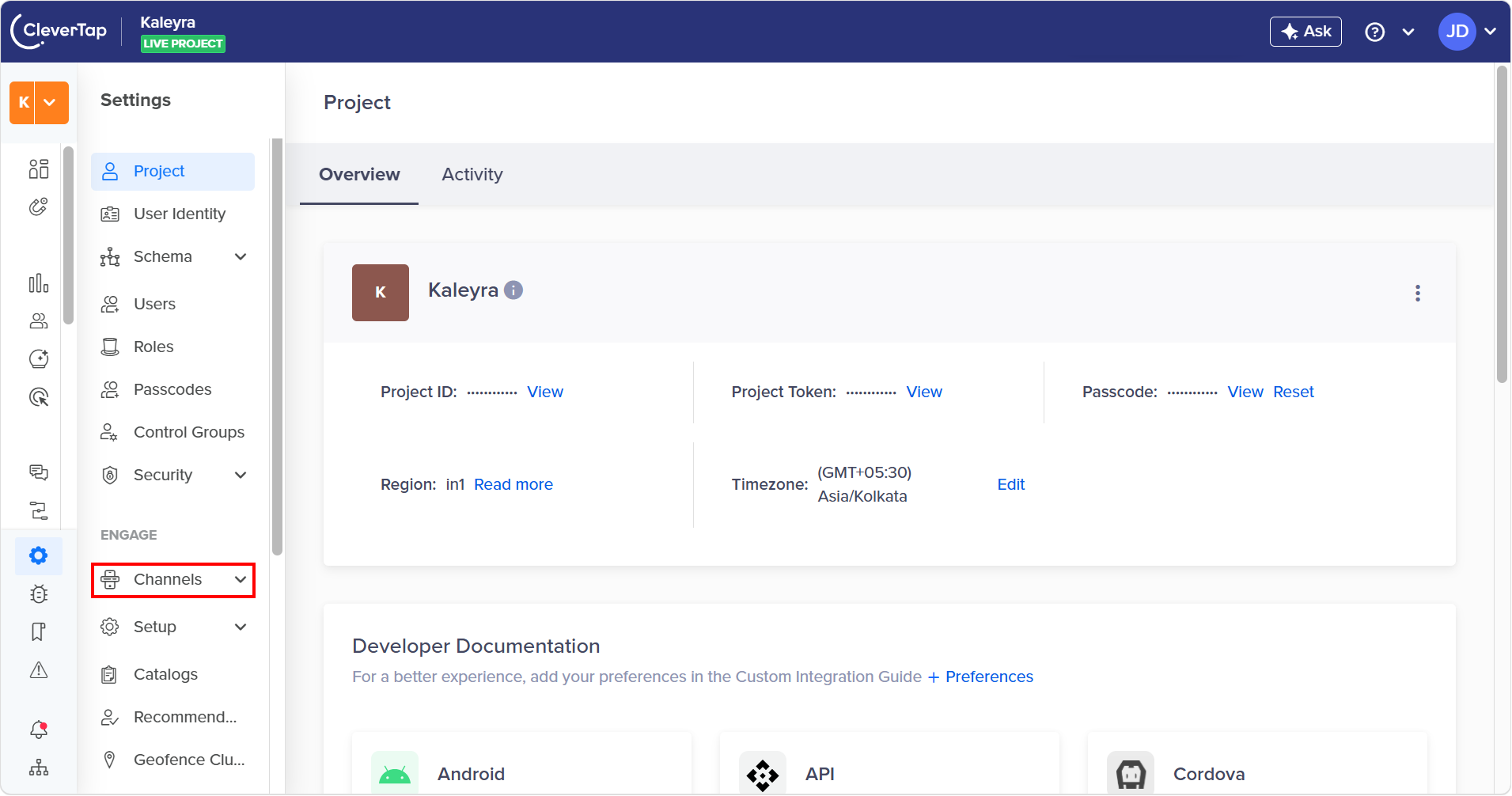
- From the ENGAGE section, click Channels.
The available channels appear.
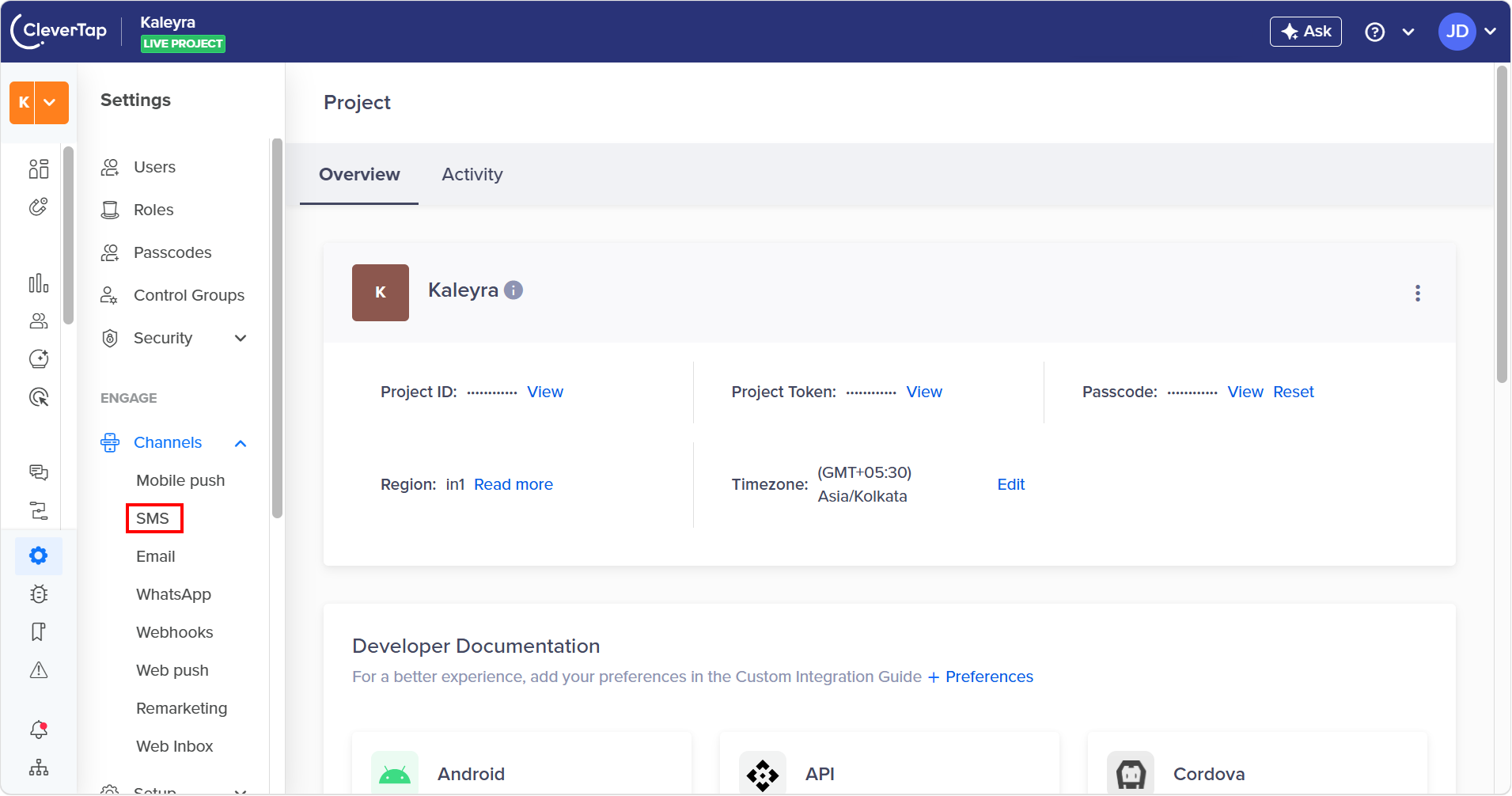
- Click SMS.
The Channel / SMS page appears.
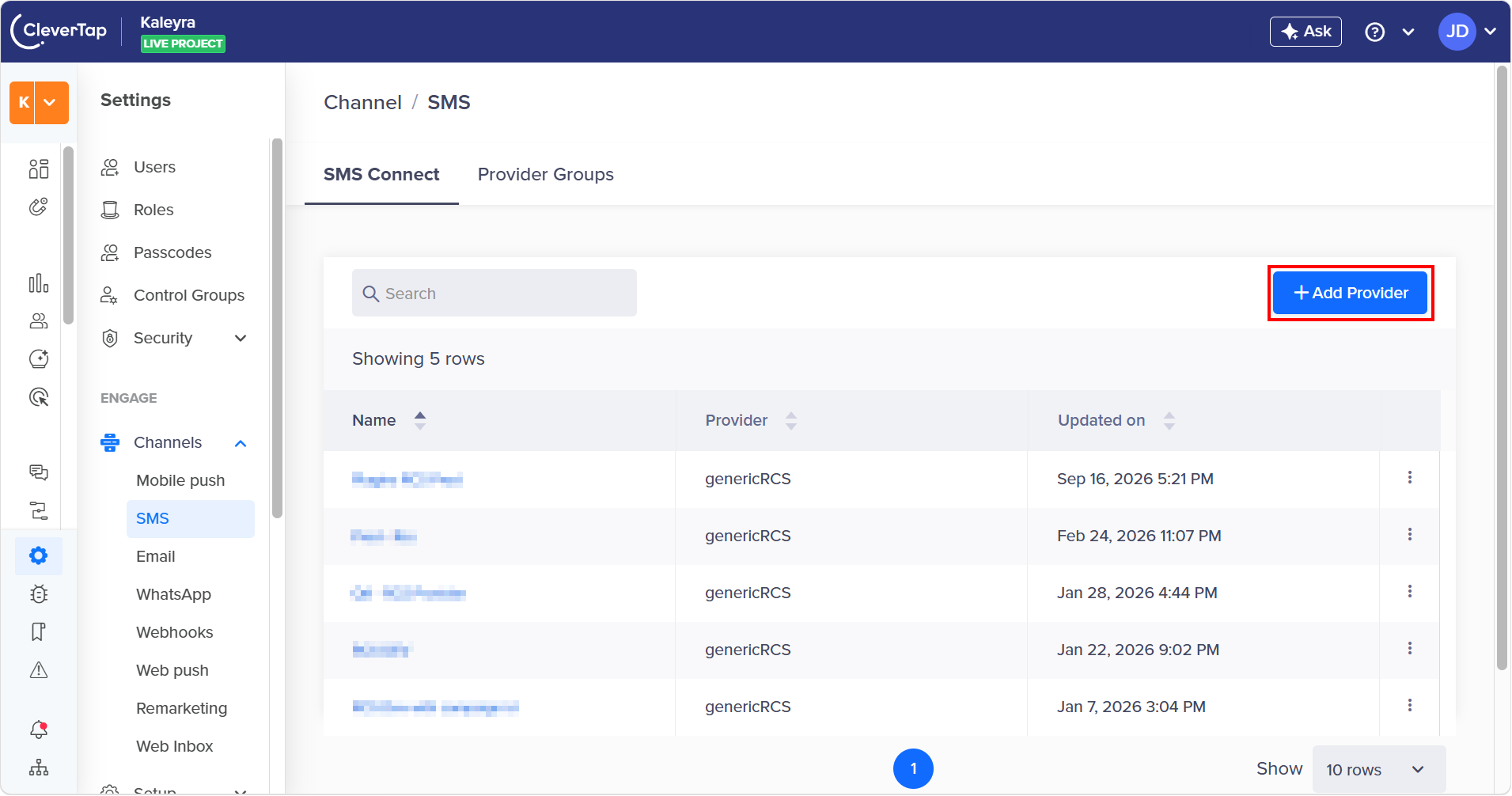
- In the SMS Connect tab, on the right side of the page click + Add Provider.
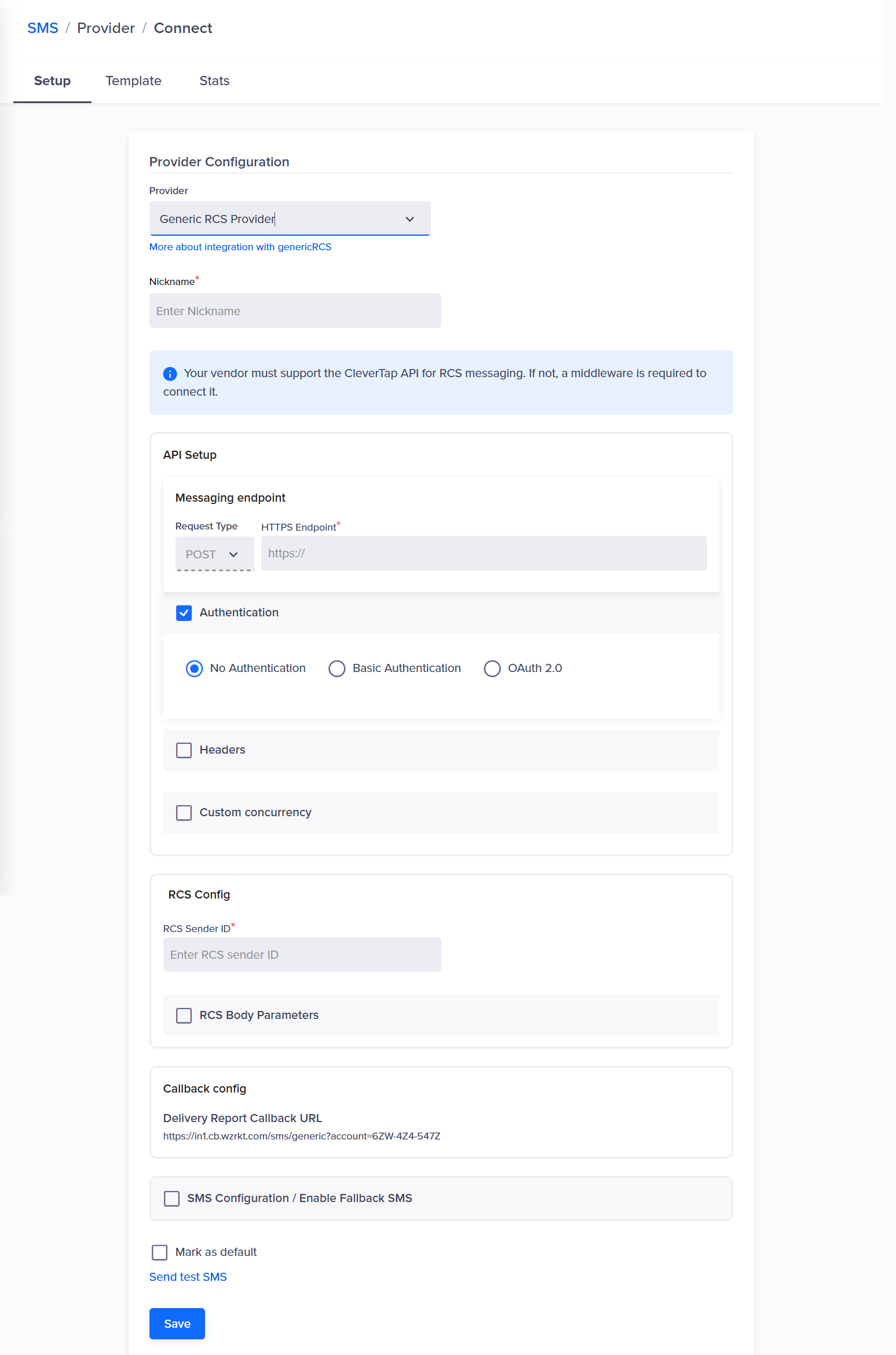
The Provider Configuration appears.
-
Perform the following steps:
-
Click the arrow in the Provider drop-down field and the list of supported providers appears. Select the Generic RCS Provider option.
-
In the Nickname field, provide any name to identify the provider. For example, Kaleyra RCS.
-
Click the arrow in the Request Type drop-down field and the list of supported methods appears. Select the POST method.
-
In the HTTP Endpoint field, enter the CleverTap endpoint URL provided by the Kaleyra Support team. This is the provider's API URL where CleverTap sends RCS messages.
-
(Default) The Authentication is enabled with No Authentication option. No authentication allows you to send the API request without any credentials.
-
(Optional) To enable custom HTTP headers, select the Headers checkbox. It is used when you need specific headers in API requests.
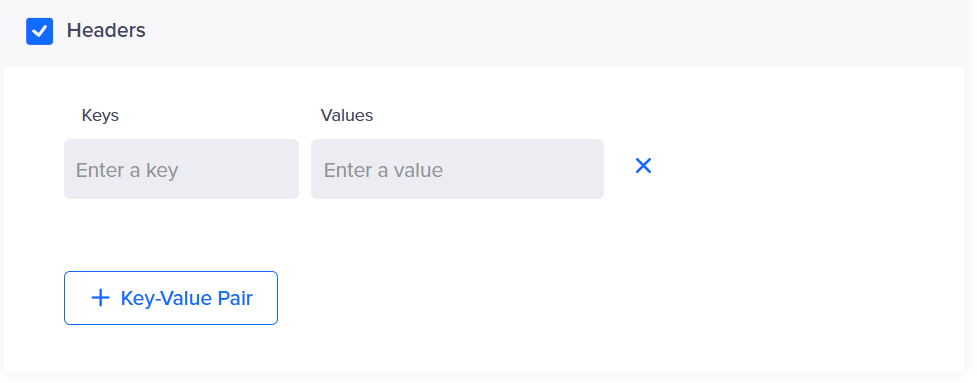
After you enable the Headers checkbox, the + Key-Value Pair button appears. Click to enter the keys and their corresponding values for headers. You can multiple Key-Value Pairs. You can enter the key-value pair for "api-key", "sid", and "kaleyra-host".
-
In the RCS Config field, enter the RCS sender ID registered with Kaleyra as RCS service provider. The sender ID for RCS is the Service Code that is provided by Kaleyra support team.
-
(Default) The Callback config for delivery reports gets set automatically. It helps you to get the delivery status updates. For example, Sent, Delivered, Failed, or Read Statuses.
-
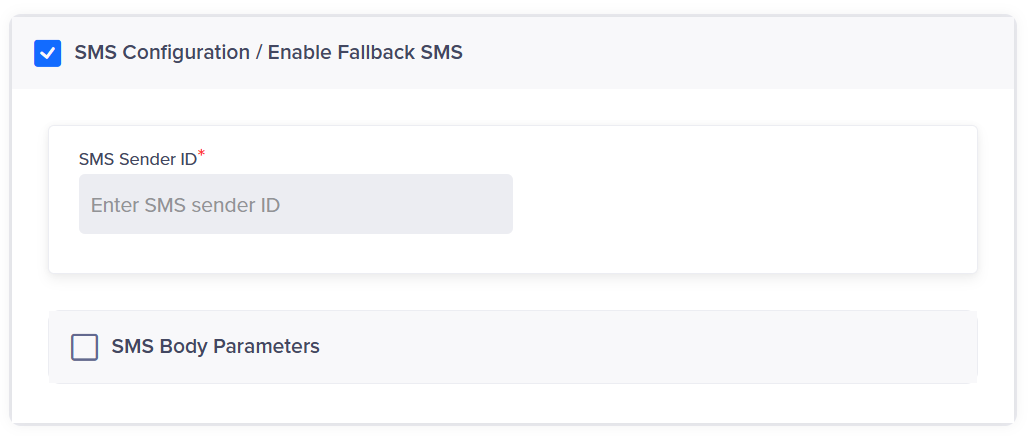
After you enable SMS Configuration Enable Fallback SMS, in the SMS Sender ID field, enter the SMS sender ID.
-
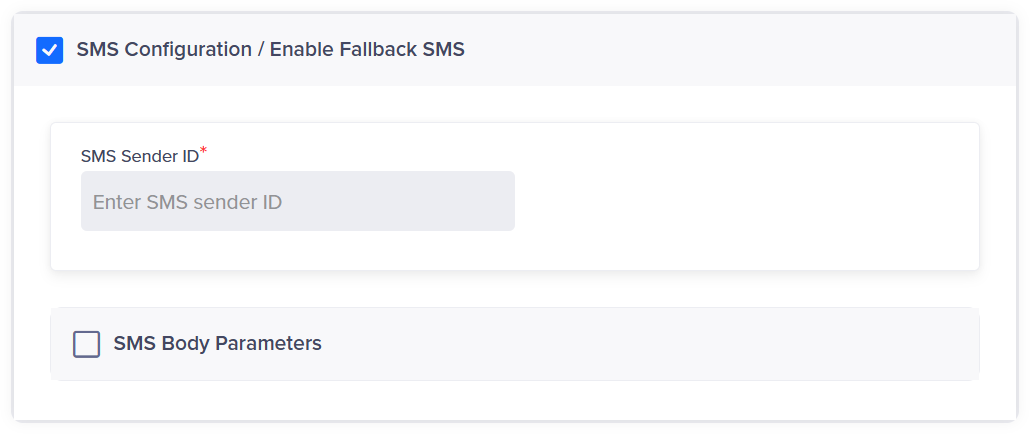
To add SMS body parameters, select the SMS Body Parameters check box.
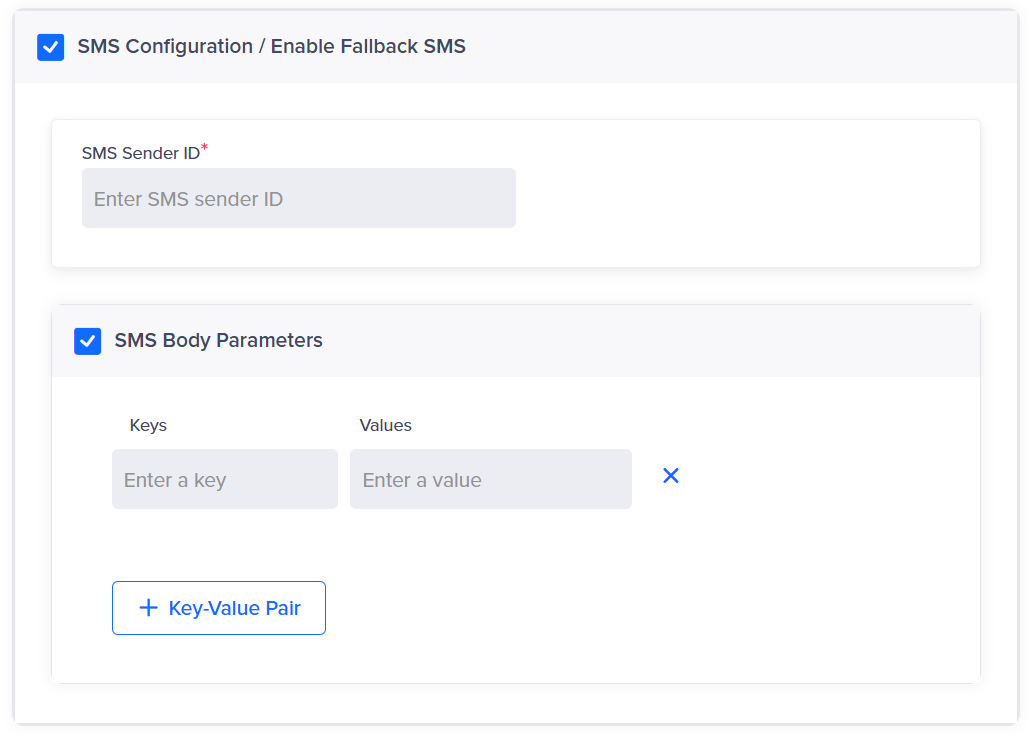
After you enable the SMS Body Parameters checkbox, the + Key-Value Pair button appears. Click to enter the keys and their corresponding values for SMS body. You can multiple Key-Value Pair.
-
-
(Optional) To set this provider as default, select the Mark as Default check box. All RCS campaigns use this provider unless a different provider is explicitly selected.
-
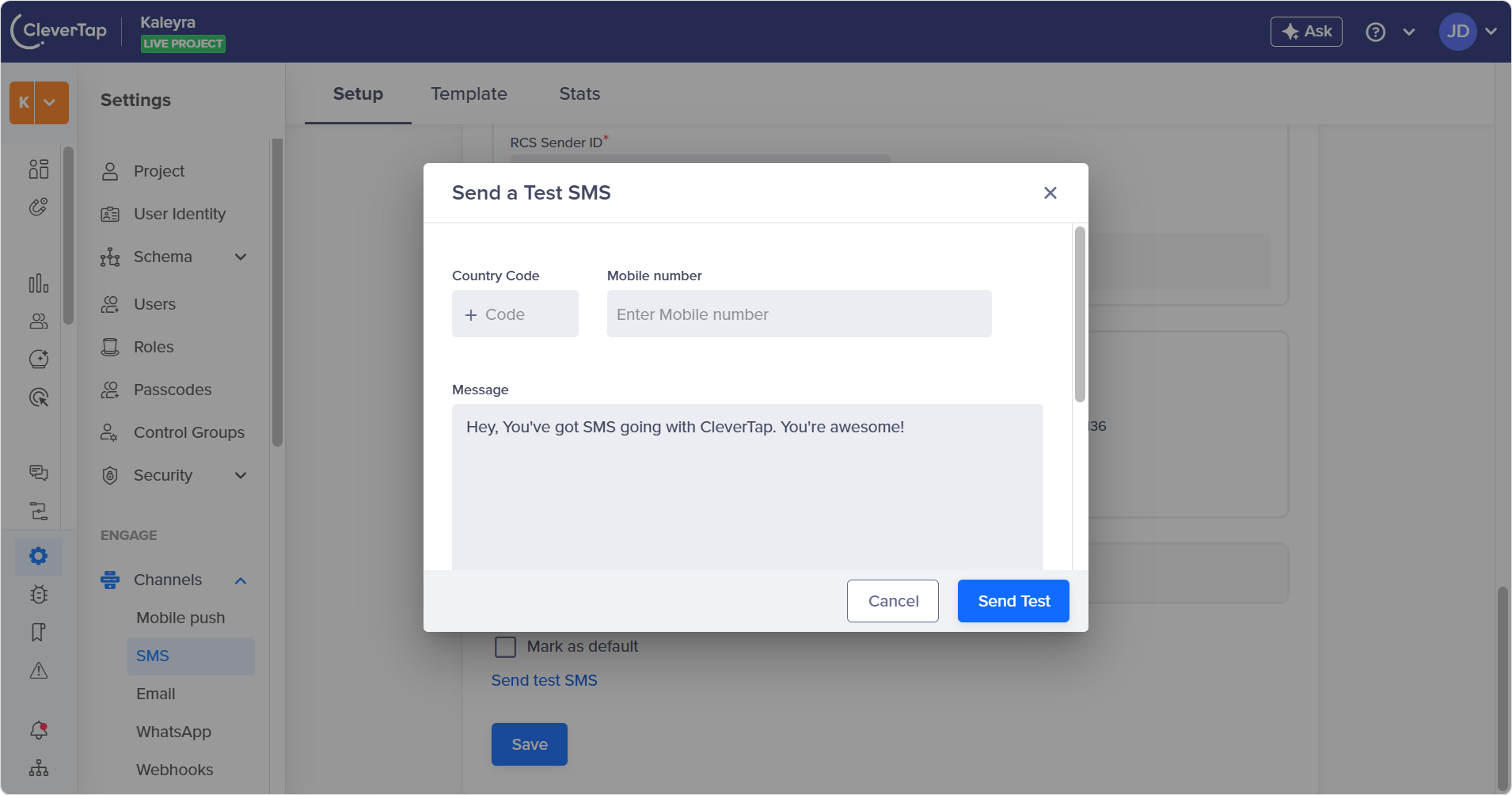
(Optional) Before saving the configuration of the new RCS provider, you can test the configured RCS setting, click Send test SMS link within the configuration panel.
-
In the Send a Test SMS pop-up, perform the following steps:
- In the Country Code field, enter the required country code. For example +91.
- In the Mobile number field, enter the number to which you need to get a sample message.
- (Default) In the Message field, the default message is set. To change the sample message, click and type the body of the message. You can add a rich message to test the RCS capabilities. Ensure that recipient device is RCS-enabled.
-
Click Send Test.
The confirmation message appears.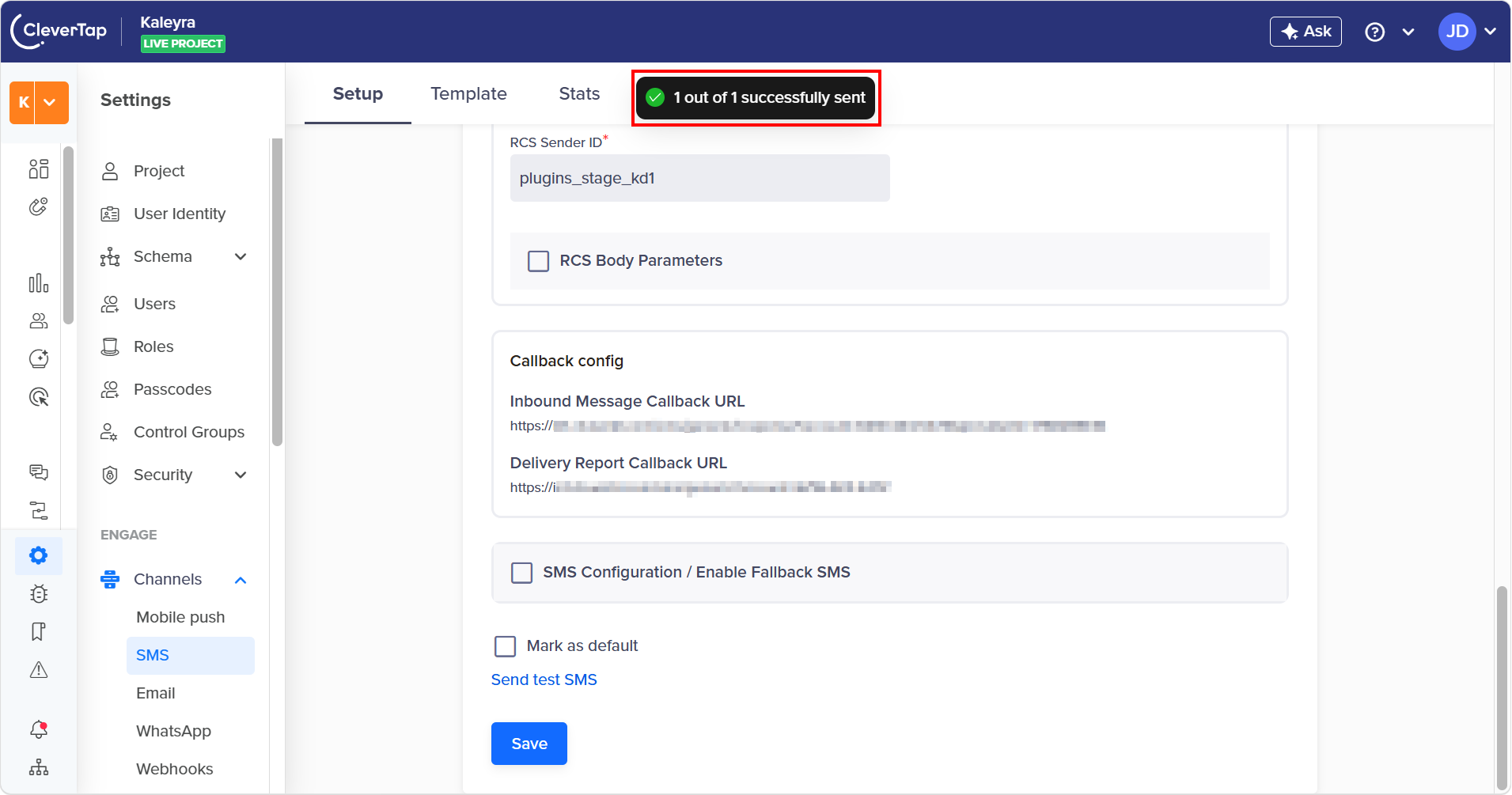
-
-
Click Save.
The confirmation message appears.
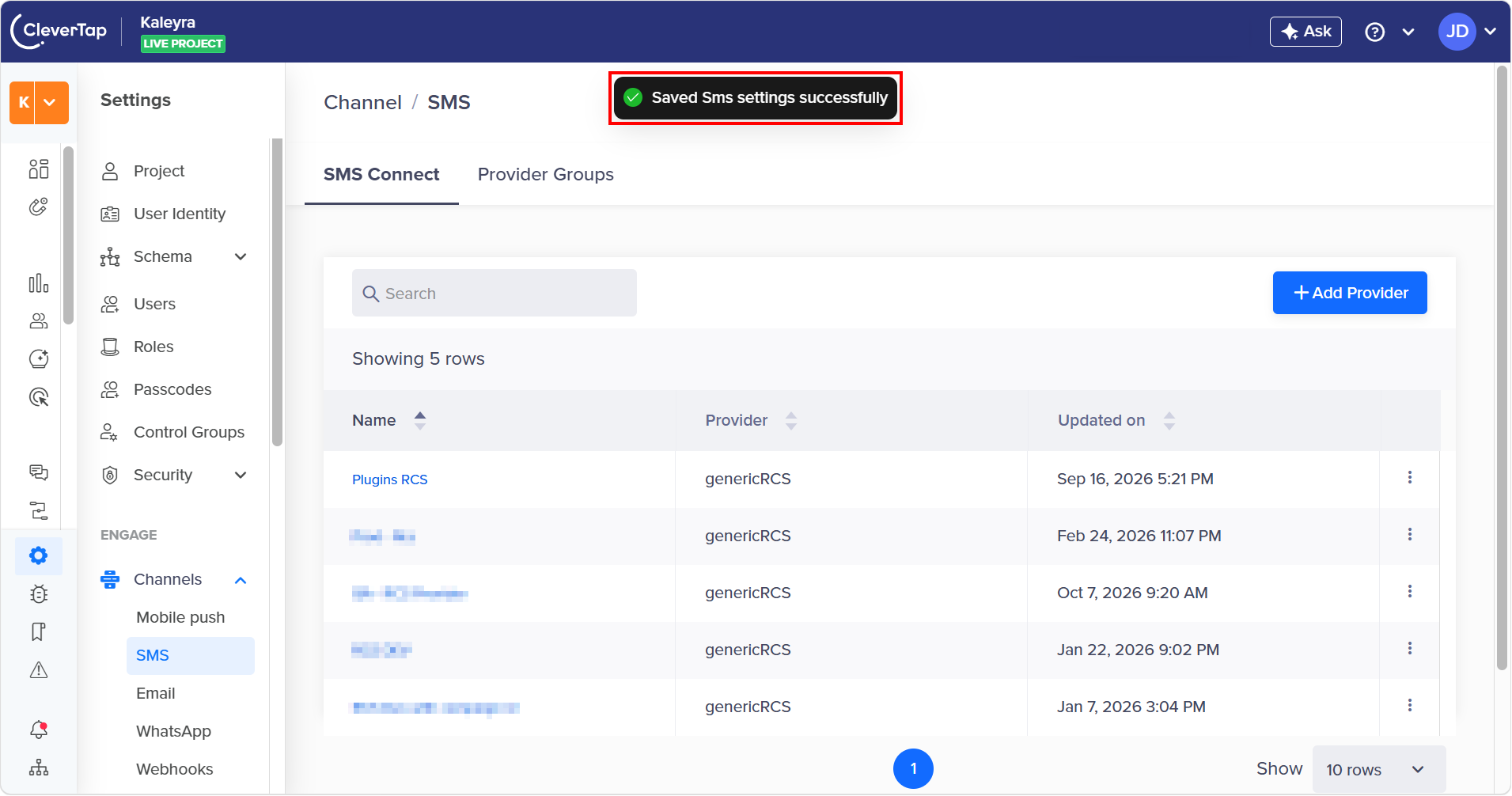
Your RCS provider configuration is completed and ready to be used in Campaigns
Updated about 5 hours ago