

WhatsApp Analytics Dashboard
The Dashboard page provides a consolidated view of WhatsApp messaging performance. It helps users track message volume, delivery success, engagement, conversions, and template effectiveness in a single place.
All dashboard widgets are filtered using the following options:
- Time interval - Based on data for a set of predefined time range, e.g. This Week, This Month, or Last 3 Months and custom one
- WABA ID - If you have multiple WABA IDs, you can filter based on a WABA ID.
- Template name - If you have multiple templates, you can filter based on template.
Notes:
- Template name filtering does not apply to the Template Performance table.
- Template name filtering is only available for data generated from July 2026. Data related to WhatsApp messages sent before July 2026 cannot be filtered by template name.
To view WhatsApp Analytics Dashboard, perform the following steps:
- Sign in to your Kaleyra platform.
The Business communications page appears.
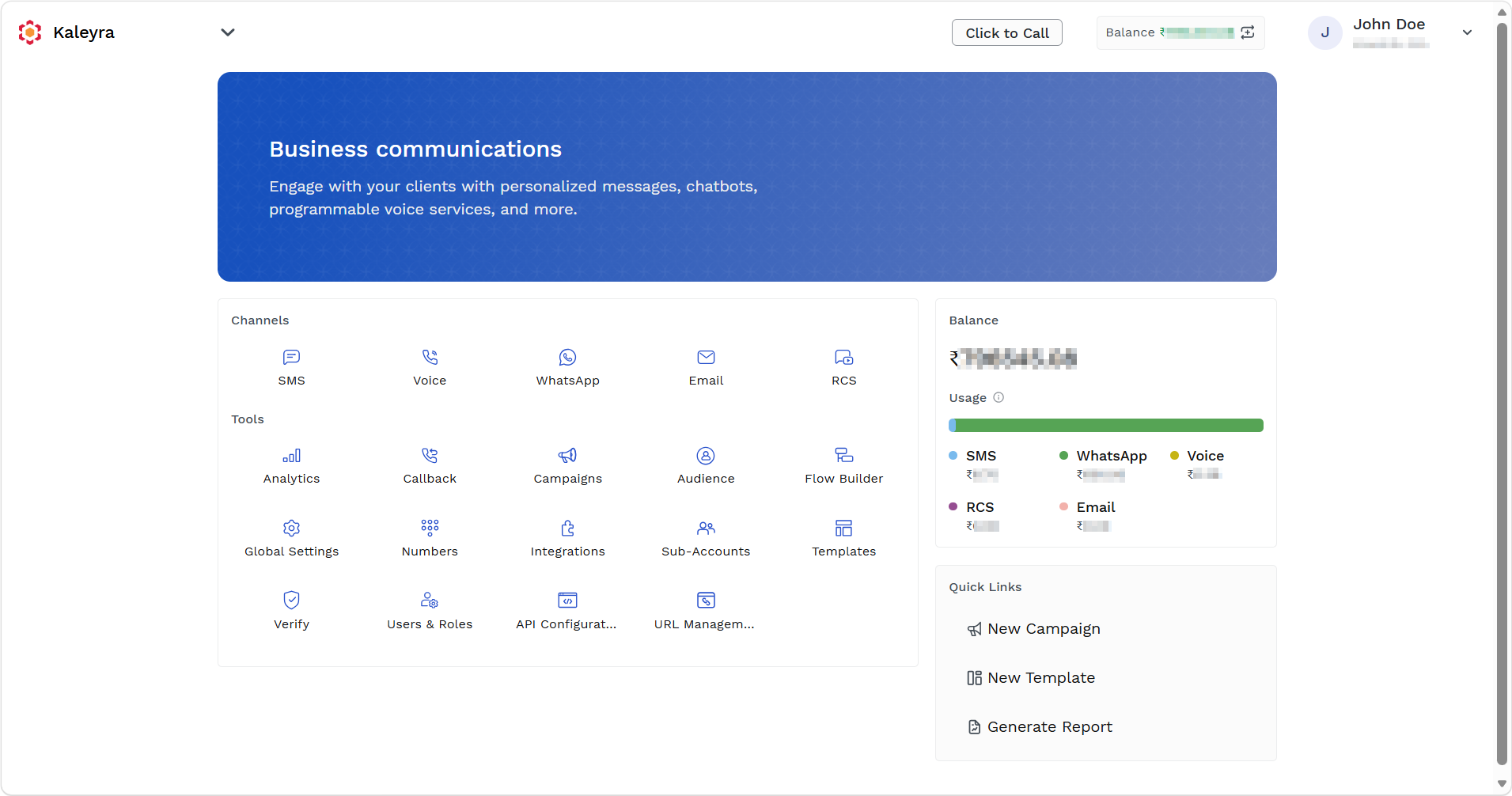
- On the Tools section, click Analytics.
The SMS Dashboard page appears.
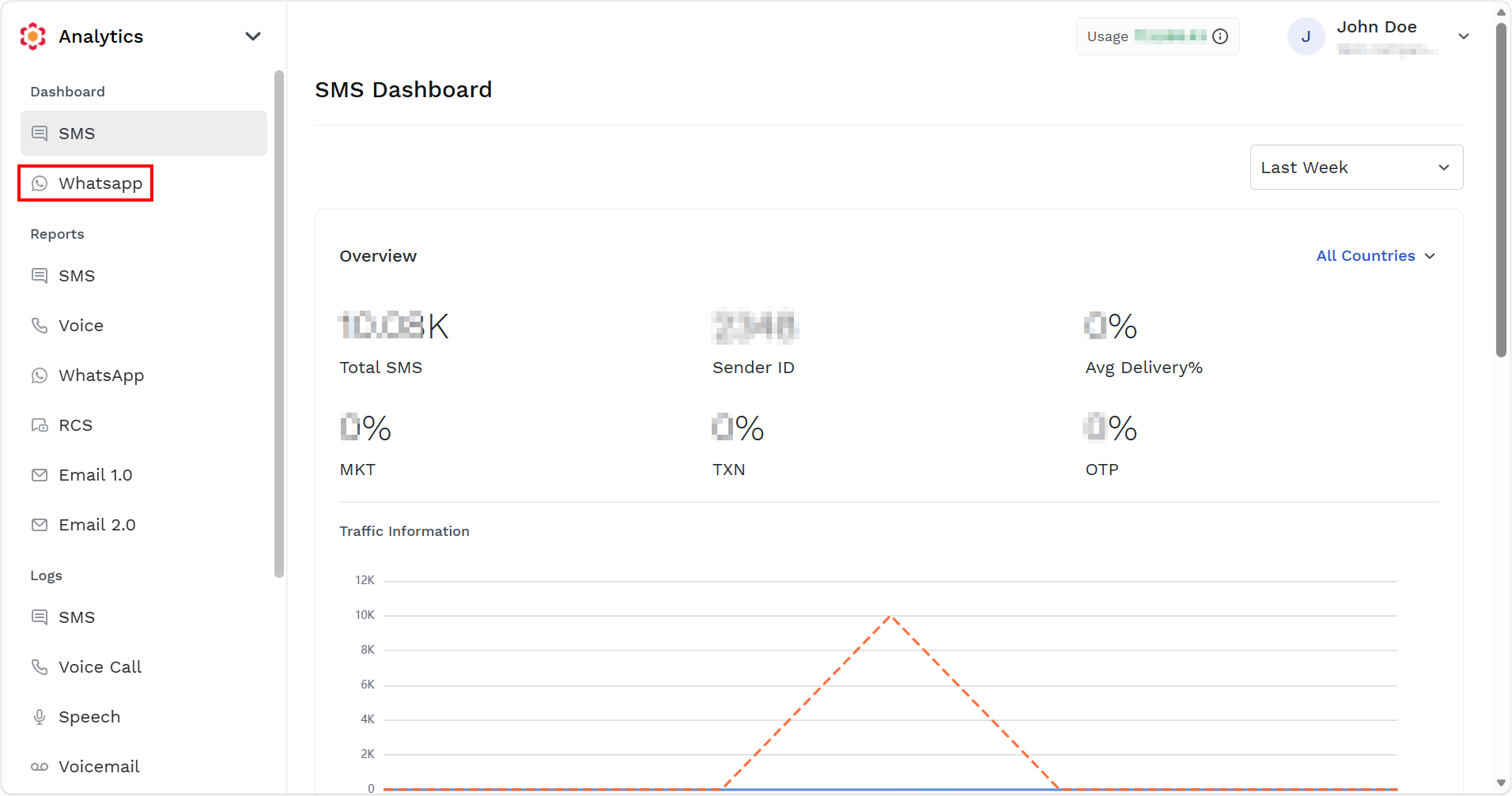
- On the left menu bar, under Dashboard section, click WhatsApp.
The WhatsApp Overview page appears.
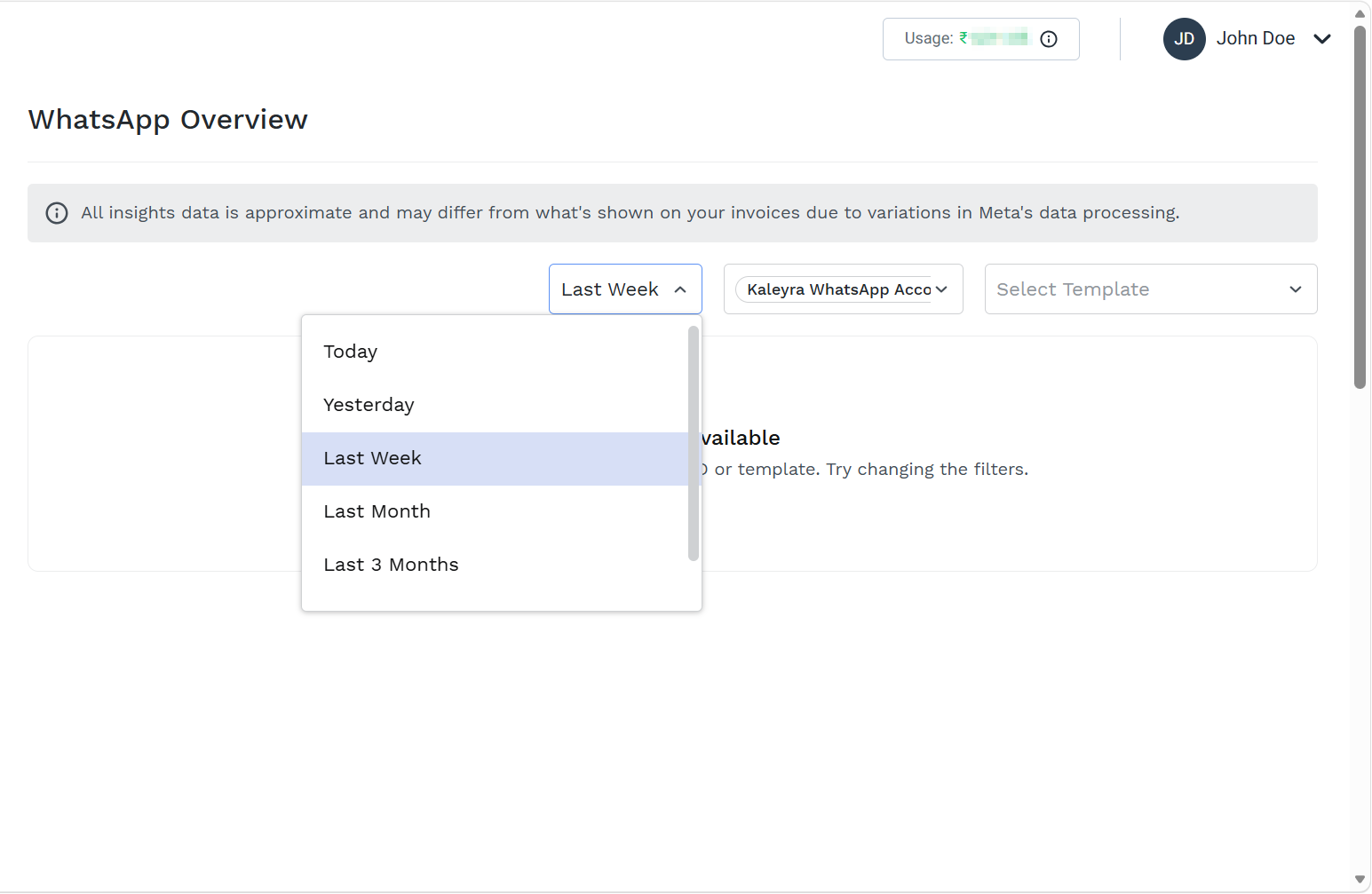
Note:All insights data is approximate and may differ from what's shown on your invoices due to variations in Meta's data processing at the end of the billing cycle.
- Click the time range selection drop down and the following options appear:
- Today
- Yesterday
- (Default) Last Week
- Last Month
- Last 3 Months
- Custom (a maximum of last 90 days)
- Select any option. In this case Last 3 Months option is selected.
The filtered result appears.
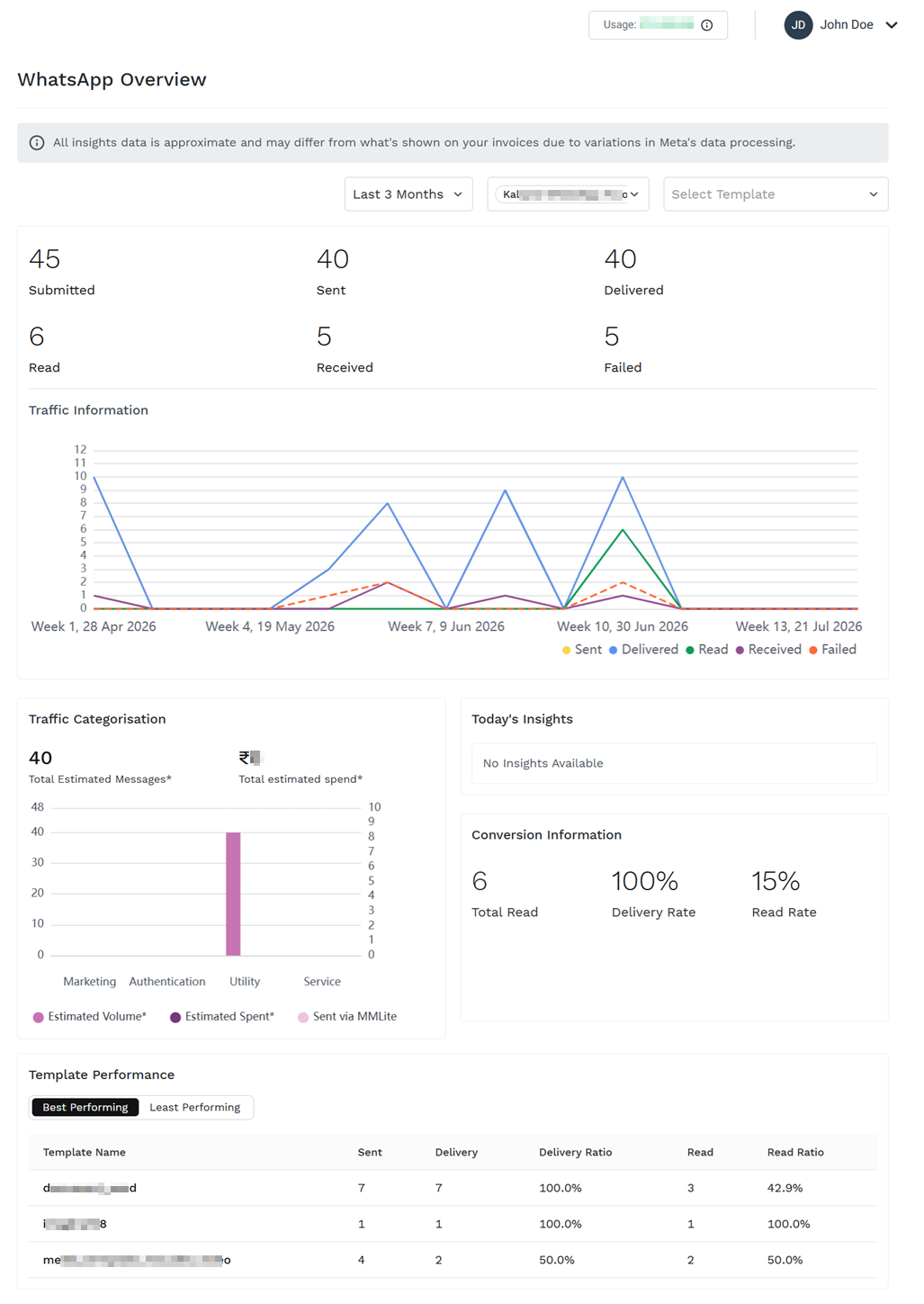
- The following details appear:
KPI Summary Widget
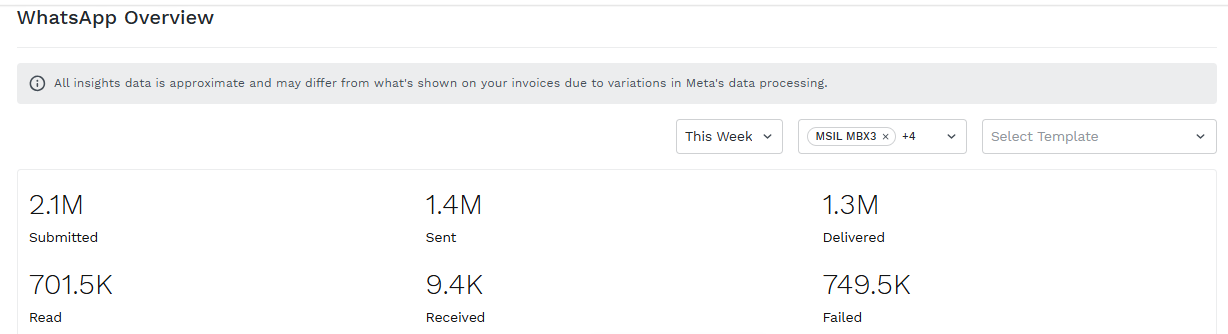
- Provide a high-level snapshot of messaging activity. It helps you to quickly assess overall WhatsApp messaging performance without reviewing detailed reports.
- You can view the following metrics:
- Submitted - The message has been accepted by the application/platform and submitted for processing and delivery.
- Sent - The message has been successfully handed over to WhatsApp's infrastructure for delivery to the recipient.
- Delivered - The message has reached the recipient's WhatsApp device.
- Read - The recipient has opened and read the message.
- Received - Incoming WhatsApp received from your end-users to your WhatsApp Business Account.
- Failed - Messages that failed to be delivered on Meta side.
Visualize messaging trends over time
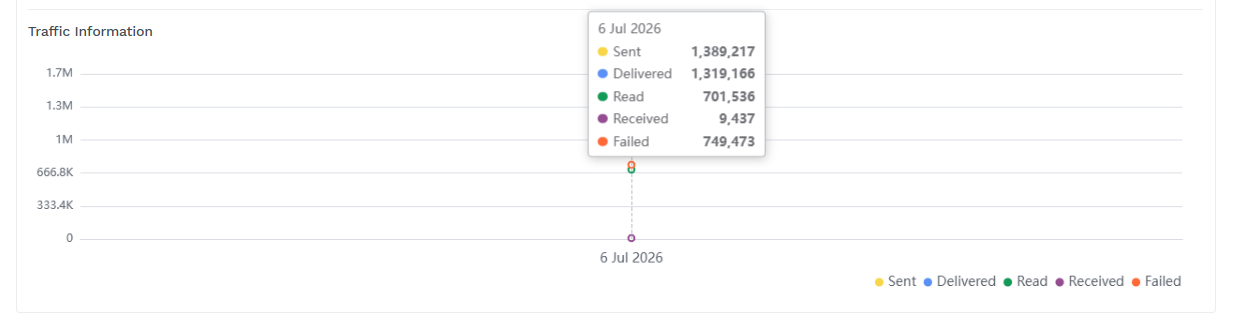
- Hover-over data points display detailed metrics for the given period.
- Visualize messaging trends over time. Helps you identify traffic patterns, spikes, drops, and delivery performance trends across the selected period.
- You can view the following detailed metrics:
- Sent messages
- Delivered messages
- Read messages
- Received messages
- Failed messages
Traffic Categorisation
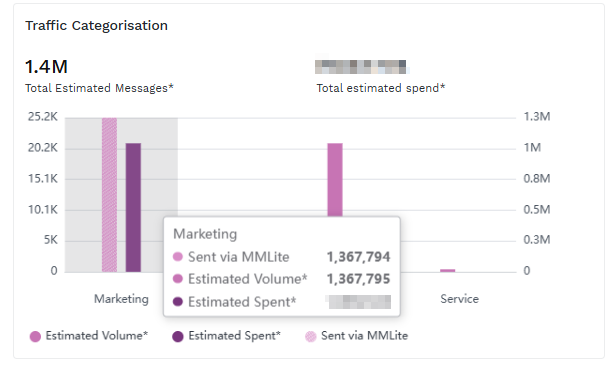
- Hover-over data points display detailed metrics for a traffic categorization.
- Analyze messaging volume and estimated spending by message category. Helps you in providing visibility into where message traffic is concentrated and the associated business costs.
- The following is the supported categories:
- Marketing (including Marketing Lite messages)
- Authentication
- Utility
- Service
- The following is the list of metrics that you can view:
- Total Estimated Messages
- Total Estimated Spend
- Estimated Volume by Category
- Sent via MMLite
- Estimated Spend by Category
Today's Insights
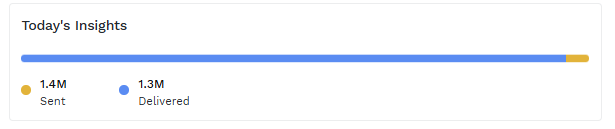
- Highlight current-day performance. Helps you to quickly monitor same-day messaging activity. If no data exists for today, the widget displays No Insights Available.
- The following is the list of metrics:
- Today's Sent Messages
- Today's Delivered Messages
Conversion Information
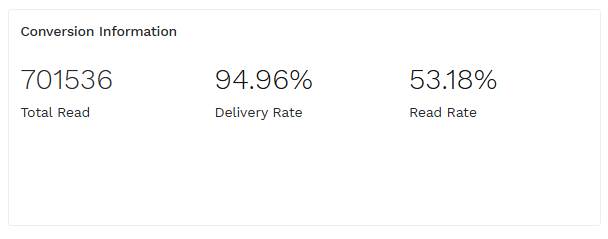
- Measure messaging effectiveness. Helps you to understand how successfully messages are delivered and how many recipients engage with them.
- The following is the list of conversion metrics:
- Total Read Messages (total number of messages opened by end-users in their devices).
- Delivery Rate (computed as delivered message over sent messages).
- Read Rate (computed as read messages over delivered messages).
Template Performance
Best Performing
Least Performing
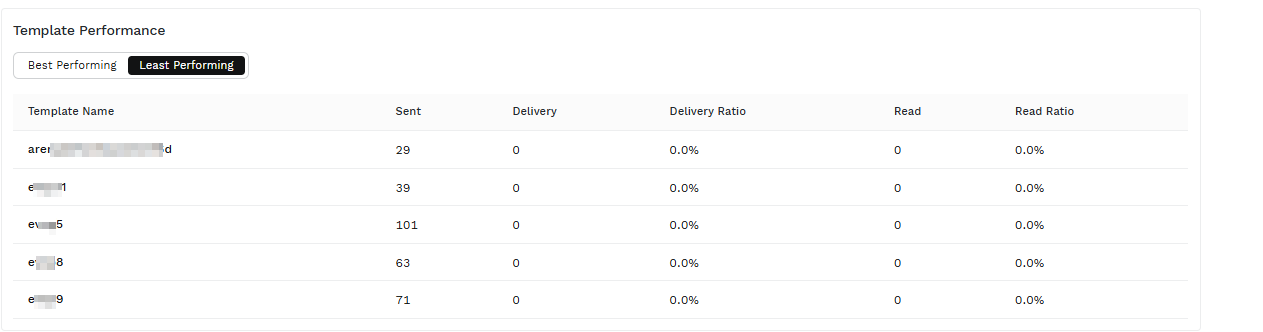
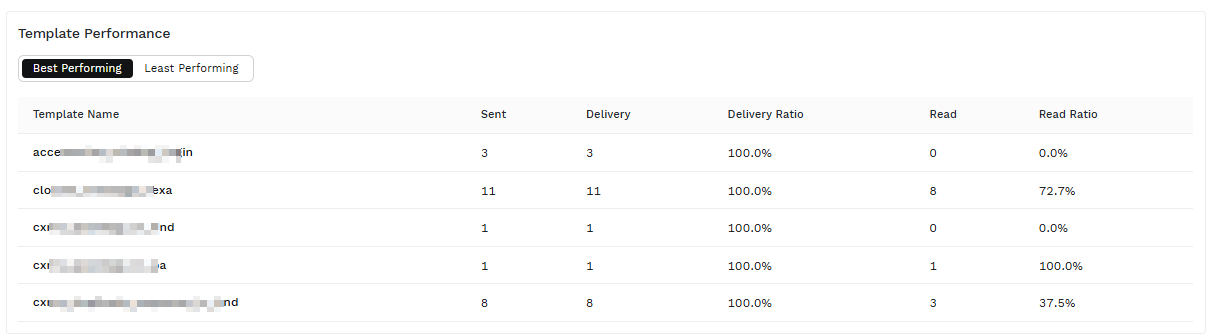
- Evaluate the effectiveness of WhatsApp templates. Helps you identify the following:
- High-performing templates that drive better engagement.
- Underperforming templates that may require optimization.
- Top 5 templates ranked by Delivery Ratio. In the current MVP, templates are ranked primarily by Delivery Ratio.
- The following is the metrics displayed per template:
- Template Name - The name of the approved WhatsApp message template used to send messages.
- Sent - The total number of messages sent using a specific WhatsApp template.
- Delivered - The number of sent messages that were successfully delivered to end-users' WhatsApp devices.
- Delivery Ratio - The percentage of sent messages that were successfully delivered.
- Read - The number of delivered messages that were opened and read by end-users.
- Read Ratio - The percentage of delivered messages that were read by end-users.
Updated 8 days ago
Did this page help you?