

Email 1.0 Detailed Report
The Email 1.0 Detailed Report contains detailed information about all sent and received emails.
Sample Email 1.0 Detailed Report
The following is the sample email 1.0 detailed report:

Email 1.0 Detailed Report Fields Detail
The following table describes the fields available in the email 1.0 detailed report:
| Column | Description | Example |
|---|---|---|
| Message_ID | The email message ID. | 171c2e6a-40c6-45d3-a6f6-33d335b4f1cb:1 |
| Company_ID | The company ID from which the email is sent. | Z1183ine64d2 |
| Status | The delivery status of the email. | DELIVERED |
| From_mail | The email address from which the email is sent. | [email protected] |
| To_mail | The email address to which the email is sent. | [email protected] |
| CC | The CC recipients of the email. | [email protected] |
| BCC | The BCC recipients of the email. | [email protected] |
| Address_type | The type of the address to which the email is sent. | to |
| Template_name | The name of the email template used to send the email. | card_renewal |
| Submitted_at | The time at which the email is sent. | |
| The time format is in the form: YYYY-MM-DDThh:mm:ssTZD | ||
| YYYY - year | ||
| MM - month | ||
| DD - day | ||
| hh - hour | ||
| mm - minutes | ||
| ss - seconds. | ||
| 'T' is the literal to separate the date and the time part | ||
| 'Z' is the zero hour offset. | 2024-02-27T10:11:33.150Z | |
| is 27th February 2024, 10hours 11 minutes, and 33 seconds. | ||
| Delivered_at | The time at which the email is delivered. | |
| The time format is in the form: YYYY-MM-DDThh:mm:ssTZD | ||
| YYYY - year | ||
| MM - month | ||
| DD - day | ||
| hh - hour | ||
| mm - minutes | ||
| ss - seconds. | ||
| 'T' is the literal to separate the date and the time part | ||
| 'Z' is the zero hour offset. | 2024-02-27T10:11:37.492Z | |
| is 27th February 2024, 10 hours, 11 minutes, 37 seconds. | ||
| Cost | The cost incurred in sending the email. | 0 |
| Source | The source used to send the email. | API |
| Source_type | The type of source used to send the email. | API |
| Email_body | The email body or the content. | Card renewal |
| Service_id | The service id for the email sent. | |
| Type | The email type. | ACK |
| Ref | The REF parameter is optional in API requests. Customers can pass the required information for this parameter that they want displayed in the report. | |
| Ref1 | The REF1 is an optional parameter that can be passed in the API requests. Customers can pass the required information for this parameter that they want displayed in the report. | |
| Ref2 | The REF2 parameter is optional in API requests. Customers can pass the required information for this parameter that they want displayed in the report. |
Request an email 1.0 report
To request an email 1.0 report, perform the following steps:
- Sign in to your Kaleyra platform.
- On the left navigation bar, click Reports & Logs.
The WhatsApp Overview page appears.
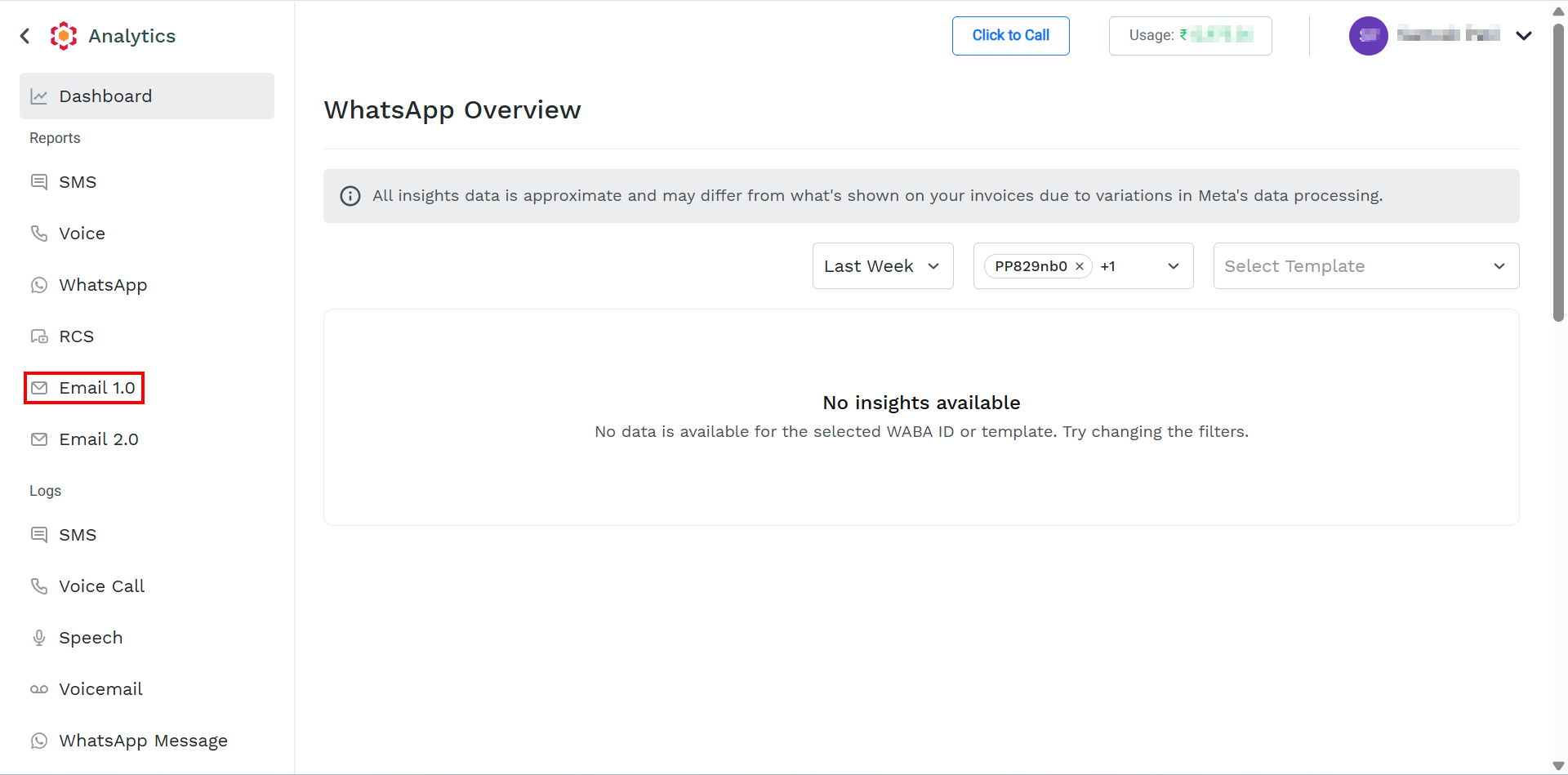
- On the left menu bar, click Email 1.0.
The Email 1.0 Reports page appears.
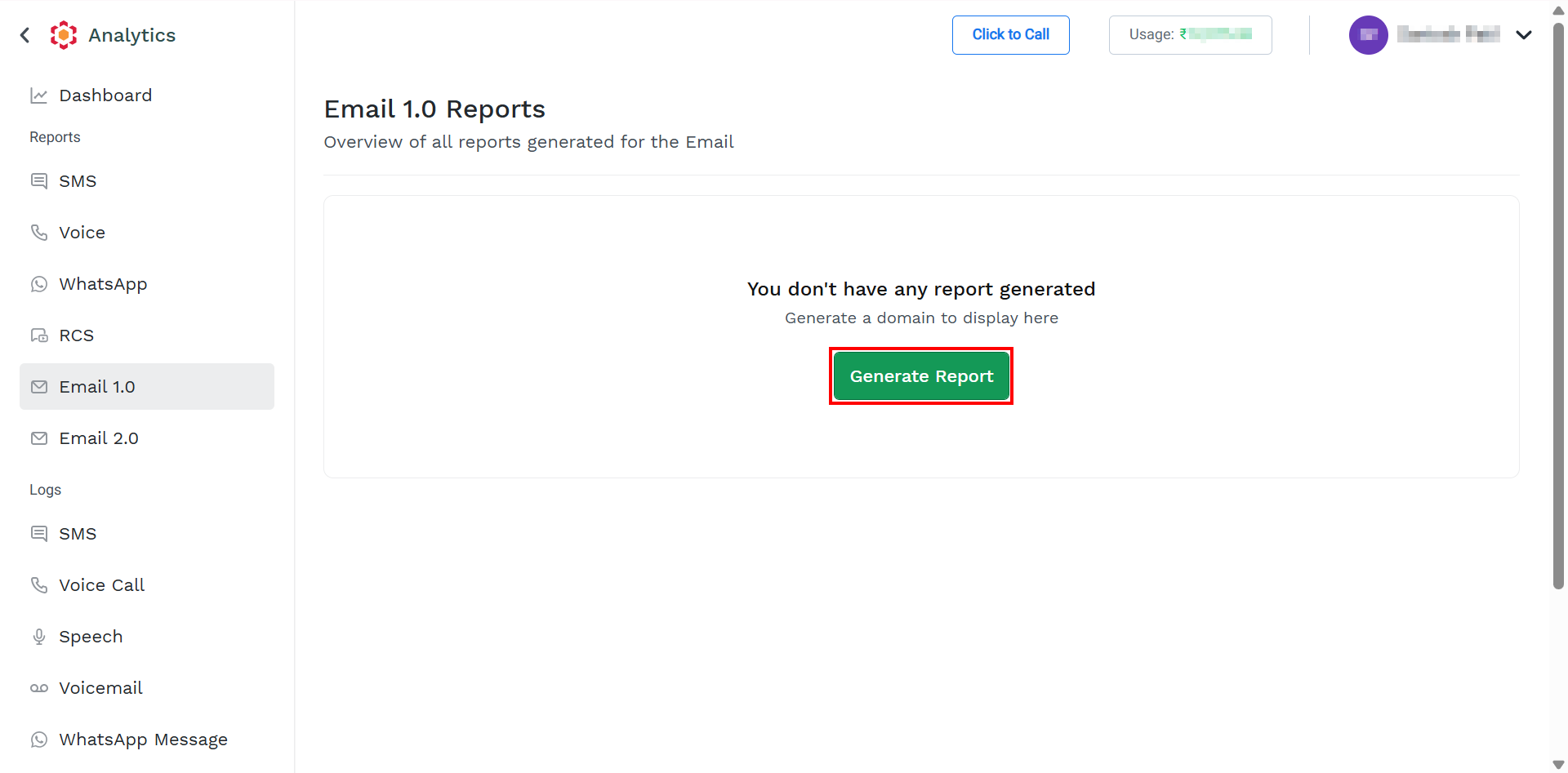
- Click Generate Report.
The Generate Report page appears.
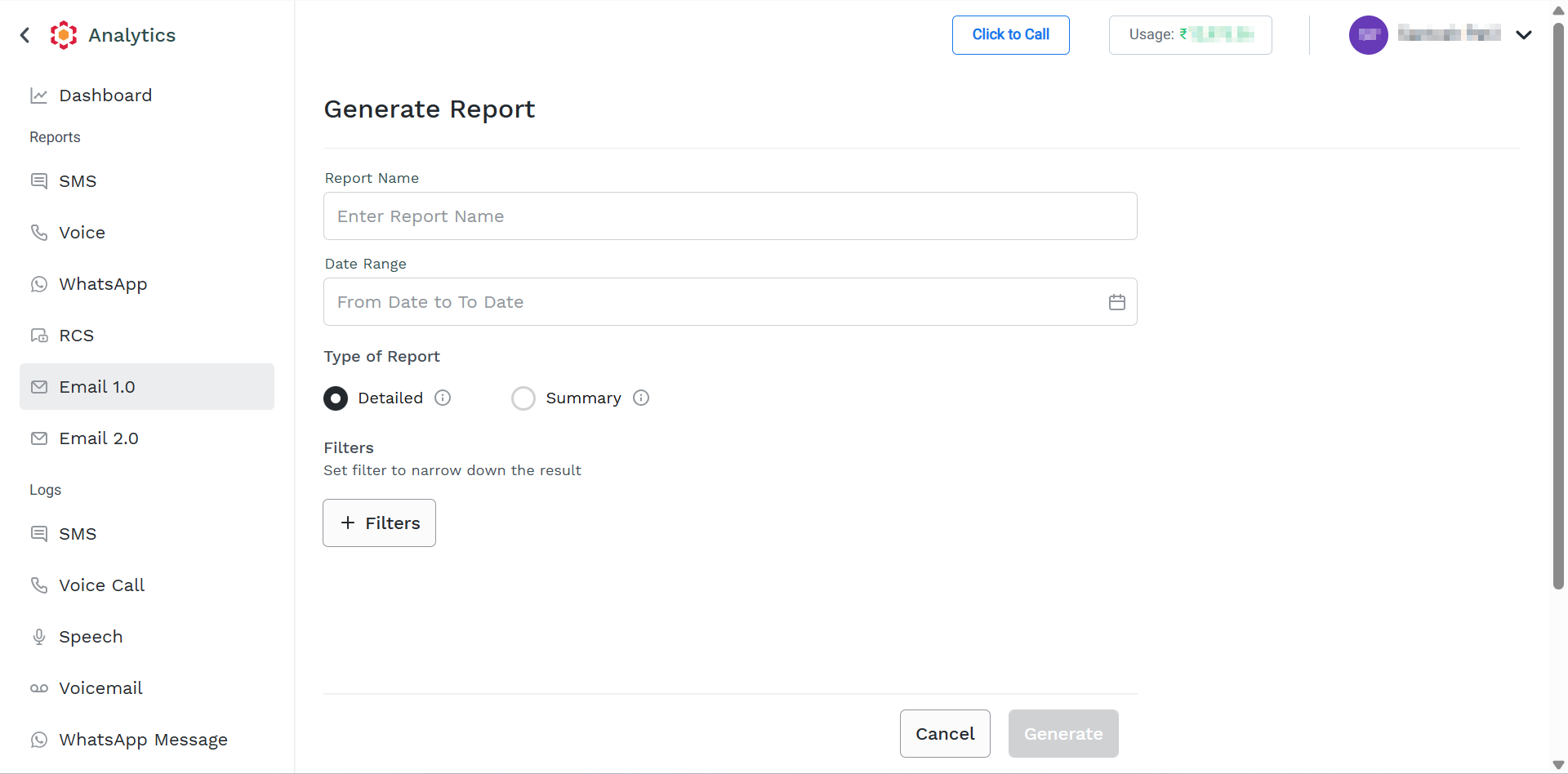
- In the Report Name field, enter the title for the report.
- In the Report Date Range field, select the date range. The acceptable date range should be within six months from the current date.
- In the Type of Report, select one of the following:
- Detailed - Generates a report with detailed information about each email sent. Select the Detailed option.
- Summary - Generates a report that shows aggregate information about the emails sent based on templates.
- (Optional) In the Filters section, use the + Add Filter to narrow down the report only to messages fulfilling specific conditions or to add the message content to the report according to your requirements. To add the filters, click on the field, select from the available filter option, and then click Apply.
The following are the supported filters:- Status - Status indicates the current or final delivery state of an email message. It helps determine whether the email was successfully accepted, delivered, or encountered an issue. email 1.0 statuses include:
- Accepted – Kaleyra or email provider has accepted the email for processing.
- Delivered – The email was successfully delivered to the recipient's mail server.
- Opened – The recipient opened the email (if tracking is enabled).
- Clicked – The recipient clicked a tracked link in the email.
- Bounced – Delivery failed because of an invalid address, mailbox issue, or server rejection.
- Rejected – The email was not processed or was rejected before delivery.
- From Address - From Address is the sender email address from which the email was sent. It identifies the email account or domain used for the communication.
- Status - Status indicates the current or final delivery state of an email message. It helps determine whether the email was successfully accepted, delivered, or encountered an issue. email 1.0 statuses include:
- Click Generate. You can view the generated report on the Reports list page. Once generated, the report will be available in the Report Page for download.
Updated 2 months ago
Did this page help you?