

Click to Call
Click to Call feature allows Kaleyra CpaaS user to initiate a voice call toward an external number, e.g. for support purposes, without having the callee being able to see the originating number. The Click to Call feature call separately the number of the Kaleyra CpaaS user and the number of the callee putting them into a conference call over a bridge, in this way the only visible number to the callee is the bridge one and not the direct number of the Kaleyra CpaaS user.
Note:By default, the Click to Call option in the User Interface is disabled. Contact your Kaleyra representative to have the Click to Call option enabled for your account
-
To change the configuration of Click , click on the Edit button in the Voice Setting page under the Channels section
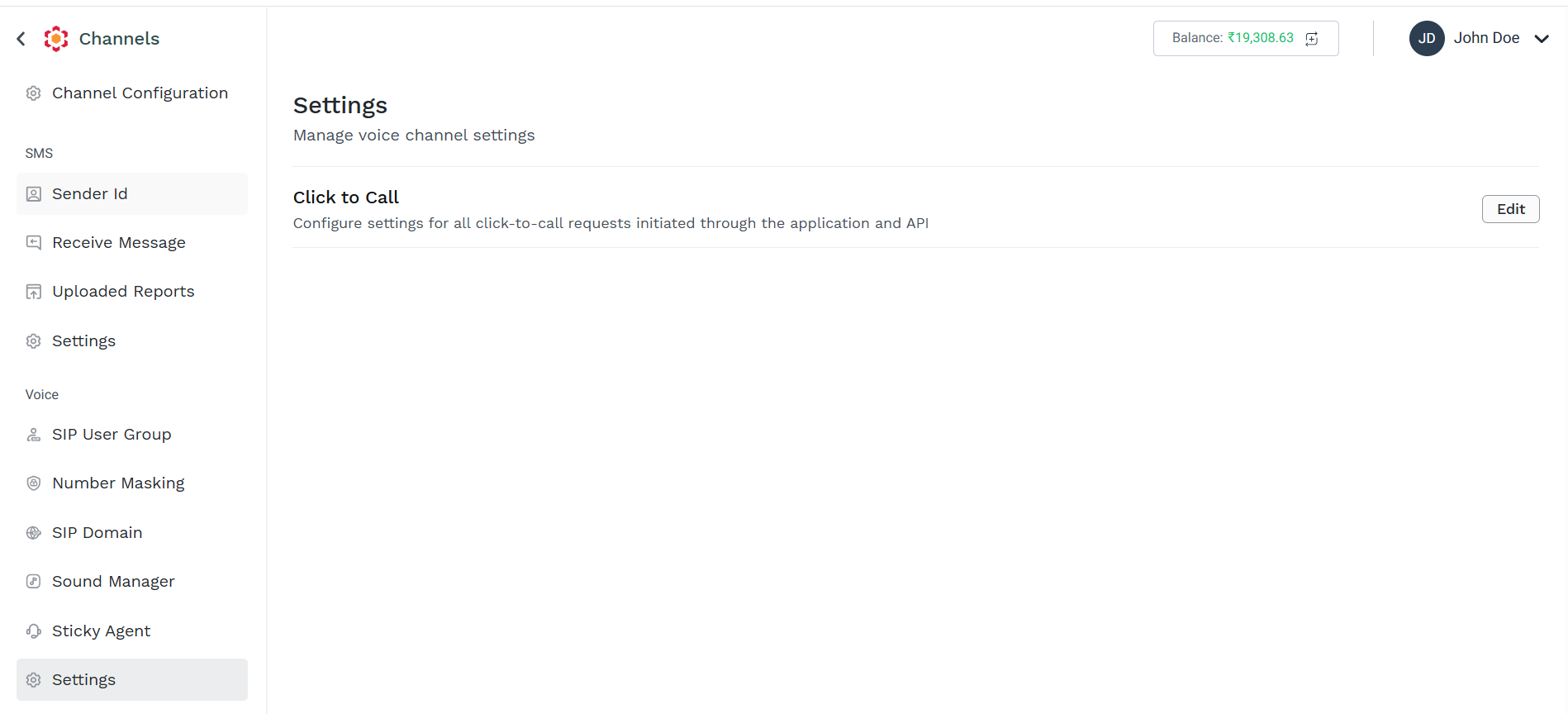
-
the Click to Call Edit page appears providing two tabs:
-
General Setting
-
Callback Configuration
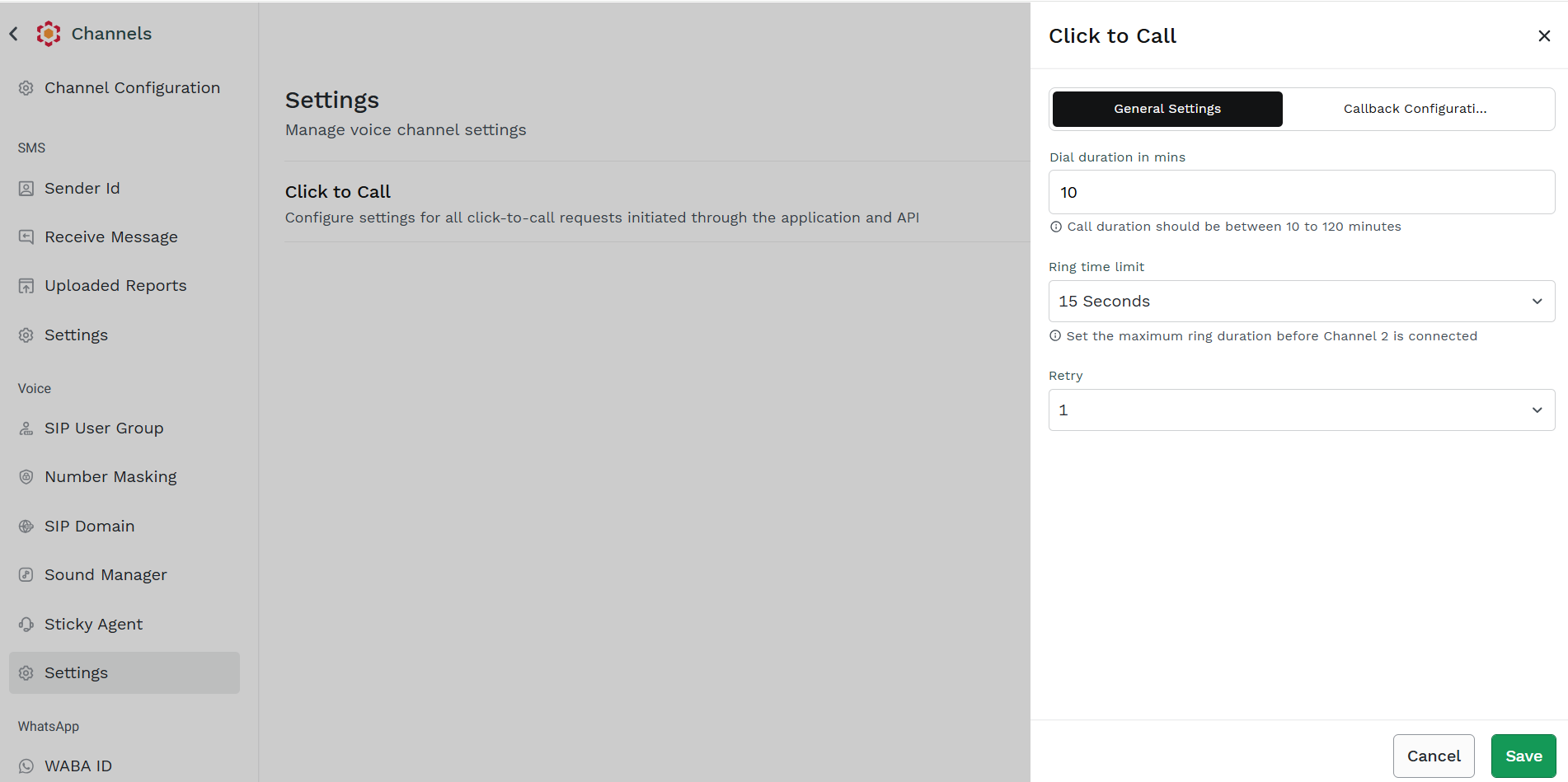
General Setting tab -
-
From the General Setting tab following parameter can be configured:
- Dial Duration in mins setting the maximum allowed call duration
- the allowed duration range is from 10 to 120 minutes
- you can freely enter the required value in the text area.
- If no value is inserted or if the value is outside the allowed range, then an error is displayed under the text area.
- Ring time limit (in seconds) setting the maximum allowed time for ringing phase of the call.
- if the second channel is not connected within this time, the the call is dropped.
- Allowed values are available from the dropdown menu ragining from 15 to 30 second in 5 sec step.
- Retry setting how many automatic retry should be perfomed by Kaleyra platform if the call is not established at first try.
- Allowed retry value are available from the dropdown menu ranging from 0 (no retry at all) to 3.
- Dial Duration in mins setting the maximum allowed call duration
-
Once configuration changes have been applied, click Save to store them in the system.
-
If you do not want to save the changes, click on Cancel or on the "x" icon in the upper right corner.
Callback Configuration tabThe Callback Configuration tab allows to configure which Callback Profile you want to use to receive webhook notification about voice call events. The webhook about any given event will be sent based on the information configured in the selected Callback Profile.
For more information about Callback Profile, please visit Callback Profile section
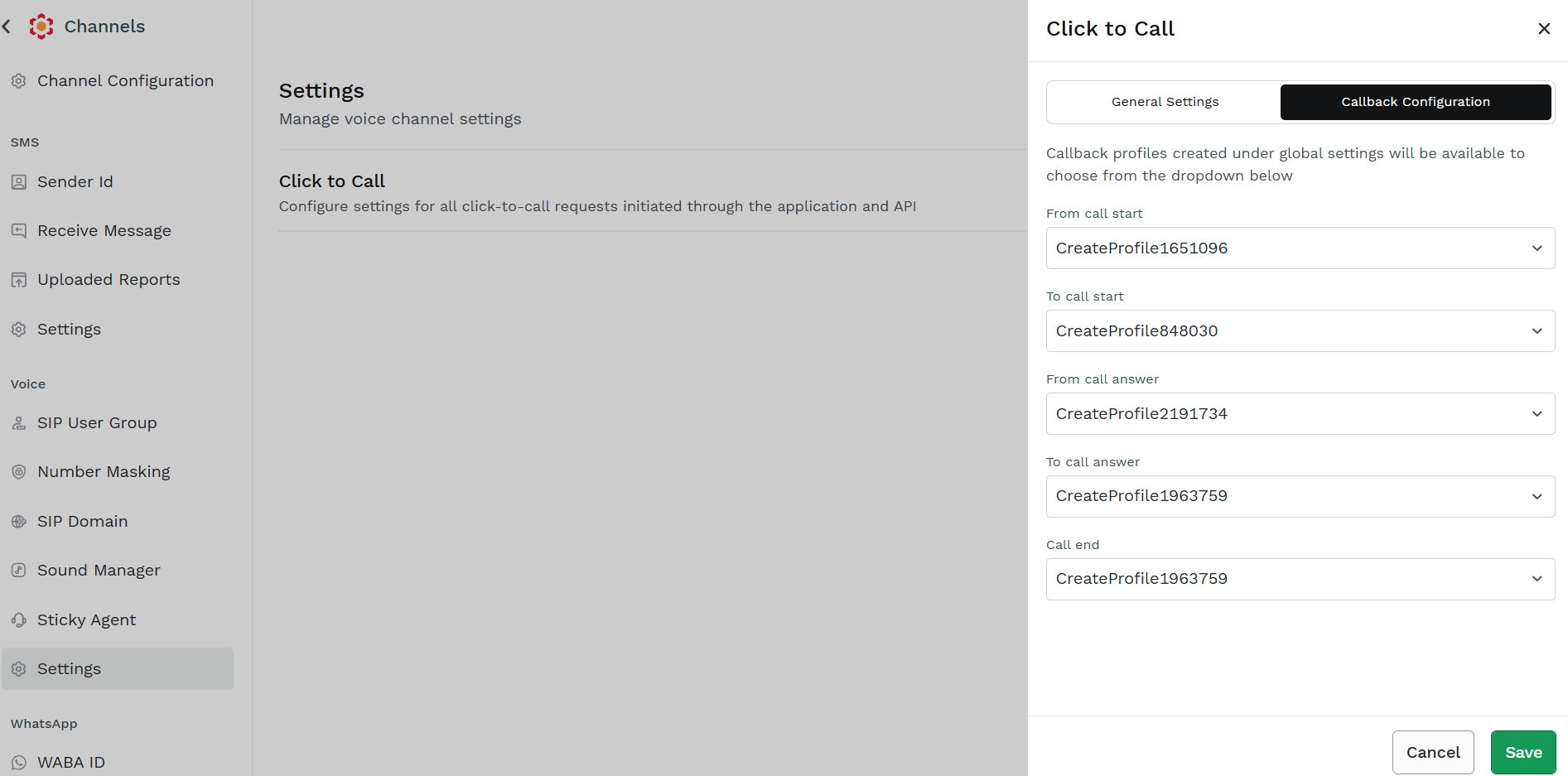
Following voice call events are supported as part of Callback service:
- From call start - this event is generated when the first leg of the call is initiated (the "From side")
- To call start - this event is generated when the second leg of the call is initiated (the "To side")
- From call answer - this event is generated when the first leg picks-up the call (the "From side" answers the call received from the Click to Call functionality and enters the conference)
- To call answer - this event is generated when the second leg picks-up the call (the "To side" answers the call received from the Click to Call functionality and enters the conference)
- Call end - this event is generated when either of the side is dropping the call
For each event, you can select from the dropdown menu, which Callback Profile you wish to use to receive webhook notification.
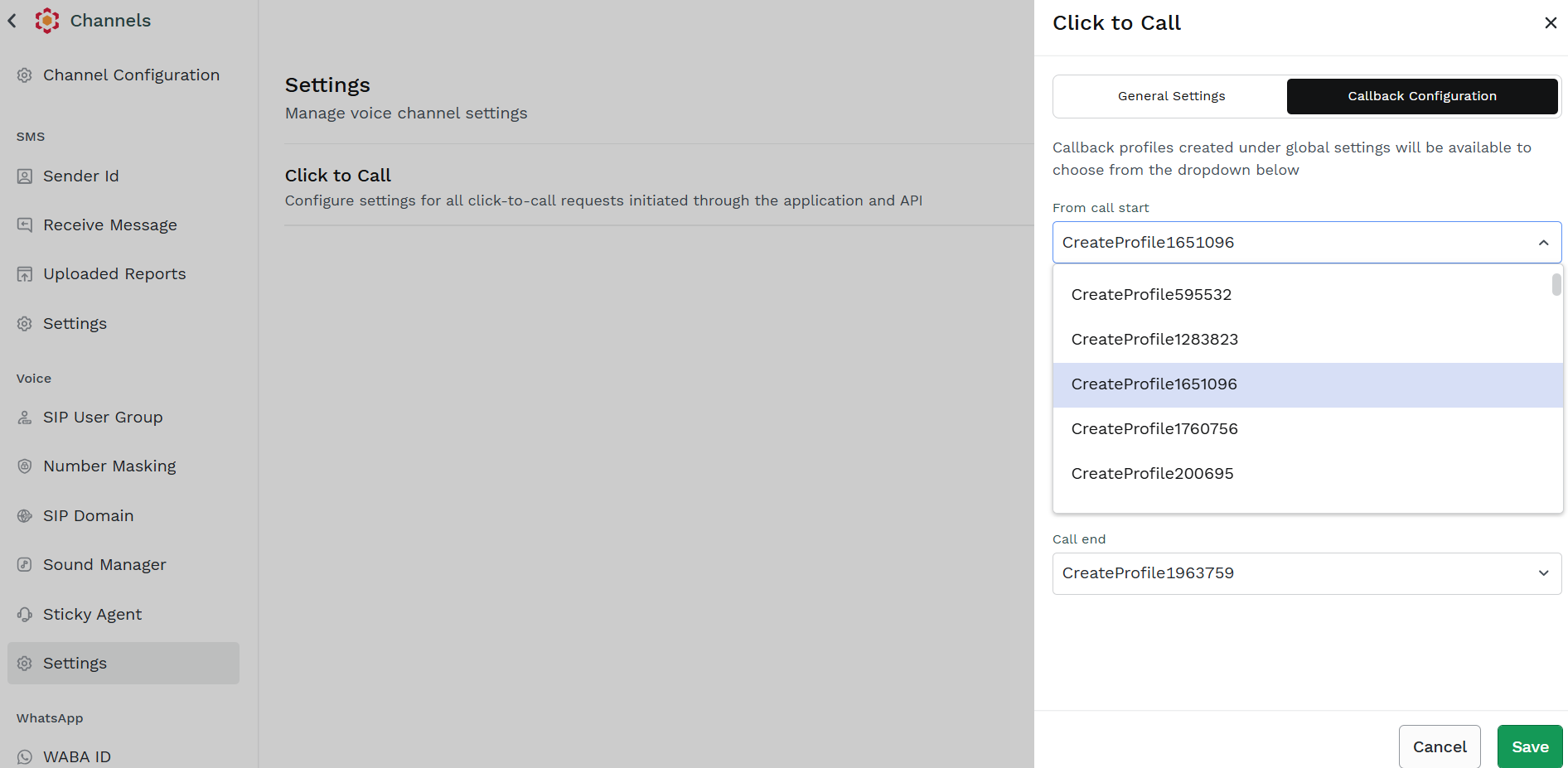
Once configuration changes have been applied, click Save to store them in the system.
If you do not want to save the changes, click on Cancel or on the "x" icon in the upper right corner.
Updated 2 months ago