

Draft RCS Campaign
The Draft RCS Campaign functionality on the Kaleyra platform allows you to save a campaign before launching or scheduling it and allows later to further edit or delete it as and when needed. This feature is useful if you have created a campaign and need to work on it later.
Using this feature, you can:
- Edit the campaigns by adding information to fields not yet completed or changing the data that you have previously entered.
- Prepare a campaign and save it without scheduling it for further approval or review before the launch.
- Save as draft again or complete the campaign details and launch the campaign.
Prerequisites to save a campaign as a draft:
- Agent must be selected for the campaign.
- Message template must be selected for the campaign.
You can perform two actions when a campaign is inDraft status:
Edit
The Edit RCS Campaign functionality allows you to modify a campaign only if it is in the Draft stage.
To edit a draft campaign, perform the following steps:
- Sign in to your Kaleyra platform.
The Business communications page appears.
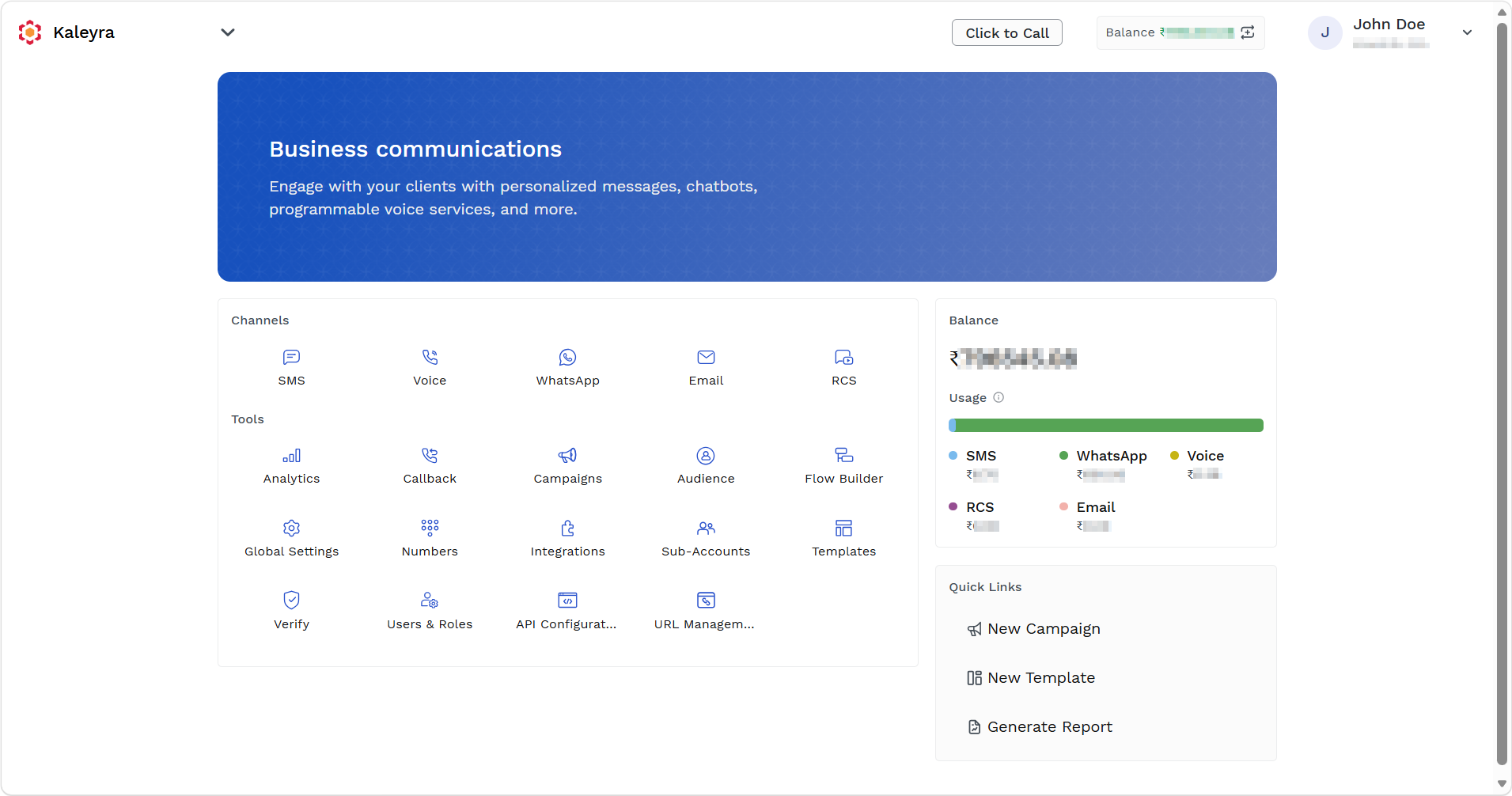
- On the Tools section, click Campaigns.
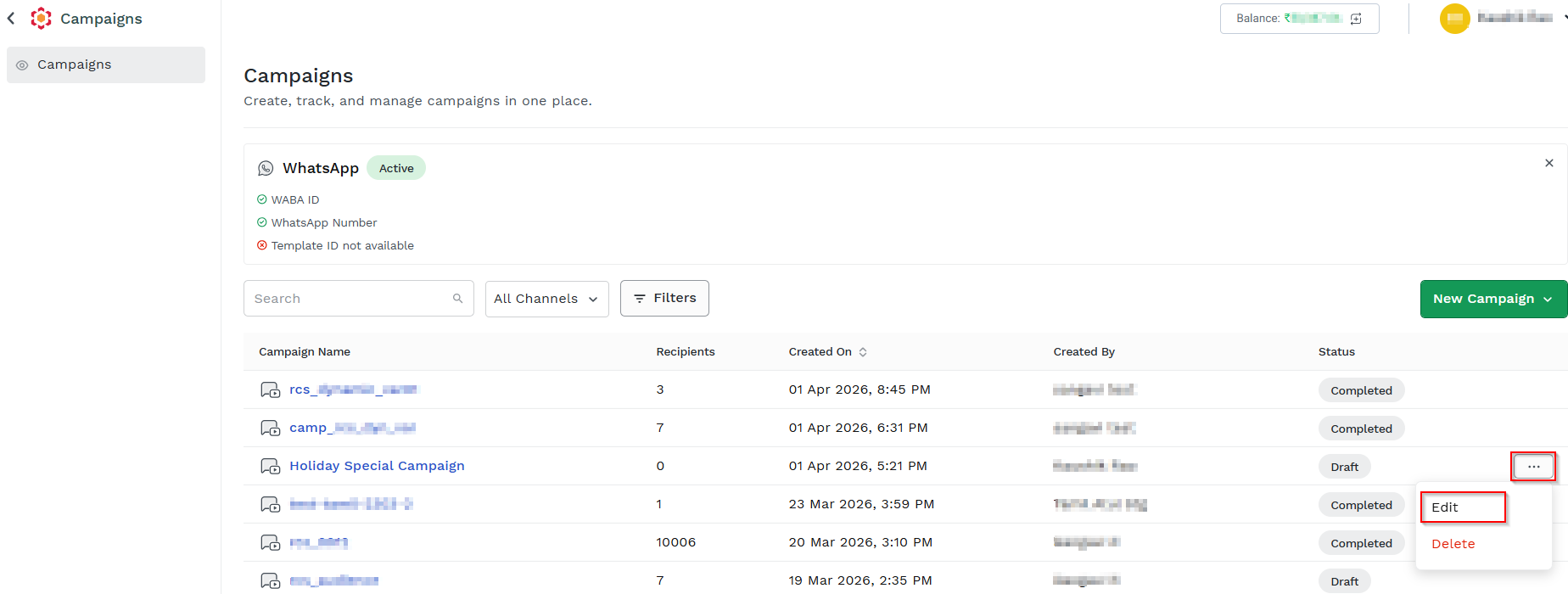
The Campaigns listing page appears.
-
On the Campaigns listing page, click the ellipsis (three dots) next to the Draft status column and click Edit.
The Edit RCS Campaignpage appears.
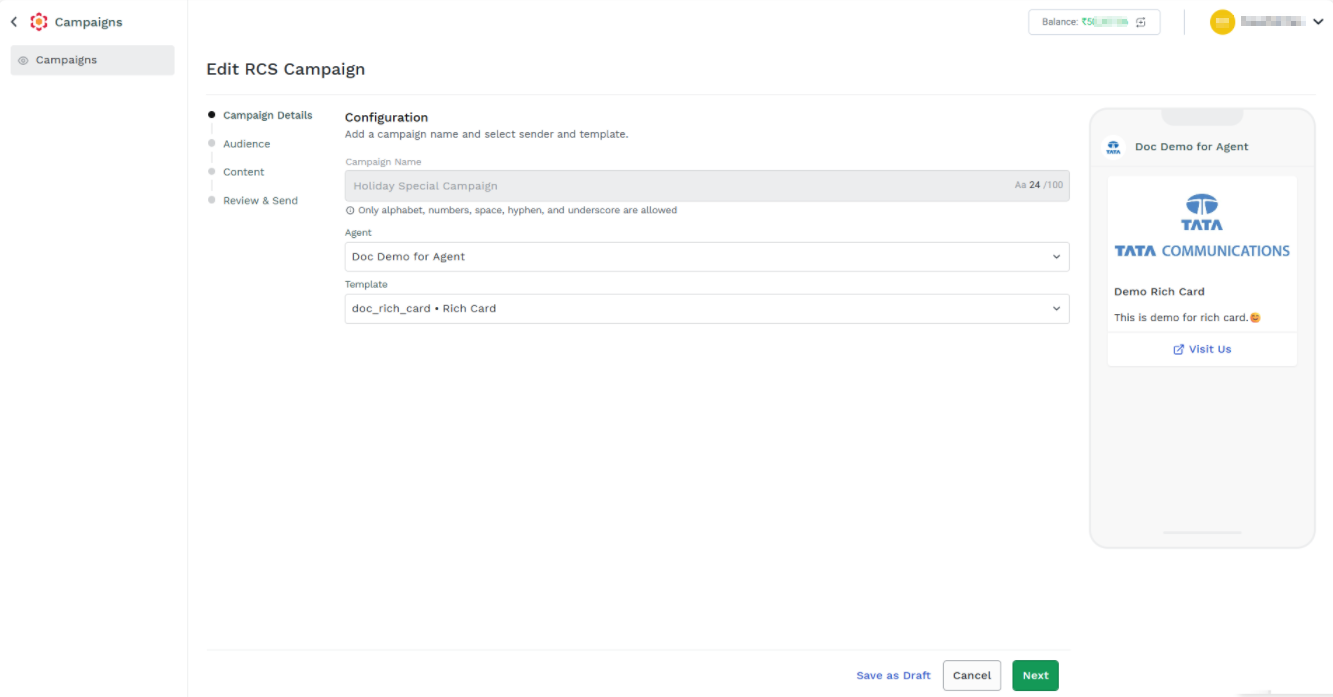
The Edit RCS Campaign Configuration step has the following fields:
- Campaign Name - By default, this field is disabled and cannot be modified.
- Agent
- Click the drop-down from the Agents field to edit the agent. The change agent pop-up page appears.
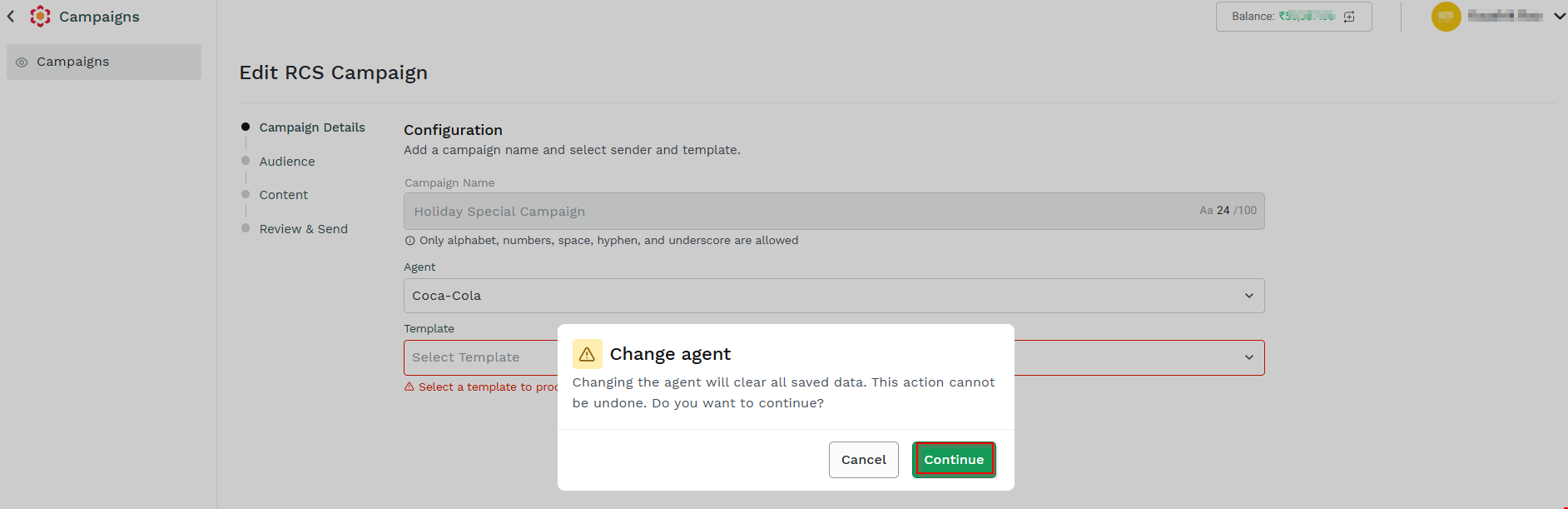
- Click Continue to edit the agent.
- Template - Click the drop-down from the Template field.
Delete
The Delete RCS Campaign functionality allows you to delete a campaign only if it is in Draft or Scheduled stage.
To delete a draft campaign, perform the following steps:
- Follow the steps 1 and 2 of the Edit section.
- On the Campaigns listing page, click the ellipsis (three dots) next to the Draft status column and click Delete.
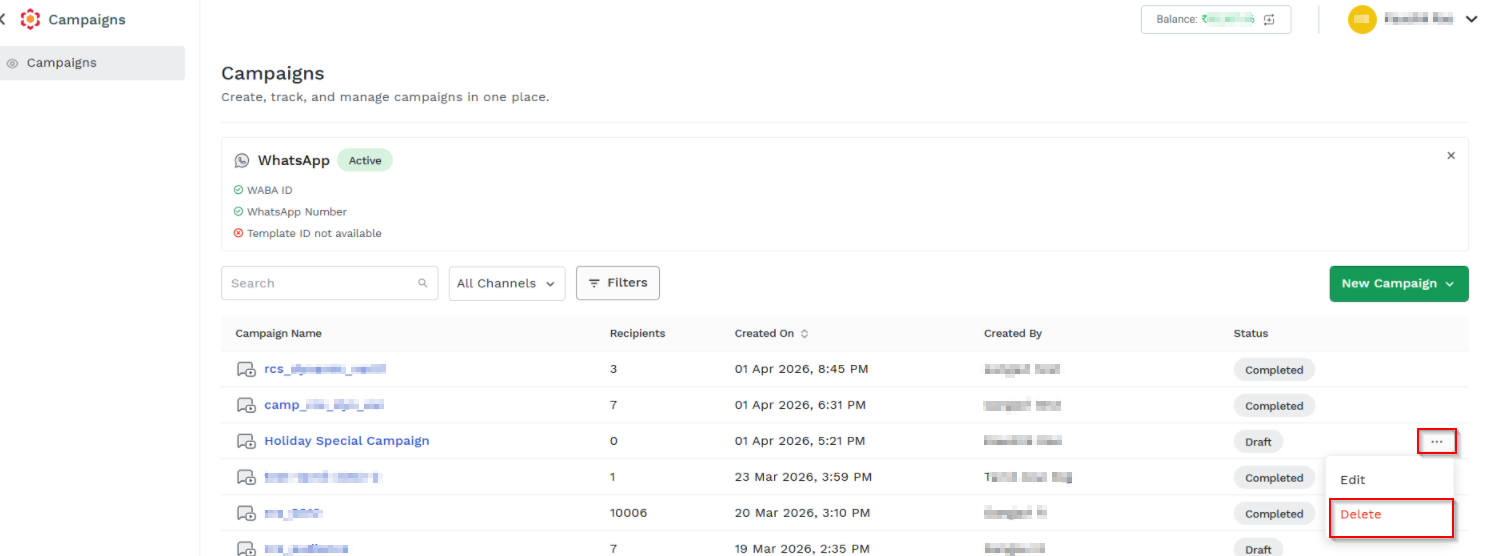
A confirmation pop-up message Are you sure you want to delete "Holiday Special Campaign" campaign? appears.
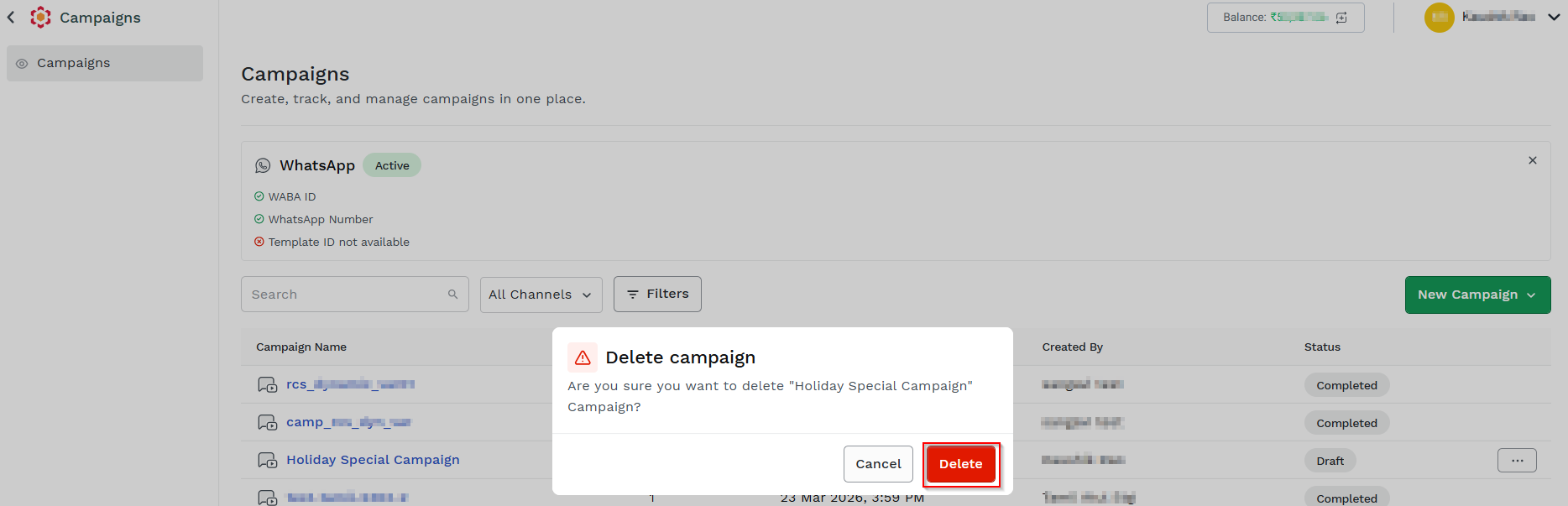
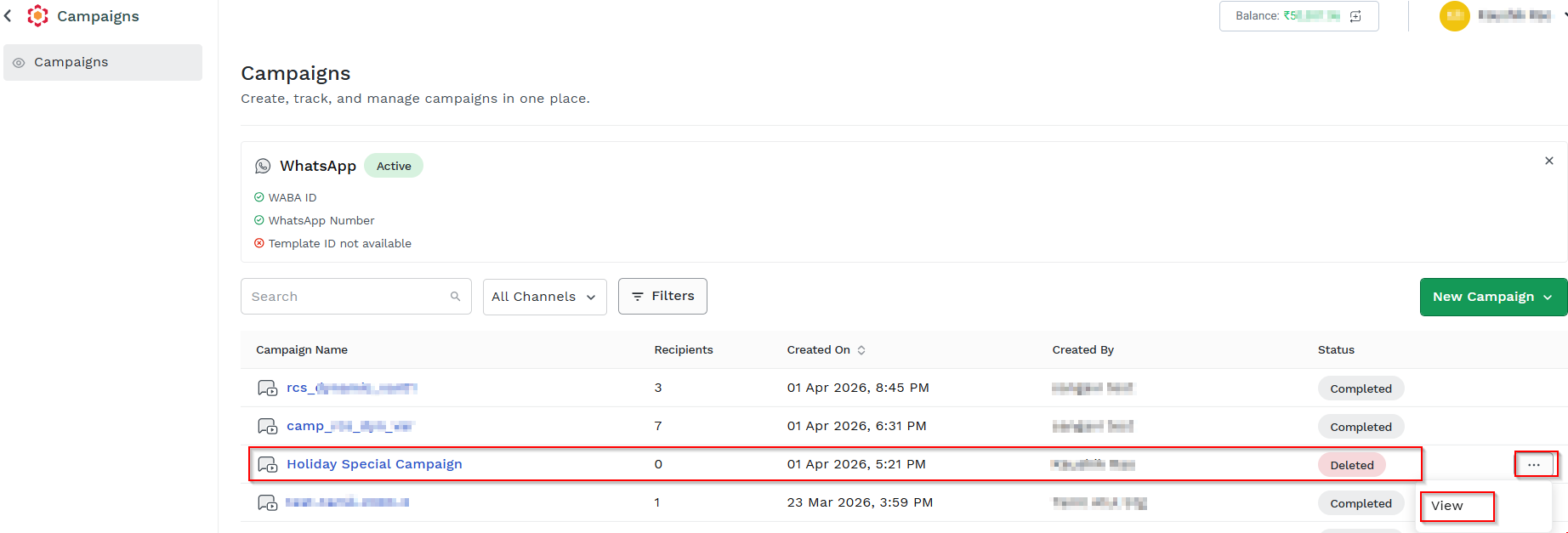
- Click Delete. The selected campaign is displayed in the campaign list with the status as Deleted.
Note:
Deleted campaigns cannot be executed anymore, but you can still view the campaign details.
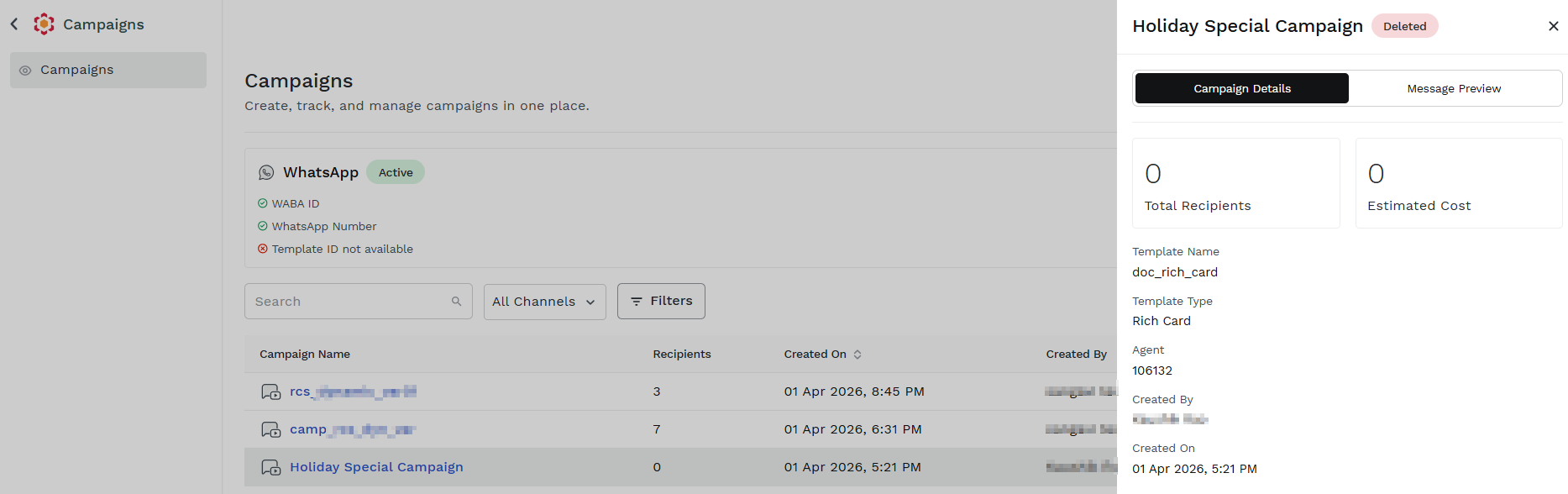
- On the Campaigns listing page, click the ellipsis (three dots) next to the Deleted status column and click View.
The Campaign Details pop-up with status as Deleted appears, with the Total Recipients, Estimated Cost, Template Name, Template Type, Agent, Created By, and Created On details.
Updated 1 day ago