

Kaleyra Expert Role
The Kaleyra expert role allows you to invite Kaleyra personnel to access your kaleyra platform for monitoring, debugging, or configuration support. Kaleyra personnel invited using the 'kaleyra expert role' may have either read-only access to the account or limited write permission access. You can set a specific deadline after which, the access is automatically revoked.
You can also edit the duration for only Active Kaleyra personnel. Access for Kaleyra personnel can be revoked at any time, and during the revoking process, you will have the option to delete their details from the Users configuration. In case the Kaleyra personnel's set duration has expired, you also have the option to delete their details as well.
In addition, a report containing the actions performed by Kaleyra's personnel will be sent to your registered email ID.
Notes:
- After the granted session duration is over, the access to the Kaleyra users is revoked automatically and they will no longer be able to support, debug any issue, or make any configuration changes.
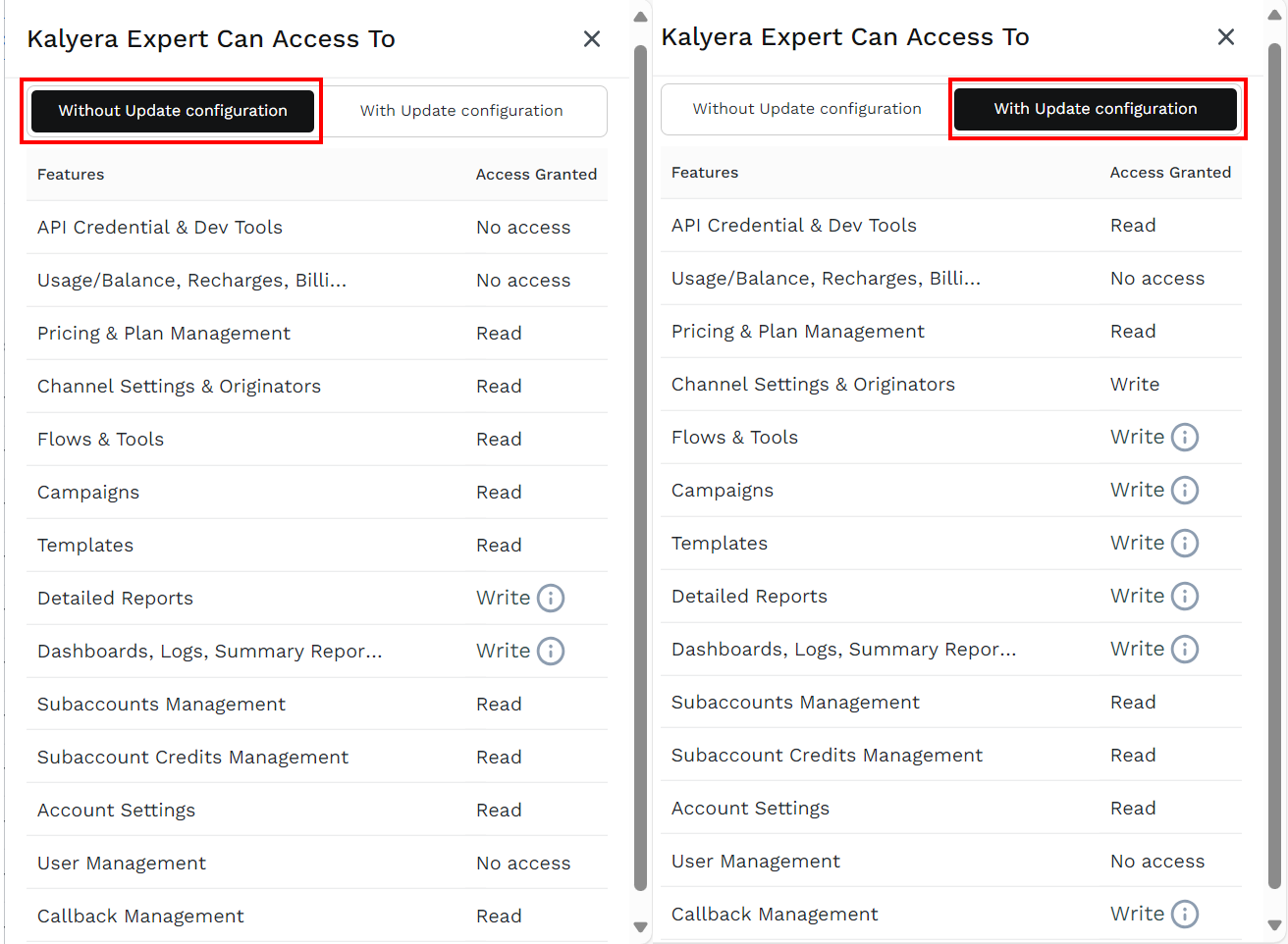
- The Kaleyra Users will not have access to your account Usage/Balance, Recharges, Billing, or User Management related details. For more information about the permission, you are granting when inviting Kaleyra personnel with “Kaleyra Expert” role, in the Add User pop-up, click the View Details link.
Add Kaleyra Expert Users
You can add Kaleyra personnel as a Kaleyra expert role to help you troubleshoot issues on the kaleyra platform.
To provide access to Kaleyra personnel as Kaleyra Expert role, perform the following steps:
- Log in to your Kaleyra Platform.
- On the left navigation bar, click User Management tab. The Users listing page appears.
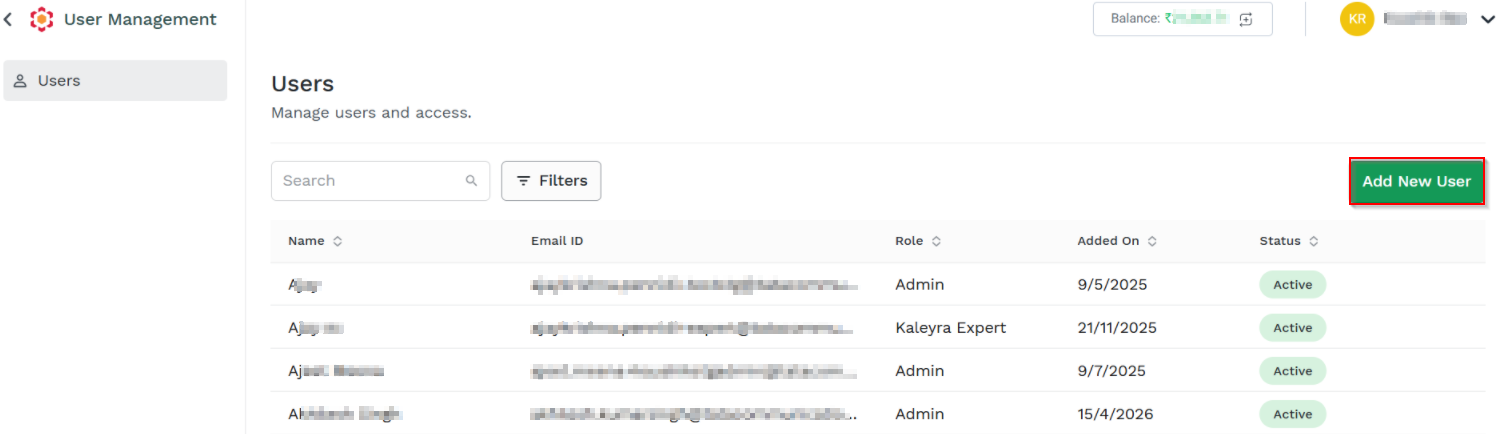
- On the Users listing page, click Add New User.
The Add User page appears.
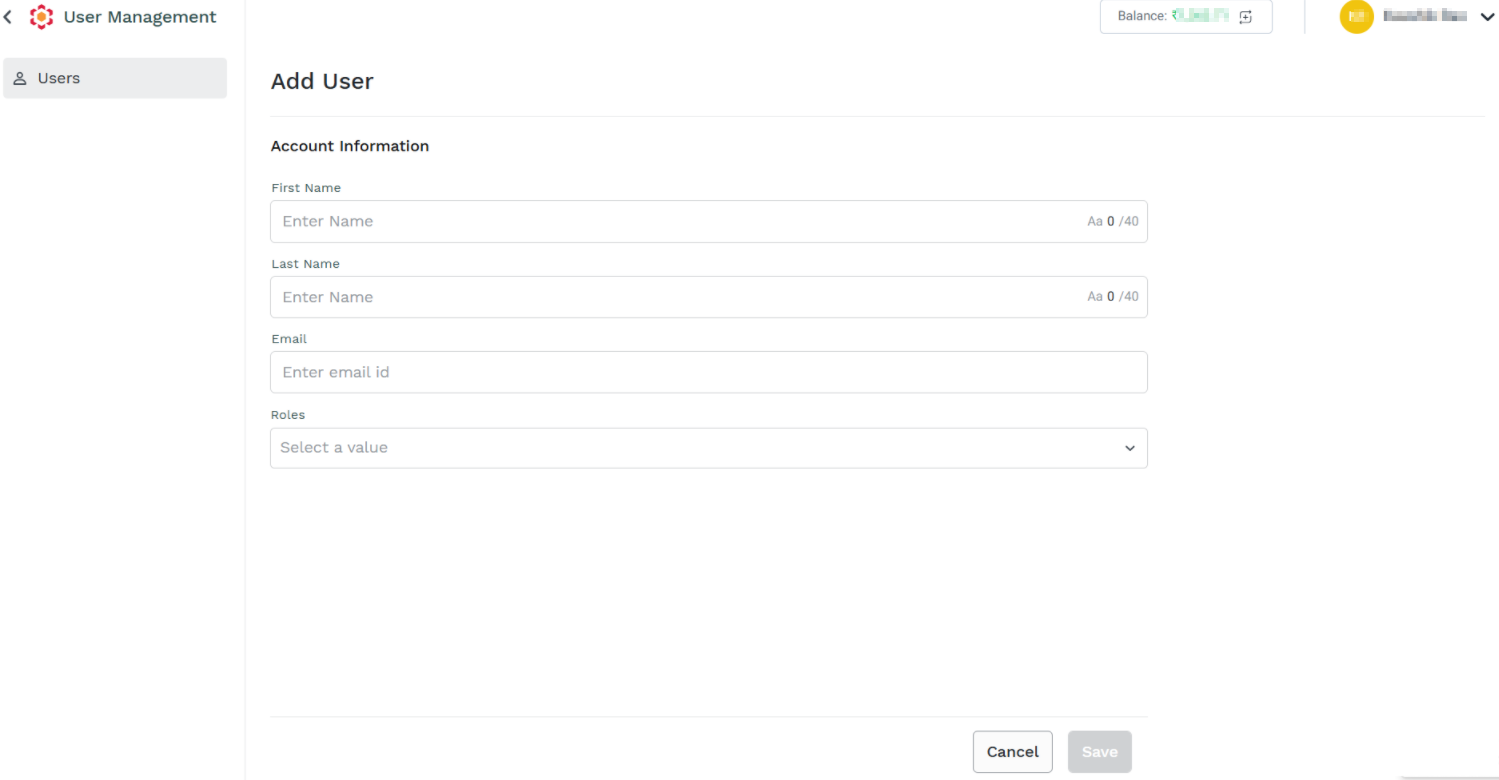
- The Add User page has the following account Information fields:
-
First Name - Enter the user's first name. Must be at least 3 characters long.
-
Last Name - Enter the user's Last Name. Must be at least 3 characters long.
-
Email - Enter the valid user's email address of the Kaleyra personnel you want to invite. The only allowed emails are the ones with
@tatacommunications.comdomain name. -
Roles - Select the roles from the drop-down list. The supported options are:
- Admin - You can access all features, create and edit team, manage API credentials and billing, see logs and usage.
- Communication Manager - You can design communication flows, manage campaigns, and use our tools offerings. Has access to logs, analytics and usage.
- Support- You can only access logs and usage.
- Kaleyra Expert - Can support you to resolve any issue or configure the platform.
Additional Roles:
The following are the additional roles used:
Operational User
- Whatsapp Only - Can only access WhatsApp channel and launch WhatsApp Campaign.
- Numbers Read-Only - Can only access the Numbers page.
Note:
Contact the Kaleyra Support team for enabling the above Additional roles.
- Select the Kaleyra Expert from the list of available roles.
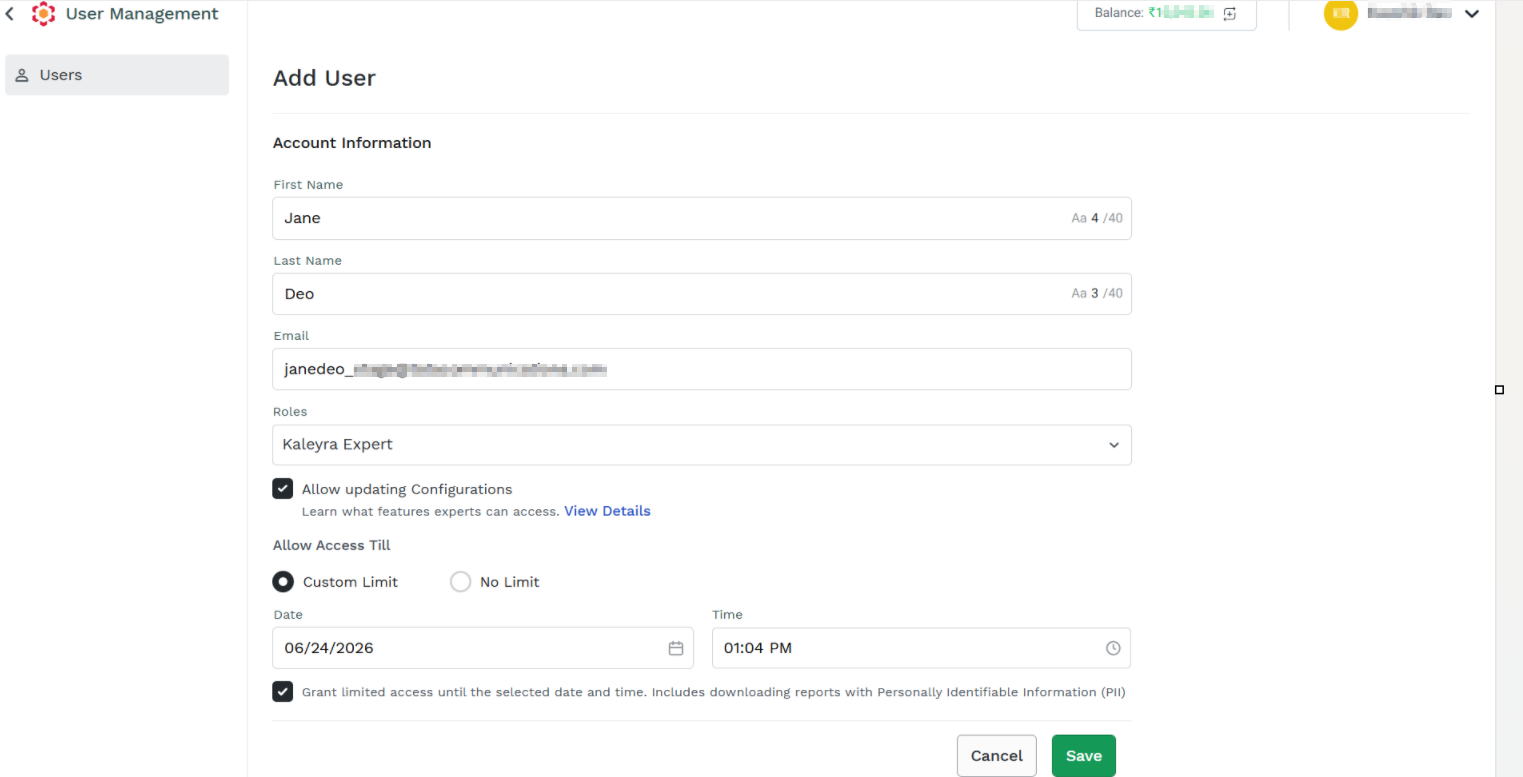
(Optional) Select the Allow updating Configurations checkbox to allow the Kaleyra personnel access in write mode to a limited set of resources and click View Details. The "Kaleyra Expert Can Access To" pop-up page "Without Update Configuration" and "With Update Configuration" appears.
If this option is not selected, the invited Kaleyra personnel will only have read-only access to the account in read-only mode.
-
To define the duration of Kaleyra's personnel access to the account, select from the Allow Access Till any one of the following options:
- Custom Limit - Allows you to customize the specific date and time after which the access will be automatically revoked. To select the Date field, click the Select date, a calendar pop-up, and select the date. In the calendar, you can select only up to the maximum allowed duration (3 days). In the Time field, click the Select time, an hour duration list pop-up, and select the time.
- No Limit - This option allows to grant access to the account without any automatic expiration. If selected, the invited Kaleyra personnel will have access to the account until it is manually revoked.
-
Select the Grant limited access until the selected date and time. Includes downloading reports with Personally Identifiable Information (PII) check box to be able to grant access to Kaleyra personnel with “kaleyra expert” role.
-
Click Save. A pop-up message Invite sent appears.
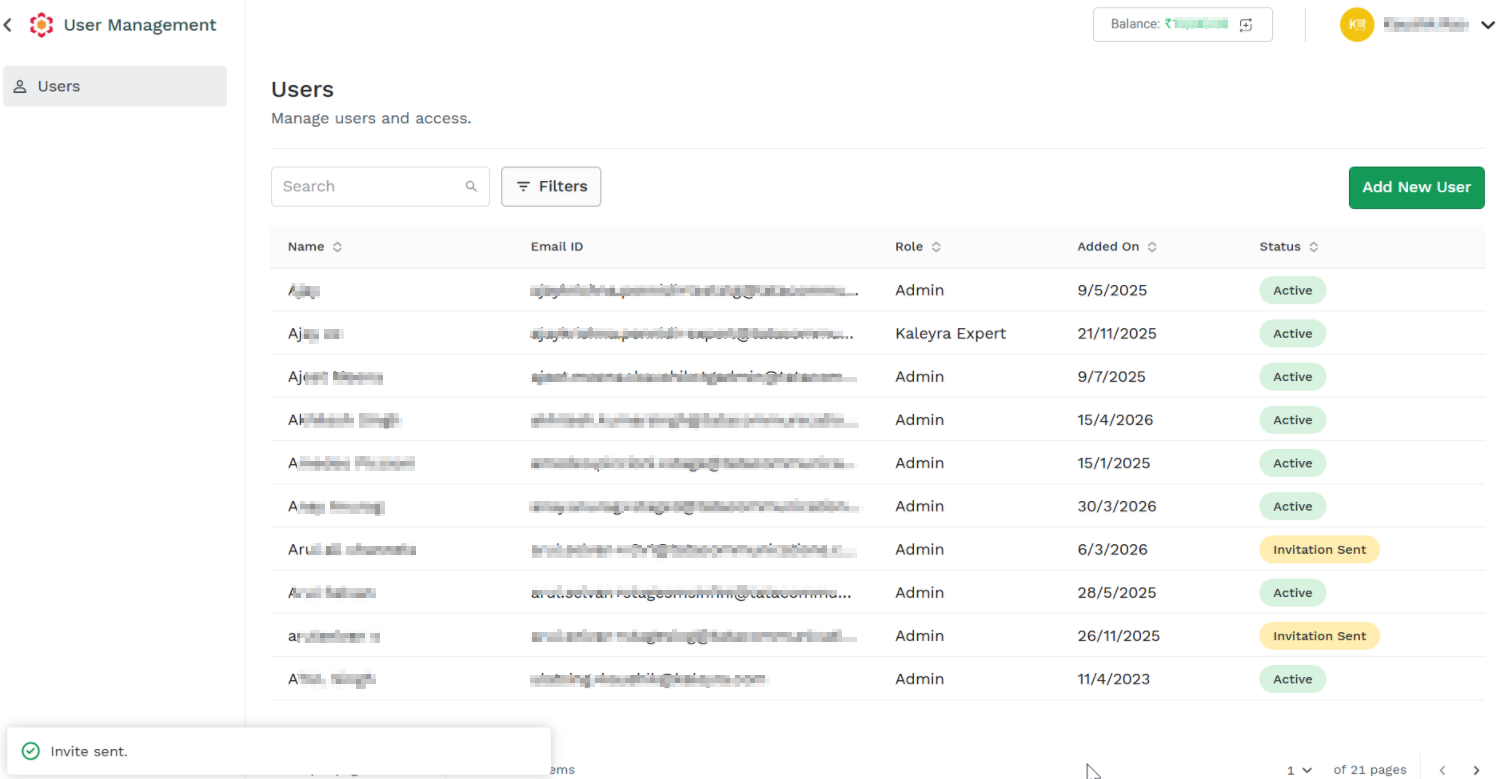
The Kaleyra personnel gets invited through email to your account with the Kaleyra Expert role.
Updated about 2 months ago