

Create Email Template
To create an Email template, you should first send it for approval to the Kaleyra support team through your kaleyra.io account. Our support team will verify and approve it. We will send you an email to notify you about the status of your template. In case your template is not approved, you will receive an email with the reason for rejection.
To send an Email template for approval, perform the following steps:
-
Sign in to Kaleyra platform.
-
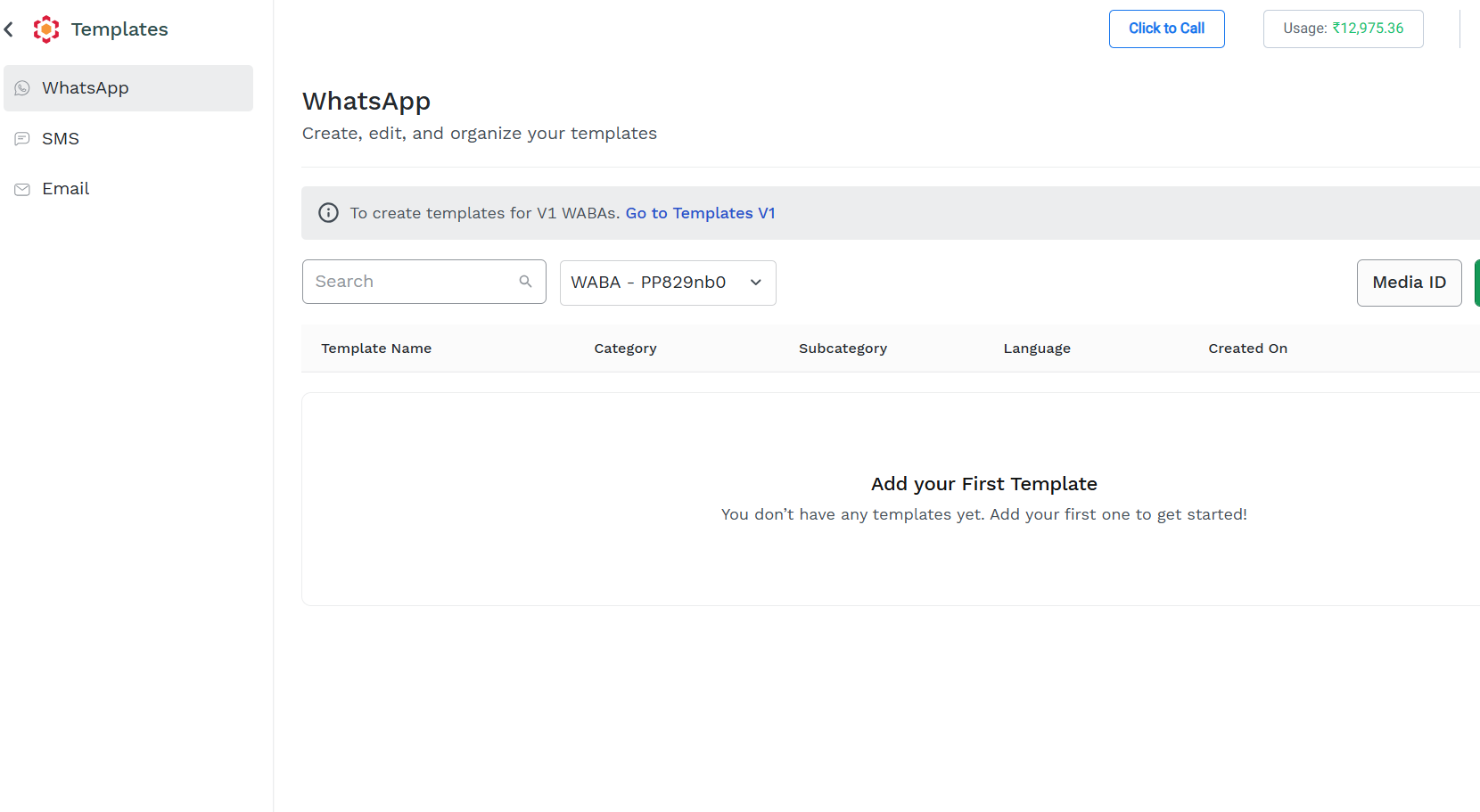
On the left menu bar, click Templates.
The Template page appears
-
Click Email on the left navigation bar.
The Email Templates page details appear.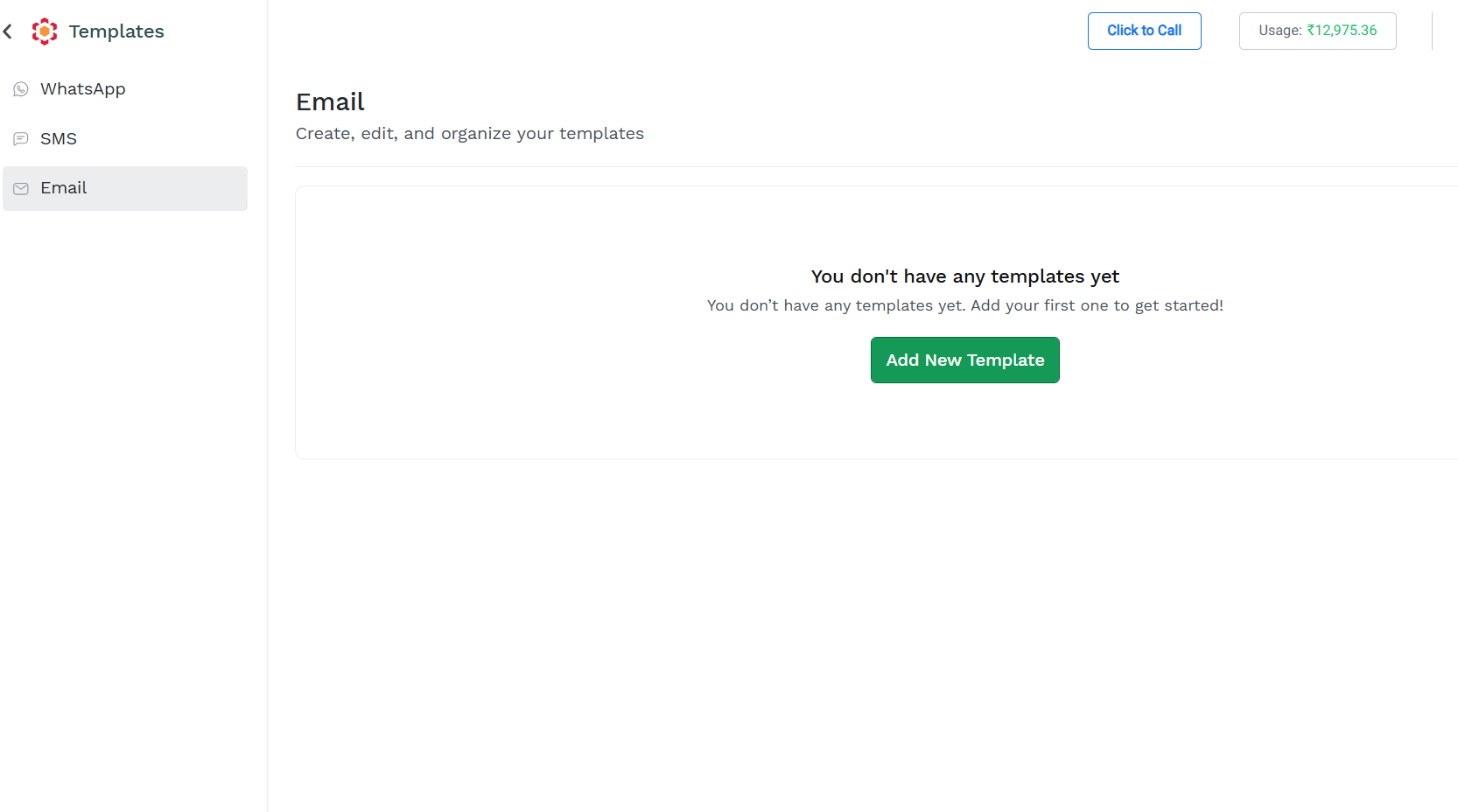
- Click Add New Template.
The Add Template page appears.
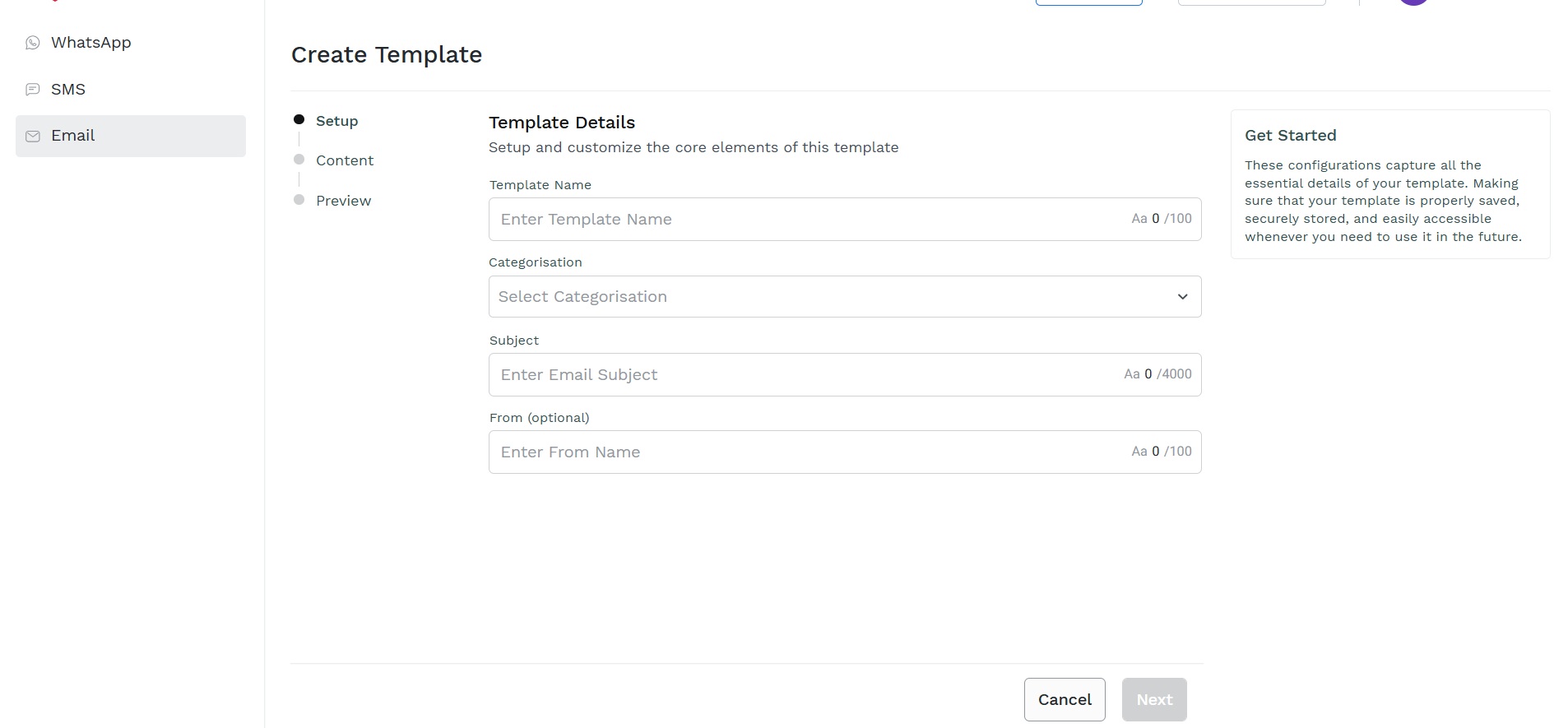
To Create a new Email Template, perform the following steps:
- In the Template Nanme field, enter a Name for the Email template.
- In the Categorisation field, click the arrow next to the Categorisation field to view the list of available options. Select for which type of Email communication you want this template to be available.
-
In the Subject field, enter the subject of the template email.
-
In the From (optional) field, enter the From address you want to associate to the template.
-
Click Cancel if you want to exist the template creation wizard without saving
-
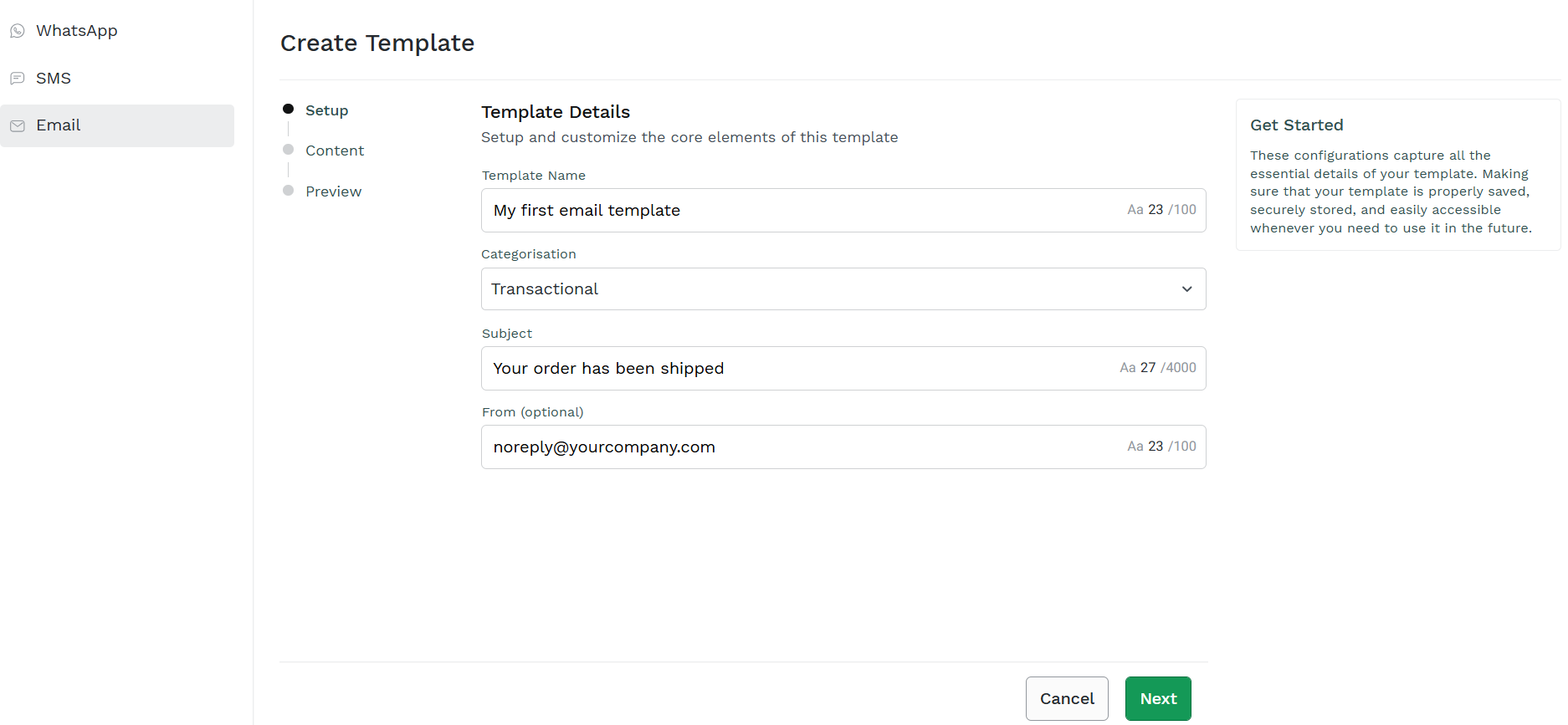
Once all of the mandatory field have been filled, Next button is enabled
-
Click Next to proceed with the template creation process. The Content page appears
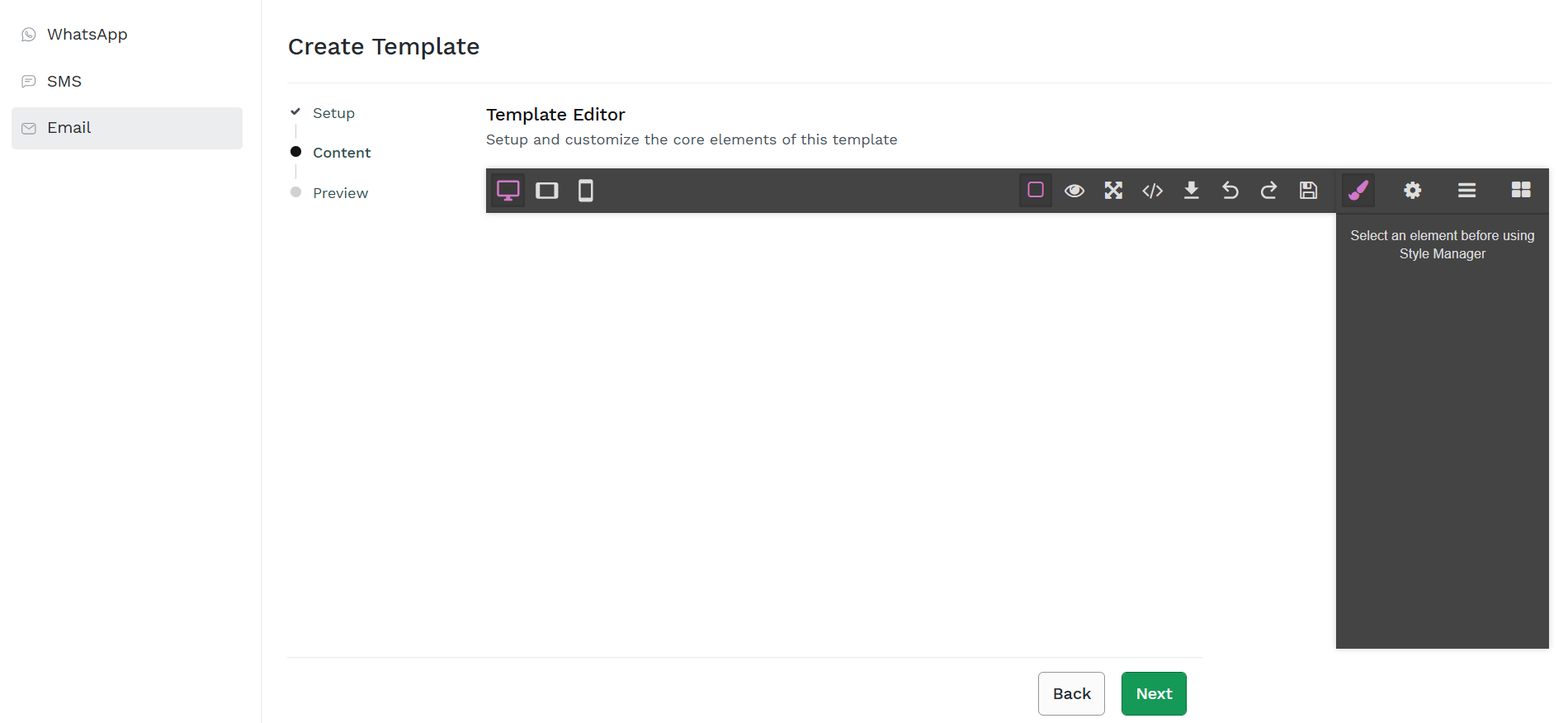
Email Template Editor
The Content page of the Email Creation wizard offers a powerful email template editor allowing you to:
- select the screen type on which template editor will be visualized, respectively
- laptop screen
- tablet screen
- mobile screen
- select different Modes or Actions on the left side of the page ribbon, respectively:
- see components
- preview template
- full screen mode
- view code mode
- Import MJML
- Undo
- Redo
- Open Style Manager
- Open Component Setting
- Open Layer Manager
- Open Blocks
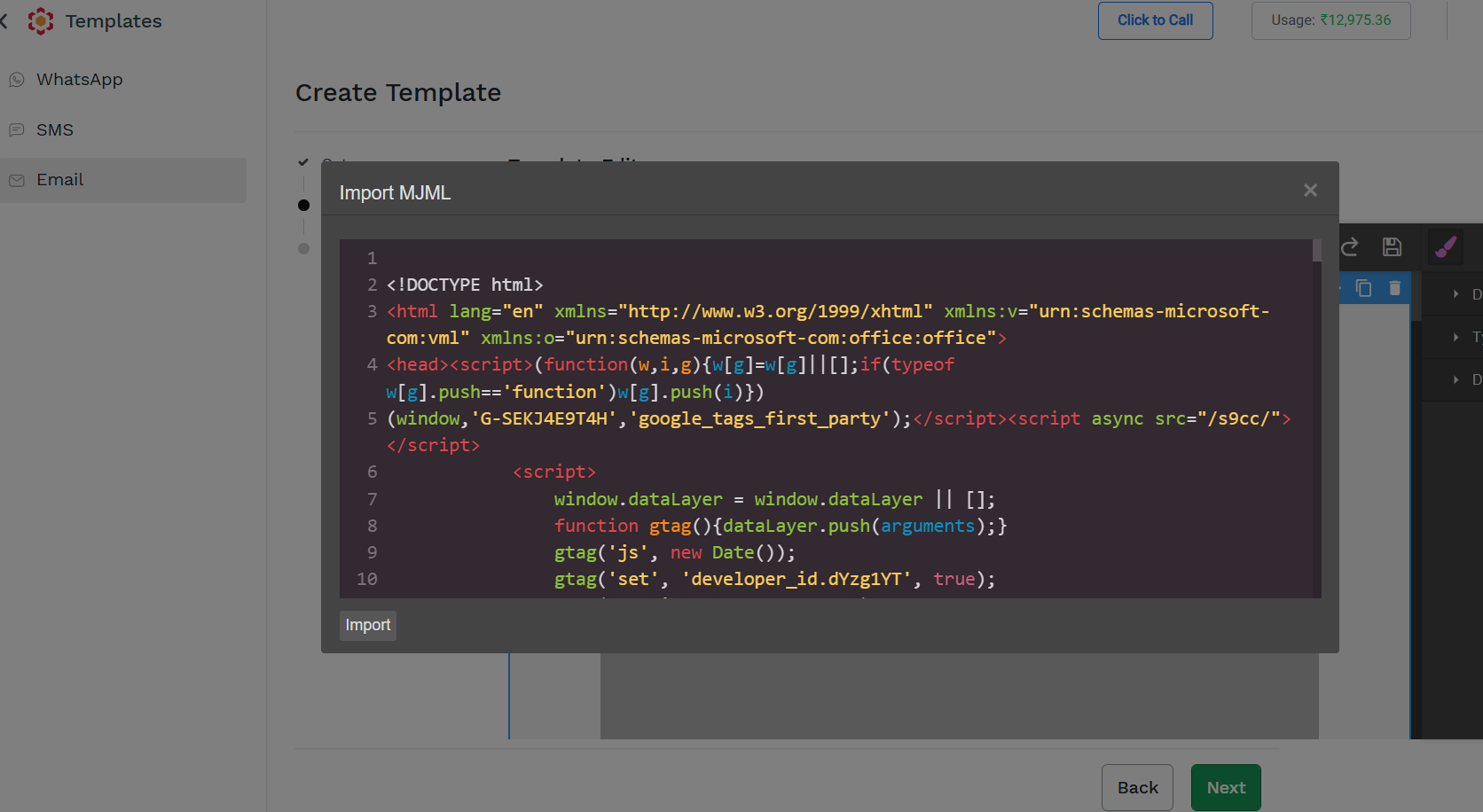
You can start creating your Email Template either import your own HTML through the Import MJML option:
or adding email template components drag and drop block from the Open Blocks option
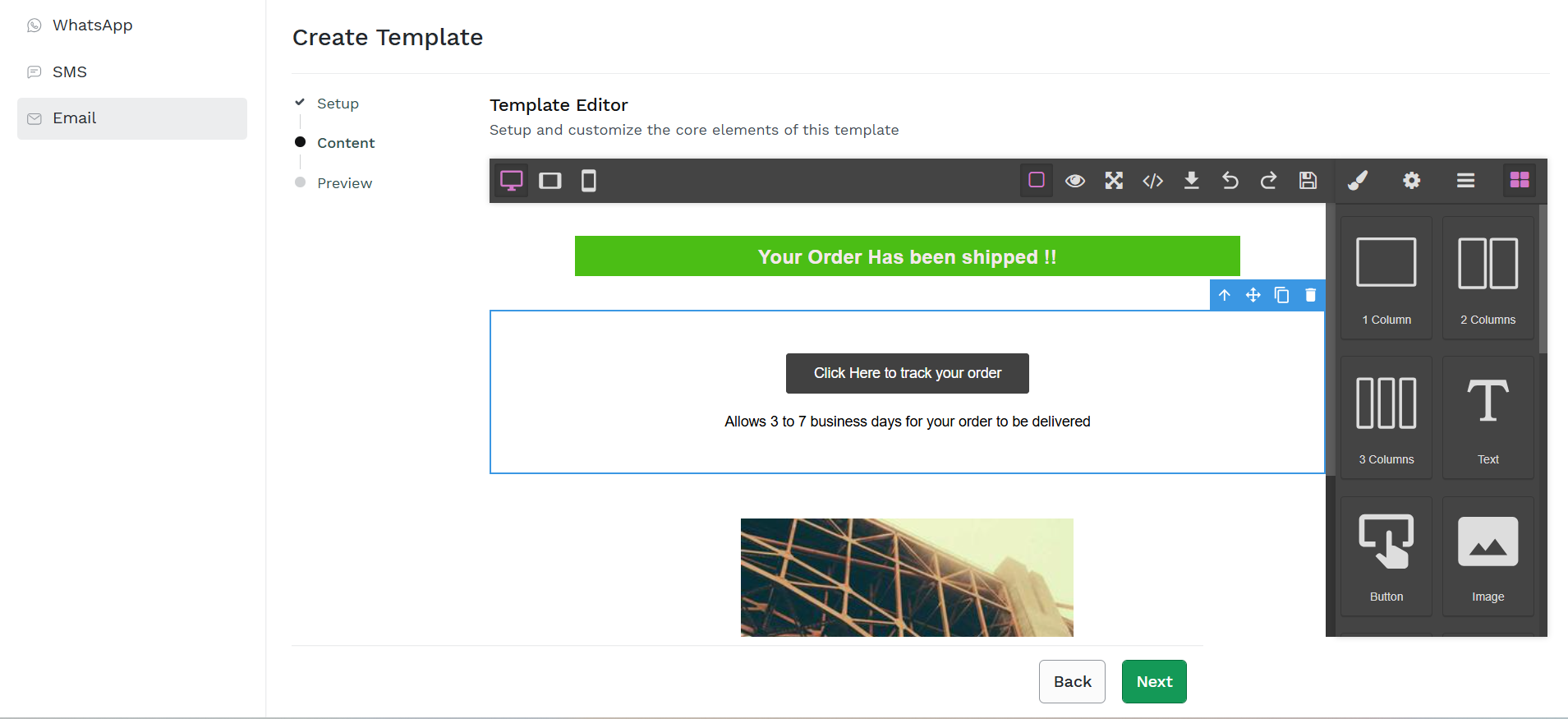
Once you have imported email template code or created one by dragging the required blocks you can edit each single component simply selecting it and changing, e.g. the text, fonts, dimensions, background color, aligment and many other parameters
Once your template email has been finalized, click Next to proceed, the preview page appears
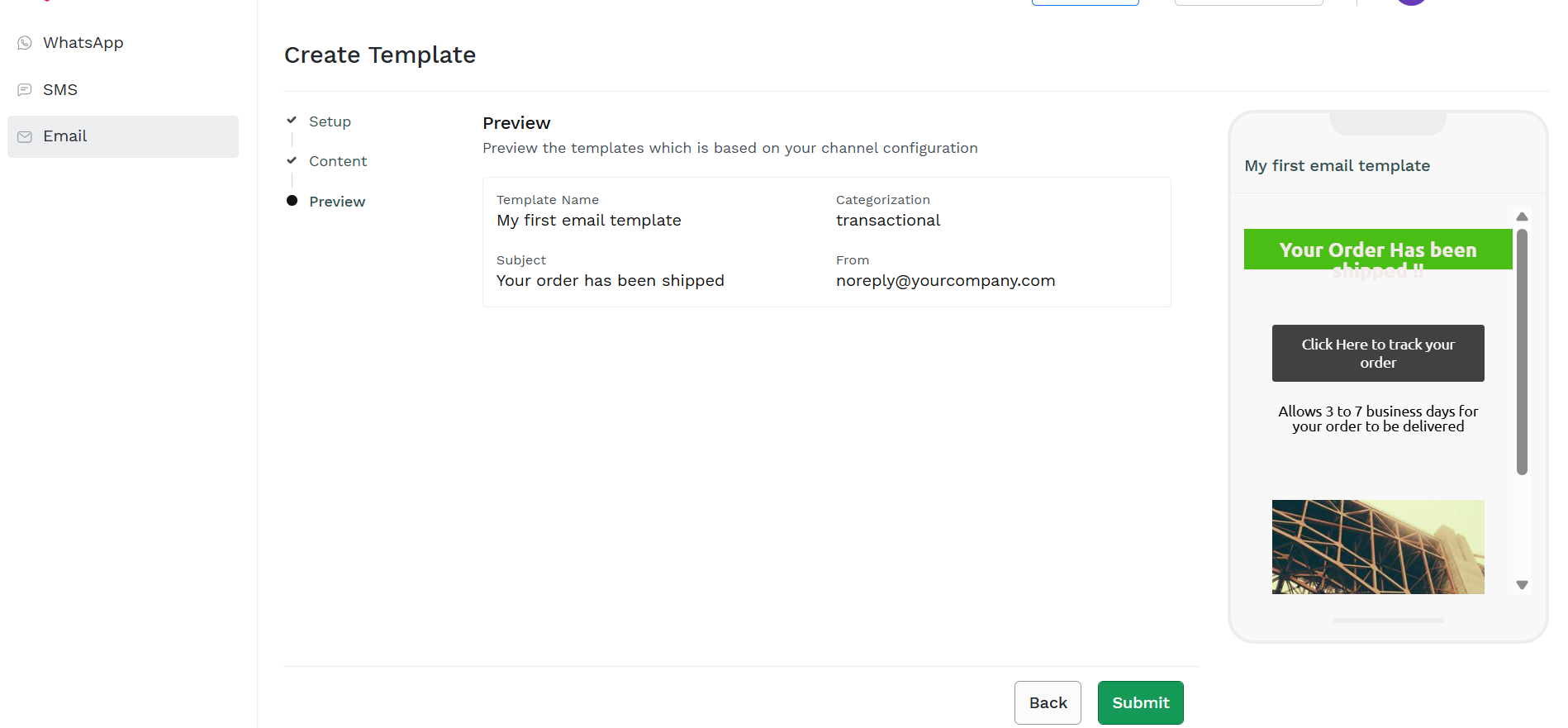
The Preview page provides a summary of all the entered information for your template, if eveything is good, click on Submit to send you template for approval.
If you want to rework or change any of the information of the template, click on Back.
Once you save a template, a confirmation message appears. You can view the created templates and its status in the Templates list page.
Updated 2 months ago