

General Settings
The General Settings page provides the following sections for you to define a few account-related settings.
- Auto Blocklisting on Directory
- Global Click to Call Button
Auto Blocklisting on Directory
You can enable the system to automatically add a contact number to the blocklist when SMS delivery keeps failing for a specified period.

To enable automatic blocklisting feature, perform the following steps:
- Sign in to your Kaleyra platform.
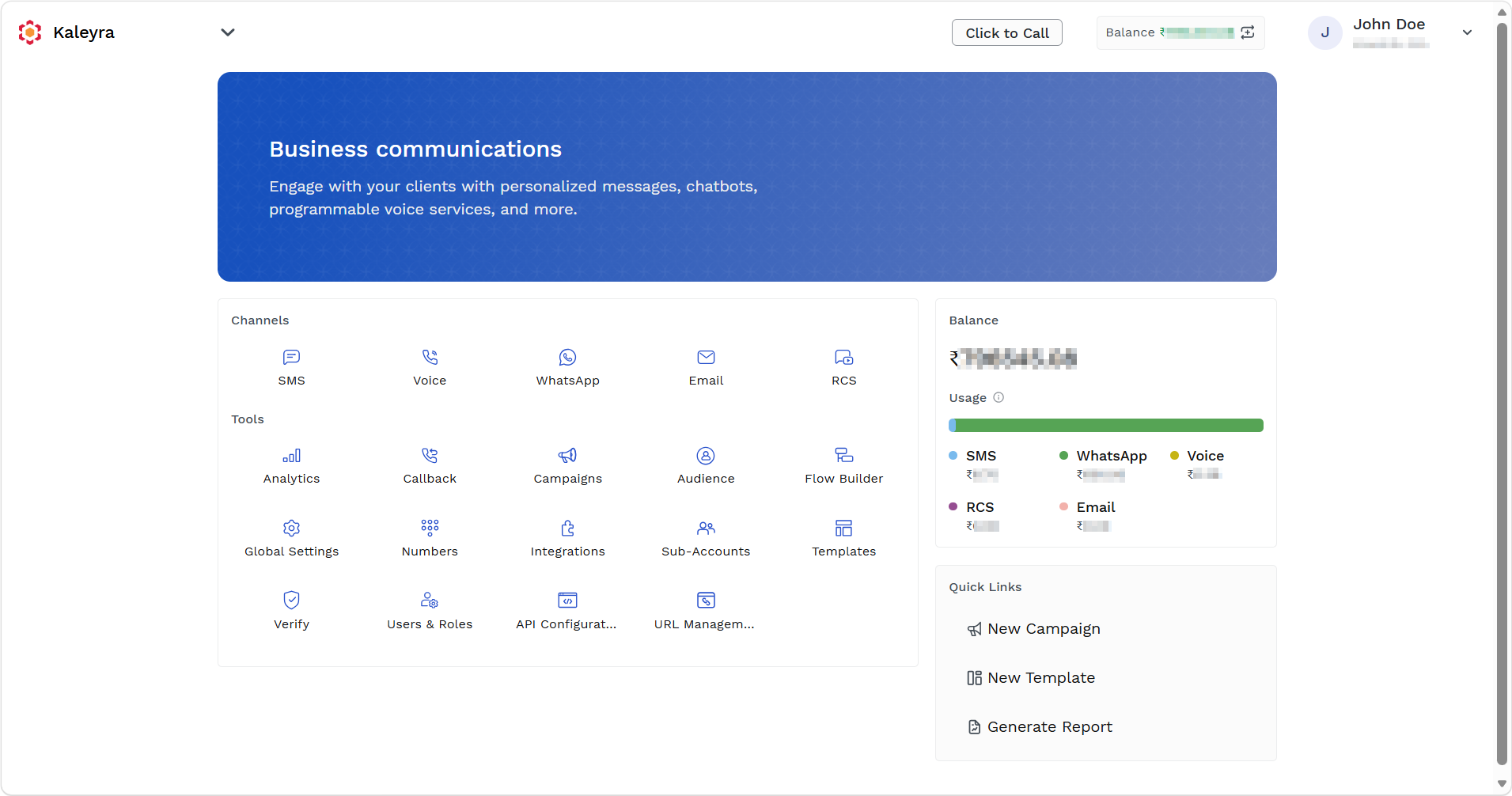
The Business communications page appears.
-
On the Tools section, click Global Settings.
The Global Settings page appears.
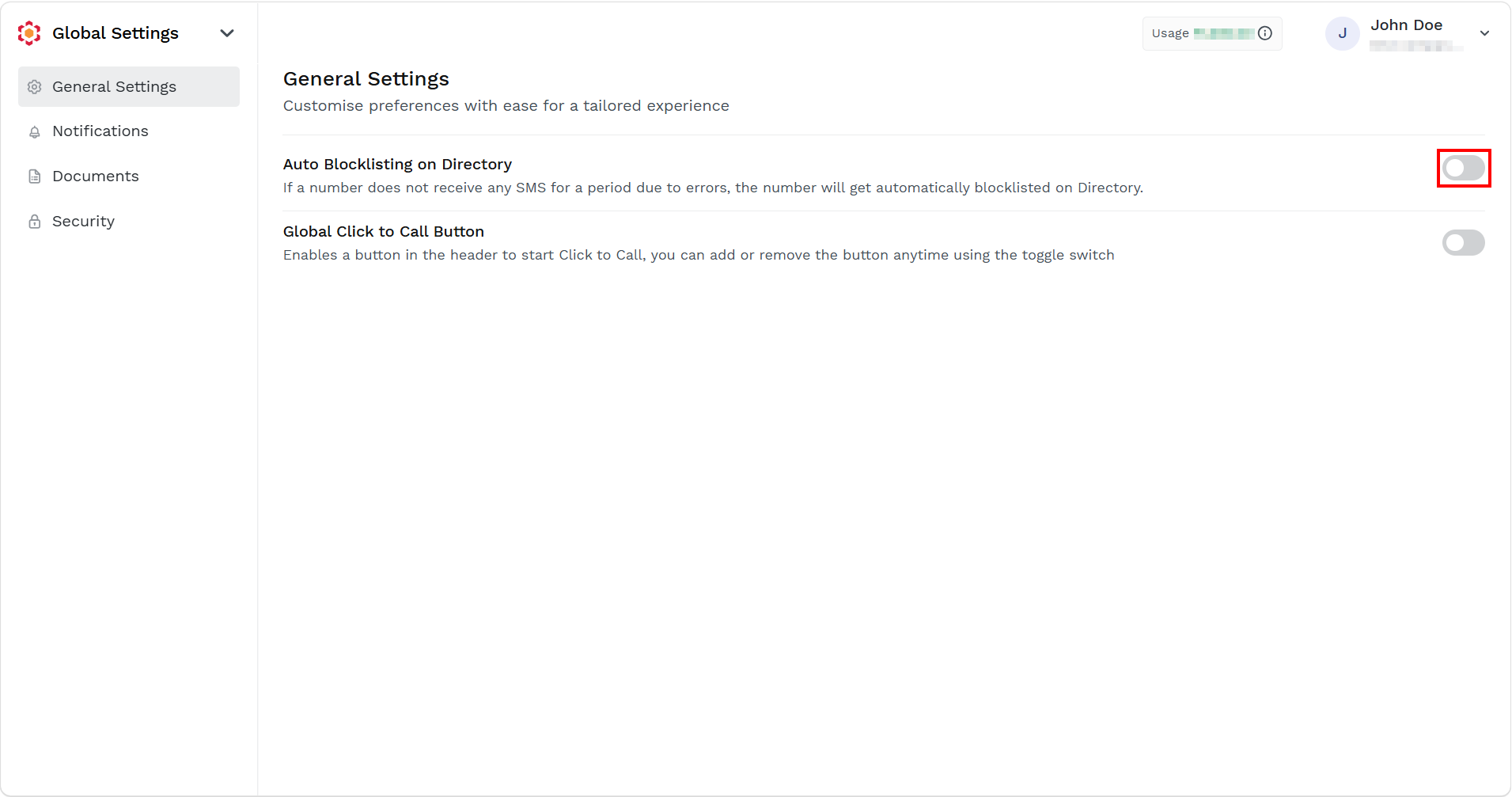
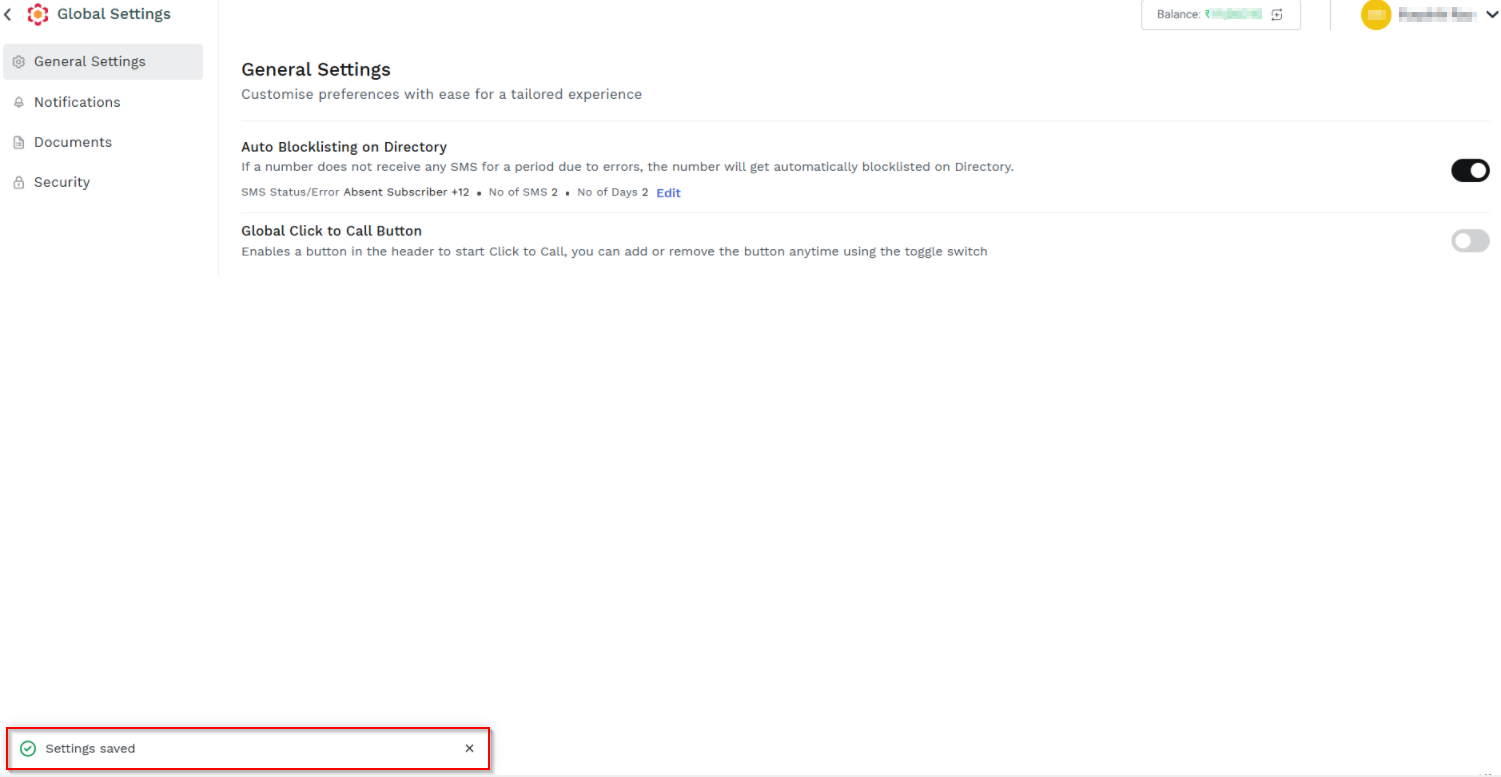
- Enable the Auto Blocklisting on Directory feature using the toggle button.
The confirmation message Settings saved appears.
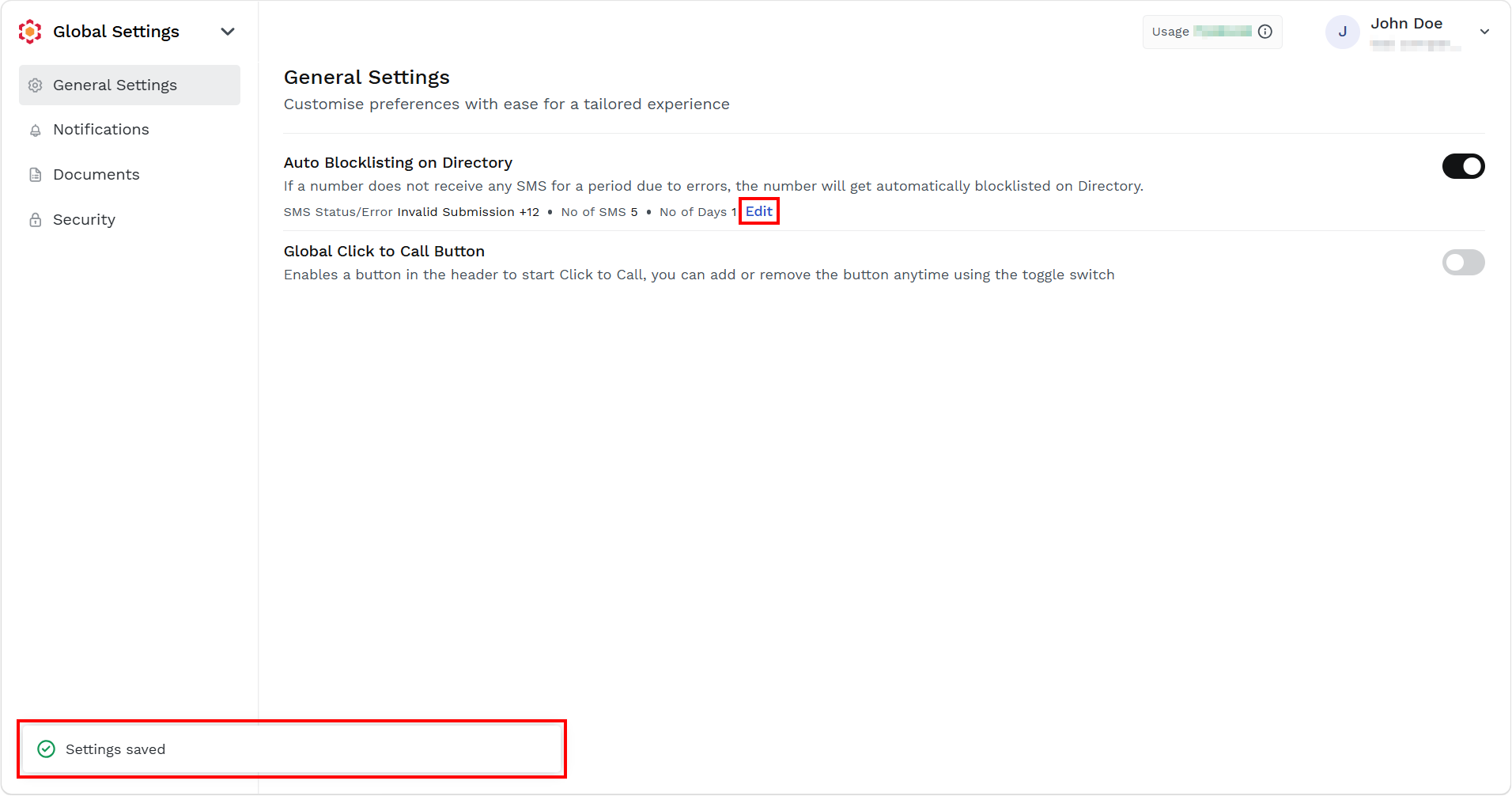
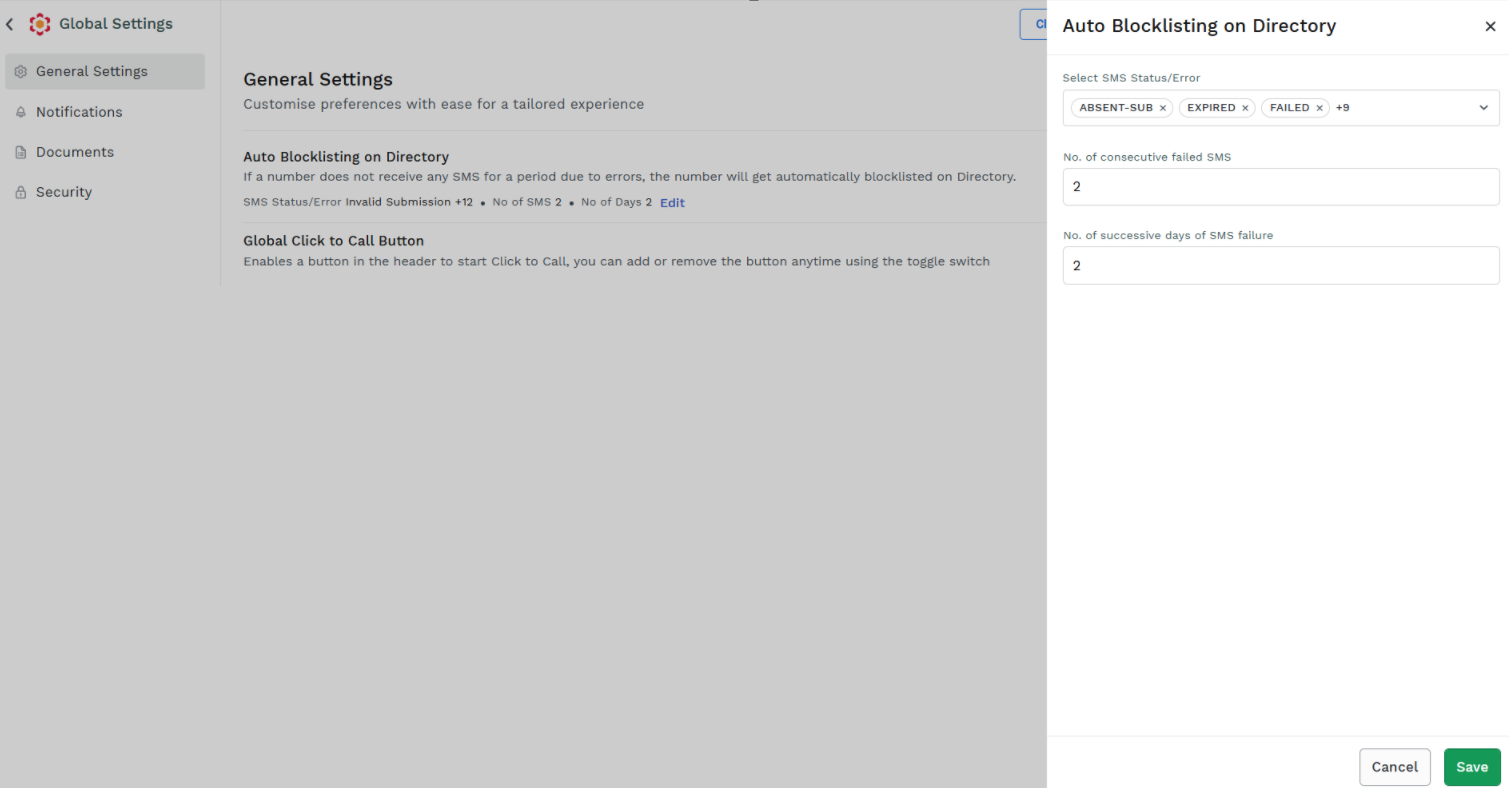
- To edit the fields related to the blocklisting feature, click Edit.
-
From SMS Status/Error drop-down, select all the applicable errors for which you want to blocklist the end user contact numbers.
The statuses/errors that you select appear in a comma separated list as shown. -
Enter a value in the No. of consecutive failed SMS field. This is a mandatory field.
-
Enter a value in the No. of successive days of SMS failure field. This is a mandatory field.
-
Click Save. The "Settings saved" message appears.
Note:The contact numbers that satisfy either one of the conditions specified in No. of consecutive failed SMS or No. of successive days of SMS failure fields, get blocklisted.
For example,
Suppose, No. of consecutive failed SMS field is set to 5 and No. of successive days of SMS failure field is set to 3 days.
A contact number that does not receive the SMS, when a customer sends 4 SMS on day 1 and one more SMS on day 2 is blocklisted (because the condition 1 is satisfied).
A contact number that does receive the SMS, when a customer sends 3 SMS on three different days, is blocklisted (because the condition 2 is satisfied).
Global Click to Call Button
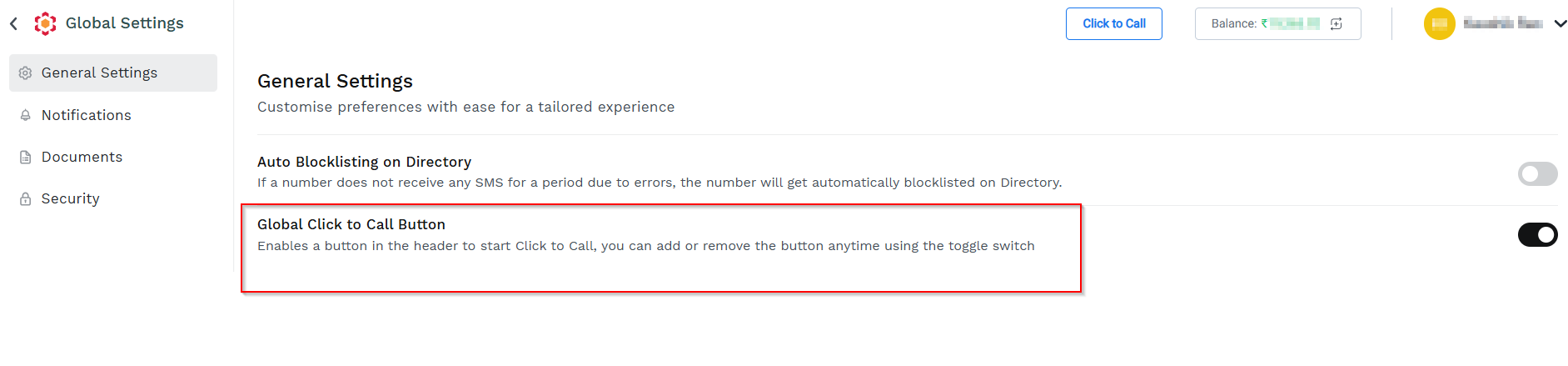
On the Settings page, toggle the Global Click to Call Button. Enables a button in the header to start Click to Call, you can add or remove the button anytime using the toggle switch.
For a detailed information on Click to Call button feature, see: Click to Call.
Updated about 14 hours ago