

Launch Campaign in Batches
While scheduling the campaign, if you have more than 1,000 recipients uploaded, then you can configure it to run in batches. You can specify the number of contacts to include in each batch and set the interval after which the next batch will be triggered. Batching allows you to send messages to end users in controlled groups rather than sending them all at once.
To launch the campaign in batches, perform the following steps:
- Follow step 1 through 19 of Create New RCS Campaign.
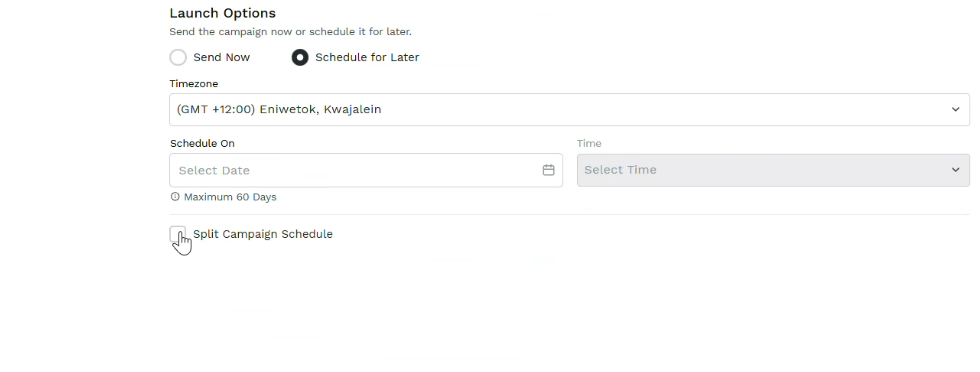
- In the Launch Option section, select the Schedule for Later option and then perform the following steps:
- Click the Timezone drop-down field and select the time-zone where you want to send the campaign messages.
- Click the Schedule On calendar icon, select the date when you want to launch the campaign. You can select a maximum of 60 days in advance of the current date.
- Click the Time drop-down field and select the time when you want to schedule the campaign.
- Select the Split Campaign Schedule checkbox to run the campaign in batches.
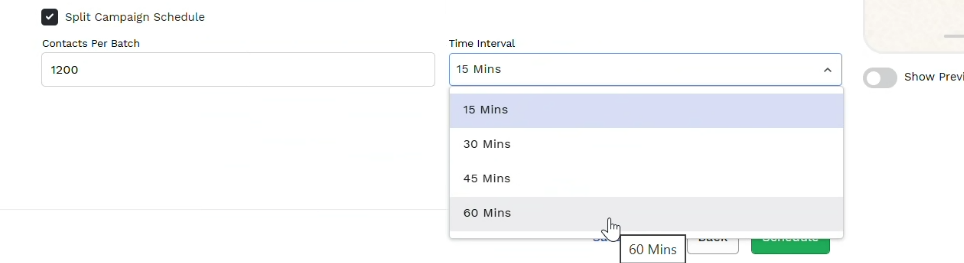
- In the Contact Per Batch field, enter the number of contacts you want to send the messages in a batch to be processed in each batch.
- Click the Time Interval drop-down and select the time intervals to be waited between two batches:
- 15 Mins
- 30 Mins
- 45 Mins
- 60 Mins
- Click the Schedule button. The campaign gets scheduled in batches. To view the batch details, see View Batch Details.
Updated 21 days ago
Did this page help you?