

WhatsApp Account Webhooks
The WhatsApp Account Webhooks section allows businesses to receive notifications for supported WhatsApp Business Account (WABA)-level events through a configured callback.
A Callback Profile ID can be configured at the WABA level and used as the callback destination for multiple supported notification types.
Note:
- For incoming messages and message delivery status webhooks, businesses can configure their callback settings under Settings.
- For additional business-level webhook events related to WABAs, phone numbers, and message templates, businesses can configure their notification preferences under Notifications → WhatsApp Webhook.
- Businesses can choose to receive these notifications through email, callback, or both.
- A single Callback Profile ID can be configured at the WABA level and used to receive all supported business-level webhook events for which callback notifications are enabled.
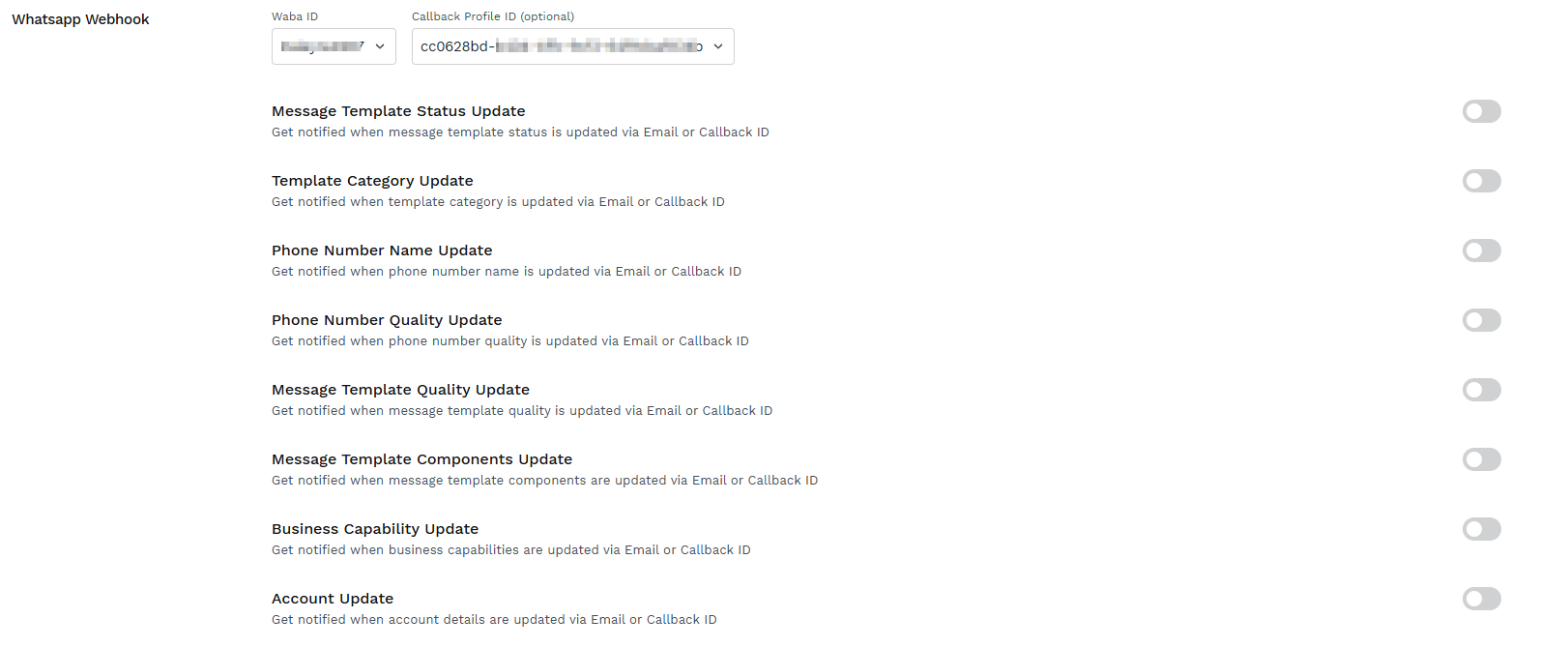
The WhatsApp Webhook section has the following webhook options:
- Message Template Status Update - Get notified about your template status is updated once it is submitted for approval.
- Template Category Update - Get notified whenever template category is updated or modified by Meta.
- Phone Number Name Update - Get notified on the phone number approval status.
- Phone Number Quality Update - Get notified whenever the phone number quality is changed at Meta's end.
- Message Template Quality Update -Get notified whenever the template quality is changed at Meta's end.
- Message Template Components Update - Get notified whenever the template's components are updated.
- Business Capability Update - Get notified whenever the business capabilities are updated at Meta's end.
- Account Update - Get notified whenever the account details are updated.
How WhatsApp Webhook notifications work
The WhatsApp Webhook notifications use a two-level configuration:
- Callback configuration
Configure a single Callback Profile ID for the WABA.
This Callback Profile ID acts as the callback destination for supported business-level webhook notifications.
- Event-level notification configuration
For each supported notification type, select how the end user wants to receive the notification:
- Callback
- Email or callback
The notification method is configured independently for each event.
Configure the Callback Profile ID
You can configure the Callback Profile ID by the following steps:
1. Create the Callback Profile ID. For more information see, Callback Profile ID page.
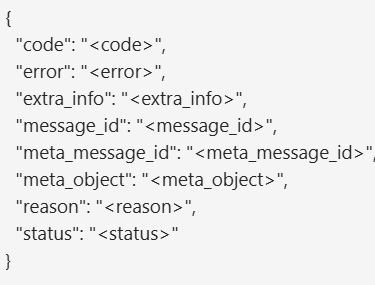
-
Add the Callback Profile ID
Enter the Callback Profile ID against the required WABA which can be selected by the drop-down as shown below.

Note:The Callback Profile ID is configured once at the WABA level and can be used by all supported business-level webhook notifications.
- Enable Notification
For each notification type that the customer wants to receive, enable the toggle ON. This will further give the option of Notify via callback and Notify via Email.
Note:Only once the required notification types are enabled, businesses would start receiving the notifications.
Configure notification preferences
Each notification type has its own notification settings:
- Notify via email - Enable Notify via email when the business wants to receive the notification by email. When enabled, when provide one or more email addresses according to the configuration supported by the product. Different notification types can use different email addresses.
- Notify via callback -Enable Notify via callback when the business wants the notification to be delivered to the configured Callback Profile ID. The same Callback Profile ID is used for all notification types enabled for callback delivery.
Notes:
One Callback Profile ID per WABA. A WABA has a single Callback Profile ID for these business-level notifications. You cannot configure a different Callback Profile ID for each notification type.
For example:
If callback notifications are enabled for Template Status Update and Phone Number Update, both notifications are delivered to the same Callback Profile ID configured for the WABA.
Adding a Callback Profile ID does not enable callback notifications by default. Businesses have to enable Notify via callback or Notify via Email, or both for each notification type that should be delivered to the callback.
Email addresses are configured independently for each notification type. The Callback Profile ID is shared across the WABA.
Enable and Configure Message Template Status Update
To enable and configure the Message Template Status Update, perform the following steps:
- Log in to your Kaleyra Platform
- On the top-right of the page, click the User Profile drop-down and then click Settings.
The General Settings page appears.
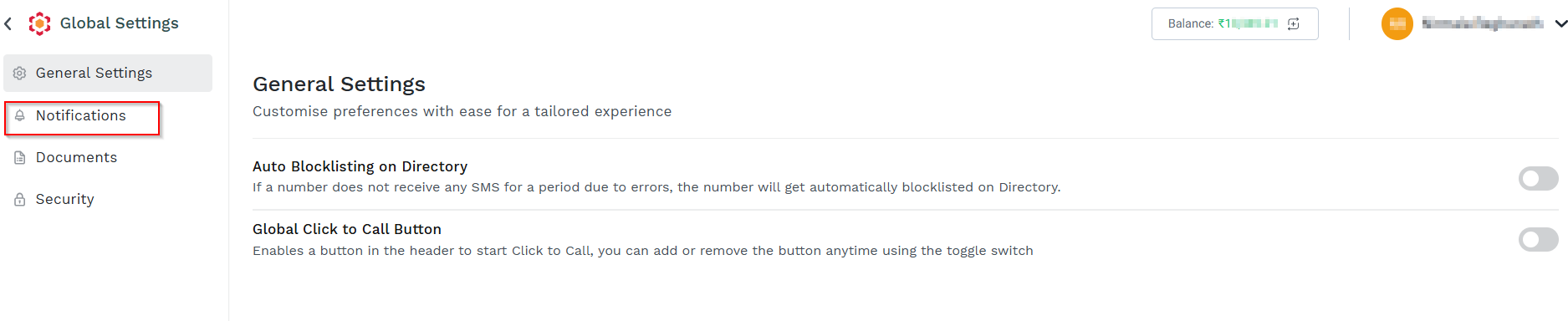
- On the left menu bar, click the Notifications.
The Notifications page appears.
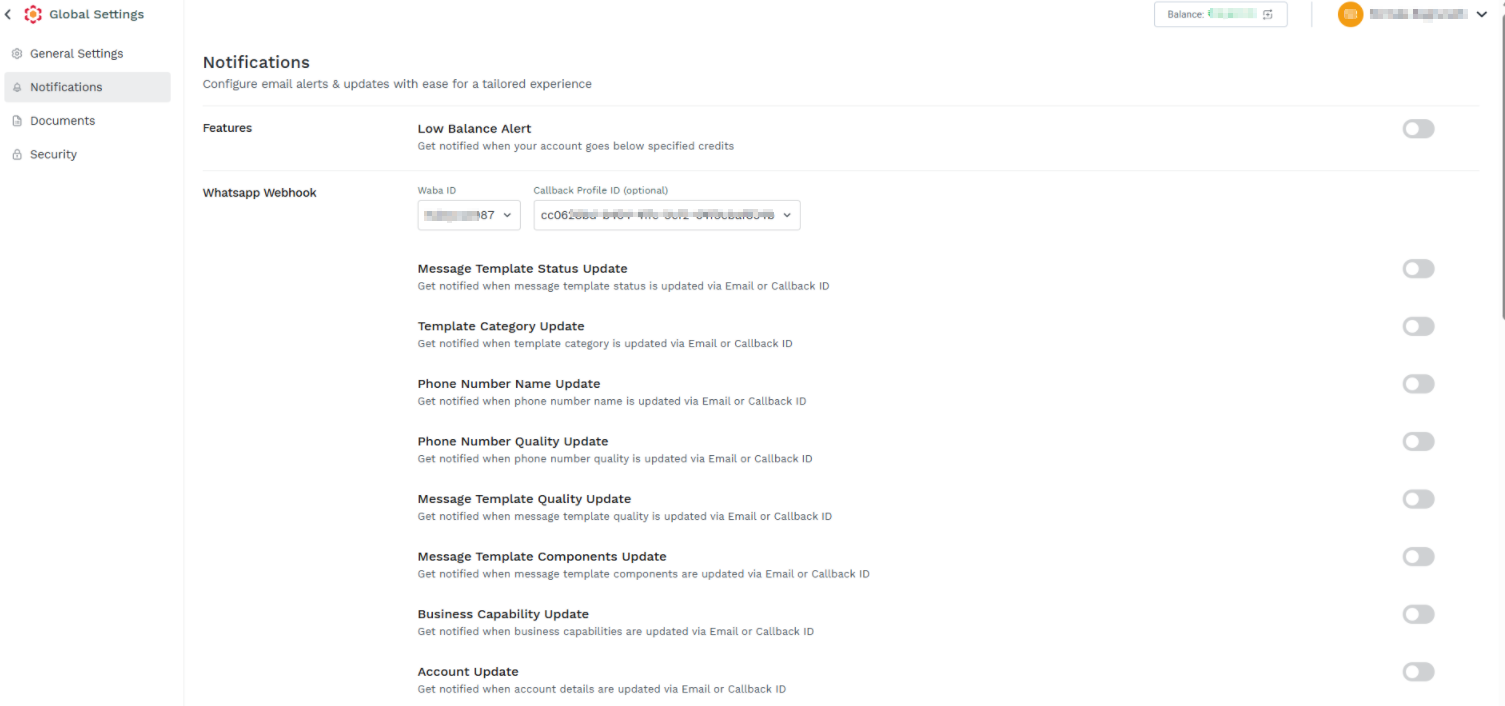
-
Toggle Message Template Status Update.
The Message Template Status Update pop-up appears.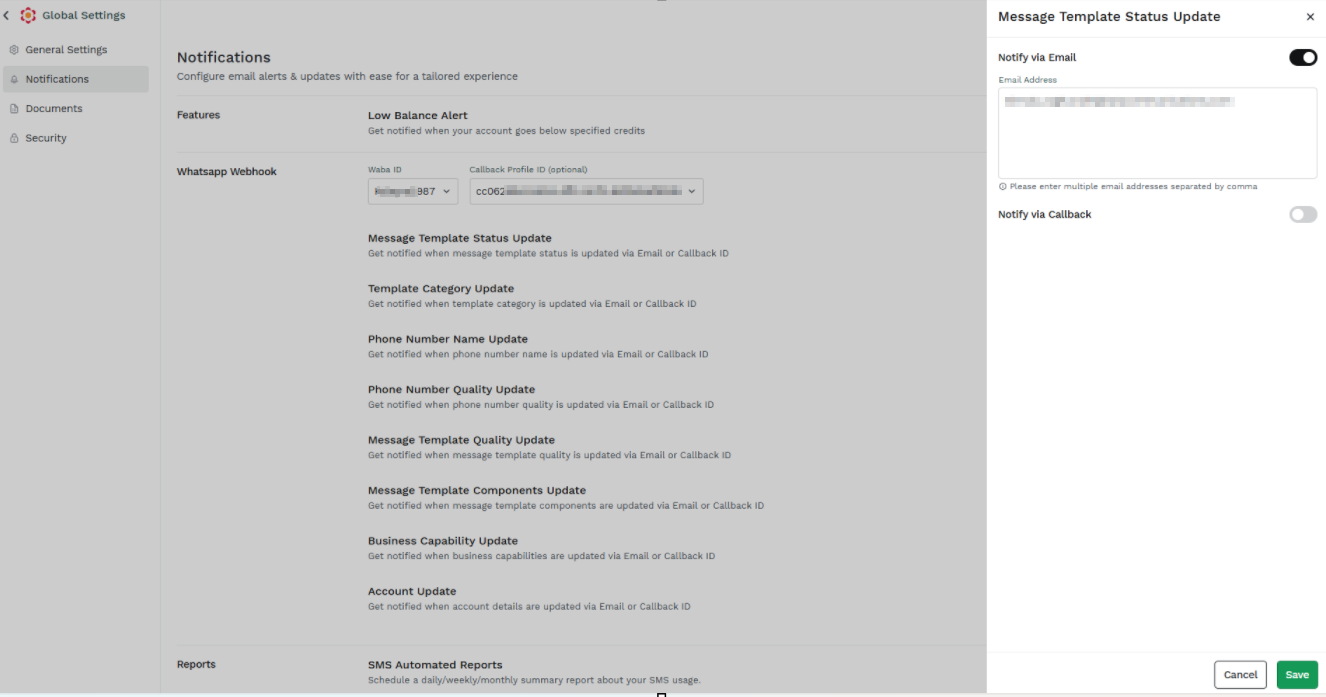
-
Under the Notify via Email section, enter the email address of the recipients to receive the message template status update In the Email Addresses field.
Note:
- You can add multiple email addresses separated by a comma. For example - [email protected],[email protected].
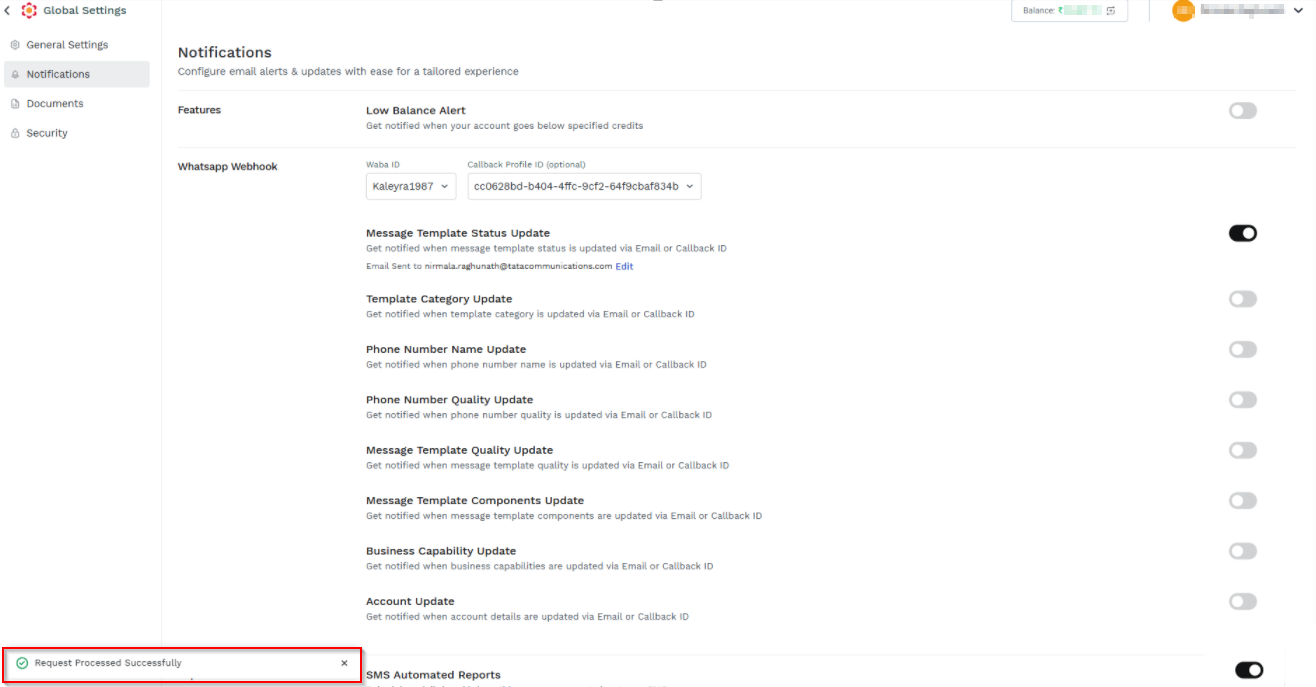
6. Click Save.
A successful confirmation message appears.
Updated 22 days ago