

Uploaded Reports
About Uploaded Reports
The Uploaded Reports screen displays the processed details of the file that you have uploaded to kaleyra platform to bulk update or bulk create SMS assets like templates or Sender Ids.
To access the Uploaded Reports page, click on Uploaded Reports from the left navigation bar of the Channels section. The Uploaded Reports page appears.
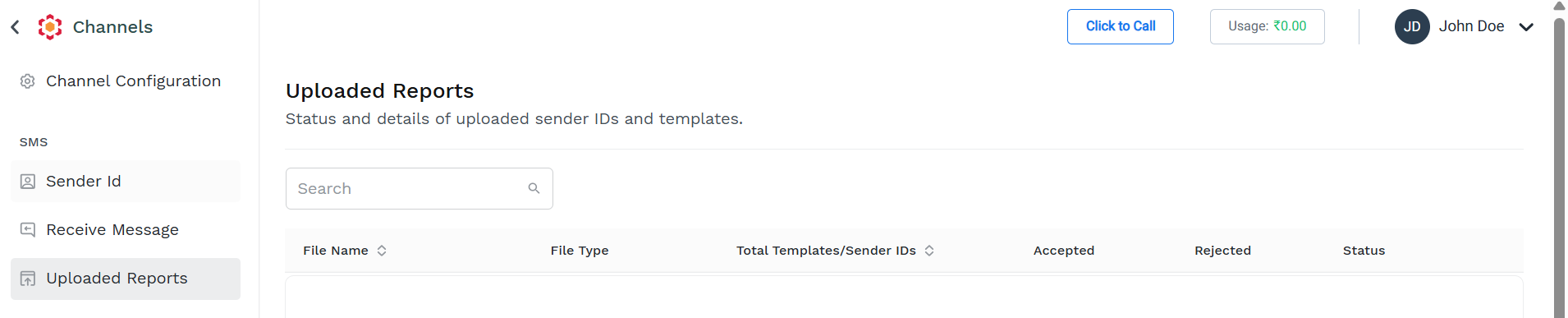
Following are the descriptions of the fields displayed on the Uploaded Reports page:
| Field Name | Description |
|---|---|
| File name | Name of the uploaded file prefixed with date and time. |
| File type | Type of the file uploaded. This field displays the Templates uploaded in CSV format. |
| Total templates/Sender IDs | The total number of unique template/ sender IDs uploaded in the file. |
| Accepted | The number of files accepted. |
| Rejected | The number of files rejected. |
| status | Processed status of the uploaded file. |
Download the report
You can download the detailed report of the uploaded files.
To download the report:
- Hover over the report that you want to download the report for. You will see an ellipsis.
- Hover over the ellipsis and click Download. The report is downloaded in CSV format to your local system.
The report is downloaded in CSV format to your local system. This report displays details like the title of the template, purpose of the template, content of the SMS, sender IDs, template IDs, the processed status of the uploaded file, and reason for the processing failure if any.
Updated 10 days ago