

Search and Filter Billing History
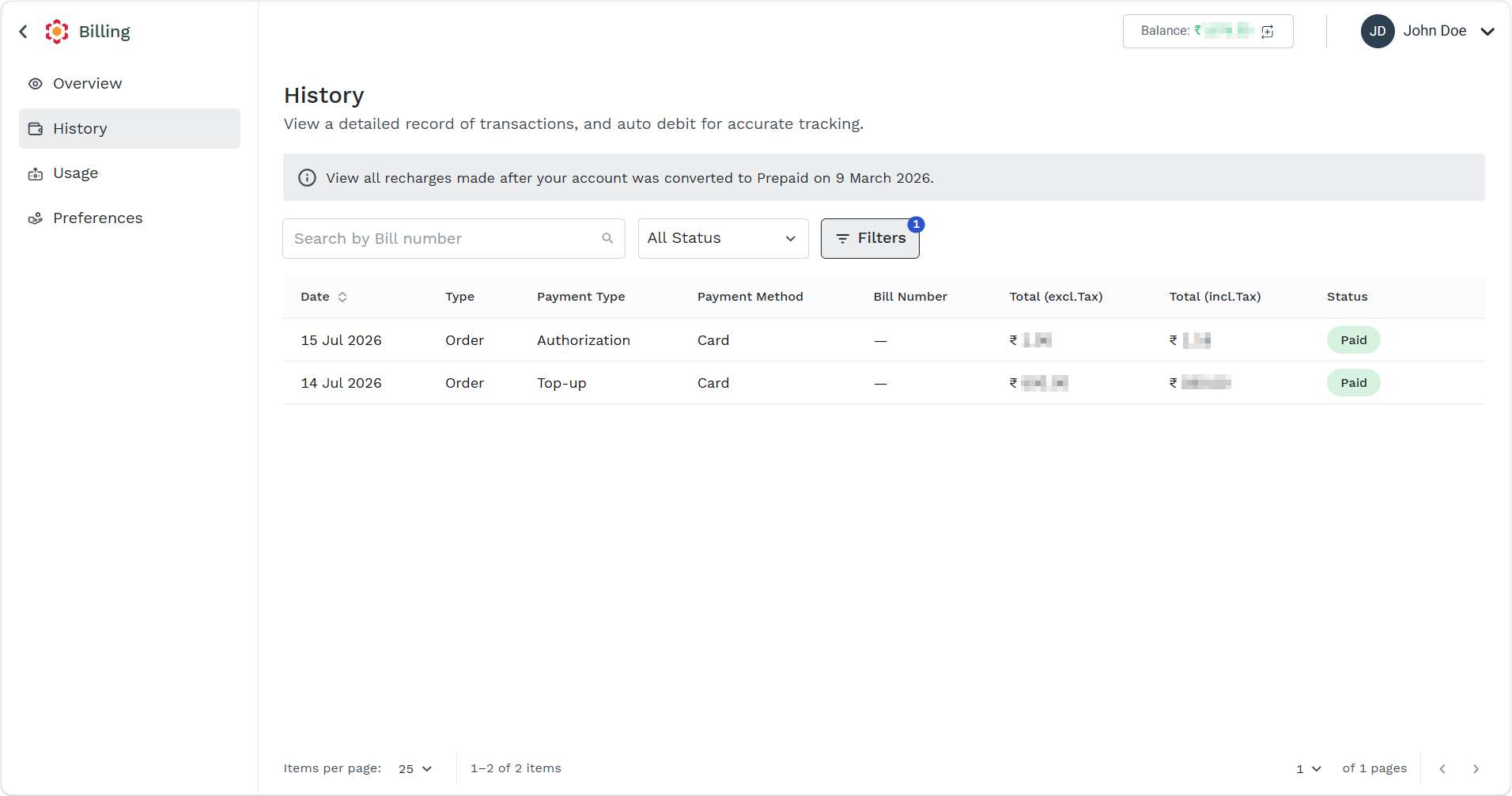
You can search and filter the billing history from the History list page.
The topic contains the following sections:
Search by Bill Number
You can search using the bill number.
To search by bill number, perform the following steps:
- Follow step 1 and step 2 of Prepaid Billing Overview.
The Billing Overview page appears.
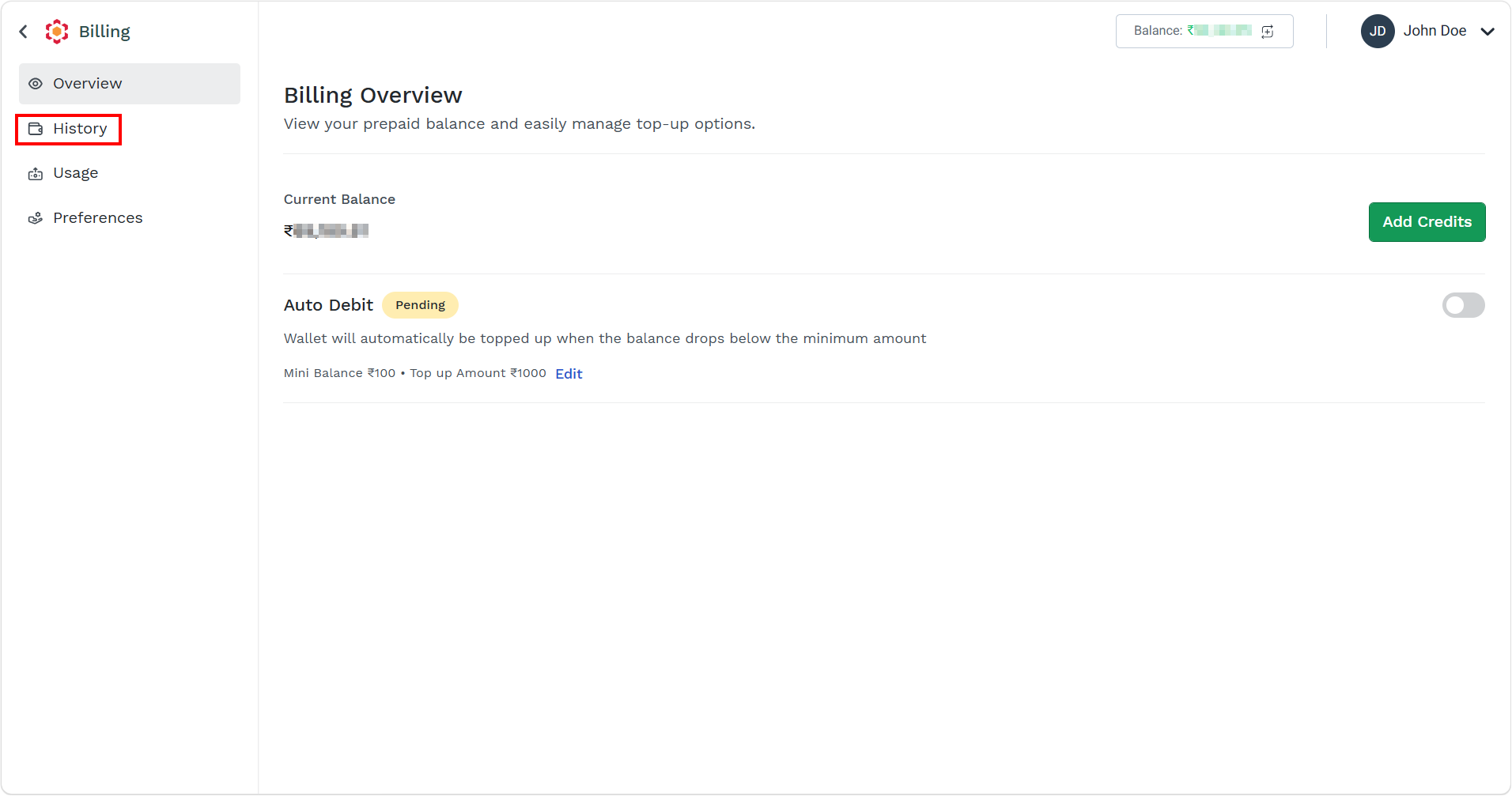
- On the left menu bar, click the History menu.
The History page appears.
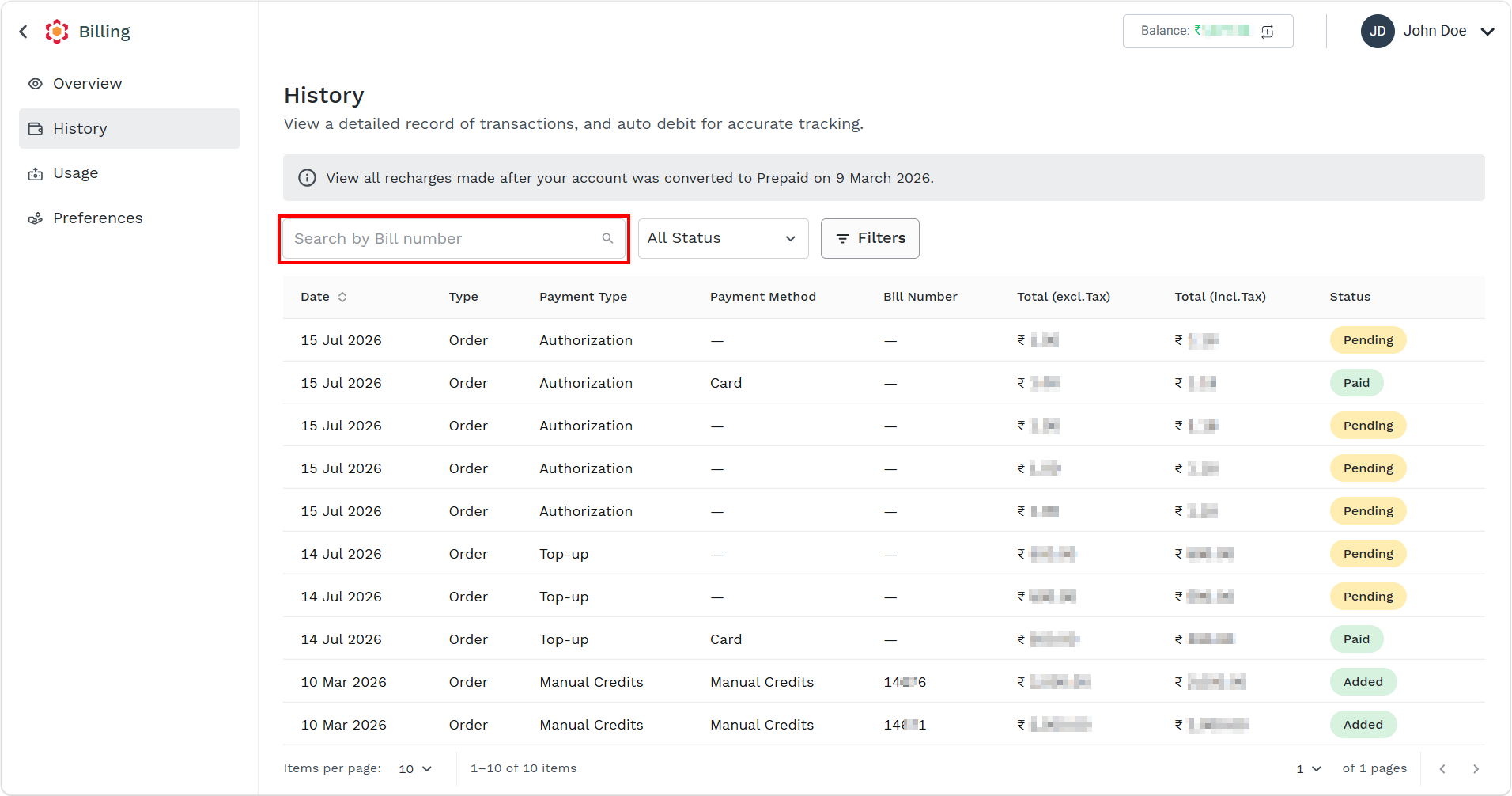
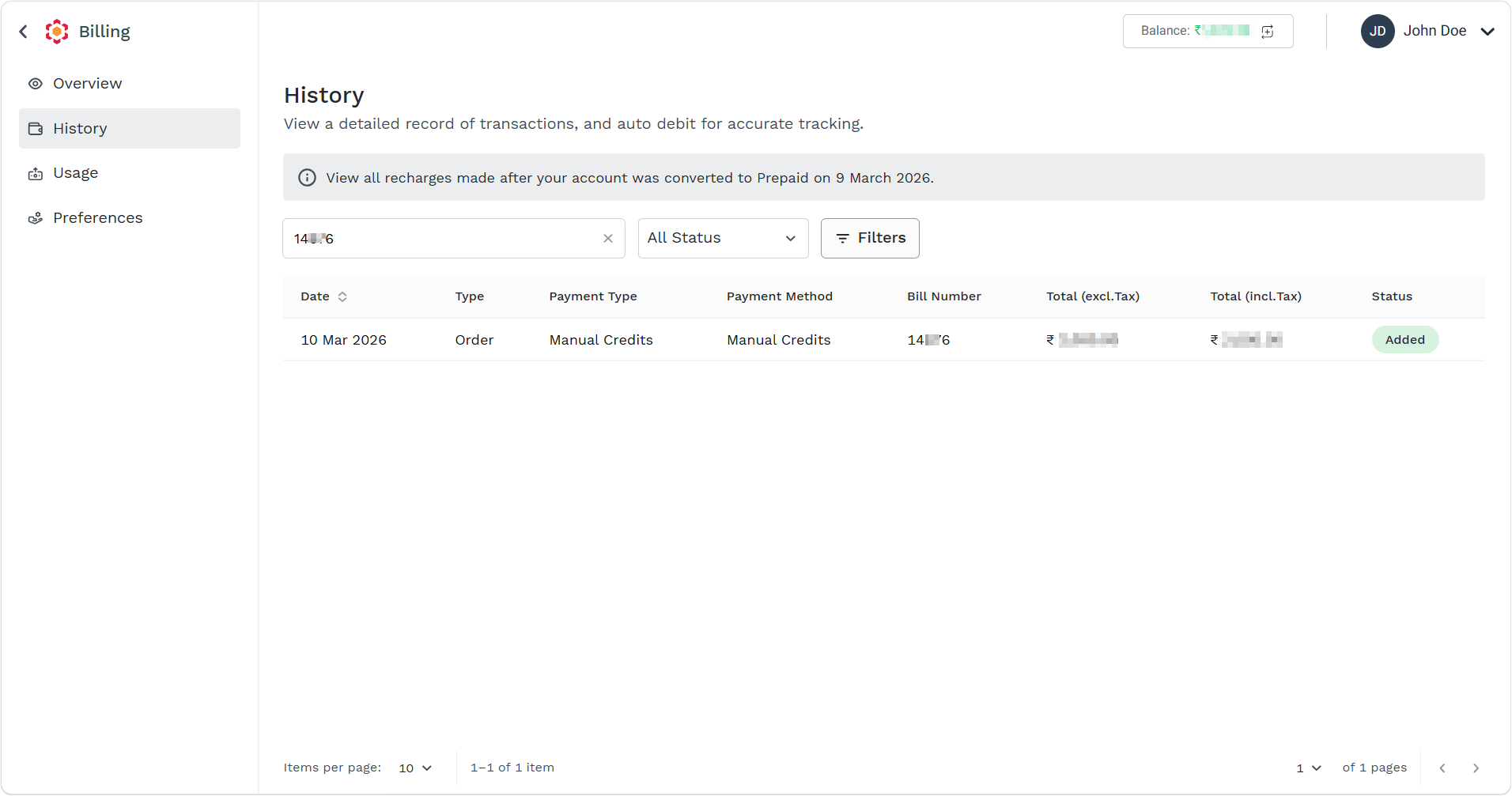
- In the Search field, enter the complete bill number that you want to search.
Based on the entered matched, the live search result appears.
Filter by Billing Status
You can filter the billing history according to bill statuses.
The following are the supported statuses:
- Paid - The payment has been successfully received and applied to the corresponding invoice or account. The prepaid balance is updated, and the transaction is considered complete.
- Unpaid - An invoice or payment request has been generated, but no payment has been received yet. The transaction remains outstanding until you complete the payment.
- Pending - The transaction has been initiated but is still being processed. This may occur while awaiting payment confirmation from a bank, payment gateway, or manual verification.
- Failed - The payment or transaction could not be completed successfully. Common reasons include payment authorization failure, insufficient funds, banking issues, gateway errors, or invalid payment details.
- Added - A credit, adjustment, or balance addition has been successfully posted to the account. This status is commonly associated with Manual Credits or account adjustments rather than your payment.
To filter by billing status, perform the following steps:
- Follow step 1 and step 2 of Prepaid Billing Overview.
The Billing Overview page appears.
- On the left menu bar, click the History menu.
The History page appears.
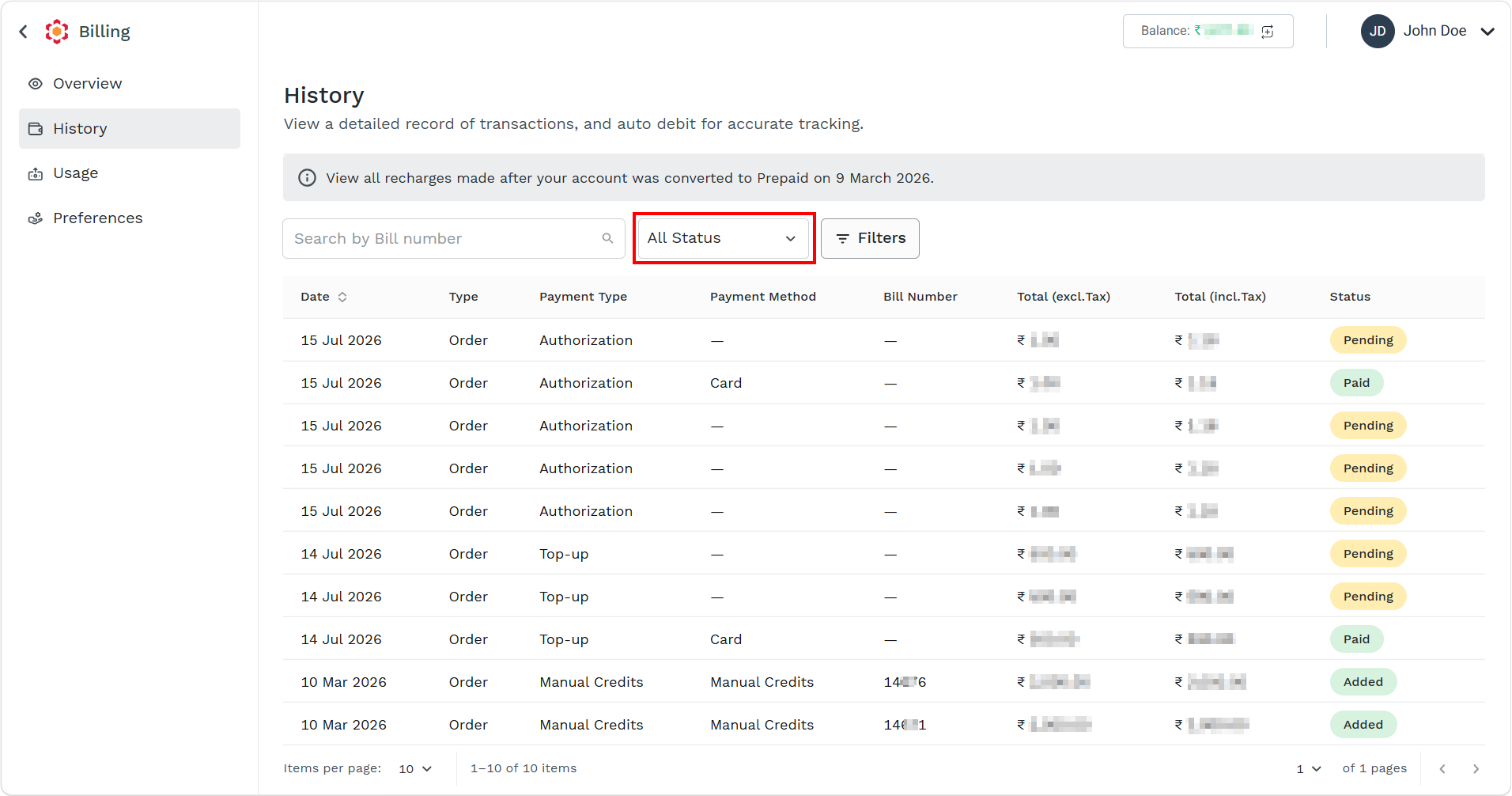
- Click the All Status drop-down.
The supported statuses appear.
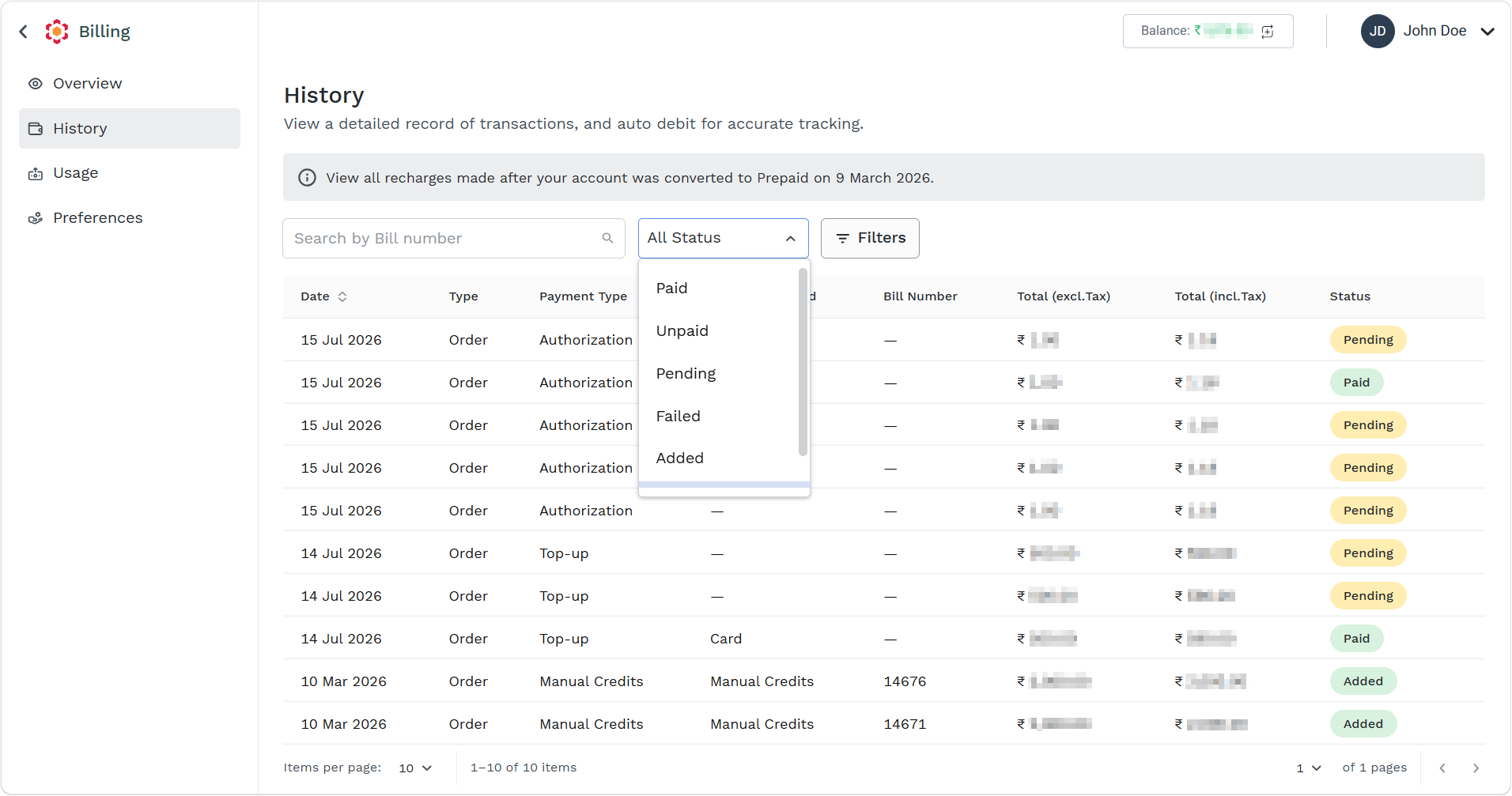
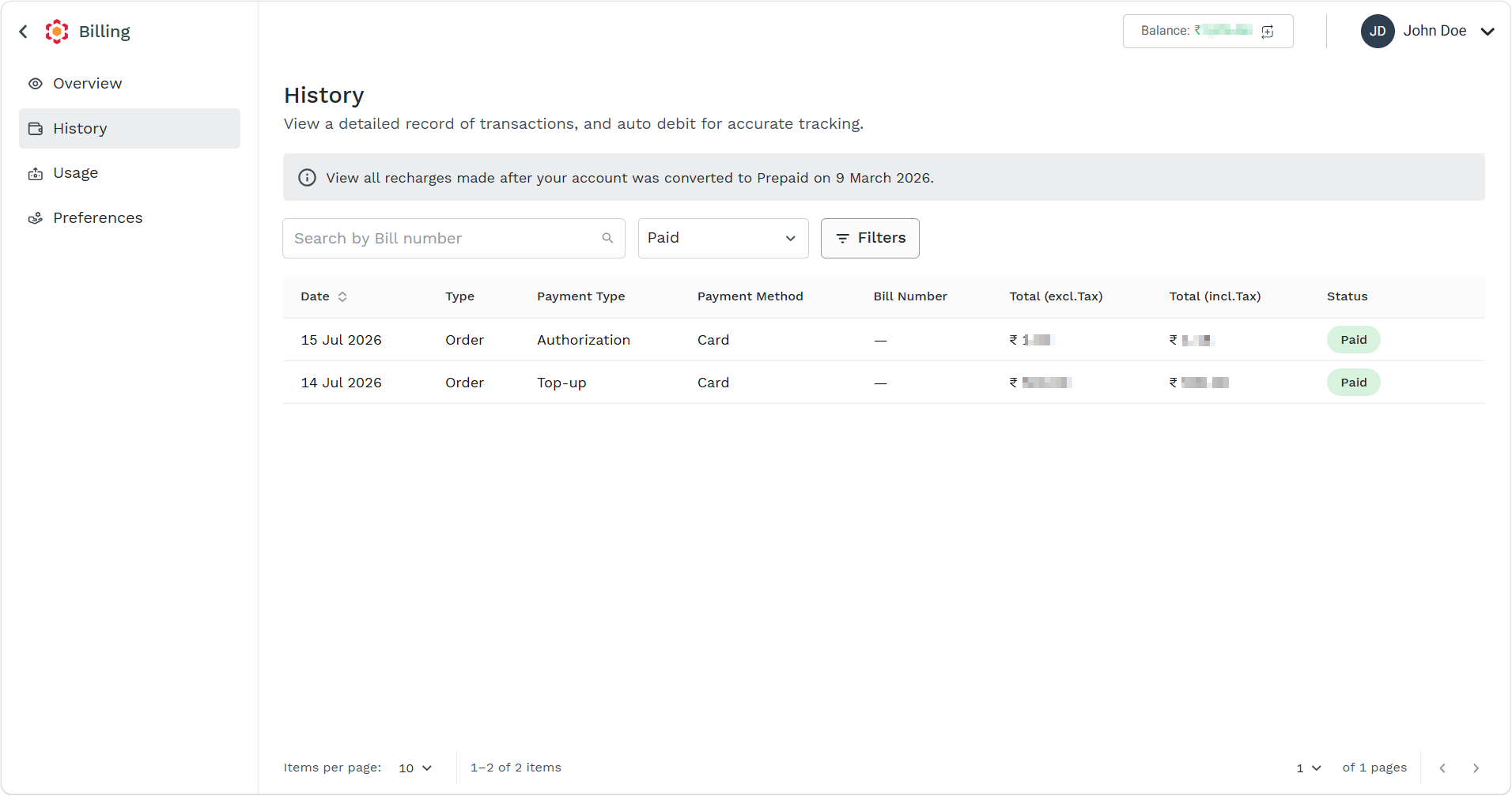
- Select any option. In this case, Paid is selected.
The billing based on the selected status appears.
Filters
You can filter the billing based on available filters other than status.
The following are the available filter options:
- Type
- Date
- Bill Number
- Payment Type
- Payment Method
To filter the billing, perform the following steps:
- Follow step 1 and step 2 of Prepaid Billing Overview.
The Billing Overview page appears.
- On the left menu bar, click the History menu.
The History page appears.
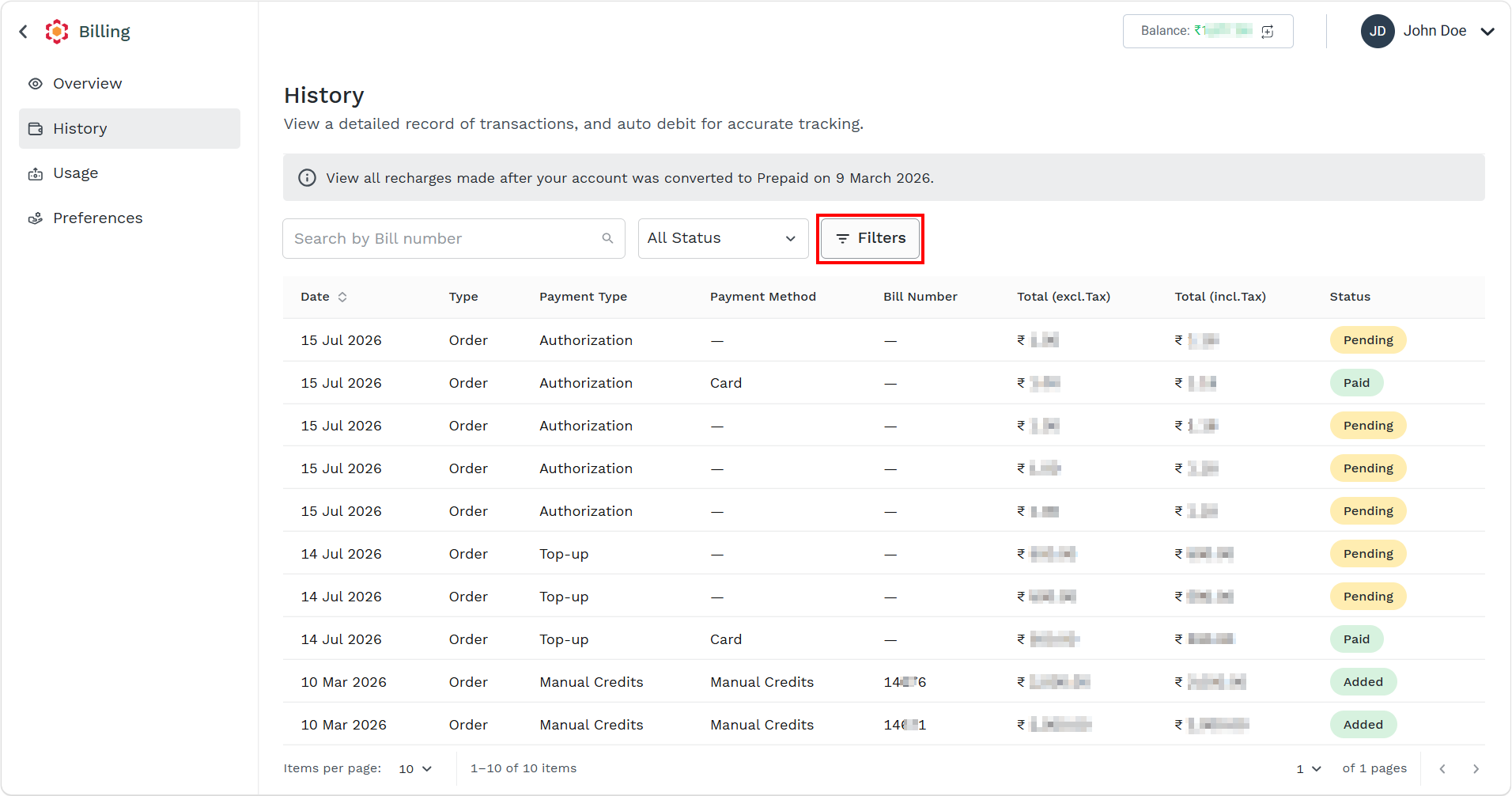
- Click the Filter icon.
The filters pop-up appears.
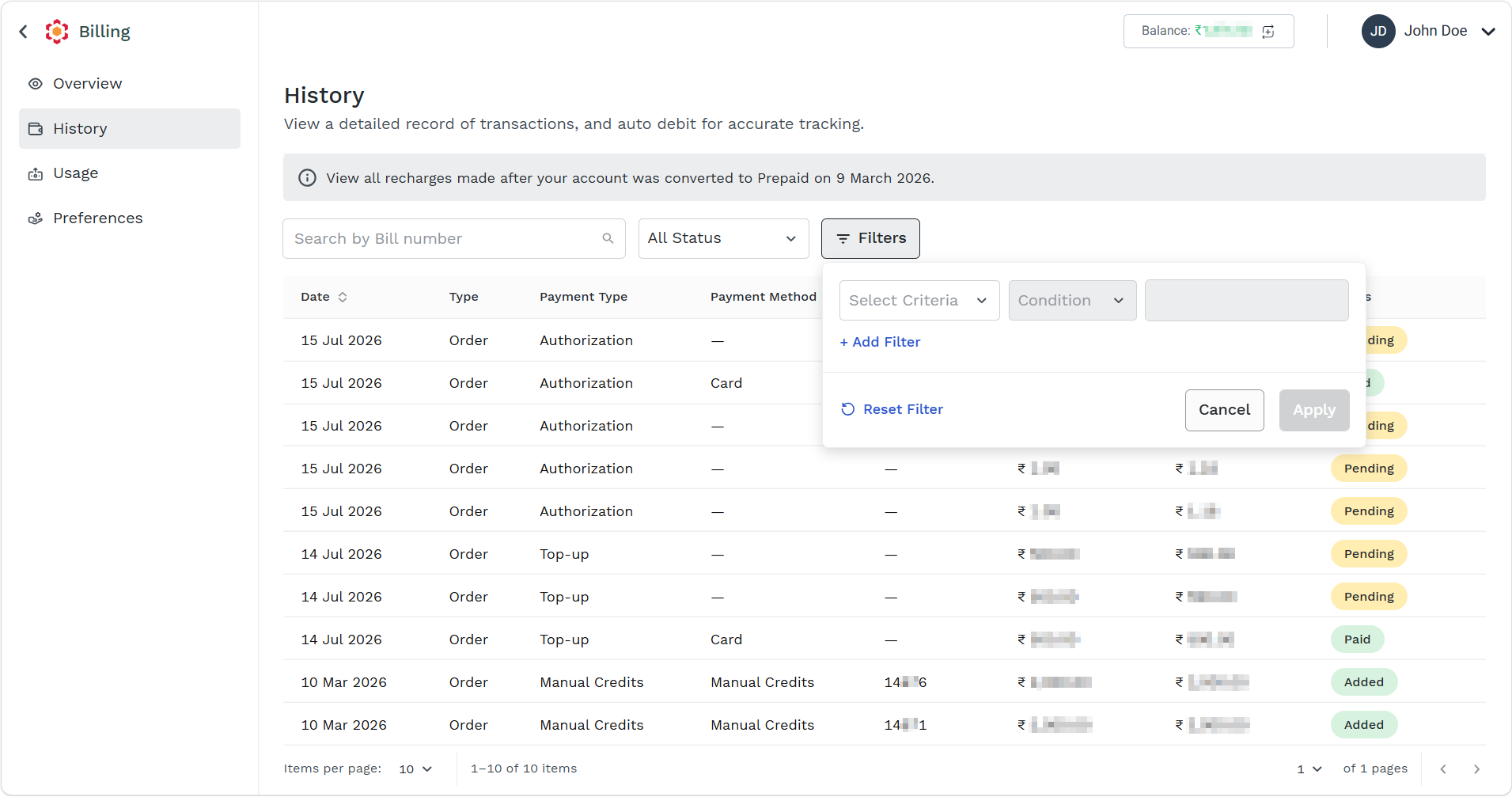
- Perform the following:
- Click the Select Criteria drop-down and select one of the following options:
- Select the Type option and then in the Conditions field, select Equals. From the Select an Option drop down, select one from the following options:
- Order
- Invoice
- Payment receipt
- Select the Date option and then in the Conditions field, select either Is or Between. If you select the Is option, then select a date from the Select date field or if you select Between option then select the date range from the Select date field.
- Select the Bill Number option and then in the Conditions field, select Equals. In the next field, enter the bill number.
- Select the Payment Type option and then in the Conditions field, select Equals. In the Select an Option drop down, select one from the following options:
- Top-up
- Auto Debit
- Manual Credits
- Payment Link
- Authorization
- Offline Recharge
- Select the Payment Method option and then in the Conditions field, select Equals. In the Select an Option drop down, select one from the following options:
- Card
- NEFT/IMPS
- Wallets
- UPI
- Select the Type option and then in the Conditions field, select Equals. From the Select an Option drop down, select one from the following options:
- Click Apply.
According to the set filter the History list view page gets updated.
- Click the Select Criteria drop-down and select one of the following options:
Updated 2 months ago
Did this page help you?