

Copy Paste the Contacts
You can manually enter the contacts or copy and paste the list of phone numbers separated by comma. It is not recommended for large campaigns (if you have more than 100 contacts, use a CSV or Excel file to import your contacts). The maximum number of contacts supported in the Copy and Paste Contacts input field is 400000.
In this case, consider that no values can be passed alongside the recipient numbers to personalize the template.
To manually enter the contacts or copy and paste the list of phone number, perform the following steps:
- To add contacts, follow step 1 to step 5 of Launch a WhatsApp Campaign for V2 WABA.
The New WhatsApp Campaigns page appears.
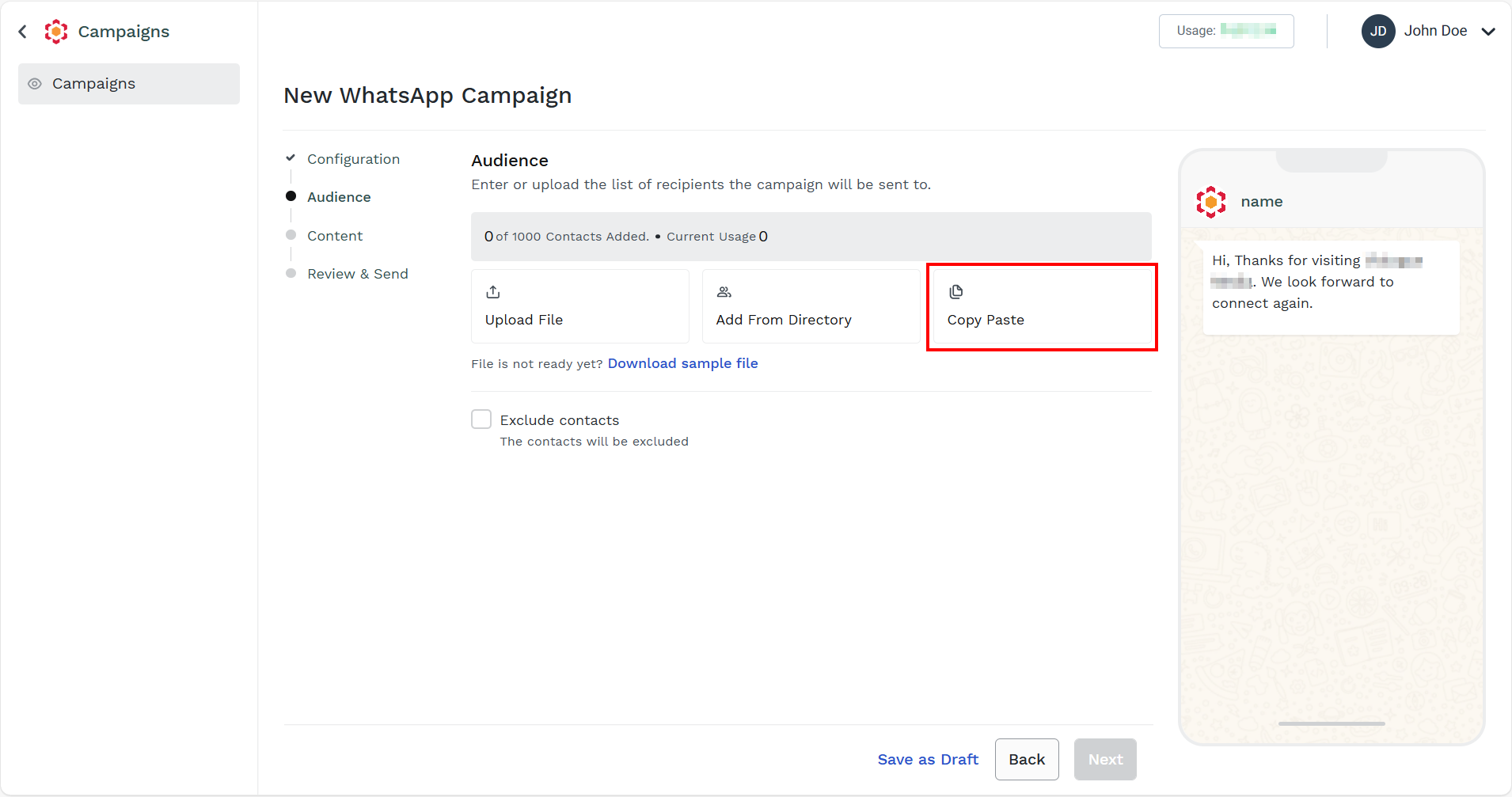
- Click Copy Paste.
The Copy & Paste Contacts pane appears on the right side of the page.
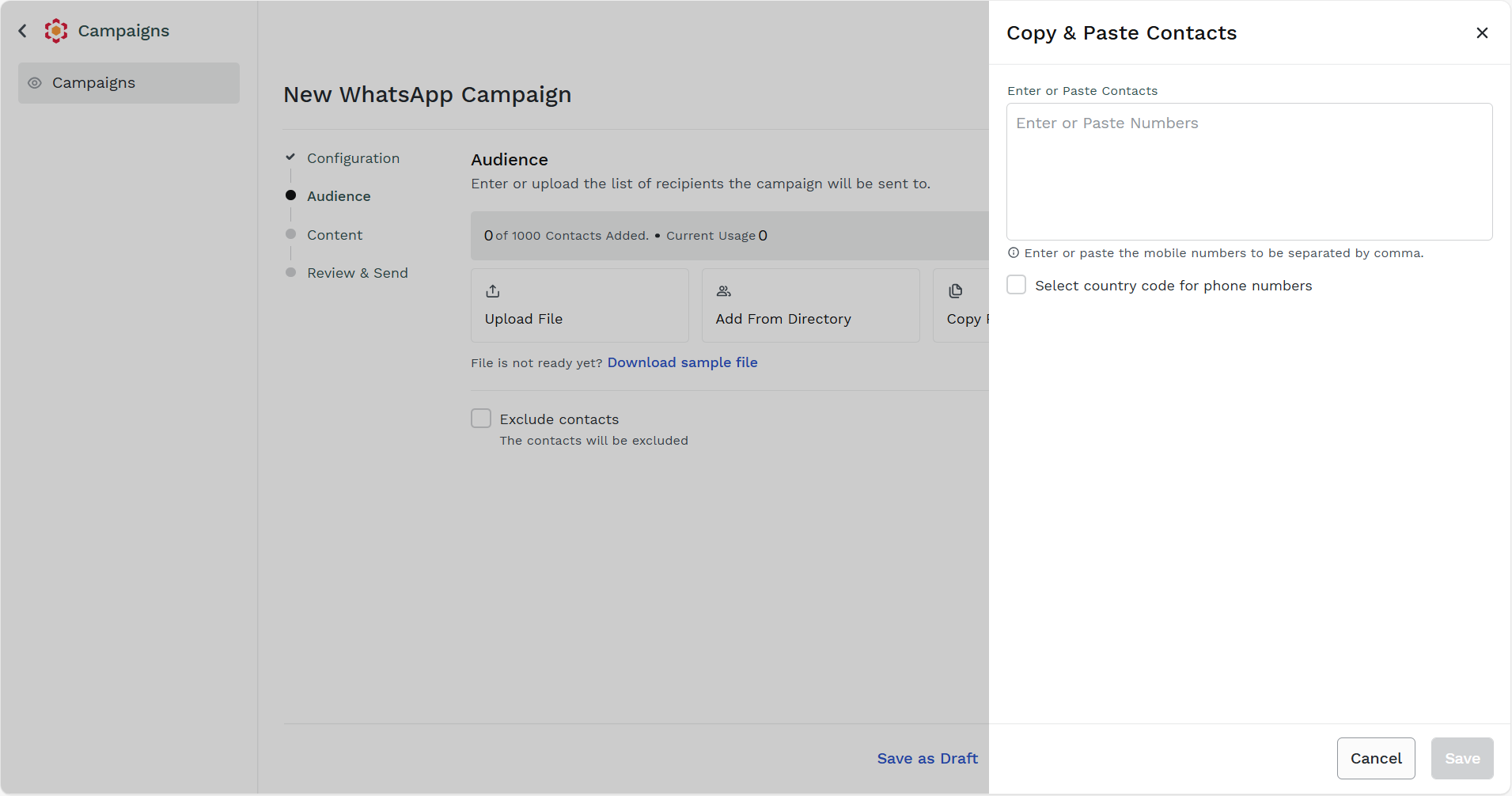
- Perform the following:
- In the Enter or Paste Contacts field, enter the contacts to which you want to send the message through campaign. If you have the list of phone numbers, then separate them by comma.
- (Optional) Select the Select country code for phone numbers check box and select the country code to set it as the default.
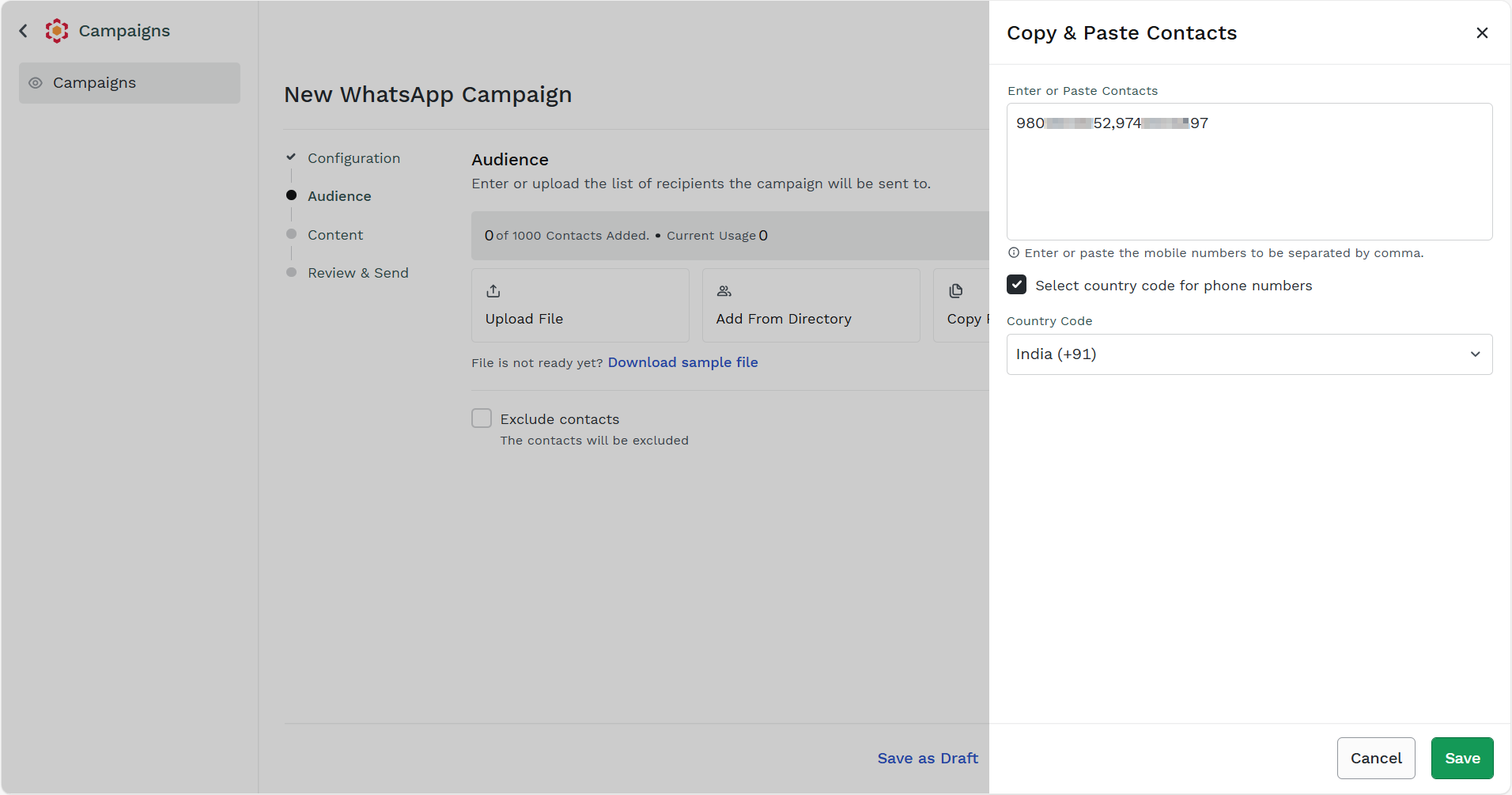
- Click Save.
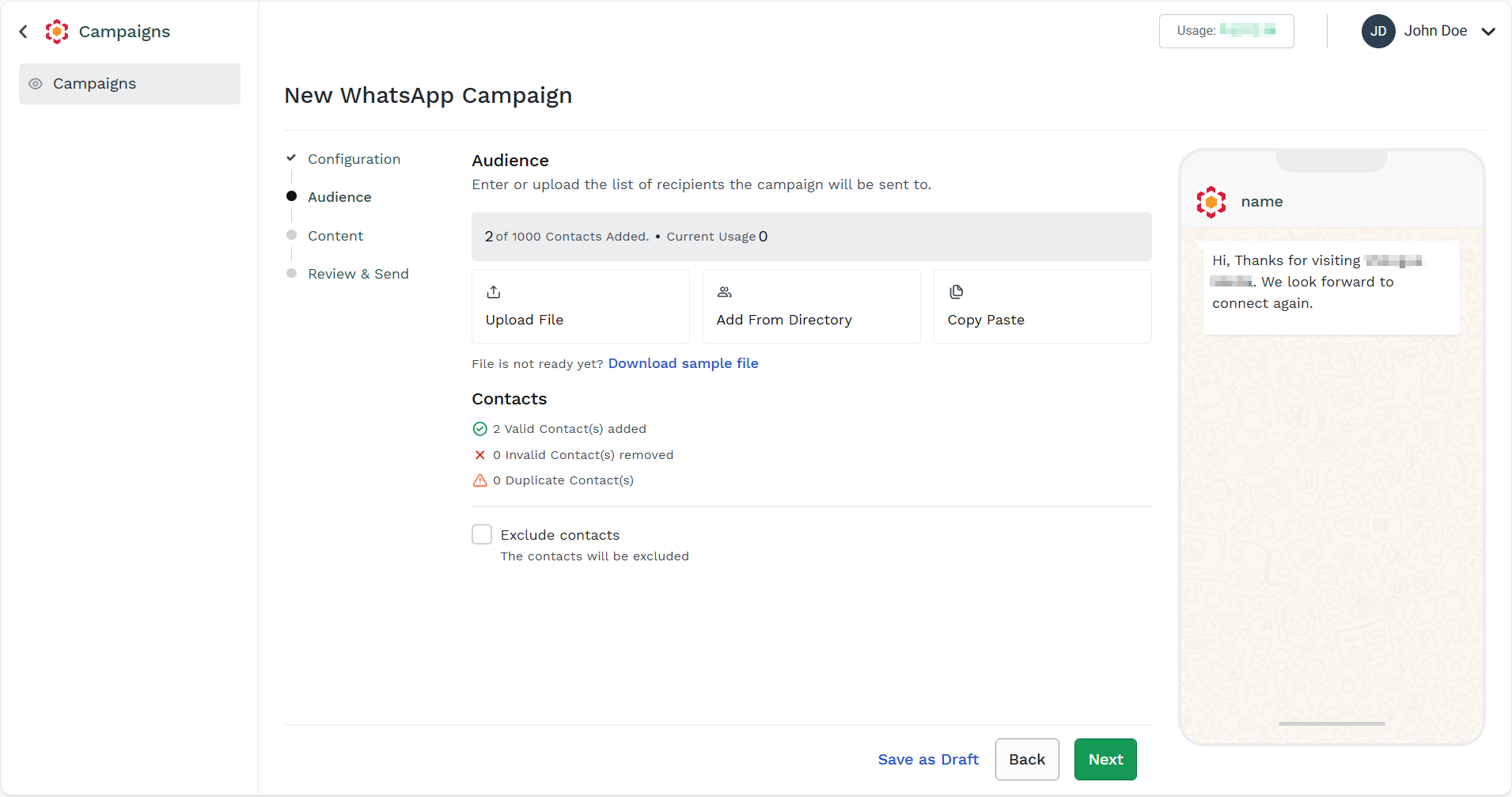
The contacts get added.
Updated 5 months ago
Did this page help you?