

Add a Number
The Add a Number feature allows you to register a new WhatsApp Business number under a waba on the Kaleyra platform.
Prerequisite
- To set up a WhatsApp account on Kaleyra platform, see Manual Signup
and Embedded Signup.
To add a new number to Facebook, perform the following steps:
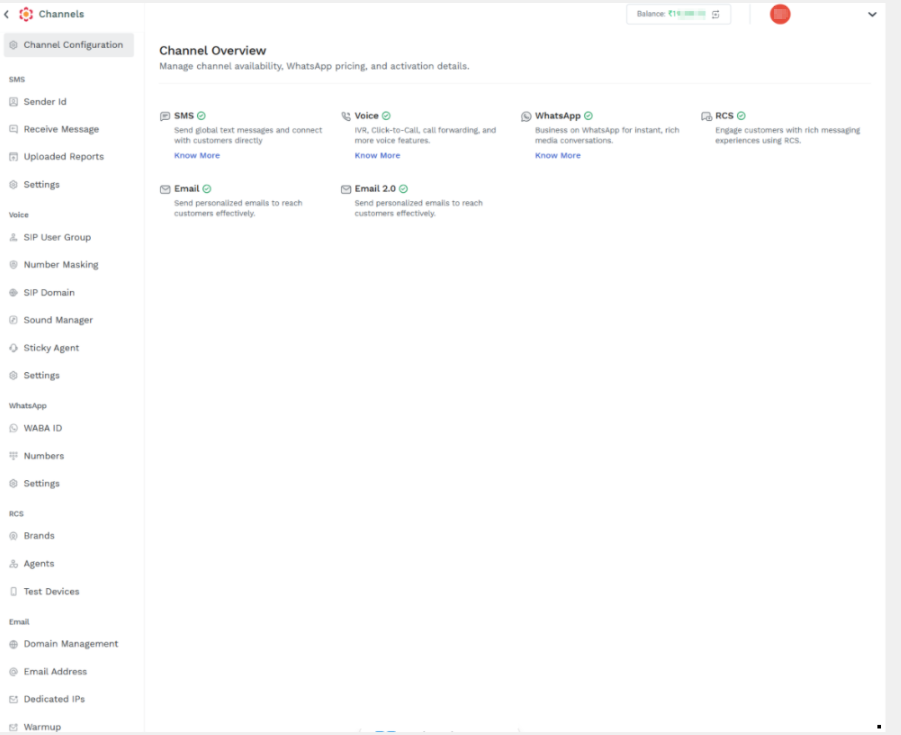
- Login to your Kaleyra Platform. The Channels page appears.
-
On the left navigation bar, click Numbers. The Numbers page appears.
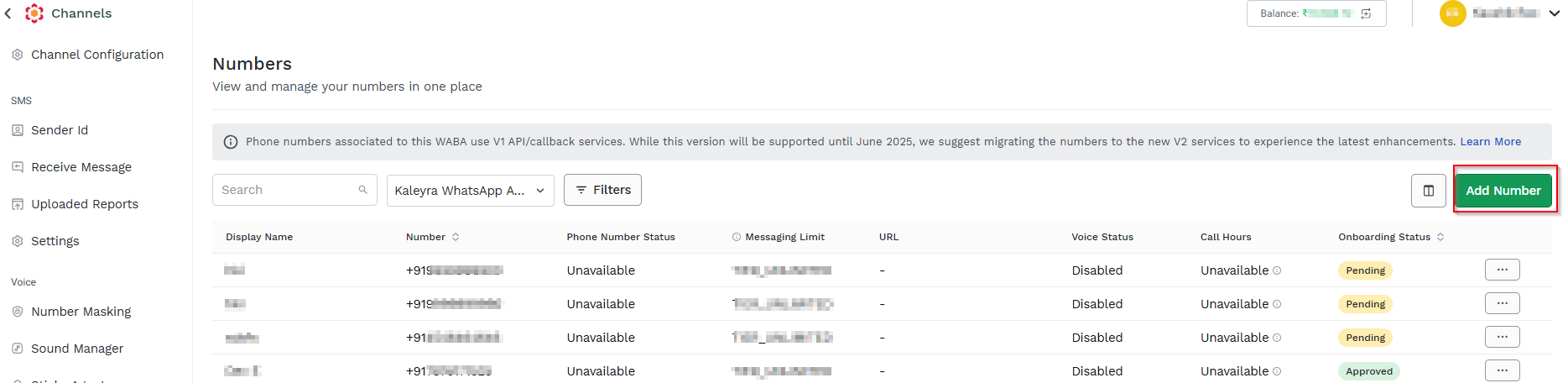
3. Click Add Number. The Add Number page appears.
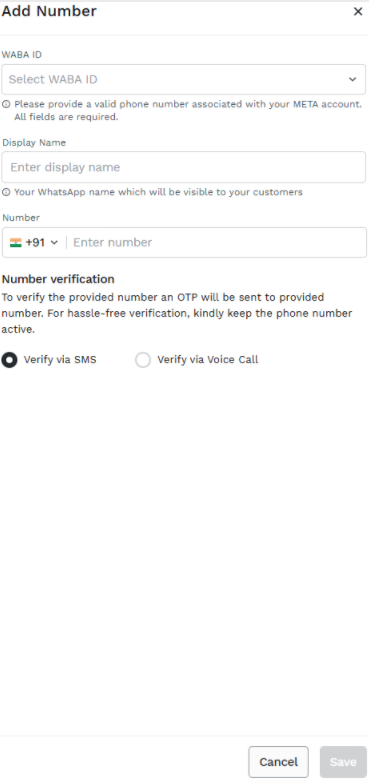
4. The Add Number page has the following fields:
- WABA ID - Enter the WhatsApp Business Account ID to which you want to associate the new Business Number. For more information, see Add a New WABA ID.
- Display Name - Enter the name that will be displayed to end users on WhatsApp when receiving messages from this Business Number.
Number verification
The Number verification section allows you to choose how to verify the new phone number by selecting one of the following options:
- Verfiy via SMS - An OTP is sent via SMS.
- Verify via Voice Call - An OTP is delivered through an automated voice call.
Note:
To verify the provided number an OTP will be sent to provided number. For hassle-free verification, kindly keep the phone number active.
- Click Save to initiate the approval process for your WhatsApp Business Number.
Editing the Details of an Existing Number
You can edit most of the details of an existing WhatsApp Business number except the phone number itself.
To edit the details of an already added number, perform the following steps:
- Perform steps 1 through 3 from the Add a New Number section.
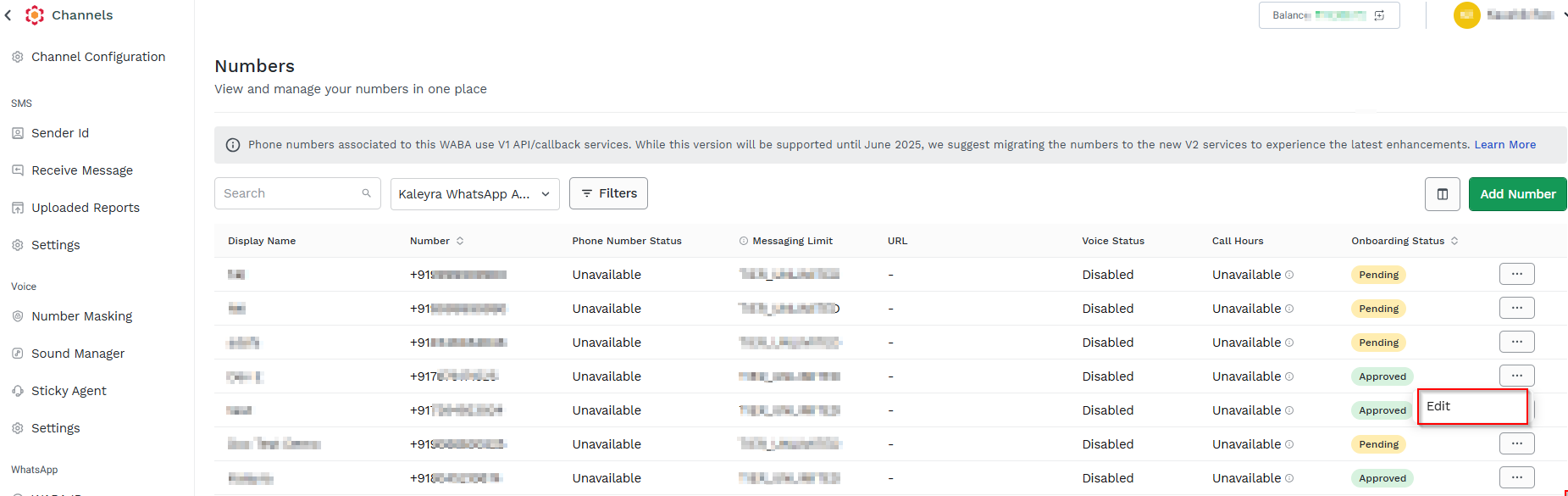
- On the Numbers page, click the three dots
 corresponding to the number you want to edit and click Edit.
Note:
Only the details of an approved number can be edited.
The Edit page appears.
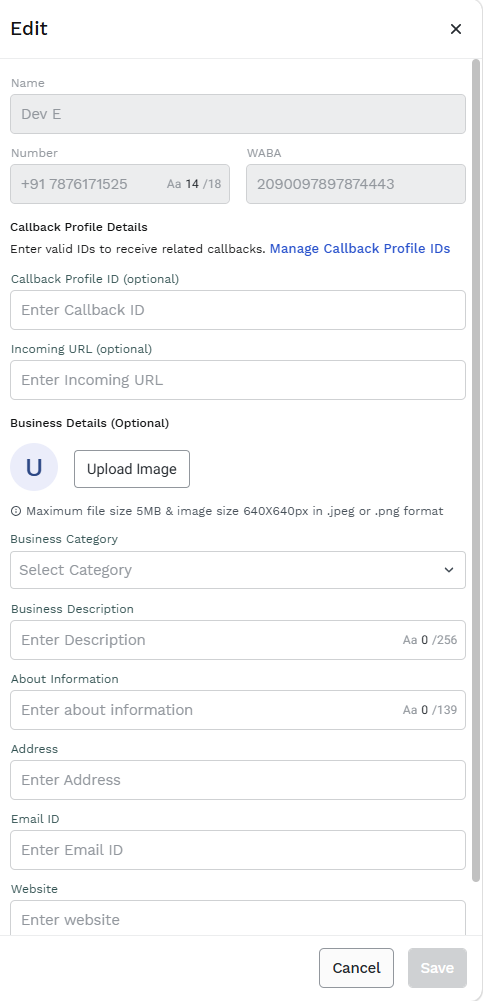
- The Edit page has the following sections:
- Callback Profile Details (optional)
- Business Details (optional
Callback Profile Details
- Manage Callback Profile IDs - Click Manage callback Profile IDs. The Callbacks Profile page appears. For more information see, Add the Callback Profile ID to the WhatsApp Number.
- Callback Profile ID (Optional) - You can enter the IDs to receive related callbacks.
- Incoming Messages - Receive callbacks for all inbound messages received on the WhatsApp Business number. For more information see, Create a Callback Profile for WhatsApp Incoming Messages.
Business Details (Optional)
The Business Details section allows you to update information about your business and has the following fields:
- Upload Image - Click Upload Image and browse to the location on your computer to upload the image of your company logo.
Note:
The maximum file size is 5MB and an image size of 640* 640px in JPEG or PNG format is recommended.
- Business Category - Select your Business Category from the drop-down list.
- Business Description - Enter a brief description of your business. The maximum size supported is 256 characters.
- About Info - Enter additional information about your business. The maximum size supported is 139 characters.
- Address – Enter the address associated with the mobile number. The maximum size supported is 256 characters.
- Email ID – Enter the email ID.
- Website – Enter your business website URL.
Note:
The URL for the website must be an http or https URL.
- Click Save to edit the details.
Updated 2 months ago