

WhatsApp Reports
kaleyra.io allows you to view and download reports about your WhatsApp message traffic and conversations. There are two types of reports:
- Tabular: You can view the complete list of WhatsApp messages that you have sent or received from/to your WhatsApp number configured in the platform. For more information, see WhatsApp Tabular Report.
- Summary: You can understand and monitor your aggregated data for WhatsApp messages and conversations. For more information, see WhatsApp Summary Reports.
Request a WhatsApp Report
To request a WhatsApp report, perform the following steps:
- Sign in to your Kaleyra platform.
The Business communications page appears.
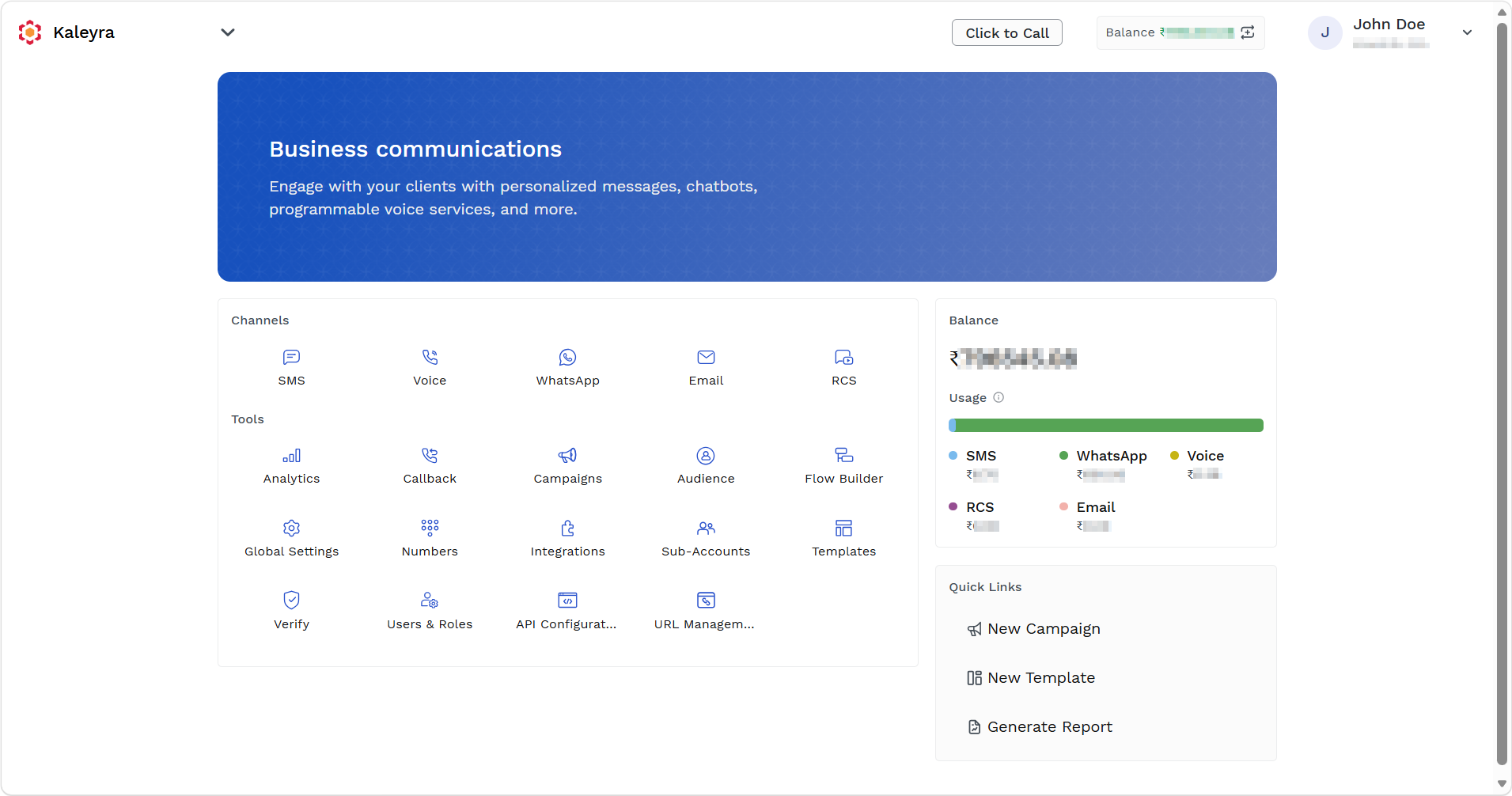
- On the Tools section, click Analytics.
The SMS Dashboard page appears.
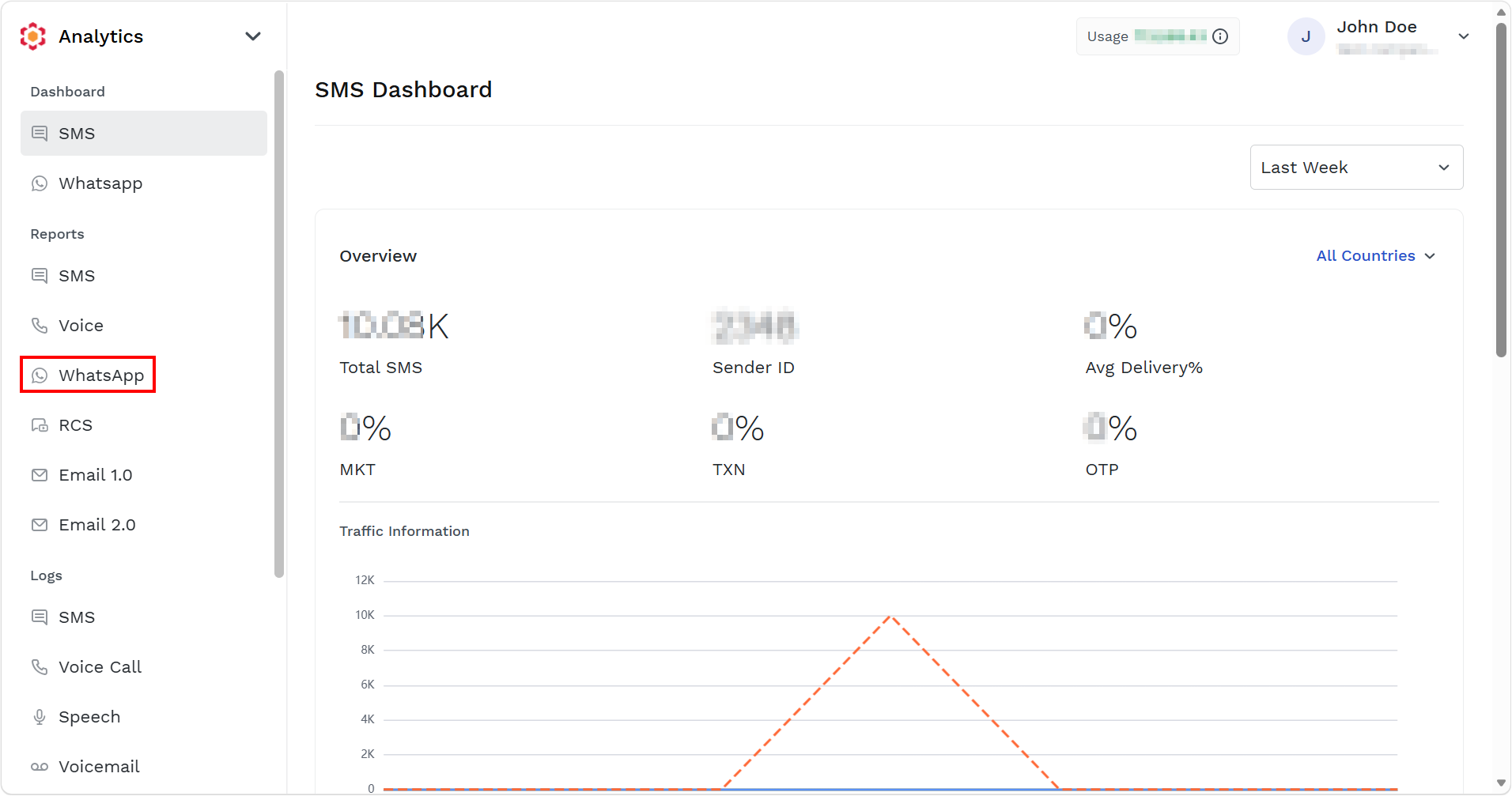
- On the left menu bar, under Reports section, click WhatsApp.
The WhatsApp Reports page appears.
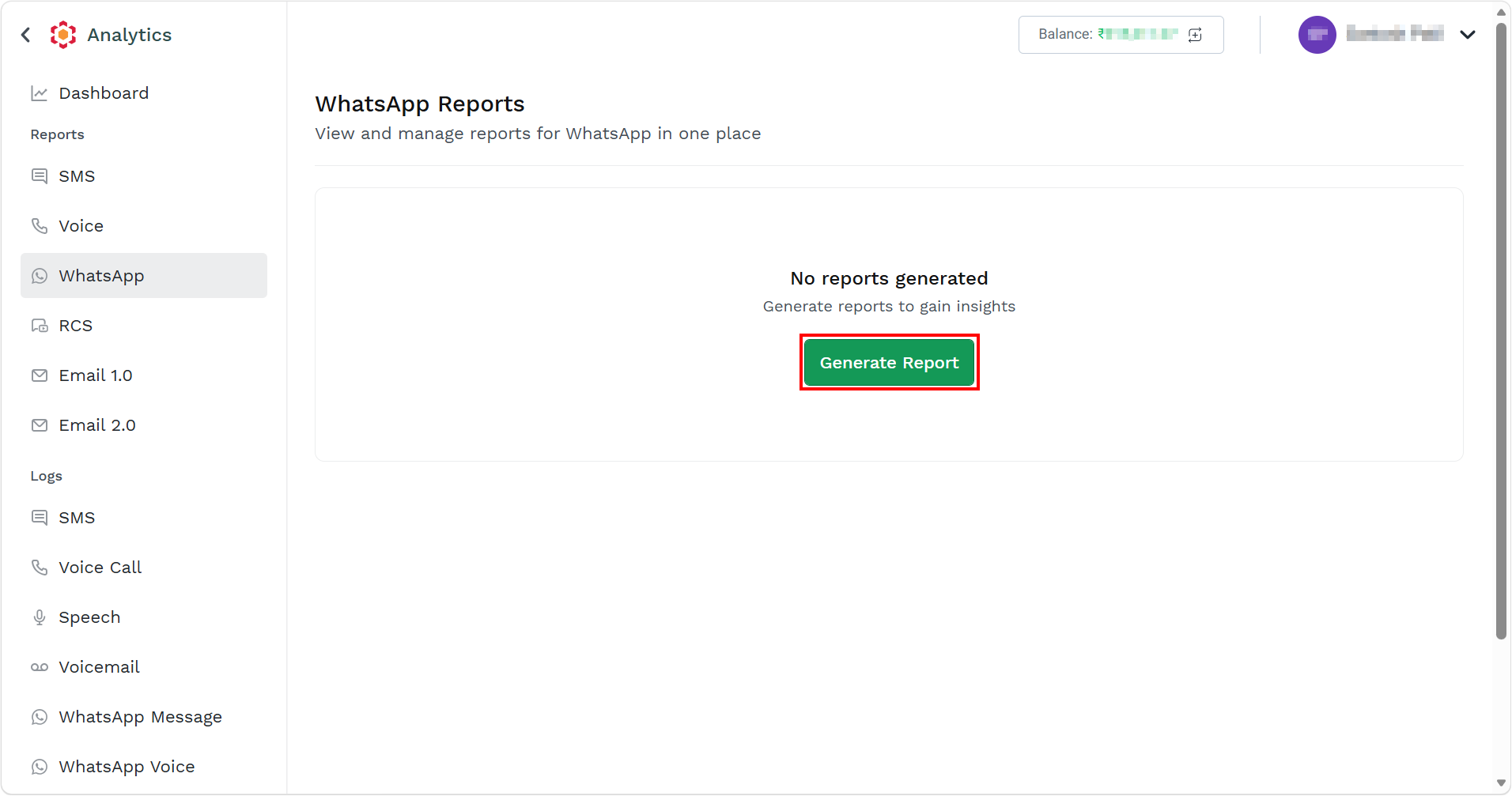
- Click Generate Report.
The Generate Report page appears.
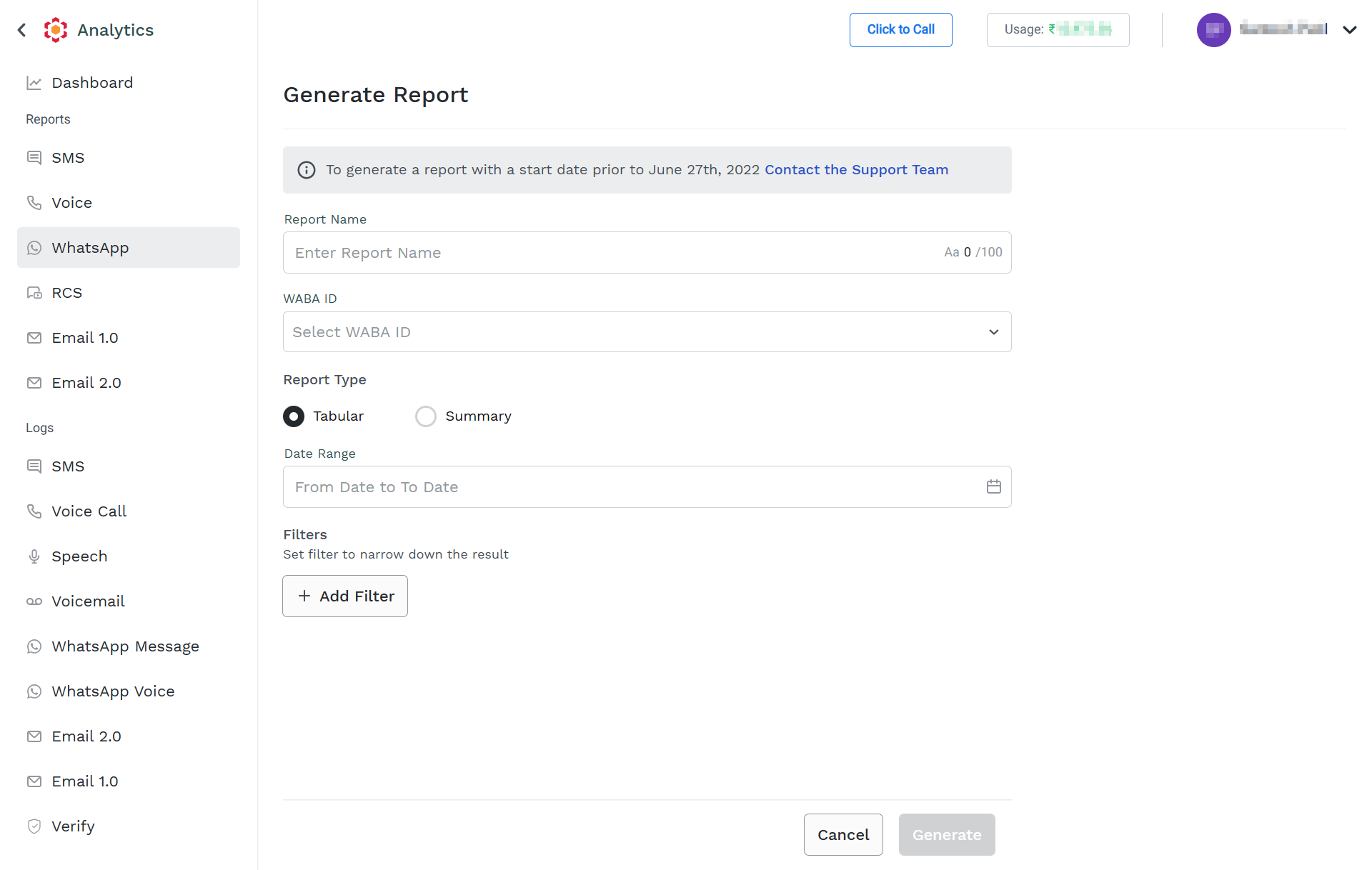
- In the Report Name field, enter the title for the report. The report name mush be minimum of 2 characters and a maximum of 100.
- Click the WABA ID drop-down and a list of approved WABA ID appears. Select the WABA ID.
- In the Report Type, select one of the following:
- Tabular - Provide detailed information about each message sent or received to the WhatsApp numbers.
-
Summary - Contains aggregated information about WhatsApp conversations or messages. When you select the Summary option, additionally you have to select one of the following options:
- Conversations - This report provides aggregated information on the total number of conversations opened per day and category and the amount spent. For more information, see WhatsApp Summary Report for Conversations.
- Messages - This report provides aggregated information about sent and received messages including the final status of your delivery performance. For more information, see WhatsApp Summary Report for Messages.
- Template - This report provides aggregated information about sent and received messages including the final status of your delivery performance based on Template. For more information, contact the Kaleyra Support team.
-
In the Report Date Range field, select the date range. The acceptable date range should be within six months from the current date.
-
(Optional) In the Filters section, use the + Add Filter to narrow down the report only to messages fulfilling specific conditions or to add the message content to the report according to your requirements. To add the filters, click on the field, select from the available filter option, and then click Apply.
The following are the supported filters:- Business Phone Number - The WhatsApp Business number used to send or receive messages. It identifies which WhatsApp Business Account (WABA) number handled the message. Helpful when managing multiple WhatsApp numbers across departments, brands, or regions.
- Country - The destination country of the recipient's WhatsApp number.
- Message Format - The type or format of the WhatsApp message sent. The common message format includes:
- Template – Pre-approved WhatsApp template message.
- Text – Plain text message.
- Media – Message containing image, document, video, or audio.
- Media Template - Pre-approved WhatsApp template containing image, document, video, or audio.
- Status - Indicates the current delivery state of the WhatsApp message. The common status includes:
- Sent - Forwarded to WhatsApp platform.
- Delivered - Reached recipient's device.
- Seen/Read - Recipient opened or read the message.
- Failed - Message could not be delivered.
- Campaign Name - The campaign identifier associated with the message. Used to group messages belonging to the same marketing, utility, authentication, or service campaign.
- Source - Identifies how the WhatsApp message was initiated or submitted to Kaleyra. The supported sources include API, Web, Webhook, Campaign, and so on.
-
Click Generate. You can view the generated report on the Reports list page.
Note:For tabular reports, you will get a notification through email after the report generation is completed and available to download.
The reports get queued and you can download the reports after the status is Completed.
Search, Filter, and Download WhatsApp Reports
You can search, filter, and download WhatsApp (tabular and summary) reports.
To search, filter, and download WhatsApp reports, perform the following steps:
- Follow steps 1 to step 3 of Request a WhatsApp Reports.
The Reports page appears.
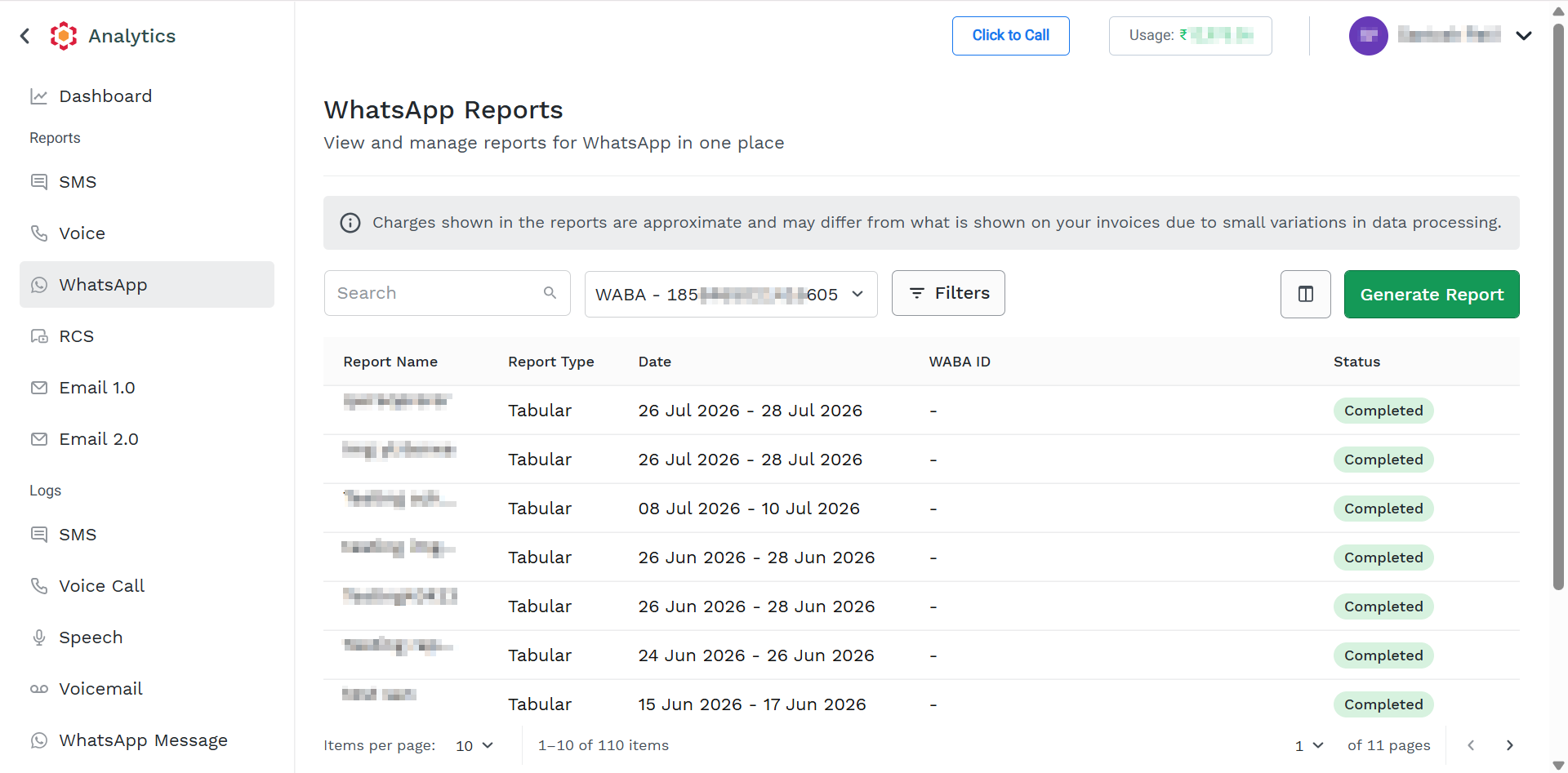
- In the Report section, you can perform any of the following steps:
- In the Search for Report Title field, enter the report title you want to search for, and then press ENTER. The search results display the reports.
- Click Filter to filter the reports based on your requirements. You can use the following options to filter the reports:
- Report Type - Filter the report based on Tabular or Summary. Select one of them and then click Apply.
- Requested Date - Filter the report based on the requested date. The request date is the date when you have requested a specific report. You have the option to select the requested reports submitted today, yesterday, and so on. Select the requested date and then click Apply.
- Status - Filter the report based on the status of the report such as completed, in progress, or so on. Select the status and then click Apply.
- Clear All - Click Clear All to clear all the filters.
- Click the ellipsis (three dots) next to the available report to download the report.
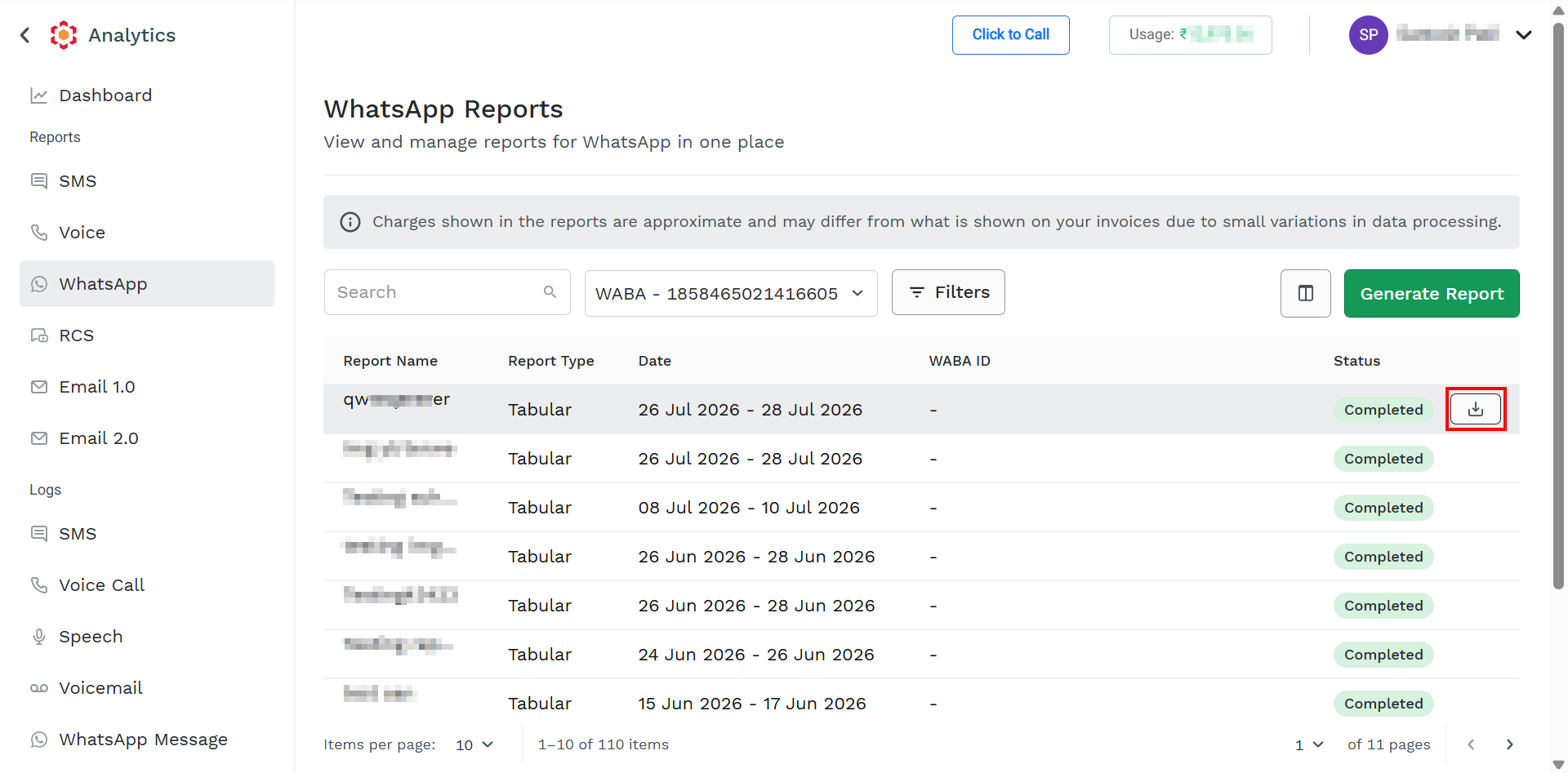
- Click Download to download the report. The report gets downloaded in .ZIP or .CSV format for tabular and summary reports respectively to your device download folder.
- Go to your download folder and open the downloaded .ZIP or .CSV report to view the WhatsApp report details.
Updated 5 days ago