

Campaign List
The Campaign List page allows you to view campaign details, search campaigns, filter campaigns by channel or status, and access campaign creation options.
To access and manage campaigns, perform the following steps:
- Sign in to your Kaleyra platform.
The Business communications page appears.
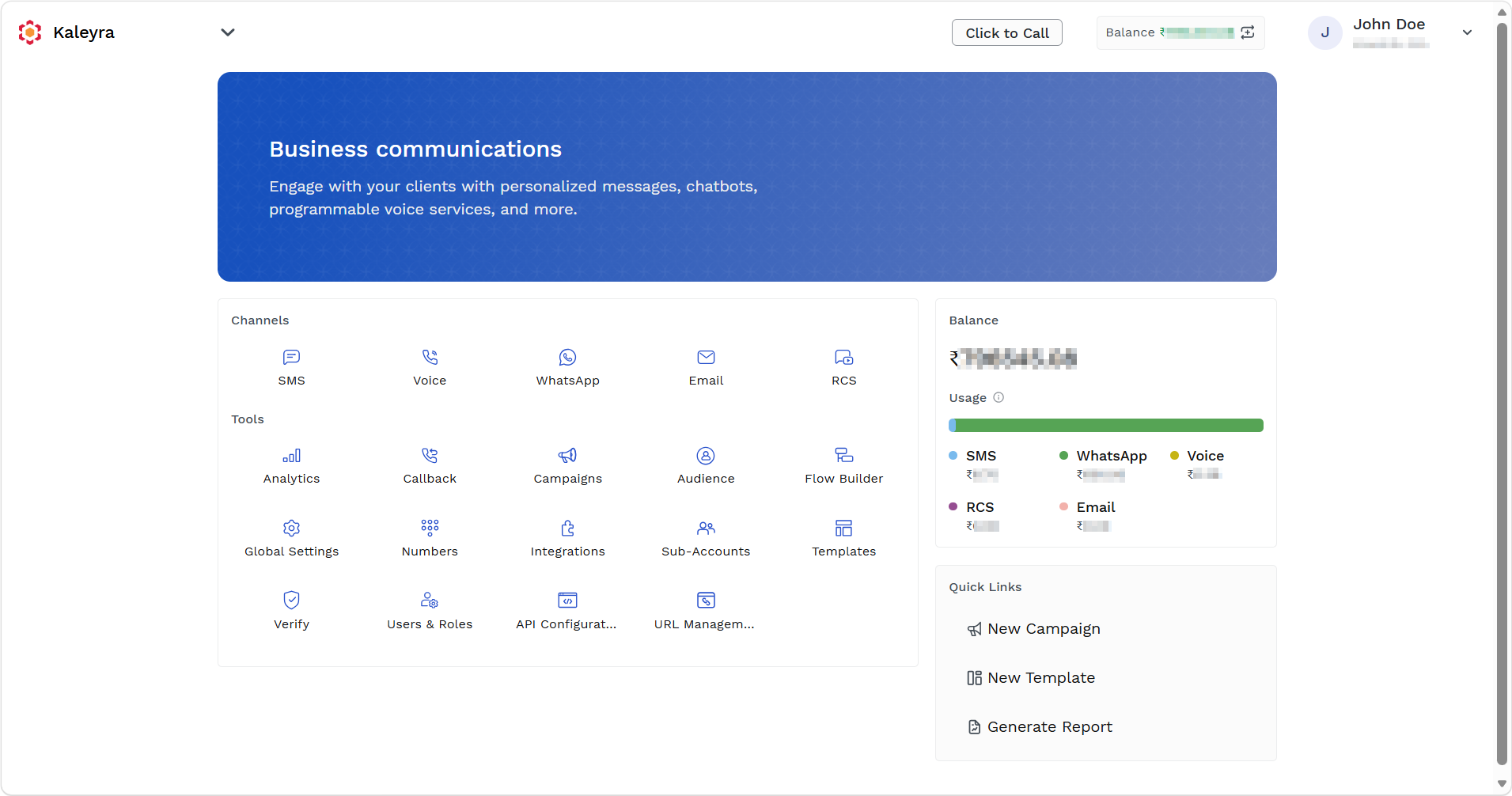
- On the Tools section, click Campaigns.
The Campaigns listing page appears.
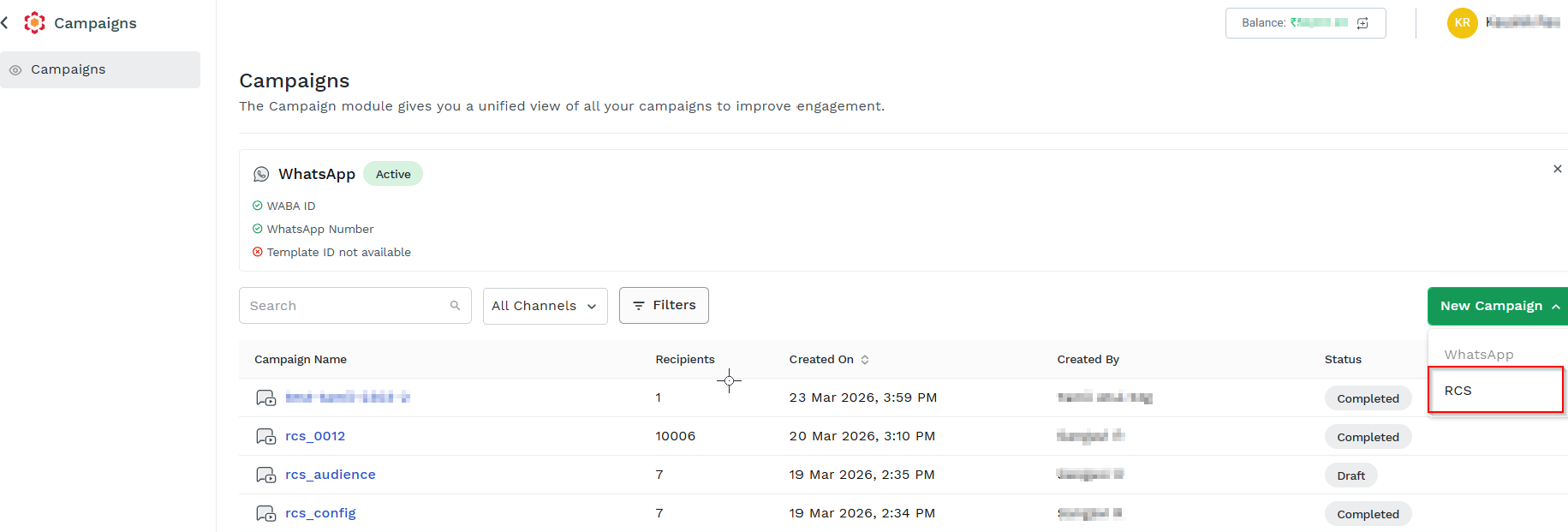
The Campaign module provides a unified view of all your campaigns to help manage and improve customer engagement.
The Campaigns listing page has the following fields:
- Campaign Name - Displays the name of the campaign created by the end user.
- Recipients - Displays the total number of end users targeted in the campaign.
- Created On - Indicates the date and time when the campaign was created. The date is displayed in the format DD/MM/YY, and the time is displayed in HH:MM format.
- Created By - Displays the end user who created the campaign.
- Status - Displays the current state of the campaign. The supported statuses are Draft, In Progress, Scheduled, Failed, Delete, Submitted, and Completed.
- Draft: Campaign is created but not submitted or scheduled. It can be edited, deleted and viewed.
- Scheduled: Campaign is configured to be sent at a future date or time. It can be reschedule, deleted, and viewed.
- In Process: Campaign messages are actively being processed and sent.
- Completed: Campaign processing is completed. It can be viewed, and reports can be downloaded and regenerated.
- Failed: Campaign failed to process (partially or fully) due to errors. It can be viewed.
- Submitted: Campaign is fully processed and submitted to RCS gateways.
- Deleted: Campaign was removed and is no longer active.
- In the Search field, enter the complete or partial campaign name for which you wish to search, and the respective campaigns list appears.
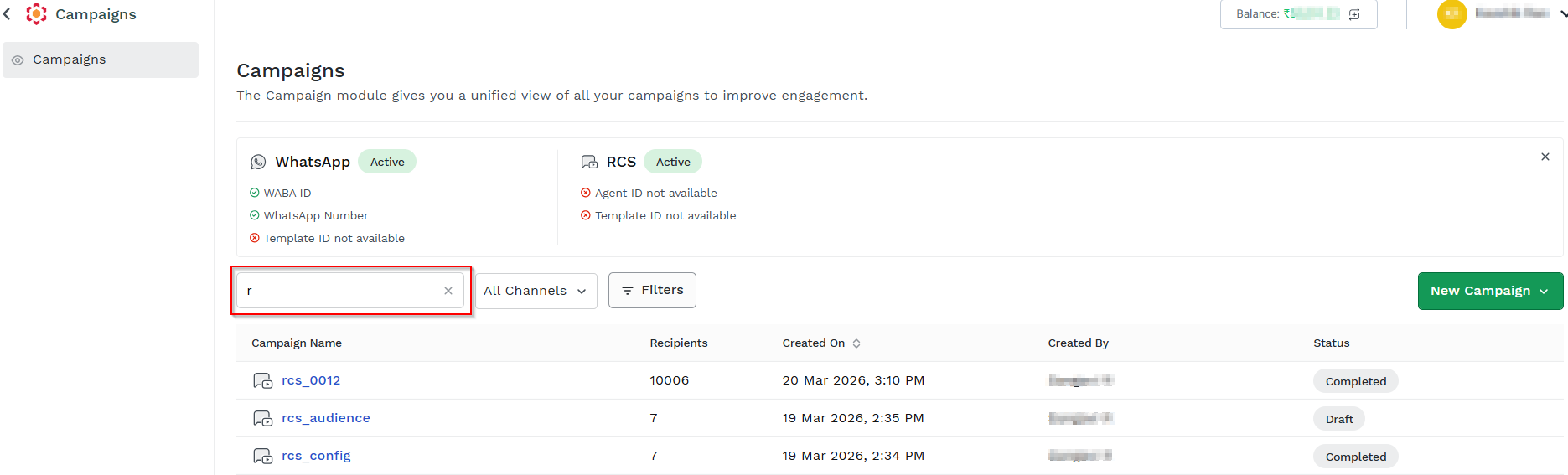
- Click the drop-down next to All Channels field to filter campaigns by channel. The following are the supported channel options.
- All Channel- Displays campaigns across all channels.
- WhatsApp - Displays only WhatsApp campaigns.
- RCS - Displays only RCS campaigns.
- Click Filters. The Filters pop-up appears.
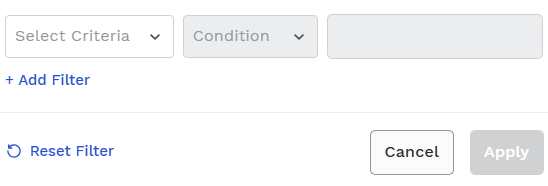
- Click the arrow next to Select Criteriafield. The available options are Status and Created On.
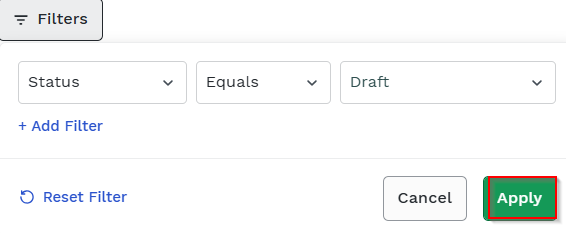
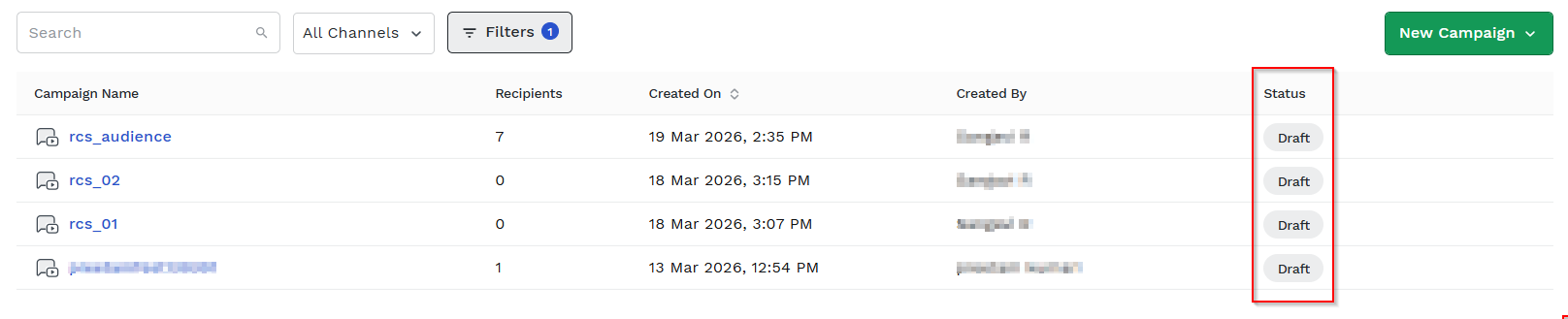
- Status - Filter campaigns based on their current status. Select Status from the Select Criteria drop-down list, "Equals" from the Condition drop-down list, and select "Draft" option from the drop-down list and click Apply.
All the status with Draft appears.
- Created On - Filter campaigns based on the creation date. Select Created On from the Select Criteria drop-down list, choose "between" condition from the Condition drop-down list, and select the From Date and To Date from the calendar. Then, click Apply.

The selected Created On date range, i.e. between From Date and To Date, is applied and only campaigns created in the given range are displayed in the campaigns list.

- Click +Add Filter to add multiple filtering criteria to refine the campaign list.
- Click Reset Filter to clear all applied filters and resets the campaign list to default view.
Updated 4 days ago
Did this page help you?