

Download Credits History Report
You can download the credit history report to analyze the amount assigned to or withdrawn from your sub-account.
Sample Credit History Report
The following is the sample credit history report:
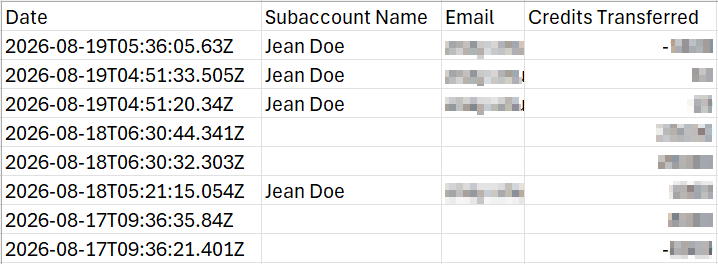
The downloaded credit history report includes the following details:
| Column | Description | Example |
|---|---|---|
| Date | Specifies the date on which the budget was assigned to a Sub-account. | 2026-08-19T05:36:05.63Z |
| Subaccount Name | Specifies the name of the sub-account user. The maximum limit for a sub-account name is 160 characters. | Jean Doe |
| Email address of the sub-account user. | [email protected] | |
| Credits Transferred | The amount deducted or added from the sub-account. When the amount is deducted from the sub-account, this column will show the amount with the symbol "-" . Example: -10. When the amount is added to the Subaccount, this column will show the amount without the symbol "-" . Example: 10. | 1000 |
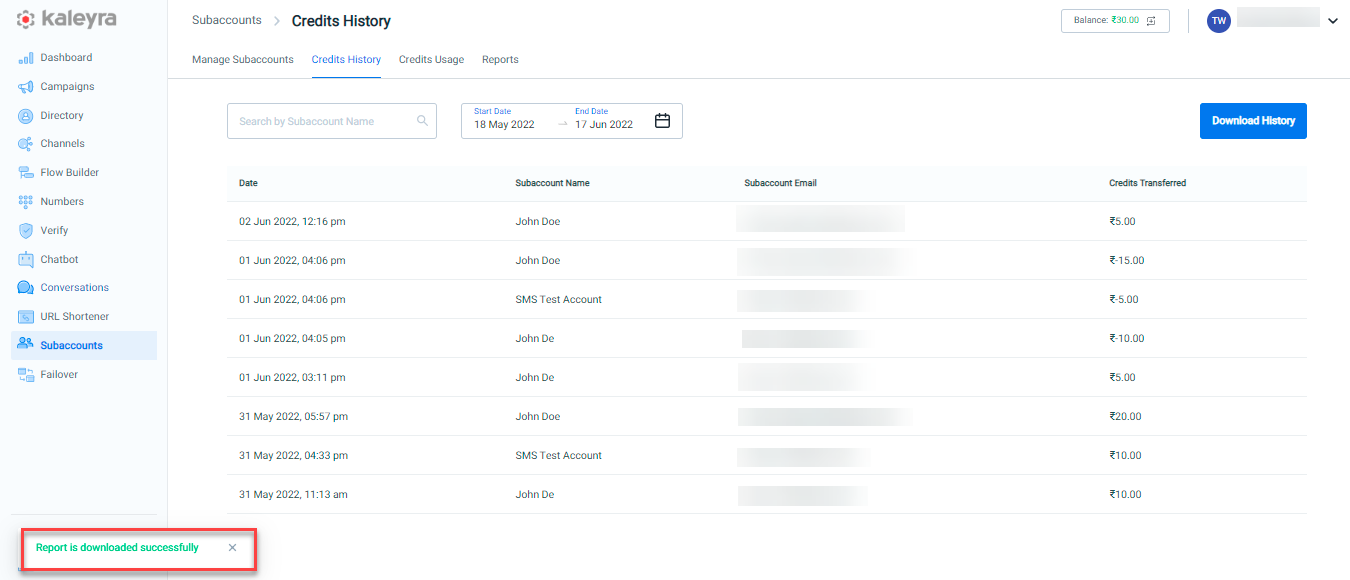
To download the Credits History report, perform the following steps:
- Sign in to your Kaleyra platform.
- On the left menu bar, click Subaccounts.
The list of menu options under the Subaccounts page appears.
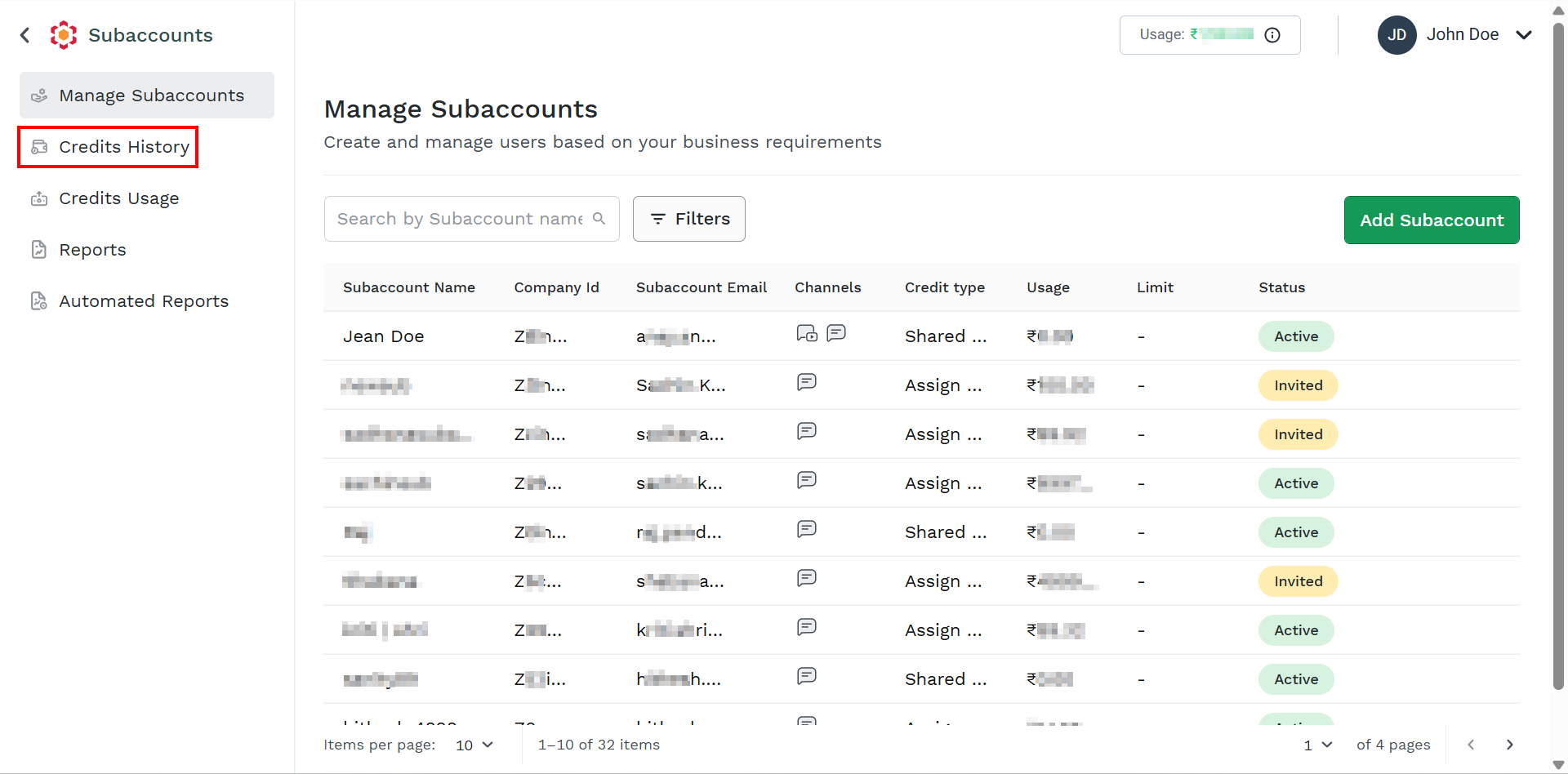
- On the left menu bar, click the Credits History menu.
The Credits History page appears.
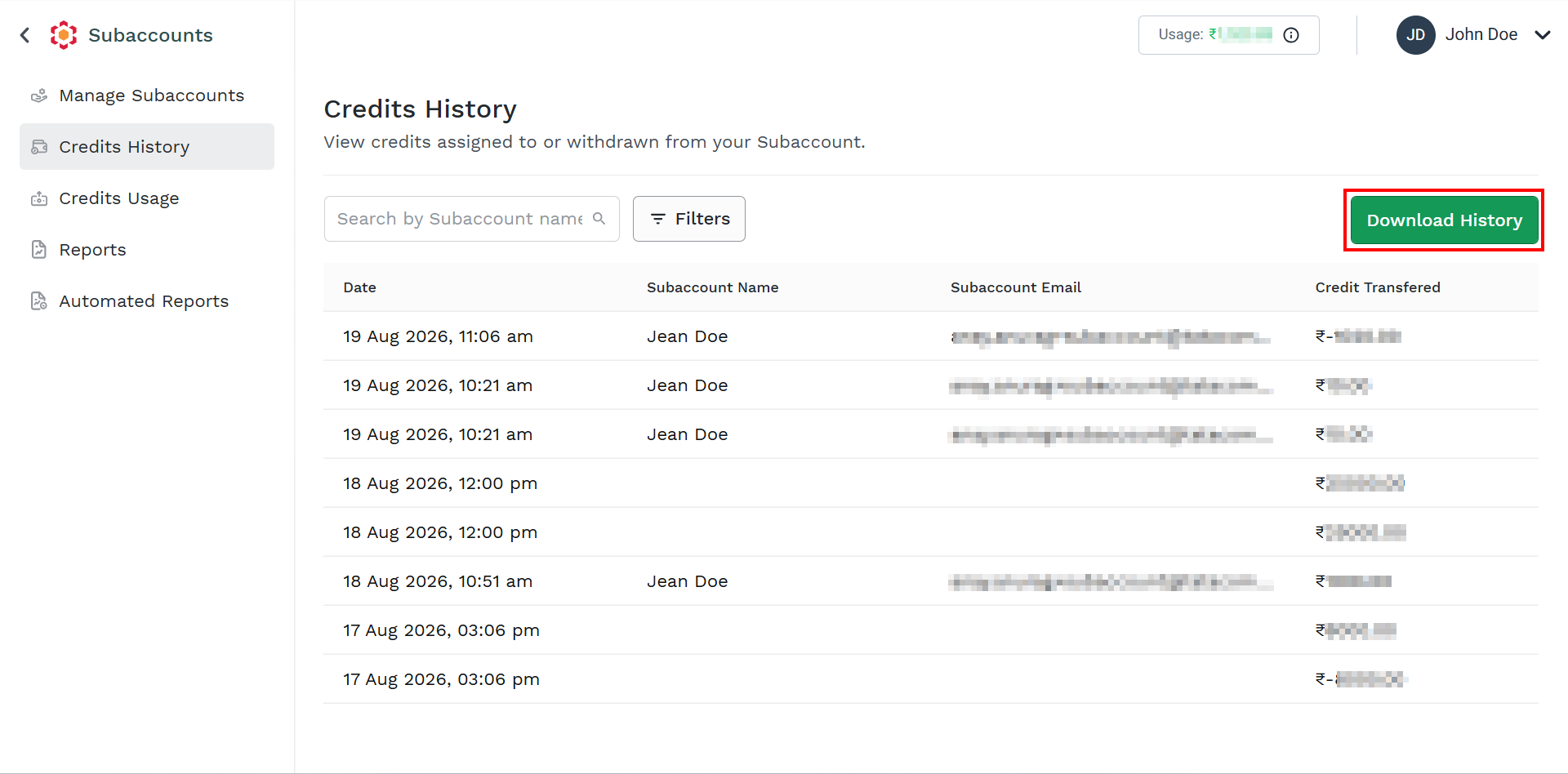
- Click Download History.
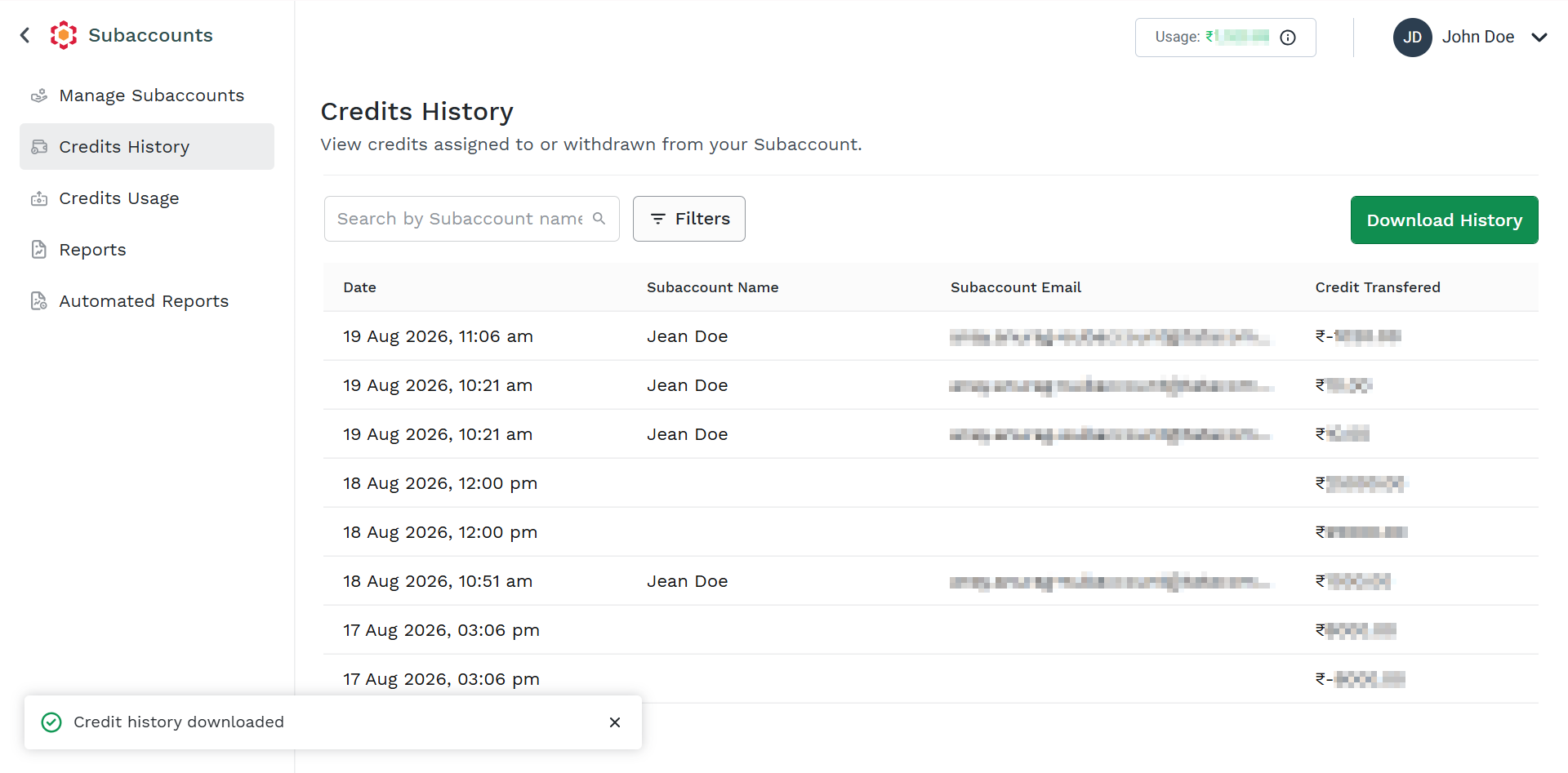
- Once the download report is completed, the “Report is downloaded successfully” message is displayed.
Updated 23 days ago
Did this page help you?