

Download Credits Usage Report
You can download credit usage reports to monitor the amount used by the sub-accounts.
Sample Credits Usage Report
The following is the sample credits usage report:
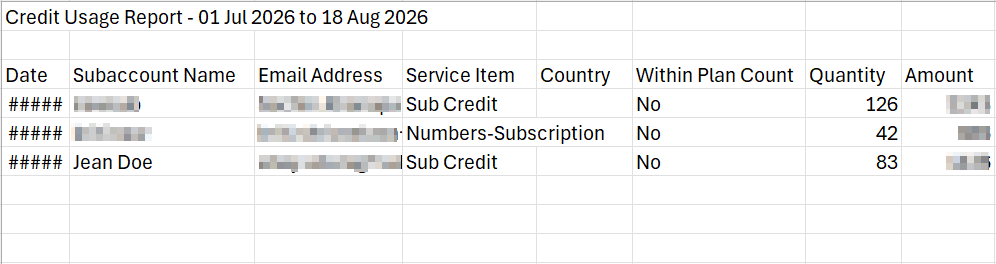
The downloaded credit usage report includes the following details:
| Column | Description | Example |
|---|---|---|
| Date | The date on which the usage or billing record was generated. | 7/18/2026 |
| Subaccount Name | The name of the customer subaccount that incurred the charge or consumed credits. | Jean Doe |
| Email Address | The registered administrator email associated with the subaccount. | [email protected] |
| Service Item | The service against which credits were consumed or charged. | Sub credit |
| Country | Indicates the destination country of the service or resource. | |
| Within Plan Count | Indicates whether the usage is covered under an existing plan/bundle allowance. In your report this shows No, meaning the usage was not included within a plan allocation and was billable. | No |
| Quantity | Number of units consumed. | 83 |
| Amount | The monetary value charged for the corresponding quantity, in the account billing currency. | XXXX |
To download the Credits Usage report, perform the following steps:
- Sign in to your Kaleyra platform.
- On the left menu bar, click Subaccounts.
The list of menu options under the Subaccounts page appears.
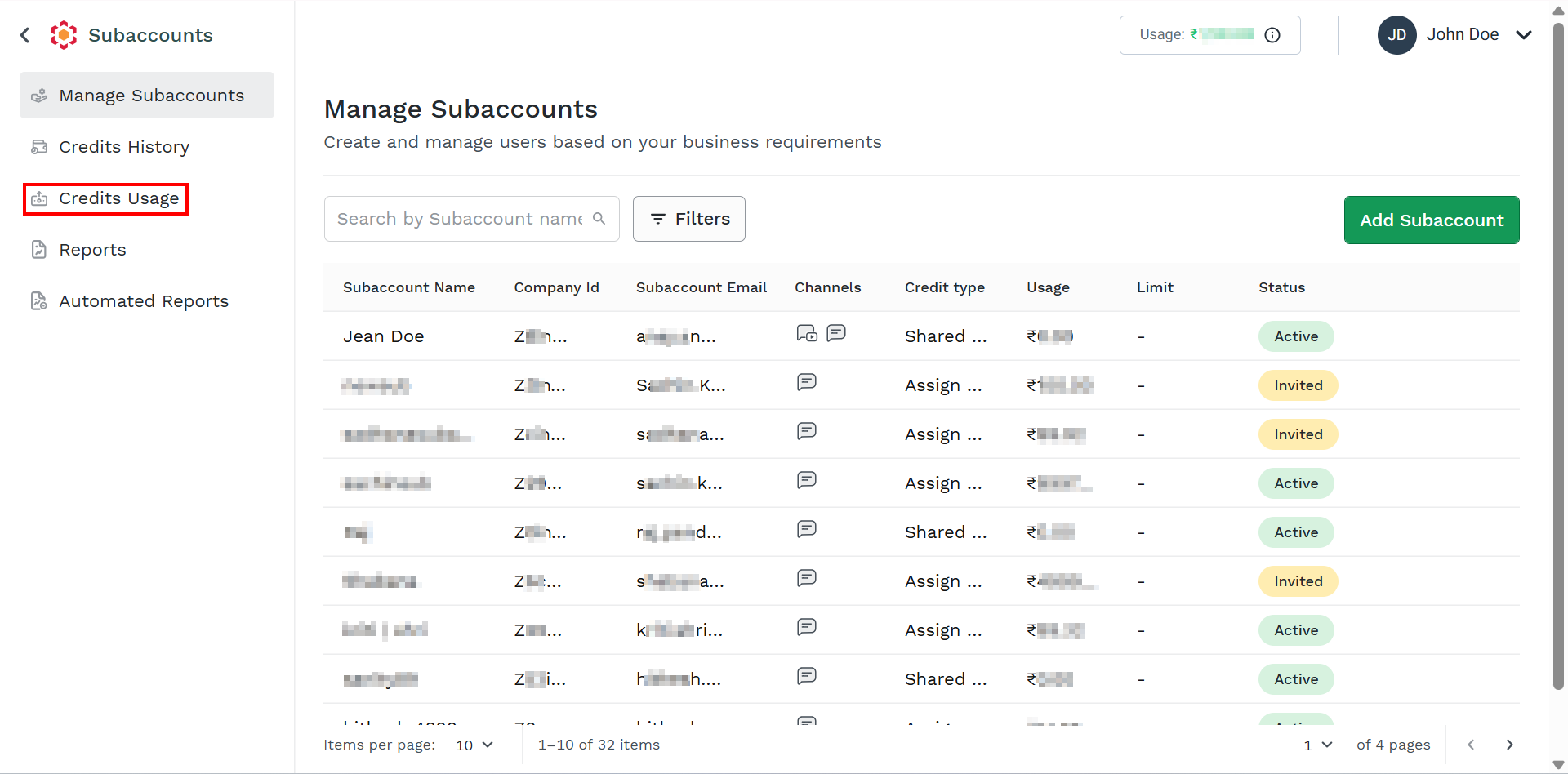
- On the left menu bar, click the Credits Usage menu.
The Credits Usage page appears.
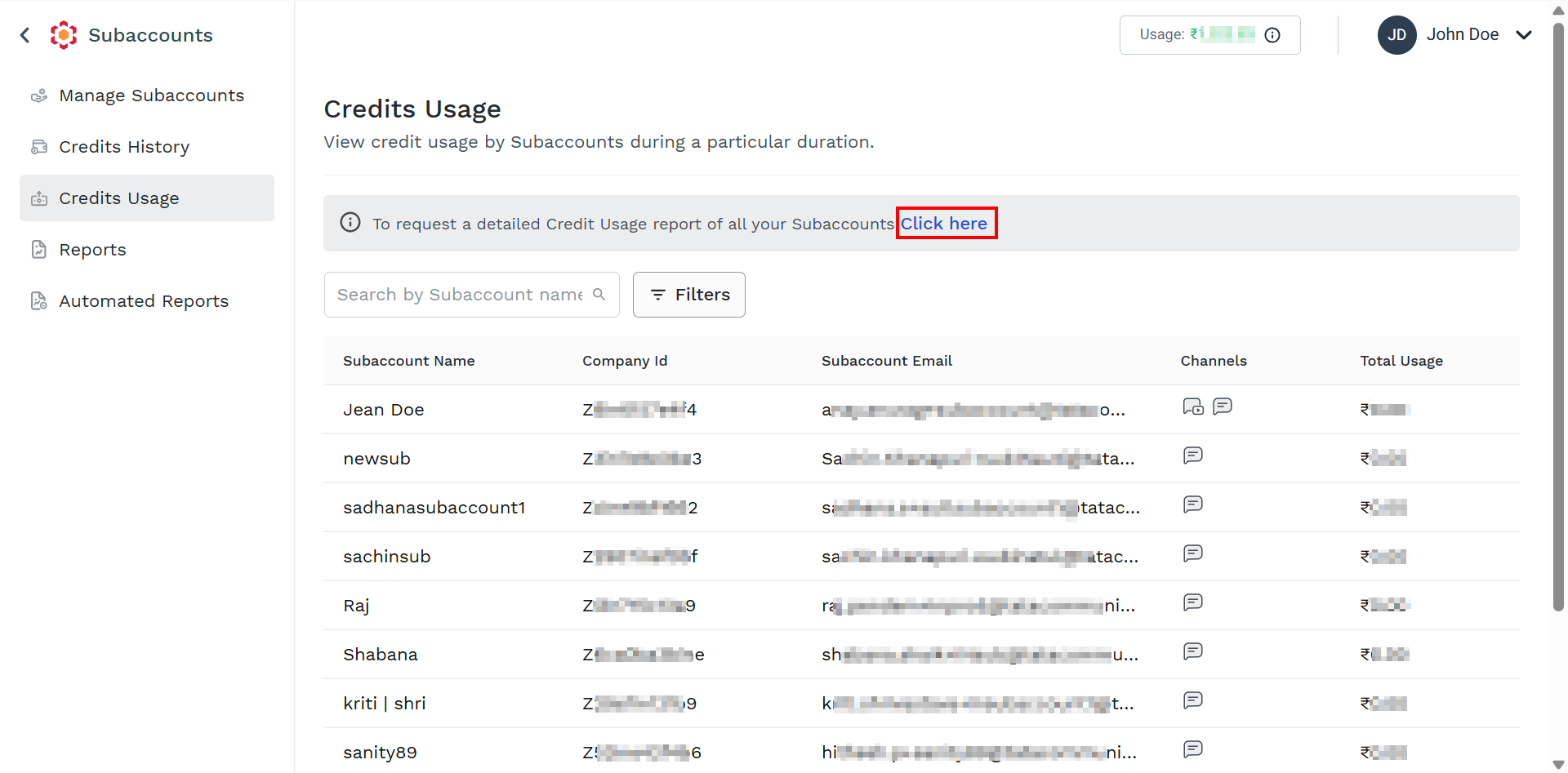
- Click the Click here link.
The Generate Subaccount Report page appears.
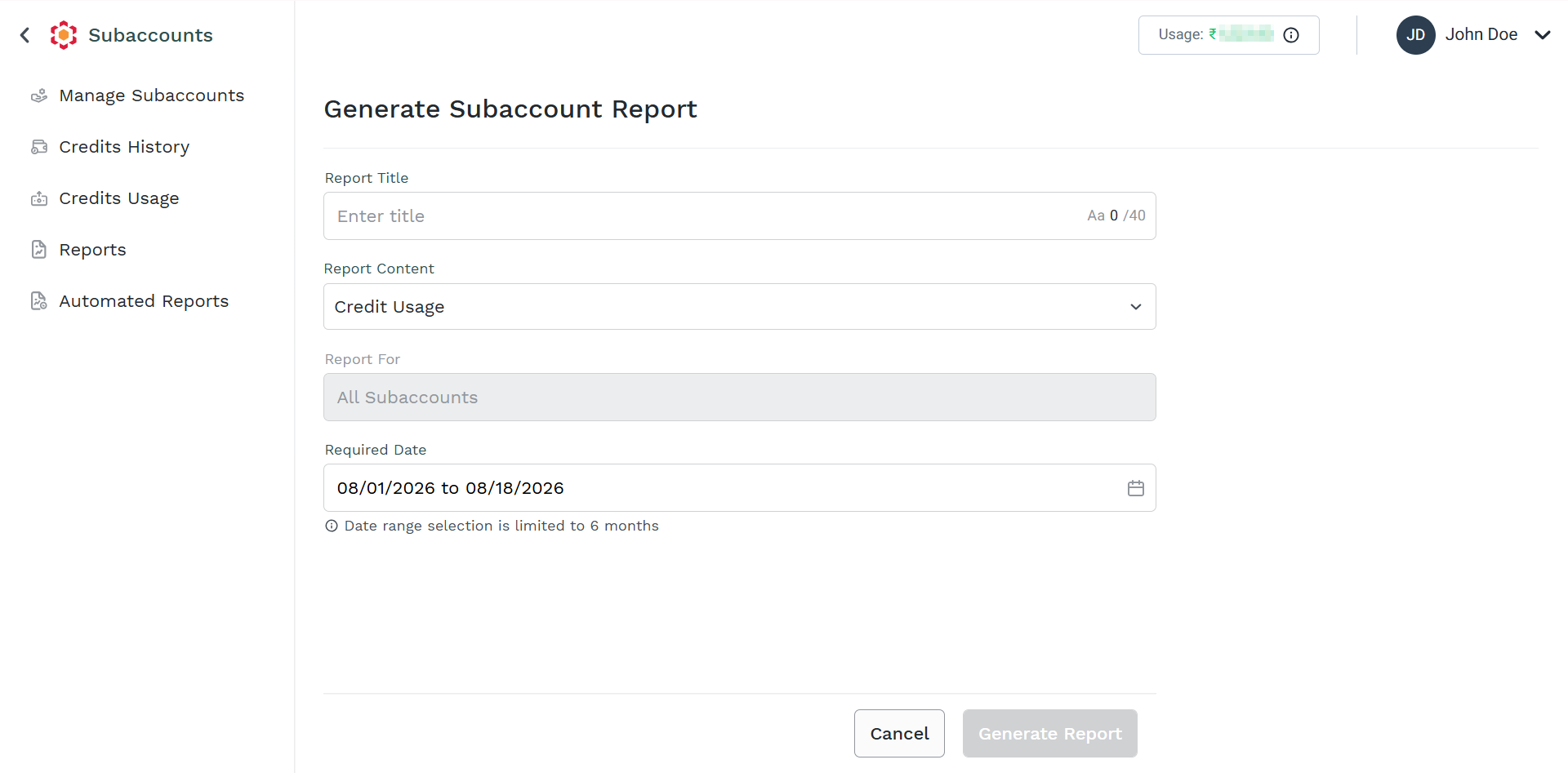
- Perform the following:
- In the Report Title field, enter the title for the report. The title can be of minimum 2 characters and a maximum of 40 characters long.
- Click the Report Content drop-down, and then select the report types from the following options:
- SMS
- Credit Usage - Select the credit usage option.
- Click the Required Date field. Select the Start Date and the End Date for the report from the date picker. The details of the messages sent during this date range are included in the report. You can download the report in the range of 6 months.
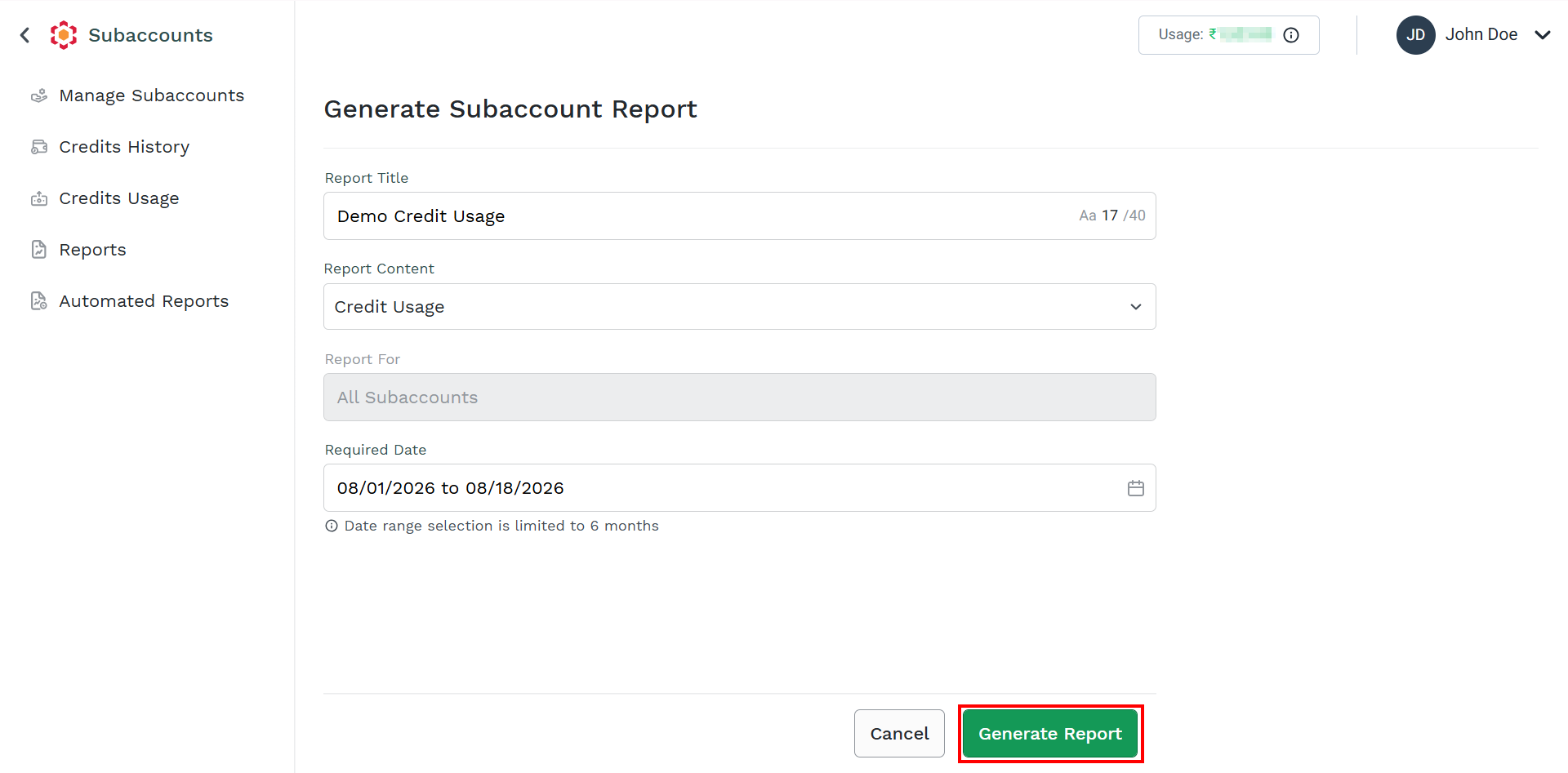
- Click Generate Report.
The Report Generated message appears and the requested report appears in the list view page.
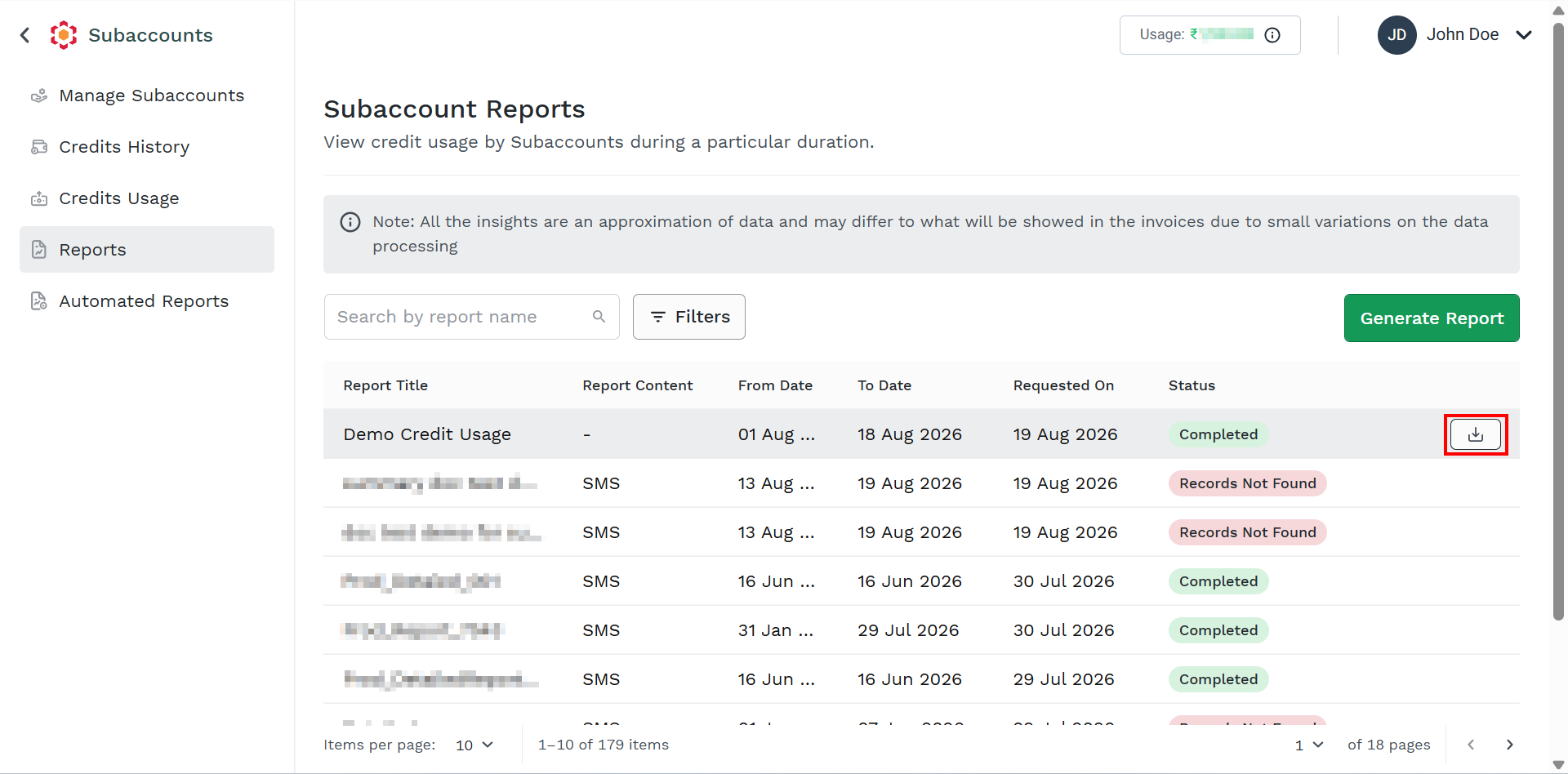
- Hover over the generated usage report and then click the Download icon. The report gets downloaded.
Updated 24 days ago
Did this page help you?