

RCS Tabular Report
The RCS Tabular Report contains detailed information about all sent and received messages.
Sample RCS Tabular Report
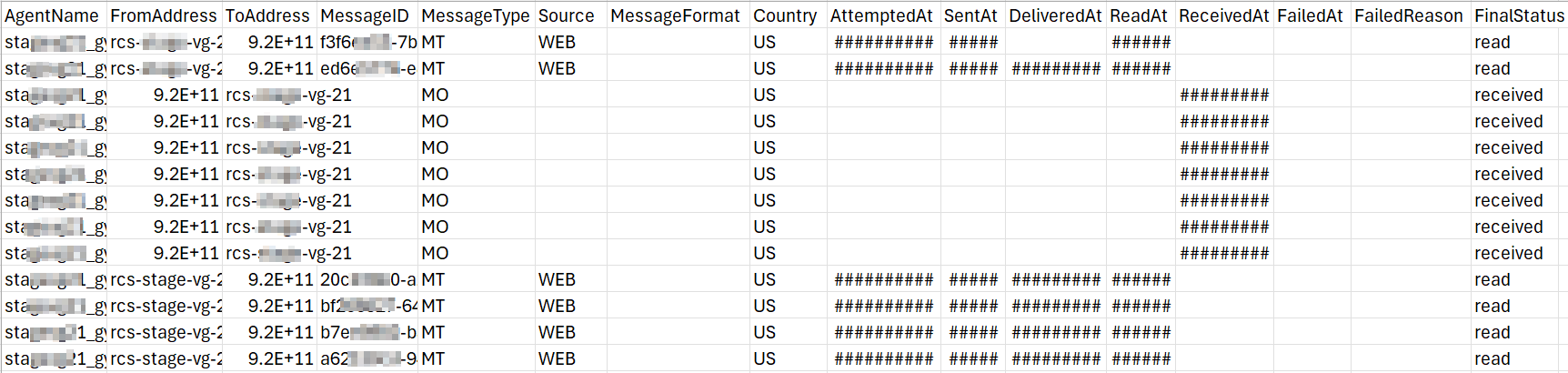
The following is the sample RCS tabular report:
RCS Tabular Report Fields Detail
The following table describes the fields available in the RCS tabular report:
| Column Field Name | Description | Sample Value |
|---|---|---|
AgentName | The display name of the RCS business agent. | Basket Agent |
FromAddress | The ID of the Brand or Agent from which messages have been sent. FromAddress value be Agent ID. For MO message, this will show the Mobile number of the user or sender. | usXXXXXXXXent |
ToAddress | The mobile phone number of the recipient in MSISIDN format. For MO message, this will be an Agent ID | 9199XXXXXX61 |
MessageID | Unique identifier assigned by the RCS platform to the messages. This can be useful for support. | fdXXXXXXXXbcb |
MessageType | Message type for the RCS communications. Possible values are MT for message sent by you or MO for message sent by end-user to you. | MT |
Source | Origin of message submission. It can be an API or a WEB. | WEB |
MessageFormat | Format of the RCS message. For example, text, rich text, media files, rich cards, and carousels. | text |
Country | The country code to which the recipient's mobile number is associated. | US |
AttemptedAt | Timestamp of when RCS message was submitted to Kaleyra Platform in the format mm/dd/yyyy hh:mm:ss AM/PM. | 1/21/2026 5:28:06 AM |
SentAt | Timestamp of when RCS message was sent to the RCS carrier. | 1/21/2026 5:29:04 AM |
DeliveredAt | Timestamp of when the RCS messages was delivered to end-user device. | 1/21/2026 5:30:18 AM |
ReadAt | Timestamp of when the RCS message was read by the end-user. | 1/21/2026 5:35:07 AM |
ReceivedAt | Timestamp of when the incoming message (MO) was received by Kaleyra Platform from the end-user. | 1/21/2026 5:36:02 AM |
FailedAt | Timestamp when the error event occurred (applicable for MT message only). | |
FailedReason | Normalized internal error code derived from provider or carrier errors. | |
FinalStatus | Final status of the RCS message when the report was generated. The following are the statuses:
| Delivered |
Generate Tabular Report
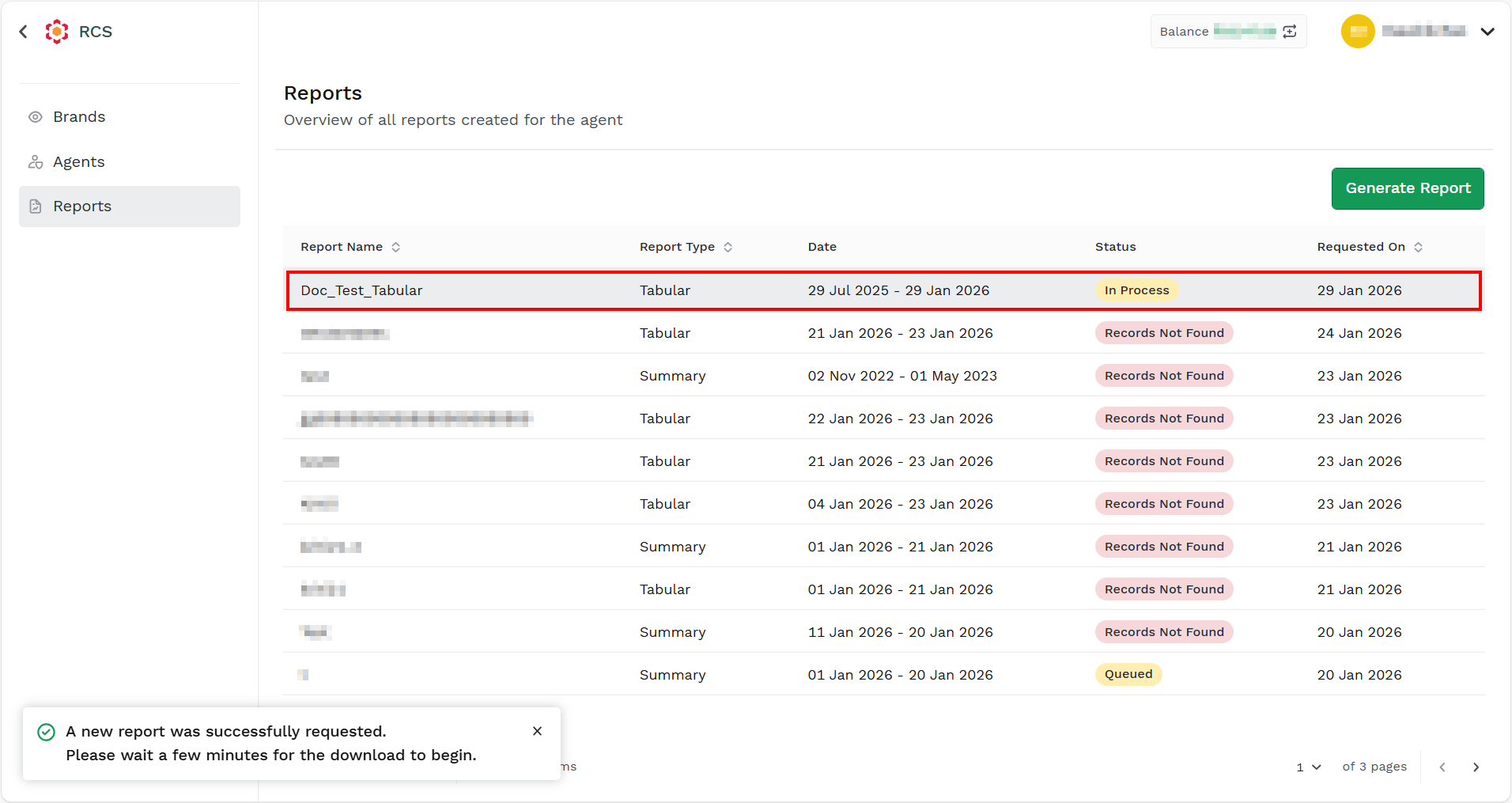
You can generate the RCS tabular report from the Kaleyra platform.
To generate the RCS tabular report, perform the following steps:
- Sign in to your Kaleyra platform.
- On the left navigation bar, click Reports & Logs.
The WhatsApp Overview page appears.
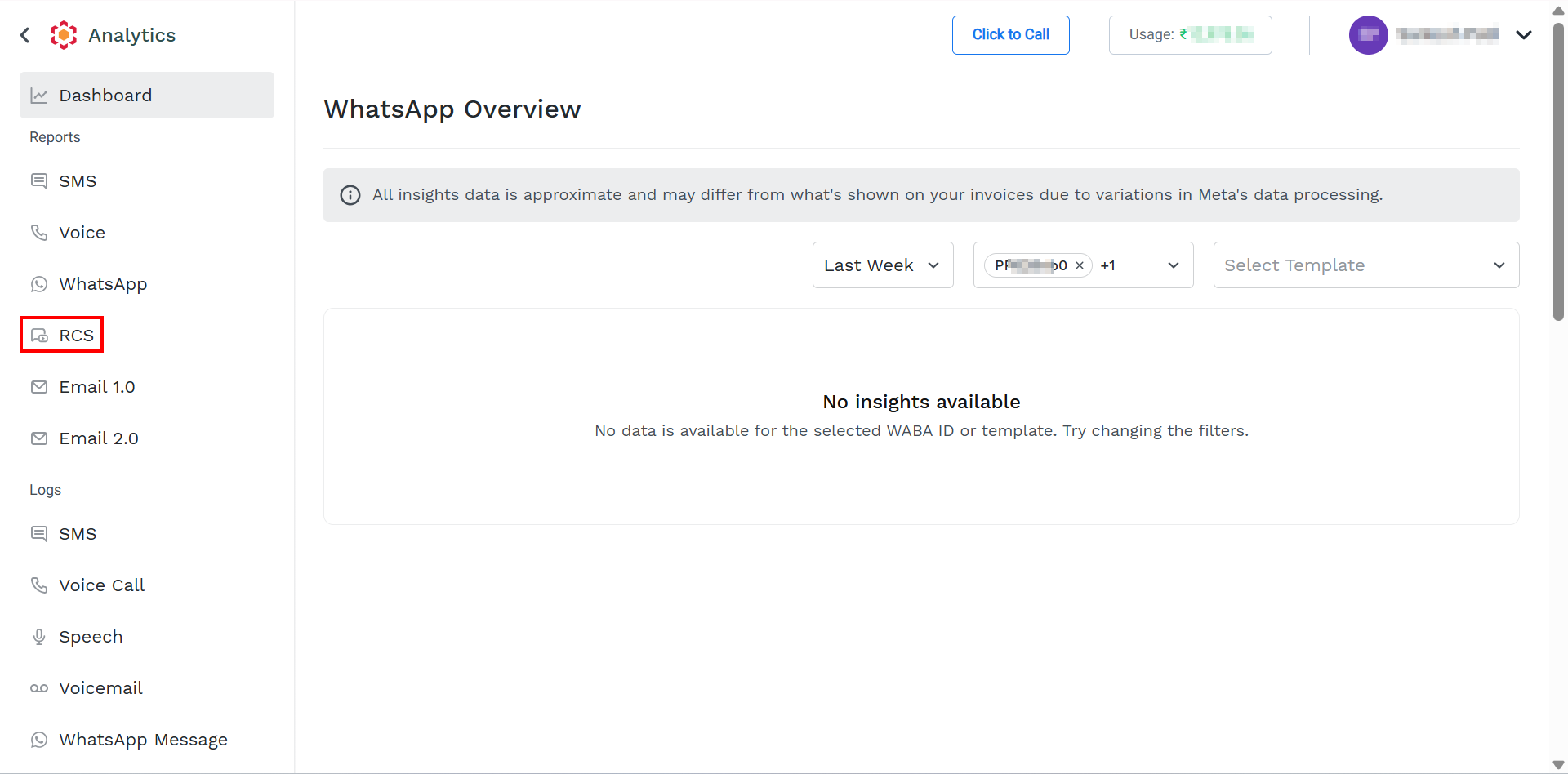
- On the left menu bar, click RCS.
The Reports page appears.
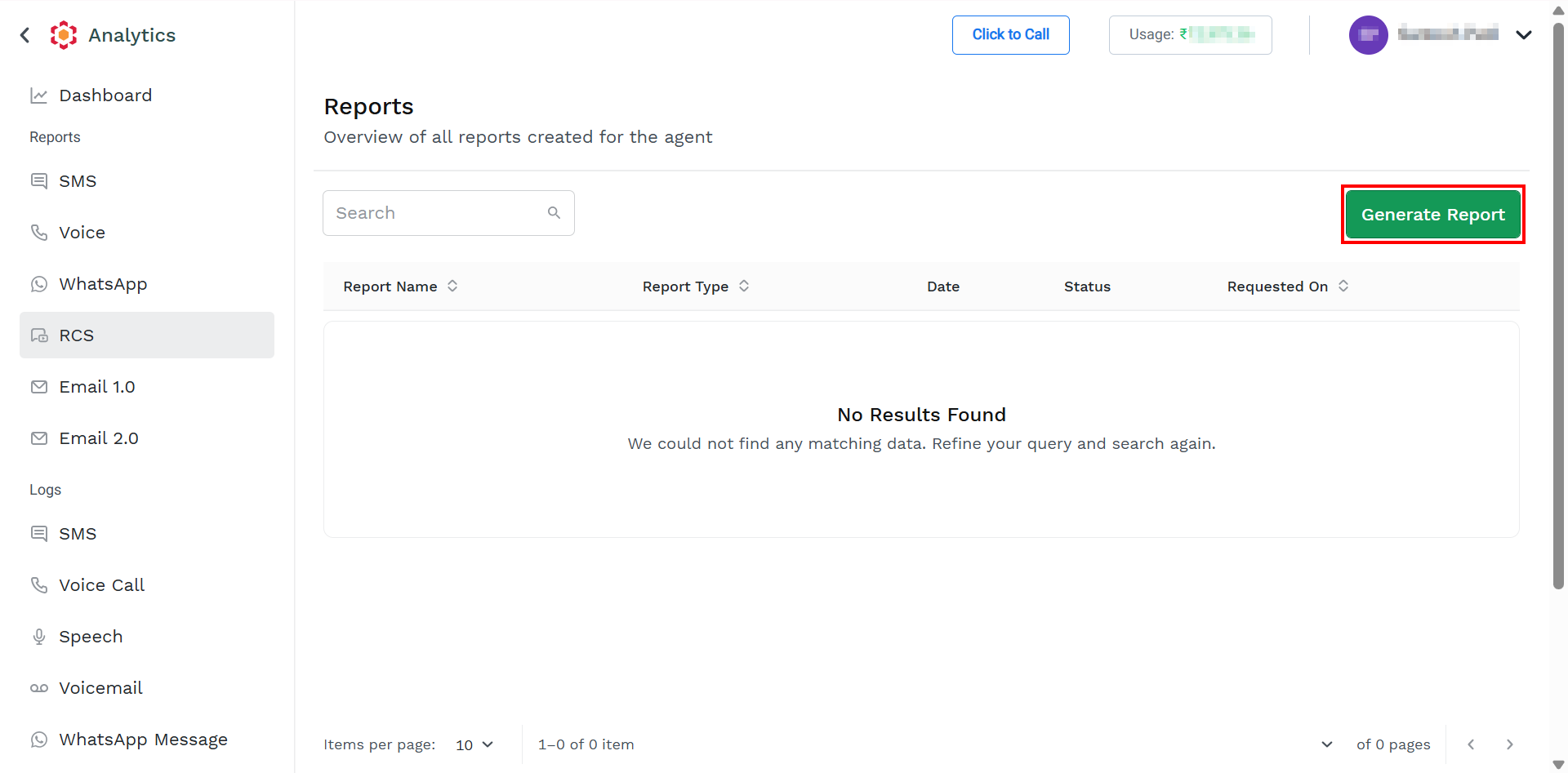
For information on column details, see View Report List.
- On the top-right of the page, click the Generate Report button.
The Generate Report page appears.
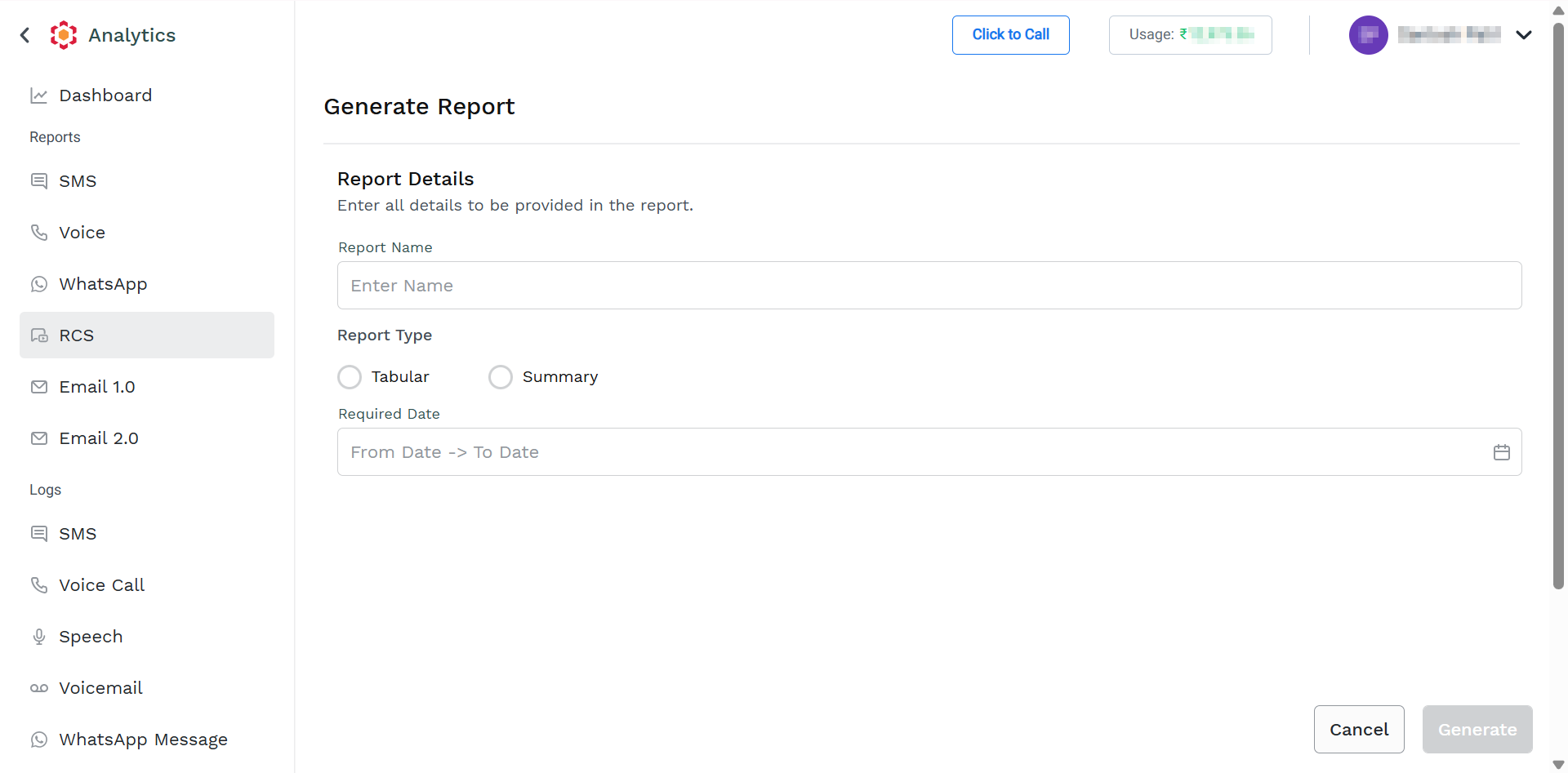
- Perform the following steps:
- In the Report Name field, enter the name for your report. The report name should be between 3 and 40 characters.
- From the Report Type, select the Tabular option.
- In the Required Date field, click the From Date -> To Date or the calendar icon on the right side of the Required Date field. Select the from and to dates from the calendar. You can select the date range from the last 6 months to the current date.
- Click the Generate button.
The confirmation message appears and the request to generate the report is taken in charge by Kaleyra Platform.
Note:
After the report is generated successfully, a notification is sent to your email address associated with your Kaleyra account.
- Hover over the report with status as Generated and click the ellipsis icon. Click the Download button to download the report. The report gets downloaded in the mapped folder in .csv file.
Updated about 2 months ago
Did this page help you?