

Search and Filter Domains
You can search, filter, and sort the domains from the domains list.
The topic contains the following sections:
Search Domain
You can search the domain according to the domain name.
To search for a domain, perform the following steps:
- Sign in to your Kaleyra platform.
The Channels page appears.
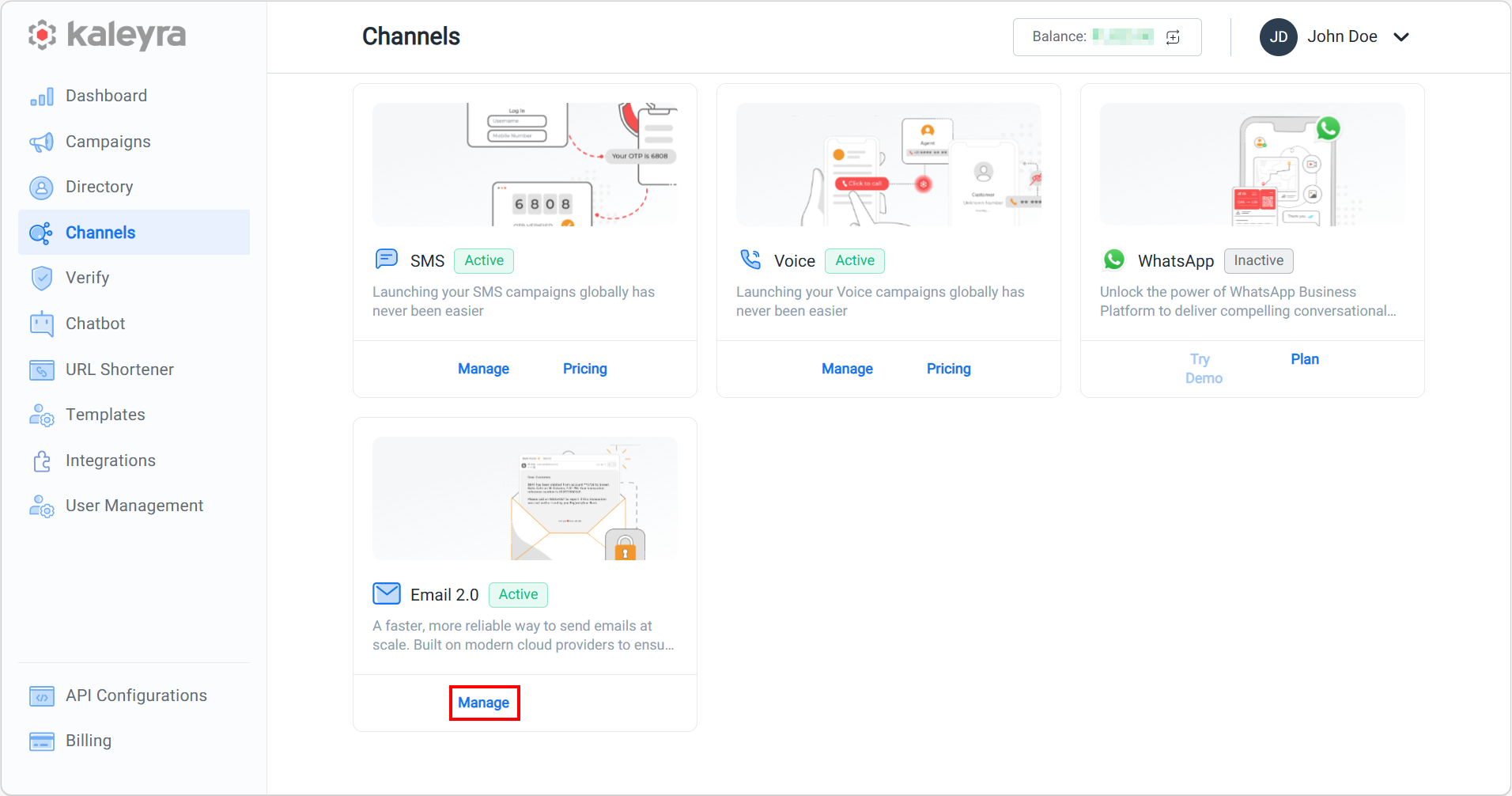
- On the Email 2.0 card, click Manage.
The Domain Management page appears.
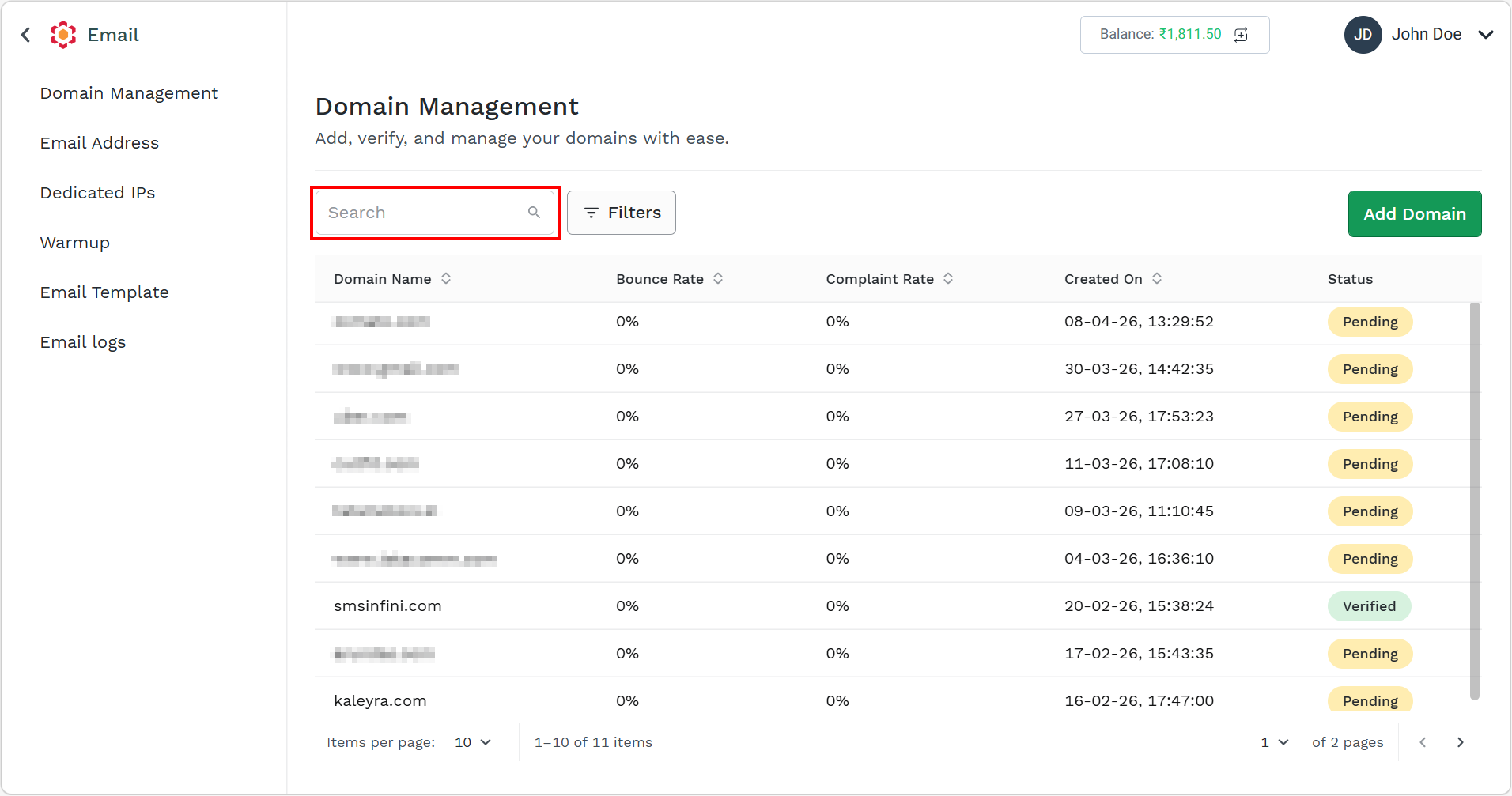
- In the Search field, enter the domain name you want to search, and then press ENTER.
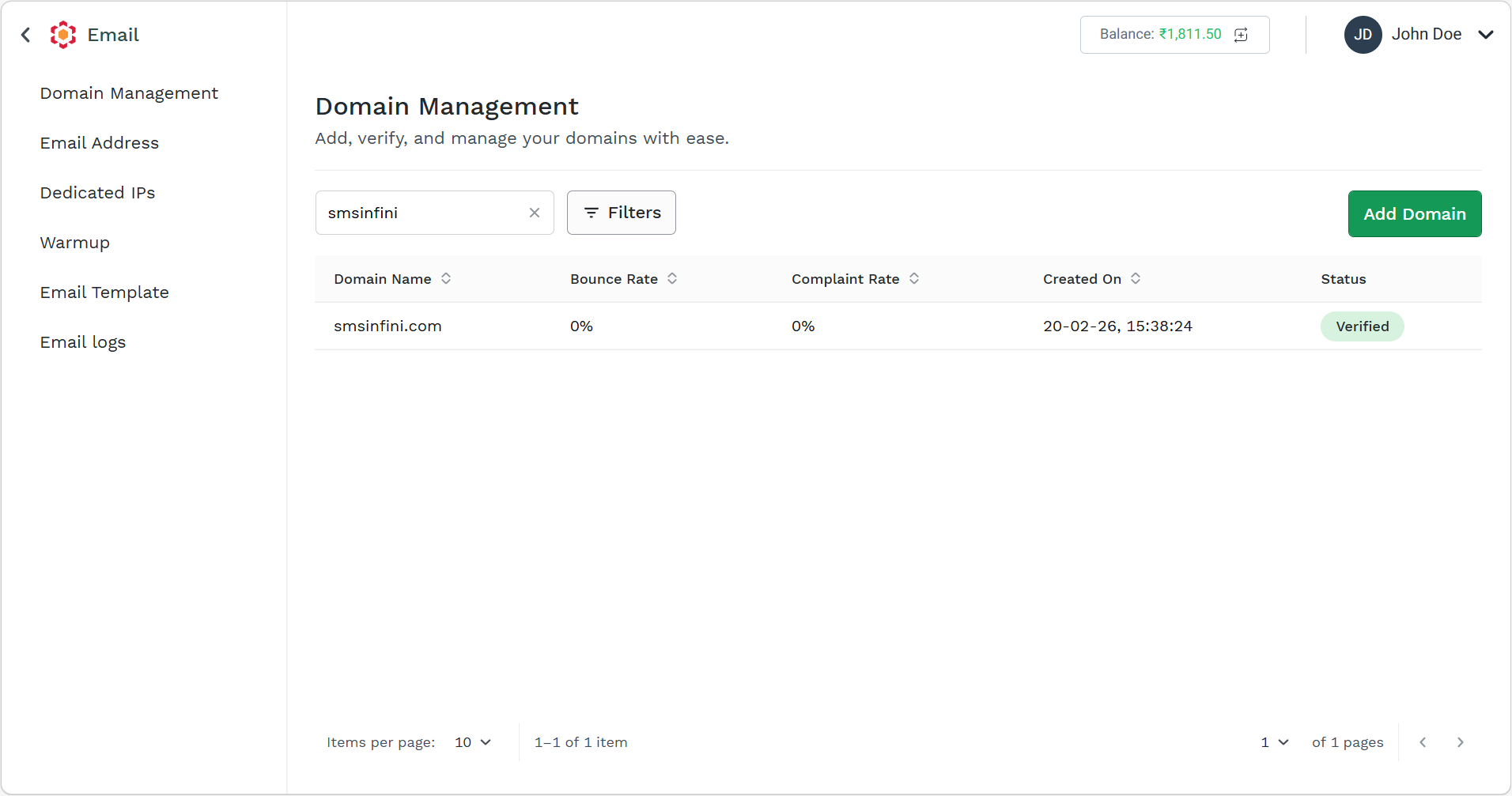
The search result appears.
Note:
To clear the search, click the x icon next to the entered search content.
Filter Domain
You can filter the domains based on the following criteria:
| Select Criteria | Condition | Select an option |
|---|---|---|
| Status | Is |
|
| Date Range (Domain Creation Date) | Between |
|
| Bounce Rate |
| Value |
| Complaint Rate (Spam or Report) |
| Value |
To filter the domain, perform the following steps:
- Sign in to your Kaleyra account. The Channels page appears.
- On the Email 2.0 card, click Manage.
The Domain Management page appears.
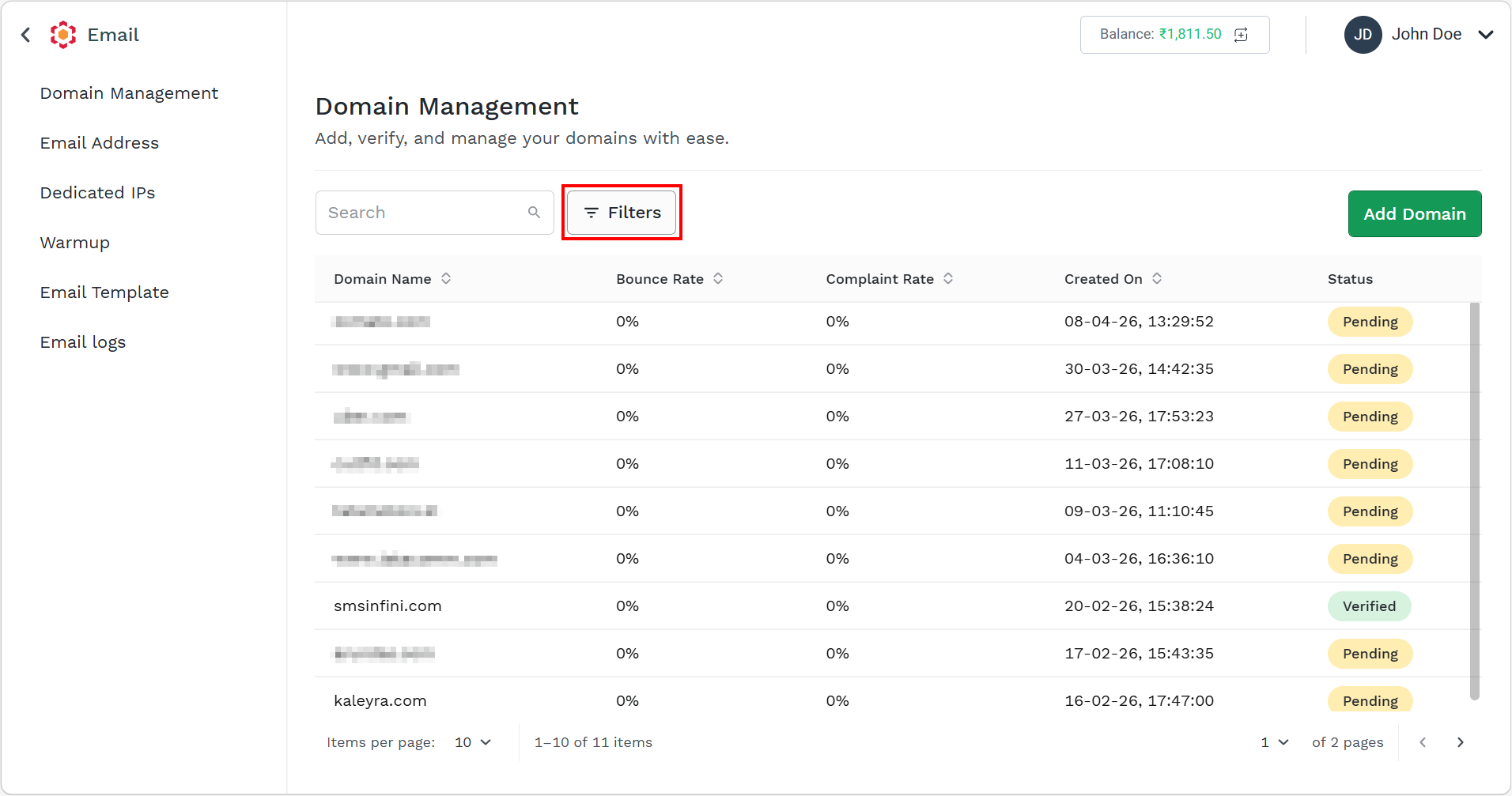
- Click the Filter button.
The filter pop-up appears.
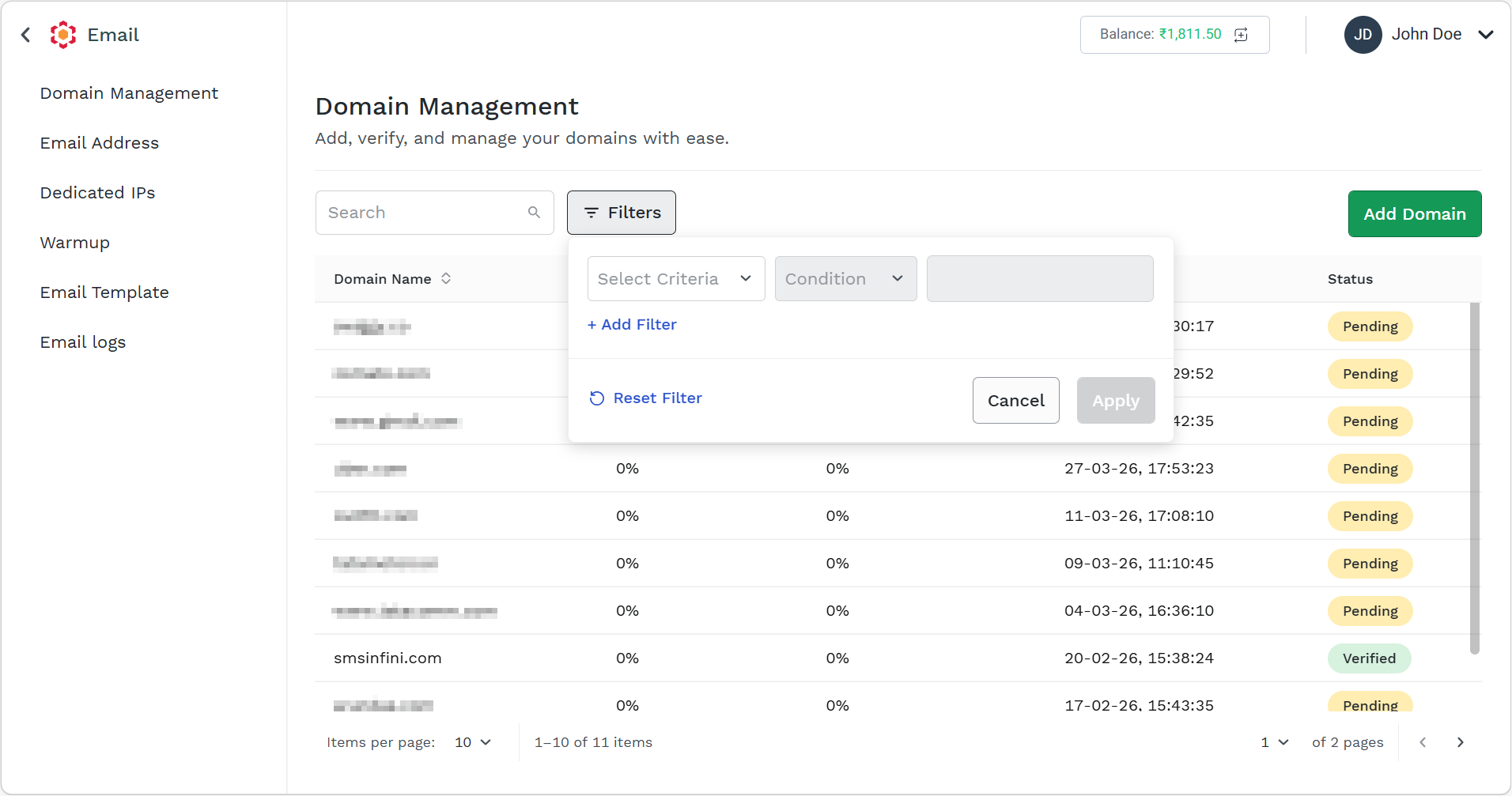
- Click the Select Criteria drop-down field and select one of the following options, and then filter condition:
- Status - You can filter based on the domain's statuses, such as Verified, Pending, or Suspended. In this workflow, we will filter the Verified domains.
- Date Range - You can filter based on the domain's creation date through From and To date range.
- Bounce Rate - You can filter based on a domain's bounce rate through the bounce rate filters, such as Greate Than or Equals To or Less Than or Equals To.
- Complaint Rate - You can filter based on the domain's complaint rate through the complaint rate filters, such as Greate Than or Equals To or Less Than or Equals To.
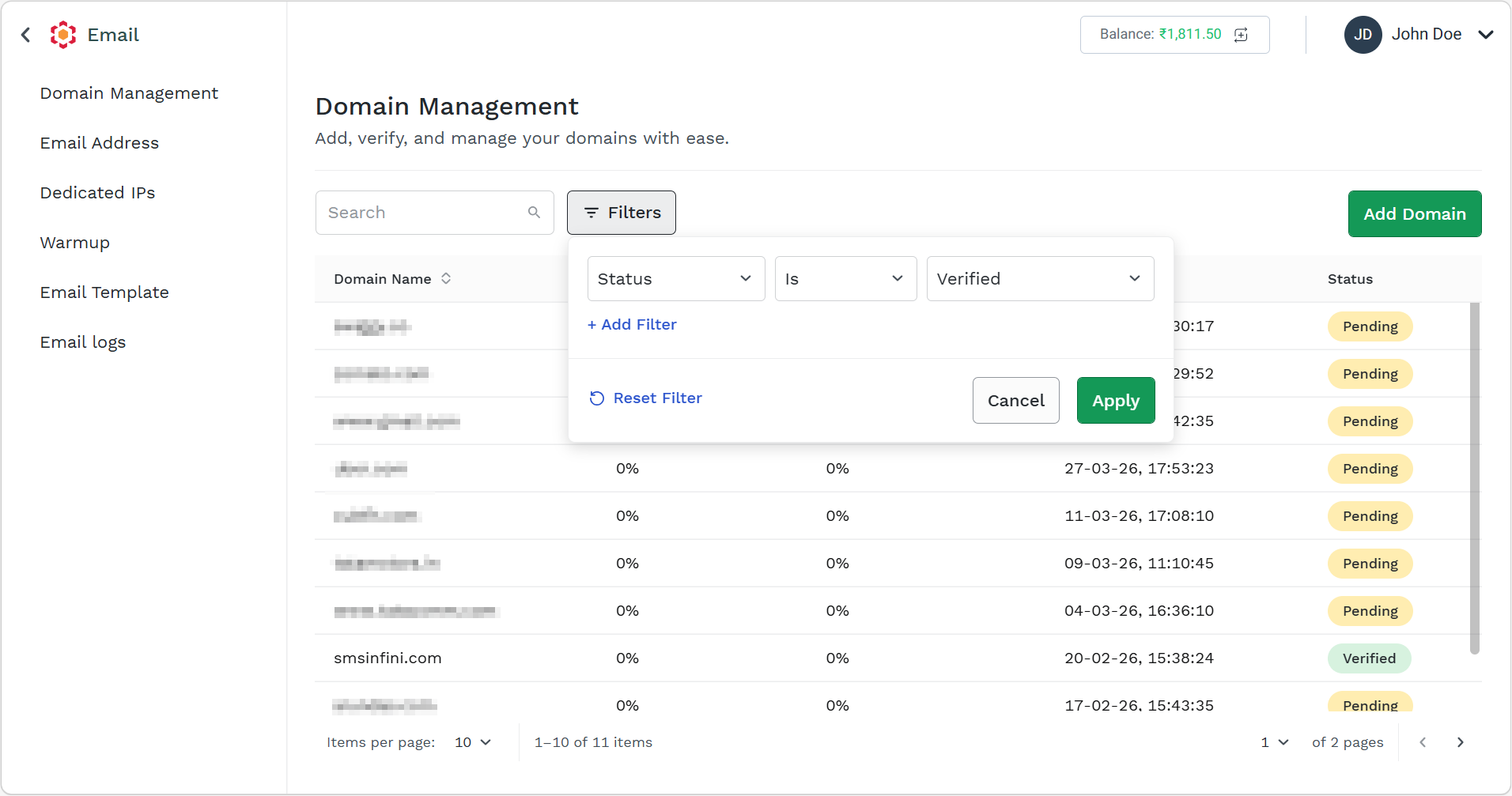
- Click Apply
The filtered domains appear.
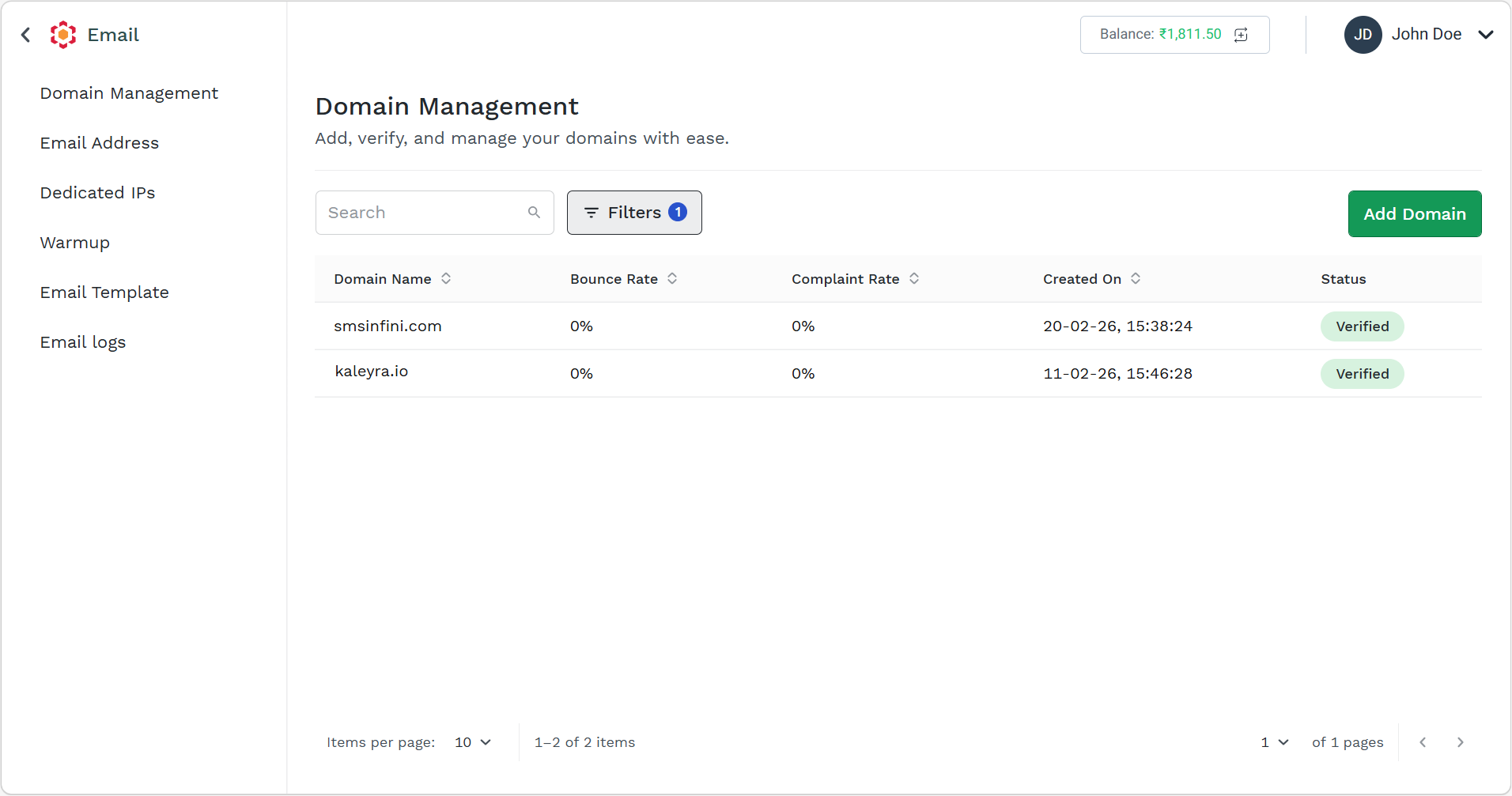
Note:
To reset the filter, click the Reset Filter link.
Sort Domain's Details in Ascending or Descending Order
You can sort the domain's details either in ascending order or descending order.
To sort the domain's details in ascending order or descending order, perform the following steps:
- Sign in to your Kaleyra account.
The Channels page appears.
- On the Email 2.0 card, click Manage.
The Domain Management page appears.
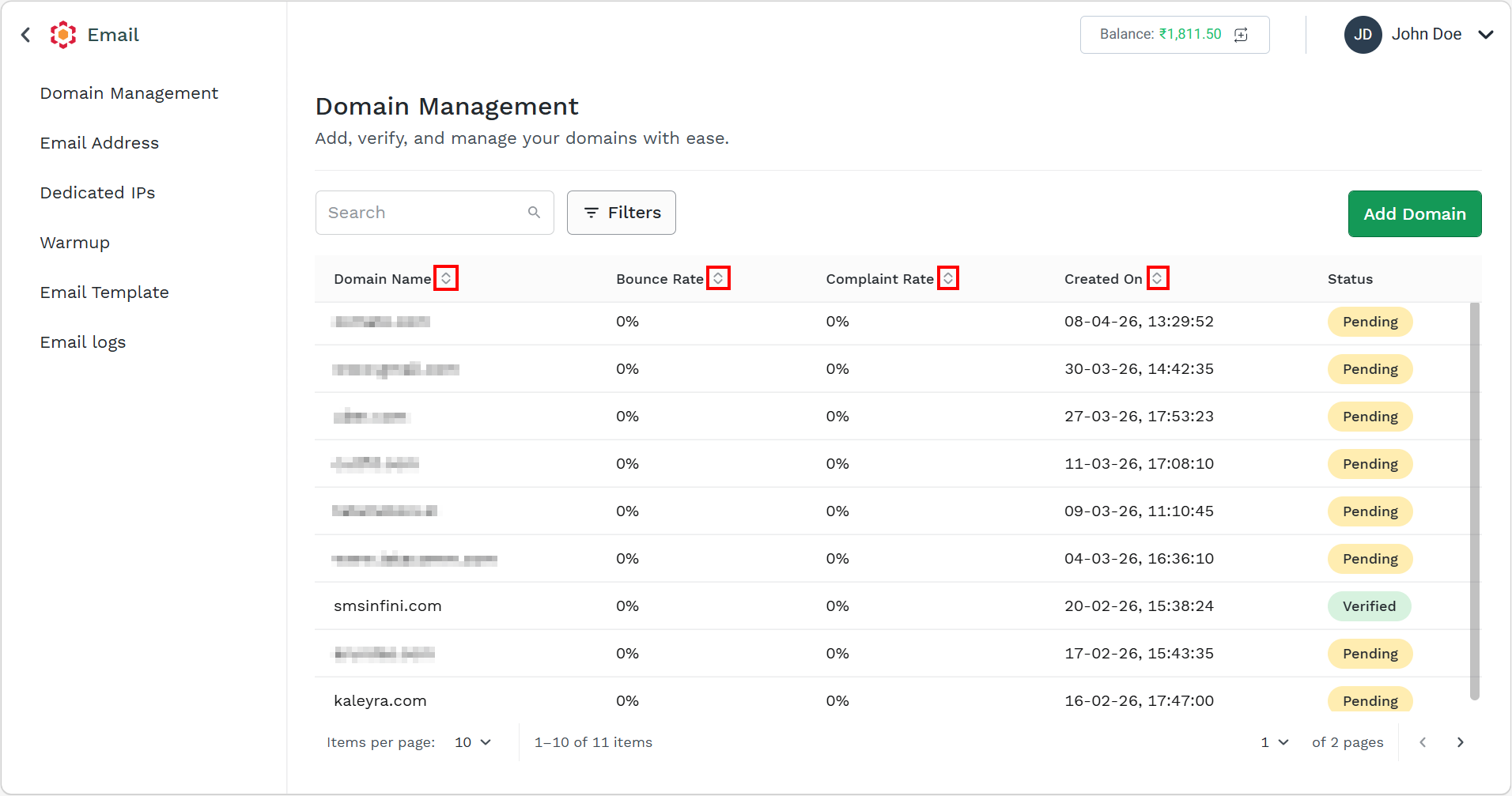
Note:
You can sort the following details either in ascending order or descending order:
- Domain Name
- Bounce Rate
- Complaint Rate
- Created On
- The sorting will follow the listed pattern:
- First click on the ascending and descending sort indicators will sort the column table in ascending order.
- Second click on the ascending and descending sort indicators will sort the column table in descending order.
- Third click on the ascending and descending sort indicators will set the table details to default.
Updated about 1 month ago