

Email 2.0 Detailed Report
The Email 2.0 Detailed Report contains detailed information about all sent and received emails.
Sample Email 2.0 Detailed Report
The following is the sample email 2.0 detailed report:
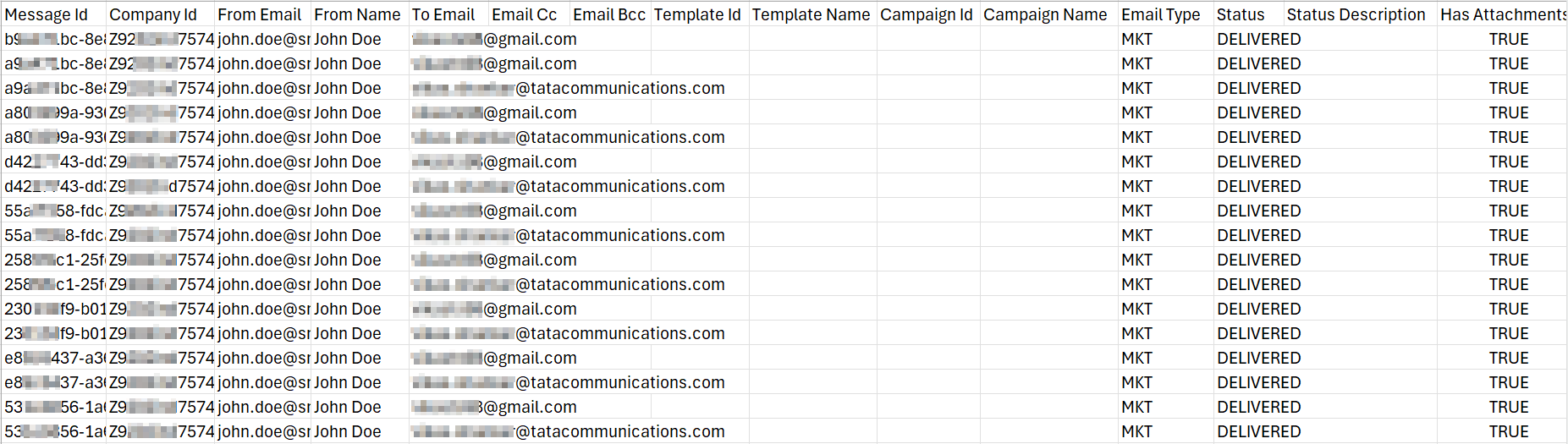
Email 2.0 Detailed Report Fields Detail
The following table describes the fields available in the email 2.0 detailed report:
| Column Field Name | Description | Sample Value |
|---|---|---|
Message Id | The unique identifier of the email ID. | b9XXXXbc-8XX1-4XX4-aXXa-04XXXXXXX1b |
Company Id | The unique identifier of company from which the email was sent. | Z9XXXXXXXX74 |
From Email | The email address from which the email was sent (sender). | [email protected] |
From Name | The name using which the email was sent. You have the option to add name while adding dedicated IPs associated with email address. For more information, see Add Dedicated IPs. | John Doe |
To Email | The email addresses to which the email was sent (recipients). | [email protected] |
Email Cc | The Carbon Copy (CC) recipients of the email. | |
Email Bcc | The Blind Carbon Copy (BCC) recipients of the email. | |
Template Id | Unique identifier of template used in the email. | |
Template Name | Template name used in email. Template name is configured while creating the email template. | |
Campaign Id | Unique identifier of campaign used in email. | |
Campaign Name | Campaign name used in email. Campaign name is configured while launching a campaign. | |
Email Type | Email type that was sent to the end users. It can be either transactional or marketing type. | MKT |
Status | The status of the email. The status can be DELIVERED, FAILED, VALIDATED, SENT, BOUNCED, DELAYED, OPENED, or QUEUED. | DELIVERED |
Status Description | Description of the email status. | |
Has Attachments | If the email has any attachment with it. The supported value is TRUE or FALSE. Overall email (text + html + attachments) ≤ 20 MB. | TRUE |
Sent At | The time at when the email was sent. The time format is in the form: YYYY-MM-DDThh:mm:ssZ. Where, YYYY - year MM - month DD - day hh - hour mm - minutes ss - seconds T - primarily separate the date and the time partZ - zero hour offset. | 2026-05-17T11:45:36Z |
Delivered At | The time when email was delivered. | 2026-05-17T11:45:39.726Z |
Reply To | Reply to email address, to get the response from the end users. | [email protected] |
Cost Price | The charges applicable in sending the email. | 0.X |
Source | The source that had been used to send the email. Currently, you can send email only using the APIs. | API |
Subject | The subject line of the sent email. If you are using templates, the API subject overrides the template subject if present. | Test email for demo with file attachments |
Is Amp Email | Determines if the email is Accelerated Mobile Pages (AMP) email or not. AMP allows you to send interactive, dynamic emails where users can take actions directly inside the email (without opening a website). | FALSE |
Ref | The Ref parameter is optional in API requests. The information in Ref parameter appears in this column of the report. | order_12XXX43 |
Ref1 | The Ref1 parameter is optional in API requests. The information in Ref1 parameter appears in this column of the report. | campaign_4XXX56 |
Ref2 | The Ref2 parameter is optional in API requests. The information in Ref2 parameter appears in this column of the report. |
Generate Email 2.0 Detailed Report
You can generate the Email 2.0 detailed report contains the detailed description of the email sent from the Kaleyra platform.
To generate email 2.0 detailed report, perform the following steps:
- Sign in to your Kaleyra platform. The Channels page appears.
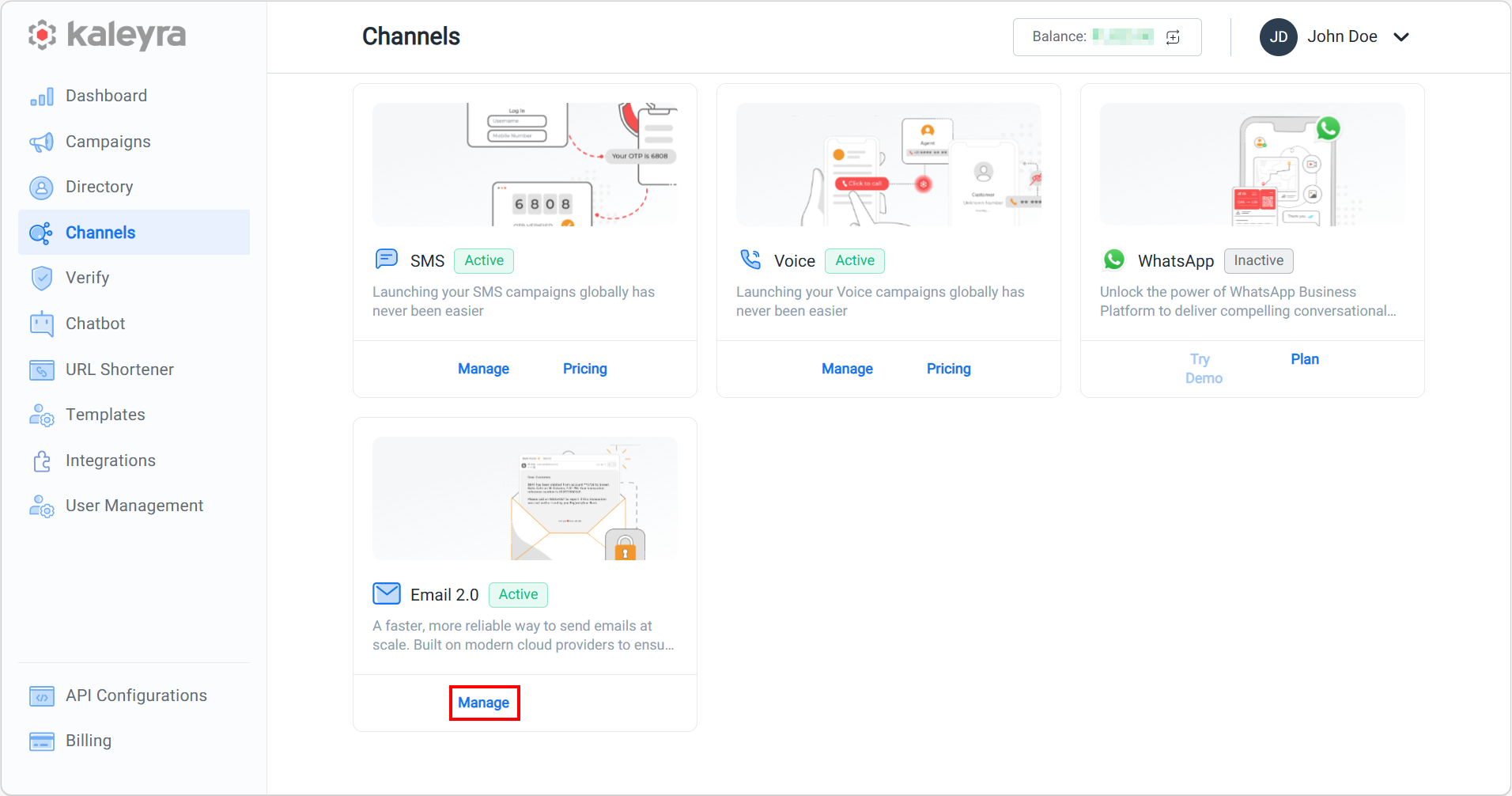
- On the Email 2.0 card, click Manage.
The Domain Management page appears.
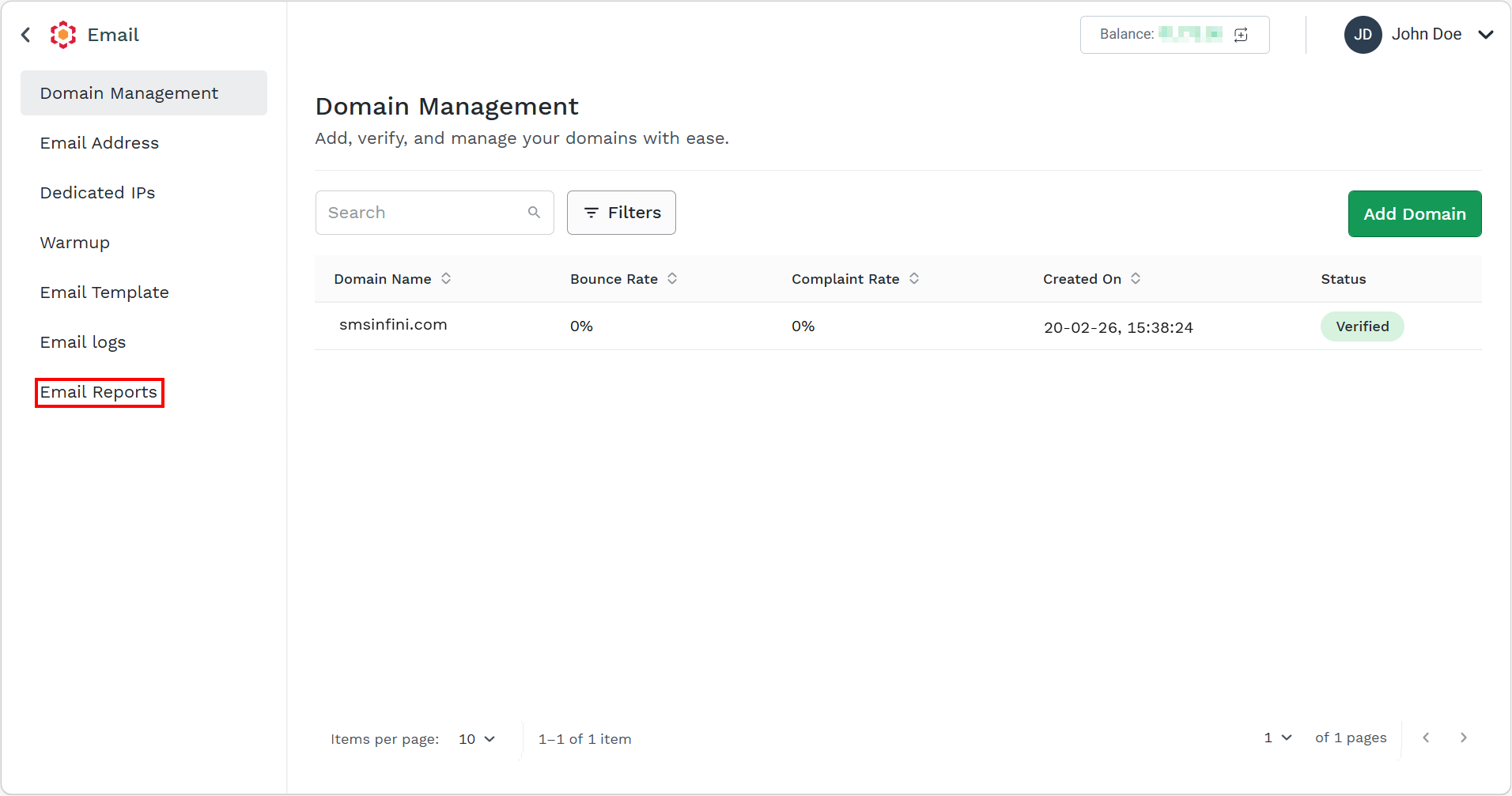
- On the left menu bar, click Email Reports.
The Email Reports page appears.
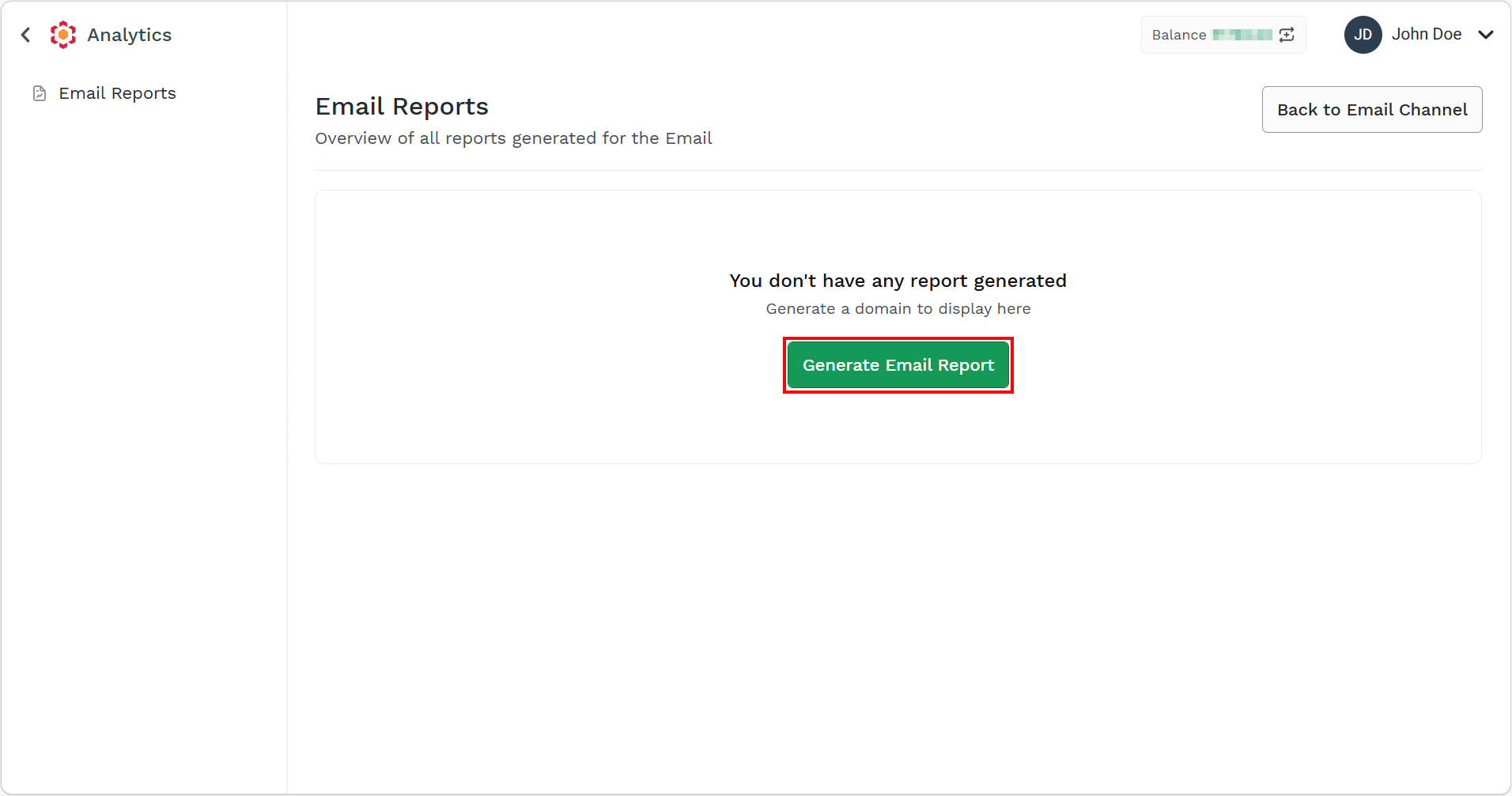
- Click the Generate Email Reports button.
The Generate Email Report page appears.
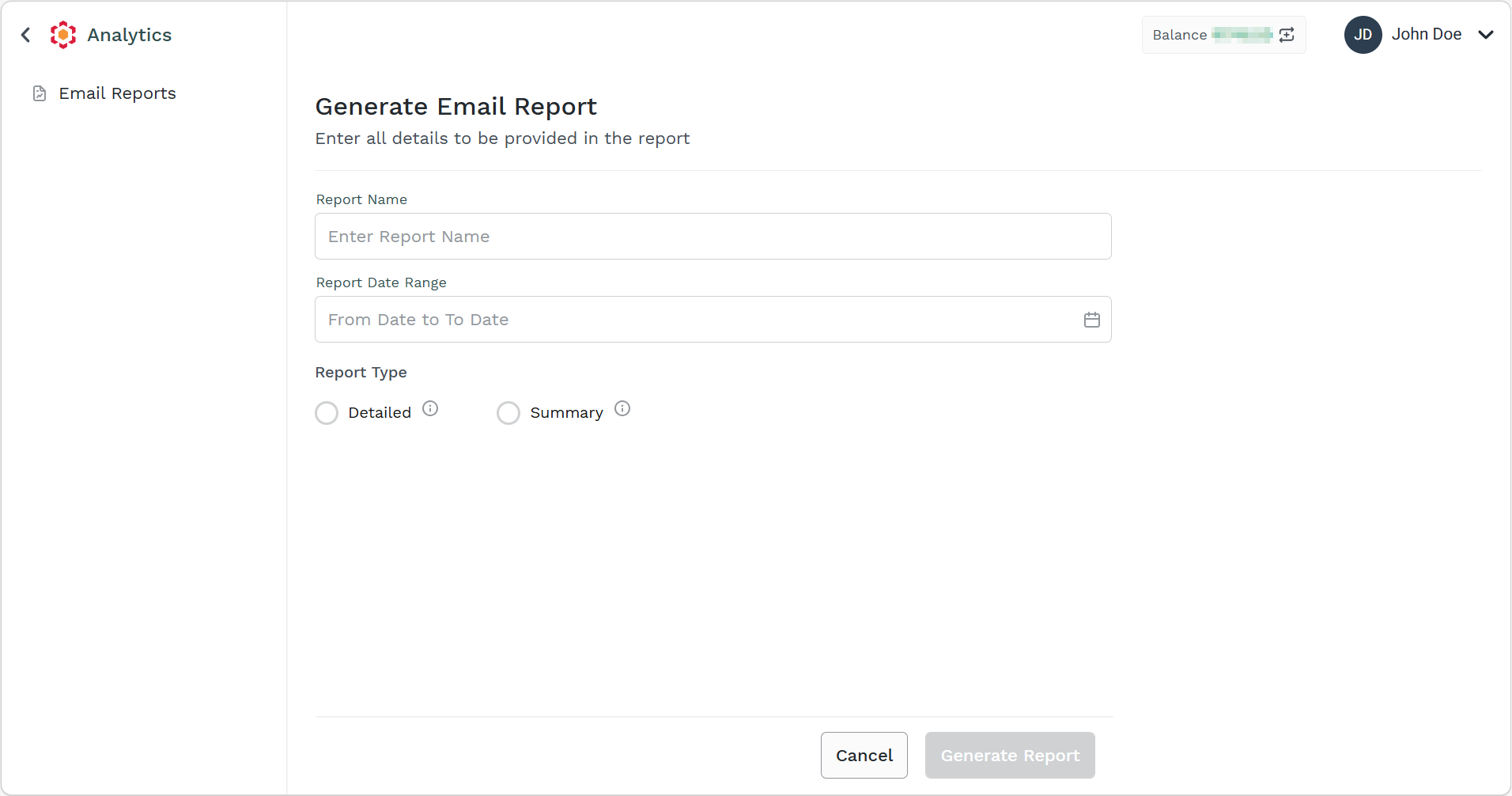
- Perform the following:
-
In the Report Name field, enter the report name. The report name should be 3 or more characters and a maximum of 40 characters.
-
Click the Report Date Range field.
Two Calanders appear for From and To dates.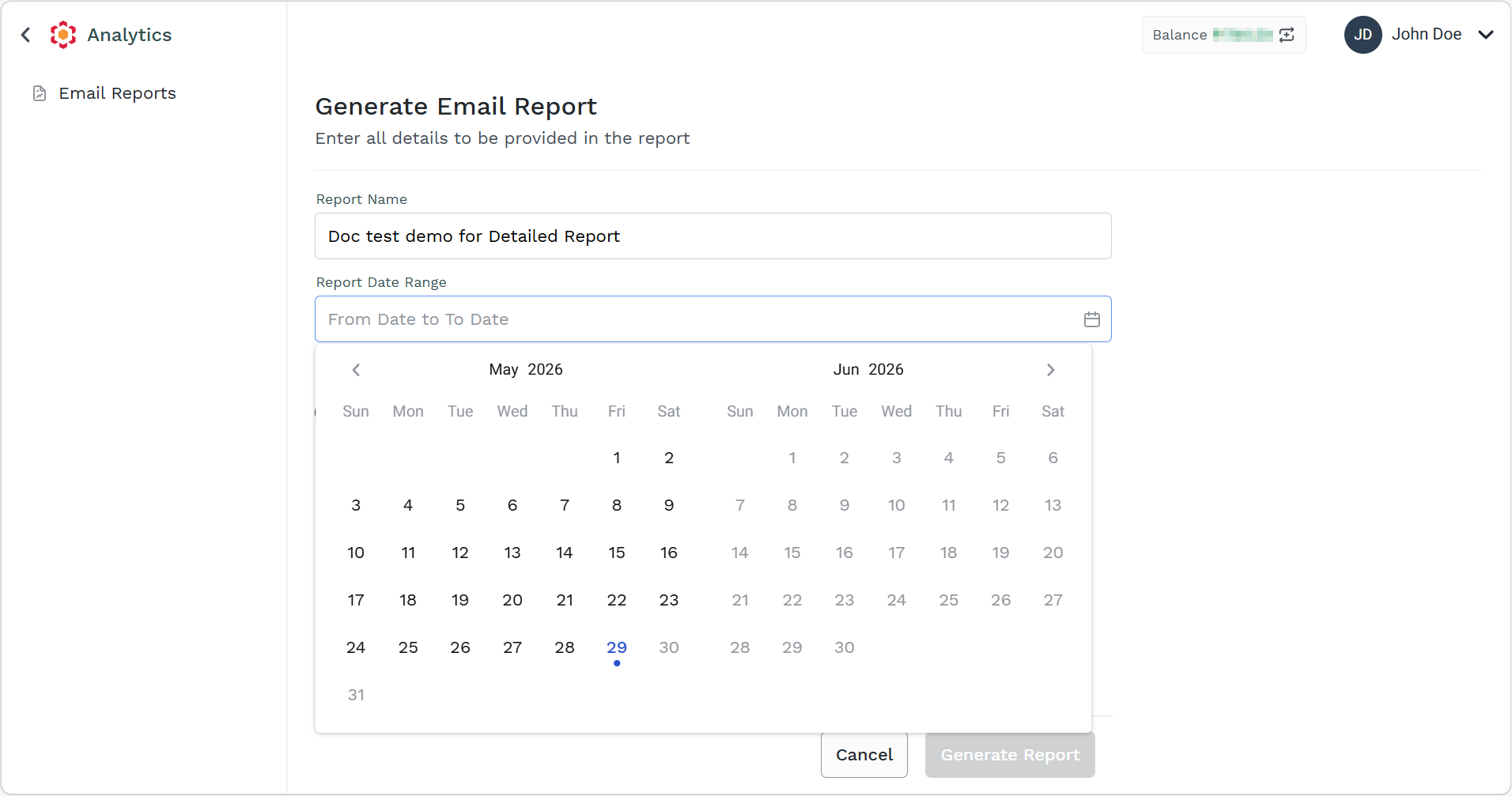
-
Select the From date in first calendar and To date in second calendar. The date range can be current date from last six month's date.
-
From Report Type, select the Detailed option.
-
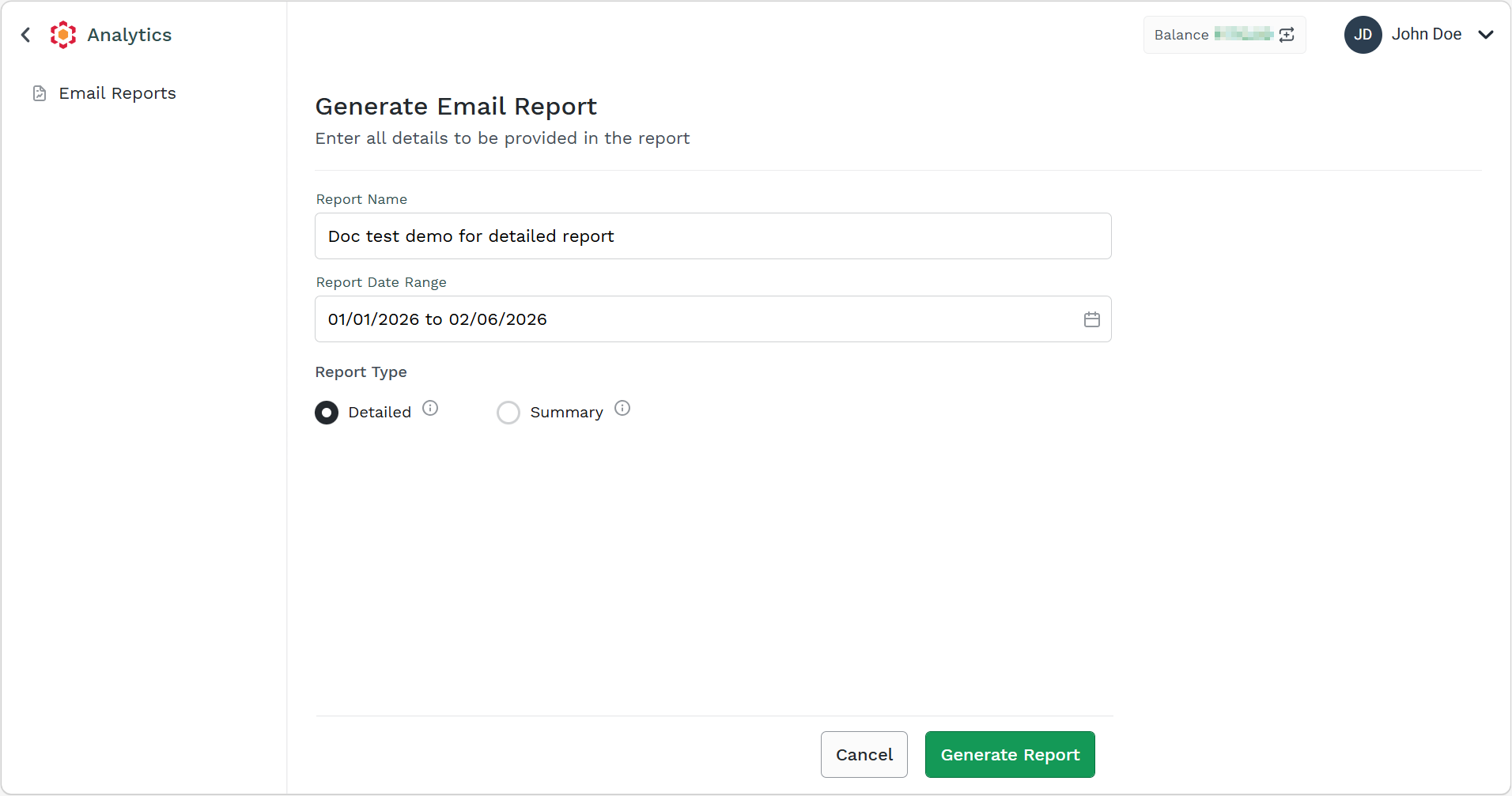
- Click Generate Report.
The confirmation message appears and the request to generate the report is taken in charge by Kaleyra Platform.
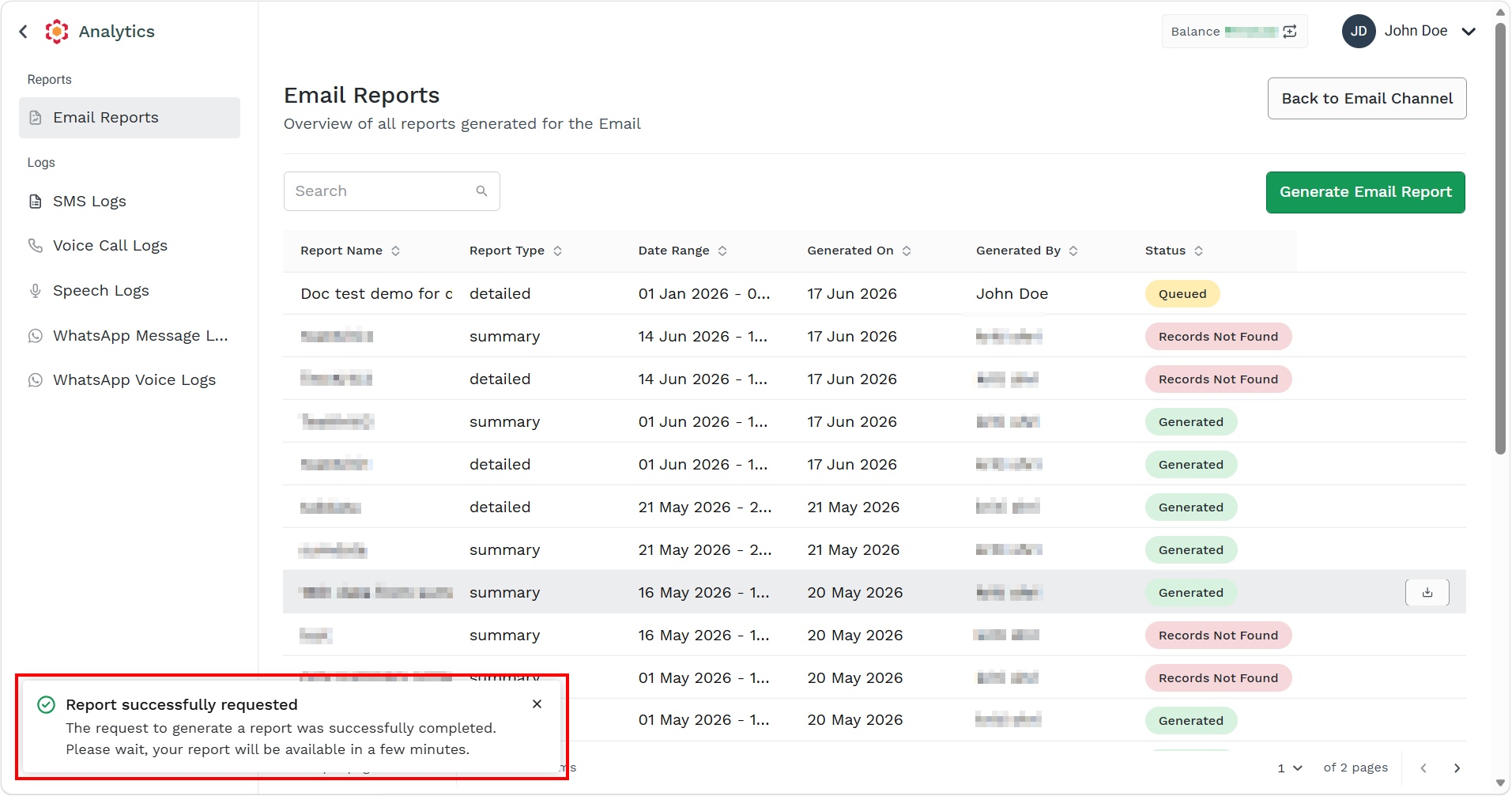
Note:
After the report is generated successfully, a notification is submitted to the Kaleyra platform for processing.
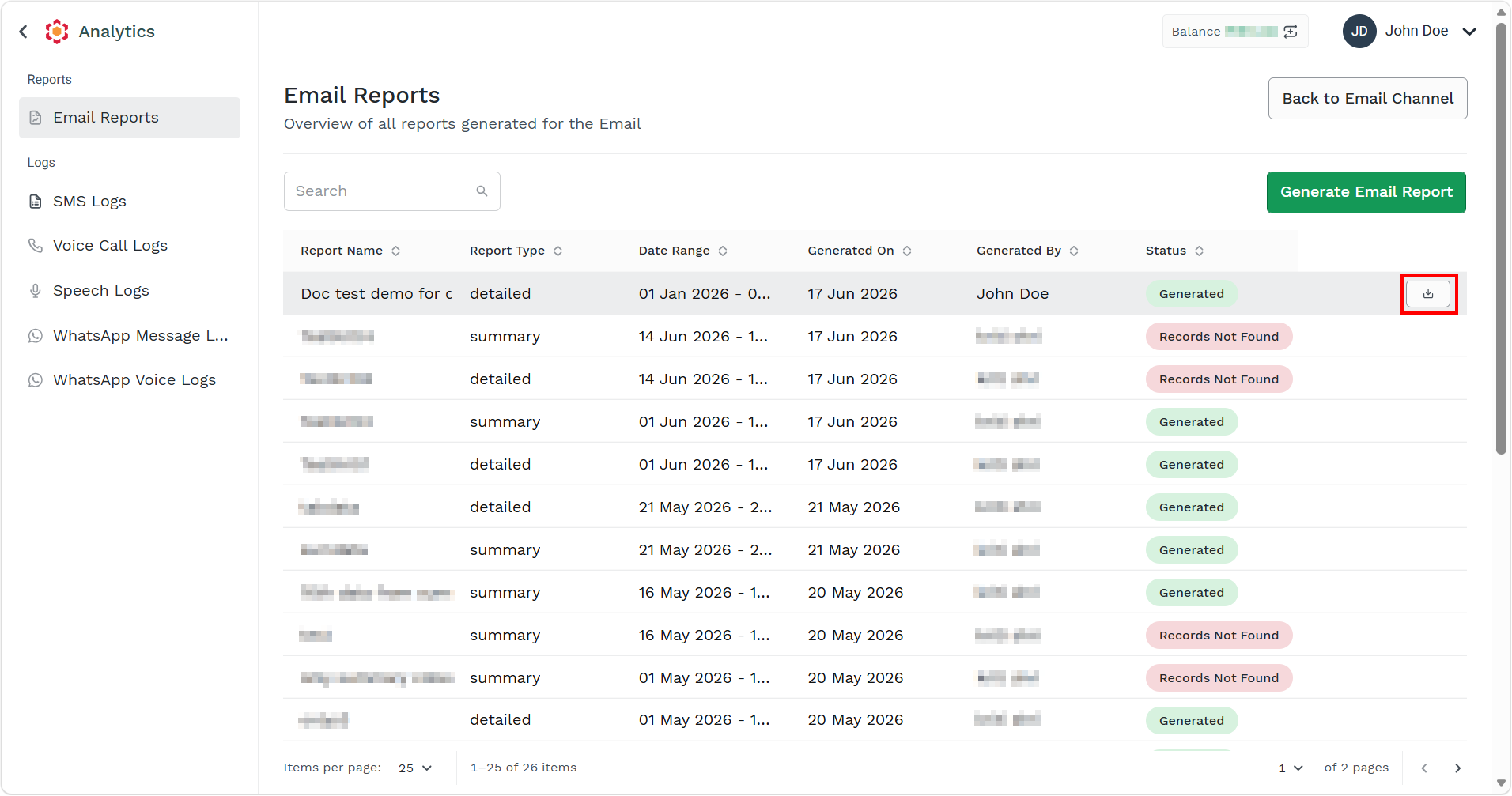
- Hover over the report with status as Generated and click the ellipsis icon. Click the Download button to download the report. The report gets downloaded in the mapped folder in .csv file.
Updated 2 months ago