

Two Factor Authentication
Kaleyra platform allows Two-Factor Authentication (2FA) for all accounts to provide an additional layer of security and reduce the risk of unauthorized access.
The Kaleyra account, 2FA combines the following:
- Something you know – such as your Kaleyra account password.
- Something you have – such as one-time verification code sent to your registered mobile number or email address.
By default, 2FA is enabled for your Kaleyra account to your registered email address. You can change the 2FA configuration and select one of the following options:
- Phone - Authentication code will be sent to your registered phone number.
- Email - Authentication code will be sent to your registered email address (default option).
- Phone and Email - Authentication code will be sent to your registered phone number and email address.
Note:You can disable the 2FA, if you do not want for your account. If you disable the 2FA, it will be disable for you and for all the team members of the account (any other security check in place will be maintained, e.g. IP restriction).
To enable, disable, or change the 2FA, perform the following steps:
-
Sign in to your Kaleyra platform.
The Channels page appears.
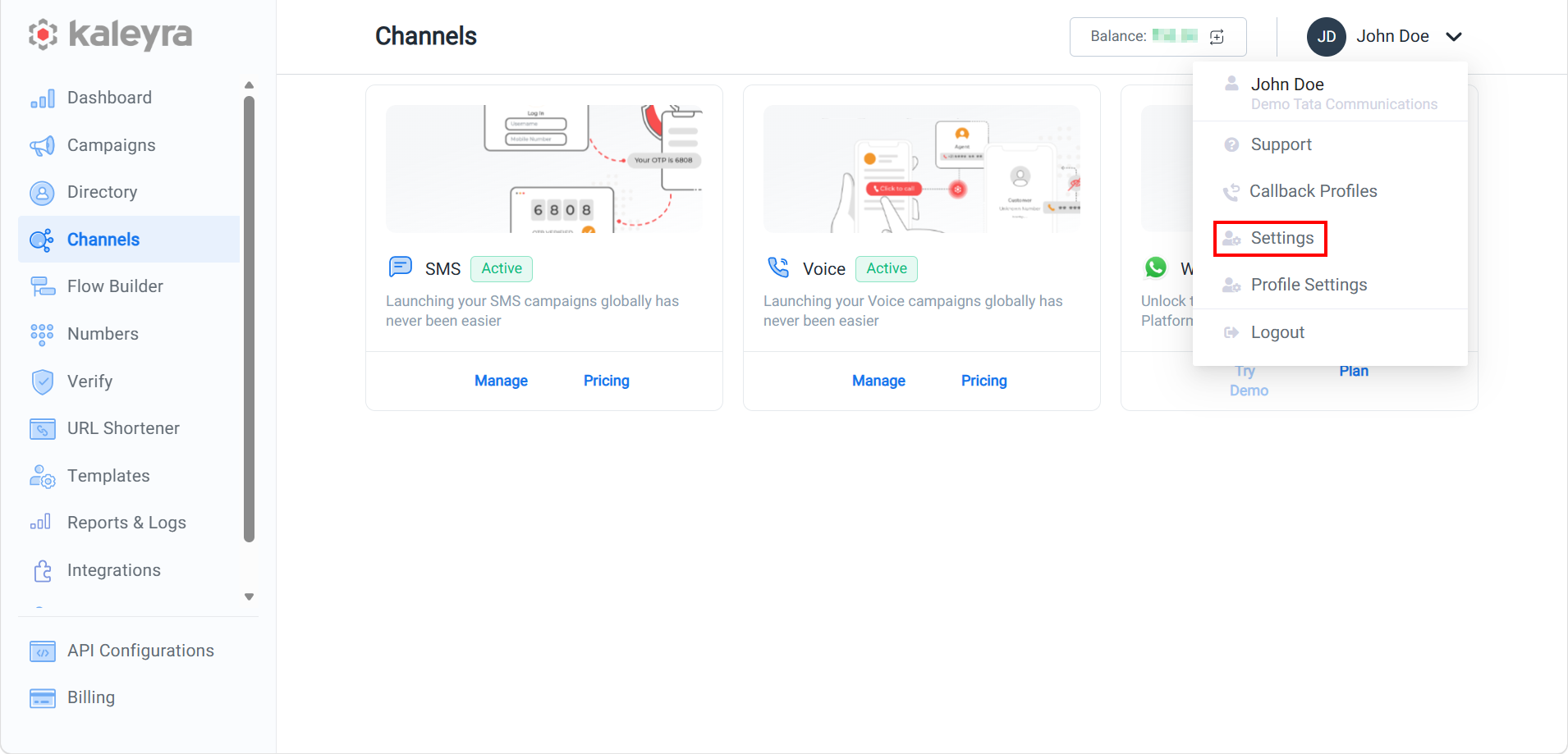
- On the profile settings drop-down list, select the Settings option.
The General Settings page appears.
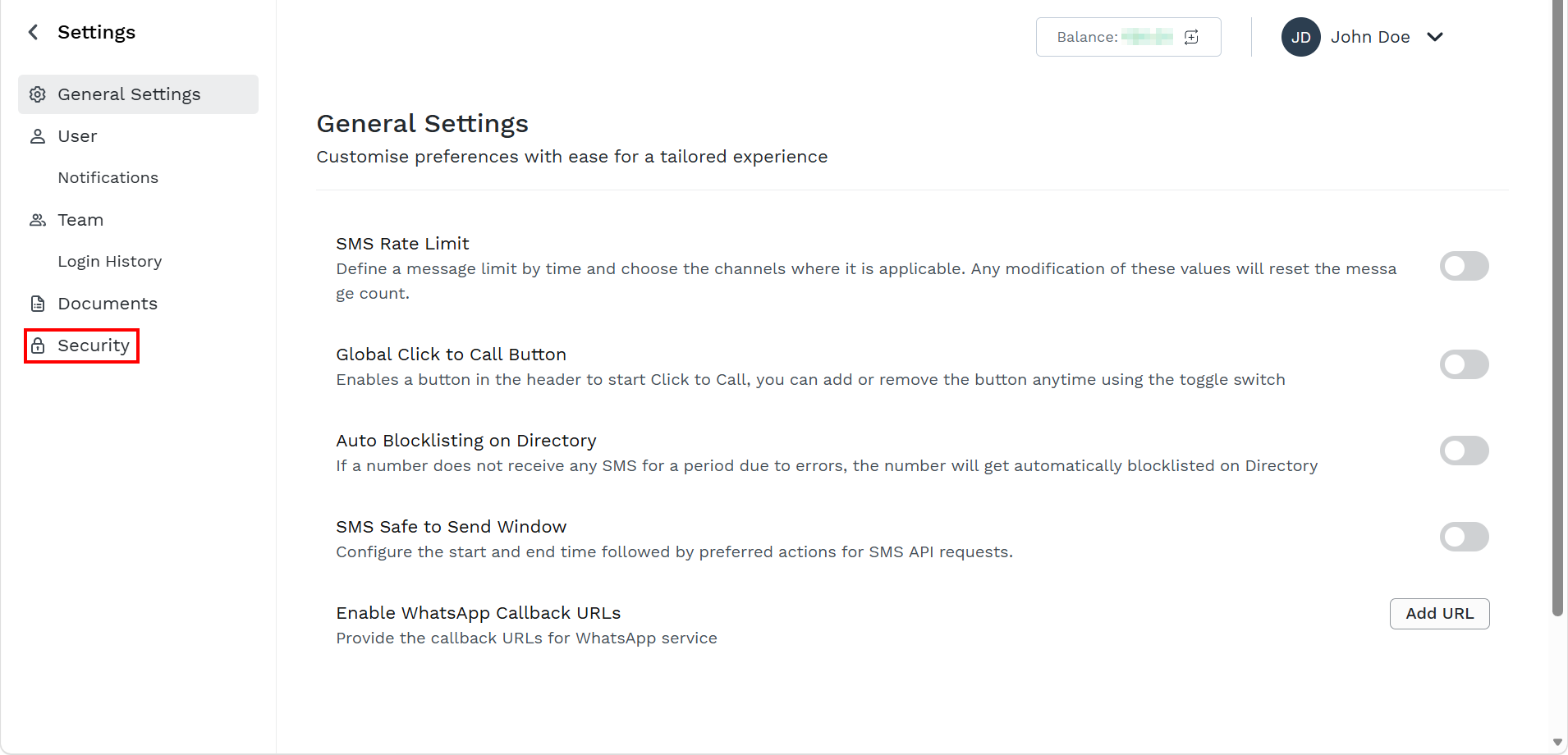
- On the left menu bar, click Security.
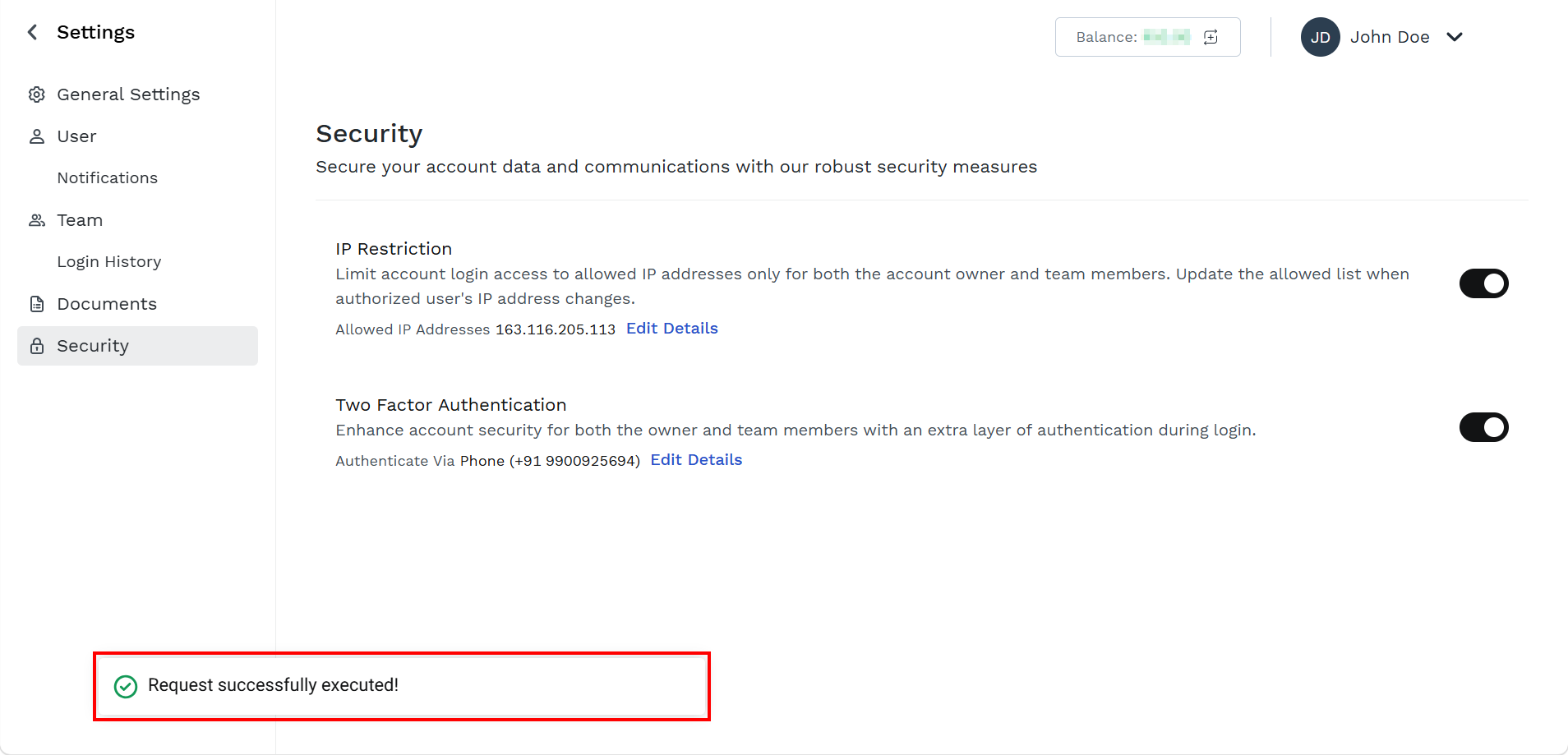
The Security page appears.
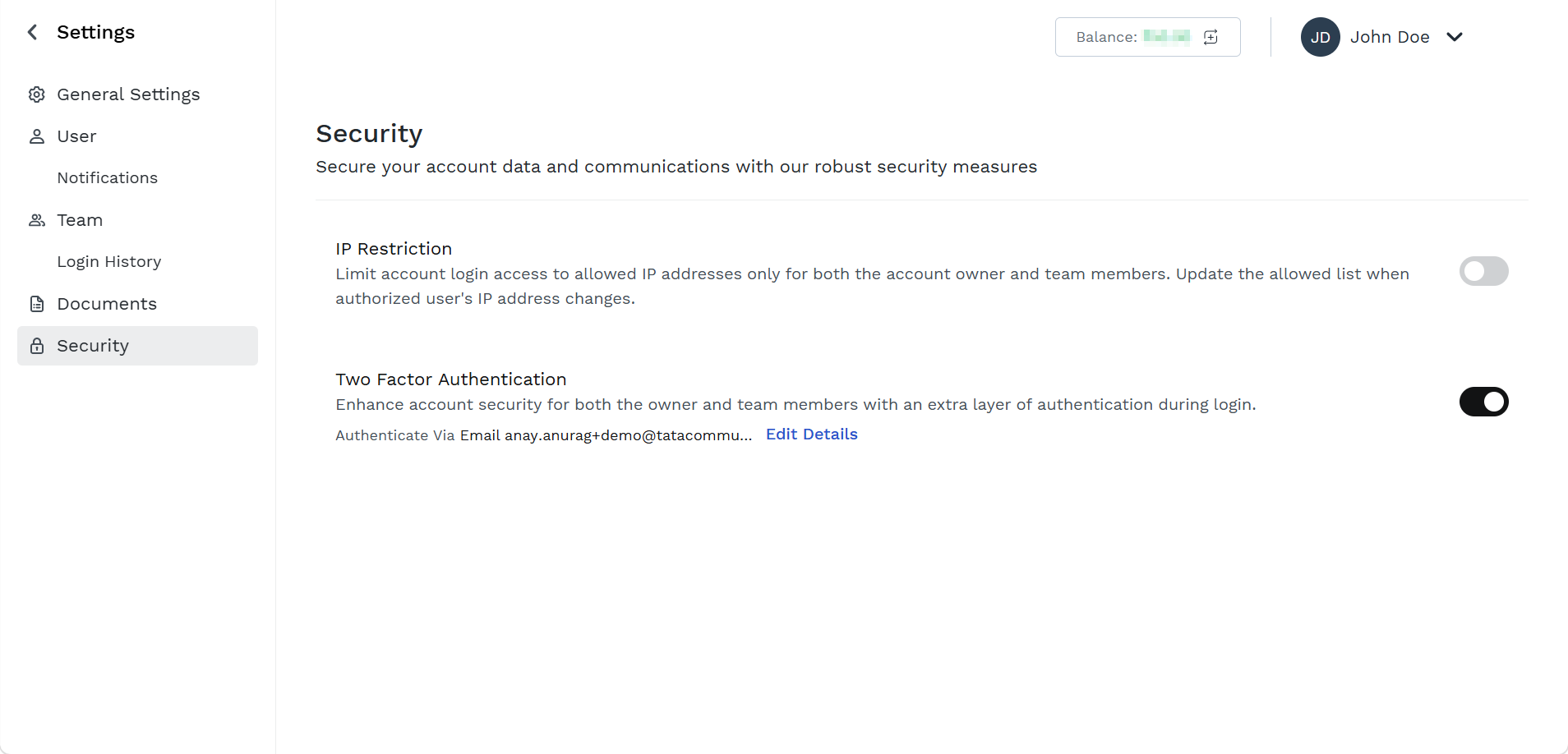
(Default) 2FA is enabled for Kaleyra account.
-
From Two Factor Authentication, click the Edit Details link.
The Update Two Factor Authentication pop-up appears.
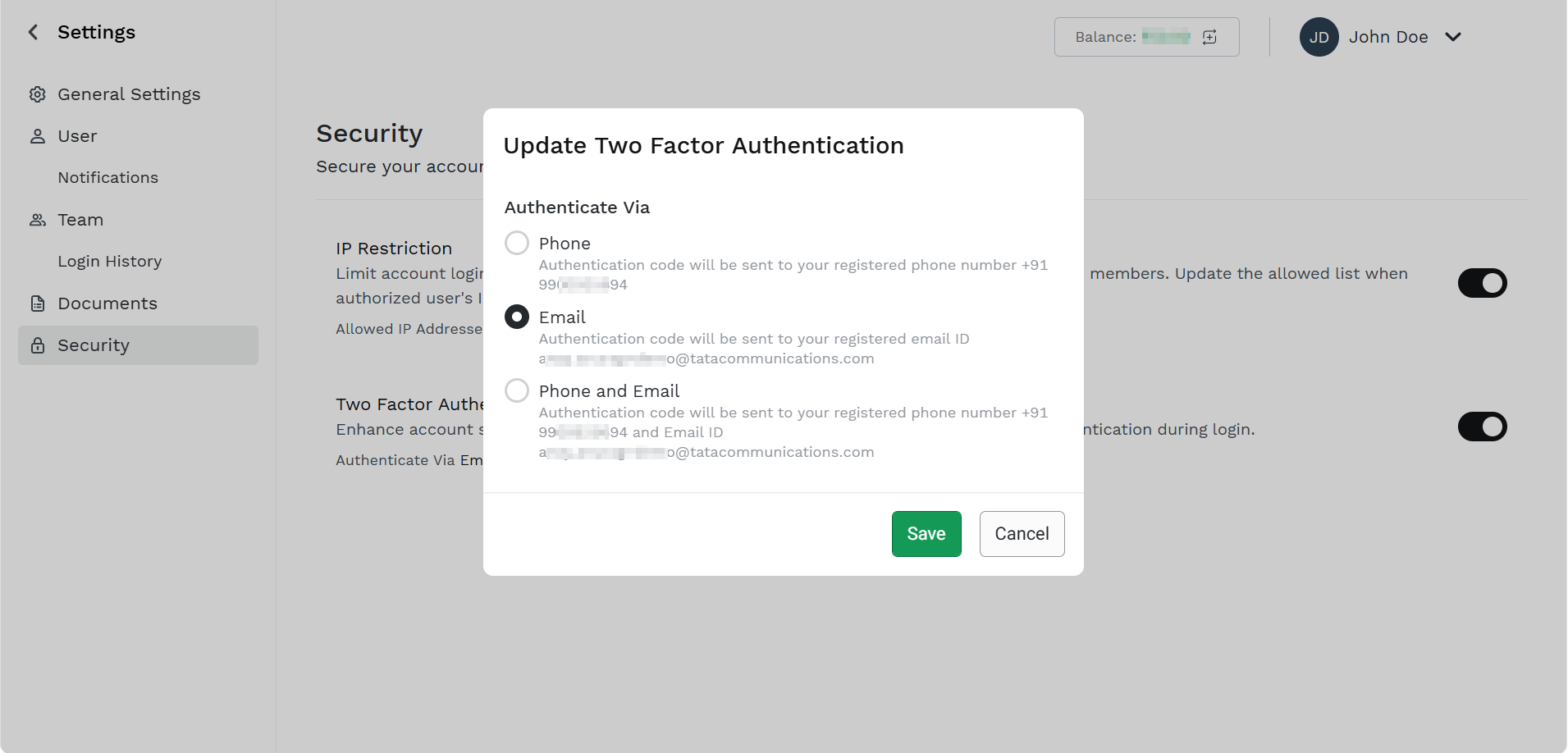
- Select one of the following options:
- Phone - Authentication code will be sent to your registered phone number.
- Email - Authentication code will be sent to your registered email address (Default option).
- Phone and Email - Authentication code will be sent to your registered phone number and email address.
- Click Save.
The confirmation Request successfully executed! message appears.
Updated 2 months ago