

Add New Test Device
You can add a new test device to test the RCS message before launching the agent to test the RCS messages. It is recommended to use the number that has RCS enabled by the service provider.
To add a new test device, perform the following:
- Follow step 1 to step 3 of the Add a New Agent topic.
The Agents dashboard page appears.
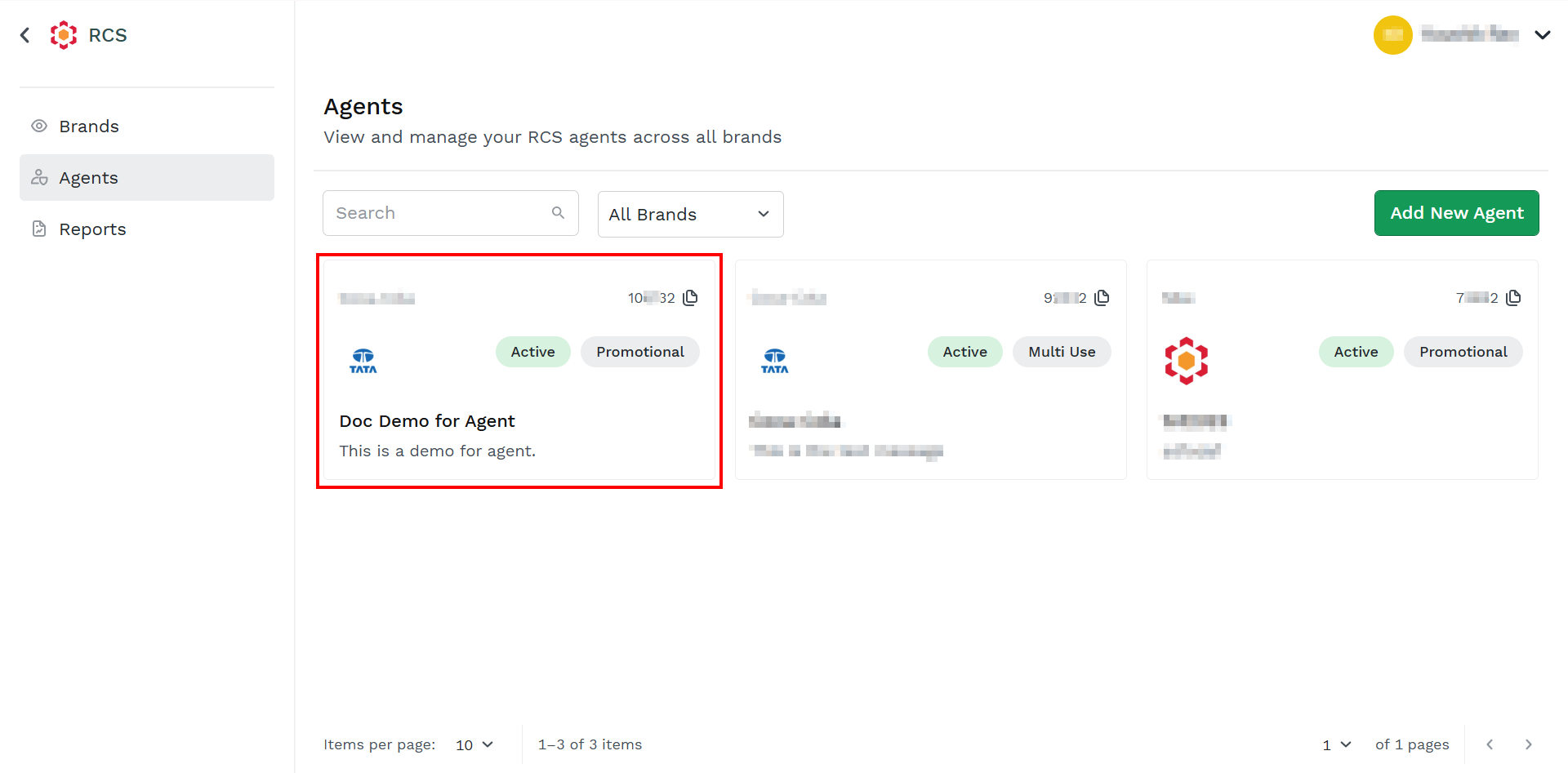
- Click the card you want to add a new test device.
The Agent Overview page appears.
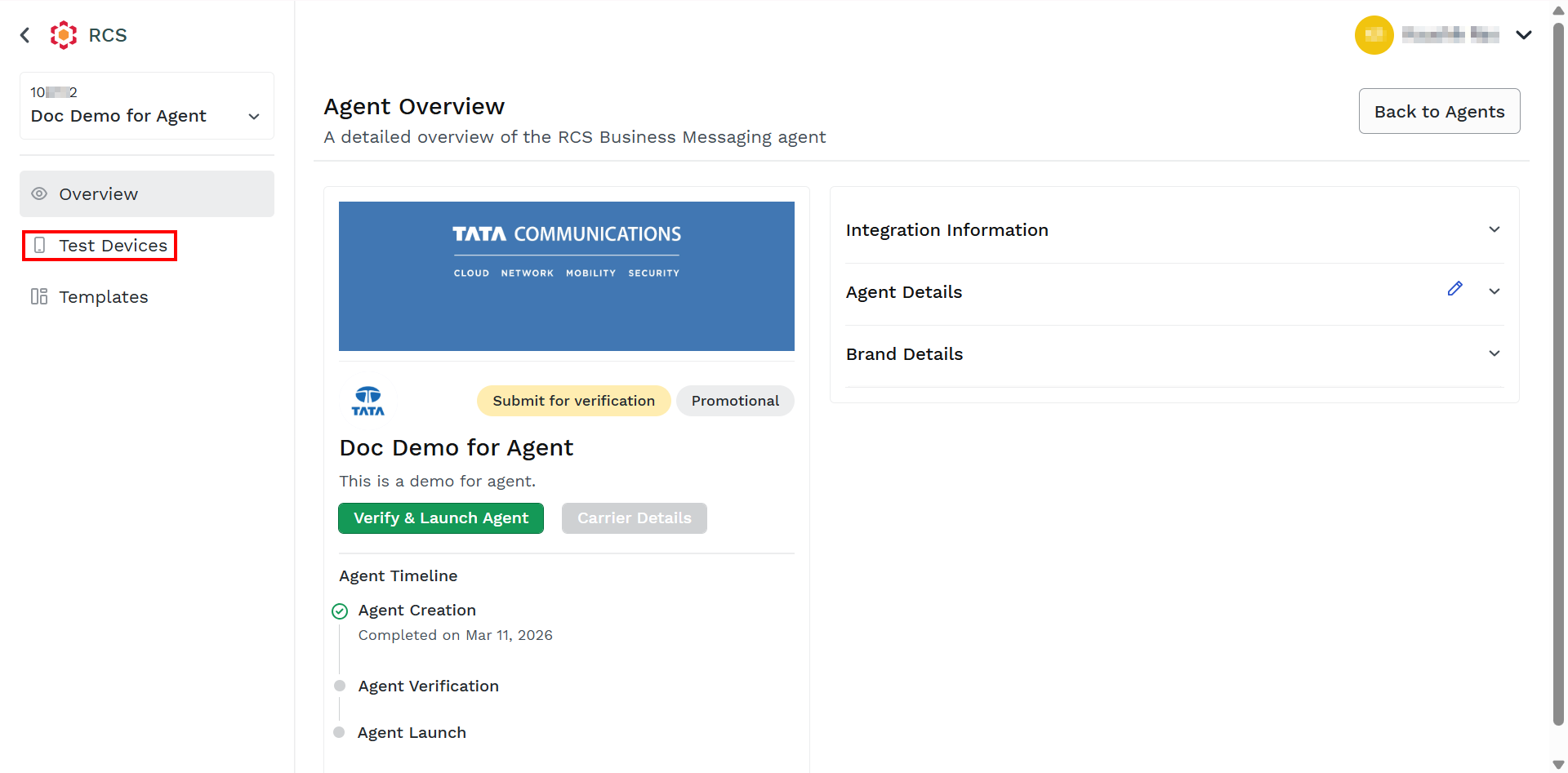
- On the left menu bar, click the Test Devices option.
The Test Devices page appears.
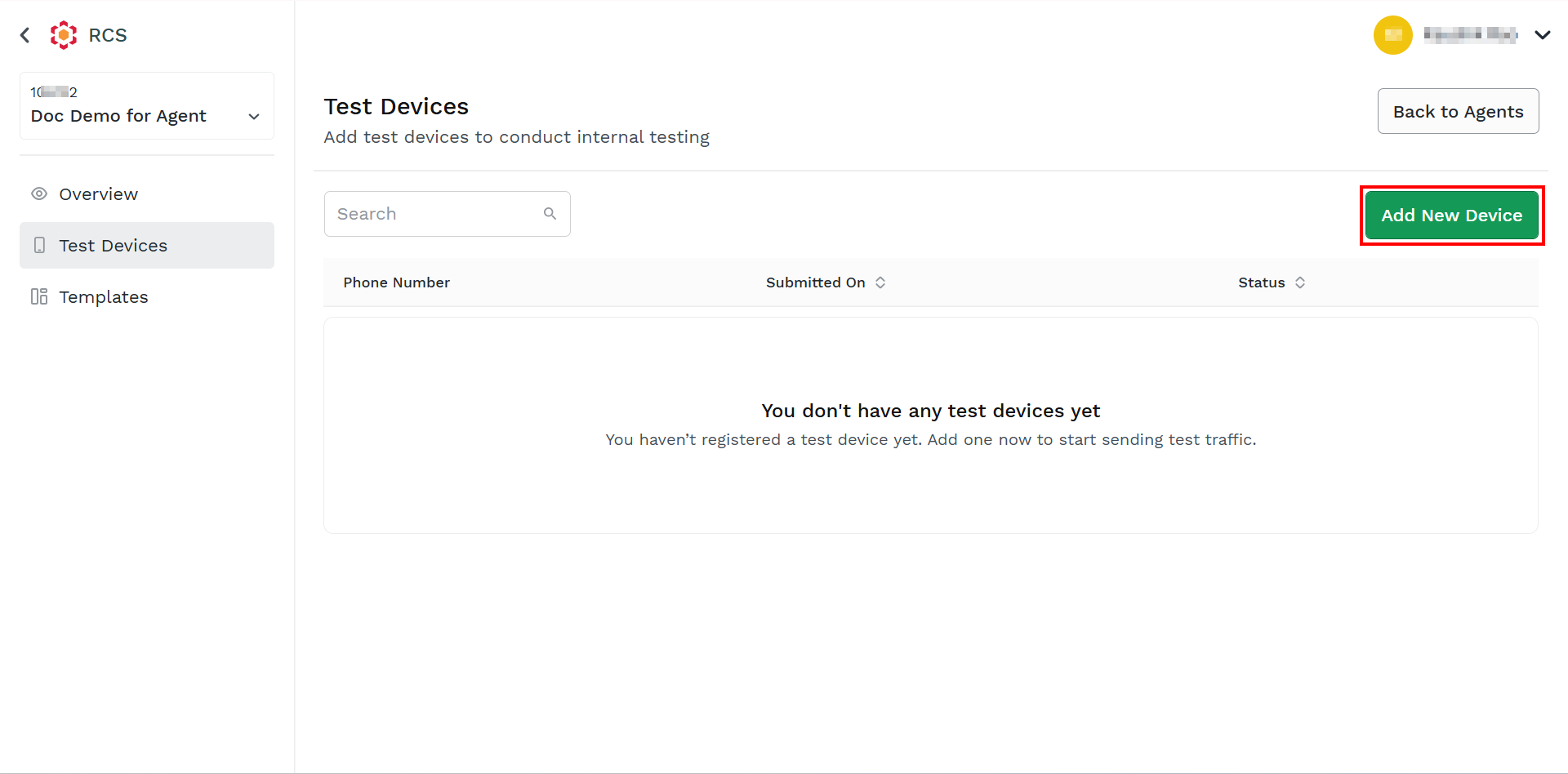
- Click Add New Device.
The Add Test Device pop-up appears.
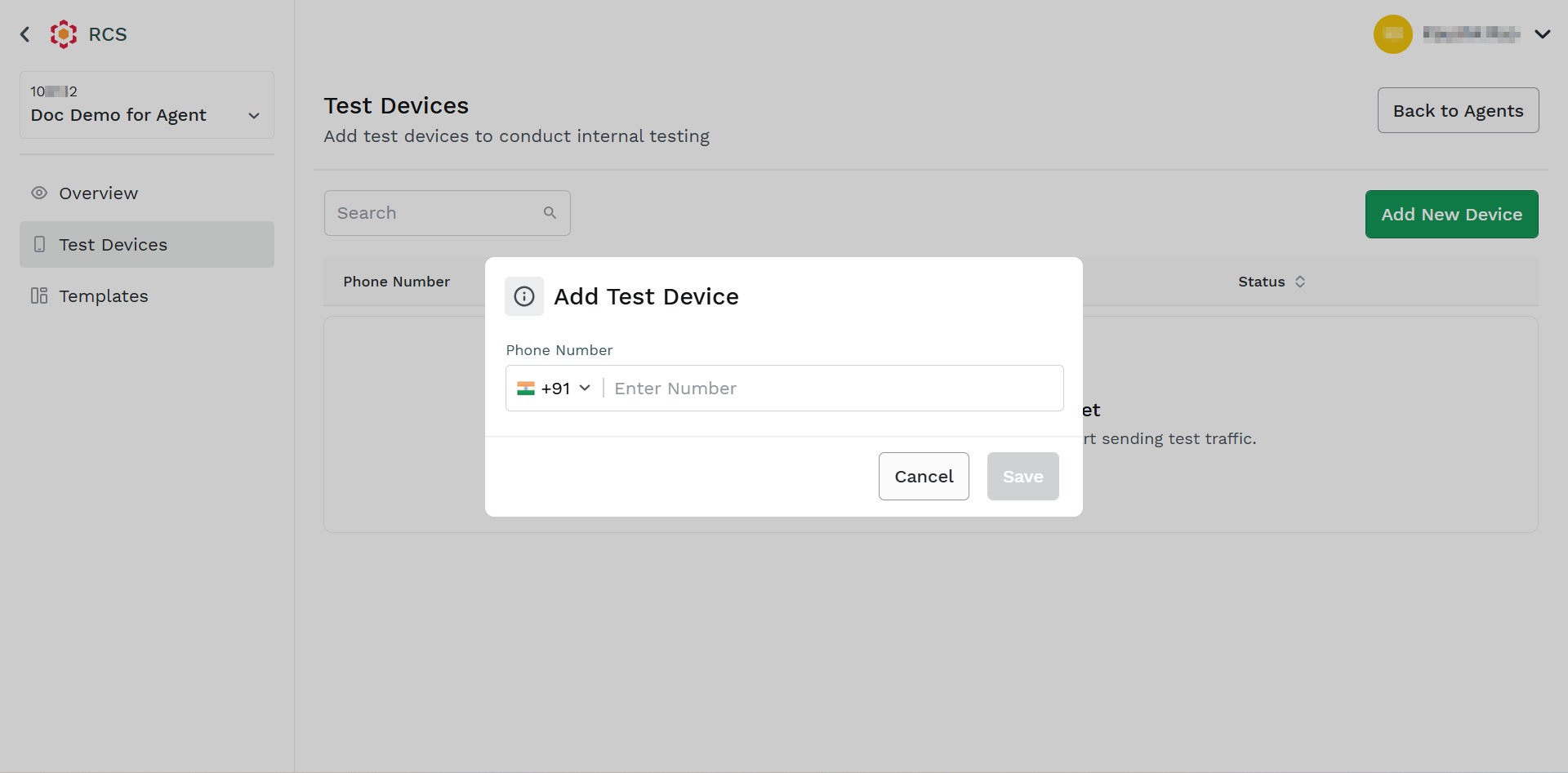
- In the Enter Number field, enter the number with RCS enabled services.
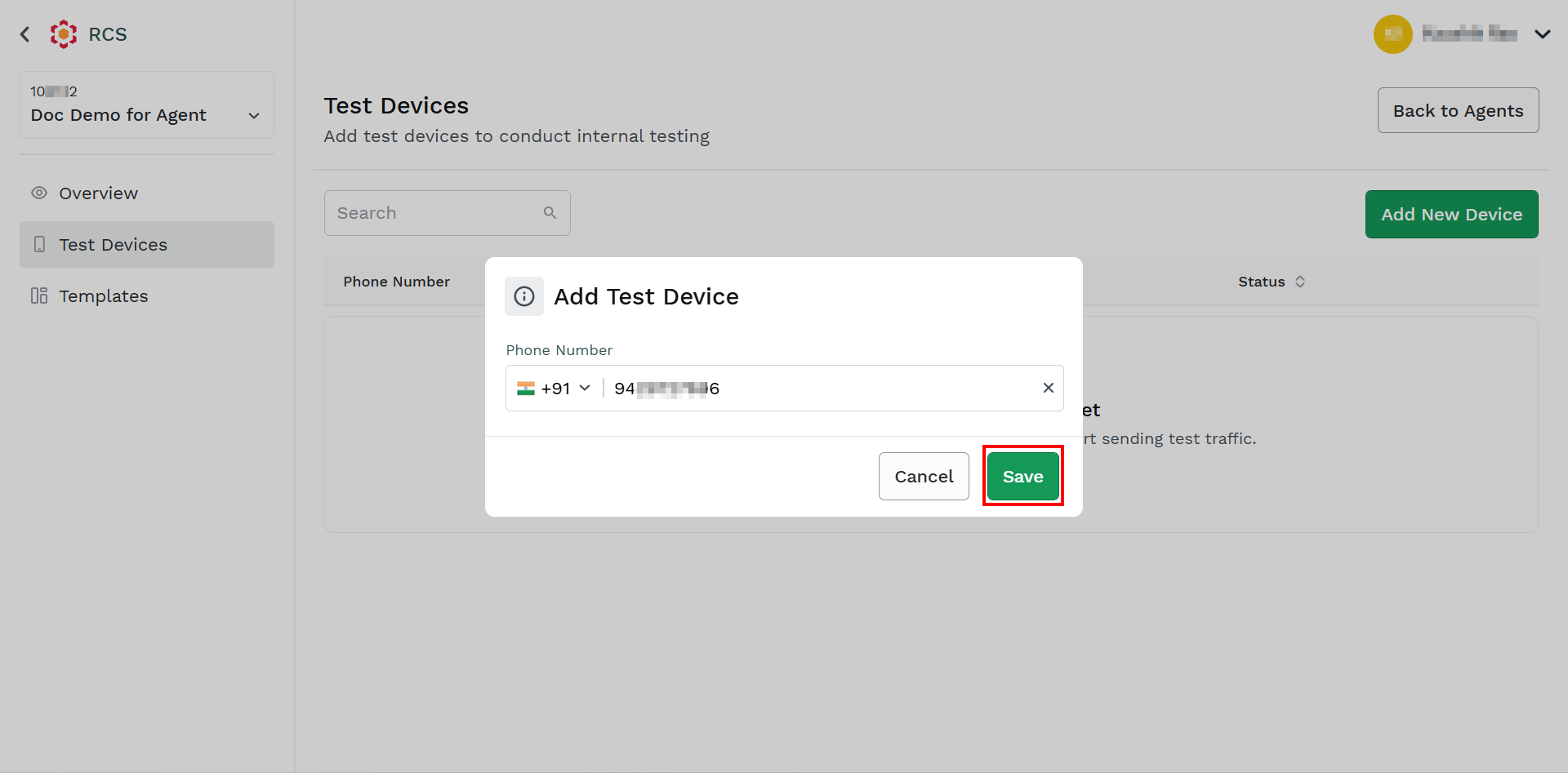
- Click Save.
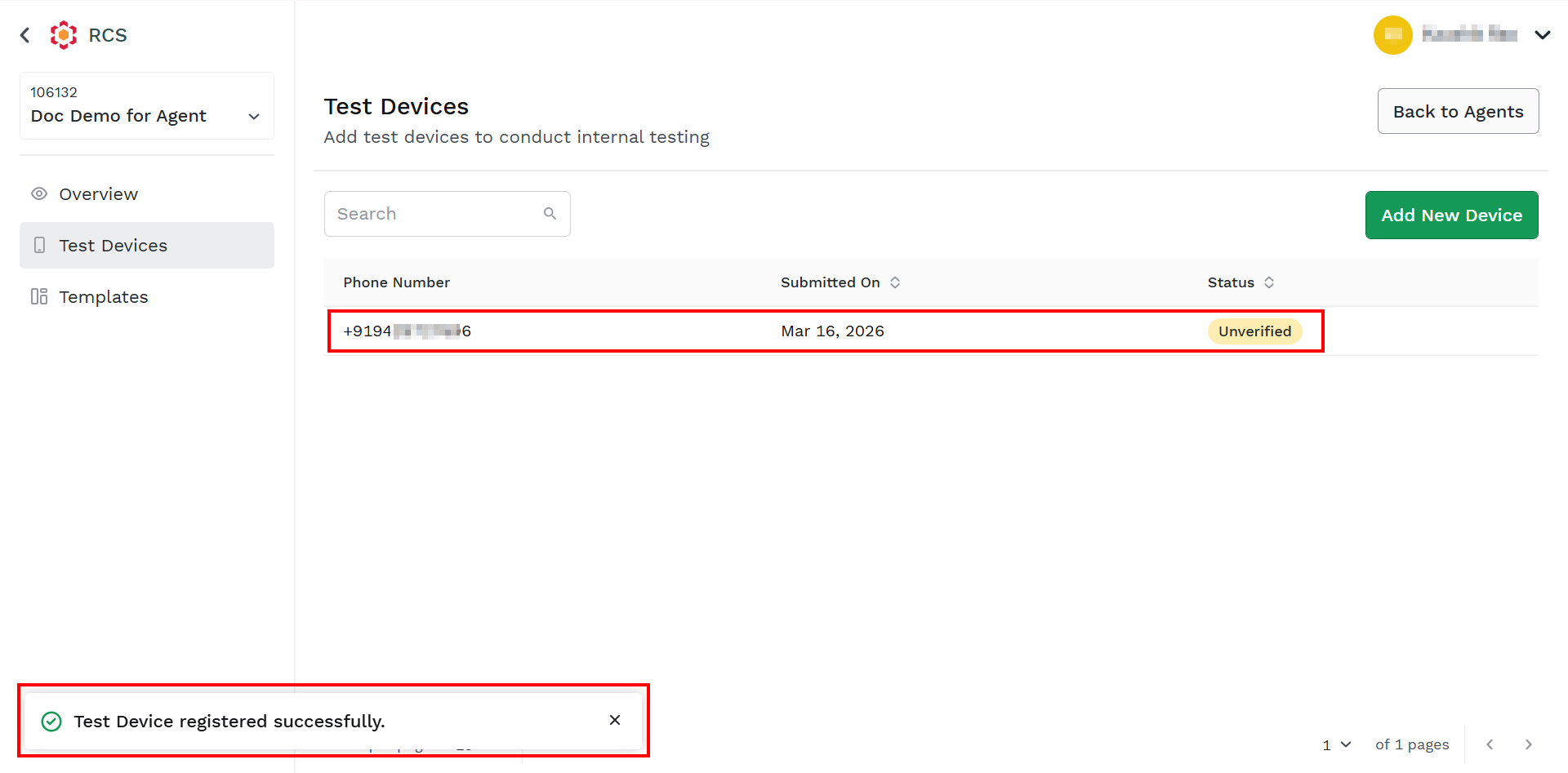
The confirmation message Test Device registered successfully appears and the test device gets added.
Note:
When a test device gets added successfully, its status will be Unverified. You will receive a message for confirmation and to make you a tester on the newly added device. Please confirm the device is ready to receive the test message. After confirming, you will receive another confirmation message for becoming a tester on your test device.
Updated about 1 month ago
Did this page help you?