

Email 2.0 Summary Report
The Email 2.0 Summary Report contains summarized information about the number of sent and received emails.
Sample Email 2.0 Summary Report
The following is the sample email 2.0 summary report:

Email 2.0 Summary Report Fields Detail
The following table describes the fields available in the email 2.0 summary report:
| Column Field Name | Description | Sample Value |
|---|---|---|
Date | The date when the email was sent. | 5/17/2026 |
Template Id | Unique identifier of the template used in the email. | |
Template Name | The template name used in email. Template name is configured while creating the email template. | |
Campaign Id | Unique identifier of campaign used in email. | |
Campaign Name | Campaign name used in email. Campaign name is configured while launching a campaign. | |
From Email | The email address from which the email was sent (sender). | [email protected] |
Email Type | Email type that was sent to the end users. It can be either transactional or marketing type. | MKT |
Status | The status of the email. The status can be DELIVERED, FAILED, VALIDATED, SENT, BOUNCED, DELAYED, OPENED, or QUEUED. | DELIVERED |
Total Emails | Total count of email sent. | 25 |
Total Bounced Emails | Total count of bounced emails. | 0 |
Total Complaint Emails | Total count of email with complaint (Reported or Spammed). | 0 |
Units Billable | Displays the total number of billable email units against the total number of emails sent on the given day. | 0 |
Amount Billable | Displays the final billable amount for the total number of emails sent on the given day. | 12.5 |
Email With Attachments | Total count of email sent with any attachment with it. The supported value is TRUE or FALSE. Overall email (text + html + attachments) ≤ 20 MB. | 15 |
Email Without Attachments | Total count of email sent without any attachment with it. | 10 |
Generate Email 2.0 Summary Report
You can generate the Email 2.0 summary report contains the summarized information about the number of sent and received emails from the Kaleyra platform.
To generate email 2.0 summary report, perform the following steps:
- Sign in to your Kaleyra platform. The Channels page appears.
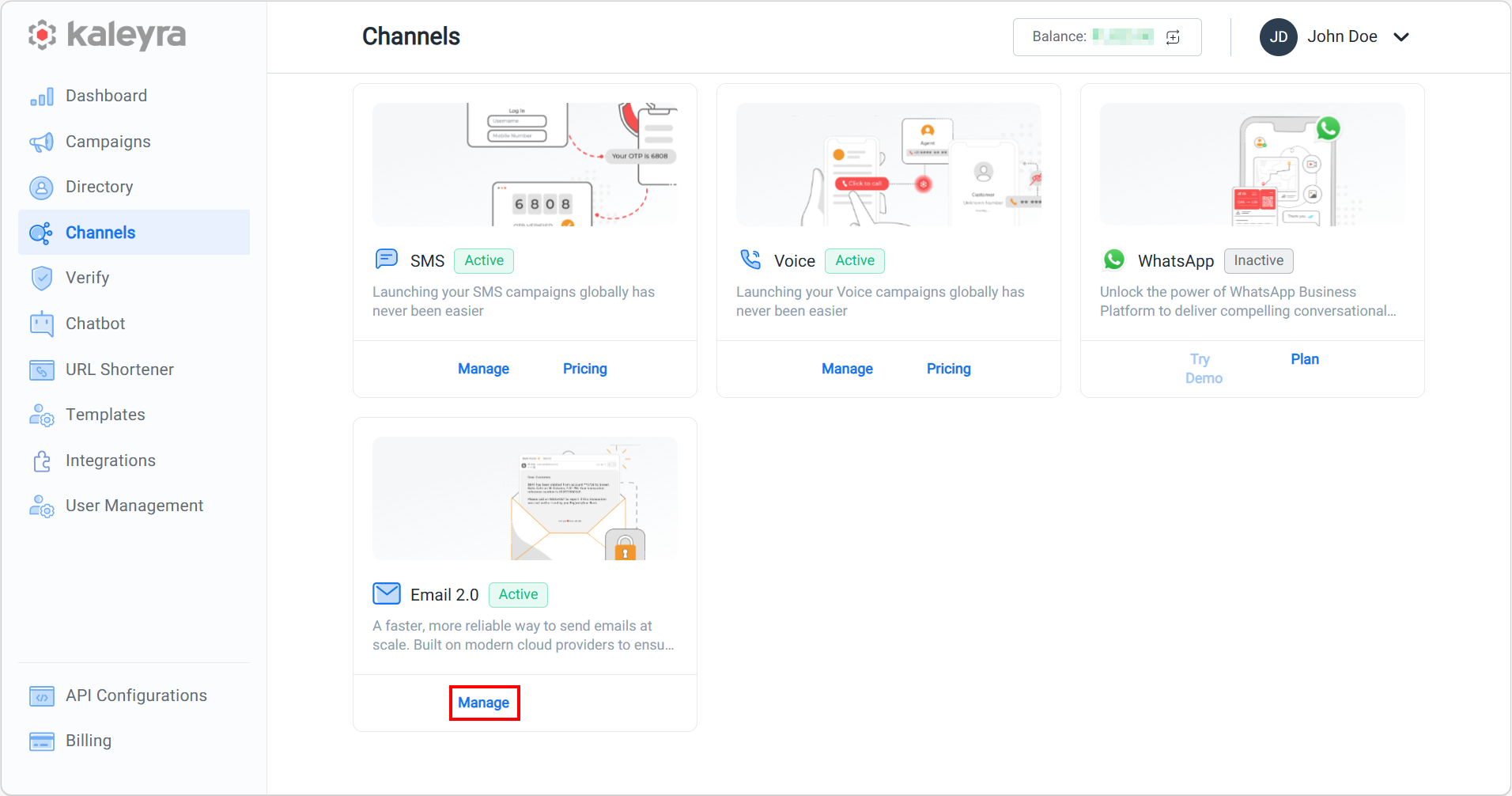
- On the Email 2.0 card, click Manage.
The Domain Management page appears.
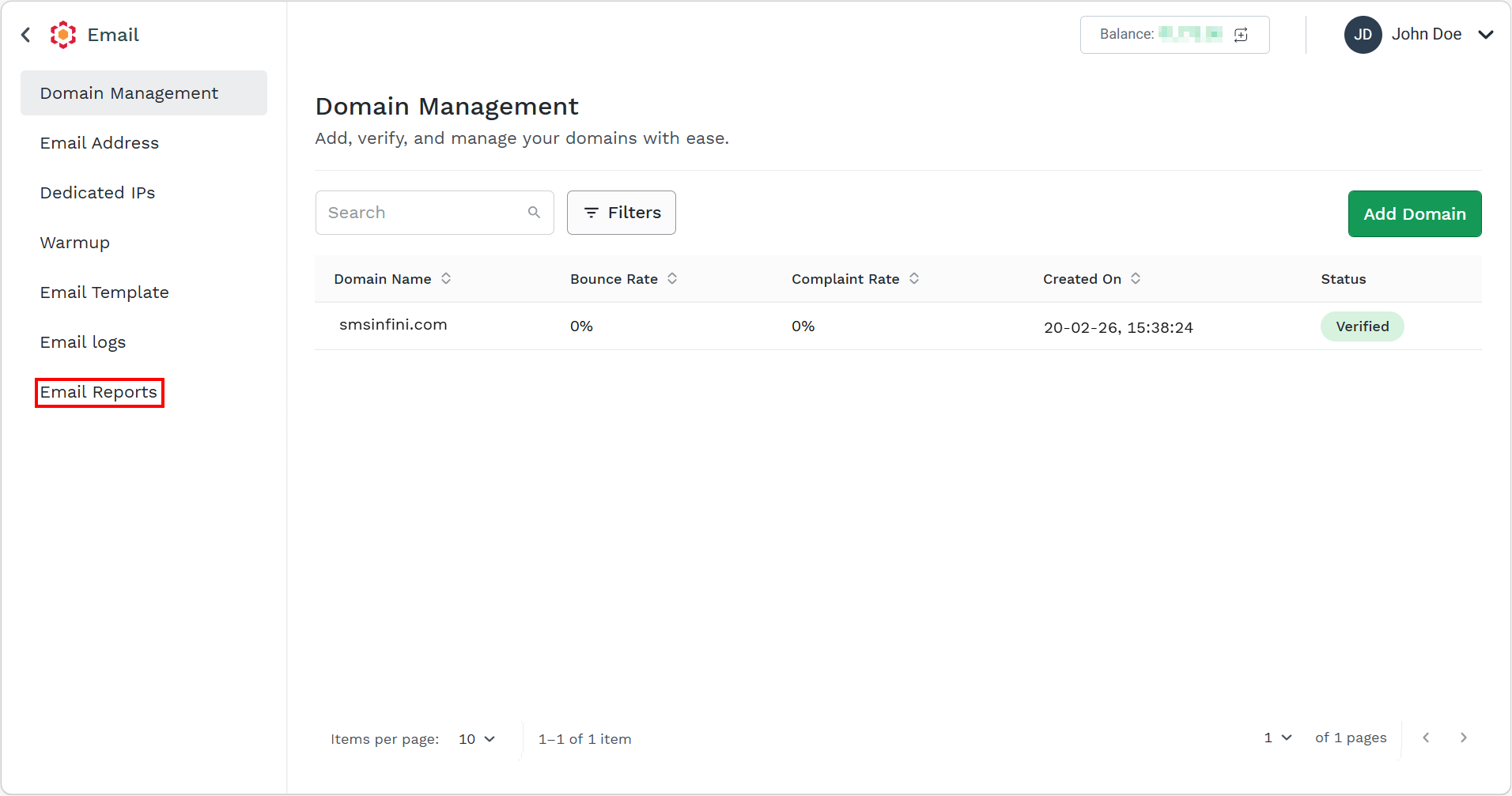
- On the left menu bar, click Email Reports.
The Email Reports page appears.
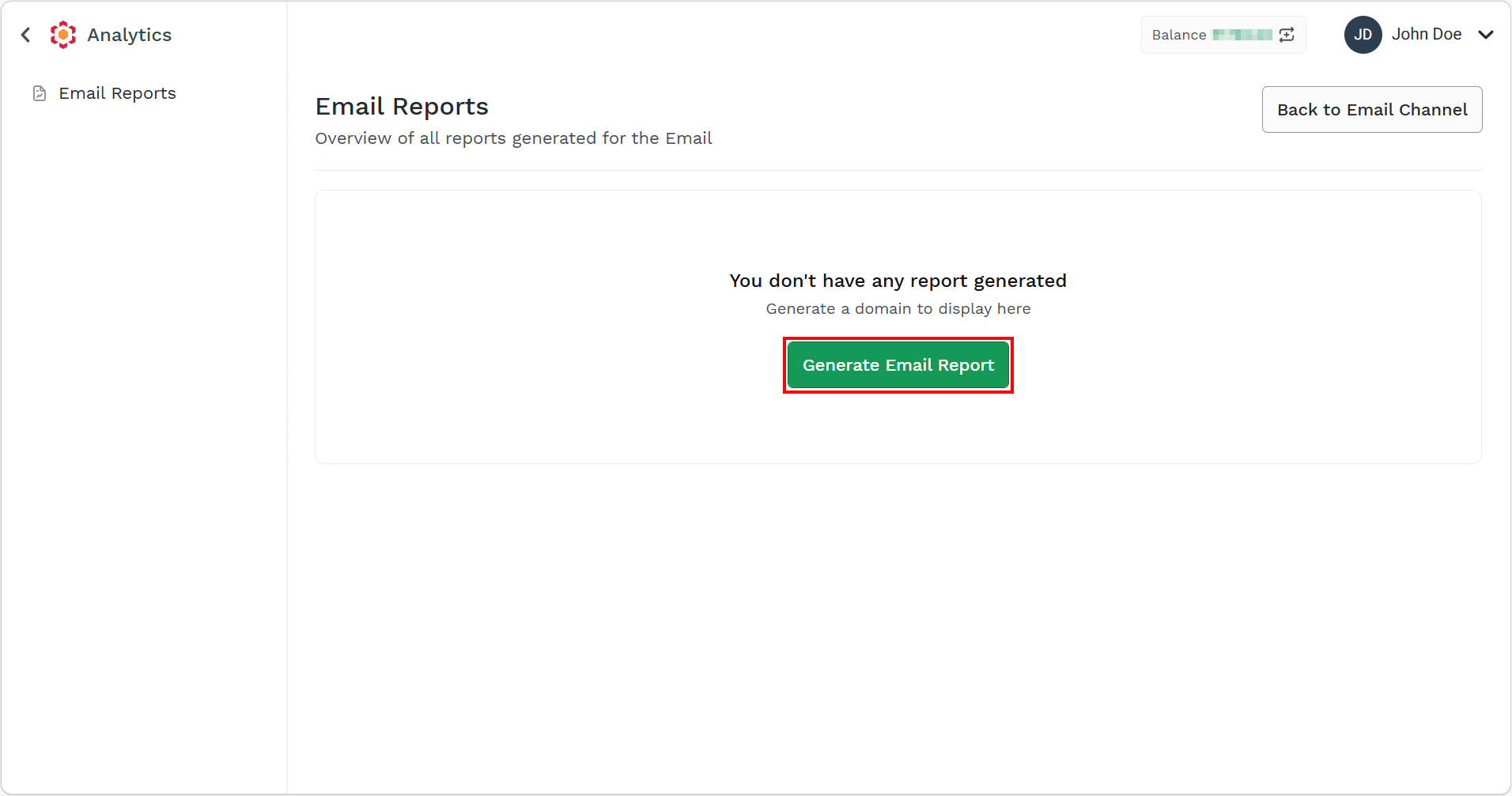
- Click the Generate Email Reports button.
The Generate Email Report page appears.
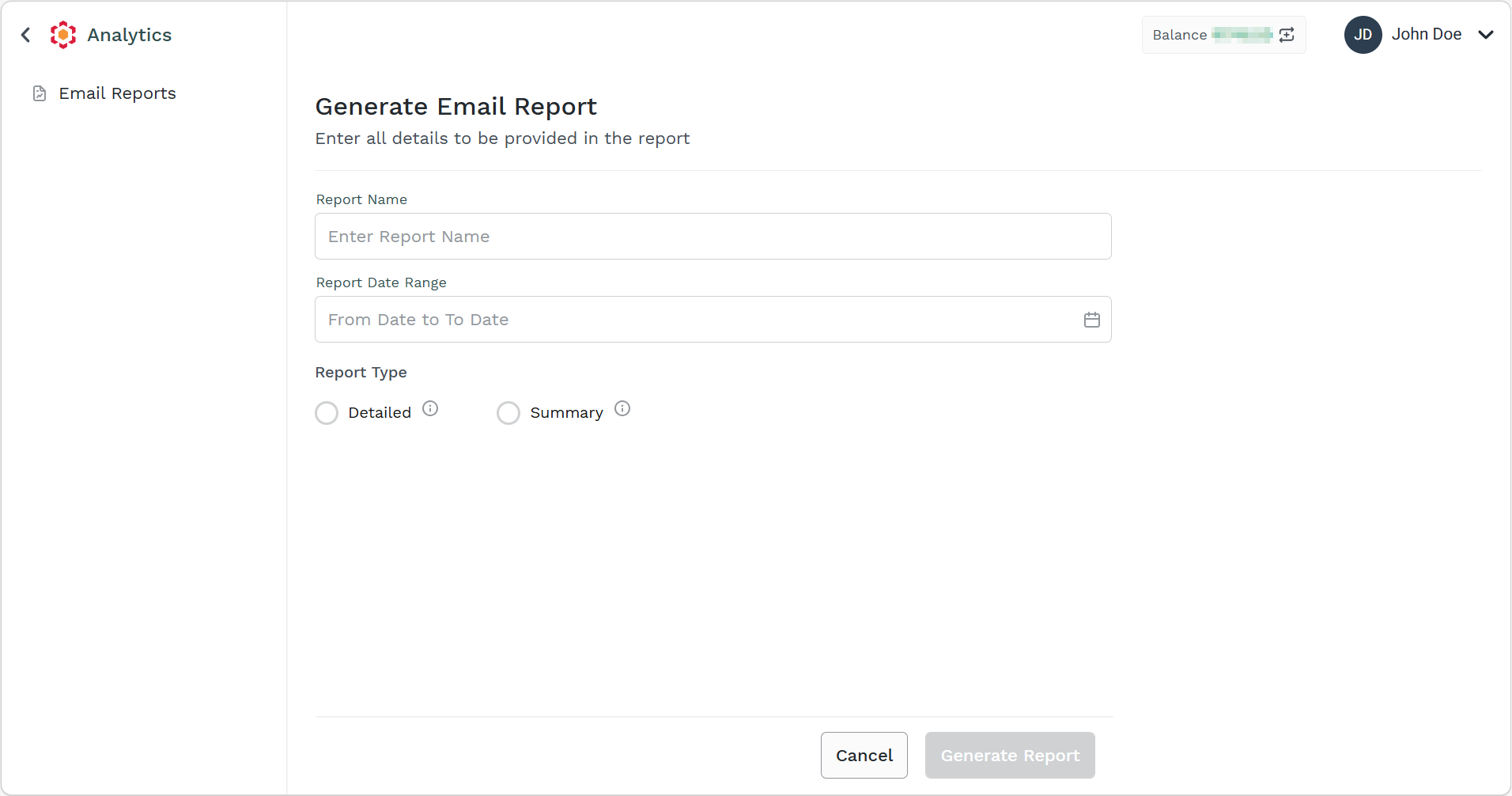
- Perform the following:
-
In the Report Name field, enter the report name. The report name should be 3 or more characters and a maximum of 40 characters.
-
Click the Report Date Range field.
Two Calanders appear for From and To dates.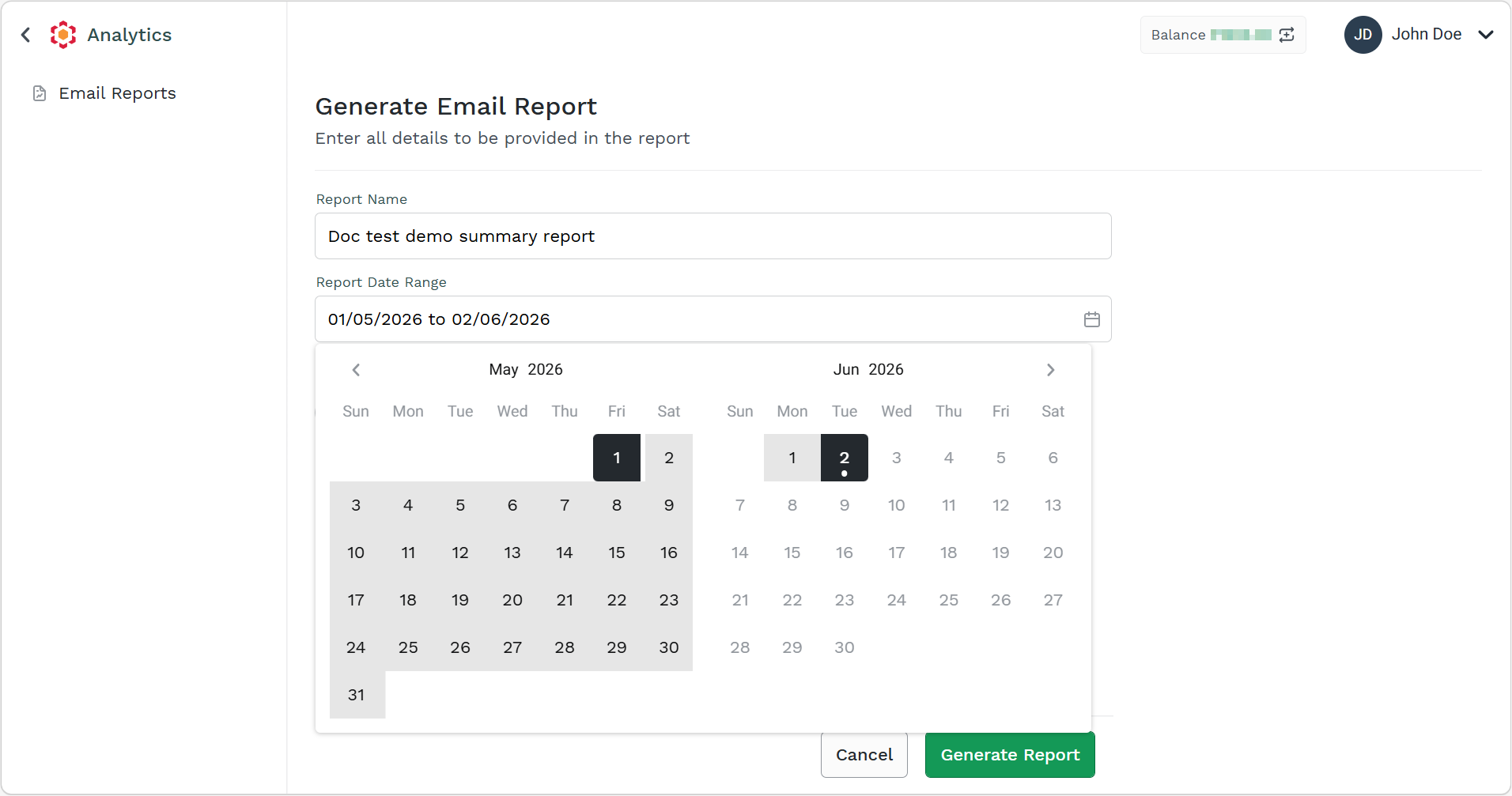
-
Select the From date in first calendar and To date in second calendar. The date range can be current date from last six month's date.
-
From Report Type, select the Summary option.
-
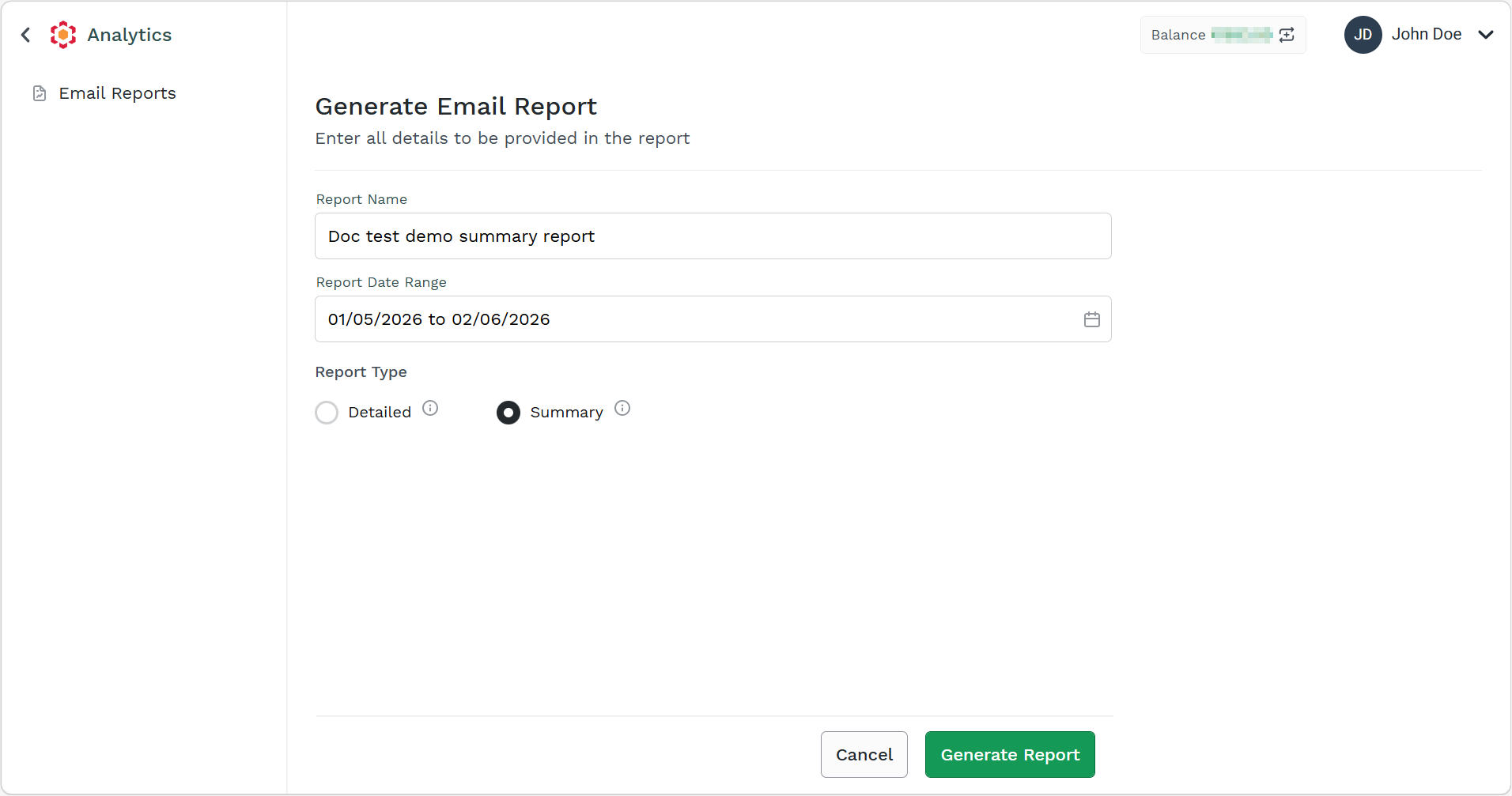
- Click Generate Report.
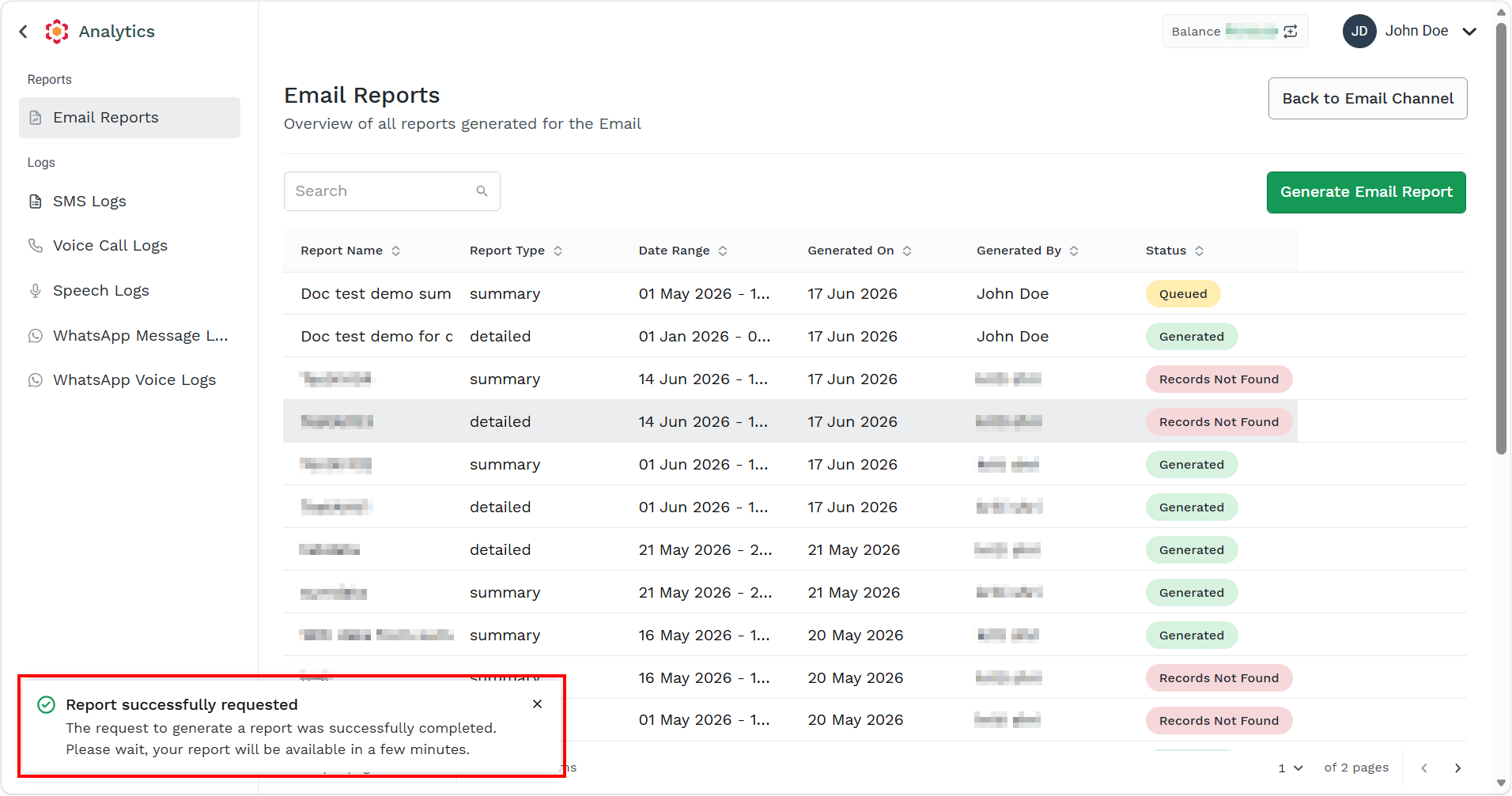
The confirmation message appears and the request to generate the report is taken in charge by Kaleyra Platform.
Note:
After the report is generated successfully, a notification is submitted to the Kaleyra platform for processing.
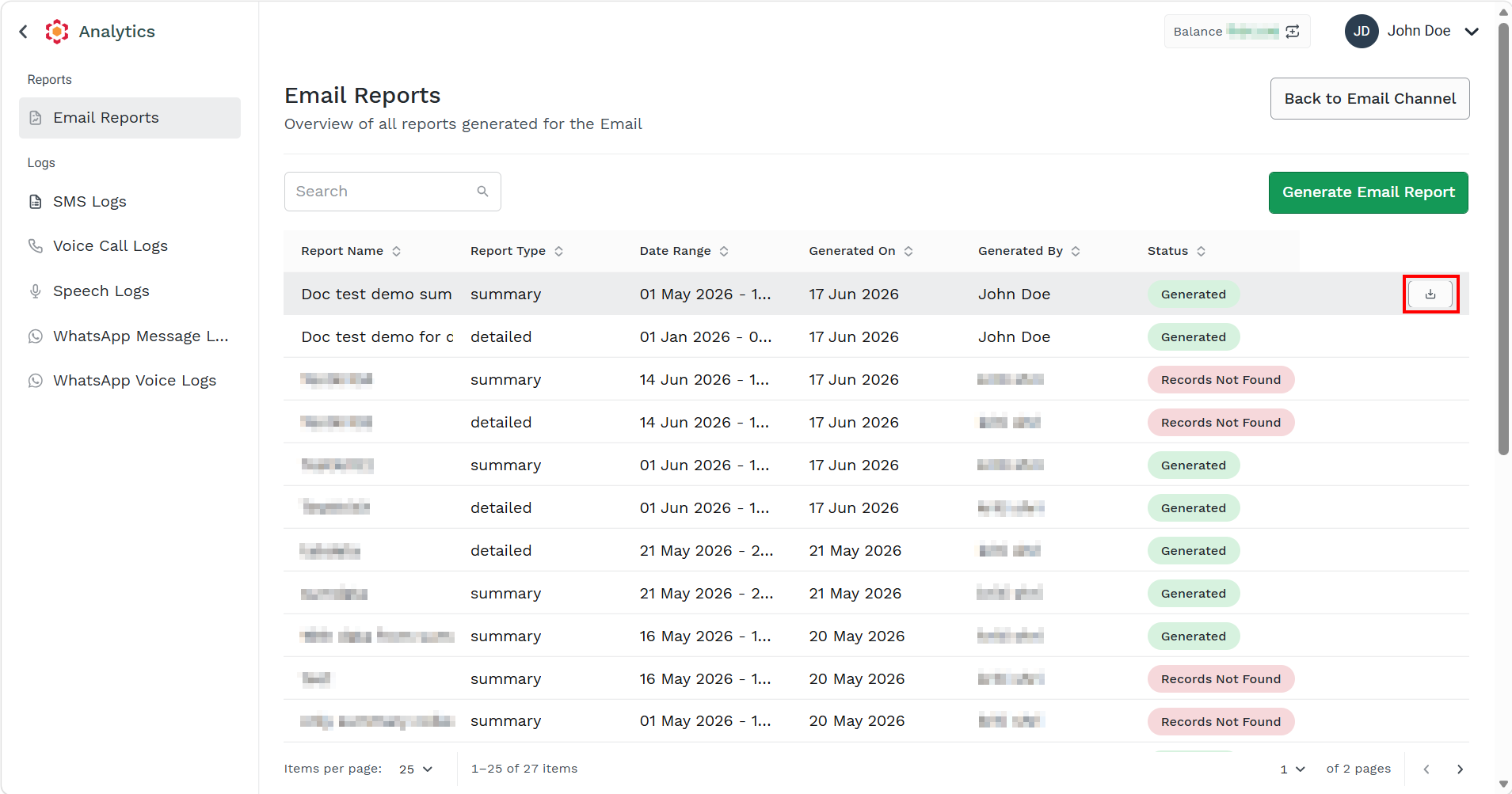
- Hover over the report with status as Generated and click the ellipsis icon. Click the Download button to download the report. The report gets downloaded in the mapped folder in .csv file.
Updated 2 months ago