

Send Test Message
You can send a test message to an approved number.
You can send the following test message to an approved number:
- Text
- Rich Multimedia
- Rich Card
- Rich Card Carousel
Note:
You cannot edit the test message. For rich multimedia, rich card, rich card carousel test messages, you will receive a placeholder for media and cards in the message.
To send a test message, perform the following steps:
- Follow the step 1 to step 6 of the Add a New Test Device topic.
The Test Device page appears.
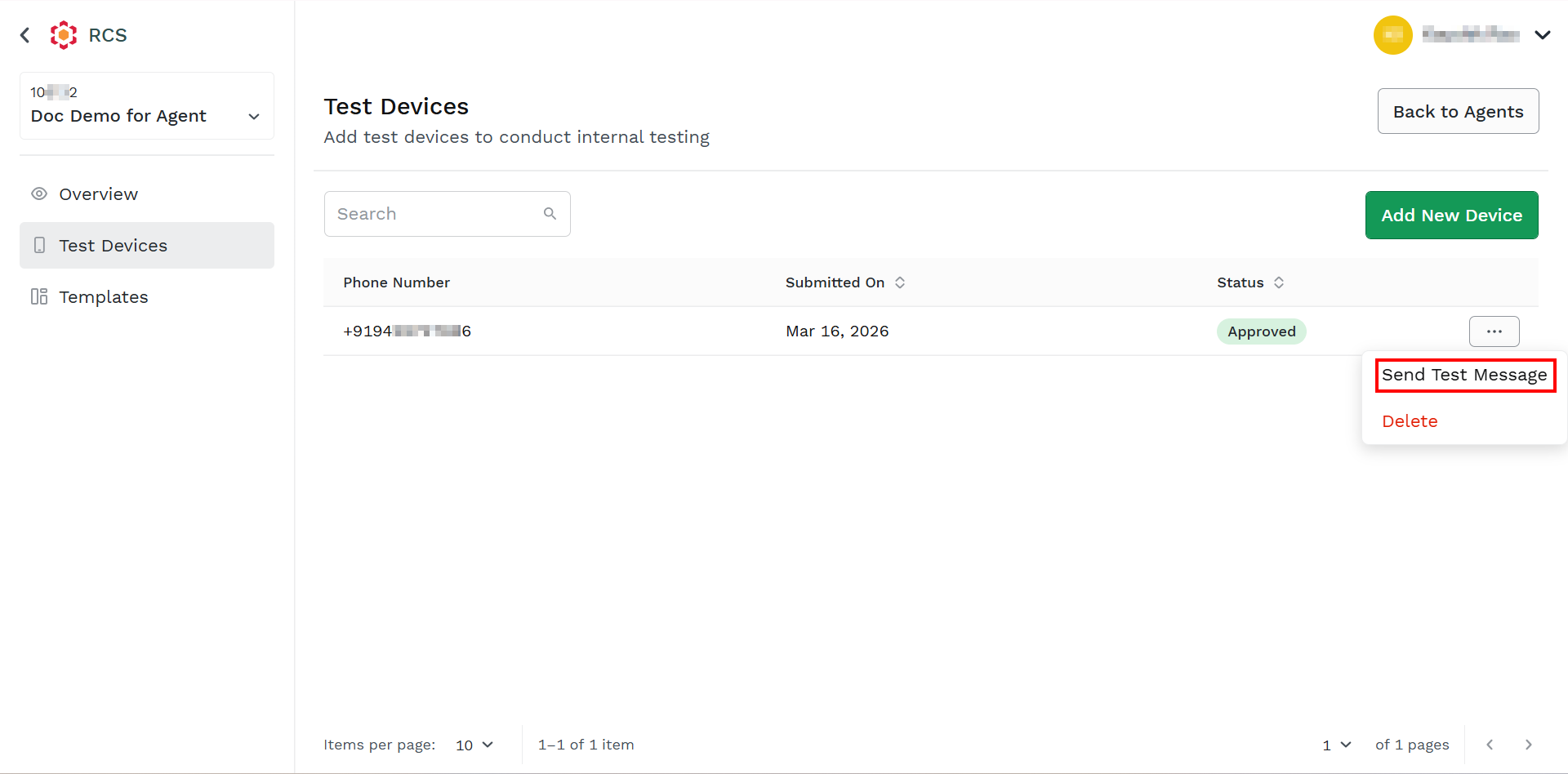
- Hover over the added device and then click the ellipsis icon. Select the Send Test Message option.
The Send Test Message appears in the right pane.
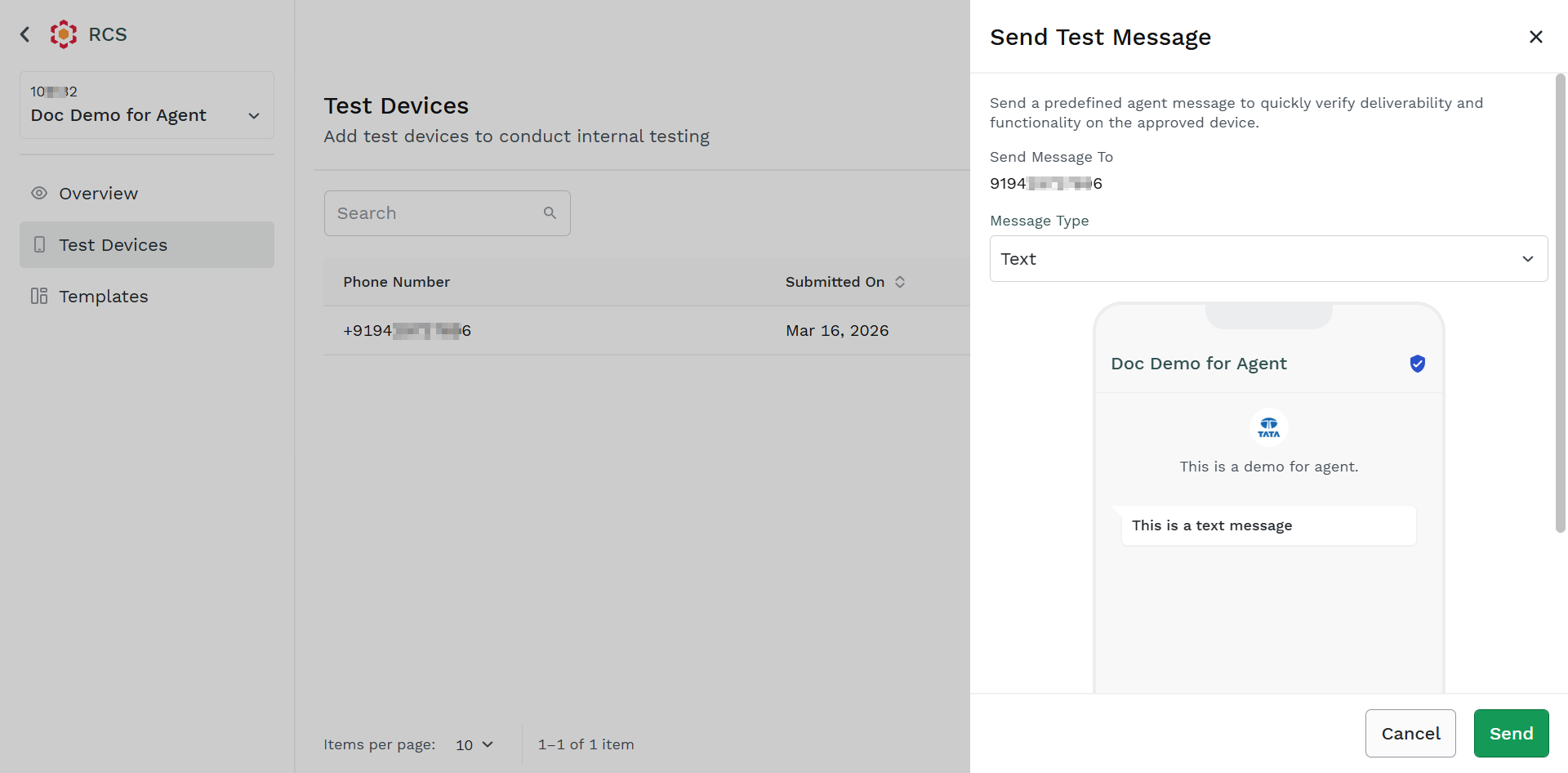
- From the Message Type, click the drop-down icon.
The list of supported message type appears.
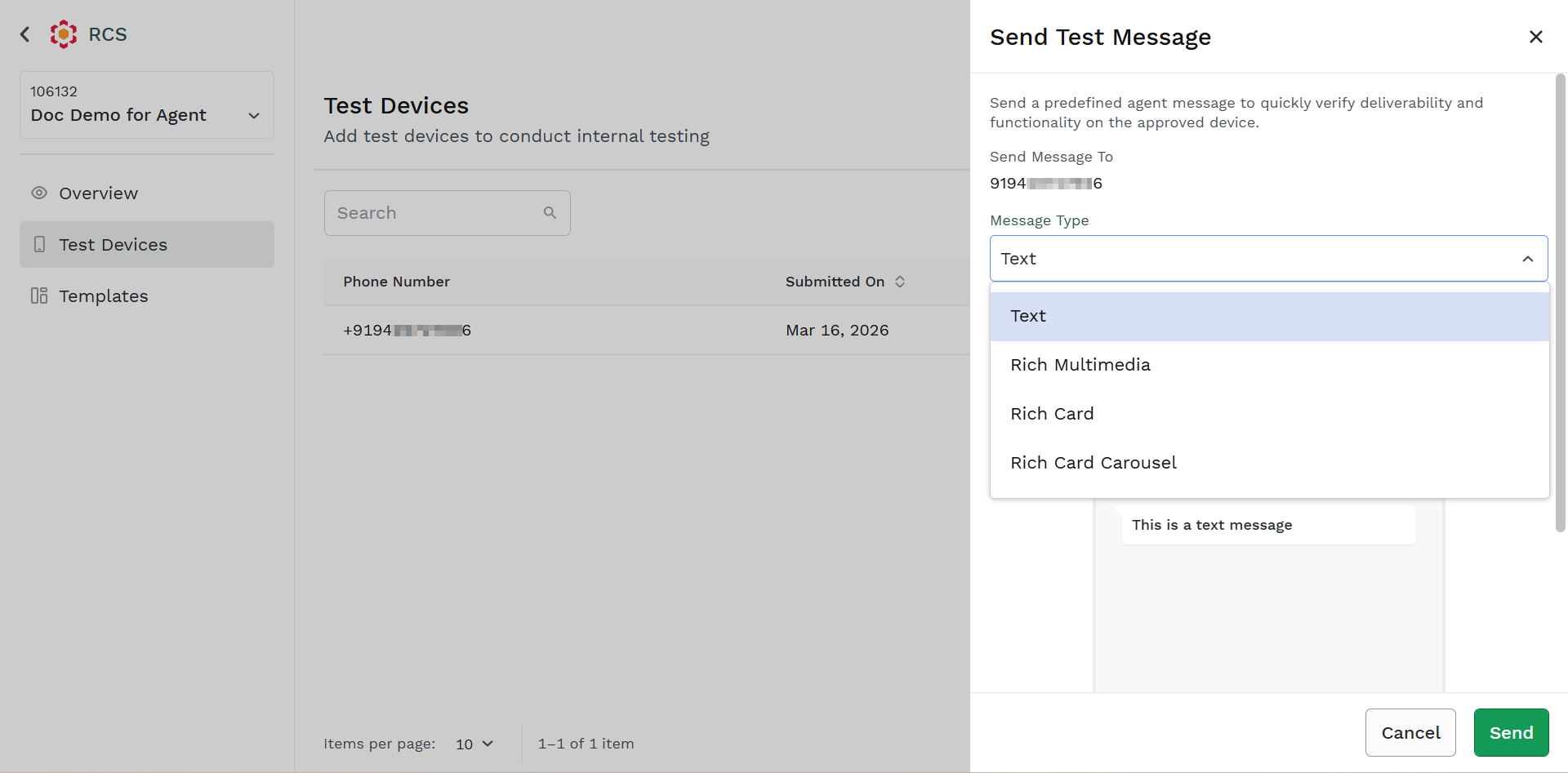
- Select from the following options:
- Text
- Rich Multimedia
- Rich Card
- Rich Card Carousel
- Click Send. The confirmation message will appear on the Kaleyra platform, and you will receive the test message on your approved number.
Updated about 1 month ago
Did this page help you?