

Add a New Brand
The Add a New Brand functionality allows you to add a new brand from the Brands dashboard.
Prerequisite
Before you create brands, you must be registered as an RCS for Business partner and have access to your Kaleyra account.
To add a new brand, perform the following steps:
- Sign in to your kaleyra platform. The Channels page appears.

- On the RCS widget, click Manage. The Brands page appears.
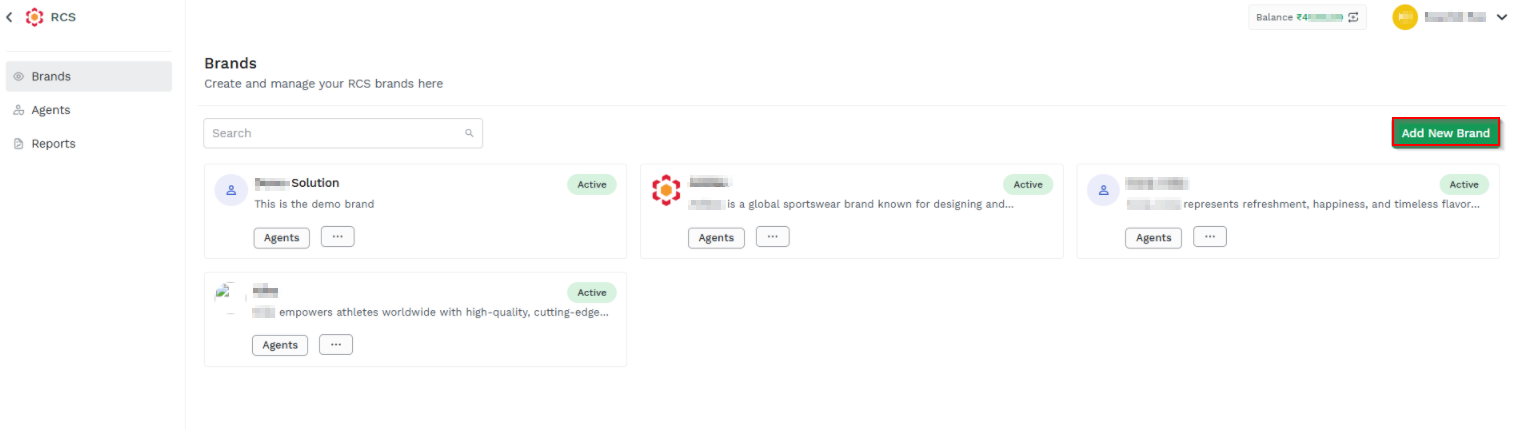
- Click Add New Brand. The New Brand pop-up page appears.
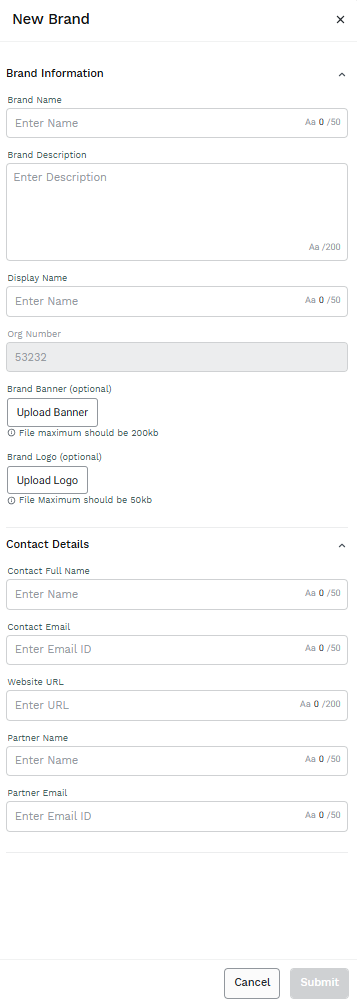
The New Brand pop-up page has the following sections:
Brand Information
The Brand Information section allows you to define the identity of your RCS brand. These details are used for brand verification and are visible to end-user in RCS conversations.
This section has the following fields:
- Brand Name - Enter the name of the brand or organization. This name is used for brand verification purposes. Maximum of 100-character length is supported.
- Brand Description - Enter the brief description of the brand, its products, or services. This helps reviewers and end users to understand the purpose of the brand.
- Display Name - Enter the name displayed to end user in RCS chats. This should be customer-friendly and recognizable. Maximum of 100-character length is supported.
- Org Number - The registration number of your organization in the RCS ecosystem. This field is disabled by default and cannot be edited.
- Brand Banner (optional) - Click Upload Banner to upload the banner image representing the brand. The maximum file size must be 200KB.
- Brand Logo(optional) - Click Upload Logo to upload the official logo of the brand. The maximum file size must be 50KB.
Contact Details
The Contact Details section allows you to add the contact details information of the brand, with the following fields.
- Contact Full Name - Enter the full name of the primary point of contact for the brand. Maximum of 200-character length is supported.
- Contact Email - Email address of the brand contact. This email is used for verification and important notifications from RCS ecosystem.
- Website URL - Enter the official website of the brand.
- Partner Name - Enter the name of the partner or service provider associated with managing or onboarding the brand. Maximum of 200-character length is supported.
- Partner Email - Enter the email address of the partner contact.
- After entering the fields forBrand Information and the Contact Details section.
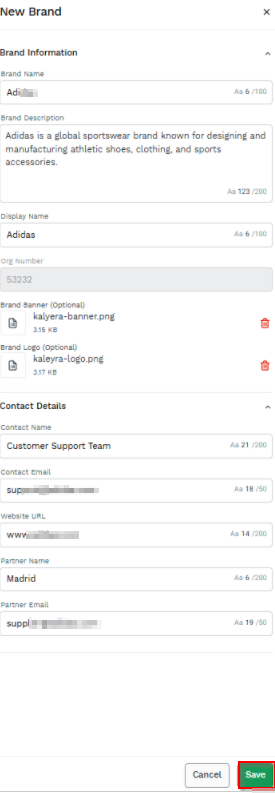
- Click Save. The Brand Created Successfully pop-up message appears.
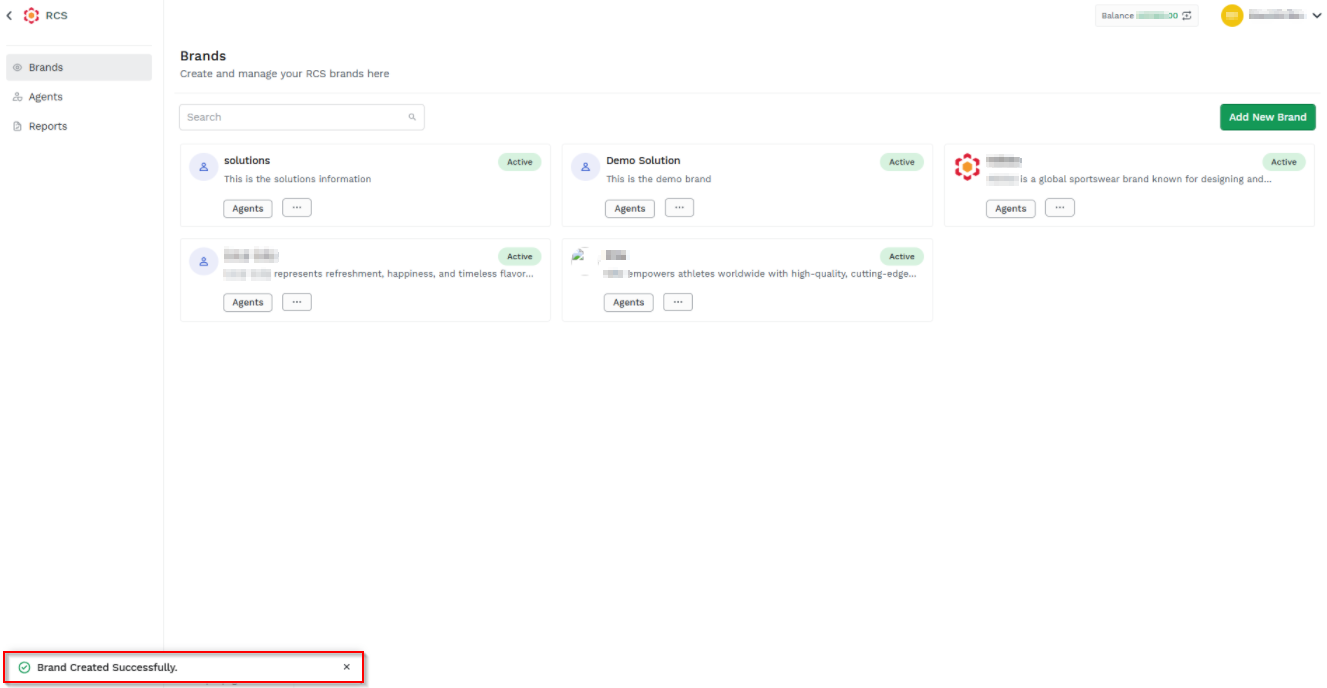
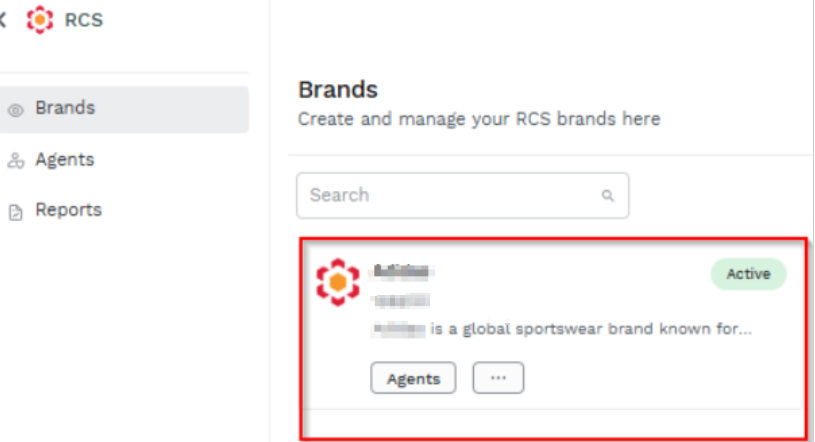
- The Brand created will be displayed on the Brands dashboard and once it is in Active Status, you can create RCS Agents under it.
Updated about 2 months ago
Did this page help you?